🎯 Learning Path:
- Complete REL-ID Complete Activation & Login Flow Codelab
- Complete REL-ID Additional Device Activation Flow Codelab
- Complete REL-ID Forgot Password Flow Codelab
- You are here → LDA Toggling Implementation
Welcome to the REL-ID LDA Toggling codelab! This tutorial builds upon your existing MFA implementation to add seamless authentication mode switching capabilities, allowing users to toggle between password and Local Device Authentication (LDA).
What You'll Build
In this codelab, you'll enhance your existing MFA application with:
- 🔐 LDA Management Screen: Interactive list of available authentication methods with toggle switches
- 🔄 Two-Way Authentication Switching: Enable switching from Password to LDA and LDA to Password
- 📱 Device Capability Detection: Automatic detection and display of supported authentication types
- 🎛️ Real-time Status Updates: Live feedback on authentication mode changes
- 🛡️ Secure Revalidation Flow: Password verification or consent prompts during mode switching
What You'll Learn
By completing this codelab, you'll master:
- Device Authentication Details API: Retrieving supported LDA types using
getDeviceAuthenticationDetails() - Authentication Mode Management: Implementing
manageDeviceAuthenticationModes()for toggling - Event-Driven Status Updates: Handling
onDeviceAuthManagementStatusfor real-time feedback - Challenge Mode Routing: Managing password verification and consent flows during toggling
- Type-Safe Implementation: Building robust Kotlin data classes for LDA data structures
- Production UI Patterns: Creating intuitive toggle interfaces with Jetpack Compose
Prerequisites
Before starting this codelab, ensure you have:
- ✅ Completed REL-ID MFA Codelab - All MFA screens and flows must be fully implemented
- ✅ Android Development Environment - Android Studio Hedgehog (2023.1.1) or later
- ✅ REL-ID SDK Integration - Latest Android SDK (AAR) with LDA toggling support
- ✅ Kotlin Knowledge - Understanding of Kotlin data classes and coroutines
- ✅ Device with Biometrics - Physical device or emulator with biometric authentication enrolled
Get the Code from GitHub
The code to get started can be found in a GitHub repository.
You can clone the repository using the following command:
git clone https://github.com/uniken-public/codelab-android.git
Navigate to the relid-MFA-lda-toggling folder in the repository you cloned earlier
Codelab Architecture Overview
This codelab extends your MFA application with four core LDA toggling components:
- LDA Data Models: Kotlin data classes for authentication capabilities and status events
- Service Layer Integration: API methods for retrieving and managing authentication modes
- Event Management: Event handlers for
onDeviceAuthManagementStatuscallback - LDA Toggling Screen: Interactive Jetpack Compose UI for displaying and toggling authentication methods
Before implementing LDA toggling functionality, let's understand the key SDK events, APIs, and workflows that power authentication mode switching.
LDA Toggling Overview
LDA Toggling enables users to seamlessly switch between authentication methods:
Toggling Type | Description | User Action |
Password → LDA | Switch from password to LDA | User enables LDA such as biometric authentication |
LDA → Password | Switch from LDA to password | User disables LDA |
Core LDA Toggling APIs
The REL-ID Android SDK provides these essential APIs for LDA management:
API Method | Purpose | Response Type |
Retrieve available LDA types and their configuration status | Sync response with authentication capabilities | |
Enable or disable specific LDA type | Sync response + async event | |
Receive status update after mode change | Async event callback |
LDA Toggling Event Flow
The authentication mode switching process follows this event-driven pattern:
LDA Toggling Screen → getDeviceAuthenticationDetails() API → Display Available LDA Types →
User Toggles Switch → manageDeviceAuthenticationModes() API →
[getPassword or getUserConsentForLDA Event] →
onDeviceAuthManagementStatus Event → UI Update with Status
Authentication Type Mappings
The SDK uses enum values for different authentication types:
Authentication Type | Enum Value | Platform | Description |
| 1 | Android | Fingerprint |
| 2 | Android | Face Recognition |
| 3 | Android | Pattern Authentication |
| 4 | Android | Biometric Authentication |
| 9 | Android | Biometric Authentication |
Challenge Modes in LDA Toggling
During LDA toggling, the SDK may trigger revalidation events with specific challenge modes:
Challenge Mode | Event Triggered | Purpose | User Action Required |
0 or 5 or 15 |
| Verify existing password before toggling | User enters current password |
14 |
| Set new password when disabling LDA | User creates new password |
16 |
| Get consent for LDA enrollment | User approves or denies the consent to setup LDA |
Response Structure Examples
getDeviceAuthenticationDetails Response:
// Kotlin data structure
RDNAStatus<Array<RDNADeviceAuthenticationDetails>> {
    result = arrayOf(
        RDNADeviceAuthenticationDetails(
            authenticationType = RDNA.RDNALDACapabilities.RDNA_LDA_SSKB_PASSWORD,
            isEnabled = true
        ),
        RDNADeviceAuthenticationDetails(
            authenticationType = RDNA.RDNALDACapabilities.RDNA_DEVICE_LDA,
            isEnabled = false
        )
    ),
    errorObj = RDNAError(
        longErrorCode = 0,
        shortErrorCode = 0,
        errorString = "Success"
    )
}
onDeviceAuthManagementStatus Response:
// Event data structure
DeviceAuthManagementStatusEventData(
    userID = "john.doe@example.com",
    isEnabled = true,
    ldaCapabilities = RDNA.RDNALDACapabilities.RDNA_LDA_SSKB_PASSWORD,
    status = RDNARequestStatus(
        statusCode = 100,
        statusMessage = "Success"
    ),
    error = RDNAError(
        longErrorCode = 0,
        shortErrorCode = 0,
        errorString = "Success"
    )
)
Let's implement the Kotlin data classes for LDA toggling data structures.
Add LDA Authentication Event Data
Add these data class definitions to your existing RDNAModels.kt file:
// app/src/main/java/com/yourapp/uniken/models/RDNAModels.kt (additions)

/**
 * Device Auth Management Status Event Data
 * Event triggered after manageDeviceAuthenticationModes call (async event)
 */
data class DeviceAuthManagementStatusEventData(
    val userID: String,
    val isEnabled: Boolean,                          // true = enabled (OpMode 1), false = disabled (OpMode 0)
    val ldaCapabilities: RDNA.RDNALDACapabilities?,  // Authentication type that was toggled
    val status: RDNA.RDNARequestStatus?,             // Request status (statusCode 100 = success)
    val error: RDNA.RDNAError?                       // Error structure (longErrorCode = 0 indicates success)
)
Data Model Architecture
These data models follow the established REL-ID SDK pattern:
Model Category | Purpose | Usage Pattern |
Event Data Classes | Structure event data from callbacks | Used in SharedFlow emissions and ViewModel state |
SDK Types | Direct use of SDK enum and data types | Used as properties within event data classes |
Now let's implement the LDA toggling APIs in your service layer following established REL-ID SDK patterns.
Add getDeviceAuthenticationDetails Method
Add this method to your RDNAService.kt:
// app/src/main/java/com/yourapp/uniken/services/RDNAService.kt (addition)

/**
 * Gets device authentication details
 *
 * This method retrieves the current authentication mode details and available authentication types.
 * The SDK returns the data directly in the sync response.
 *
 * @see https://developer.uniken.com/docs/android/getdeviceauthenticationdetails
 *
 * Response Validation Logic:
 * 1. Check errorObj.longErrorCode: 0 = success, > 0 = error
 * 2. Data is returned in the sync response
 * 3. No async event is triggered for this API
 *
 * @returns RDNAStatus<Array<RDNADeviceAuthenticationDetails>> that contains authentication details
 */
fun getDeviceAuthenticationDetails(): RDNAStatus<*> {
    Log.d(TAG, "getDeviceAuthenticationDetails() called")

    val status = rdna.deviceAuthenticationDetails

    if (status?.errorObj?.longErrorCode != 0) {
        Log.e(TAG, "getDeviceAuthenticationDetails error: ${status?.errorObj?.errorString}")
    } else {
        Log.d(TAG, "getDeviceAuthenticationDetails success")
    }

    return status
}
Add manageDeviceAuthenticationModes Method
Add this method after getDeviceAuthenticationDetails:
// app/src/main/java/com/yourapp/uniken/services/RDNAService.kt (continued addition)

/**
 * Manages device authentication modes (enables or disables LDA types)
 *
 * This method initiates the process of switching authentication modes.
 * The SDK may return data directly in the sync response or trigger async events.
 * The flow may also trigger getPassword or getUserConsentForLDA events based on the scenario.
 *
 * @see https://developer.uniken.com/docs/android/managedeviceauthenticationmodes
 *
 * Response Validation Logic:
 * 1. Check error.longErrorCode: 0 = success, > 0 = error
 * 2. Data may be returned in sync response or via onDeviceAuthManagementStatus event
 * 3. May trigger getPassword event for password verification (challenge modes: 0, 5, 14, 15)
 * 4. May trigger getUserConsentForLDA event for user consent (challenge mode: 16)
 * 5. Async events will be handled by event listeners
 *
 * @param isEnabled true to enable, false to disable the authentication type
 * @param ldaCapability The LDA type to be managed (enum value)
 * @returns RDNAError that indicates sync response status
 */
fun manageDeviceAuthenticationModes(isEnabled: Boolean, ldaCapability: RDNALDACapabilities): RDNAError {
    Log.d(TAG, "manageDeviceAuthenticationModes() called - isEnabled: $isEnabled, ldaCapability: ${ldaCapability.intValue}")

    val error = rdna.manageDeviceAuthenticationModes(isEnabled, ldaCapability)

    if (error.longErrorCode != 0) {
        Log.e(TAG, "manageDeviceAuthenticationModes sync error: ${error.errorString}")
    } else {
        Log.d(TAG, "manageDeviceAuthenticationModes sync success, may trigger challenge events or direct status update")
    }

    return error
}
Service Implementation Pattern
Both methods follow the established REL-ID SDK service pattern:
Pattern Element | Implementation Detail |
Direct SDK Call | Calls SDK method directly without coroutine wrapping |
Sync Response | Returns data immediately via SDK property or method call |
Error Validation | Checks |
Logging Strategy | Comprehensive logging for debugging |
Event Triggering | Async events handled separately via RDNACallbackManager |
Now let's enhance your callback manager to handle the onDeviceAuthManagementStatus async event.
Add Event Flow Declaration
Add the event flow in RDNACallbackManager.kt:
// app/src/main/java/com/yourapp/uniken/services/RDNACallbackManager.kt (additions)

// Add to event flow declarations
private val _deviceAuthManagementStatusEvent = MutableSharedFlow<DeviceAuthManagementStatusEventData>()
val deviceAuthManagementStatusEvent: SharedFlow<DeviceAuthManagementStatusEventData> = _deviceAuthManagementStatusEvent.asSharedFlow()
Implement Callback Method
Add the callback method implementation:
// app/src/main/java/com/yourapp/uniken/services/RDNACallbackManager.kt (continued additions)

/**
 * Handles device auth management status callback
 * @param userId User ID
 * @param enabled true = enabled (OpMode 1), false = disabled (OpMode 0)
 * @param capabilities The LDA type that was toggled
 * @param status Request status (statusCode 100 = success)
 * @param error Error structure (longErrorCode = 0 indicates success)
 */
override fun onDeviceAuthManagementStatus(
    userId: String?,
    enabled: Boolean,
    capabilities: RDNA.RDNALDACapabilities?,
    status: RDNA.RDNARequestStatus?,
    error: RDNA.RDNAError?
) {
    Log.d(TAG, "onDeviceAuthManagementStatus callback received - userId: $userId, enabled: $enabled, " +
            "ldaType: ${capabilities?.intValue}, statusCode: ${status?.statusCode}, " +
            "errorCode: ${error?.longErrorCode}")

    scope.launch {
        _deviceAuthManagementStatusEvent.emit(
            DeviceAuthManagementStatusEventData(
                userID = userId ?: "",
                isEnabled = enabled,
                ldaCapabilities = capabilities,
                status = status,
                error = error
            )
        )
    }
}
Event Flow Architecture
The event management follows this pattern:
Native SDK → RDNACallbacks.onDeviceAuthManagementStatus →
SharedFlow Emission → ViewModel Collection → UI Update
Now let's create the ViewModel for managing LDA toggling state and business logic.
Create UI State Model
Define the UI state data class:
// app/src/main/java/com/yourapp/tutorial/viewmodels/LDATogglingViewModel.kt (new file)

/**
 * Authentication Type Name Mapping
 * Maps SDK enum int values to human-readable names
 */
val AUTH_TYPE_NAMES = mapOf(
    0 to "None",
    1 to "Biometric Authentication",  // RDNA_LDA_FINGERPRINT
    2 to "Face ID",                    // RDNA_LDA_FACE
    3 to "Pattern Authentication",     // RDNA_LDA_PATTERN
    4 to "Biometric Authentication",  // RDNA_LDA_SSKB_PASSWORD
    9 to "Biometric Authentication"   // RDNA_DEVICE_LDA
)

data class LDATogglingUiState(
    val isLoading: Boolean = true,
    val authCapabilities: List<AuthCapabilityItem> = emptyList(),
    val error: String? = null,
    val processingAuthType: Int? = null,
    // Dialog state for authentication challenges
    val showAuthDialog: Boolean = false,
    val dialogChallengeMode: Int? = null,
    val dialogUserID: String = "",
    val dialogAttemptsLeft: Int = 3,
    val dialogChallengeInfo: List<*>? = null,
    val dialogPasswordPolicy: String? = null,
    val dialogLdaAuthType: Int? = null,
    val dialogError: String? = null,
    val dialogErrorTimestamp: Long = 0L,
    // Alert dialog state
    val alertDialog: AlertDialogState? = null
)

data class AuthCapabilityItem(
    val authenticationType: Int,
    val authTypeName: String,
    val isConfigured: Boolean,
    val isProcessing: Boolean = false
)

data class AlertDialogState(
    val title: String,
    val message: String
)
Initialize ViewModel with Event Handlers
Set up the ViewModel class with event subscriptions:
// app/src/main/java/com/yourapp/tutorial/viewmodels/LDATogglingViewModel.kt (continued)

import androidx.lifecycle.ViewModel
import androidx.lifecycle.viewModelScope
import kotlinx.coroutines.flow.*
import kotlinx.coroutines.launch

class LDATogglingViewModel(
    private val rdnaService: RDNAService,
    private val callbackManager: RDNACallbackManager
) : ViewModel() {

    private val _uiState = MutableStateFlow(LDATogglingUiState())
    val uiState: StateFlow<LDATogglingUiState> = _uiState.asStateFlow()

    companion object {
        private const val TAG = "LDATogglingViewModel"
    }

    init {
        setupEventHandlers()
        loadDeviceAuthDetails()
    }

    private fun setupEventHandlers() {
        Log.d(TAG, "Setting up event handlers for LDA toggling")

        // Handle deviceAuthManagementStatus event
        viewModelScope.launch {
            callbackManager.deviceAuthManagementStatusEvent.collect { data ->
                Log.d(TAG, "deviceAuthManagementStatus received - isEnabled: ${data.isEnabled}")

                // Hide dialog
                _uiState.update { it.copy(showAuthDialog = false) }

                // Check error FIRST, then status
                if (data.error?.longErrorCode != 0) {
                    val errorMessage = data.error?.errorString ?: "Operation failed"
                    _uiState.update {
                        it.copy(
                            alertDialog = AlertDialogState(
                                title = "Error",
                                message = errorMessage
                            ),
                            processingAuthType = null
                        )
                    }
                } else if (data.status?.statusCode == 100) {
                    // Success case
                    val authTypeName = AUTH_TYPE_NAMES[data.ldaCapabilities?.intValue] ?: "Authentication"
                    val action = if (data.isEnabled) "enabled" else "disabled"

                    _uiState.update {
                        it.copy(
                            alertDialog = AlertDialogState(
                                title = "Success",
                                message = "$authTypeName has been $action successfully"
                            )
                        )
                    }

                    // Refresh device auth details
                    loadDeviceAuthDetails()
                }
            }
        }

        // Handle getPassword event (challengeModes 5, 14, 15)
        viewModelScope.launch {
            callbackManager.getPasswordEvent.collect { data ->
                val challengeMode = data.mode?.intValue ?: 0

                if (challengeMode in listOf(5, 14, 15)) {
                    _uiState.update {
                        it.copy(
                            showAuthDialog = true,
                            dialogChallengeMode = challengeMode,
                            dialogUserID = data.userId ?: "",
                            dialogAttemptsLeft = data.attemptsLeft
                        )
                    }
                }
            }
        }

        // Handle getUserConsentForLDA event (challengeMode 16)
        viewModelScope.launch {
            callbackManager.getUserConsentForLDAEvent.collect { data ->
                val challengeMode = data.mode?.intValue ?: 16

                if (challengeMode == 16) {
                    _uiState.update {
                        it.copy(
                            showAuthDialog = true,
                            dialogChallengeMode = challengeMode,
                            dialogUserID = data.userId ?: "",
                            dialogLdaAuthType = data.authenticationType?.intValue
                        )
                    }
                }
            }
        }
    }
}
Load Device Auth Details
Implement the method to load authentication capabilities:
// app/src/main/java/com/yourapp/tutorial/viewmodels/LDATogglingViewModel.kt (continued)

fun loadDeviceAuthDetails() {
    _uiState.update { it.copy(isLoading = true, error = null) }

    viewModelScope.launch {
        val status = rdnaService.getDeviceAuthenticationDetails()

        if (status?.errorObj?.longErrorCode != 0) {
            // Error
            val errorMessage = status?.errorObj?.errorString ?: "Failed to load authentication details"
            _uiState.update {
                it.copy(
                    isLoading = false,
                    error = errorMessage,
                    processingAuthType = null
                )
            }
        } else {
            // Success - Parse device authentication details
            val capabilities = mutableListOf<AuthCapabilityItem>()

            if (status?.result != null && status.result is Array<*>) {
                val detailsArray = status.result as Array<*>

                for (detail in detailsArray) {
                    if (detail is RDNA.RDNADeviceAuthenticationDetails) {
                        val authType = detail.authenticationType?.intValue ?: 0
                        val isEnabled = detail.isEnabled
                        val authTypeName = AUTH_TYPE_NAMES[authType] ?: "Unknown ($authType)"

                        capabilities.add(
                            AuthCapabilityItem(
                                authenticationType = authType,
                                authTypeName = authTypeName,
                                isConfigured = isEnabled,
                                isProcessing = false
                            )
                        )
                    }
                }
            }

            _uiState.update {
                it.copy(
                    isLoading = false,
                    authCapabilities = capabilities,
                    processingAuthType = null
                )
            }
        }
    }
}
Toggle Auth Mode
Implement the toggle handler:
// app/src/main/java/com/yourapp/tutorial/viewmodels/LDATogglingViewModel.kt (continued)

fun toggleAuthMode(authType: Int, desiredState: Boolean) {
    // Prevent multiple simultaneous operations
    if (_uiState.value.processingAuthType != null) {
        Log.d(TAG, "Another operation is in progress, ignoring toggle")
        return
    }

    _uiState.update { it.copy(processingAuthType = authType) }

    viewModelScope.launch {
        val isEnabled = desiredState
        val ldaCapability = RDNA.RDNALDACapabilities.values().find { it.intValue == authType }

        if (ldaCapability == null) {
            Log.e(TAG, "Invalid authentication type: $authType")
            _uiState.update {
                it.copy(
                    error = "Invalid authentication type",
                    processingAuthType = null
                )
            }
            return@launch
        }

        Log.d(TAG, "Calling manageDeviceAuthenticationModes - isEnabled: $isEnabled, ldaCapability: ${ldaCapability.intValue}")
        val error = rdnaService.manageDeviceAuthenticationModes(isEnabled, ldaCapability)

        if (error.longErrorCode != 0) {
            // Sync error
            Log.e(TAG, "manageDeviceAuthenticationModes sync error: ${error.errorString}")
            _uiState.update {
                it.copy(
                    error = error.errorString,
                    processingAuthType = null
                )
            }
        }
        // Success - async events will follow (or manual trigger from service)
    }
}

fun dismissAlert() {
    _uiState.update { it.copy(alertDialog = null) }
}

fun dismissAuthDialog() {
    _uiState.update { it.copy(showAuthDialog = false) }
}
ViewModel Pattern Summary
The ViewModel architecture follows these patterns:
Pattern Element | Implementation Detail |
StateFlow | Single source of truth for UI state |
Event Collection | Coroutines collect SharedFlow events from callback manager |
Immutable Updates | State updated via |
Loading States | Track loading, error, and processing states separately |
Dialog Management | Challenge dialogs managed within ViewModel state |
Now let's create the main LDA Toggling screen with Jetpack Compose.
Create Screen Composable
Define the main screen component:
// app/src/main/java/com/yourapp/tutorial/screens/ldatoggling/LDATogglingScreen.kt (new file)

import androidx.compose.foundation.layout.*
import androidx.compose.foundation.lazy.LazyColumn
import androidx.compose.foundation.lazy.items
import androidx.compose.foundation.shape.RoundedCornerShape
import androidx.compose.material3.*
import androidx.compose.runtime.*
import androidx.compose.ui.Alignment
import androidx.compose.ui.Modifier
import androidx.compose.ui.res.colorResource
import androidx.compose.ui.text.font.FontWeight
import androidx.compose.ui.unit.dp
import androidx.compose.ui.unit.sp
import androidx.lifecycle.compose.collectAsStateWithLifecycle

@Composable
fun LDATogglingScreen(
    viewModel: LDATogglingViewModel,
    onMenuClick: () -> Unit
) {
    val uiState by viewModel.uiState.collectAsStateWithLifecycle()

    Scaffold(
        containerColor = PageBackground,
        topBar = {
            LDATogglingHeader(
                onMenuClick = onMenuClick,
                onRefreshClick = { viewModel.loadDeviceAuthDetails() }
            )
        }
    ) { padding ->
        Box(modifier = Modifier.fillMaxSize().padding(padding)) {
            when {
                uiState.isLoading -> LoadingState()
                uiState.error != null -> ErrorState(
                    error = uiState.error!!,
                    onRetry = { viewModel.loadDeviceAuthDetails() }
                )
                uiState.authCapabilities.isEmpty() -> EmptyState(
                    onRefresh = { viewModel.loadDeviceAuthDetails() }
                )
                else -> AuthCapabilitiesList(
                    capabilities = uiState.authCapabilities,
                    processingAuthType = uiState.processingAuthType,
                    onToggle = { authType, isEnabled ->
                        viewModel.toggleAuthMode(authType, isEnabled)
                    }
                )
            }
        }
    }

    // Auth Dialog
    if (uiState.showAuthDialog && uiState.dialogChallengeMode != null) {
        LDAToggleAuthDialog(
            challengeMode = uiState.dialogChallengeMode!!,
            userID = uiState.dialogUserID,
            attemptsLeft = uiState.dialogAttemptsLeft,
            onPasswordSubmit = { password -> viewModel.submitPassword(password) },
            onPasswordCreateSubmit = { password -> viewModel.submitPasswordCreate(password) },
            onConsentSubmit = { approved -> viewModel.submitConsent(approved) },
            onDismiss = { viewModel.dismissAuthDialog() }
        )
    }

    // Alert Dialog
    uiState.alertDialog?.let { dialog ->
        AlertDialog(
            onDismissRequest = { viewModel.dismissAlert() },
            title = { Text(text = dialog.title) },
            text = { Text(text = dialog.message) },
            confirmButton = {
                TextButton(onClick = { viewModel.dismissAlert() }) {
                    Text("OK")
                }
            }
        )
    }
}
Create Header Component
Implement the header with menu and refresh buttons:
// app/src/main/java/com/yourapp/tutorial/screens/ldatoggling/LDATogglingScreen.kt (continued)

@Composable
private fun LDATogglingHeader(
    onMenuClick: () -> Unit,
    onRefreshClick: () -> Unit
) {
    Surface(
        color = Color.White,
        shadowElevation = 2.dp
    ) {
        Row(
            modifier = Modifier
                .fillMaxWidth()
                .padding(horizontal = 16.dp, vertical = 12.dp),
            horizontalArrangement = Arrangement.SpaceBetween,
            verticalAlignment = Alignment.CenterVertically
        ) {
            // Menu button
            IconButton(onClick = onMenuClick) {
                Text(
                    text = "☰",
                    fontSize = 20.sp,
                    fontWeight = FontWeight.Bold
                )
            }

            // Title
            Text(
                text = "LDA Toggling",
                fontSize = 18.sp,
                fontWeight = FontWeight.Bold,
                modifier = Modifier.weight(1f).padding(start = 16.dp)
            )

            // Refresh button
            IconButton(onClick = onRefreshClick) {
                Text(text = "🔄", fontSize = 18.sp)
            }
        }
    }
}
Create List Component
Implement the list of authentication capabilities:
// app/src/main/java/com/yourapp/tutorial/screens/ldatoggling/LDATogglingScreen.kt (continued)

@Composable
private fun AuthCapabilitiesList(
    capabilities: List<AuthCapabilityItem>,
    processingAuthType: Int?,
    onToggle: (Int, Boolean) -> Unit
) {
    LazyColumn(
        modifier = Modifier.fillMaxSize(),
        contentPadding = PaddingValues(16.dp),
        verticalArrangement = Arrangement.spacedBy(12.dp)
    ) {
        items(capabilities) { capability ->
            AuthCapabilityCard(
                capability = capability,
                isProcessing = processingAuthType == capability.authenticationType,
                onToggle = { isEnabled -> onToggle(capability.authenticationType, isEnabled) }
            )
        }
    }
}

@Composable
private fun AuthCapabilityCard(
    capability: AuthCapabilityItem,
    isProcessing: Boolean,
    onToggle: (Boolean) -> Unit
) {
    Card(
        modifier = Modifier.fillMaxWidth(),
        colors = CardDefaults.cardColors(containerColor = CardBackground),
        elevation = CardDefaults.cardElevation(defaultElevation = 2.dp),
        shape = RoundedCornerShape(8.dp)
    ) {
        Row(
            modifier = Modifier.fillMaxWidth().padding(16.dp),
            horizontalArrangement = Arrangement.SpaceBetween,
            verticalAlignment = Alignment.CenterVertically
        ) {
            // Auth type info
            Column(modifier = Modifier.weight(1f)) {
                Text(
                    text = capability.authTypeName,
                    fontSize = 16.sp,
                    fontWeight = FontWeight.Bold,
                    color = colorResource(R.color.lda_dark_text)
                )
                Text(
                    text = "Type ID: ${capability.authenticationType}",
                    fontSize = 12.sp,
                    color = colorResource(R.color.lda_medium_text)
                )
                Text(
                    text = "Status: ${if (capability.isConfigured) "Enabled" else "Disabled"}",
                    fontSize = 12.sp,
                    color = if (capability.isConfigured)
                        colorResource(R.color.lda_success)
                    else
                        colorResource(R.color.lda_medium_text)
                )
            }

            // Toggle switch or loading indicator
            if (isProcessing) {
                CircularProgressIndicator(
                    modifier = Modifier.size(24.dp),
                    strokeWidth = 2.dp,
                    color = colorResource(R.color.lda_primary)
                )
            } else {
                Switch(
                    checked = capability.isConfigured,
                    onCheckedChange = onToggle,
                    colors = SwitchDefaults.colors(
                        checkedThumbColor = CardBackground,
                        checkedTrackColor = colorResource(R.color.lda_primary)
                    )
                )
            }
        }
    }
}
Create State Components
Implement loading, error, and empty states:
// app/src/main/java/com/yourapp/tutorial/screens/ldatoggling/LDATogglingScreen.kt (continued)

@Composable
private fun LoadingState() {
    Box(
        modifier = Modifier.fillMaxSize(),
        contentAlignment = Alignment.Center
    ) {
        Column(horizontalAlignment = Alignment.CenterHorizontally) {
            CircularProgressIndicator()
            Spacer(modifier = Modifier.height(16.dp))
            Text(
                text = "Loading authentication details...",
                fontSize = 16.sp,
                color = colorResource(R.color.lda_medium_text)
            )
        }
    }
}

@Composable
private fun ErrorState(error: String, onRetry: () -> Unit) {
    Box(
        modifier = Modifier.fillMaxSize().padding(20.dp),
        contentAlignment = Alignment.Center
    ) {
        Column(horizontalAlignment = Alignment.CenterHorizontally) {
            Text(
                text = error,
                fontSize = 16.sp,
                color = colorResource(R.color.lda_error),
                modifier = Modifier.padding(bottom = 16.dp)
            )
            Button(onClick = onRetry) {
                Text("Retry")
            }
        }
    }
}

@Composable
private fun EmptyState(onRefresh: () -> Unit) {
    Box(
        modifier = Modifier.fillMaxSize().padding(40.dp),
        contentAlignment = Alignment.Center
    ) {
        Column(horizontalAlignment = Alignment.CenterHorizontally) {
            Text(text = "🔐", fontSize = 64.sp)
            Spacer(modifier = Modifier.height(16.dp))
            Text(
                text = "No LDA Available",
                fontSize = 20.sp,
                fontWeight = FontWeight.Bold,
                color = colorResource(R.color.lda_dark_text)
            )
            Spacer(modifier = Modifier.height(8.dp))
            Text(
                text = "No Local Device Authentication (LDA) capabilities are available for this device.",
                fontSize = 16.sp,
                color = colorResource(R.color.lda_medium_text)
            )
            Spacer(modifier = Modifier.height(24.dp))
            Button(onClick = onRefresh) {
                Text("🔄 Refresh")
            }
        }
    }
}
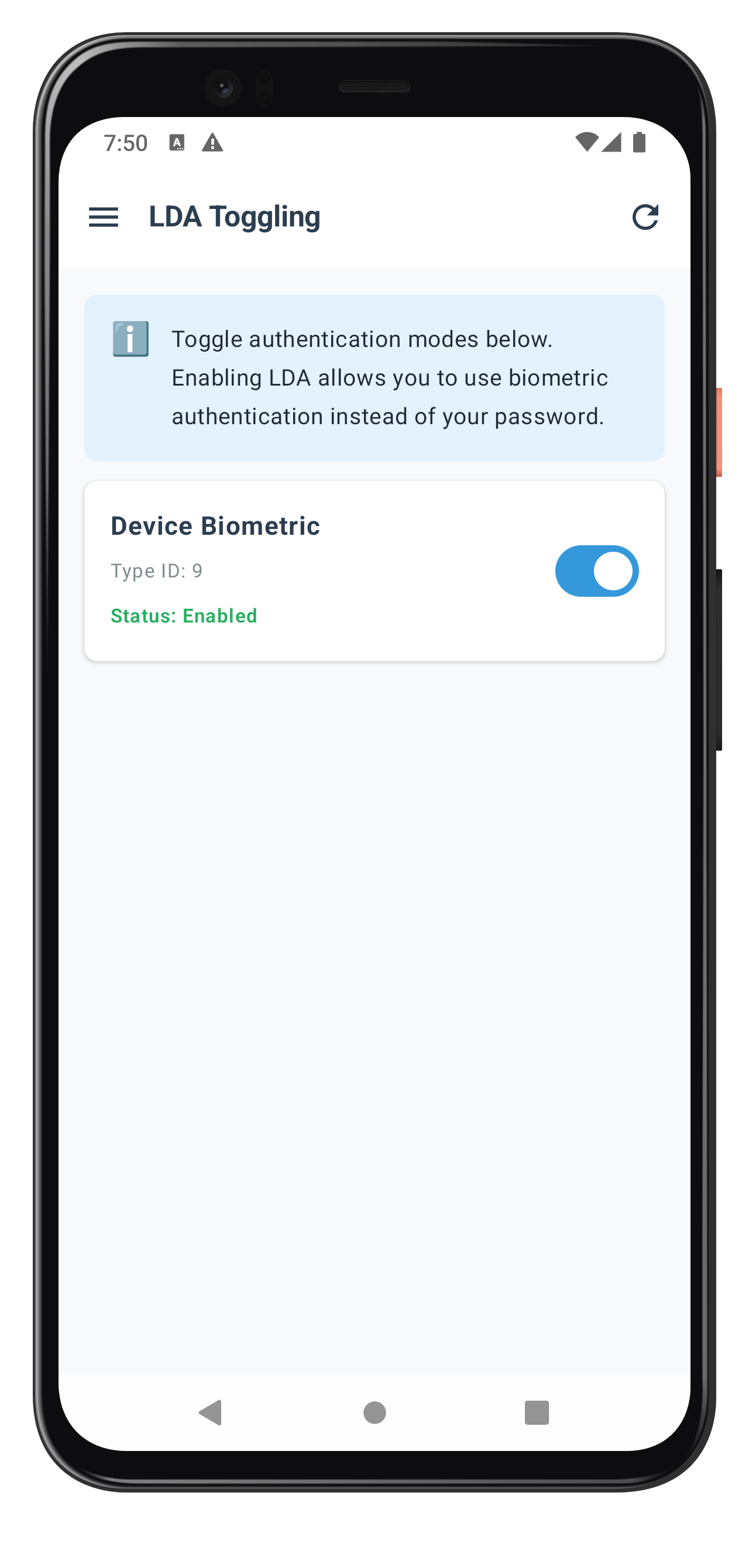
The following image showcases the LDA Toggling screen from the sample application:
Create a unified dialog component to handle all authentication challenges during LDA toggling. This single component manages password verification, password creation, and LDA consent flows.
Dialog Mode Architecture
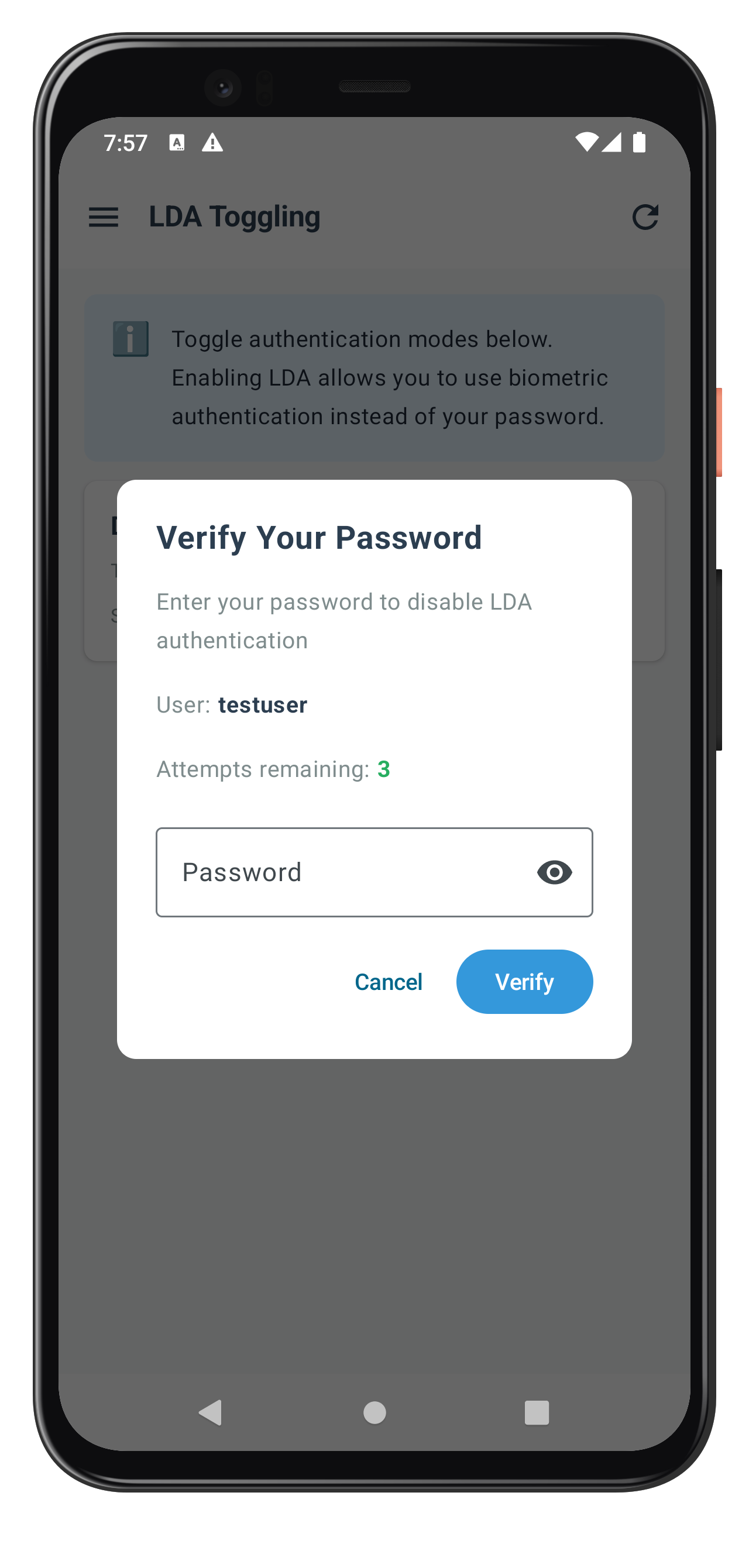
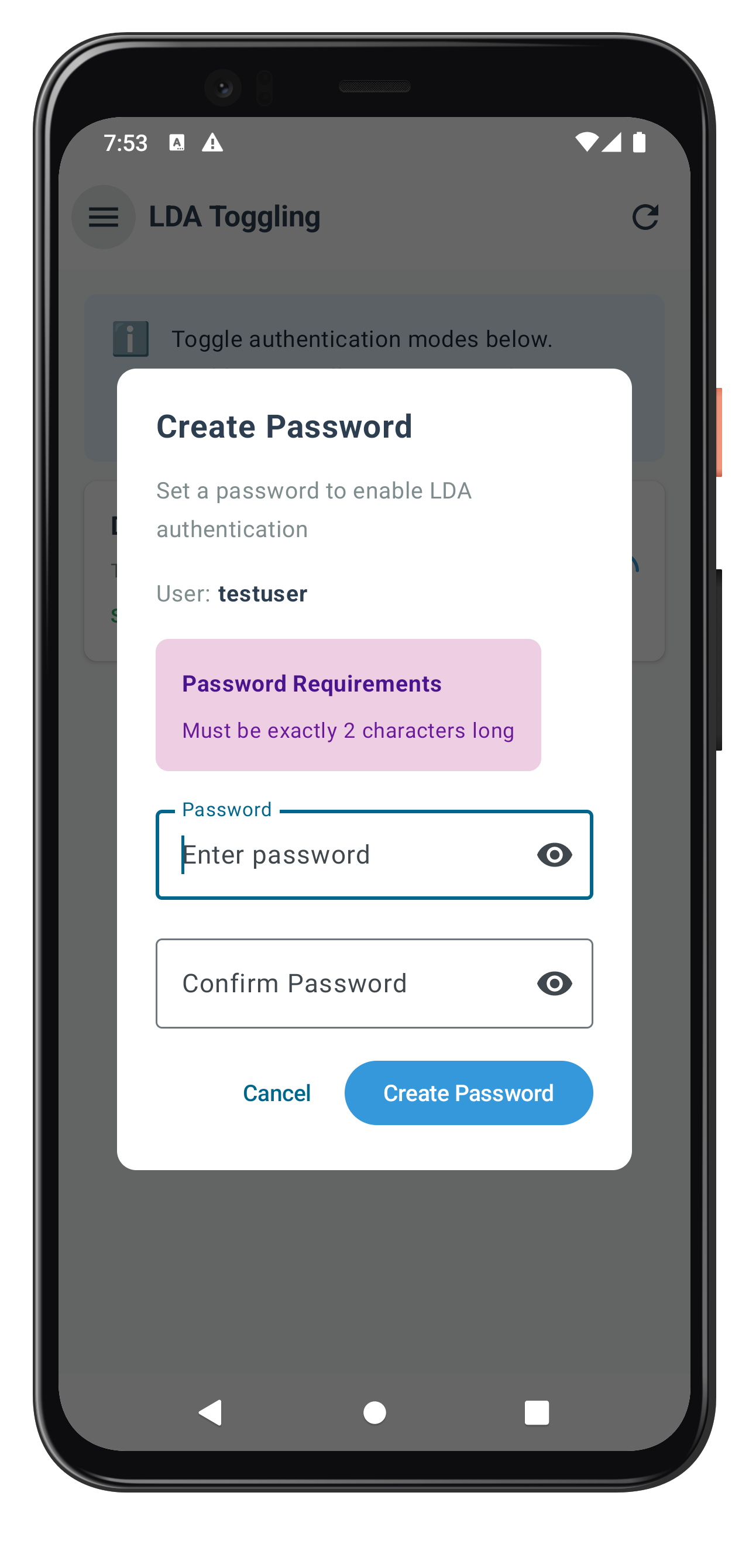
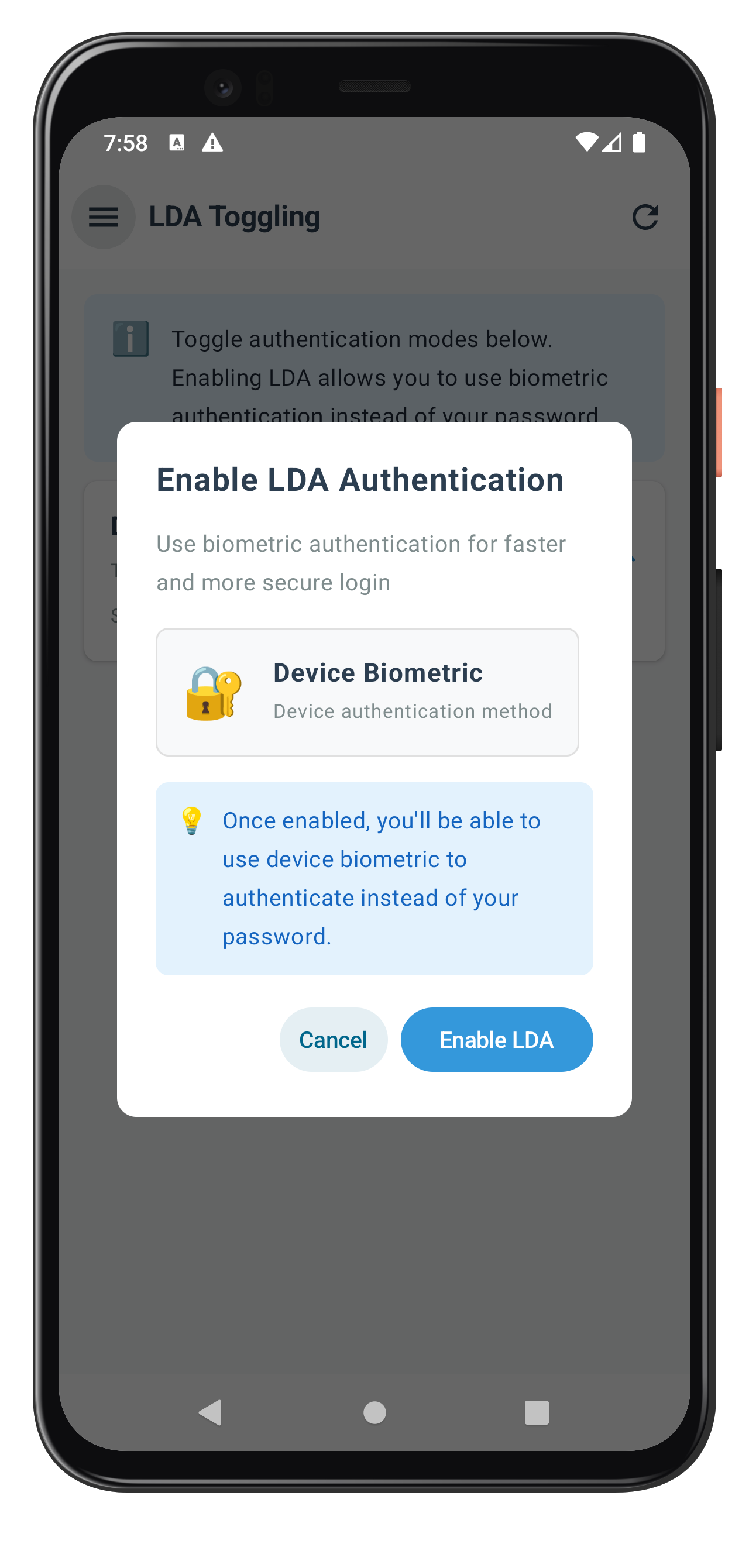
The auth dialog handles three distinct challenge modes:
Challenge Mode | Dialog Mode | Purpose | UI Elements |
5, 15 | PASSWORD | Verify existing password | Single password field, attempts counter |
14 | PASSWORD_CREATE | Create new password | Two password fields, policy display |
16 | CONSENT | Get LDA consent | Auth type info, consent buttons |
Create Dialog Mode Enum
Define the dialog modes:
// app/src/main/java/com/yourapp/tutorial/screens/ldatoggling/LDAToggleAuthDialog.kt (new file)

/**
 * Dialog Mode enum
 * Maps challenge modes to UI presentation modes
 */
enum class LDAToggleDialogMode {
    PASSWORD,         // ChallengeMode 5, 15 - Password verification
    PASSWORD_CREATE,  // ChallengeMode 14 - Password creation
    CONSENT          // ChallengeMode 16 - LDA consent
}

/**
 * Authentication Type Mapping (same as LDATogglingScreen)
 */
private val AUTH_TYPE_NAMES = mapOf(
    0 to "None",
    1 to "Biometric Authentication",
    2 to "Face ID",
    3 to "Pattern Authentication",
    4 to "Biometric Authentication",
    9 to "Device Biometric"
)
Implement Main Dialog Component
Create the unified auth dialog composable:
// app/src/main/java/com/yourapp/tutorial/screens/ldatoggling/LDAToggleAuthDialog.kt (continued)

import androidx.compose.foundation.layout.*
import androidx.compose.foundation.rememberScrollState
import androidx.compose.foundation.shape.RoundedCornerShape
import androidx.compose.foundation.text.KeyboardActions
import androidx.compose.foundation.text.KeyboardOptions
import androidx.compose.foundation.verticalScroll
import androidx.compose.material.icons.Icons
import androidx.compose.material.icons.filled.Visibility
import androidx.compose.material.icons.filled.VisibilityOff
import androidx.compose.material3.*
import androidx.compose.runtime.*
import androidx.compose.ui.Alignment
import androidx.compose.ui.Modifier
import androidx.compose.ui.focus.FocusRequester
import androidx.compose.ui.focus.focusRequester
import androidx.compose.ui.graphics.Color
import androidx.compose.ui.platform.LocalSoftwareKeyboardController
import androidx.compose.ui.text.font.FontWeight
import androidx.compose.ui.text.input.ImeAction
import androidx.compose.ui.text.input.KeyboardType
import androidx.compose.ui.text.input.PasswordVisualTransformation
import androidx.compose.ui.text.input.VisualTransformation
import androidx.compose.ui.unit.dp
import androidx.compose.ui.unit.sp
import androidx.compose.ui.window.Dialog

@Composable
fun LDAToggleAuthDialog(
    challengeMode: Int,
    userID: String,
    attemptsLeft: Int,
    passwordPolicyJson: String? = null,  // Password policy JSON (for mode 14)
    ldaAuthType: Int? = null,
    onPasswordSubmit: (String) -> Unit,
    onPasswordCreateSubmit: (String) -> Unit,
    onConsentSubmit: (Boolean) -> Unit,
    onDismiss: () -> Unit,
    initialError: String? = null,
    errorTimestamp: Long = 0L  // Timestamp to force re-trigger on same error
) {
    // Determine mode based on challengeMode
    val mode = when (challengeMode) {
        16 -> LDAToggleDialogMode.CONSENT
        14 -> LDAToggleDialogMode.PASSWORD_CREATE
        else -> LDAToggleDialogMode.PASSWORD // 5, 15
    }

    var password by remember { mutableStateOf("") }
    var confirmPassword by remember { mutableStateOf("") }
    var passwordVisible by remember { mutableStateOf(false) }
    var confirmPasswordVisible by remember { mutableStateOf(false) }
    var errorMessage by remember { mutableStateOf(initialError) }
    var isSubmitting by remember { mutableStateOf(false) }

    // Update error message when errorTimestamp changes (for sync API errors)
    LaunchedEffect(errorTimestamp) {
        errorMessage = initialError
        if (initialError != null && errorTimestamp > 0) {
            isSubmitting = false  // Reset loading state on error
        }
    }

    // Password policy message - parse from passwordPolicyJson
    val passwordPolicyMessage = remember(passwordPolicyJson) {
        if (mode == LDAToggleDialogMode.PASSWORD_CREATE) {
            if (!passwordPolicyJson.isNullOrBlank()) {
                PasswordPolicyUtils.parseAndGeneratePolicyMessage(passwordPolicyJson)
            } else {
                "Please create a strong password"
            }
        } else null
    }

    // LDA auth type name
    val ldaAuthTypeName = remember(ldaAuthType) {
        AUTH_TYPE_NAMES[ldaAuthType ?: 1] ?: "Biometric Authentication"
    }

    // Focus management
    val passwordFocusRequester = remember { FocusRequester() }
    val confirmPasswordFocusRequester = remember { FocusRequester() }
    val keyboardController = LocalSoftwareKeyboardController.current

    // Auto-focus password input
    LaunchedEffect(Unit) {
        if (mode != LDAToggleDialogMode.CONSENT) {
            passwordFocusRequester.requestFocus()
        }
    }

    Dialog(onDismissRequest = { if (!isSubmitting) onDismiss() }) {
        Surface(
            shape = RoundedCornerShape(12.dp),
            color = Color.White,
            tonalElevation = 8.dp
        ) {
            Column(
                modifier = Modifier
                    .padding(24.dp)
                    .verticalScroll(rememberScrollState()),
                verticalArrangement = Arrangement.spacedBy(16.dp)
            ) {
                when (mode) {
                    LDAToggleDialogMode.PASSWORD -> PasswordVerificationContent(
                        userID = userID,
                        attemptsLeft = attemptsLeft,
                        password = password,
                        onPasswordChange = { password = it },
                        passwordVisible = passwordVisible,
                        onPasswordVisibilityToggle = { passwordVisible = !passwordVisible },
                        errorMessage = errorMessage,
                        isSubmitting = isSubmitting,
                        passwordFocusRequester = passwordFocusRequester,
                        onSubmit = {
                            if (password.isBlank()) {
                                errorMessage = "Please enter your password"
                            } else {
                                isSubmitting = true
                                errorMessage = null
                                keyboardController?.hide()
                                onPasswordSubmit(password)
                            }
                        },
                        onCancel = onDismiss
                    )

                    LDAToggleDialogMode.PASSWORD_CREATE -> PasswordCreateContent(
                        userID = userID,
                        password = password,
                        onPasswordChange = { password = it },
                        confirmPassword = confirmPassword,
                        onConfirmPasswordChange = { confirmPassword = it },
                        passwordVisible = passwordVisible,
                        onPasswordVisibilityToggle = { passwordVisible = !passwordVisible },
                        confirmPasswordVisible = confirmPasswordVisible,
                        onConfirmPasswordVisibilityToggle = { confirmPasswordVisible = !confirmPasswordVisible },
                        passwordPolicyMessage = passwordPolicyMessage,
                        errorMessage = errorMessage,
                        isSubmitting = isSubmitting,
                        passwordFocusRequester = passwordFocusRequester,
                        confirmPasswordFocusRequester = confirmPasswordFocusRequester,
                        onSubmit = {
                            when {
                                password.isBlank() -> errorMessage = "Please enter a password"
                                confirmPassword.isBlank() -> errorMessage = "Please confirm your password"
                                password != confirmPassword -> errorMessage = "Passwords do not match"
                                else -> {
                                    isSubmitting = true
                                    errorMessage = null
                                    keyboardController?.hide()
                                    onPasswordCreateSubmit(password)
                                }
                            }
                        },
                        onCancel = onDismiss
                    )

                    LDAToggleDialogMode.CONSENT -> ConsentContent(
                        ldaAuthTypeName = ldaAuthTypeName,
                        errorMessage = errorMessage,
                        isSubmitting = isSubmitting,
                        onAccept = {
                            isSubmitting = true
                            errorMessage = null
                            onConsentSubmit(true)
                        },
                        onReject = {
                            isSubmitting = true
                            onConsentSubmit(false)
                        }
                    )
                }
            }
        }
    }
}
Implement Password Verification Content
Create the password verification UI:
// app/src/main/java/com/yourapp/tutorial/screens/ldatoggling/LDAToggleAuthDialog.kt (continued)

@Composable
private fun PasswordVerificationContent(
    userID: String,
    attemptsLeft: Int,
    password: String,
    onPasswordChange: (String) -> Unit,
    passwordVisible: Boolean,
    onPasswordVisibilityToggle: () -> Unit,
    errorMessage: String?,
    isSubmitting: Boolean,
    passwordFocusRequester: FocusRequester,
    onSubmit: () -> Unit,
    onCancel: () -> Unit
) {
    val attemptsColor = when {
        attemptsLeft <= 1 -> colorResource(R.color.lda_error)
        attemptsLeft <= 2 -> colorResource(R.color.lda_warning)
        else -> colorResource(R.color.lda_success)
    }

    // Header
    Text(
        text = "Verify Your Password",
        fontSize = 20.sp,
        fontWeight = FontWeight.Bold,
        color = colorResource(R.color.lda_dark_text)
    )

    Text(
        text = "Enter your password to change authentication method",
        fontSize = 14.sp,
        color = colorResource(R.color.lda_medium_text)
    )

    // User Info
    Row {
        Text("User: ", fontSize = 14.sp, color = colorResource(R.color.lda_medium_text))
        Text(userID, fontSize = 14.sp, fontWeight = FontWeight.Bold, color = colorResource(R.color.lda_dark_text))
    }

    // Attempts Counter
    Row {
        Text("Attempts remaining: ", fontSize = 14.sp, color = colorResource(R.color.lda_medium_text))
        Text("$attemptsLeft", fontSize = 14.sp, fontWeight = FontWeight.Bold, color = attemptsColor)
    }

    // Error Message
    if (errorMessage != null) {
        Surface(
            color = Color(0xFFFEEBEE),
            shape = RoundedCornerShape(8.dp)
        ) {
            Text(
                text = errorMessage,
                fontSize = 14.sp,
                color = colorResource(R.color.lda_error),
                modifier = Modifier.padding(12.dp)
            )
        }
    }

    // Password Input
    OutlinedTextField(
        value = password,
        onValueChange = onPasswordChange,
        label = { Text("Password") },
        placeholder = { Text("Enter your password") },
        visualTransformation = if (passwordVisible) VisualTransformation.None else PasswordVisualTransformation(),
        trailingIcon = {
            IconButton(onClick = onPasswordVisibilityToggle) {
                Icon(
                    imageVector = if (passwordVisible) Icons.Filled.VisibilityOff else Icons.Filled.Visibility,
                    contentDescription = if (passwordVisible) "Hide password" else "Show password"
                )
            }
        },
        enabled = !isSubmitting,
        singleLine = true,
        keyboardOptions = KeyboardOptions(
            keyboardType = KeyboardType.Password,
            imeAction = ImeAction.Done
        ),
        keyboardActions = KeyboardActions(onDone = { onSubmit() }),
        modifier = Modifier
            .fillMaxWidth()
            .focusRequester(passwordFocusRequester)
    )

    // Buttons
    Row(
        modifier = Modifier.fillMaxWidth(),
        horizontalArrangement = Arrangement.End,
        verticalAlignment = Alignment.CenterVertically
    ) {
        TextButton(onClick = onCancel, enabled = !isSubmitting) {
            Text("Cancel")
        }
        Spacer(modifier = Modifier.width(8.dp))
        Button(
            onClick = onSubmit,
            enabled = !isSubmitting,
            colors = ButtonDefaults.buttonColors(
                containerColor = colorResource(R.color.lda_primary)
            )
        ) {
            if (isSubmitting) {
                CircularProgressIndicator(
                    modifier = Modifier.size(16.dp),
                    strokeWidth = 2.dp,
                    color = Color.White
                )
            } else {
                Text("Verify", color = Color.White)
            }
        }
    }
}
Implement Password Creation Content
Create the password creation UI with policy display:
// app/src/main/java/com/yourapp/tutorial/screens/ldatoggling/LDAToggleAuthDialog.kt (continued)

@Composable
private fun PasswordCreateContent(
    userID: String,
    password: String,
    onPasswordChange: (String) -> Unit,
    confirmPassword: String,
    onConfirmPasswordChange: (String) -> Unit,
    passwordVisible: Boolean,
    onPasswordVisibilityToggle: () -> Unit,
    confirmPasswordVisible: Boolean,
    onConfirmPasswordVisibilityToggle: () -> Unit,
    passwordPolicyMessage: String?,
    errorMessage: String?,
    isSubmitting: Boolean,
    passwordFocusRequester: FocusRequester,
    confirmPasswordFocusRequester: FocusRequester,
    onSubmit: () -> Unit,
    onCancel: () -> Unit
) {
    // Header
    Text(
        text = "Create Password",
        fontSize = 20.sp,
        fontWeight = FontWeight.Bold,
        color = colorResource(R.color.lda_dark_text)
    )

    Text(
        text = "Set a password for password-based authentication",
        fontSize = 14.sp,
        color = colorResource(R.color.lda_medium_text)
    )

    // User Info
    Row {
        Text("User: ", fontSize = 14.sp, color = colorResource(R.color.lda_medium_text))
        Text(userID, fontSize = 14.sp, fontWeight = FontWeight.Bold, color = colorResource(R.color.lda_dark_text))
    }

    // Password Policy
    if (passwordPolicyMessage != null) {
        Surface(
            color = Color(0xFFEECEE3),  // Light purple background
            shape = RoundedCornerShape(8.dp)
        ) {
            Column(
                modifier = Modifier.padding(16.dp),
                verticalArrangement = Arrangement.spacedBy(8.dp)
            ) {
                Text(
                    text = "Password Requirements",
                    fontSize = 14.sp,
                    fontWeight = FontWeight.Bold,
                    color = Color(0xFF4A148C)  // Dark purple
                )
                Text(
                    text = passwordPolicyMessage,
                    fontSize = 13.sp,
                    color = Color(0xFF6A1B9A),  // Purple
                    lineHeight = 18.sp
                )
            }
        }
    }

    // Error Message
    if (errorMessage != null) {
        Surface(
            color = Color(0xFFFEEBEE),
            shape = RoundedCornerShape(8.dp)
        ) {
            Text(
                text = errorMessage,
                fontSize = 14.sp,
                color = colorResource(R.color.lda_error),
                modifier = Modifier.padding(12.dp)
            )
        }
    }

    // Password Input
    OutlinedTextField(
        value = password,
        onValueChange = onPasswordChange,
        label = { Text("Password") },
        placeholder = { Text("Enter password") },
        visualTransformation = if (passwordVisible) VisualTransformation.None else PasswordVisualTransformation(),
        trailingIcon = {
            IconButton(onClick = onPasswordVisibilityToggle) {
                Icon(
                    imageVector = if (passwordVisible) Icons.Filled.VisibilityOff else Icons.Filled.Visibility,
                    contentDescription = if (passwordVisible) "Hide password" else "Show password"
                )
            }
        },
        enabled = !isSubmitting,
        singleLine = true,
        keyboardOptions = KeyboardOptions(
            keyboardType = KeyboardType.Password,
            imeAction = ImeAction.Next
        ),
        keyboardActions = KeyboardActions(onNext = { confirmPasswordFocusRequester.requestFocus() }),
        modifier = Modifier
            .fillMaxWidth()
            .focusRequester(passwordFocusRequester)
    )

    // Confirm Password Input
    OutlinedTextField(
        value = confirmPassword,
        onValueChange = onConfirmPasswordChange,
        label = { Text("Confirm Password") },
        placeholder = { Text("Re-enter password") },
        visualTransformation = if (confirmPasswordVisible) VisualTransformation.None else PasswordVisualTransformation(),
        trailingIcon = {
            IconButton(onClick = onConfirmPasswordVisibilityToggle) {
                Icon(
                    imageVector = if (confirmPasswordVisible) Icons.Filled.VisibilityOff else Icons.Filled.Visibility,
                    contentDescription = if (confirmPasswordVisible) "Hide password" else "Show password"
                )
            }
        },
        enabled = !isSubmitting,
        singleLine = true,
        keyboardOptions = KeyboardOptions(
            keyboardType = KeyboardType.Password,
            imeAction = ImeAction.Done
        ),
        keyboardActions = KeyboardActions(onDone = { onSubmit() }),
        modifier = Modifier
            .fillMaxWidth()
            .focusRequester(confirmPasswordFocusRequester)
    )

    // Buttons
    Row(
        modifier = Modifier.fillMaxWidth(),
        horizontalArrangement = Arrangement.End,
        verticalAlignment = Alignment.CenterVertically
    ) {
        TextButton(onClick = onCancel, enabled = !isSubmitting) {
            Text("Cancel")
        }
        Spacer(modifier = Modifier.width(8.dp))
        Button(
            onClick = onSubmit,
            enabled = !isSubmitting,
            colors = ButtonDefaults.buttonColors(
                containerColor = colorResource(R.color.lda_primary)
            )
        ) {
            if (isSubmitting) {
                CircularProgressIndicator(
                    modifier = Modifier.size(16.dp),
                    strokeWidth = 2.dp,
                    color = Color.White
                )
            } else {
                Text("Create Password", color = Color.White)
            }
        }
    }
}
Implement LDA Consent Content
Create the LDA consent UI:
// app/src/main/java/com/yourapp/tutorial/screens/ldatoggling/LDAToggleAuthDialog.kt (continued)

@Composable
private fun ConsentContent(
    ldaAuthTypeName: String,
    errorMessage: String?,
    isSubmitting: Boolean,
    onAccept: () -> Unit,
    onReject: () -> Unit
) {
    // Header
    Text(
        text = "Enable LDA Authentication",
        fontSize = 20.sp,
        fontWeight = FontWeight.Bold,
        color = colorResource(R.color.lda_dark_text)
    )

    Text(
        text = "Use biometric authentication for faster and more secure login",
        fontSize = 14.sp,
        color = colorResource(R.color.lda_medium_text)
    )

    // Auth Type Info
    Surface(
        color = colorResource(R.color.lda_light_gray),
        shape = RoundedCornerShape(8.dp),
        border = androidx.compose.foundation.BorderStroke(1.dp, Color(0xFFE0E0E0))
    ) {
        Row(
            modifier = Modifier.padding(16.dp),
            horizontalArrangement = Arrangement.spacedBy(16.dp),
            verticalAlignment = Alignment.CenterVertically
        ) {
            Text("🔐", fontSize = 32.sp)
            Column {
                Text(
                    text = ldaAuthTypeName,
                    fontSize = 16.sp,
                    fontWeight = FontWeight.Bold,
                    color = colorResource(R.color.lda_dark_text)
                )
                Text(
                    text = "Device authentication method",
                    fontSize = 12.sp,
                    color = colorResource(R.color.lda_medium_text)
                )
            }
        }
    }

    // Error Message
    if (errorMessage != null) {
        Surface(
            color = Color(0xFFFEEBEE),
            shape = RoundedCornerShape(8.dp)
        ) {
            Text(
                text = errorMessage,
                fontSize = 14.sp,
                color = colorResource(R.color.lda_error),
                modifier = Modifier.padding(12.dp)
            )
        }
    }

    // Info Message
    Surface(
        color = colorResource(R.color.lda_info_blue),
        shape = RoundedCornerShape(8.dp)
    ) {
        Row(
            modifier = Modifier.padding(12.dp),
            horizontalArrangement = Arrangement.spacedBy(8.dp)
        ) {
            Text("💡", fontSize = 16.sp)
            Text(
                text = "Once enabled, you'll be able to use ${ldaAuthTypeName.lowercase()} to authenticate instead of your password.",
                fontSize = 14.sp,
                color = Color(0xFF1565C0),
                modifier = Modifier.weight(1f)
            )
        }
    }

    // Buttons
    Row(
        modifier = Modifier.fillMaxWidth(),
        horizontalArrangement = Arrangement.End,
        verticalAlignment = Alignment.CenterVertically
    ) {
        TextButton(onClick = onReject, enabled = !isSubmitting) {
            Text("Cancel")
        }
        Spacer(modifier = Modifier.width(8.dp))
        Button(
            onClick = onAccept,
            enabled = !isSubmitting,
            colors = ButtonDefaults.buttonColors(
                containerColor = colorResource(R.color.lda_primary)
            )
        ) {
            if (isSubmitting) {
                CircularProgressIndicator(
                    modifier = Modifier.size(16.dp),
                    strokeWidth = 2.dp,
                    color = Color.White
                )
            } else {
                Text("Enable LDA", color = Color.White)
            }
        }
    }
}
Dialog Features Summary
The unified auth dialog provides:
Feature | Implementation | Benefit |
Single Component | One dialog for all modes | Consistent UX across all challenges |
Password Visibility | Toggle icons for secure input | User-friendly password entry |
Attempts Counter | Color-coded feedback (red/orange/green) | Visual warning for failed attempts |
Password Policy | Parsed and formatted requirements | Clear guidance for password creation |
Error Handling | Prominent error display with timestamp | User-aware error feedback |
Loading States | Circular progress indicators | Clear processing feedback |
Focus Management | Auto-focus and keyboard navigation | Seamless user experience |
Keyboard Actions | Submit on Done/Next keys | Efficient keyboard interaction |
The following images showcase the three auth dialog modes:
|
|
|
During LDA toggling, the SDK may trigger password verification or consent events. Let's ensure your global event provider properly filters these challenge modes.
Update SDKEventProvider for LDA Toggling Modes
Enhance your SDKEventProvider.kt to skip LDA toggling challenge modes:
// app/src/main/java/com/yourapp/uniken/providers/SDKEventProvider.kt (enhancements)

/**
 * Handle password request events
 * Skip challenge modes for LDA toggling (5, 14, 15) - handled by LDATogglingScreen
 */
private suspend fun handleGetPasswordEvents(
    rdnaService: RDNAService,
    callbackManager: RDNACallbackManager,
    navController: NavController
) {
    callbackManager.getPasswordEvent.collect { eventData ->
        val challengeMode = eventData.mode?.intValue ?: 1

        // Skip LDA toggling challenge modes (5, 14, 15) - handled by LDATogglingScreen
        if (challengeMode in listOf(5, 14, 15)) {
            Log.d(TAG, "Skipping challengeMode $challengeMode - handled by LDATogglingScreen")
            return@collect
        }

        when (challengeMode) {
            1 -> {
                // Mode 1 = SET (new password during activation)
                setPasswordViewModel = SetPasswordViewModel(...)
                navController.navigate(Routes.SET_PASSWORD)
            }
            0 -> {
                // Mode 0 = VERIFY (existing password during login)
                verifyPasswordViewModel = VerifyPasswordViewModel(...)
                navController.navigate(Routes.VERIFY_PASSWORD)
            }
            // ... other modes
        }
    }
}
LDA Consent Event Filtering
Handle LDA consent events appropriately:
// app/src/main/java/com/yourapp/uniken/providers/SDKEventProvider.kt (continued)

/**
 * Handle user consent for LDA request events
 * Skip if on Dashboard - LDATogglingScreen handles challengeMode 16 locally
 */
private suspend fun handleGetUserConsentForLDAEvents(
    rdnaService: RDNAService,
    callbackManager: RDNACallbackManager,
    navController: NavController
) {
    callbackManager.getUserConsentForLDAEvent.collect { eventData ->
        val currentRoute = navController.currentDestination?.route

        // Skip if on Dashboard - LDATogglingScreen handles challengeMode 16 locally
        if (currentRoute == Routes.DASHBOARD) {
            Log.d(TAG, "On Dashboard route - skipping global navigation")
            return@collect
        }

        // Navigate to UserLDAConsentScreen for initial activation flow
        userLDAConsentViewModel = UserLDAConsentViewModel(...)
        navController.navigate(Routes.USER_LDA_CONSENT)
    }
}
Challenge Mode Flow Chart
The challenge mode routing follows this decision tree:
manageDeviceAuthenticationModes() Called
│
├─ Enable LDA (isEnabled = true)
│  ├─ challengeMode = 5 → Verify Password → challengeMode = 16 → User Consent → Success
│  └─ challengeMode = 16 → User Consent → Success
│
└─ Disable LDA (isEnabled = false)
   ├─ challengeMode = 15 → Verify Password → challengeMode = 14 → Set Password → Success
   └─ challengeMode = 14 → Set Password → Success
Let's integrate the LDA Toggling screen into your app navigation.
Add Navigation Route
Update your navigation routes and compose setup:
// app/src/main/java/com/yourapp/tutorial/navigation/AppNavigation.kt (additions)

object Routes {
    // ... existing routes
    const val DASHBOARD = "Dashboard"
    const val LDA_TOGGLING = "LDAToggling"
}

@Composable
fun AppNavigation(
    currentActivity: Activity?,
    rdnaService: RDNAService,
    callbackManager: RDNACallbackManager,
    navController: NavHostController = rememberNavController()
): NavHostController {
    NavHost(
        navController = navController,
        startDestination = Routes.TUTORIAL_HOME
    ) {
        // ... existing routes

        composable(Routes.DASHBOARD) {
            val viewModel = SDKEventProvider.getDashboardViewModel()
            if (viewModel != null) {
                DrawerNavigator(
                    dashboardViewModel = viewModel,
                    rdnaService = rdnaService,
                    callbackManager = callbackManager,
                    onLogout = { viewModel.performLogOut { } }
                )
            }
        }
    }

    return navController
}
Add to Drawer Menu
The LDA Toggling screen will be accessible from the drawer menu within the Dashboard:
// app/src/main/java/com/yourapp/tutorial/navigation/DrawerNavigator.kt (reference)

// LDA Toggling is automatically available in the drawer menu as part of the dashboard navigation
Let's test your LDA toggling implementation with comprehensive scenarios.
Test Scenario 1: Enable Biometric Authentication
Setup Requirements:
- User logged in with password authentication
- Device has biometric authentication enrolled
- Navigate to LDA Toggling screen
Test Steps:
- Launch app and login with password
- Navigate to LDA Toggling from drawer menu
- Verify list displays available authentication types
- Toggle ON an authentication type (e.g., "Biometric Authentication")
- Complete password verification when dialog appears
- Approve consent when LDA consent dialog appears
- Verify success alert: "Biometric Authentication has been enabled successfully"
- Confirm toggle switch shows ON state after refresh
Expected Results:
- ✅ Authentication types load correctly
- ✅ Toggle triggers password verification dialog
- ✅ Consent flow completes successfully
- ✅ Status updates reflect enabled state
- ✅ User remains on LDA Toggling screen
- ✅ User can now login with LDA
Test Scenario 2: Disable Biometric Authentication
Setup Requirements:
- User logged in with biometric authentication enabled
- Navigate to LDA Toggling screen
Test Steps:
- Navigate to LDA Toggling screen
- Toggle OFF the enabled authentication type
- Create new password when password creation dialog appears
- Complete password verification when prompted
- Verify success alert: "Biometric Authentication has been disabled successfully"
- Confirm toggle switch shows OFF state after refresh
Expected Results:
- ✅ Toggle triggers password verification dialog
- ✅ Password creation flow completes successfully
- ✅ Status updates reflect disabled state
- ✅ User can now login with new password
Test Scenario 3: No LDA Available
Setup Requirements:
- Device without biometric authentication enrolled
- Navigate to LDA Toggling screen
Test Steps:
- Navigate to LDA Toggling screen
- Wait for authentication details to load
- Verify empty state displays
- Confirm message: "No Local Device Authentication (LDA) capabilities are available"
Expected Results:
- ✅ Empty state displays correctly
- ✅ Refresh button is available
- ✅ No toggle switches are shown
Test Scenario 4: Network Error Handling
Setup Requirements:
- Simulate network error or server unavailability
Test Steps:
- Navigate to LDA Toggling screen with poor network
- Attempt to load authentication details
- Verify error message displays
- Tap retry button
- Confirm error handling works correctly
Expected Results:
- ✅ Error message displays user-friendly text
- ✅ Retry button is functional
- ✅ Loading states work correctly
Debugging with Logcat:
# Filter logs for LDA toggling
adb logcat | grep -E "(LDATogglingViewModel|RDNAService|RDNACallbackManager)"
Prepare your LDA toggling implementation for production deployment with these essential considerations.
Security Validation Checklist
- [ ] No Sensitive Data Logging: Verify no authentication tokens or credentials are logged (use RDNA_NO_LOGS)
- [ ] Proper State Management: Handle authentication state changes across app lifecycle
- [ ] Error Recovery: Graceful handling of SDK errors and network failures
- [ ] Challenge Mode Validation: Verify all challenge modes route to correct dialogs
User Experience Optimization
- [ ] Clear Status Feedback: Visual indicators for enabled/disabled states
- [ ] Loading States: Show progress during all async operations
- [ ] Error Messages: User-friendly errors for all failure scenarios
- [ ] Accessibility Support: Content descriptions for screen readers
- [ ] Performance: Minimize unnecessary API calls and recompositions
Code Quality Standards
- [ ] Type Safety: Full Kotlin type coverage with proper data classes
- [ ] Code Organization: Logical file structure and component separation
- [ ] Documentation: Comprehensive KDoc comments for complex logic
- [ ] Testing: Unit tests for ViewModel methods and UI components
Production Deployment Checklist
- [ ] Platform Testing: Verify on different Android versions (API 23+)
- [ ] Device Variety: Test on devices with different biometric capabilities
- [ ] Edge Cases: Handle devices without biometric enrollment
- [ ] Version Compatibility: Ensure SDK version compatibility
- [ ] Analytics Integration: Track toggling usage and success rates
- [ ] ProGuard Rules: Configure R8/ProGuard for release builds
Memory Management
// ViewModels are automatically cleared when screen is destroyed
// StateFlow collection is lifecycle-aware with collectAsStateWithLifecycle()
// No manual cleanup needed
Performance Tips
- Use
derivedStateOffor computed state - Minimize recomposition with
rememberandkey - Profile with Android Studio Profiler regularly
Congratulations! You've successfully implemented LDA toggling functionality with the REL-ID Android SDK.
🚀 What You've Accomplished
- ✅ Device Authentication Detection - Automatic retrieval of supported LDA types
- ✅ Interactive Toggle Interface - User-friendly switches for enabling/disabling authentication
- ✅ Event-Driven Status Updates - Real-time feedback via
onDeviceAuthManagementStatus - ✅ Challenge Mode Routing - Proper handling of password verification and consent flows
- ✅ Production-Ready Code - Comprehensive error handling, loading states, and type safety
- ✅ Seamless User Experience - Local challenge dialogs and clear status feedback
🔄 LDA Toggling Flow Summary
Your implementation handles two main toggling scenarios:
Password → LDA (i.e. Enable Biometric):
User toggles ON → Password Verification (mode 5) →
User Consent (mode 16) → Status Update → Biometric Enabled
LDA → Password (i.e. Disable Biometric):
User toggles OFF → Password Verification (mode 15) →
Set Password (mode 14) → Status Update → Password Enabled
📚 Additional Resources
- REL-ID Android SDK Documentation - Complete SDK reference
- getDeviceAuthenticationDetails API - Retrieve authentication capabilities
- manageDeviceAuthenticationModes API - Toggle authentication modes
- onDeviceAuthManagementStatus Event - Status callback reference
- Password to LDA Flow - Enable biometric workflow
- LDA to Password Flow - Disable biometric workflow
- Jetpack Compose Guide - Official Compose documentation
- Kotlin Coroutines Guide - Coroutines and Flow
🎯 Next Steps
Consider enhancing your implementation with:
- Custom UI Themes: Match your app's design system with Material 3 theming
- Biometric Enrollment Check: Detect and prompt users to enroll biometrics using BiometricManager
- Multi-Language Support: Add string resources for internationalization
- Advanced Analytics: Track toggling patterns and success rates
🔐 You've mastered authentication mode switching with REL-ID Android SDK!
Your implementation provides users with flexible authentication options while maintaining the highest security standards. Use this foundation to build adaptive authentication experiences that users can customize to their preferences.