🎯 Learning Path:
- Complete REL-ID Complete Activation & Login Flow Codelab
- Complete REL-ID Additional Device Activation Flow Codelab
- Complete REL-ID Forgot Password Flow Codelab
- You are here → LDA Toggling Implementation
Welcome to the REL-ID LDA Toggling codelab! This tutorial builds upon your existing MFA implementation to add seamless authentication mode switching capabilities, allowing users to toggle between password and Local Device Authentication (LDA).
What You'll Build
In this codelab, you'll enhance your existing MFA application with:
- 🔐 LDA Management Screen: Interactive list of available authentication methods with toggle switches
- 🔄 Two-Way Authentication Switching: Enable switching from Password to LDA and LDA to Password
- 📱 Device Capability Detection: Automatic detection and display of supported authentication types
- 🎛️ Real-time Status Updates: Live feedback on authentication mode changes
- 🛡️ Secure Revalidation Flow: Password verification or consent prompts during mode switching
What You'll Learn
By completing this codelab, you'll master:
- Device Authentication Details API: Retrieving supported LDA types using
getDeviceAuthenticationDetails() - Authentication Mode Management: Implementing
manageDeviceAuthenticationModes()for toggling - Event-Driven Status Updates: Handling
onDeviceAuthManagementStatusfor real-time feedback - Challenge Mode Routing: Managing password verification and consent flows during toggling
- Type-Safe Implementation: Building robust Dart classes for LDA data structures
- Production UI Patterns: Creating intuitive toggle interfaces with loading and error states
Prerequisites
Before starting this codelab, ensure you have:
- ✅ Completed REL-ID MFA Codelab - All MFA screens and flows must be fully implemented
- ✅ Flutter Development Environment - Android Studio, Xcode, and Flutter SDK configured
- ✅ REL-ID SDK Integration - Latest SDK with LDA toggling support
- ✅ Dart Knowledge - Understanding of Dart classes and type safety patterns
- ✅ Device with Biometrics - Physical device or emulator with biometric authentication enrolled
Get the Code from GitHub
The code to get started can be found in a GitHub repository.
You can clone the repository using the following command:
git clone https://github.com/uniken-public/codelab-flutter.git
Navigate to the relid-MFA-lda-toggling folder in the repository you cloned earlier
Codelab Architecture Overview
This codelab extends your MFA application with four core LDA toggling components:
- LDA Type Definitions: Dart classes for authentication capabilities and status events
- Service Layer Integration: API methods for retrieving and managing authentication modes
- Event Management: Event handlers for
onDeviceAuthManagementStatuscallback - LDA Toggling Screen: Interactive UI for displaying and toggling authentication methods
Before implementing LDA toggling functionality, let's understand the key SDK events, APIs, and workflows that power authentication mode switching.
LDA Toggling Overview
LDA Toggling enables users to seamlessly switch between authentication methods:
Toggling Type | Description | User Action |
Password → LDA | Switch from password to LDA | User enables LDA such as biometric authentication |
LDA → Password | Switch from LDA to password | User disables LDA |
Core LDA Toggling APIs
The REL-ID SDK provides these essential APIs for LDA management:
API Method | Purpose | Response Type |
Retrieve available LDA types and their configuration status | Sync response with authentication capabilities | |
Enable or disable specific LDA type | Sync response + async event | |
Receive status update after mode change | Async event callback |
LDA Toggling Event Flow
The authentication mode switching process follows this event-driven pattern:
LDA Toggling Screen → getDeviceAuthenticationDetails() API → Display Available LDA Types →
User Toggles Switch → manageDeviceAuthenticationModes() API →
[getPassword or getUserConsentForLDA Event] →
onDeviceAuthManagementStatus Event → UI Update with Status
Authentication Type Mappings
The SDK uses enum values for different authentication types:
Authentication Type | Enum Value | Platform | Description |
| 1 | iOS/Android | Touch ID / Fingerprint |
| 2 | iOS/Android | Face ID / Face Recognition |
| 3 | Android | Pattern Authentication |
| 4 | Android | Biometric Authentication |
| 9 | iOS/Android | Biometric Authentication |
Challenge Modes in LDA Toggling
During LDA toggling, the SDK may trigger revalidation events with specific challenge modes:
Challenge Mode | Event Triggered | Purpose | User Action Required |
0 or 5 or 15 |
| Verify existing password before toggling | User enters current password |
14 |
| Set new password when disabling LDA | User creates new password |
16 |
| Get consent for LDA enrollment | User approves or denies the consent to setup LDA |
Response Structure Examples
getDeviceAuthenticationDetails Response:
RDNADeviceAuthenticationDetailsSyncResponse(
  authenticationCapabilities: [
    RDNADeviceAuthenticationDetails(
      authenticationType: 4,
      isConfigured: true
    ),
    RDNADeviceAuthenticationDetails(
      authenticationType: 9,
      isConfigured: false
    )
  ],
  error: RDNAError(
    longErrorCode: 0,
    shortErrorCode: 0,
    errorString: "Success"
  )
)
onDeviceAuthManagementStatus Response:
RDNADeviceAuthManagementStatus(
  userId: "john.doe@example.com",
  opMode: 1, // 1 = enable, 0 = disable
  ldaType: 4,
  status: RDNAStatus(
    statusCode: 100,
    statusMessage: "Success"
  ),
  error: RDNAError(
    longErrorCode: 0,
    shortErrorCode: 0,
    errorString: "Success"
  )
)
Let's configure your Flutter project with the necessary dependencies.
Add SDK Plugin to pubspec.yaml
Add the REL-ID SDK plugin to your pubspec.yaml:
For local plugin:
dependencies:
  flutter:
    sdk: flutter
  cupertino_icons: ^1.0.8

  # State management
  flutter_riverpod: ^2.4.0

  # Navigation
  go_router: ^13.0.0

  # REL-ID SDK (Local Path)
  rdna_client:
    path: rdna_client

flutter:
  uses-material-design: true
  assets:
    - lib/uniken/cp/agent_info.json
For pub.dev package:
dependencies:
  flutter:
    sdk: flutter

  # REL-ID SDK (pub.dev)
  rdna_client: ^1.0.0
Install Dependencies
Run the following command to install all dependencies:
flutter pub get
Platform Setup
Follow the Flutter platform setup guide for platform-specific configuration.
How Flutter Plugins Work
Flutter plugins provide platform-specific functionality through Dart APIs.
Plugin Structure:
- Dart API: The interface you use in your Flutter code
- Platform Channels: Communication with native code (iOS/Android)
- Native Implementation: Platform-specific code (Swift/Kotlin)
Using the SDK Plugin
import 'package:rdna_client/rdna_client.dart';
import 'package:rdna_client/rdna_struct.dart';

// Get singleton instance
final rdnaClient = RdnaClient();

// Initialize SDK
await rdnaClient.initialize(config);

// Call API methods
final result = await rdnaClient.getDeviceAuthenticationDetails();
Project Structure
Organize your Flutter project following these conventions:
lib/
├── main.dart                      # App entry point
├── uniken/
│   ├── services/
│   │   ├── rdna_service.dart
│   │   └── rdna_event_manager.dart
│   ├── providers/
│   │   └── sdk_event_provider.dart
│   └── utils/
│       └── password_policy_utils.dart
└── tutorial/
    ├── navigation/
    │   └── app_router.dart
    └── screens/
        ├── lda_toggling/
        │   ├── lda_toggling_screen.dart
        │   ├── lda_toggle_auth_dialog.dart
        │   └── index.dart
        └── components/
            └── drawer_content.dart
Now let's implement the LDA toggling APIs in your service layer following established REL-ID SDK patterns.
Add getDeviceAuthenticationDetails Method
Add this method to your rdna_service.dart:
// lib/uniken/services/rdna_service.dart

/// Gets device authentication details (SYNC RESPONSE - NO ASYNC EVENT)
///
/// This method retrieves the current authentication mode details and available
/// authentication types. The SDK returns the data directly in the sync callback response.
///
/// @see https://developer.uniken.com/docs/getdeviceauthenticationdetails
///
/// Response Validation:
/// 1. Check error.longErrorCode: 0 = success, > 0 = error
/// 2. Data is returned in the sync callback response
/// 3. No async event is triggered for this API
///
/// @returns Future<RDNADeviceAuthenticationDetailsSyncResponse> with authentication details
Future<RDNADeviceAuthenticationDetailsSyncResponse> getDeviceAuthenticationDetails() async {
  print('RdnaService - Getting device authentication details');

  final response = await _rdnaClient.getDeviceAuthenticationDetails();

  print('RdnaService - GetDeviceAuthenticationDetails sync response received');
  print('  Long Error Code: ${response.error?.longErrorCode}');
  print('  Authentication Capabilities: ${response.authenticationCapabilities?.length ?? 0}');

  // Log each capability from SDK response
  if (response.authenticationCapabilities != null) {
    for (var i = 0; i < response.authenticationCapabilities!.length; i++) {
      final cap = response.authenticationCapabilities![i];
      print('RdnaService - SDK Capability[$i]:');
      print('  authenticationType: ${cap.authenticationType}');
      print('  isConfigured: ${cap.isConfigured}');
    }
  }

  return response;
}
Add manageDeviceAuthenticationModes Method
Add this method after getDeviceAuthenticationDetails:
// lib/uniken/services/rdna_service.dart (continued)

/// Manages device authentication modes (enables or disables LDA types)
///
/// This method initiates the process of switching authentication modes.
/// The SDK returns initial response in sync callback and may trigger async events.
/// The flow may also trigger getPassword or getUserConsentForLDA events.
///
/// @see https://developer.uniken.com/docs/managedeviceauthenticationmodes
///
/// Response Validation:
/// 1. Check error.longErrorCode: 0 = success, > 0 = error
/// 2. Sync response confirms API call success
/// 3. May trigger getPassword event (challenge modes: 5, 14, 15)
/// 4. May trigger getUserConsentForLDA event (challenge mode: 16)
/// 5. Final status received via onDeviceAuthManagementStatus event
///
/// @param isEnabled true to enable, false to disable the authentication type
/// @param authType The RDNALDACapabilities enum value to be managed
/// @returns Future<RDNASyncResponse> that resolves with initial response
Future<RDNASyncResponse> manageDeviceAuthenticationModes(
  bool isEnabled,
  RDNALDACapabilities authType
) async {
  print('RdnaService - Managing device authentication modes: isEnabled=$isEnabled, authType=$authType');

  final response = await _rdnaClient.manageDeviceAuthenticationModes(isEnabled, authType);

  print('RdnaService - ManageDeviceAuthenticationModes sync response received');
  print('  Long Error Code: ${response.error?.longErrorCode}');

  return response;
}
Service Implementation Pattern
Both methods follow the established REL-ID SDK service pattern:
Pattern Element | Implementation Detail |
Async/Await | All SDK methods return Future for async operations |
Direct Response | Flutter plugin returns strongly-typed Dart objects |
Error Validation | Check |
Logging Strategy | Comprehensive print statements for debugging |
No Try-Catch | Flutter pattern: check error codes directly |
Now let's enhance your event manager to handle the onDeviceAuthManagementStatus async event.
Register Event Listener
Add the event listener registration in rdna_event_manager.dart:
// lib/uniken/services/rdna_event_manager.dart

// Add to imports
import 'package:rdna_client/rdna_client.dart';
import 'package:rdna_client/rdna_struct.dart';

// Add callback typedef
typedef RDNADeviceAuthManagementStatusCallback = void Function(RDNADeviceAuthManagementStatus);

// Add handler property
RDNADeviceAuthManagementStatusCallback? _deviceAuthManagementStatusHandler;

// Add to _registerEventListeners()
_listeners.add(
  _rdnaClient.on(RdnaClient.onDeviceAuthManagementStatus, _onDeviceAuthManagementStatus),
);
Implement Event Handler
Add the event handler method:
// lib/uniken/services/rdna_event_manager.dart (continued)

/// Handles device auth management status event
///
/// Triggered after: manageDeviceAuthenticationModes() API call
/// Provides: Management status for LDA enable/disable operation
void _onDeviceAuthManagementStatus(dynamic authManagementData) {
  print('RdnaEventManager - Device auth management status event received');

  final statusData = authManagementData as RDNADeviceAuthManagementStatus;

  print('  User ID: ${statusData.userId}');
  print('  OpMode: ${statusData.opMode}'); // 1 = enable, 0 = disable
  print('  LDA Type: ${statusData.ldaType}');
  print('  Status Code: ${statusData.status?.statusCode}');
  print('  Error Code: ${statusData.error?.longErrorCode}');

  if (_deviceAuthManagementStatusHandler != null) {
    _deviceAuthManagementStatusHandler!(statusData);
  }
}
Add Handler Setter and Cleanup
Add the setter method and cleanup logic:
// lib/uniken/services/rdna_event_manager.dart (continued)

// Add setter method
void setDeviceAuthManagementStatusHandler(RDNADeviceAuthManagementStatusCallback? callback) {
  _deviceAuthManagementStatusHandler = callback;
  print('RdnaEventManager - Device auth management status handler ${callback != null ? 'set' : 'cleared'}');
}

// Add public getter for callback preservation pattern
RDNADeviceAuthManagementStatusCallback? get deviceAuthManagementStatusHandler =>
    _deviceAuthManagementStatusHandler;

// Add to cleanup() method
void cleanup() {
  // ... existing cleanup code

  // Clear LDA management handlers
  _deviceAuthManagementStatusHandler = null;

  print('RdnaEventManager - All event handlers cleaned up');
}
Event Flow Architecture
The event management follows this pattern:
Native SDK → Platform Channel → _onDeviceAuthManagementStatus → _deviceAuthManagementStatusHandler → LDA Screen
LDA Toggling Challenge Modes - Architecture Overview
In the Flutter implementation, challenge modes 5, 14, 15, and 16 are handled directly in LDATogglingScreen, not in SDKEventProvider. This is a key architectural difference that readers need to understand.
Challenge Modes Handled by LDATogglingScreen:
Challenge Mode | Event Triggered | Handler Location | Purpose |
Mode 5 |
| LDATogglingScreen | Password verification (disable LDA) |
Mode 14 |
| LDATogglingScreen | Password creation (enable LDA - user has no password) |
Mode 15 |
| LDATogglingScreen | Password verification (disable LDA - alternative path) |
Mode 16 |
| LDATogglingScreen | LDA consent (enable LDA with biometric) |
Challenge Modes Handled by SDKEventProvider (Global):
Challenge Mode | Event Triggered | Handler Location | Purpose |
Mode 0 |
| SDKEventProvider | Password verification (login) |
Mode 1 |
| SDKEventProvider | Password creation (registration) |
Mode 2 |
| SDKEventProvider | Password update (user-initiated) |
Mode 4 |
| SDKEventProvider | Password expiry |
Why This Approach?
There are several important reasons why LDA toggling challenge modes are handled in the screen rather than globally:
Reason | Explanation |
Screen Context | LDA toggling needs to show dialogs and update UI state within the screen context |
Temporary Handlers | These handlers only apply while LDATogglingScreen is active and mounted |
Clean Separation | Avoids global handler pollution for screen-specific flows |
State Management | Screen can track processing state (_processingAuthType) and handle cancellations |
Dialog Management | Screen controls dialog lifecycle with proper cleanup via onCancelled callback |
Callback Preservation Pattern Explained
The Callback Preservation Pattern is a technique that allows LDATogglingScreen to:
- Save the original event handlers from SDKEventProvider (when screen mounts)
- Intercept challenge modes 5, 14, 15, 16 for local handling
- Pass through other challenge modes to original handlers (modes 0, 1, 2, 4)
- Restore original handlers when screen is disposed (when user navigates away)
Pattern Flow:
User navigates to LDATogglingScreen
         ↓
    initState() called
         ↓
Save original handlers:
  _originalPasswordHandler = eventManager.getPasswordHandler
  _originalConsentHandler = eventManager.getUserConsentForLDAHandler
         ↓
Set custom handlers:
  eventManager.setGetPasswordHandler(_handleGetPasswordForLDAToggling)
  eventManager.setGetUserConsentForLDAHandler(_handleGetUserConsentForLDAToggling)
         ↓
Custom handler intercepts events:
  if (challengeMode == 5, 14, 15, 16) → Handle in screen
  else → Call _originalPasswordHandler (pass to SDKEventProvider)
         ↓
User navigates away from screen
         ↓
    dispose() called
         ↓
Restore original handlers:
  eventManager.setGetPasswordHandler(_originalPasswordHandler)
  eventManager.setGetUserConsentForLDAHandler(_originalConsentHandler)
Event Routing Decision Tree
When manageDeviceAuthenticationModes() is called, the SDK determines which challenge mode to use:
manageDeviceAuthenticationModes(isEnabled, authType)
         ↓
    SDK determines challenge mode
         ↓
    ┌────────────────┴────────────────┐
    │                                 │
Mode 5,14,15,16              Mode 0,1,2,4
(LDA Toggling)                  (Regular MFA)
    │                                 │
    ↓                                 ↓
LDATogglingScreen            SDKEventProvider
(Callback Preservation)      (Global Handler)
    │                                 │
    ↓                                 ↓
Shows LDAToggleAuthDialog    Navigates to MFA screens
(Password/Consent)           (Login/Registration/Update)
Code Example: Callback Preservation
Here's how the pattern is implemented in LDATogglingScreen:
// lib/tutorial/screens/lda_toggling/lda_toggling_screen.dart

class _LDATogglingScreenState extends ConsumerState<LDATogglingScreen> {
  // Store original handlers
  RDNAGetPasswordCallback? _originalPasswordHandler;
  RDNAGetUserConsentForLDACallback? _originalConsentHandler;

  @override
  void initState() {
    super.initState();

    final eventManager = RdnaService.getInstance().getEventManager();

    // STEP 1: Preserve original handlers
    _originalPasswordHandler = eventManager.getPasswordHandler;
    _originalConsentHandler = eventManager.getUserConsentForLDAHandler;

    // STEP 2: Set custom handlers
    eventManager.setGetPasswordHandler(_handleGetPasswordForLDAToggling);
    eventManager.setGetUserConsentForLDAHandler(_handleGetUserConsentForLDAToggling);
  }

  // STEP 3: Custom handler with conditional routing
  void _handleGetPasswordForLDAToggling(RDNAGetPassword data) {
    // Only handle LDA toggling modes
    if (data.challengeMode == 5 || data.challengeMode == 14 || data.challengeMode == 15) {
      // Handle in this screen
      LDAToggleAuthDialog.show(context, challengeMode: data.challengeMode, ...);
    } else {
      // Pass to original handler (SDKEventProvider)
      if (_originalPasswordHandler != null) {
        _originalPasswordHandler!(data);
      }
    }
  }

  @override
  void dispose() {
    final eventManager = RdnaService.getInstance().getEventManager();

    // STEP 4: Restore original handlers
    eventManager.setGetPasswordHandler(_originalPasswordHandler);
    eventManager.setGetUserConsentForLDAHandler(_originalConsentHandler);

    super.dispose();
  }
}
What Happens Without This Pattern?
Without the Callback Preservation Pattern, problems would occur:
Problem | Impact |
Global Handler Pollution | SDKEventProvider would need to know about LDA toggling modes, creating tight coupling |
Navigation Issues | Navigating away from LDATogglingScreen while dialog is showing could route events to wrong screen |
State Management | Screen couldn't track processing state (_processingAuthType) for toggle switches |
Memory Leaks | Event handlers wouldn't be cleaned up when screen is disposed |
Testing Difficulty | Can't test LDA toggling in isolation without affecting global handlers |
Summary: Key Takeaways
✅ Challenge modes 5, 14, 15, 16 are LDA toggling-specific
✅ These modes are handled in LDATogglingScreen, NOT in SDKEventProvider
✅ Callback Preservation Pattern maintains clean architecture
✅ Original handlers are preserved and restored for proper cleanup
✅ Other challenge modes (0, 1, 2, 4) still route to SDKEventProvider
Now let's create the main LDA Toggling screen with interactive toggle switches.
Create Screen Parameters Class
First, define the parameters data class:
// lib/tutorial/screens/lda_toggling/lda_toggling_screen.dart

import 'package:flutter/material.dart';
import 'package:flutter_riverpod/flutter_riverpod.dart';
import 'package:rdna_client/rdna_struct.dart';
import '../../../uniken/services/rdna_service.dart';
import '../../../uniken/services/rdna_event_manager.dart';
import '../components/drawer_content.dart';
import 'lda_toggle_auth_dialog.dart';

/// Parameters for LDA Toggling Screen
class LDATogglingScreenParams {
  final String userID;
  final String sessionID;
  final int sessionType;
  final String jwtToken;
  final String? loginTime;
  final String? userRole;
  final String? currentWorkFlow;

  const LDATogglingScreenParams({
    required this.userID,
    required this.sessionID,
    required this.sessionType,
    required this.jwtToken,
    this.loginTime,
    this.userRole,
    this.currentWorkFlow,
  });
}
Create Authentication Type Mapping
Define the authentication type name mapping:
// lib/tutorial/screens/lda_toggling/lda_toggling_screen.dart (continued)

/// Authentication Type Mapping
/// Maps RDNALDACapabilities enum value to human-readable name
const Map<int, String> authTypeNames = {
  0: 'None',
  1: 'Biometric Authentication',  // RDNA_LDA_FINGERPRINT
  2: 'Face ID',                    // RDNA_LDA_FACE
  3: 'Pattern Authentication',     // RDNA_LDA_PATTERN
  4: 'Biometric Authentication',  // RDNA_LDA_SSKB_PASSWORD
  9: 'Biometric Authentication',  // RDNA_DEVICE_LDA
};
Implement Screen State Management
Set up the screen component with StatefulWidget:
// lib/tutorial/screens/lda_toggling/lda_toggling_screen.dart (continued)

class LDATogglingScreen extends ConsumerStatefulWidget {
  final LDATogglingScreenParams params;

  const LDATogglingScreen({
    super.key,
    required this.params,
  });

  @override
  ConsumerState<LDATogglingScreen> createState() => _LDATogglingScreenState();
}

class _LDATogglingScreenState extends ConsumerState<LDATogglingScreen> {
  bool _isLoading = true;
  List<RDNADeviceAuthenticationDetails> _authCapabilities = [];
  String? _error;
  int? _processingAuthType;

  // Preserved original handlers for callback preservation pattern
  RDNAGetPasswordCallback? _originalPasswordHandler;
  RDNAGetUserConsentForLDACallback? _originalConsentHandler;

  // Session data for drawer
  RDNAUserLoggedIn? _sessionData;
Implement Lifecycle Management - initState()
// lib/tutorial/screens/lda_toggling/lda_toggling_screen.dart (continued)

@override
void initState() {
  super.initState();

  // Create minimal session data for drawer from params
  _sessionData = RDNAUserLoggedIn(
    userId: widget.params.userID,
    challengeResponse: RDNAChallengeResponse(
      session: RDNASession(
        sessionId: widget.params.sessionID,
        sessionType: widget.params.sessionType,
      ),
      additionalInfo: RDNAAdditionalInfo(
        jwtJsonTokenInfo: widget.params.jwtToken,
      ),
      status: null,
      challengeInfo: null,
    ),
    error: null,
  );

  _loadAuthenticationDetails();

  // Callback Preservation Pattern: Save original handlers
  final eventManager = RdnaService.getInstance().getEventManager();
  _originalPasswordHandler = eventManager.getPasswordHandler;
  _originalConsentHandler = eventManager.getUserConsentForLDAHandler;

  print('LDATogglingScreen - Preserved original handlers');

  // Set up custom handlers for LDA toggling
  eventManager.setDeviceAuthManagementStatusHandler(_handleAuthManagementStatusReceived);
  eventManager.setGetPasswordHandler(_handleGetPasswordForLDAToggling);
  eventManager.setGetUserConsentForLDAHandler(_handleGetUserConsentForLDAToggling);
}
Implement Lifecycle Management - dispose()
// lib/tutorial/screens/lda_toggling/lda_toggling_screen.dart (continued)

@override
void dispose() {
  final eventManager = RdnaService.getInstance().getEventManager();

  // Clear custom handlers
  eventManager.setDeviceAuthManagementStatusHandler(null);

  // Restore original handlers
  eventManager.setGetPasswordHandler(_originalPasswordHandler);
  eventManager.setGetUserConsentForLDAHandler(_originalConsentHandler);

  print('LDATogglingScreen - Event handlers cleaned up and restored');
  super.dispose();
}
Implement Data Loading
Add the method to load authentication details:
// lib/tutorial/screens/lda_toggling/lda_toggling_screen.dart (continued)

/// Load authentication details from SDK (SYNC RESPONSE - NO ASYNC EVENT)
Future<void> _loadAuthenticationDetails() async {
  setState(() {
    _isLoading = true;
    _error = null;
  });

  print('LDATogglingScreen - Calling getDeviceAuthenticationDetails API');
  final response = await RdnaService.getInstance().getDeviceAuthenticationDetails();

  // Check for errors (Flutter pattern - no try-catch)
  if (response.error?.longErrorCode != 0) {
    final errorMessage = response.error?.errorString ?? 'Failed to load authentication details';
    print('LDATogglingScreen - Authentication details error: $errorMessage');

    setState(() {
      _error = errorMessage;
      _isLoading = false;
    });
    return;
  }

  // Success path
  final capabilities = response.authenticationCapabilities ?? [];
  print('LDATogglingScreen - Received capabilities: ${capabilities.length}');

  setState(() {
    _authCapabilities = capabilities;
    _isLoading = false;
  });
}
Implement Toggle Handler
Add the toggle switch change handler:
// lib/tutorial/screens/lda_toggling/lda_toggling_screen.dart (continued)

Future<void> _handleToggleChange(RDNADeviceAuthenticationDetails capability, bool newValue) async {
  final authTypeName = authTypeNames[capability.authenticationType] ?? 'Authentication Type ${capability.authenticationType}';

  print('LDATogglingScreen - Toggle change:');
  print('  authenticationType: ${capability.authenticationType}');
  print('  authTypeName: $authTypeName');
  print('  currentValue: ${capability.isConfigured}');
  print('  newValue: $newValue');

  if (_processingAuthType != null) {
    print('LDATogglingScreen - Another operation is in progress, ignoring toggle');
    return;
  }

  setState(() {
    _processingAuthType = capability.authenticationType;
  });

  print('LDATogglingScreen - Calling manageDeviceAuthenticationModes API');

  // Convert int to RDNALDACapabilities enum
  final ldaCapability = RDNALDACapabilities.values[capability.authenticationType ?? 0];

  final response = await RdnaService.getInstance().manageDeviceAuthenticationModes(newValue, ldaCapability);

  // Check for errors
  if (response.error?.longErrorCode != 0) {
    final errorMessage = response.error?.errorString ?? 'Failed to update authentication mode';

    setState(() {
      _processingAuthType = null;
    });

    _showResultDialog('Update Failed', errorMessage, isSuccess: false);
    return;
  }

  // Success - SDK will trigger getPassword or getUserConsentForLDA
  // Final response handled by _handleAuthManagementStatusReceived
}
Handle Event Callbacks
Implement the async event handlers:
// lib/tutorial/screens/lda_toggling/lda_toggling_screen.dart (continued)

/// Handle auth management status event (final result)
void _handleAuthManagementStatusReceived(RDNADeviceAuthManagementStatus data) {
  print('LDATogglingScreen - Received auth management status event');
  print('  statusCode: ${data.status?.statusCode}');
  print('  errorCode: ${data.error?.longErrorCode}');

  setState(() {
    _processingAuthType = null;
  });

  // Error code 217: User cancelled LDA consent - silently refresh
  if (data.error?.longErrorCode == 217) {
    print('LDATogglingScreen - User cancelled LDA consent (error 217), refreshing without error dialog');
    _loadAuthenticationDetails();
    return;
  }

  // Check for other errors
  if (data.error?.longErrorCode != 0) {
    final errorMessage = data.error?.errorString ?? 'Failed to update authentication mode';
    print('LDATogglingScreen - Auth management status error: $errorMessage');

    _showResultDialog('Update Failed', errorMessage, isSuccess: false);
    return;
  }

  // Check status
  if (data.status?.statusCode == 100) {
    final opMode = data.opMode == 1 ? 'enabled' : 'disabled';
    final authTypeName = authTypeNames[data.ldaType] ?? 'Authentication Type ${data.ldaType}';

    print('LDATogglingScreen - Auth management status success');

    _showResultDialog('Success', '$authTypeName has been $opMode successfully.', isSuccess: true);
  } else {
    final statusMessage = data.status?.statusMessage ?? 'Unknown error occurred';
    print('LDATogglingScreen - Auth management status error: $statusMessage');

    _showResultDialog('Update Failed', statusMessage, isSuccess: false);
  }
}

/// Handle getPassword event with callback preservation
void _handleGetPasswordForLDAToggling(RDNAGetPassword data) {
  print('LDATogglingScreen - Get password event received');
  print('  ChallengeMode: ${data.challengeMode}');

  // Only handle LDA toggling password modes (5, 14, 15)
  if (data.challengeMode == 5 || data.challengeMode == 14 || data.challengeMode == 15) {
    print('LDATogglingScreen - Handling LDA toggling challengeMode ${data.challengeMode}');

    LDAToggleAuthDialog.show(
      context,
      challengeMode: data.challengeMode ?? 5,
      userID: data.userId ?? '',
      attemptsLeft: data.attemptsLeft ?? 3,
      passwordData: data,
      onCancelled: () {
        print('LDATogglingScreen - Dialog cancelled, resetting processing state');
        resetProcessingState();
      },
    );
  } else {
    // Other challengeModes: call preserved original handler (SDKEventProvider)
    print('LDATogglingScreen - Passing to original password handler (challengeMode ${data.challengeMode})');
    if (_originalPasswordHandler != null) {
      _originalPasswordHandler!(data);
    }
  }
}

/// Handle getUserConsentForLDA event with callback preservation
void _handleGetUserConsentForLDAToggling(GetUserConsentForLDAData data) {
  print('LDATogglingScreen - Get user consent for LDA event received');
  print('  ChallengeMode: ${data.challengeMode}');

  // Only handle LDA toggling consent mode (16)
  if (data.challengeMode == 16) {
    print('LDATogglingScreen - Handling LDA toggling challengeMode 16');

    LDAToggleAuthDialog.show(
      context,
      challengeMode: data.challengeMode ?? 16,
      userID: data.userID ?? '',
      attemptsLeft: 1,
      consentData: data,
      onCancelled: () {
        print('LDATogglingScreen - Consent dialog cancelled, resetting processing state');
        resetProcessingState();
      },
    );
  } else {
    // Other challengeModes: call preserved original handler
    print('LDATogglingScreen - Passing to original consent handler (challengeMode ${data.challengeMode})');
    if (_originalConsentHandler != null) {
      _originalConsentHandler!(data);
    }
  }
}

/// Reset processing state (called when dialog is cancelled)
void resetProcessingState() {
  setState(() {
    _processingAuthType = null;
  });
  print('LDATogglingScreen - Processing state reset');
}
Implement Helper Methods
Add dialog and utility methods:
// lib/tutorial/screens/lda_toggling/lda_toggling_screen.dart (continued)

void _showResultDialog(String title, String message, {required bool isSuccess}) {
  showDialog(
    context: context,
    builder: (context) => AlertDialog(
      title: Text(title),
      content: Text(message),
      actions: [
        TextButton(
          onPressed: () {
            Navigator.of(context).pop();
            // Refresh authentication details after success
            if (isSuccess) {
              _loadAuthenticationDetails();
            }
          },
          child: const Text('OK'),
        ),
      ],
    ),
  );
}
Render UI Components - Build Method
Implement the main build method:
// lib/tutorial/screens/lda_toggling/lda_toggling_screen.dart (continued)

@override
Widget build(BuildContext context) {
  return Scaffold(
    backgroundColor: const Color(0xFFF8F9FA),
    appBar: AppBar(
      backgroundColor: Colors.white,
      elevation: 2,
      shadowColor: Colors.black.withOpacity(0.1),
      leading: Builder(
        builder: (context) => IconButton(
          icon: Container(
            width: 44,
            height: 44,
            decoration: BoxDecoration(
              color: Colors.black.withOpacity(0.05),
              borderRadius: BorderRadius.circular(22),
            ),
            child: const Icon(Icons.menu, color: Color(0xFF2C3E50)),
          ),
          onPressed: () => Scaffold.of(context).openDrawer(),
        ),
      ),
      title: const Text(
        'LDA Toggling',
        style: TextStyle(
          fontSize: 18,
          fontWeight: FontWeight.bold,
          color: Color(0xFF2C3E50),
        ),
      ),
      actions: [
        IconButton(
          icon: Container(
            width: 44,
            height: 44,
            decoration: BoxDecoration(
              color: Colors.black.withOpacity(0.05),
              borderRadius: BorderRadius.circular(22),
            ),
            child: const Center(
              child: Text('🔄', style: TextStyle(fontSize: 18)),
            ),
          ),
          onPressed: _loadAuthenticationDetails,
        ),
      ],
    ),
    drawer: _sessionData != null
        ? DrawerContent(
            sessionData: _sessionData!,
            currentRoute: 'ldaTogglingScreen',
          )
        : null,
    body: _buildBody(),
  );
}
Render UI Components - Build Body
// lib/tutorial/screens/lda_toggling/lda_toggling_screen.dart (continued)

Widget _buildBody() {
  if (_isLoading) {
    return const Center(
      child: Column(
        mainAxisAlignment: MainAxisAlignment.center,
        children: [
          CircularProgressIndicator(color: Color(0xFF3498DB)),
          SizedBox(height: 16),
          Text(
            'Loading authentication details...',
            style: TextStyle(fontSize: 16, color: Color(0xFF7F8C8D)),
          ),
        ],
      ),
    );
  }

  if (_error != null) {
    return Center(
      child: Padding(
        padding: const EdgeInsets.all(20),
        child: Column(
          mainAxisAlignment: MainAxisAlignment.center,
          children: [
            Text(
              _error!,
              style: const TextStyle(
                fontSize: 16,
                color: Color(0xFFE74C3C),
              ),
              textAlign: TextAlign.center,
            ),
            const SizedBox(height: 16),
            ElevatedButton(
              onPressed: _loadAuthenticationDetails,
              style: ElevatedButton.styleFrom(
                backgroundColor: const Color(0xFF3498DB),
                padding: const EdgeInsets.symmetric(horizontal: 24, vertical: 12),
                shape: RoundedRectangleBorder(
                  borderRadius: BorderRadius.circular(8),
                ),
              ),
              child: const Text(
                'Retry',
                style: TextStyle(fontSize: 16, fontWeight: FontWeight.bold),
              ),
            ),
          ],
        ),
      ),
    );
  }

  if (_authCapabilities.isEmpty) {
    return _buildEmptyState();
  }

  return ListView.builder(
    padding: const EdgeInsets.all(16),
    itemCount: _authCapabilities.length + 1, // +1 for footer info
    itemBuilder: (context, index) {
      if (index == _authCapabilities.length) {
        return _buildFooterInfo();
      }
      return _buildAuthCapabilityItem(_authCapabilities[index]);
    },
  );
}
Render UI Components - List Item
// lib/tutorial/screens/lda_toggling/lda_toggling_screen.dart (continued)

Widget _buildAuthCapabilityItem(RDNADeviceAuthenticationDetails capability) {
  final authTypeName = authTypeNames[capability.authenticationType] ?? 'Authentication Type ${capability.authenticationType}';
  final isEnabled = capability.isConfigured == true;
  final isProcessing = _processingAuthType == capability.authenticationType;

  return Container(
    margin: const EdgeInsets.only(bottom: 12),
    padding: const EdgeInsets.all(16),
    decoration: BoxDecoration(
      color: Colors.white,
      borderRadius: BorderRadius.circular(12),
      boxShadow: [
        BoxShadow(
          color: Colors.black.withOpacity(0.1),
          blurRadius: 4,
          offset: const Offset(0, 2),
        ),
      ],
    ),
    child: Row(
      children: [
        Expanded(
          child: Column(
            crossAxisAlignment: CrossAxisAlignment.start,
            children: [
              Text(
                authTypeName,
                style: const TextStyle(
                  fontSize: 16,
                  fontWeight: FontWeight.bold,
                  color: Color(0xFF2C3E50),
                ),
              ),
              const SizedBox(height: 4),
              Text(
                'Type ID: ${capability.authenticationType}',
                style: const TextStyle(
                  fontSize: 12,
                  color: Color(0xFF7F8C8D),
                ),
              ),
              const SizedBox(height: 4),
              Text(
                isEnabled ? 'Enabled' : 'Disabled',
                style: TextStyle(
                  fontSize: 12,
                  fontWeight: FontWeight.w500,
                  color: isEnabled ? const Color(0xFF27AE60) : const Color(0xFF95A5A6),
                ),
              ),
            ],
          ),
        ),
        const SizedBox(width: 16),
        SizedBox(
          width: 50,
          child: isProcessing
              ? const CircularProgressIndicator(
                  strokeWidth: 2,
                  color: Color(0xFF3498DB),
                )
              : Switch(
                  value: isEnabled,
                  onChanged: _processingAuthType != null
                      ? null
                      : (newValue) => _handleToggleChange(capability, newValue),
                  activeColor: const Color(0xFF3498DB),
                ),
        ),
      ],
    ),
  );
}
Render UI Components - Empty State
// lib/tutorial/screens/lda_toggling/lda_toggling_screen.dart (continued)

Widget _buildEmptyState() {
  return Center(
    child: Padding(
      padding: const EdgeInsets.all(40),
      child: Column(
        mainAxisAlignment: MainAxisAlignment.center,
        children: [
          const Text(
            '🔐',
            style: TextStyle(fontSize: 64),
          ),
          const SizedBox(height: 16),
          const Text(
            'No LDA Available',
            style: TextStyle(
              fontSize: 20,
              fontWeight: FontWeight.bold,
              color: Color(0xFF2C3E50),
            ),
          ),
          const SizedBox(height: 8),
          const Text(
            'No Local Device Authentication (LDA) capabilities are available for this device.',
            style: TextStyle(
              fontSize: 16,
              color: Color(0xFF7F8C8D),
            ),
            textAlign: TextAlign.center,
          ),
          const SizedBox(height: 24),
          ElevatedButton(
            onPressed: _loadAuthenticationDetails,
            style: ElevatedButton.styleFrom(
              backgroundColor: const Color(0xFF3498DB),
              padding: const EdgeInsets.symmetric(horizontal: 24, vertical: 12),
              shape: RoundedRectangleBorder(
                borderRadius: BorderRadius.circular(8),
              ),
            ),
            child: const Text(
              '🔄 Refresh',
              style: TextStyle(
                fontSize: 16,
                fontWeight: FontWeight.bold,
              ),
            ),
          ),
        ],
      ),
    ),
  );
}

Widget _buildFooterInfo() {
  return Container(
    margin: const EdgeInsets.only(top: 16),
    padding: const EdgeInsets.all(16),
    decoration: BoxDecoration(
      color: const Color(0xFFE3F2FD),
      borderRadius: BorderRadius.circular(12),
    ),
    child: const Row(
      children: [
        Text('ℹ️', style: TextStyle(fontSize: 20)),
        SizedBox(width: 12),
        Expanded(
          child: Text(
            'Toggle authentication methods to switch between password and biometric authentication.',
            style: TextStyle(
              fontSize: 14,
              color: Color(0xFF2C3E50),
            ),
          ),
        ),
      ],
    ),
  );
}
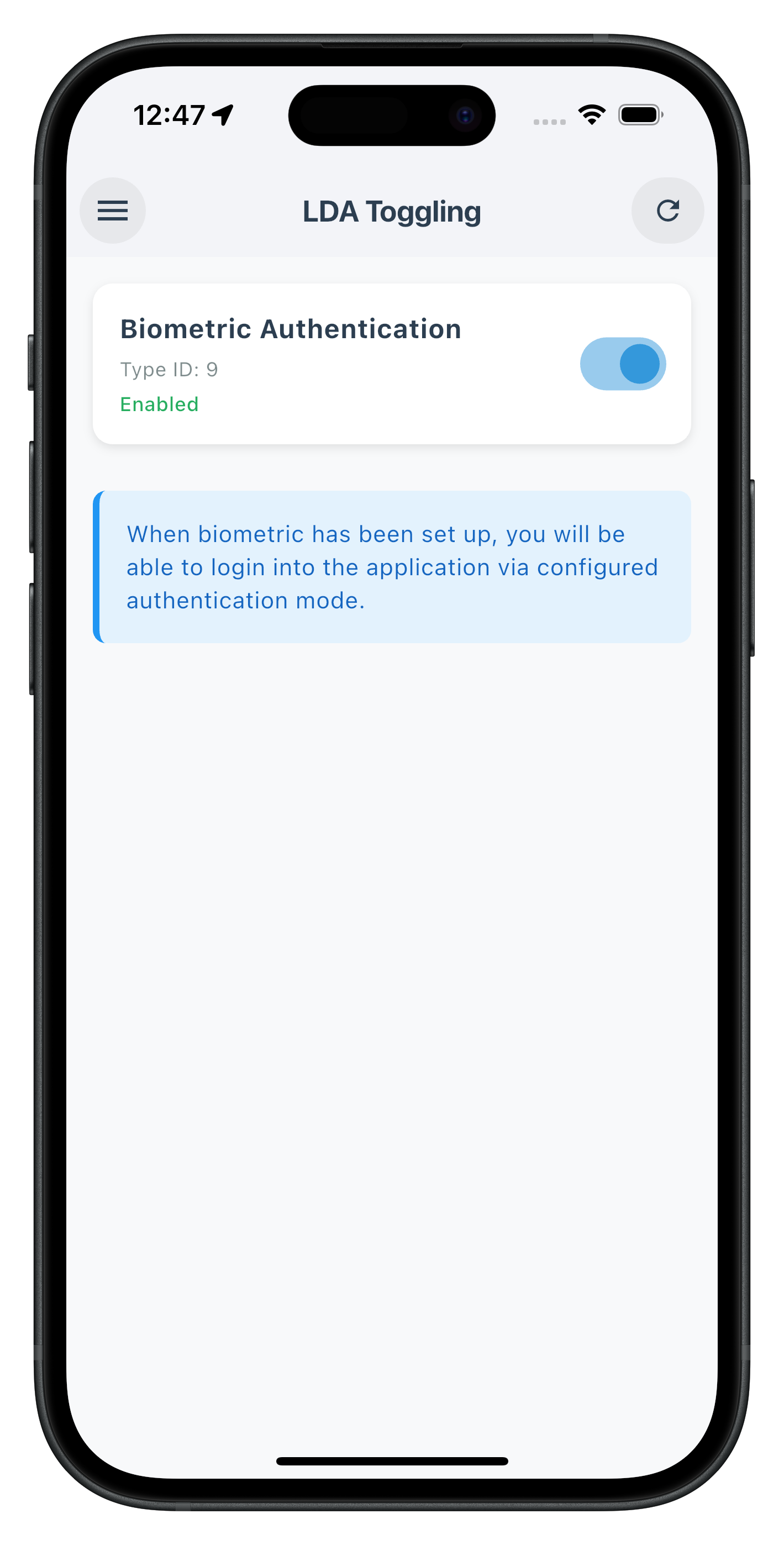
The following image showcase the LDA Toggling screen from the sample application:
Now let's create the unified dialog that handles all authentication flows during LDA toggling.
Create Dialog Mode Enum
// lib/tutorial/screens/lda_toggling/lda_toggle_auth_dialog.dart

import 'package:flutter/material.dart';
import 'package:rdna_client/rdna_struct.dart';
import '../../../uniken/services/rdna_service.dart';
import '../../../uniken/utils/password_policy_utils.dart';

/// Dialog modes for different authentication flows
enum LDAToggleDialogMode {
  password,        // ChallengeMode 5, 15 - Password verification
  passwordCreate,  // ChallengeMode 14 - Password creation
  consent,         // ChallengeMode 16 - LDA consent
}

/// Authentication Type Mapping (same as screen)
const Map<int, String> authTypeNames = {
  0: 'None',
  1: 'Biometric Authentication',
  2: 'Face ID',
  3: 'Pattern Authentication',
  4: 'Biometric Authentication',
  9: 'Biometric Authentication',
};
Create Dialog Widget Structure
// lib/tutorial/screens/lda_toggling/lda_toggle_auth_dialog.dart (continued)

class LDAToggleAuthDialog extends StatefulWidget {
  final int challengeMode;
  final String userID;
  final int attemptsLeft;
  final RDNAGetPassword? passwordData;
  final GetUserConsentForLDAData? consentData;
  final VoidCallback? onCancelled;

  const LDAToggleAuthDialog({
    super.key,
    required this.challengeMode,
    required this.userID,
    required this.attemptsLeft,
    this.passwordData,
    this.consentData,
    this.onCancelled,
  });

  /// Static show method for easy invocation
  static Future<void> show(
    BuildContext context, {
    required int challengeMode,
    required String userID,
    required int attemptsLeft,
    RDNAGetPassword? passwordData,
    GetUserConsentForLDAData? consentData,
    VoidCallback? onCancelled,
  }) {
    return showDialog(
      context: context,
      barrierDismissible: false,
      builder: (context) => LDAToggleAuthDialog(
        challengeMode: challengeMode,
        userID: userID,
        attemptsLeft: attemptsLeft,
        passwordData: passwordData,
        consentData: consentData,
        onCancelled: onCancelled,
      ),
    );
  }

  @override
  State<LDAToggleAuthDialog> createState() => _LDAToggleAuthDialogState();
}
Implement State Management
// lib/tutorial/screens/lda_toggling/lda_toggle_auth_dialog.dart (continued)

class _LDAToggleAuthDialogState extends State<LDAToggleAuthDialog> {
  late LDAToggleDialogMode _mode;
  late int _attemptsLeft;
  String? _errorMessage;
  bool _isSubmitting = false;

  // Password mode fields
  final _passwordController = TextEditingController();
  final _confirmPasswordController = TextEditingController();
  bool _passwordVisible = false;
  bool _confirmPasswordVisible = false;
  final _passwordFocusNode = FocusNode();
  final _confirmPasswordFocusNode = FocusNode();

  // Password creation specific
  String? _passwordPolicyMessage;

  // LDA consent specific
  int? _ldaAuthType;
  String? _ldaAuthTypeName;
  String? _customMessage;

  @override
  void initState() {
    super.initState();

    _attemptsLeft = widget.attemptsLeft;

    // Determine mode based on challengeMode
    if (widget.challengeMode == 16) {
      _mode = LDAToggleDialogMode.consent;
      _ldaAuthType = widget.consentData?.authenticationType ?? 1;
      _ldaAuthTypeName = authTypeNames[_ldaAuthType] ?? 'Biometric Authentication';
      _customMessage = _extractCustomMessage(widget.consentData?.challengeInfo);
    } else if (widget.challengeMode == 14) {
      _mode = LDAToggleDialogMode.passwordCreate;
      _parsePasswordPolicy();
    } else {
      _mode = LDAToggleDialogMode.password;
    }

    _processResponseData();

    // Auto-focus password input
    if (_mode != LDAToggleDialogMode.consent) {
      WidgetsBinding.instance.addPostFrameCallback((_) {
        _passwordFocusNode.requestFocus();
      });
    }
  }

  @override
  void dispose() {
    _passwordController.dispose();
    _confirmPasswordController.dispose();
    _passwordFocusNode.dispose();
    _confirmPasswordFocusNode.dispose();
    super.dispose();
  }
Error Processing & Policy Parsing
// lib/tutorial/screens/lda_toggling/lda_toggle_auth_dialog.dart (continued)

/// SYNCHRONOUS ERROR HANDLING:
/// Check response.error.longErrorCode directly from API calls
/// If longErrorCode != 0, displays error.errorString to user
/// No try-catch needed as SDK returns error codes in response
void _processResponseData() {
  if (_mode == LDAToggleDialogMode.consent && widget.consentData != null) {
    // Check API errors first
    if (widget.consentData!.error?.longErrorCode != null &&
        widget.consentData!.error!.longErrorCode != 0) {
      setState(() {
        _errorMessage = widget.consentData!.error?.errorString ?? 'An error occurred';
      });
      return;
    }
  } else if (widget.passwordData != null) {
    // Check API errors first
    if (widget.passwordData!.error?.longErrorCode != null &&
        widget.passwordData!.error!.longErrorCode != 0) {
      setState(() {
        _errorMessage = widget.passwordData!.error?.errorString ?? 'An error occurred';
      });
      return;
    }

    // Check status errors
    final statusCode = widget.passwordData!.challengeResponse?.status?.statusCode;
    if (statusCode != null && statusCode != 100 && statusCode != 0) {
      setState(() {
        _errorMessage = widget.passwordData!.challengeResponse?.status?.statusMessage ?? 'Verification failed';
      });
      return;
    }
  }
}

void _parsePasswordPolicy() {
  if (widget.passwordData == null) {
    _passwordPolicyMessage = 'Please create a strong password';
    return;
  }

  try {
    // Extract PASSWORD_POLICY_BKP from challengeInfo
    final challengeInfo = widget.passwordData?.challengeResponse?.challengeInfo;
    if (challengeInfo != null) {
      for (var item in challengeInfo) {
        if (item.key == 'PASSWORD_POLICY_BKP' && item.value != null) {
          _passwordPolicyMessage = parseAndGeneratePolicyMessage(item.value!);
          return;
        }
      }
    }

    _passwordPolicyMessage = 'Please create a strong password';
  } catch (error) {
    print('LDAToggleAuthDialog - Error parsing password policy: $error');
    _passwordPolicyMessage = 'Please create a strong password';
  }
}

String? _extractCustomMessage(List<RDNAKeyValue>? challengeInfo) {
  if (challengeInfo == null) return null;

  try {
    for (var item in challengeInfo) {
      if (item.key == 'CUSTOM_MESSAGE' && item.value != null && item.value!.isNotEmpty) {
        return item.value!;
      }
    }
  } catch (error) {
    print('LDAToggleAuthDialog - Error extracting custom message: $error');
  }

  return null;
}
Submit Handlers
// lib/tutorial/screens/lda_toggling/lda_toggle_auth_dialog.dart (continued)

Future<void> _handleSubmit() async {
  if (_mode == LDAToggleDialogMode.password) {
    await _handlePasswordSubmit();
  } else if (_mode == LDAToggleDialogMode.passwordCreate) {
    await _handlePasswordCreateSubmit();
  } else {
    await _handleConsentSubmit();
  }
}

/// Password verification submit (Mode 5, 15)
Future<void> _handlePasswordSubmit() async {
  final password = _passwordController.text.trim();

  if (password.isEmpty) {
    setState(() {
      _errorMessage = 'Please enter your password';
    });
    return;
  }

  print('LDAToggleAuthDialog - Submitting password for challengeMode: ${widget.challengeMode}');

  setState(() {
    _isSubmitting = true;
    _errorMessage = null;
  });

  final challengeOpMode = RDNAChallengeOpMode.values[widget.challengeMode];
  final response = await RdnaService.getInstance().setPassword(password, challengeOpMode);

  print('LDAToggleAuthDialog - SetPassword sync response received');
  print('  Long Error Code: ${response.error?.longErrorCode}');

  if (response.error?.longErrorCode != 0) {
    // Handle sync error response
    setState(() {
      _isSubmitting = false;
      _errorMessage = response.error?.errorString ?? 'Failed to verify password';
    });
    return;
  }

  print('LDAToggleAuthDialog - Password submitted successfully');

  // Close dialog - SDK will trigger response
  if (mounted) {
    Navigator.of(context).pop();
  }
}

/// Password creation submit (Mode 14)
Future<void> _handlePasswordCreateSubmit() async {
  final password = _passwordController.text.trim();
  final confirmPassword = _confirmPasswordController.text.trim();

  if (password.isEmpty) {
    setState(() {
      _errorMessage = 'Please enter a password';
    });
    return;
  }

  if (confirmPassword.isEmpty) {
    setState(() {
      _errorMessage = 'Please confirm your password';
    });
    return;
  }

  if (password != confirmPassword) {
    setState(() {
      _errorMessage = 'Passwords do not match';
    });
    return;
  }

  print('LDAToggleAuthDialog - Creating password for challengeMode: ${widget.challengeMode}');

  setState(() {
    _isSubmitting = true;
    _errorMessage = null;
  });

  final challengeOpMode = RDNAChallengeOpMode.values[widget.challengeMode];
  final response = await RdnaService.getInstance().setPassword(password, challengeOpMode);

  print('LDAToggleAuthDialog - SetPassword sync response received');
  print('  Long Error Code: ${response.error?.longErrorCode}');

  if (response.error?.longErrorCode != 0) {
    // Handle sync error response
    setState(() {
      _isSubmitting = false;
      _errorMessage = response.error?.errorString ?? 'Failed to create password';
    });
    return;
  }

  print('LDAToggleAuthDialog - Password created successfully');

  // Close dialog - SDK will trigger onDeviceAuthManagementStatus
  if (mounted) {
    Navigator.of(context).pop();
  }
}

/// LDA consent submit (Mode 16)
Future<void> _handleConsentSubmit() async {
  print('LDAToggleAuthDialog - Submitting LDA consent');

  setState(() {
    _isSubmitting = true;
    _errorMessage = null;
  });

  final response = await RdnaService.getInstance().setUserConsentForLDA(
    true,
    widget.challengeMode,
    _ldaAuthType ?? 1,
  );

  print('LDAToggleAuthDialog - SetUserConsentForLDA sync response received');
  print('  Long Error Code: ${response.error?.longErrorCode}');

  if (response.error?.longErrorCode != 0) {
    // Handle sync error response
    setState(() {
      _isSubmitting = false;
      _errorMessage = response.error?.errorString ?? 'Failed to enable LDA';
    });
    return;
  }

  print('LDAToggleAuthDialog - LDA consent approved');

  // SDK will trigger onDeviceAuthManagementStatus
  if (mounted) {
    Navigator.of(context).pop();
  }
}

/// Cancel handler
Future<void> _handleCancel() async {
  print('LDAToggleAuthDialog - User cancelled');

  if (_isSubmitting) return;

  // For LDA consent mode, send rejection to SDK
  if (_mode == LDAToggleDialogMode.consent) {
    print('LDAToggleAuthDialog - Sending LDA consent rejection to SDK');

    setState(() {
      _isSubmitting = true;
    });

    final response = await RdnaService.getInstance().setUserConsentForLDA(
      false,
      widget.challengeMode,
      _ldaAuthType ?? 1,
    );

    print('LDAToggleAuthDialog - SetUserConsentForLDA (rejection) sync response received');
    print('  Long Error Code: ${response.error?.longErrorCode}');

    if (response.error?.longErrorCode != 0) {
      print('LDAToggleAuthDialog - LDA consent rejection error: ${response.error?.errorString}');
    } else {
      print('LDAToggleAuthDialog - LDA consent rejection sent successfully');
    }
  }

  if (!mounted) return;

  // Notify parent screen that dialog was cancelled
  if (widget.onCancelled != null) {
    widget.onCancelled!();
  }

  Navigator.of(context).pop();
}
UI Build Method
// lib/tutorial/screens/lda_toggling/lda_toggle_auth_dialog.dart (continued)

@override
Widget build(BuildContext context) {
  return AlertDialog(
    title: Text(_getTitle()),
    content: SingleChildScrollView(
      child: Column(
        mainAxisSize: MainAxisSize.min,
        crossAxisAlignment: CrossAxisAlignment.stretch,
        children: _buildContent(),
      ),
    ),
  );
}

String _getTitle() {
  switch (_mode) {
    case LDAToggleDialogMode.password:
      return 'Verify Your Password';
    case LDAToggleDialogMode.passwordCreate:
      return 'Create Password';
    case LDAToggleDialogMode.consent:
      return 'Enable LDA Authentication';
  }
}

List<Widget> _buildContent() {
  switch (_mode) {
    case LDAToggleDialogMode.password:
      return _buildPasswordMode();
    case LDAToggleDialogMode.passwordCreate:
      return _buildPasswordCreateMode();
    case LDAToggleDialogMode.consent:
      return _buildConsentMode();
  }
}
UI - Password Verification Mode
// lib/tutorial/screens/lda_toggling/lda_toggle_auth_dialog.dart (continued)

List<Widget> _buildPasswordMode() {
  Color attemptsColor = const Color(0xFF27AE60); // green
  if (_attemptsLeft <= 2) attemptsColor = const Color(0xFFF39C12); // orange
  if (_attemptsLeft <= 1) attemptsColor = const Color(0xFFE74C3C); // red

  return [
    const Text(
      'Enter your password to disable LDA authentication',
      style: TextStyle(fontSize: 14, color: Color(0xFF7F8C8D)),
    ),
    const SizedBox(height: 16),

    // User Info
    Row(
      children: [
        const Text(
          'User: ',
          style: TextStyle(fontSize: 12, color: Color(0xFF7F8C8D)),
        ),
        Text(
          widget.userID,
          style: const TextStyle(fontSize: 12, fontWeight: FontWeight.bold),
        ),
      ],
    ),
    const SizedBox(height: 8),

    // Attempts Counter with Color Coding
    Row(
      children: [
        const Text(
          'Attempts remaining: ',
          style: TextStyle(fontSize: 12, color: Color(0xFF7F8C8D)),
        ),
        Text(
          '$_attemptsLeft',
          style: TextStyle(
            fontSize: 12,
            fontWeight: FontWeight.bold,
            color: attemptsColor,
          ),
        ),
      ],
    ),
    const SizedBox(height: 16),

    // Error Message
    if (_errorMessage != null)
      Container(
        padding: const EdgeInsets.all(12),
        decoration: BoxDecoration(
          color: const Color(0xFFFEEBEE),
          borderRadius: BorderRadius.circular(8),
        ),
        child: Row(
          children: [
            const Icon(Icons.error_outline, color: Color(0xFFE74C3C), size: 20),
            const SizedBox(width: 8),
            Expanded(
              child: Text(
                _errorMessage!,
                style: const TextStyle(fontSize: 12, color: Color(0xFFE74C3C)),
              ),
            ),
          ],
        ),
      ),
    if (_errorMessage != null) const SizedBox(height: 16),

    // Password Input
    TextField(
      controller: _passwordController,
      focusNode: _passwordFocusNode,
      obscureText: !_passwordVisible,
      enabled: !_isSubmitting,
      decoration: InputDecoration(
        labelText: 'Password',
        border: const OutlineInputBorder(),
        suffixIcon: IconButton(
          icon: Icon(_passwordVisible ? Icons.visibility_off : Icons.visibility),
          onPressed: () => setState(() => _passwordVisible = !_passwordVisible),
        ),
      ),
      onSubmitted: (_) => _handleSubmit(),
    ),
    const SizedBox(height: 24),

    // Buttons
    Row(
      mainAxisAlignment: MainAxisAlignment.end,
      children: [
        TextButton(
          onPressed: _isSubmitting ? null : _handleCancel,
          child: const Text('Cancel'),
        ),
        const SizedBox(width: 8),
        ElevatedButton(
          onPressed: _isSubmitting ? null : _handleSubmit,
          style: ElevatedButton.styleFrom(
            backgroundColor: const Color(0xFF3498DB),
          ),
          child: _isSubmitting
              ? const SizedBox(
                  width: 16,
                  height: 16,
                  child: CircularProgressIndicator(
                    strokeWidth: 2,
                    color: Colors.white,
                  ),
                )
              : const Text('Verify'),
        ),
      ],
    ),
  ];
}
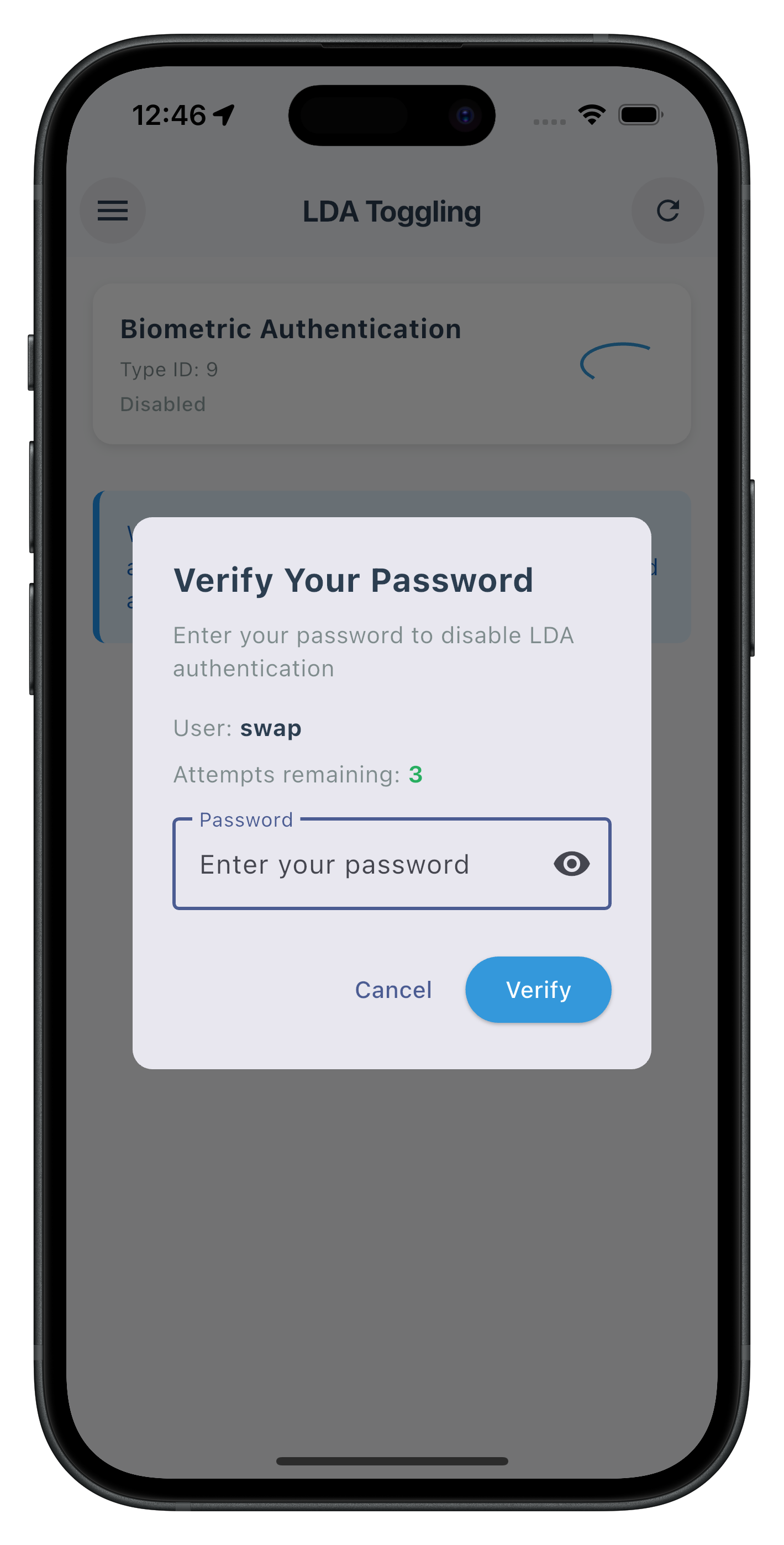
The following image showcase the Password Verification Dialog from the sample application:
UI - Password Creation Mode
// lib/tutorial/screens/lda_toggling/lda_toggle_auth_dialog.dart (continued)

List<Widget> _buildPasswordCreateMode() {
  return [
    const Text(
      'Set a password to enable password-based authentication',
      style: TextStyle(fontSize: 14, color: Color(0xFF7F8C8D)),
    ),
    const SizedBox(height: 16),

    // Password Policy Display
    if (_passwordPolicyMessage != null)
      Container(
        padding: const EdgeInsets.all(12),
        decoration: BoxDecoration(
          color: const Color(0xFFE3F2FD),
          borderRadius: BorderRadius.circular(8),
        ),
        child: Row(
          children: [
            const Text('ℹ️', style: TextStyle(fontSize: 18)),
            const SizedBox(width: 8),
            Expanded(
              child: Text(
                _passwordPolicyMessage!,
                style: const TextStyle(fontSize: 12, color: Color(0xFF2C3E50)),
              ),
            ),
          ],
        ),
      ),
    if (_passwordPolicyMessage != null) const SizedBox(height: 16),

    // Error Message
    if (_errorMessage != null)
      Container(
        padding: const EdgeInsets.all(12),
        decoration: BoxDecoration(
          color: const Color(0xFFFEEBEE),
          borderRadius: BorderRadius.circular(8),
        ),
        child: Row(
          children: [
            const Icon(Icons.error_outline, color: Color(0xFFE74C3C), size: 20),
            const SizedBox(width: 8),
            Expanded(
              child: Text(
                _errorMessage!,
                style: const TextStyle(fontSize: 12, color: Color(0xFFE74C3C)),
              ),
            ),
          ],
        ),
      ),
    if (_errorMessage != null) const SizedBox(height: 16),

    // Password Input
    TextField(
      controller: _passwordController,
      focusNode: _passwordFocusNode,
      obscureText: !_passwordVisible,
      enabled: !_isSubmitting,
      decoration: InputDecoration(
        labelText: 'Password',
        border: const OutlineInputBorder(),
        suffixIcon: IconButton(
          icon: Icon(_passwordVisible ? Icons.visibility_off : Icons.visibility),
          onPressed: () => setState(() => _passwordVisible = !_passwordVisible),
        ),
      ),
      onSubmitted: (_) => _confirmPasswordFocusNode.requestFocus(),
    ),
    const SizedBox(height: 16),

    // Confirm Password Input
    TextField(
      controller: _confirmPasswordController,
      focusNode: _confirmPasswordFocusNode,
      obscureText: !_confirmPasswordVisible,
      enabled: !_isSubmitting,
      decoration: InputDecoration(
        labelText: 'Confirm Password',
        border: const OutlineInputBorder(),
        suffixIcon: IconButton(
          icon: Icon(_confirmPasswordVisible ? Icons.visibility_off : Icons.visibility),
          onPressed: () => setState(() => _confirmPasswordVisible = !_confirmPasswordVisible),
        ),
      ),
      onSubmitted: (_) => _handleSubmit(),
    ),
    const SizedBox(height: 24),

    // Buttons
    Row(
      mainAxisAlignment: MainAxisAlignment.end,
      children: [
        TextButton(
          onPressed: _isSubmitting ? null : _handleCancel,
          child: const Text('Cancel'),
        ),
        const SizedBox(width: 8),
        ElevatedButton(
          onPressed: _isSubmitting ? null : _handleSubmit,
          style: ElevatedButton.styleFrom(
            backgroundColor: const Color(0xFF3498DB),
          ),
          child: _isSubmitting
              ? const SizedBox(
                  width: 16,
                  height: 16,
                  child: CircularProgressIndicator(
                    strokeWidth: 2,
                    color: Colors.white,
                  ),
                )
              : const Text('Create Password'),
        ),
      ],
    ),
  ];
}
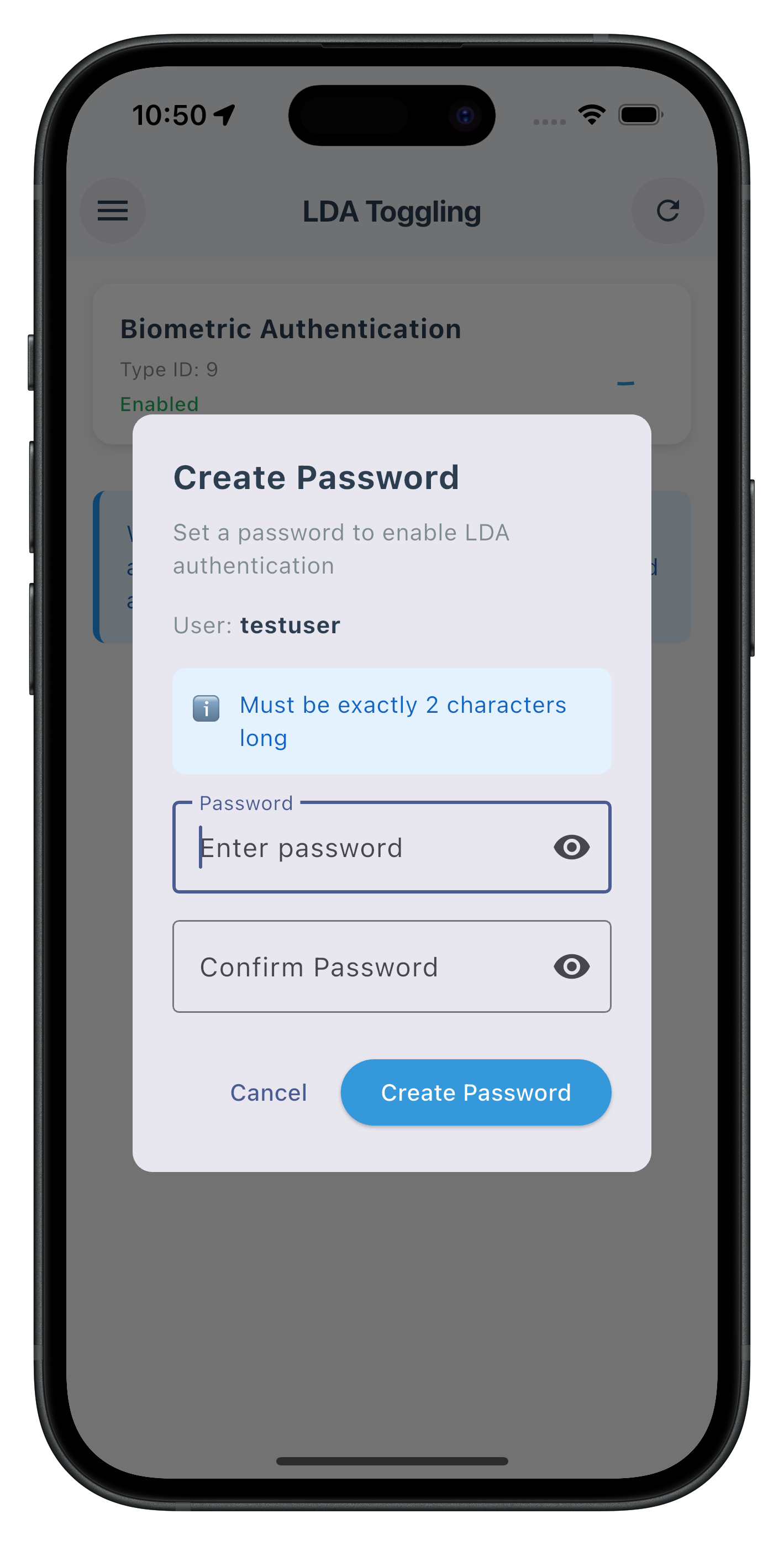
The following image showcase the Password Creation Dialog from the sample application:
UI - LDA Consent Mode
// lib/tutorial/screens/lda_toggling/lda_toggle_auth_dialog.dart (continued)

List<Widget> _buildConsentMode() {
  return [
    const Text(
      'Use biometric authentication for faster and more secure login',
      style: TextStyle(fontSize: 14, color: Color(0xFF7F8C8D)),
    ),
    const SizedBox(height: 16),

    // Auth Type Info Box
    Container(
      padding: const EdgeInsets.all(16),
      decoration: BoxDecoration(
        color: const Color(0xFFF8F9FA),
        borderRadius: BorderRadius.circular(8),
      ),
      child: Row(
        children: [
          const Text('🔐', style: TextStyle(fontSize: 32)),
          const SizedBox(width: 12),
          Expanded(
            child: Column(
              crossAxisAlignment: CrossAxisAlignment.start,
              children: [
                Text(
                  _ldaAuthTypeName ?? 'Biometric Authentication',
                  style: const TextStyle(
                    fontSize: 14,
                    fontWeight: FontWeight.bold,
                    color: Color(0xFF2C3E50),
                  ),
                ),
                const SizedBox(height: 4),
                const Text(
                  'Device authentication method',
                  style: TextStyle(
                    fontSize: 12,
                    color: Color(0xFF7F8C8D),
                  ),
                ),
              ],
            ),
          ),
        ],
      ),
    ),
    const SizedBox(height: 16),

    // Custom Message (if available)
    if (_customMessage != null && _customMessage!.isNotEmpty)
      Container(
        padding: const EdgeInsets.all(12),
        decoration: BoxDecoration(
          color: const Color(0xFFE3F2FD),
          borderRadius: BorderRadius.circular(8),
        ),
        child: Row(
          children: [
            const Text('ℹ️', style: TextStyle(fontSize: 18)),
            const SizedBox(width: 8),
            Expanded(
              child: Text(
                _customMessage!,
                style: const TextStyle(fontSize: 12, color: Color(0xFF2C3E50)),
              ),
            ),
          ],
        ),
      ),
    if (_customMessage != null && _customMessage!.isNotEmpty) const SizedBox(height: 16),

    // Error Message
    if (_errorMessage != null)
      Container(
        padding: const EdgeInsets.all(12),
        decoration: BoxDecoration(
          color: const Color(0xFFFEEBEE),
          borderRadius: BorderRadius.circular(8),
        ),
        child: Row(
          children: [
            const Icon(Icons.error_outline, color: Color(0xFFE74C3C), size: 20),
            const SizedBox(width: 8),
            Expanded(
              child: Text(
                _errorMessage!,
                style: const TextStyle(fontSize: 12, color: Color(0xFFE74C3C)),
              ),
            ),
          ],
        ),
      ),
    if (_errorMessage != null) const SizedBox(height: 16),

    // Info Message
    Container(
      padding: const EdgeInsets.all(12),
      child: Text(
        'Once enabled, you\'ll be able to use ${_ldaAuthTypeName?.toLowerCase() ?? 'biometric authentication'} to authenticate instead of your password.',
        style: const TextStyle(
          fontSize: 12,
          color: Color(0xFF7F8C8D),
        ),
      ),
    ),
    const SizedBox(height: 16),

    // Buttons
    Row(
      mainAxisAlignment: MainAxisAlignment.end,
      children: [
        TextButton(
          onPressed: _isSubmitting ? null : _handleCancel,
          child: const Text('Cancel'),
        ),
        const SizedBox(width: 8),
        ElevatedButton(
          onPressed: _isSubmitting ? null : _handleSubmit,
          style: ElevatedButton.styleFrom(
            backgroundColor: const Color(0xFF3498DB),
          ),
          child: _isSubmitting
              ? const SizedBox(
                  width: 16,
                  height: 16,
                  child: CircularProgressIndicator(
                    strokeWidth: 2,
                    color: Colors.white,
                  ),
                )
              : const Text('Enable LDA'),
        ),
      ],
    ),
  ];
}
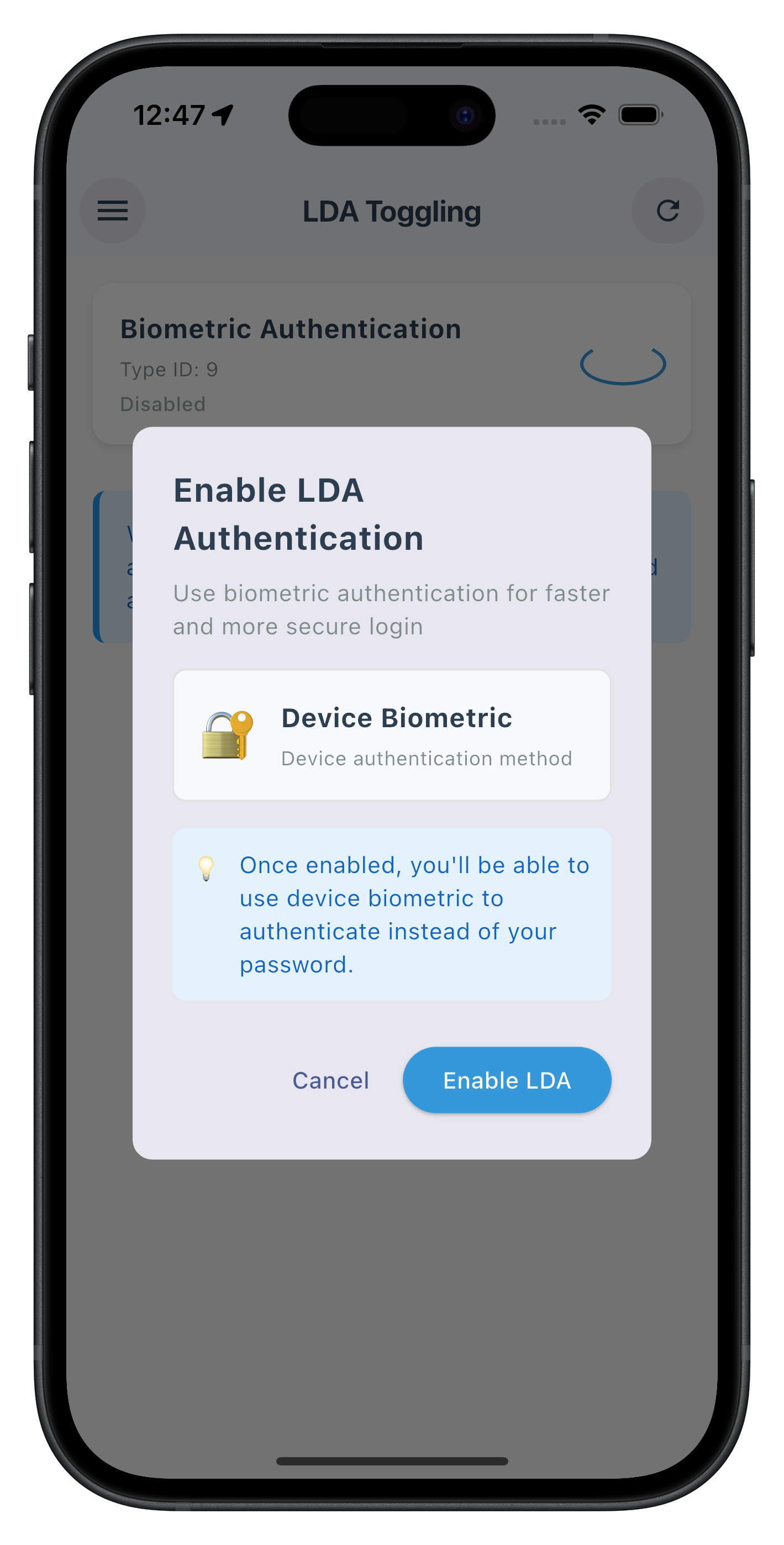
The following image showcase the LDA Consent Dialog from the sample application:
Let's integrate the LDA Toggling screen into your app navigation.
Add Navigation Route
Update your app_router.dart:
// lib/tutorial/navigation/app_router.dart

import 'package:go_router/go_router.dart';
import '../screens/lda_toggling/lda_toggling_screen.dart';

final appRouter = GoRouter(
  initialLocation: '/',
  routes: [
    // ... other routes ...

    GoRoute(
      path: '/lda-toggling',
      name: 'ldaTogglingScreen',
      builder: (context, state) {
        final params = state.extra as LDATogglingScreenParams?;
        if (params == null) {
          throw Exception('LDATogglingScreen requires LDATogglingScreenParams');
        }
        return LDATogglingScreen(params: params);
      },
    ),
  ],
);
Add Drawer Menu Item
Update your custom drawer content:
// lib/tutorial/screens/components/drawer_content.dart

import 'package:go_router/go_router.dart';
import '../lda_toggling/lda_toggling_screen.dart';

// Add menu item in drawer
ListTile(
  leading: const Icon(Icons.lock, color: Color(0xFF2C3E50)),
  title: const Text('🔐 LDA Toggling'),
  onTap: () {
    Navigator.pop(context); // Close drawer

    if (widget.currentRoute != 'ldaTogglingScreen') {
      final params = LDATogglingScreenParams(
        userID: widget.sessionData.userId ?? '',
        sessionID: widget.sessionData.challengeResponse?.session?.sessionId ?? '',
        sessionType: widget.sessionData.challengeResponse?.session?.sessionType ?? 0,
        jwtToken: widget.sessionData.challengeResponse?.additionalInfo?.jwtJsonTokenInfo ?? '',
        loginTime: null,
        userRole: widget.sessionData.challengeResponse?.additionalInfo?.idvUserRole,
        currentWorkFlow: widget.sessionData.challengeResponse?.additionalInfo?.currentWorkFlow,
      );

      context.goNamed('ldaTogglingScreen', extra: params);
    }
  },
),
Let's test your LDA toggling implementation with comprehensive scenarios.
Test Scenario 1: Enable Biometric Authentication
Setup Requirements:
- User logged in with password authentication
- Device has biometric authentication enrolled
- Navigate to LDA Toggling screen
Test Steps:
- Launch app and login with password
- Navigate to LDA Toggling from drawer menu
- Verify list displays available authentication types
- Toggle ON an authentication type (e.g., "Biometric Authentication")
- Complete password verification when dialog appears
- Approve consent when LDA consent dialog appears
- Verify success alert: "Biometric Authentication has been enabled successfully"
- Confirm toggle switch shows ON state after refresh
Expected Results:
- ✅ Authentication types load correctly
- ✅ Toggle triggers password verification
- ✅ Consent flow completes successfully
- ✅ Status updates reflect enabled state
- ✅ User returns to LDA Toggling screen
- ✅ User can now login with LDA
Test Scenario 2: Disable Biometric Authentication
Setup Requirements:
- User logged in with biometric authentication enabled
- Navigate to LDA Toggling screen
Test Steps:
- Navigate to LDA Toggling screen
- Toggle OFF the enabled authentication type
- Complete password verification when dialog appears
- Create new password when password creation dialog appears
- Verify success alert: "Biometric Authentication has been disabled successfully"
- Confirm toggle switch shows OFF state after refresh
Expected Results:
- ✅ Toggle triggers password verification
- ✅ Password creation flow completes successfully
- ✅ Status updates reflect disabled state
- ✅ User can now login with new password
Test Scenario 3: No LDA Available
Setup Requirements:
- Device without biometric authentication enrolled
- Navigate to LDA Toggling screen
Test Steps:
- Navigate to LDA Toggling screen
- Wait for authentication details to load
- Verify empty state displays
- Confirm message: "No Local Device Authentication (LDA) capabilities are available"
Expected Results:
- ✅ Empty state displays correctly
- ✅ Refresh button is available
- ✅ No toggle switches are shown
Test Scenario 4: Cancel LDA Consent
Setup Requirements:
- User attempting to enable LDA
- LDA consent dialog displayed
Test Steps:
- Navigate to LDA Toggling screen
- Toggle ON an authentication type
- Complete password verification
- Tap "Cancel" on LDA consent dialog
- Verify no error alert is shown (silent handling)
- Confirm toggle switch returns to OFF state
Expected Results:
- ✅ Cancel action handled gracefully
- ✅ No error alert displayed (error code 217 handled silently)
- ✅ List refreshes automatically
- ✅ Toggle switch reflects correct state
Prepare your LDA toggling implementation for production deployment with these essential considerations.
Security Validation Checklist
- [ ] No Sensitive Data Logging: Verify no authentication tokens or credentials are logged
- [ ] Proper State Management: Handle authentication state changes across app lifecycle
- [ ] Error Recovery: Graceful handling of SDK errors and network failures
- [ ] Challenge Mode Validation: Verify all challenge modes route to correct flows
User Experience Optimization
- [ ] Clear Status Feedback: Visual indicators for enabled/disabled states
- [ ] Loading States: Show progress during all async operations
- [ ] Error Messages: User-friendly errors for all failure scenarios
- [ ] Accessibility Support: Screen reader compatibility and proper labeling
- [ ] Performance: Minimize unnecessary API calls and re-renders
Code Quality Standards
- [ ] Type Safety: Full Dart type coverage with proper class definitions
- [ ] Code Organization: Logical file structure and widget separation
- [ ] Documentation: Comprehensive comments for complex logic
- [ ] Testing: Widget tests for UI components and unit tests for service methods
Production Deployment Checklist
- [ ] Platform Testing: Verify on both iOS and Android devices
- [ ] Device Variety: Test on devices with different biometric capabilities
- [ ] Edge Cases: Handle devices without biometric enrollment
- [ ] Version Compatibility: Ensure SDK version compatibility
- [ ] Analytics Integration: Track toggling usage and success rates
Congratulations! You've successfully implemented LDA toggling functionality with the REL-ID SDK.
🚀 What You've Accomplished
- ✅ Device Authentication Detection - Automatic retrieval of supported LDA types
- ✅ Interactive Toggle Interface - User-friendly switches for enabling/disabling authentication
- ✅ Event-Driven Status Updates - Real-time feedback via
onDeviceAuthManagementStatus - ✅ Challenge Mode Routing - Proper handling of password verification and consent flows
- ✅ Production-Ready Code - Comprehensive error handling, loading states, and type safety
- ✅ Seamless User Experience - Unified dialog and clear status feedback
🔄 LDA Toggling Flow Summary
Your implementation handles two main toggling scenarios:
Password → LDA (i.e. Enable Biometric):
User toggles ON → Password Verification (mode 5) →
User Consent (mode 16) → Status Update → Biometric Enabled
LDA → Password (i.e. Disable Biometric):
User toggles OFF → Password Verification (mode 15) →
Set Password (mode 14) → Status Update → Password Enabled
📚 Additional Resources
- REL-ID LDA Toggling Documentation - Complete feature guide
- getDeviceAuthenticationDetails API - Retrieve authentication capabilities
- manageDeviceAuthenticationModes API - Toggle authentication modes
- onDeviceAuthManagementStatus Event - Status callback reference
- Password to LDA Flow - Enable biometric workflow
- LDA to Password Flow - Disable biometric workflow
🎯 Next Steps
Consider enhancing your implementation with:
- Custom UI Themes: Match your app's design system
- Biometric Enrollment Check: Detect and prompt users to enroll biometrics
🔐 You've mastered authentication mode switching with REL-ID SDK!
Your implementation provides users with flexible authentication options while maintaining the highest security standards. Use this foundation to build adaptive authentication experiences that users can customize to their preferences.