🎯 Learning Path:
Welcome to the REL-ID Update Password codelab! This tutorial builds upon your existing MFA implementation to add secure user-initiated password update capabilities using REL-ID SDK's credential management APIs.
In this codelab, you'll enhance your existing MFA application with:
challengeMode = 2 (RDNA_OP_UPDATE_CREDENTIALS)getAllChallenges() API and onCredentialsAvailableForUpdate eventonUpdateCredentialResponse event handling with cleanuponUserLoggedOff → getUser events for status codes 110/153By completing this codelab, you'll master:
getAllChallenges() APIinitiateUpdateFlowForCredential('Password') APIupdatePassword(current, new, 2) with challengeMode 2RELID_PASSWORD_POLICY from challenge dataonUpdateCredentialResponse handler with proper cleanupBefore starting this codelab, ensure you have:
The code to get started can be found in a GitHub repository.
You can clone the repository using the following command:
git clone https://github.com/uniken-public/codelab-cordova.git
Navigate to the relid-MFA-update-password folder in the repository you cloned earlier
This codelab extends your MFA application with five core password update components:
getAllChallenges() API integration after login with onCredentialsAvailableForUpdate event handlerinitiateUpdateFlowForCredential('Password') API to trigger password update from drawer menuonCredentialsAvailableForUpdate eventonUpdateCredentialResponse handler with automatic cleanup and SDK event chain managementBefore implementing password update functionality, let's understand the key SDK events and APIs that power the user-initiated password update workflow (post-login).
The password update process follows this event-driven pattern:
User Logs In Successfully → getAllChallenges() Called →
onCredentialsAvailableForUpdate Event → Drawer Menu Shows "Update Password" →
User Taps Menu Item → initiateUpdateFlowForCredential('Password') →
getPassword Event (challengeMode=2) → UpdatePasswordScreen Displays →
User Updates Password → updatePassword(current, new, 2) →
onUpdateCredentialResponse (statusCode 110/153) →
SDK Triggers onUserLoggedOff → getUser Event → Navigation to Login
It's crucial to understand the difference between user-initiated update and password expiry:
Challenge Mode | Use Case | Trigger | User Action | Screen Location |
| User-initiated password update (post-login) | User taps "Update Password" menu | Provide current + new password | Drawer Navigation |
| Password expiry during login | Server detects expired password | Provide current + new password | Modal/Screen |
| Password verification for login | User attempts to log in | Enter password | Login Screen |
| Set new password during activation | First-time activation | Create password | Activation Screen |
Post-login password update requires credential availability check:
Step | API/Event | Description |
1. User Login |
| User successfully completes MFA login |
2. Credential Check |
| Check which credentials are available for update |
3. Availability Event |
| SDK returns array of updatable credentials (e.g., |
4. Menu Display | Conditional rendering | Show "Update Password" menu item if |
5. User Initiates |
| User taps menu item to start update flow |
6. SDK Triggers |
| SDK requests password update |
7. Screen Display | UpdatePasswordScreen | Show three-field password form in drawer |
The REL-ID SDK provides these APIs and events for password update:
API/Event | Type | Description | User Action Required |
API | Check available credential updates after login | System calls automatically | |
Event | Receives array of updatable credentials | System stores in context | |
API | Initiate update flow for specific credential | User taps menu item | |
Event | Password update request with policy | User provides passwords | |
API | Submit password update | User submits form | |
Event | Password update result with status codes | System handles response |
Password update flow uses the standard policy key:
Flow | Policy Key | Description |
Password Creation (challengeMode=1) |
| Policy for new password creation |
Password Update (challengeMode=2) |
| Policy for user-initiated password update |
Password Expiry (challengeMode=4) |
| Policy for expired password update |
When onUpdateCredentialResponse receives these status codes, the SDK automatically triggers onUserLoggedOff → getUser event chain:
Status Code | Meaning | SDK Behavior | Action Required |
| Password has expired while updating | SDK triggers | Clear fields, user must re-login |
| Attempts exhausted | SDK triggers | Clear fields, user logs out |
| Password does not meet policy | No automatic logout but triggers | Clear fields, display error |
Update Password flow uses drawer navigation, not modal or inline navigation:
Screen | Navigation Type | Reason | Access Method |
UpdatePasswordScreen | Drawer Navigation | Post-login feature, conditional access | Menu item in drawer |
UpdateExpiryPasswordScreen | Modal/Screen | Login-blocking feature, forced update | Automatic SDK navigation |
SetPasswordScreen | Screen | Activation flow, first-time setup | Automatic SDK navigation |
VerifyPasswordScreen | Screen | Login flow, authentication | Automatic SDK navigation |
Update password uses screen-level event handling with cleanup:
// UpdatePasswordScreen.js - Screen-level event handler
setupEventHandler() {
  const eventManager = rdnaService.getEventManager();

  // Set handler when screen mounts
  this._updateCredentialHandler = (data) => {
    // Process status codes 110, 153
    // SDK will trigger onUserLoggedOff → getUser after this
  };

  eventManager.setUpdateCredentialResponseHandler(this._updateCredentialHandler);
}

// Cleanup when screen unmounts
onContentUnloaded() {
  const eventManager = rdnaService.getEventManager();
  eventManager.setUpdateCredentialResponseHandler(undefined);
  this._updateCredentialHandler = null;
}
Let's implement the credential management APIs in your service layer following established REL-ID SDK patterns.
Add this method to
www/src/uniken/services/rdnaService.js
:
// www/src/uniken/services/rdnaService.js (addition to existing class)

/**
 * Gets all available challenges for a user
 *
 * This method retrieves all credentials that can be updated for a given user.
 * After successful API call, the SDK triggers onCredentialsAvailableForUpdate event
 * with an array of available credential types (e.g., ["Password", "SecurityQuestions"]).
 *
 * @see https://developer.uniken.com/docs/getallchallenges
 *
 * Workflow:
 * 1. User logs in successfully (onUserLoggedIn event)
 * 2. Call getAllChallenges(username) immediately after login
 * 3. SDK checks server for available credential updates
 * 4. SDK triggers onCredentialsAvailableForUpdate event
 * 5. Event handler receives options array (e.g., ["Password", "PIN"])
 * 6. App displays conditional menu items in drawer
 *
 * Response Validation Logic:
 * 1. Check error.longErrorCode: 0 = success, > 0 = error
 * 2. On success, triggers onCredentialsAvailableForUpdate event
 * 3. On failure, credentials update unavailable
 * 4. Async event will be handled by SDKEventProvider
 *
 * @param {string} username - The username to check credential availability
 * @returns {Promise} Promise that resolves with sync response structure
 */
async getAllChallenges(username) {
  return new Promise((resolve, reject) => {
    console.log('RdnaService - Getting all available challenges for user:', username);

    com.uniken.rdnaplugin.RdnaClient.getAllChallenges(
      (response) => {
        console.log('RdnaService - GetAllChallenges sync callback received');
        const result = JSON.parse(response);
        console.log('RdnaService - getAllChallenges sync response:', JSON.stringify({
          longErrorCode: result.error?.longErrorCode,
          shortErrorCode: result.error?.shortErrorCode,
          errorString: result.error?.errorString
        }, null, 2));

        if (result.error && result.error.longErrorCode === 0) {
          console.log('RdnaService - GetAllChallenges sync response success, waiting for onCredentialsAvailableForUpdate event');
          resolve(result);
        } else {
          console.error('RdnaService - GetAllChallenges sync response error');
          reject(result);
        }
      },
      (error) => {
        console.error('RdnaService - getAllChallenges error callback:', error);
        const result = JSON.parse(error);
        console.error('RdnaService - getAllChallenges sync error:', JSON.stringify({
          longErrorCode: result.error?.longErrorCode,
          shortErrorCode: result.error?.shortErrorCode,
          errorString: result.error?.errorString
        }, null, 2));
        reject(result);
      },
      [username] // Parameters as array
    );
  });
}
Add this method to
www/src/uniken/services/rdnaService.js
:
// www/src/uniken/services/rdnaService.js (addition to existing class)

/**
 * Initiates update flow for a specific credential type
 *
 * This method starts the credential update flow for the specified credential type.
 * After successful API call, the SDK triggers the appropriate getXXX event based on
 * the credential type (e.g., getPassword for "Password" credential).
 *
 * @see https://developer.uniken.com/docs/initiateupdateflowforcredential
 *
 * Workflow:
 * 1. User taps "Update Password" menu item
 * 2. Call initiateUpdateFlowForCredential('Password')
 * 3. SDK processes request
 * 4. SDK triggers getPassword event with challengeMode=2
 * 5. SDKEventProvider navigates to UpdatePasswordScreen in drawer
 * 6. User provides current and new passwords
 *
 * Response Validation Logic:
 * 1. Check error.longErrorCode: 0 = success, > 0 = error
 * 2. On success, triggers getPassword event with challengeMode=2
 * 3. On failure, update flow cannot be initiated
 * 4. Async event will be handled by SDKEventProvider
 *
 * @param {string} credentialType - The credential type to update (e.g., "Password", "PIN")
 * @returns {Promise} Promise that resolves with sync response structure
 */
async initiateUpdateFlowForCredential(credentialType) {
  return new Promise((resolve, reject) => {
    console.log('RdnaService - Initiating update flow for credential:', credentialType);

    com.uniken.rdnaplugin.RdnaClient.initiateUpdateFlowForCredential(
      (response) => {
        console.log('RdnaService - InitiateUpdateFlowForCredential sync callback received');
        const result = JSON.parse(response);
        console.log('RdnaService - initiateUpdateFlowForCredential sync response:', JSON.stringify({
          longErrorCode: result.error?.longErrorCode,
          shortErrorCode: result.error?.shortErrorCode,
          errorString: result.error?.errorString
        }, null, 2));

        if (result.error && result.error.longErrorCode === 0) {
          console.log('RdnaService - InitiateUpdateFlowForCredential sync response success, waiting for get credential event');
          resolve(result);
        } else {
          console.error('RdnaService - InitiateUpdateFlowForCredential sync response error');
          reject(result);
        }
      },
      (error) => {
        console.error('RdnaService - initiateUpdateFlowForCredential error callback:', error);
        const result = JSON.parse(error);
        console.error('RdnaService - initiateUpdateFlowForCredential sync error:', JSON.stringify({
          longErrorCode: result.error?.longErrorCode,
          shortErrorCode: result.error?.shortErrorCode,
          errorString: result.error?.errorString
        }, null, 2));
        reject(result);
      },
      [credentialType] // Parameters as array
    );
  });
}
Add this method to
www/src/uniken/services/rdnaService.js
:
// www/src/uniken/services/rdnaService.js (addition to existing class)

/**
 * Updates password for user-initiated password update (Post-Login)
 *
 * This method is specifically used for user-initiated password updates after login.
 * When user taps "Update Password" in drawer and enters passwords, this API
 * submits the password update request with challengeMode=2 (RDNA_OP_UPDATE_CREDENTIALS).
 * Uses sync response pattern similar to setPassword() method.
 *
 * @see https://developer.uniken.com/docs/updating-other-credentials
 *
 * Workflow:
 * 1. User taps "Update Password" menu item (post-login)
 * 2. initiateUpdateFlowForCredential('Password') called
 * 3. SDK triggers getPassword with challengeMode=2
 * 4. App displays UpdatePasswordScreen in drawer
 * 5. User provides current and new passwords
 * 6. App calls updatePassword(current, new, 2)
 * 7. SDK validates and updates password
 * 8. SDK triggers onUpdateCredentialResponse event
 * 9. On statusCode 110/153, SDK auto-triggers onUserLoggedOff → getUser
 *
 * Response Validation Logic:
 * 1. Check error.longErrorCode: 0 = success, > 0 = error
 * 2. On success, triggers onUpdateCredentialResponse event
 * 3. On failure, may trigger getPassword again with error status
 * 4. StatusCode 100 = Success
 * 5. StatusCode 110 = Password expired (SDK triggers logout)
 * 6. StatusCode 153 = Attempts exhausted (SDK triggers logout)
 * 7. StatusCode 190 = Policy violation (no automatic logout)
 * 8. Async events will be handled by screen-level handler
 *
 * @param {string} currentPassword - The user's current password
 * @param {string} newPassword - The new password to set
 * @param {number} challengeMode - Challenge mode (should be 2 for RDNA_OP_UPDATE_CREDENTIALS)
 * @returns {Promise} Promise that resolves with sync response structure
 */
async updatePassword(currentPassword, newPassword, challengeMode = 2) {
  return new Promise((resolve, reject) => {
    console.log('RdnaService - Updating password with challengeMode:', challengeMode);

    com.uniken.rdnaplugin.RdnaClient.updatePassword(
      (response) => {
        console.log('RdnaService - UpdatePassword sync callback received');
        const result = JSON.parse(response);
        console.log('RdnaService - updatePassword sync response:', JSON.stringify({
          longErrorCode: result.error?.longErrorCode,
          shortErrorCode: result.error?.shortErrorCode,
          errorString: result.error?.errorString
        }, null, 2));

        if (result.error && result.error.longErrorCode === 0) {
          console.log('RdnaService - UpdatePassword sync response success, waiting for onUpdateCredentialResponse event');
          resolve(result);
        } else {
          console.error('RdnaService - UpdatePassword sync response error');
          reject(result);
        }
      },
      (error) => {
        console.error('RdnaService - updatePassword error callback:', error);
        const result = JSON.parse(error);
        console.error('RdnaService - updatePassword sync error:', JSON.stringify({
          longErrorCode: result.error?.longErrorCode,
          shortErrorCode: result.error?.shortErrorCode,
          errorString: result.error?.errorString
        }, null, 2));
        reject(result);
      },
      [currentPassword, newPassword, challengeMode] // Parameters as array
    );
  });
}
Ensure the RdnaService class exports all methods:
// www/src/uniken/services/rdnaService.js (verify class structure)

class RdnaService {
  // Existing MFA methods...

  // ✅ New credential management methods
  async getAllChallenges(username) { /* ... */ }
  async initiateUpdateFlowForCredential(credentialType) { /* ... */ }
  async updatePassword(currentPassword, newPassword, challengeMode = 2) { /* ... */ }
}

// Export singleton instance
const rdnaService = new RdnaService();
Now let's enhance your SDKEventProvider to handle credential availability detection and password update routing.
Enhance
www/src/uniken/services/rdnaEventManager.js
:
// www/src/uniken/services/rdnaEventManager.js (additions)

/**
 * Handles credentials available for update events
 * This event is triggered after calling getAllChallenges() API.
 * Contains an array of credential types that can be updated (e.g., ["Password", "SecurityQuestions"]).
 */
onCredentialsAvailableForUpdate(event) {
  console.log("RdnaEventManager - Credentials available for update event received");

  try {
    // Handle both string and object responses
    let credentialsData;
    if (typeof event.response === 'string') {
      credentialsData = JSON.parse(event.response);
    } else {
      credentialsData = event.response;
    }

    console.log("RdnaEventManager - Credentials available for update:", JSON.stringify({
      userID: credentialsData.userID,
      options: credentialsData.options,
      errorCode: credentialsData.error?.longErrorCode,
      errorString: credentialsData.error?.errorString
    }, null, 2));

    if (this.credentialsAvailableForUpdateHandler) {
      this.credentialsAvailableForUpdateHandler(credentialsData);
    }
  } catch (error) {
    console.error("RdnaEventManager - Failed to parse credentials available for update response:", error);
  }
}

setCredentialsAvailableForUpdateHandler(callback) {
  this.credentialsAvailableForUpdateHandler = callback;
}

/**
 * Handles update credential response events
 * This event is triggered after calling updatePassword() with challengeMode = 2.
 * Contains the result of the password update operation.
 *
 * IMPORTANT: When statusCode is 100, 110, or 153, the SDK automatically triggers
 * onUserLoggedOff → getUser event chain. These status codes are specific to
 * onUpdateCredentialResponse event:
 * - 100: Password updated successfully
 * - 110: Password has expired while updating password
 * - 153: Attempts exhausted
 */
onUpdateCredentialResponse(event) {
  console.log("RdnaEventManager - Update credential response event received");

  try {
    // Handle both string and object responses
    let updateCredentialData;
    if (typeof event.response === 'string') {
      updateCredentialData = JSON.parse(event.response);
    } else {
      updateCredentialData = event.response;
    }

    console.log("RdnaEventManager - Update credential response:", JSON.stringify({
      userID: updateCredentialData.userID,
      credType: updateCredentialData.credType,
      statusCode: updateCredentialData.status?.statusCode,
      statusMessage: updateCredentialData.status?.statusMessage,
      errorCode: updateCredentialData.error?.longErrorCode,
      errorString: updateCredentialData.error?.errorString
    }, null, 2));

    if (this.updateCredentialResponseHandler) {
      this.updateCredentialResponseHandler(updateCredentialData);
    }
  } catch (error) {
    console.error("RdnaEventManager - Failed to parse update credential response:", error);
  }
}

setUpdateCredentialResponseHandler(callback) {
  this.updateCredentialResponseHandler = callback;
}

cleanup() {
  // Existing cleanup...
  this.credentialsAvailableForUpdateHandler = undefined;
  this.updateCredentialResponseHandler = undefined;
}
Update the event listener registration in
www/src/uniken/services/rdnaEventManager.js
:
// www/src/uniken/services/rdnaEventManager.js (modification)

init() {
  // Existing MFA event listeners
  document.addEventListener('onInitialized', this.onInitialized.bind(this));
  document.addEventListener('onGetUser', this.onGetUser.bind(this));
  document.addEventListener('onGetActivationCode', this.onGetActivationCode.bind(this));
  document.addEventListener('onGetUserConsentForLDA', this.onGetUserConsentForLDA.bind(this));
  document.addEventListener('onGetPassword', this.onGetPassword.bind(this));
  document.addEventListener('onUserLoggedIn', this.onUserLoggedIn.bind(this));
  document.addEventListener('onUserLoggedOff', this.onUserLoggedOff.bind(this));

  // ✅ NEW: Credential management event listeners
  document.addEventListener('onCredentialsAvailableForUpdate', this.onCredentialsAvailableForUpdate.bind(this));
  document.addEventListener('onUpdateCredentialResponse', this.onUpdateCredentialResponse.bind(this));

  // Other event listeners...
  document.addEventListener('addNewDeviceOptions', this.addNewDeviceOptions.bind(this));
}
Modify
www/src/uniken/providers/SDKEventProvider.js
:
// www/src/uniken/providers/SDKEventProvider.js (modifications)

/**
 * SDK Event Provider
 * Centralized event handling and routing for REL-ID SDK events
 */
class SDKEventProvider {
  constructor() {
    this._availableCredentials = []; // ✅ NEW: Store available credentials
    this.init();
  }

  /**
   * Get available credentials (exposed for drawer menu)
   */
  getAvailableCredentials() {
    return this._availableCredentials || [];
  }

  // ... existing handlers
}
Enhance the
handleUserLoggedIn
handler in
www/src/uniken/providers/SDKEventProvider.js
:
// www/src/uniken/providers/SDKEventProvider.js (modification)

/**
 * Handle user logged in event (successful authentication)
 * After successful login, call getAllChallenges to check available credential updates
 */
async handleUserLoggedIn(data) {
  console.log('SDKEventProvider - User logged in event received for user:', data.userID);

  // Extract session information
  const sessionID = data.challengeResponse.session.sessionID;
  const sessionType = data.challengeResponse.session.sessionType;
  const additionalInfo = data.challengeResponse.additionalInfo;
  const jwtToken = additionalInfo.jwtJsonTokenInfo;

  // Navigate to Dashboard
  NavigationService.navigate('Dashboard', {
    userID: data.userID,
    sessionID: sessionID,
    sessionType: sessionType,
    jwtToken: jwtToken,
    loginTime: new Date().toLocaleString()
  });

  // ✅ NEW: Call getAllChallenges after successful login
  try {
    console.log('SDKEventProvider - Calling getAllChallenges after login for user:', data.userID);
    await rdnaService.getAllChallenges(data.userID);
    console.log('SDKEventProvider - getAllChallenges called successfully, waiting for onCredentialsAvailableForUpdate event');
  } catch (error) {
    console.error('SDKEventProvider - getAllChallenges failed:', error);
    // Non-critical error - user can still use app without password update
  }
}
Add this new handler in
www/src/uniken/providers/SDKEventProvider.js
:
// www/src/uniken/providers/SDKEventProvider.js (new handler)

/**
 * Handle credentials available for update event
 * This event is triggered after calling getAllChallenges() API.
 * Stores the available credentials for drawer menu to access.
 */
handleCredentialsAvailableForUpdate(data) {
  console.log('SDKEventProvider - Credentials available for update event received for user:', data.userID);
  console.log('SDKEventProvider - Available options:', JSON.stringify(data.options, null, 2));

  // ✅ Store available credentials for drawer menu to use
  this._availableCredentials = data.options || [];

  // Trigger drawer menu update if updateDrawerMenu function exists
  if (typeof updateDrawerMenu === 'function') {
    updateDrawerMenu();
  }
}
Enhance the
handleGetPassword
handler in
www/src/uniken/providers/SDKEventProvider.js
:
// www/src/uniken/providers/SDKEventProvider.js (modification)

/**
 * Handle get password event for MFA authentication
 */
handleGetPassword(data) {
  console.log('SDKEventProvider - Get password event received, status:', data.challengeResponse.status.statusCode);
  console.log('SDKEventProvider - UserID:', data.userID, 'ChallengeMode:', data.challengeMode, 'AttemptsLeft:', data.attemptsLeft);

  // Navigate to appropriate screen based on challengeMode
  if (data.challengeMode === 0) {
    // challengeMode = 0: Verify existing password
    NavigationService.navigate('VerifyPassword', {
      eventData: data,
      title: 'Verify Password',
      subtitle: `Enter your password to continue`,
      userID: data.userID,
      challengeMode: data.challengeMode,
      attemptsLeft: data.attemptsLeft,
      responseData: data,
    });
  } else if (data.challengeMode === 2) {
    // ✅ NEW: challengeMode = 2: Update password (RDNA_OP_UPDATE_CREDENTIALS)
    console.log('SDKEventProvider - User-initiated password update, navigating to UpdatePassword screen');
    NavigationService.navigate('UpdatePassword', {
      eventData: data,
      responseData: data,
      title: 'Update Password',
      subtitle: 'Update your account password',
      userID: data.userID,
      challengeMode: data.challengeMode,
      attemptsLeft: data.attemptsLeft
    });
  } else if (data.challengeMode === 4) {
    // challengeMode = 4: Update expired password (RDNA_OP_UPDATE_ON_EXPIRY)
    const statusMessage = data.challengeResponse?.status?.statusMessage || 'Your password has expired. Please update it to continue.';
    NavigationService.navigate('UpdateExpiryPassword', {
      eventData: data,
      title: 'Update Expired Password',
      subtitle: statusMessage,
      responseData: data,
    });
  } else {
    // challengeMode = 1: Set new password
    NavigationService.navigate('SetPassword', {
      eventData: data,
      title: 'Set Password',
      subtitle: `Create a secure password for user: ${data.userID}`,
      responseData: data,
    });
  }
}
Add this fallback handler in
www/src/uniken/providers/SDKEventProvider.js
:
// www/src/uniken/providers/SDKEventProvider.js (new handler)

/**
 * Event handler for update credential response event
 * Note: This is a fallback handler. UpdatePasswordScreen sets its own handler when mounted.
 */
handleUpdateCredentialResponse(data) {
  console.log('SDKEventProvider - Update credential response event received (fallback handler):', {
    userID: data.userID,
    credType: data.credType,
    statusCode: data.status.statusCode,
    statusMessage: data.status.statusMessage
  });

  // This is a fallback handler in case the screen-specific handler is not set
  // Normally, UpdatePasswordScreen should handle this when it's open
}
Update the init method in
www/src/uniken/providers/SDKEventProvider.js
:
// www/src/uniken/providers/SDKEventProvider.js (modification)

init() {
  const eventManager = rdnaService.getEventManager();

  // Existing MFA event handlers
  eventManager.setInitializedHandler(this.handleInitialized.bind(this));
  eventManager.setGetUserHandler(this.handleGetUser.bind(this));
  eventManager.setGetActivationCodeHandler(this.handleGetActivationCode.bind(this));
  eventManager.setGetUserConsentForLDAHandler(this.handleGetUserConsentForLDA.bind(this));
  eventManager.setGetPasswordHandler(this.handleGetPassword.bind(this)); // ✅ Now handles challengeMode 2
  eventManager.setOnUserLoggedInHandler(this.handleUserLoggedIn.bind(this)); // ✅ Now calls getAllChallenges
  eventManager.setOnUserLoggedOffHandler(this.handleUserLoggedOff.bind(this));

  // ✅ NEW: Credential management event handlers
  eventManager.setCredentialsAvailableForUpdateHandler(this.handleCredentialsAvailableForUpdate.bind(this));
  eventManager.setUpdateCredentialResponseHandler(this.handleUpdateCredentialResponse.bind(this));

  // Other event handlers...
  eventManager.setAddNewDeviceOptionsHandler(this.handleAddNewDeviceOptions.bind(this));
}
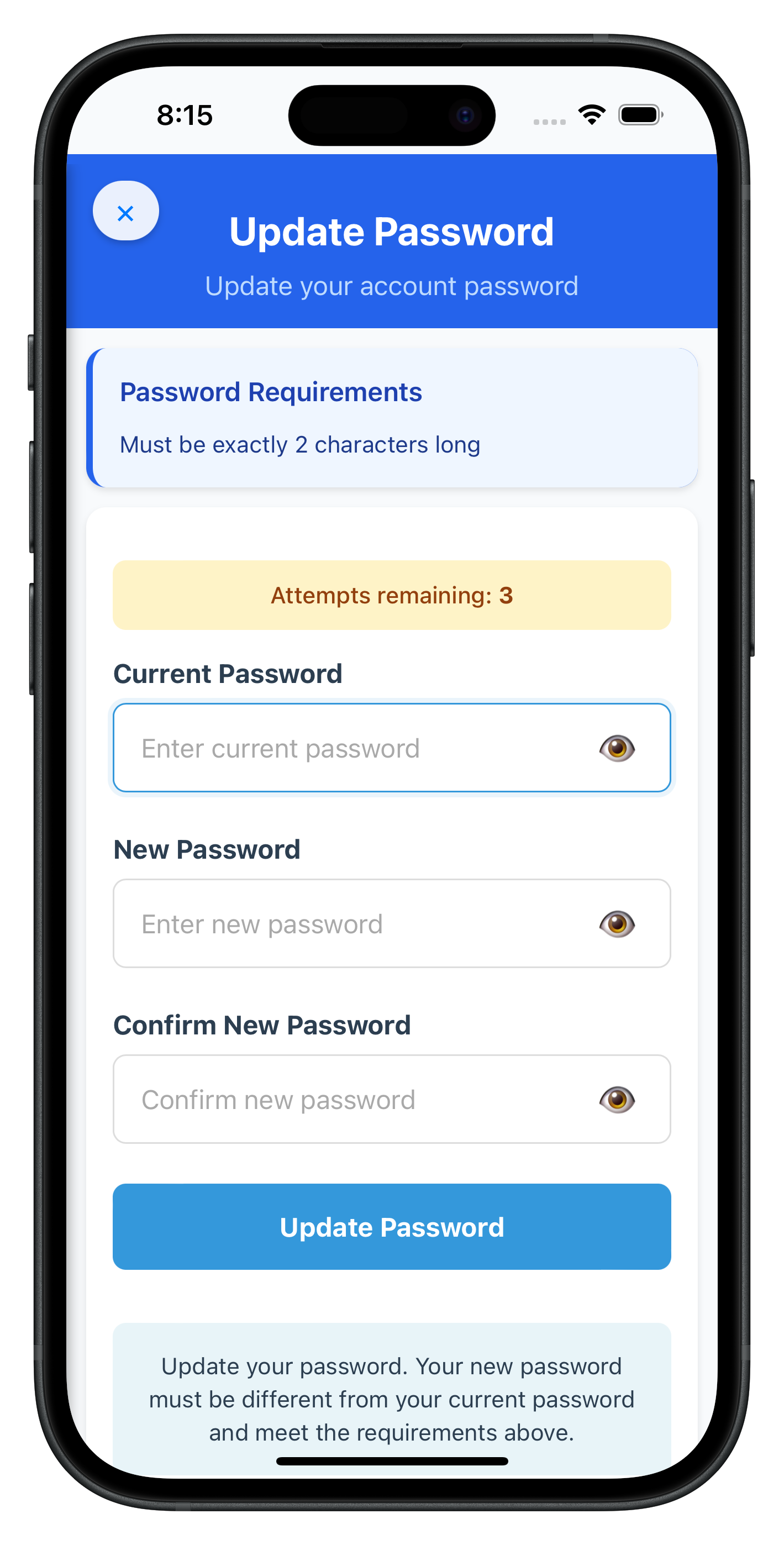
Now let's create the UpdatePasswordScreen with proper form management and three-field password validation.
Add this
template
element directly to your
www/index.html
file:
In the templates section of www/index.html (usually grouped with other screen templates before the closing
<!-- Update Password Screen Template -->
<template id="UpdatePassword-template">
  <div class="screen update-password-screen">
    <!-- Header with Menu Button -->
    <header class="screen-header">
      <button id="update-password-menu-btn" class="menu-btn" aria-label="Open menu">
        <span class="menu-icon">☰</span>
      </button>
      <h1 class="screen-title">Update Password</h1>
      <div class="header-spacer"></div>
    </header>

    <div class="screen-content">
      <!-- User Information -->
      <div id="update-password-user-info" class="user-info-container" style="display: none;">
        <p class="user-label">User</p>
        <p id="update-password-username" class="username-text">-</p>
      </div>

      <!-- Attempts Left Counter -->
      <div id="update-password-attempts-container" class="attempts-container" style="display: none;">
        <p id="update-password-attempts-text" class="attempts-text">
          Attempts remaining: <span id="update-password-attempts-count">3</span>
        </p>
      </div>

      <!-- Password Policy Display -->
      <div id="update-password-policy-container" class="policy-container" style="display: none;">
        <h3 class="policy-title">Password Requirements</h3>
        <p id="update-password-policy-text" class="policy-text"></p>
      </div>

      <!-- Error Display -->
      <div id="update-password-error-banner" class="status-banner error-banner" style="display: none;">
        <span id="update-password-error-text"></span>
      </div>

      <!-- Current Password Input -->
      <div class="form-group">
        <label for="update-password-current" class="form-label">Current Password</label>
        <div class="password-input-wrapper">
          <input
            type="password"
            id="update-password-current"
            class="form-input password-input"
            placeholder="Enter current password"
            autocomplete="current-password"
          />
          <button type="button" class="password-toggle" data-target="update-password-current" aria-label="Toggle password visibility">
            <span class="toggle-icon">👁️</span>
          </button>
        </div>
        <div id="update-password-current-error" class="field-error" style="display: none;"></div>
      </div>

      <!-- New Password Input -->
      <div class="form-group">
        <label for="update-password-new" class="form-label">New Password</label>
        <div class="password-input-wrapper">
          <input
            type="password"
            id="update-password-new"
            class="form-input password-input"
            placeholder="Enter new password"
            autocomplete="new-password"
          />
          <button type="button" class="password-toggle" data-target="update-password-new" aria-label="Toggle password visibility">
            <span class="toggle-icon">👁️</span>
          </button>
        </div>
        <div id="update-password-new-error" class="field-error" style="display: none;"></div>
      </div>

      <!-- Confirm New Password Input -->
      <div class="form-group">
        <label for="update-password-confirm" class="form-label">Confirm New Password</label>
        <div class="password-input-wrapper">
          <input
            type="password"
            id="update-password-confirm"
            class="form-input password-input"
            placeholder="Confirm new password"
            autocomplete="new-password"
          />
          <button type="button" class="password-toggle" data-target="update-password-confirm" aria-label="Toggle password visibility">
            <span class="toggle-icon">👁️</span>
          </button>
        </div>
        <div id="update-password-confirm-error" class="field-error" style="display: none;"></div>
      </div>

      <!-- Submit Button -->
      <button id="update-password-submit-btn" class="btn btn-primary">
        Update Password
      </button>

      <!-- Help Text -->
      <div class="help-container">
        <p class="help-text">
          Update your password. Your new password must be different from your current password and meet all policy requirements.
        </p>
      </div>
    </div>
  </div>
</template>
Create new file:
www/src/tutorial/screens/updatePassword/UpdatePasswordScreen.js
/**
 * Update Password Screen (Password Update Credentials Flow)
 *
 * This screen is designed for updating passwords via the credential update flow.
 * It handles challengeMode = 2 (RDNA_OP_UPDATE_CREDENTIALS) where users can update
 * their password by providing current and new passwords.
 *
 * Key Features:
 * - Current password, new password, and confirm password inputs with validation
 * - Password policy parsing and validation
 * - Real-time error handling and loading states
 * - Attempts left counter display
 * - Success/error feedback
 * - Password policy display
 * - Challenge mode 2 handling for password updates
 * - Screen-level onUpdateCredentialResponse handler with cleanup
 */

class UpdatePasswordScreen {
  constructor() {
    // State properties
    this.currentPassword = '';
    this.newPassword = '';
    this.confirmPassword = '';
    this.error = '';
    this.isSubmitting = false;
    this.challengeMode = 2;
    this.userName = '';
    this.passwordPolicyMessage = '';
    this.attemptsLeft = 3;

    // Event handler reference for cleanup
    this._updateCredentialHandler = null;
  }

  /**
   * Called when screen content is loaded into #app-content
   * @param {Object} params - Navigation parameters
   */
  onContentLoaded(params) {
    console.log('UpdatePasswordScreen - Content loaded, params:', JSON.stringify(params, null, 2));

    // Set up screen-level event handler for onUpdateCredentialResponse
    this.setupEventHandler();

    // Setup UI event listeners
    this.setupEventListeners();

    // Setup password visibility toggles
    this.setupPasswordToggles();

    // Setup menu button
    this.setupMenuButton();

    // Initialize screen data from params
    this.initializeData(params);
  }

  /**
   * Set up screen-level event handler for onUpdateCredentialResponse
   * This handler is specific to this screen and is cleaned up when screen is unloaded
   */
  setupEventHandler() {
    const eventManager = rdnaService.getEventManager();

    // Create bound handler function
    this._updateCredentialHandler = (data) => {
      console.log('UpdatePasswordScreen - Update credential response received:', JSON.stringify({
        userID: data.userID,
        credType: data.credType,
        statusCode: data.status.statusCode,
        statusMessage: data.status.statusMessage
      }, null, 2));

      this.isSubmitting = false;
      this.updateSubmitButton();

      const errorCode = data.error.longErrorCode;
      const errorString = data.error.errorString;
      const statusCode = data.status.statusCode;
      const statusMessage = data.status.statusMessage;

      if (errorCode != 0) {
        this.showErrorDialog('Update Failed', errorString, () => {
          console.log('UpdatePasswordScreen - Critical error:' + errorCode);
          NavigationService.navigate('Dashboard');
        });
        return;
      }

      if (statusCode === 100 || statusCode === 0) {
        // Success case - password updated successfully
        this.showSuccessDialog(statusMessage || 'Password updated successfully');
      } else if (statusCode === 110 || statusCode === 153) {
        // Critical error cases that trigger logout
        // statusCode 110: Password has expired
        // statusCode 153: Attempts exhausted, user/device blocked

        // Clear all password fields
        this.clearFields();
        this.error = statusMessage || 'Update failed';
        this.updateErrorDisplay();

        this.showErrorDialog('Update Failed', statusMessage, () => {
          // User will be logged off automatically by SDK
          // getUser event will be triggered and handled
          console.log('UpdatePasswordScreen - Critical error, waiting for onUserLoggedOff and getUser events');
        });
      } else {
        // Other status cases
        // statusCode 190: Password does not meet policy standards
        this.clearFields();
        this.error = statusMessage || 'Failed to update password';
        this.updateErrorDisplay();
        console.error('UpdatePasswordScreen - Update credential statusMessage:', statusMessage);
        this.showErrorDialog('Update Failed', statusMessage, () => {
          NavigationService.navigate('Dashboard');
        });
      }
    };

    // Register the handler
    eventManager.setUpdateCredentialResponseHandler(this._updateCredentialHandler);
    console.log('UpdatePasswordScreen - Screen-level event handler registered');
  }

  /**
   * Clean up event handler when screen is unloaded
   */
  onContentUnloaded() {
    console.log('UpdatePasswordScreen - Content unloaded, cleaning up event handler');
    const eventManager = rdnaService.getEventManager();
    eventManager.setUpdateCredentialResponseHandler(undefined);
    this._updateCredentialHandler = null;
  }

  /**
   * Setup event listeners for form elements
   */
  setupEventListeners() {
    const currentInput = document.getElementById('update-password-current');
    const newInput = document.getElementById('update-password-new');
    const confirmInput = document.getElementById('update-password-confirm');
    const submitBtn = document.getElementById('update-password-submit-btn');

    if (currentInput) {
      currentInput.addEventListener('input', (e) => {
        this.currentPassword = e.target.value;
        this.clearFieldError('current');
      });
    }

    if (newInput) {
      newInput.addEventListener('input', (e) => {
        this.newPassword = e.target.value;
        this.clearFieldError('new');
      });
    }

    if (confirmInput) {
      confirmInput.addEventListener('input', (e) => {
        this.confirmPassword = e.target.value;
        this.clearFieldError('confirm');
      });
    }

    if (submitBtn) {
      submitBtn.addEventListener('click', () => this.handleSubmit());
    }
  }

  /**
   * Setup password visibility toggles
   */
  setupPasswordToggles() {
    const toggleButtons = document.querySelectorAll('.password-toggle');
    toggleButtons.forEach(button => {
      button.addEventListener('click', () => {
        const targetId = button.getAttribute('data-target');
        const input = document.getElementById(targetId);
        if (input) {
          const isPassword = input.type === 'password';
          input.type = isPassword ? 'text' : 'password';
          button.querySelector('.toggle-icon').textContent = isPassword ? '🙈' : '👁️';
        }
      });
    });
  }

  /**
   * Setup menu button
   */
  setupMenuButton() {
    const menuBtn = document.getElementById('update-password-menu-btn');
    if (menuBtn) {
      menuBtn.addEventListener('click', () => {
        if (!this.isSubmitting) {
          NavigationService.openDrawer();
        }
      });
    }
  }

  /**
   * Initialize screen data from navigation params
   */
  initializeData(params) {
    const responseData = params?.responseData;
    if (!responseData) {
      console.warn('UpdatePasswordScreen - No response data provided');
      return;
    }

    console.log('UpdatePasswordScreen - Processing response data');

    // Extract challenge data
    this.userName = responseData.userID || '';
    this.challengeMode = responseData.challengeMode || 2;
    this.attemptsLeft = responseData.attemptsLeft || 3;

    // Update UI with user info
    this.updateUserDisplay();
    this.updateAttemptsDisplay();

    // Extract and process password policy
    const policyJsonString = this.getChallengeValue(responseData, 'RELID_PASSWORD_POLICY');
    if (policyJsonString) {
      this.passwordPolicyMessage = parseAndGeneratePolicyMessage(policyJsonString);
      console.log('UpdatePasswordScreen - Password policy extracted:', this.passwordPolicyMessage);
      this.updatePolicyDisplay();
    }

    // Clear password fields when screen loads
    this.clearFields();

    // Focus on first input
    const firstInput = document.getElementById('update-password-current');
    if (firstInput) {
      setTimeout(() => firstInput.focus(), 100);
    }
  }

  /**
   * Extract challenge value from response data
   */
  getChallengeValue(responseData, key) {
    // Try challengeInfo first (Cordova structure)
    if (responseData.challengeResponse?.challengeInfo) {
      const challenges = responseData.challengeResponse.challengeInfo;
      for (let challenge of challenges) {
        if (challenge.key === key) {
          return challenge.value;
        }
      }
    }

    // Fallback to challenge (if structure differs)
    if (responseData.challengeResponse?.challenge) {
      const challenges = responseData.challengeResponse.challenge;
      for (let challenge of challenges) {
        if (challenge.Key === key || challenge.key === key) {
          return challenge.Value || challenge.value;
        }
      }
    }

    return null;
  }

  /**
   * Handle form submission with field-specific validation
   */
  async handleSubmit() {
    if (this.isSubmitting) {
      console.log('UpdatePasswordScreen - Already submitting, ignoring');
      return;
    }

    // Clear all previous errors
    this.clearAllErrors();

    // Validate current password
    if (!this.currentPassword.trim()) {
      this.showFieldError('current', 'Current password is required');
      return;
    }

    // Validate new password
    if (!this.newPassword.trim()) {
      this.showFieldError('new', 'New password is required');
      return;
    }

    // Validate confirm password
    if (!this.confirmPassword.trim()) {
      this.showFieldError('confirm', 'Please confirm your new password');
      return;
    }

    // Validate password match
    if (this.newPassword !== this.confirmPassword) {
      this.showFieldError('confirm', 'New password and confirm password do not match');
      this.newPassword = '';
      this.confirmPassword = '';
      document.getElementById('update-password-new').value = '';
      document.getElementById('update-password-confirm').value = '';
      document.getElementById('update-password-new').focus();
      return;
    }

    // Validate password is different
    if (this.currentPassword === this.newPassword) {
      this.showFieldError('new', 'New password must be different from current password');
      this.newPassword = '';
      this.confirmPassword = '';
      document.getElementById('update-password-new').value = '';
      document.getElementById('update-password-confirm').value = '';
      document.getElementById('update-password-new').focus();
      return;
    }

    // Start submission
    this.isSubmitting = true;
    this.updateSubmitButton();

    try {
      console.log('UpdatePasswordScreen - Calling updatePassword API with challengeMode 2');
      await rdnaService.updatePassword(this.currentPassword, this.newPassword, 2);
      console.log('UpdatePasswordScreen - updatePassword sync response success, waiting for onUpdateCredentialResponse event');
    } catch (error) {
      console.error('UpdatePasswordScreen - updatePassword sync error:', error);
      this.isSubmitting = false;
      this.updateSubmitButton();

      // Clear password fields on error
      this.clearFields();

      // Show error in status banner
      this.error = error.error?.errorString || 'Failed to update password';
      this.updateErrorDisplay();
    }
  }

  /**
   * Show field-specific error
   */
  showFieldError(fieldType, message) {
    const errorElement = document.getElementById(`update-password-${fieldType}-error`);
    if (errorElement) {
      errorElement.textContent = message;
      errorElement.style.display = 'block';
    }
  }

  /**
   * Clear field-specific error
   */
  clearFieldError(fieldType) {
    const errorElement = document.getElementById(`update-password-${fieldType}-error`);
    if (errorElement) {
      errorElement.style.display = 'none';
      errorElement.textContent = '';
    }
  }

  /**
   * Clear all field errors and status banner
   */
  clearAllErrors() {
    this.clearFieldError('current');
    this.clearFieldError('new');
    this.clearFieldError('confirm');
    this.error = '';
    this.updateErrorDisplay();
  }

  /**
   * Clear all password fields
   */
  clearFields() {
    this.currentPassword = '';
    this.newPassword = '';
    this.confirmPassword = '';

    const currentInput = document.getElementById('update-password-current');
    const newInput = document.getElementById('update-password-new');
    const confirmInput = document.getElementById('update-password-confirm');

    if (currentInput) currentInput.value = '';
    if (newInput) newInput.value = '';
    if (confirmInput) confirmInput.value = '';

    if (currentInput) currentInput.focus();
  }

  /**
   * Update submit button state
   */
  updateSubmitButton() {
    const submitBtn = document.getElementById('update-password-submit-btn');
    if (!submitBtn) return;

    if (this.isSubmitting) {
      submitBtn.textContent = 'Updating Password...';
      submitBtn.disabled = true;
      submitBtn.classList.add('loading');
    } else {
      submitBtn.textContent = 'Update Password';
      submitBtn.disabled = false;
      submitBtn.classList.remove('loading');
    }
  }

  /**
   * Update user display
   */
  updateUserDisplay() {
    const userInfo = document.getElementById('update-password-user-info');
    const usernameText = document.getElementById('update-password-username');

    if (this.userName && userInfo && usernameText) {
      usernameText.textContent = this.userName;
      userInfo.style.display = 'block';
    }
  }

  /**
   * Update attempts display
   */
  updateAttemptsDisplay() {
    const attemptsContainer = document.getElementById('update-password-attempts-container');
    const attemptsCount = document.getElementById('update-password-attempts-count');

    if (attemptsContainer && attemptsCount) {
      attemptsCount.textContent = this.attemptsLeft;
      attemptsContainer.style.display = 'block';

      // Color coding based on attempts left
      if (this.attemptsLeft === 1) {
        attemptsContainer.classList.add('critical');
      } else {
        attemptsContainer.classList.remove('critical');
      }
    }
  }

  /**
   * Update policy display
   */
  updatePolicyDisplay() {
    const policyContainer = document.getElementById('update-password-policy-container');
    const policyText = document.getElementById('update-password-policy-text');

    if (this.passwordPolicyMessage && policyContainer && policyText) {
      policyText.textContent = this.passwordPolicyMessage;
      policyContainer.style.display = 'block';
    }
  }

  /**
   * Update error display
   */
  updateErrorDisplay() {
    const errorBanner = document.getElementById('update-password-error-banner');
    const errorText = document.getElementById('update-password-error-text');

    if (errorBanner && errorText) {
      if (this.error) {
        errorText.textContent = this.error;
        errorBanner.style.display = 'block';
      } else {
        errorBanner.style.display = 'none';
      }
    }
  }

  /**
   * Show success dialog
   */
  showSuccessDialog(message) {
    alert('Success: ' + message);
    NavigationService.navigate('Dashboard');
  }

  /**
   * Show error dialog
   */
  showErrorDialog(title, message, onClose) {
    alert(title + ': ' + message);
    if (onClose) onClose();
  }
}

// Create singleton instance
const UpdatePasswordScreen = new UpdatePasswordScreen();
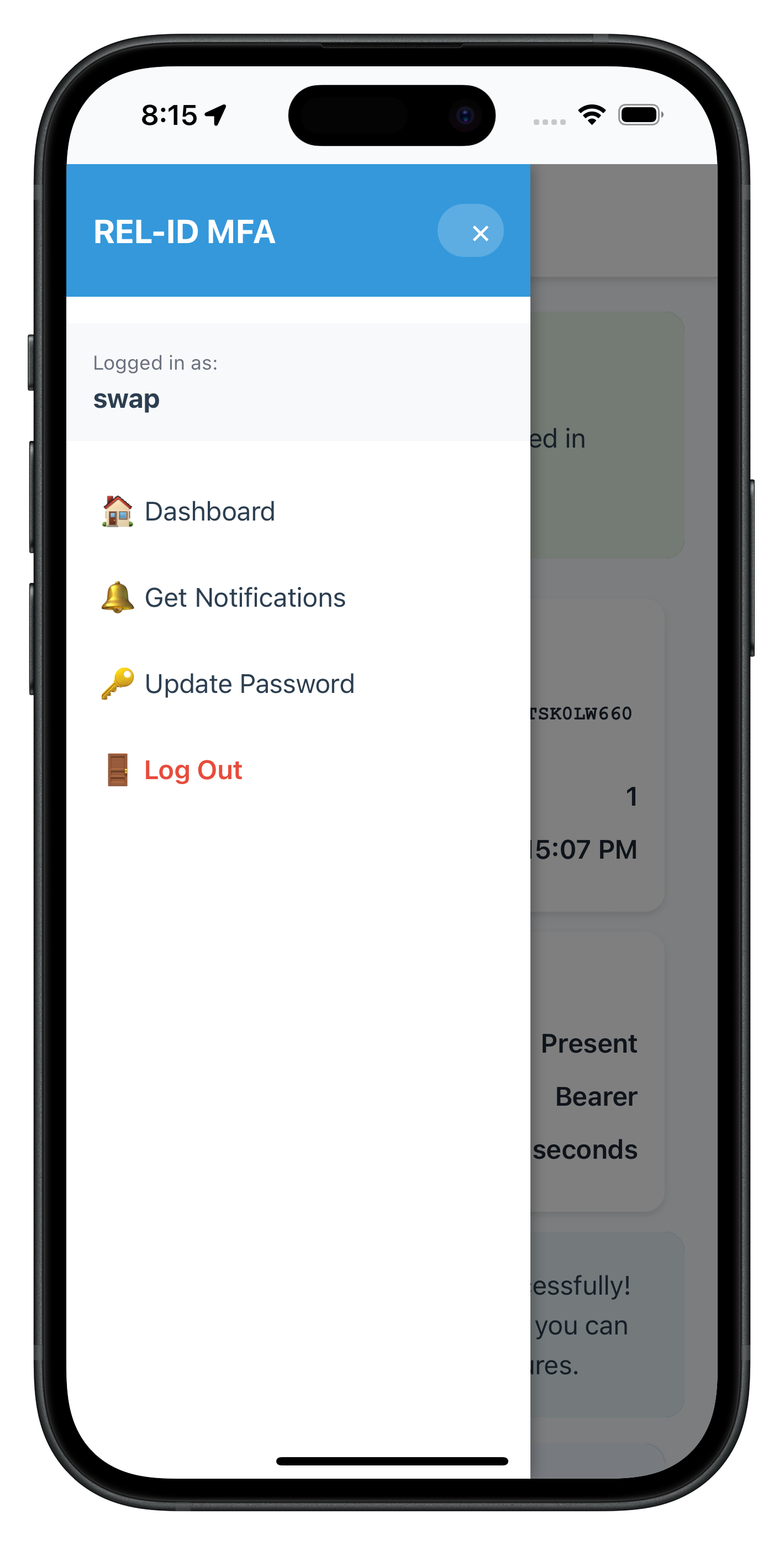
The following images showcase screens from the sample application:
|
|
Add script reference to
www/index.html
(after rdnaService.js and before app.js):
<!-- Update Password Screen -->
<script src="src/tutorial/screens/updatePassword/UpdatePasswordScreen.js"></script>
Now let's integrate the UpdatePasswordScreen into your drawer navigation and add conditional menu rendering.
Modify the drawer menu section in
www/index.html
:
<!-- Drawer Menu (slides in from left) -->
<nav id="drawer-menu" class="drawer-menu">
  <div class="drawer-header">
    <h2 class="drawer-title">REL-ID MFA</h2>
    <button id="drawer-close-btn" class="drawer-close-btn">✕</button>
  </div>
  <div class="drawer-content">
    <div id="drawer-user-info" class="drawer-user-info" style="display: none;">
      <p class="drawer-user-label">Logged in as:</p>
      <p id="drawer-username" class="drawer-username">-</p>
    </div>
    <ul class="drawer-nav">
      <li><a href="#" id="drawer-dashboard-link" class="drawer-link">🏠 Dashboard</a></li>
      <li><a href="#" id="drawer-notifications-link" class="drawer-link">🔔 Get Notifications</a></li>
      <!-- ✅ NEW: Update Password Menu Item - Conditionally Shown -->
      <li id="drawer-update-password-item" style="display: none;">
        <a href="#" id="drawer-update-password-link" class="drawer-link">🔑 Update Password</a>
      </li>
      <li><a href="#" id="drawer-logout-link" class="drawer-link logout-link">🚪 Log Out</a></li>
    </ul>
  </div>
</nav>
Add this JavaScript code in your main
www/index.html
or in a separate
app.js
file:
// ✅ NEW: Update drawer menu based on available credentials
// Called by SDKEventProvider after onCredentialsAvailableForUpdate event
function updateDrawerMenu() {
  const credentials = SDKEventProvider.getAvailableCredentials();
  const updatePasswordItem = document.getElementById('drawer-update-password-item');

  if (updatePasswordItem) {
    if (credentials.includes('Password')) {
      updatePasswordItem.style.display = 'list-item';
      console.log('Drawer menu - Update Password item shown');
    } else {
      updatePasswordItem.style.display = 'none';
      console.log('Drawer menu - Update Password item hidden');
    }
  }
}

// ✅ NEW: Handle Update Password menu item click
document.addEventListener('DOMContentLoaded', function() {
  const updatePasswordLink = document.getElementById('drawer-update-password-link');
  if (updatePasswordLink) {
    updatePasswordLink.addEventListener('click', async function(e) {
      e.preventDefault();
      console.log('Drawer - Update Password clicked');

      // Close drawer immediately
      NavigationService.closeDrawer();

      // Show loading state
      updatePasswordLink.classList.add('loading');
      const originalText = updatePasswordLink.textContent;
      updatePasswordLink.textContent = '⏳ Initiating...';

      try {
        // Call initiateUpdateFlowForCredential API
        await rdnaService.initiateUpdateFlowForCredential('Password');
        console.log('Drawer - InitiateUpdateFlowForCredential called successfully');
        // SDK will trigger getPassword with challengeMode = 2
        // SDKEventProvider will handle navigation to UpdatePasswordScreen
      } catch (error) {
        console.error('Drawer - InitiateUpdateFlowForCredential error:', error);
        alert('Update Password Error: ' + (error.error?.errorString || 'Failed to initiate password update'));
      } finally {
        // Restore button state
        updatePasswordLink.classList.remove('loading');
        updatePasswordLink.textContent = originalText;
      }
    });
  }
});
Add these styles to your
www/css/styles.css
:
/* Update Password Screen Styles */
.update-password-screen {
  min-height: 100vh;
  background-color: #f8f9fa;
}

.update-password-screen .screen-content {
  padding: 20px;
  max-width: 600px;
  margin: 0 auto;
}

.update-password-screen .user-info-container {
  text-align: center;
  margin-bottom: 20px;
}

.update-password-screen .user-label {
  font-size: 18px;
  color: #2c3e50;
  margin-bottom: 4px;
}

.update-password-screen .username-text {
  font-size: 20px;
  font-weight: bold;
  color: #3498db;
  margin-bottom: 10px;
}

.update-password-screen .attempts-container {
  background-color: #fff3cd;
  border-left: 4px solid #ffc107;
  border-radius: 8px;
  padding: 12px;
  margin-bottom: 20px;
}

.update-password-screen .attempts-container.critical {
  background-color: #f8d7da;
  border-left-color: #dc3545;
}

.update-password-screen .attempts-text {
  font-size: 14px;
  color: #856404;
  font-weight: 600;
  text-align: center;
  margin: 0;
}

.update-password-screen .attempts-container.critical .attempts-text {
  color: #721c24;
}

.update-password-screen .policy-container {
  background-color: #f0f8ff;
  border-left: 4px solid #3498db;
  border-radius: 8px;
  padding: 16px;
  margin-bottom: 20px;
}

.update-password-screen .policy-title {
  font-size: 16px;
  font-weight: bold;
  color: #2c3e50;
  margin: 0 0 8px 0;
}

.update-password-screen .policy-text {
  font-size: 14px;
  color: #2c3e50;
  line-height: 20px;
  margin: 0;
}

.update-password-screen .form-group {
  margin-bottom: 20px;
}

.update-password-screen .password-input-wrapper {
  position: relative;
  display: flex;
  align-items: center;
}

.update-password-screen .password-input {
  flex: 1;
  padding-right: 45px;
}

.update-password-screen .password-toggle {
  position: absolute;
  right: 10px;
  background: none;
  border: none;
  font-size: 18px;
  cursor: pointer;
  padding: 5px;
}

.update-password-screen .field-error {
  color: #dc3545;
  font-size: 12px;
  margin-top: 4px;
  padding: 4px 0;
}

.update-password-screen .help-container {
  background-color: #e8f4f8;
  border-radius: 8px;
  padding: 16px;
  margin-top: 20px;
}

.update-password-screen .help-text {
  font-size: 14px;
  color: #2c3e50;
  text-align: center;
  line-height: 20px;
  margin: 0;
}

/* Loading state for drawer link */
.drawer-link.loading {
  opacity: 0.6;
  pointer-events: none;
}
This project includes a local Cordova plugin. Ensure the plugin directory exists in your project root:
# Verify plugin directory exists
ls -la ./RdnaClient
The SDK plugin is included as a local plugin in the project. Install it from the local directory:
cordova plugin add ./RdnaClient
For loading local JSON files, install cordova-plugin-file:
cordova plugin add cordova-plugin-file
# Add platforms
cordova platform add ios
cordova platform add android

# Prepare platforms
cordova prepare
Follow the Cordova platform setup guide for platform-specific configuration.
# Prepare platforms
cordova prepare

# Run on iOS
cordova run ios

# Run on Android
cordova run android
iOS: Safari → Develop → Simulator → [Your App] Android: Chrome → chrome://inspect → Inspect
Test Scenario 1: Successful Password Update
Expected Console Logs:
UpdatePasswordScreen - Updating password with challengeMode: 2
RdnaService - UpdatePassword sync response success
UpdatePasswordScreen - Update credential response received: statusCode: 100
SDKEventProvider - User logged off event received
SDKEventProvider - Get user event received
Expected Result: ✅ Password updated successfully, user logged out automatically by SDK
Test Scenario 2: Password Mismatch Validation
Expected Result: ✅ Field error: "New password and confirm password do not match"
Test Scenario 3: Same Password Validation
Expected Result: ✅ Field error: "New password must be different from current password"
Symptoms:
Causes & Solutions:
Cause 1: Server credential not configured
Solution: Enable password update credential in REL-ID server configuration
- Log into REL-ID admin portal
- Navigate to User/Application Settings
- Enable "Password Update" credential
- Save and restart server if needed
Cause 2: getAllChallenges() not called after login
Solution: Verify SDKEventProvider handleUserLoggedIn calls getAllChallenges()
- Check console for: "Calling getAllChallenges after login"
- Verify async/await syntax is correct
- Ensure error handling doesn't silently fail
Cause 3: onCredentialsAvailableForUpdate not triggering
Solution: Verify event handler is registered
- Check rdnaEventManager.setCredentialsAvailableForUpdateHandler() is called
- Verify handler is set before getAllChallenges() is called
- Check console for: "Credentials available for update event received"
Cause 4: Conditional rendering logic error
Solution: Debug availableCredentials array
- Add console.log: console.log('availableCredentials:', SDKEventProvider.getAvailableCredentials())
- Verify updateDrawerMenu() function is called
- Check string matching: credentials.includes('Password')
Symptoms:
Causes & Solutions:
Cause 1: Event handler not registered
Solution: Verify screen-level handler setup
- Check UpdatePasswordScreen has setupEventHandler() called in onContentLoaded()
- Verify eventManager.setUpdateCredentialResponseHandler() is called
- Ensure handler is set BEFORE updatePassword() API call
Cause 2: Handler cleanup removes handler too early
Solution: Check onContentUnloaded lifecycle
- Verify onContentUnloaded only runs when screen actually unloads
- Ensure cleanup doesn't happen during navigation animations
- Use console.log to track when cleanup occurs
Cause 3: Global handler in SDKEventProvider conflicts
Solution: Use screen-level handler, not global
- Remove or make fallback the global handler in SDKEventProvider
- Screen-level handler should override global handler
- Ensure cleanup resets to undefined, not previous handler
Symptoms:
Causes & Solutions:
Cause 1: Plugin not loaded
Solution: Run cordova prepare and rebuild
- Execute: cordova prepare
- Rebuild app completely
- Verify plugin installed: cordova plugin ls
Cause 2: Local plugin installation failed
Solution: Reinstall local plugin
- Remove: cordova plugin remove cordova-plugin-rdna
- Verify directory: ls -la ./RdnaClient
- Reinstall: cordova plugin add ./RdnaClient
- Run: cordova prepare
Symptoms:
Causes & Solutions:
Cause 1: Misunderstanding SDK behavior
Solution: This is EXPECTED SDK behavior
- SDK automatically triggers onUserLoggedOff → getUser after status 110/153
- Your app doesn't trigger logout - SDK does it automatically
- Wait a few seconds after success alert - logout will happen
- Check console for: "User logged off event received"
Cause 2: onUserLoggedOff handler not set
Solution: Verify SDKEventProvider has logout handler
- Check: eventManager.setOnUserLoggedOffHandler(handleUserLoggedOff.bind(this))
- Verify handler logs: "User logged off event received"
- Ensure getUser handler navigates to login screen
Password Handling:
Session Management:
Event Handler Management:
Error Handling:
Form Validation:
Password Policy Display:
Loading States:
File Structure:
www/
├── src/
│   ├── uniken/
│   │   ├── services/
│   │   │   ├── rdnaService.js (✅ Add getAllChallenges, initiateUpdateFlowForCredential, updatePassword)
│   │   │   └── rdnaEventManager.js (✅ Add credential event handlers)
│   │   ├── providers/
│   │   │   └── SDKEventProvider.js (✅ Add credential detection and routing)
│   │   └── utils/
│   │       └── passwordPolicyUtils.js (Password policy parsing)
│   └── tutorial/
│       ├── navigation/
│       │   └── NavigationService.js (Template-based SPA navigation)
│       └── screens/
│           └── updatePassword/
│               ├── UpdatePasswordScreen.html (✅ NEW)
│               └── UpdatePasswordScreen.js (✅ NEW)
└── index.html (✅ Add conditional menu and handlers)
Component Responsibilities:
Render Optimization:
Memory Management:
Network Optimization:
Before deploying to production, verify:
Congratulations! You've successfully implemented user-initiated password update functionality with REL-ID SDK in Cordova!
In this codelab, you learned how to:
getAllChallenges() APIonCredentialsAvailableForUpdate event and store available credentialsRELID_PASSWORD_POLICY requirementsonUpdateCredentialResponse handler with proper cleanuponUserLoggedOff → getUser events for status codes 110/153Challenge Mode 2 is for User-Initiated Updates:
getAllChallenges() firstSDK Event Chain for Status Codes 110/153:
onUpdateCredentialResponse eventonUserLoggedOff → getUser after these codesScreen-Level Event Handlers:
Drawer Navigation Integration:
onCredentialsAvailableForUpdate eventThe complete implementation is available in the GitHub repository:
git clone https://github.com/uniken-public/codelab-cordova.git
cd relid-MFA-update-password
Thank you for completing this codelab! If you have questions or feedback, please reach out to the REL-ID Development Team.