🎯 Learning Path:
- Complete RELID Initialization first
- You are here → MFA Activation & Login Implementation
This comprehensive codelab teaches you to implement complete Multi-Factor Authentication using cordova-plugin-rdna plugin. You'll build both Activation Flow (first-time users) and Login Flow (returning users) with error handling and security practices.
🚀 What You'll Build
By the end of this codelab, you'll have a complete MFA system that handles:
📱 Activation Flow (First-Time Users):
- Complete user onboarding and device enrollment
- Multi-factor verification with cyclical challenge handling
- Flexible authentication (biometric + password fallback)
🔐 Login Flow (Returning Users):
- Streamlined biometric authentication
- Password verification with attempt tracking
- Graceful error recovery and fallbacks
✅ Technical Requirements
Before starting, verify you have:
- [ ] Completed RELID Initialization codelab
✅ Knowledge Prerequisites
You should be comfortable with:
- [ ] JavaScript & HTML/CSS fundamentals
- [ ] Cordova application basics
- [ ] Promise & async/await patterns
- [ ] DOM manipulation concepts
Get the Code from GitHub
The code to get started is stored in a GitHub repository.
You can clone the repository using the following command:
git clone https://github.com/uniken-public/codelab-cordova.git
Navigate to the relid-MFA folder in the repository you cloned earlier
Platform-Specific Permissions
The RELID SDK requires specific permissions for optimal MFA functionality:
iOS Configuration: Refer to the iOS Permissions Documentation for complete Info.plist configuration including:
- NSFaceIDUsageDescription (Face ID authentication)
- NSLocationWhenInUseUsageDescription (login verification)
- NSLocalNetworkUsageDescription (network threat detection and optional for DNS resolution)
Android Configuration: Refer to the Android Permissions Documentation for runtime and normal permissions required for MFA features.
Understanding MFA Flow Types
Quick Overview: This codelab covers two flows:
- Activation Flow: For first-time users
- Login Flow: For returning users
📊 Flow Comparison at a Glance
Aspect | 🆕 Activation Flow | 🔄 Login Flow |
When | First-time users, new devices | Returning users, registered devices |
Purpose | Device registration + auth setup | Quick authentication |
Steps | Username → OTP → Device Auth or Password → Success | Username → Device Auth/Password → Success |
Device Auth(LDA) | Optional setup during flow | Automatic if previously enabled |
🔄 What Does Activation and Login Flow Mean
Activation Flow Occurs When:
- User registers for the first time
- User has never activated on any device
- Initial device enrollment scenarios
Login Flow Occurs When:
- User has previously activated on this device
- Device is registered but user session expired
- User explicitly logged out and logging back in
🏗️ Plugin Architecture & Event System
The Plugin uses an event-driven architecture where:
- Plugin Events → Trigger challenges requiring user input
- API Calls → Respond to challenges with user data
- Event Handling → Handle event responses and navigate accordingly
Key Architecture Pattern: Promise + Event
// Synchronous API response
const syncResponse = await rdnaService.setUser(username);

// Asynchronous event handling
eventManager.getUserHandler = (challenge) => {
  // Handle the challenge in UI
  NavigationService.navigate('CheckUser');
};
📋 Quick Reference: Core Events & APIs
SDK Event | API Response | Purpose | Flow |
|
| User identification | Both |
|
| OTP verification | Activation |
|
| Biometric setup | Activation |
|
| Password setup/verify | Both |
| N/A | Success notification(user logged in) | Both |
|
| User Session cleanup(if user logged in) | Both |
Both - Activation and Login
📝 What We're Building: Complete first-time user registration with device enrollment, OTP verification, and LDA setup.
Understanding Activation Flow Sequence
Please refer to the flow diagram from uniken developer documentation portal, user activation
Activation Challenge Phases
Phase | Challenge Type | User Action | SDK Validation | Result |
1. User ID |
| Enter username/email | Validates user exists/format | Proceeds or repeats |
2. OTP Verify |
| Enter activation code | Validates code from email/SMS | Proceeds or shows error |
3. Device Auth |
| Choose biometric or password | Sets up device authentication | Completes activation |
4. Success | N/A | Automatic navigation | User session established | User activated & logged in |
🔄 Cyclical Challenge Handling
Important: The getUser event can trigger multiple times if:
- Username validation fails
- User enters invalid format
- Network errors occur during validation
Your UI must handle repeated events gracefully without breaking navigation.
Before implementing the activation flow, establish comprehensive JSDoc types for better development experience and documentation.
Core Type Definitions
In Cordova, we use JSDoc comments for type documentation instead of TypeScript interfaces:
// www/src/uniken/services/rdnaEventManager.js

/**
 * Standard RDNA Error Structure
 * Used across all APIs and events for consistent error handling
 * @typedef {Object} RDNAError
 * @property {number} longErrorCode
 * @property {number} shortErrorCode
 * @property {string} errorString
 */

/**
 * Standard RDNA Status Structure
 * Used in challenge responses and API responses
 * @typedef {Object} RDNAStatus
 * @property {number} statusCode
 * @property {string} statusMessage
 */

/**
 * Standard RDNA Session Structure
 * Contains session information from the SDK
 * @typedef {Object} RDNASession
 * @property {number} sessionType
 * @property {string} sessionID
 */

/**
 * Standard RDNA Additional Info Structure
 * Contains comprehensive session and configuration data
 * @typedef {Object} RDNAAdditionalInfo
 * @property {number} DNAProxyPort
 * @property {number} isAdUser
 * @property {number} isDNAProxyLocalHostOnly
 * @property {string} jwtJsonTokenInfo
 * @property {string} settings
 * @property {string} mtlsP12Bundle
 * @property {string} configSettings
 * @property {Array} loginIDs
 * @property {Array} availableGroups
 * @property {string} idvAuditInfo
 * @property {string} idvUserRole
 * @property {string} currentWorkFlow
 * @property {number} isMTDDownloadOnly
 */

/**
 * Standard RDNA Challenge Response Structure
 * Complete challenge response with all components
 * @typedef {Object} RDNAChallengeResponse
 * @property {RDNAStatus} status
 * @property {RDNASession} session
 * @property {RDNAAdditionalInfo} additionalInfo
 * @property {Array<{key: string, value: string}>} challengeInfo
 */

/**
 * Base RDNA Event Structure
 * Foundation for all asynchronous SDK events
 * @typedef {Object} RDNAEvent
 * @property {RDNAChallengeResponse} challengeResponse
 * @property {RDNAError} error
 */

/**
 * RDNA Sync Response Structure
 * Used for synchronous API responses
 * @typedef {Object} RDNASyncResponse
 * @property {RDNAError} error
 */
MFA Event Data Types
/**
 * RDNA Get User Data
 * User information request event
 * @typedef {Object} RDNAGetUserData
 * @property {RDNAChallengeResponse} challengeResponse
 * @property {RDNAError} error
 * @property {string} recentLoggedInUser
 * @property {string[]} rememberedUsers
 */

/**
 * RDNA Get Activation Code Data
 * Activation code request event
 * @typedef {Object} RDNAGetActivationCodeData
 * @property {RDNAChallengeResponse} challengeResponse
 * @property {RDNAError} error
 * @property {string} userID
 * @property {string} verificationKey
 * @property {number} attemptsLeft
 */

/**
 * RDNA Get User Consent For LDA Data
 * User consent request for LDA authentication
 * @typedef {Object} RDNAGetUserConsentForLDAData
 * @property {RDNAChallengeResponse} challengeResponse
 * @property {RDNAError} error
 * @property {string} userID
 * @property {number} challengeMode
 * @property {number} authenticationType
 */

/**
 * RDNA Get Password Data
 * Password request event
 * @typedef {Object} RDNAGetPasswordData
 * @property {RDNAChallengeResponse} challengeResponse
 * @property {RDNAError} error
 * @property {string} userID
 * @property {number} challengeMode
 * @property {number} attemptsLeft
 */

/**
 * RDNA User Logged In Data
 * User login completion event with full session and JWT information
 * @typedef {Object} RDNAUserLoggedInData
 * @property {RDNAChallengeResponse} challengeResponse
 * @property {RDNAError} error
 * @property {string} userID
 */
Event Callback Types
/**
 * Callback function types for MFA events
 * @callback RDNAGetUserCallback
 * @param {RDNAGetUserData} data
 * @returns {void}
 *
 * @callback RDNAGetActivationCodeCallback
 * @param {RDNAGetActivationCodeData} data
 * @returns {void}
 *
 * @callback RDNAGetUserConsentForLDACallback
 * @param {RDNAGetUserConsentForLDAData} data
 * @returns {void}
 *
 * @callback RDNAGetPasswordCallback
 * @param {RDNAGetPasswordData} data
 * @returns {void}
 *
 * @callback RDNAUserLoggedInCallback
 * @param {RDNAUserLoggedInData} data
 * @returns {void}
 */
Building on your existing RELID event manager from the initialization codelab, add support for activation flow events. The activation flow requires handling six key MFA events.
Adding MFA Event Handlers
The event manager was initialized in the previous codelab. Now we'll extend it to handle MFA events:
// www/src/uniken/services/rdnaEventManager.js (MFA additions)
class RdnaEventManager {
  constructor() {
    // ... existing initialization code ...

    // MFA event handlers
    this.getUserHandler = null;
    this.getActivationCodeHandler = null;
    this.getUserConsentForLDAHandler = null;
    this.getPasswordHandler = null;
    this.onUserLoggedInHandler = null;
    this.onUserLoggedOffHandler = null;
  }

  /**
   * Register MFA event listeners (called during initialization)
   * @private
   */
  registerEventListeners() {
    // ... existing listeners from initialization codelab ...

    // MFA event listeners
    const getUserListener = this.onGetUser.bind(this);
    const getActivationCodeListener = this.onGetActivationCode.bind(this);
    const getUserConsentForLDAListener = this.onGetUserConsentForLDA.bind(this);
    const getPasswordListener = this.onGetPassword.bind(this);
    const onUserLoggedInListener = this.onUserLoggedIn.bind(this);
    const onUserLoggedOffListener = this.onUserLoggedOff.bind(this);

    // Register with document
    document.addEventListener('getUser', getUserListener, false);
    document.addEventListener('getActivationCode', getActivationCodeListener, false);
    document.addEventListener('getUserConsentForLDA', getUserConsentForLDAListener, false);
    document.addEventListener('getPassword', getPasswordListener, false);
    document.addEventListener('onUserLoggedIn', onUserLoggedInListener, false);
    document.addEventListener('onUserLoggedOff', onUserLoggedOffListener, false);

    // Store for cleanup
    this.listeners.push(
      { name: 'getUser', handler: getUserListener },
      { name: 'getActivationCode', handler: getActivationCodeListener },
      { name: 'getUserConsentForLDA', handler: getUserConsentForLDAListener },
      { name: 'getPassword', handler: getPasswordListener },
      { name: 'onUserLoggedIn', handler: onUserLoggedInListener },
      { name: 'onUserLoggedOff', handler: onUserLoggedOffListener }
    );

    console.log('RdnaEventManager - MFA event listeners registered');
  }
}
Implementing MFA Event Handlers
Each activation event requires specific handling with proper JSON parsing:
/**
 * Handles user identification challenge (always first in activation flow)
 * Can be triggered multiple times if user validation fails
 * @param {Event} event - DOM event from SDK
 */
onGetUser(event) {
  console.log("RdnaEventManager - Get user event received");

  try {
    const getUserData = JSON.parse(event.response);
    console.log("RdnaEventManager - Get user status:", getUserData.challengeResponse.status.statusCode);
    console.log("RdnaEventManager - Recent logged in user:", getUserData.recentLoggedInUser);
    console.log("RdnaEventManager - Remembered users:", getUserData.rememberedUsers);

    if (this.getUserHandler) {
      this.getUserHandler(getUserData);
    }
  } catch (error) {
    console.error("RdnaEventManager - Failed to parse get user:", error);
  }
}

/**
 * Handles activation code challenge (OTP verification)
 * Provides attempts left information for user feedback
 * @param {Event} event - DOM event from SDK
 */
onGetActivationCode(event) {
  console.log("RdnaEventManager - Get activation code event received");

  try {
    const getActivationCodeData = JSON.parse(event.response);
    console.log("RdnaEventManager - UserID:", getActivationCodeData.userID);
    console.log("RdnaEventManager - Attempts left:", getActivationCodeData.attemptsLeft);
    console.log("RdnaEventManager - Verification key:", getActivationCodeData.verificationKey);

    if (this.getActivationCodeHandler) {
      this.getActivationCodeHandler(getActivationCodeData);
    }
  } catch (error) {
    console.error("RdnaEventManager - Failed to parse get activation code:", error);
  }
}

/**
 * Handles Local Device Authentication consent request
 * Triggered when biometric authentication is available
 * @param {Event} event - DOM event from SDK
 */
onGetUserConsentForLDA(event) {
  console.log("RdnaEventManager - Get user consent for LDA event received");

  try {
    const getUserConsentForLDAData = JSON.parse(event.response);
    console.log("RdnaEventManager - UserID:", getUserConsentForLDAData.userID);
    console.log("RdnaEventManager - Challenge mode:", getUserConsentForLDAData.challengeMode);
    console.log("RdnaEventManager - Authentication type:", getUserConsentForLDAData.authenticationType);

    if (this.getUserConsentForLDAHandler) {
      this.getUserConsentForLDAHandler(getUserConsentForLDAData);
    }
  } catch (error) {
    console.error("RdnaEventManager - Failed to parse get user consent for LDA:", error);
  }
}

/**
 * Handles password authentication challenge
 * Supports both password creation (mode 1) and verification (mode 0)
 * @param {Event} event - DOM event from SDK
 */
onGetPassword(event) {
  console.log("RdnaEventManager - Get password event received");

  try {
    const getPasswordData = JSON.parse(event.response);
    console.log("RdnaEventManager - UserID:", getPasswordData.userID);
    console.log("RdnaEventManager - Challenge mode:", getPasswordData.challengeMode);
    console.log("RdnaEventManager - Attempts left:", getPasswordData.attemptsLeft);

    if (this.getPasswordHandler) {
      this.getPasswordHandler(getPasswordData);
    }
  } catch (error) {
    console.error("RdnaEventManager - Failed to parse get password:", error);
  }
}

/**
 * Handles successful activation completion
 * Provides session information and JWT token details
 * @param {Event} event - DOM event from SDK
 */
onUserLoggedIn(event) {
  console.log("RdnaEventManager - User logged in event received");

  try {
    const userLoggedInData = JSON.parse(event.response);
    console.log("RdnaEventManager - UserID:", userLoggedInData.userID);
    console.log("RdnaEventManager - Session ID:", userLoggedInData.challengeResponse.session.sessionID);
    console.log("RdnaEventManager - Session type:", userLoggedInData.challengeResponse.session.sessionType);

    if (this.onUserLoggedInHandler) {
      this.onUserLoggedInHandler(userLoggedInData);
    }
  } catch (error) {
    console.error("RdnaEventManager - Failed to parse user logged in:", error);
  }
}

/**
 * Handles user logout event
 * @param {Event} event - DOM event from SDK
 */
onUserLoggedOff(event) {
  console.log("RdnaEventManager - User logged off event received");

  try {
    const userLoggedOffData = JSON.parse(event.response);
    console.log("RdnaEventManager - User logged off successfully");

    if (this.onUserLoggedOffHandler) {
      this.onUserLoggedOffHandler(userLoggedOffData);
    }
  } catch (error) {
    console.error("RdnaEventManager - Failed to parse user logged off:", error);
  }
}
Event Handler Registration Methods
Provide public methods for setting event handlers:
// Public setter methods for MFA event handlers
setGetUserHandler(callback) {
  this.getUserHandler = callback;
}

setGetActivationCodeHandler(callback) {
  this.getActivationCodeHandler = callback;
}

setGetUserConsentForLDAHandler(callback) {
  this.getUserConsentForLDAHandler = callback;
}

setGetPasswordHandler(callback) {
  this.getPasswordHandler = callback;
}

setOnUserLoggedInHandler(callback) {
  this.onUserLoggedInHandler = callback;
}

setOnUserLoggedOffHandler(callback) {
  this.onUserLoggedOffHandler = callback;
}

// Cleanup method to clear MFA handlers
clearMFAHandlers() {
  this.getUserHandler = null;
  this.getActivationCodeHandler = null;
  this.getUserConsentForLDAHandler = null;
  this.getPasswordHandler = null;
  this.onUserLoggedInHandler = null;
  this.onUserLoggedOffHandler = null;
}
Add the activation flow APIs to your RELID service. These APIs respond to the activation challenges with user-provided data.
Core Activation APIs
Add these methods to your rdnaService object:
// www/src/uniken/services/rdnaService.js (MFA API additions)

const rdnaService = {
  // ... existing methods from initialization codelab ...

  /**
   * Sets the user identifier for activation flow
   * Responds to getUser challenge - can be called multiple times
   * @param {string} username - User identifier (username, email, etc.)
   * @returns {Promise<RDNASyncResponse>}
   */
  async setUser(username) {
    return new Promise((resolve, reject) => {
      console.log('RdnaService - Setting user for activation flow:', username);

      com.uniken.rdnaplugin.RdnaClient.setUser(
        (response) => {
          console.log('RdnaService - SetUser sync callback received');
          const result = JSON.parse(response);
          console.log('RdnaService - SetUser sync response success, waiting for async events');
          resolve(result);
        },
        (error) => {
          console.error('RdnaService - SetUser sync response error');
          const result = JSON.parse(error);
          reject(result);
        },
        [username]
      );
    });
  },

  /**
   * Sets the activation code for user verification
   * Responds to getActivationCode challenge
   * @param {string} activationCode - OTP or activation code from user
   * @returns {Promise<RDNASyncResponse>}
   */
  async setActivationCode(activationCode) {
    return new Promise((resolve, reject) => {
      console.log('RdnaService - Setting activation code for activation flow');

      com.uniken.rdnaplugin.RdnaClient.setActivationCode(
        (response) => {
          console.log('RdnaService - SetActivationCode sync callback received');
          const result = JSON.parse(response);
          console.log('RdnaService - SetActivationCode sync response success, waiting for async events');
          resolve(result);
        },
        (error) => {
          console.error('RdnaService - SetActivationCode sync response error');
          const result = JSON.parse(error);
          reject(result);
        },
        [activationCode]
      );
    });
  },

  /**
   * Sets user consent for Local Device Authentication (biometric)
   * Responds to getUserConsentForLDA challenge
   * @param {boolean} isEnrollLDA - User consent decision (true = approve, false = reject)
   * @param {number} challengeMode - Challenge mode from getUserConsentForLDA event
   * @param {number} authenticationType - Authentication type from getUserConsentForLDA event
   * @returns {Promise<RDNASyncResponse>}
   */
  async setUserConsentForLDA(isEnrollLDA, challengeMode, authenticationType) {
    return new Promise((resolve, reject) => {
      console.log('RdnaService - Setting user consent for LDA:', {
        isEnrollLDA,
        challengeMode,
        authenticationType
      });

      com.uniken.rdnaplugin.RdnaClient.setUserConsentForLDA(
        (response) => {
          console.log('RdnaService - SetUserConsentForLDA sync callback received');
          const result = JSON.parse(response);
          console.log('RdnaService - SetUserConsentForLDA sync response success, waiting for async events');
          resolve(result);
        },
        (error) => {
          console.error('RdnaService - SetUserConsentForLDA sync response error');
          const result = JSON.parse(error);
          reject(result);
        },
        [isEnrollLDA, challengeMode, authenticationType]
      );
    });
  },

  /**
   * Sets the password for authentication
   * Responds to getPassword challenge
   * @param {string} password - User password
   * @param {number} challengeMode - Challenge mode from getPassword event (0=verify, 1=create)
   * @returns {Promise<RDNASyncResponse>}
   */
  async setPassword(password, challengeMode) {
    return new Promise((resolve, reject) => {
      console.log('RdnaService - Setting password for authentication flow, mode:', challengeMode);

      com.uniken.rdnaplugin.RdnaClient.setPassword(
        (response) => {
          console.log('RdnaService - SetPassword sync callback received');
          const result = JSON.parse(response);
          console.log('RdnaService - SetPassword sync response success, waiting for async events');
          resolve(result);
        },
        (error) => {
          console.error('RdnaService - SetPassword sync response error');
          const result = JSON.parse(error);
          reject(result);
        },
        [password, challengeMode]
      );
    });
  },

  /**
   * Requests resend of activation code
   * Can be called when user doesn't receive initial activation code
   * @returns {Promise<RDNASyncResponse>}
   */
  async resendActivationCode() {
    return new Promise((resolve, reject) => {
      console.log('RdnaService - Requesting resend of activation code');

      com.uniken.rdnaplugin.RdnaClient.resendActivationCode(
        (response) => {
          console.log('RdnaService - ResendActivationCode sync callback received');
          const result = JSON.parse(response);
          console.log('RdnaService - ResendActivationCode sync response success, waiting for new getActivationCode event');
          resolve(result);
        },
        (error) => {
          console.error('RdnaService - ResendActivationCode sync response error');
          const result = JSON.parse(error);
          reject(result);
        }
      );
    });
  },

  /**
   * Resets authentication state and returns to initial flow
   * @returns {Promise<RDNASyncResponse>}
   */
  async resetAuthState() {
    return new Promise((resolve, reject) => {
      console.log('RdnaService - Resetting authentication state');

      com.uniken.rdnaplugin.RdnaClient.resetAuthState(
        (response) => {
          console.log('RdnaService - ResetAuthState sync callback received');
          const result = JSON.parse(response);
          console.log('RdnaService - ResetAuthState sync response success, waiting for new getUser event');
          resolve(result);
        },
        (error) => {
          console.error('RdnaService - ResetAuthState sync response error');
          const result = JSON.parse(error);
          reject(result);
        }
      );
    });
  },

  /**
   * Logs off the current user
   * @param {string} userID - User identifier
   * @returns {Promise<RDNASyncResponse>}
   */
  async logOff(userID) {
    return new Promise((resolve, reject) => {
      console.log('RdnaService - Logging off user:', userID);

      com.uniken.rdnaplugin.RdnaClient.logOff(
        (response) => {
          console.log('RdnaService - LogOff sync callback received');
          const result = JSON.parse(response);
          console.log('RdnaService - LogOff sync response success');
          resolve(result);
        },
        (error) => {
          console.error('RdnaService - LogOff sync response error');
          const result = JSON.parse(error);
          reject(result);
        },
        [userID]
      );
    });
  }
};
Understanding resetAuthState API
The resetAuthState API is a critical method for managing authentication flow state. It provides a clean way to reset the current authentication session and return the SDK to its initial state.
When to Use resetAuthState
The resetAuthState API should be called in these pre-login scenarios:
- User-Initiated Cancellation: When the user decides to cancel the authentication process
- Switching Users: When switching between different user accounts during the login process
- Error Recovery: When recovering from authentication errors or timeout conditions during login
Note: These use cases only apply during the authentication process, before onUserLoggedIn event is triggered.
How resetAuthState Works
// The resetAuthState API triggers a clean state transition
await rdnaService.resetAuthState();
// The SDK will immediately trigger a new 'getUser' event
// This allows you to restart the authentication flow cleanly
Key Behaviors:
- Immediately clears the current authentication session
- Triggers a fresh
getUserevent after successful reset - Returns the SDK to its initial state, ready for new authentication
- Provides synchronous response indicating success/failure of the reset operation
Implementation Pattern in UI Components
Here's how resetAuthState is typically used in UI components for user cancellation:
// Example from ActivationCodeScreen - handling close/cancel button
const handleClose = async () => {
  try {
    console.log('ActivationCodeScreen - Calling resetAuthState');
    await rdnaService.resetAuthState();
    console.log('ActivationCodeScreen - ResetAuthState successful');
    // SDK will automatically trigger getUser event to restart flow
  } catch (error) {
    console.error('ActivationCodeScreen - ResetAuthState error:', error);
    // Handle reset failure appropriately
  }
};
Best Practices
- Always await the response:
resetAuthStateis asynchronous and should be properly awaited - Handle errors gracefully: Wrap calls in try/catch blocks for error handling
- Expect getUser event: After successful reset, the SDK will trigger a new
getUserevent - Use for clean transitions: Prefer
resetAuthStateover navigation-only solutions when canceling flows
Flow Diagram
User Cancels/Error Occurs
         ↓
Call resetAuthState()
         ↓
SDK Clears Session State
         ↓
Synchronous Response (success/error)
         ↓
SDK Triggers getUser Event
         ↓
App Handles Fresh Authentication Flow
Understanding resendActivationCode API
The resendActivationCode API is used when the user has not received their activation code (OTP) via email or SMS and requests a new one.
Purpose and Functionality
Calling this method sends a new OTP to the user and triggers a new getActivationCode event. This allows users to receive a fresh activation code without having to restart the entire authentication process.
When to Use resendActivationCode
The resendActivationCode API should be used in these scenarios:
- OTP Not Received: When the user reports they haven't received the initial activation code
- Code Expired: When the activation code has expired before the user could enter it
- Delivery Issues: When there are suspected issues with email or SMS delivery
- User Request: When the user explicitly requests a new activation code
How resendActivationCode Works
// The resendActivationCode API sends a new OTP and triggers fresh event
await rdnaService.resendActivationCode();
// The SDK will trigger a new 'getActivationCode' event
// This provides fresh OTP data to the application
Key Behaviors:
- Sends a new OTP to the user via their registered email or SMS
- Triggers a fresh
getActivationCodeevent with new OTP details - Provides synchronous response indicating success/failure of the resend request
- Does not reset the overall authentication state (unlike
resetAuthState)
Implementation Pattern in UI Components
Here's how resendActivationCode is typically used in activation code screens:
// Example from ActivationCodeScreen - handling resend button
const handleResendActivationCode = async () => {
  if (isResending || isValidating) return;

  setIsResending(true);
  setError('');

  try {
    console.log('ActivationCodeScreen - Requesting resend of activation code');

    await rdnaService.resendActivationCode();
    console.log('ActivationCodeScreen - ResendActivationCode sync response successful');

    // Show success message
    showSuccessMessage('New activation code sent! Please check your email or SMS.');
  } catch (error) {
    console.error('ActivationCodeScreen - ResendActivationCode error:', error);
    showError('Failed to resend activation code. Please try again.');
  } finally {
    setIsResending(false);
  }
};
Best Practices
- Prevent Multiple Requests: Disable the resend button while a request is in progress
- Provide User Feedback: Show loading states and success/failure messages
- Handle Rate Limiting: Be aware that there may be limits on how frequently codes can be resent
- Expect New Event: After successful resend, wait for the new
getActivationCodeevent with updated data
Flow Diagram
User Requests Resend
         ↓
Call resendActivationCode()
         ↓
SDK Sends New OTP (Email/SMS)
         ↓
Synchronous Response (success/error)
         ↓
SDK Triggers getActivationCode Event
         ↓
App Receives Fresh OTP Data
API Response Handling Pattern
All activation APIs follow the Cordova callback pattern:
- Success Callback: First parameter, always called when API succeeds (errorCode will be 0)
- Error Callback: Second parameter, called when API fails
- Parameters Array: Third parameter, array of API parameters
- JSON Parsing: All responses are JSON strings and must be parsed
Create a centralized navigation service to handle programmatic navigation throughout the activation flow. In Cordova's SPA architecture, this service manages template-based screen transitions.
Understanding SPA Navigation
Unlike multi-page Cordova apps that use window.location.href (which causes page reloads), this MFA app uses Single Page Application (SPA) architecture where:
- One HTML file contains all screen templates
- Template swapping replaces content without page reload
- Event handlers persist across all navigation
- No white flash between screens
- Faster transitions with better UX
Navigation Service Implementation
The NavigationService is already implemented in your app from the initialization codelab. Here's how it works:
// www/src/tutorial/navigation/NavigationService.js

const NavigationService = {
  /**
   * Current route name
   * @type {string|null}
   */
  currentRoute: null,

  /**
   * Navigate to a screen with optional parameters (SPA template swapping)
   * @param {string} routeName - Name of the route (e.g., 'CheckUser', 'ActivationCode')
   * @param {Object} [params] - Optional parameters to pass to the screen
   */
  navigate(routeName, params) {
    console.log('NavigationService - Navigating to:', routeName, 'with params:', JSON.stringify(params || {}, null, 2));

    // Update current route
    this.currentRoute = routeName;

    // Load screen content via template swapping
    this.loadScreenContent(routeName, params || {});
  },

  /**
   * Load screen content from template (SPA pattern)
   * @param {string} routeName - Route name matching template ID
   * @param {Object} params - Parameters to pass to screen
   */
  loadScreenContent(routeName, params) {
    console.log('NavigationService - Loading screen content for:', routeName);

    // Get template element (ID format: "CheckUser-template")
    const templateId = `${routeName}-template`;
    const template = document.getElementById(templateId);

    if (!template) {
      console.error('NavigationService - Template not found:', templateId);
      return;
    }

    // Clone template content
    const content = template.content.cloneNode(true);

    // Get app content container
    const container = document.getElementById('app-content');
    if (!container) {
      console.error('NavigationService - App content container not found');
      return;
    }

    // Replace container content (SPA magic - no page reload!)
    container.innerHTML = '';
    container.appendChild(content);

    console.log('NavigationService - Content loaded, initializing screen');

    // Initialize screen with params (calls screen's onContentLoaded method)
    const screenObjName = `${routeName}Screen`;
    const screenObj = window[screenObjName];

    if (screenObj && typeof screenObj.onContentLoaded === 'function') {
      console.log(`NavigationService - Calling ${screenObjName}.onContentLoaded()`);
      screenObj.onContentLoaded(params);
    } else {
      console.warn(`NavigationService - Screen object not found or missing onContentLoaded(): ${screenObjName}`);
    }
  },

  /**
   * Reset navigation stack and navigate to a route
   * @param {string} routeName - Route name to navigate to
   * @param {Object} [params] - Optional parameters
   */
  reset(routeName, params) {
    console.log('NavigationService - Resetting to:', routeName);

    // Clear navigation history
    this.currentRoute = null;

    // Navigate to new route
    this.navigate(routeName, params);
  },

  /**
   * Get current route name
   * @returns {string|null}
   */
  getCurrentRoute() {
    return this.currentRoute;
  },

  /**
   * Get list of available templates for debugging
   * @returns {string[]} Array of template IDs
   */
  getAvailableTemplates() {
    const templates = document.querySelectorAll('template[id$="-template"]');
    return Array.from(templates).map(t => t.id);
  }
};

// Expose to global scope
window.NavigationService = NavigationService;
SPA Navigation Pattern Explained
Template Naming Convention:
Route Name:        'CheckUser'
Template ID:       'CheckUser-template'
Screen Object:     'CheckUserScreen'
Navigation Flow:
1. SDKEventProvider calls: NavigationService.navigate('CheckUser', params)
2. NavigationService finds: <template id="CheckUser-template">
3. Clones template content
4. Replaces #app-content innerHTML
5. Calls: window.CheckUserScreen.onContentLoaded(params)
6. Screen initializes with event listeners and data
Key Benefits:
- ✅ No Page Reload: Template swapping is instant
- ✅ Event Handlers Persist: Registered once in deviceready, work forever
- ✅ Parameter Passing: Pass data between screens easily
- ✅ Better UX: No white flash, smooth transitions
Using NavigationService in SDK Events
The SDKEventProvider uses NavigationService to automatically navigate based on SDK events:
// Example: getUser event triggers navigation to CheckUserScreen
handleGetUser(data) {
  NavigationService.navigate('CheckUser', {
    eventData: data,
    responseData: data,
    title: 'Enter Username',
    subtitle: 'Enter your username to continue'
  });
}
Screen Lifecycle Pattern
Each screen follows this lifecycle:
const MyScreen = {
  state: { /* ... */ },

  // Called by NavigationService when template loaded
  onContentLoaded(params) {
    // 1. Reset state
    this.state = { /* ... */ };

    // 2. Setup event listeners
    this.setupEventListeners();

    // 3. Process params/data
    if (params.responseData) {
      this.processResponseData(params.responseData);
    }
  },

  setupEventListeners() {
    // Attach DOM event handlers
    document.getElementById('btn').onclick = () => this.handleAction();
  }
};

// Expose to window for NavigationService
window.MyScreen = MyScreen;
Create a centralized SDK Event Provider to handle all cordova-plugin-rdna plugin events and coordinate navigation throughout the activation flow. This provider acts as the central nervous system for your MFA application.
Understanding the SDK Event Provider
The SDKEventProvider is a singleton object that:
- Centralizes Event Handling: Manages all SDK events in one place for better maintainability
- Coordinates Navigation: Automatically navigates to appropriate screens based on SDK events
- Manages Event Flow: Routes events to correct screens with proper parameters
- Handles Lifecycle: Properly manages event subscriptions (initialized once in SPA)
SDKEventProvider Implementation
Create the SDK Event Provider at www/src/uniken/providers/SDKEventProvider.js:
/**
 * SDK Event Provider
 *
 * Centralized provider for REL-ID SDK event handling.
 * Manages all SDK events, screen state, and navigation logic in one place.
 *
 * Key Features:
 * - Consolidated event handling for all SDK events
 * - Response routing to appropriate screens
 * - Navigation logic for different event types
 *
 * Usage:
 * Call SDKEventProvider.initialize() on app startup (deviceready)
 */

const SDKEventProvider = {
  /**
   * Initialization flag for idempotent behavior
   */
  _initialized: false,

  /**
   * Initialize the provider - register global event handlers
   * Idempotent - safe to call multiple times (SPA pattern)
   */
  initialize() {
    if (this._initialized) {
      console.log('SDKEventProvider - Already initialized, skipping');
      return;
    }

    console.log('SDKEventProvider - Initializing global event handlers');

    // Get event manager instance
    const eventManager = rdnaService.getEventManager();

    // Set up MFA event handlers
    eventManager.setGetUserHandler(this.handleGetUser.bind(this));
    eventManager.setGetActivationCodeHandler(this.handleGetActivationCode.bind(this));
    eventManager.setGetUserConsentForLDAHandler(this.handleGetUserConsentForLDA.bind(this));
    eventManager.setGetPasswordHandler(this.handleGetPassword.bind(this));
    eventManager.setOnUserLoggedInHandler(this.handleUserLoggedIn.bind(this));
    eventManager.setOnUserLoggedOffHandler(this.handleUserLoggedOff.bind(this));

    this._initialized = true;
    console.log('SDKEventProvider - Global event handlers registered (MFA)');
  },

  /**
   * Handle get user event for MFA authentication
   * @param {RDNAGetUserData} data - Get user data from SDK
   */
  handleGetUser(data) {
    console.log('SDKEventProvider - Get user event received, status:', data.challengeResponse.status.statusCode);

    // Navigate to CheckUser (NavigationService will append 'Screen')
    NavigationService.navigate('CheckUser', {
      eventData: data,
      responseData: data,
      title: 'Enter Username',
      subtitle: 'Enter your username to continue',
      placeholder: 'Username',
      buttonText: 'Continue'
    });
  },

  /**
   * Handle get activation code event for MFA authentication
   * @param {RDNAGetActivationCodeData} data - Get activation code data from SDK
   */
  handleGetActivationCode(data) {
    console.log('SDKEventProvider - Get activation code event received, userID:', data.userID);

    // Navigate to ActivationCode (NavigationService will append 'Screen')
    NavigationService.navigate('ActivationCode', {
      eventData: data,
      responseData: data,
      title: 'Enter Activation Code',
      subtitle: `Enter the activation code for user: ${data.userID}`,
      placeholder: 'Activation Code',
      buttonText: 'Verify',
      attemptsLeft: data.attemptsLeft
    });
  },

  /**
   * Handle get user consent for LDA event
   * @param {RDNAGetUserConsentForLDAData} data - Get user consent for LDA data from SDK
   */
  handleGetUserConsentForLDA(data) {
    console.log('SDKEventProvider - Get user consent for LDA event received, userID:', data.userID);

    // Navigate to UserLDAConsent (NavigationService will append 'Screen')
    NavigationService.navigate('UserLDAConsent', {
      eventData: data,
      responseData: data,
      title: 'Local Device Authentication',
      subtitle: `Grant permission for biometric authentication`,
      userID: data.userID,
      challengeMode: data.challengeMode,
      authenticationType: data.authenticationType
    });
  },

  /**
   * Handle get password event for MFA authentication
   * @param {RDNAGetPasswordData} data - Get password data from SDK
   */
  handleGetPassword(data) {
    console.log('SDKEventProvider - Get password event received, challengeMode:', data.challengeMode);

    if (data.challengeMode === 0) {
      // challengeMode = 0: Verify existing password (Login Flow)
      NavigationService.navigate('VerifyPassword', {
        eventData: data,
        responseData: data,
        title: 'Verify Password',
        subtitle: 'Enter your password to continue',
        userID: data.userID,
        challengeMode: data.challengeMode,
        attemptsLeft: data.attemptsLeft
      });
    } else if (data.challengeMode === 1) {
      // challengeMode = 1: Set new password (Activation Flow)
      NavigationService.navigate('SetPassword', {
        eventData: data,
        responseData: data,
        title: 'Set Password',
        subtitle: `Create a secure password for user: ${data.userID}`,
        userID: data.userID,
        challengeMode: data.challengeMode,
        attemptsLeft: data.attemptsLeft
      });
    } else {
      console.warn('SDKEventProvider - Unknown challengeMode:', data.challengeMode);
    }
  },

  /**
   * Handle user logged in event
   * @param {RDNAUserLoggedInData} data - User logged in data from SDK
   */
  handleUserLoggedIn(data) {
    console.log('SDKEventProvider - User logged in event received, userID:', data.userID);
    console.log('SDKEventProvider - Session ID:', data.challengeResponse.session.sessionID);

    // Navigate to Dashboard
    NavigationService.navigate('Dashboard', {
      userID: data.userID,
      sessionID: data.challengeResponse.session.sessionID,
      sessionType: data.challengeResponse.session.sessionType,
      jwtToken: data.challengeResponse.additionalInfo.jwtJsonTokenInfo,
      loginTime: new Date().toLocaleString()
    });
  },

  /**
   * Handle user logged off event
   * @param {Object} data - User logged off data from SDK
   */
  handleUserLoggedOff(data) {
    console.log('SDKEventProvider - User logged off event received');

    // After logout, SDK will automatically trigger getUser
    // So we just log here and let the getUser handler navigate
    console.log('SDKEventProvider - Waiting for SDK to trigger getUser event after logout');
  }
};

// Expose to global scope
window.SDKEventProvider = SDKEventProvider;
Integrating with AppInitializer
Update your AppInitializer to include SDKEventProvider initialization:
// www/src/uniken/AppInitializer.js (add to existing code)
const AppInitializer = {
  async initialize() {
    console.log('AppInitializer - Starting initialization');

    // Initialize event manager (from initialization codelab)
    rdnaService.getEventManager().initialize();

    // Initialize SDK Event Provider for MFA
    SDKEventProvider.initialize();

    console.log('AppInitializer - SDK handlers successfully initialized');
  }
};
Create the first screen in the activation flow - user identification. This screen handles the getUser challenge and can be triggered multiple times.
CheckUserScreen HTML Template
Add the template to your www/index.html:
<!-- Check User Screen Template -->
<template id="CheckUser-template">
  <div class="screen-container">
    <div class="close-button" id="checkuser-close-btn">✕</div>

    <div class="content">
      <h1 class="title" id="checkuser-title">Enter Username</h1>
      <p class="subtitle" id="checkuser-subtitle">Enter your username to continue</p>

      <!-- Status Banner -->
      <div id="checkuser-status-banner" class="status-banner" style="display: none;"></div>

      <!-- Error Display -->
      <div id="checkuser-error" class="error-message" style="display: none;"></div>

      <!-- Username Input -->
      <div class="input-group">
        <label class="input-label">Username</label>
        <input
          type="text"
          id="username-input"
          class="input-field"
          placeholder="Enter username"
          autocapitalize="off"
          autocorrect="off"
        />
      </div>

      <!-- Continue Button -->
      <button id="set-user-btn" class="button button-primary">
        <span id="set-user-btn-text">Continue</span>
        <span id="set-user-btn-loader" class="button-loader" style="display: none;">
          <span class="spinner"></span>
        </span>
      </button>

      <!-- Help Text -->
      <div class="help-container">
        <p class="help-text">
          Enter your username to set the user for the SDK session.
        </p>
      </div>
    </div>
  </div>
</template>
CheckUserScreen JavaScript Module
Create www/src/tutorial/screens/mfa/CheckUserScreen.js:
/**
 * Check User Screen - SPA Module
 *
 * User identification screen for MFA authentication flow.
 * Handles username input and setUser API call.
 *
 * Features:
 * - Username input with validation
 * - Real-time error handling
 * - Cyclical challenge support (repeated getUser events)
 * - Close button (calls resetAuthState)
 * - Loading states during API call
 *
 * SDK Integration:
 * - Receives getUser event data via params
 * - Calls rdnaService.setUser(username)
 * - Handles cyclical validation (can be called multiple times)
 *
 * SPA Pattern:
 * - onContentLoaded(params) called when navigated to
 * - setupEventListeners() attaches DOM handlers
 * - processResponseData() handles SDK response
 * - No page reload, just content swap
 */

const CheckUserScreen = {
  /**
   * Current state (replaces React useState)
   */
  state: {
    username: '',
    error: '',
    isValidating: false
  },

  /**
   * Called when screen content is loaded into #app-content
   * @param {Object} params - Navigation parameters
   * @param {Object} params.responseData - SDK event data from getUser
   */
  onContentLoaded(params) {
    console.log('CheckUserScreen - Content loaded with params:', JSON.stringify(params, null, 2));

    // Reset state
    this.state = {
      username: '',
      error: '',
      isValidating: false
    };

    // Setup DOM event listeners
    this.setupEventListeners();

    // Process response data if present
    if (params.responseData) {
      this.processResponseData(params.responseData);
    }

    // Focus username input
    const usernameInput = document.getElementById('username-input');
    if (usernameInput) {
      usernameInput.focus();
    }
  },

  /**
   * Process SDK response data and display errors if any
   */
  processResponseData(responseData) {
    // Check for API errors FIRST (error.longErrorCode !== 0)
    if (responseData.error && responseData.error.longErrorCode !== 0) {
      const errorMessage = responseData.error.errorString;
      console.log('CheckUserScreen - API error:', errorMessage);
      this.showError(errorMessage);
      this.showStatusBanner(errorMessage, 'error');
      return;
    }

    // THEN check for status errors (statusCode !== 100)
    if (responseData.challengeResponse &&
        responseData.challengeResponse.status.statusCode !== 100 &&
        responseData.challengeResponse.status.statusCode !== 0) {
      const errorMessage = responseData.challengeResponse.status.statusMessage;
      console.log('CheckUserScreen - Status error:', errorMessage);
      this.showError(errorMessage);
      this.showStatusBanner(errorMessage, 'error');
      return;
    }

    console.log('CheckUserScreen - Ready for username input');
    this.showStatusBanner('Ready to enter username', 'success');
  },

  /**
   * Attach event listeners to DOM elements
   */
  setupEventListeners() {
    const usernameInput = document.getElementById('username-input');
    const setUserBtn = document.getElementById('set-user-btn');
    const closeBtn = document.getElementById('checkuser-close-btn');

    if (usernameInput) {
      usernameInput.oninput = () => {
        this.state.username = usernameInput.value;
        this.hideError();
      };

      // Submit on Enter key
      usernameInput.onkeypress = (e) => {
        if (e.key === 'Enter') {
          e.preventDefault();
          this.handleSetUser();
        }
      };
    }

    if (setUserBtn) {
      setUserBtn.onclick = () => this.handleSetUser();
    }

    if (closeBtn) {
      closeBtn.onclick = () => this.handleClose();
    }
  },

  /**
   * Handle setUser button click
   */
  async handleSetUser() {
    const trimmedUsername = this.state.username.trim();

    // Validation
    if (!trimmedUsername) {
      this.showError('Please enter a username');
      return;
    }

    console.log('CheckUserScreen - Setting user:', trimmedUsername);
    this.setValidating(true);
    this.hideError();

    try {
      const syncResponse = await rdnaService.setUser(trimmedUsername);
      console.log('CheckUserScreen - setUser sync response received:', JSON.stringify({
        longErrorCode: syncResponse.error?.longErrorCode,
        errorString: syncResponse.error?.errorString
      }, null, 2));

      // Sync response successful - waiting for async events
      console.log('CheckUserScreen - Waiting for SDK async events');
      this.showStatusBanner('User set successfully! Waiting for next step...', 'success');

    } catch (error) {
      console.error('CheckUserScreen - setUser error:', error);
      this.setValidating(false);

      const errorMessage = error.error?.errorString || 'Failed to set user';
      this.showError(errorMessage);
      this.showStatusBanner(errorMessage, 'error');
    }
  },

  /**
   * Handle close button (reset auth state)
   */
  async handleClose() {
    console.log('CheckUserScreen - Close button clicked, calling resetAuthState');

    try {
      await rdnaService.resetAuthState();
      console.log('CheckUserScreen - ResetAuthState successful');
      // SDK will trigger getUser event automatically
    } catch (error) {
      console.error('CheckUserScreen - ResetAuthState error:', error);
      const errorMessage = error.error?.errorString || 'Failed to reset authentication';
      alert('Reset Error\n\n' + errorMessage);
    }
  },

  /**
   * Set validating state
   */
  setValidating(isValidating) {
    this.state.isValidating = isValidating;

    const btn = document.getElementById('set-user-btn');
    const btnText = document.getElementById('set-user-btn-text');
    const btnLoader = document.getElementById('set-user-btn-loader');

    if (btn) btn.disabled = isValidating;
    if (btnText) btnText.style.display = isValidating ? 'none' : 'inline';
    if (btnLoader) btnLoader.style.display = isValidating ? 'inline-flex' : 'none';
  },

  /**
   * Show error message
   */
  showError(message) {
    const errorDiv = document.getElementById('checkuser-error');
    if (errorDiv) {
      errorDiv.textContent = message;
      errorDiv.style.display = 'block';
    }
  },

  /**
   * Hide error message
   */
  hideError() {
    const errorDiv = document.getElementById('checkuser-error');
    if (errorDiv) {
      errorDiv.style.display = 'none';
      errorDiv.textContent = '';
    }
  },

  /**
   * Show status banner
   */
  showStatusBanner(message, type = 'info') {
    const banner = document.getElementById('checkuser-status-banner');
    if (banner) {
      banner.textContent = message;
      banner.className = `status-banner status-${type}`;
      banner.style.display = 'block';
    }
  },

  /**
   * Hide status banner
   */
  hideStatusBanner() {
    const banner = document.getElementById('checkuser-status-banner');
    if (banner) {
      banner.style.display = 'none';
    }
  }
};

// Expose to global scope for NavigationService
window.CheckUserScreen = CheckUserScreen;
Specific Status Code Handling
Status Code | Event Name | Meaning |
101 |
| Triggered when an invalid user is provided in setUser API |
138 |
| User is blocked due to exceeded OTP attempts or admin blocking |
Key Implementation Features
The CheckUserScreen demonstrates several important patterns:
- Cyclical Event Handling: Supports repeated
getUserevents if validation fails - Error Precedence: Checks error object first, then status object
- Form Validation: Real-time validation with user feedback
- Loading States: Clear indication during API calls
- SPA Lifecycle: onContentLoaded() for initialization
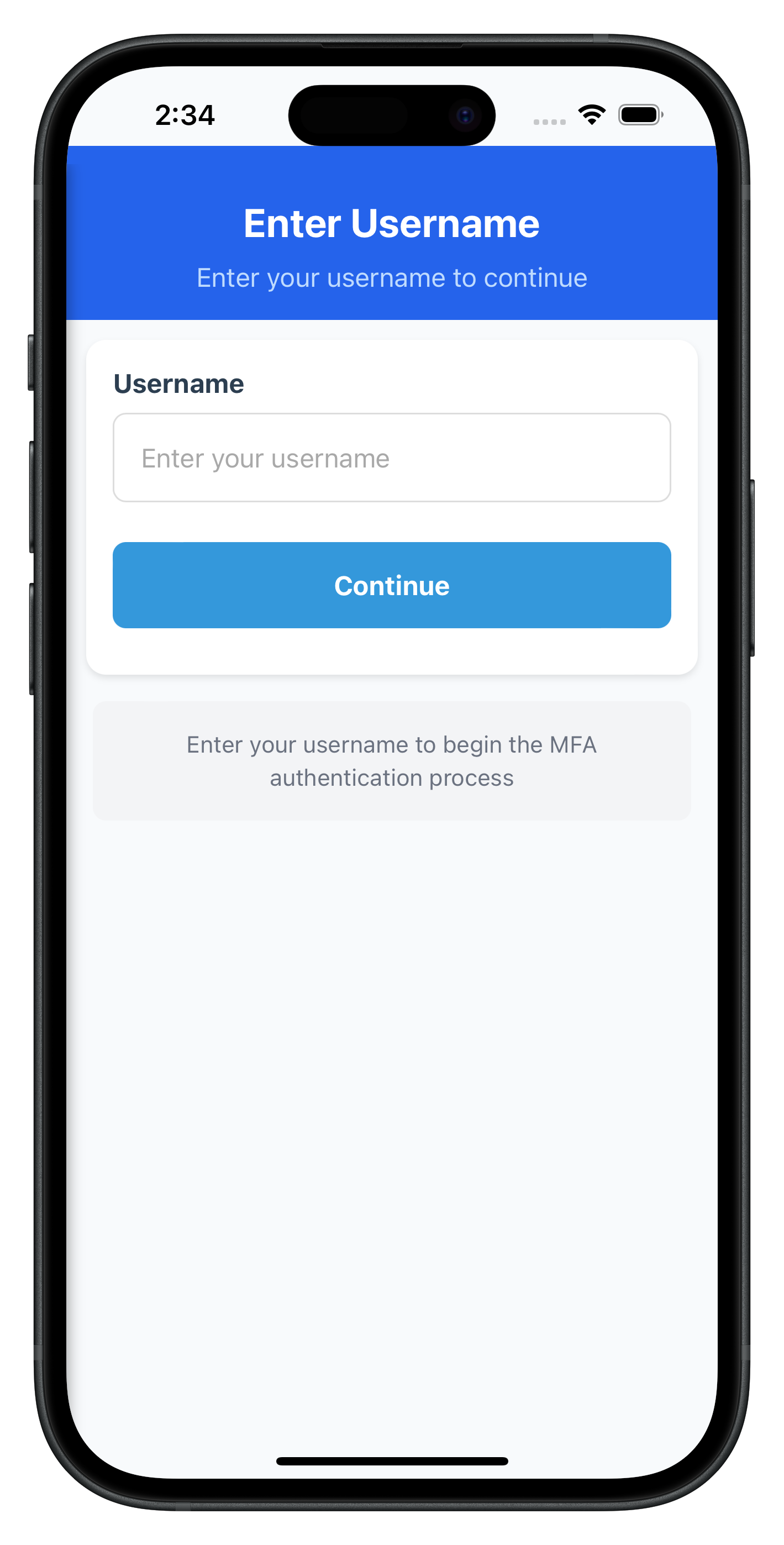
The following image showcases the screen from the sample application:
Create the activation code input screen that handles OTP verification during the activation flow.
ActivationCodeScreen HTML Template
Add to www/index.html:
<!-- Activation Code Screen Template -->
<template id="ActivationCode-template">
  <div class="screen-container">
    <div class="close-button" id="activationcode-close-btn">✕</div>

    <div class="content">
      <h1 class="title" id="activationcode-title">Enter Activation Code</h1>
      <p class="subtitle" id="activationcode-subtitle">Enter the activation code to continue</p>

      <!-- Status Banner -->
      <div id="activationcode-status-banner" class="status-banner" style="display: none;"></div>

      <!-- Attempts Left Display -->
      <div id="activationcode-attempts" class="attempts-banner" style="display: none;"></div>

      <!-- Error Display -->
      <div id="activationcode-error" class="error-message" style="display: none;"></div>

      <!-- Activation Code Input -->
      <div class="input-group">
        <label class="input-label">Activation Code</label>
        <input
          type="text"
          id="activationcode-input"
          class="input-field"
          placeholder="Enter activation code"
          autocapitalize="off"
          autocorrect="off"
        />
      </div>

      <!-- Verify Button -->
      <button id="verify-code-btn" class="button button-primary">
        <span id="verify-code-btn-text">Verify Code</span>
        <span id="verify-code-btn-loader" class="button-loader" style="display: none;">
          <span class="spinner"></span>
        </span>
      </button>

      <!-- Resend Button -->
      <button id="resend-code-btn" class="button button-secondary">
        <span id="resend-code-btn-text">Resend Activation Code</span>
        <span id="resend-code-btn-loader" class="button-loader" style="display: none;">
          <span class="spinner"></span>
        </span>
      </button>

      <!-- Help Text -->
      <div class="help-container">
        <p class="help-text">
          Enter the activation code you received to verify your identity. If you haven't received it, click "Resend Activation Code" to get a new one.
        </p>
      </div>
    </div>
  </div>
</template>
ActivationCodeScreen JavaScript Module
Create www/src/tutorial/screens/mfa/ActivationCodeScreen.js:
/**
 * Activation Code Screen - SPA Module
 *
 * Activation code input screen for MFA authentication flow.
 * Handles OTP input and provides resend functionality.
 *
 * Features:
 * - Activation code input with validation
 * - Resend activation code functionality
 * - Attempts counter display
 * - Real-time error handling
 * - Close button (calls resetAuthState)
 * - Loading states for both verify and resend operations
 *
 * SDK Integration:
 * - Receives getActivationCode event data via params
 * - Calls rdnaService.setActivationCode(code)
 * - Calls rdnaService.resendActivationCode() for resend
 *
 * SPA Pattern:
 * - onContentLoaded(params) called when navigated to
 * - setupEventListeners() attaches DOM handlers
 * - No page reload, just content swap
 */

const ActivationCodeScreen = {
  /**
   * Current state
   */
  state: {
    activationCode: '',
    error: '',
    isValidating: false,
    isResending: false,
    attemptsLeft: 0
  },

  /**
   * Called when screen content is loaded into #app-content
   * @param {Object} params - Navigation parameters
   */
  onContentLoaded(params) {
    console.log('ActivationCodeScreen - Content loaded with params:', JSON.stringify(params, null, 2));

    // Reset state
    this.state = {
      activationCode: '',
      error: '',
      isValidating: false,
      isResending: false,
      attemptsLeft: params.attemptsLeft || 0
    };

    // Setup DOM event listeners
    this.setupEventListeners();

    // Update subtitle with userID if provided
    if (params.subtitle) {
      const subtitle = document.getElementById('activationcode-subtitle');
      if (subtitle) {
        subtitle.textContent = params.subtitle;
      }
    }

    // Display attempts left
    if (this.state.attemptsLeft > 0) {
      this.showAttempts(this.state.attemptsLeft);
    }

    // Process response data if present
    if (params.responseData) {
      this.processResponseData(params.responseData);
    }

    // Focus input
    const input = document.getElementById('activationcode-input');
    if (input) {
      input.focus();
    }
  },

  /**
   * Process SDK response data and display errors if any
   */
  processResponseData(responseData) {
    // Check for API errors FIRST
    if (responseData.error && responseData.error.longErrorCode !== 0) {
      const errorMessage = responseData.error.errorString;
      console.log('ActivationCodeScreen - API error:', errorMessage);
      this.showError(errorMessage);
      this.showStatusBanner(errorMessage, 'error');
      return;
    }

    // THEN check for status errors
    if (responseData.challengeResponse &&
        responseData.challengeResponse.status.statusCode !== 100 &&
        responseData.challengeResponse.status.statusCode !== 0) {
      const errorMessage = responseData.challengeResponse.status.statusMessage;
      console.log('ActivationCodeScreen - Status error:', errorMessage);
      this.showError(errorMessage);
      this.showStatusBanner(errorMessage, 'error');
      return;
    }

    console.log('ActivationCodeScreen - Ready for activation code input');
  },

  /**
   * Attach event listeners to DOM elements
   */
  setupEventListeners() {
    const input = document.getElementById('activationcode-input');
    const verifyBtn = document.getElementById('verify-code-btn');
    const resendBtn = document.getElementById('resend-code-btn');
    const closeBtn = document.getElementById('activationcode-close-btn');

    if (input) {
      input.oninput = () => {
        this.state.activationCode = input.value;
        this.hideError();
      };

      // Submit on Enter key
      input.onkeypress = (e) => {
        if (e.key === 'Enter') {
          e.preventDefault();
          this.handleVerifyCode();
        }
      };
    }

    if (verifyBtn) {
      verifyBtn.onclick = () => this.handleVerifyCode();
    }

    if (resendBtn) {
      resendBtn.onclick = () => this.handleResendCode();
    }

    if (closeBtn) {
      closeBtn.onclick = () => this.handleClose();
    }
  },

  /**
   * Handle verify button click
   */
  async handleVerifyCode() {
    const trimmedCode = this.state.activationCode.trim();

    // Validation
    if (!trimmedCode) {
      this.showError('Please enter the activation code');
      return;
    }

    console.log('ActivationCodeScreen - Setting activation code');
    this.setValidating(true);
    this.hideError();

    try {
      const syncResponse = await rdnaService.setActivationCode(trimmedCode);
      console.log('ActivationCodeScreen - setActivationCode sync response received');

      // Sync response successful - waiting for async events
      console.log('ActivationCodeScreen - Waiting for SDK async events');
      this.showStatusBanner('Activation code verified successfully!', 'success');

    } catch (error) {
      console.error('ActivationCodeScreen - setActivationCode error:', error);
      this.setValidating(false);

      const errorMessage = error.error?.errorString || 'Invalid activation code';
      this.showError(errorMessage);
      this.showStatusBanner(errorMessage, 'error');

      // Clear input on error
      const input = document.getElementById('activationcode-input');
      if (input) input.value = '';
      this.state.activationCode = '';
    }
  },

  /**
   * Handle resend button click
   */
  async handleResendCode() {
    if (this.state.isResending || this.state.isValidating) return;

    console.log('ActivationCodeScreen - Requesting resend of activation code');
    this.setResending(true);
    this.hideError();

    try {
      const syncResponse = await rdnaService.resendActivationCode();
      console.log('ActivationCodeScreen - resendActivationCode sync response received');

      // Sync response successful
      this.showStatusBanner('New activation code sent! Please check your email or SMS.', 'success');

      // Clear input
      const input = document.getElementById('activationcode-input');
      if (input) input.value = '';
      this.state.activationCode = '';

    } catch (error) {
      console.error('ActivationCodeScreen - resendActivationCode error:', error);

      const errorMessage = error.error?.errorString || 'Failed to resend activation code';
      this.showError(errorMessage);
      this.showStatusBanner(errorMessage, 'error');
    } finally {
      this.setResending(false);
    }
  },

  /**
   * Handle close button (reset auth state)
   */
  async handleClose() {
    console.log('ActivationCodeScreen - Close button clicked, calling resetAuthState');

    try {
      await rdnaService.resetAuthState();
      console.log('ActivationCodeScreen - ResetAuthState successful');
    } catch (error) {
      console.error('ActivationCodeScreen - ResetAuthState error:', error);
      const errorMessage = error.error?.errorString || 'Failed to reset authentication';
      alert('Reset Error\n\n' + errorMessage);
    }
  },

  /**
   * Set validating state
   */
  setValidating(isValidating) {
    this.state.isValidating = isValidating;

    const btn = document.getElementById('verify-code-btn');
    const btnText = document.getElementById('verify-code-btn-text');
    const btnLoader = document.getElementById('verify-code-btn-loader');

    if (btn) btn.disabled = isValidating;
    if (btnText) btnText.style.display = isValidating ? 'none' : 'inline';
    if (btnLoader) btnLoader.style.display = isValidating ? 'inline-flex' : 'none';
  },

  /**
   * Set resending state
   */
  setResending(isResending) {
    this.state.isResending = isResending;

    const btn = document.getElementById('resend-code-btn');
    const btnText = document.getElementById('resend-code-btn-text');
    const btnLoader = document.getElementById('resend-code-btn-loader');

    if (btn) btn.disabled = isResending;
    if (btnText) btnText.style.display = isResending ? 'none' : 'inline';
    if (btnLoader) btnLoader.style.display = isResending ? 'inline-flex' : 'none';
  },

  /**
   * Show attempts counter
   */
  showAttempts(attempts) {
    const attemptsDiv = document.getElementById('activationcode-attempts');
    if (attemptsDiv) {
      attemptsDiv.textContent = `Attempts remaining: ${attempts}`;
      attemptsDiv.style.display = 'block';
    }
  },

  /**
   * Show error message
   */
  showError(message) {
    const errorDiv = document.getElementById('activationcode-error');
    if (errorDiv) {
      errorDiv.textContent = message;
      errorDiv.style.display = 'block';
    }
  },

  /**
   * Hide error message
   */
  hideError() {
    const errorDiv = document.getElementById('activationcode-error');
    if (errorDiv) {
      errorDiv.style.display = 'none';
      errorDiv.textContent = '';
    }
  },

  /**
   * Show status banner
   */
  showStatusBanner(message, type = 'info') {
    const banner = document.getElementById('activationcode-status-banner');
    if (banner) {
      banner.textContent = message;
      banner.className = `status-banner status-${type}`;
      banner.style.display = 'block';
    }
  }
};

// Expose to global scope for NavigationService
window.ActivationCodeScreen = ActivationCodeScreen;
Specific Status Code Handling
Status Code | Event Name | Meaning |
106 |
| Triggered when an invalid OTP is provided in setActivationCode API |
Activation Code Screen Features
- Attempts Tracking: Displays remaining attempts from
getActivationCodeevent data - Resend Functionality: Allows users to request new activation codes
- Input Validation: Real-time validation with clear error messaging
- Loading States: Separate loading states for validation and resend operations
- Error Recovery: Clear error states and retry mechanisms
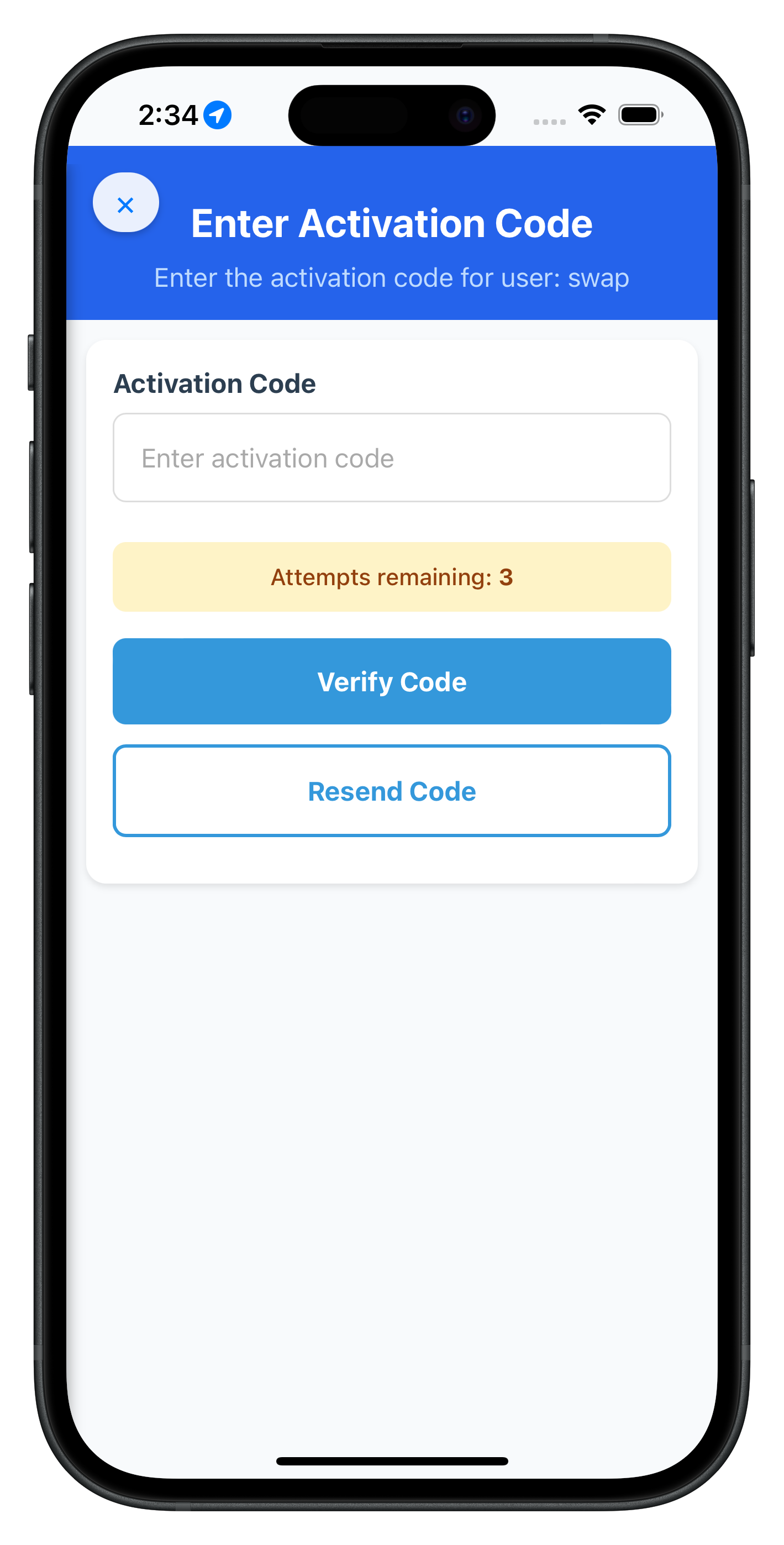
The following image showcases the screen from the sample application:
This section outlines the decision-making flow for Local Device Authentication (LDA) in the plugin. It guides how the plugin handles user input for biometric or password-based setup during activation flow.
Plugin checks if LDA is available:
- If available:
- Trigger getUserConsentForLDA event
- User chooses:
- Biometric: setUserConsentForLDA(true) API → biometric prompt → onUserLoggedIn event
- Password: setUserConsentForLDA(false) API → getPassword event → enter password → setPassword() → onUserLoggedIn event
- User chooses:
- If not available:
- Directly trigger getPassword
- Show password screen → setPassword() API → onUserLoggedIn event
getUserConsentForLDA Event
        ↓
    User Decision:
    ├─ Allow Biometric → setUserConsentForLDA(true, challengeMode, authType) → SDK handles biometric → onUserLoggedIn
    └─ Use Password → setUserConsentForLDA(false, challengeMode, authType) → getPassword Event → Password Screen
                                                                        ↓
                                                               setPassword(password, challengeMode) → onUserLoggedIn

Alternative Flow (No LDA):
getPassword Event → Password Screen → setPassword(password, challengeMode) → onUserLoggedIn
After OTP verification, users need to set up device authentication. The SDK will trigger either getUserConsentForLDA (biometric) or getPassword (password) events. Create the final authentication screens that handle either biometric consent or password input, depending on device capabilities.
Due to the extensive length, the complete implementation for:
- UserLDAConsentScreen (biometric consent screen)
- SetPasswordScreen (password creation with policy validation)
- VerifyPasswordScreen (password verification for login)
- DashboardScreen (post-login dashboard)
Can be found in the sample application at:
www/src/tutorial/screens/mfa/UserLDAConsentScreen.jswww/src/tutorial/screens/mfa/SetPasswordScreen.jswww/src/tutorial/screens/mfa/VerifyPasswordScreen.jswww/src/tutorial/screens/mfa/DashboardScreen.js
Each screen follows the same SPA pattern demonstrated in CheckUserScreen and ActivationCodeScreen with:
- HTML template in
index.htmlwith close button (✕) in top-left corner - JavaScript module with
onContentLoaded()lifecycle - Close button handler calling
resetAuthState()API - Event listeners for user interactions
- API integration with proper error handling
- Loading states and user feedback
Screen Mockups
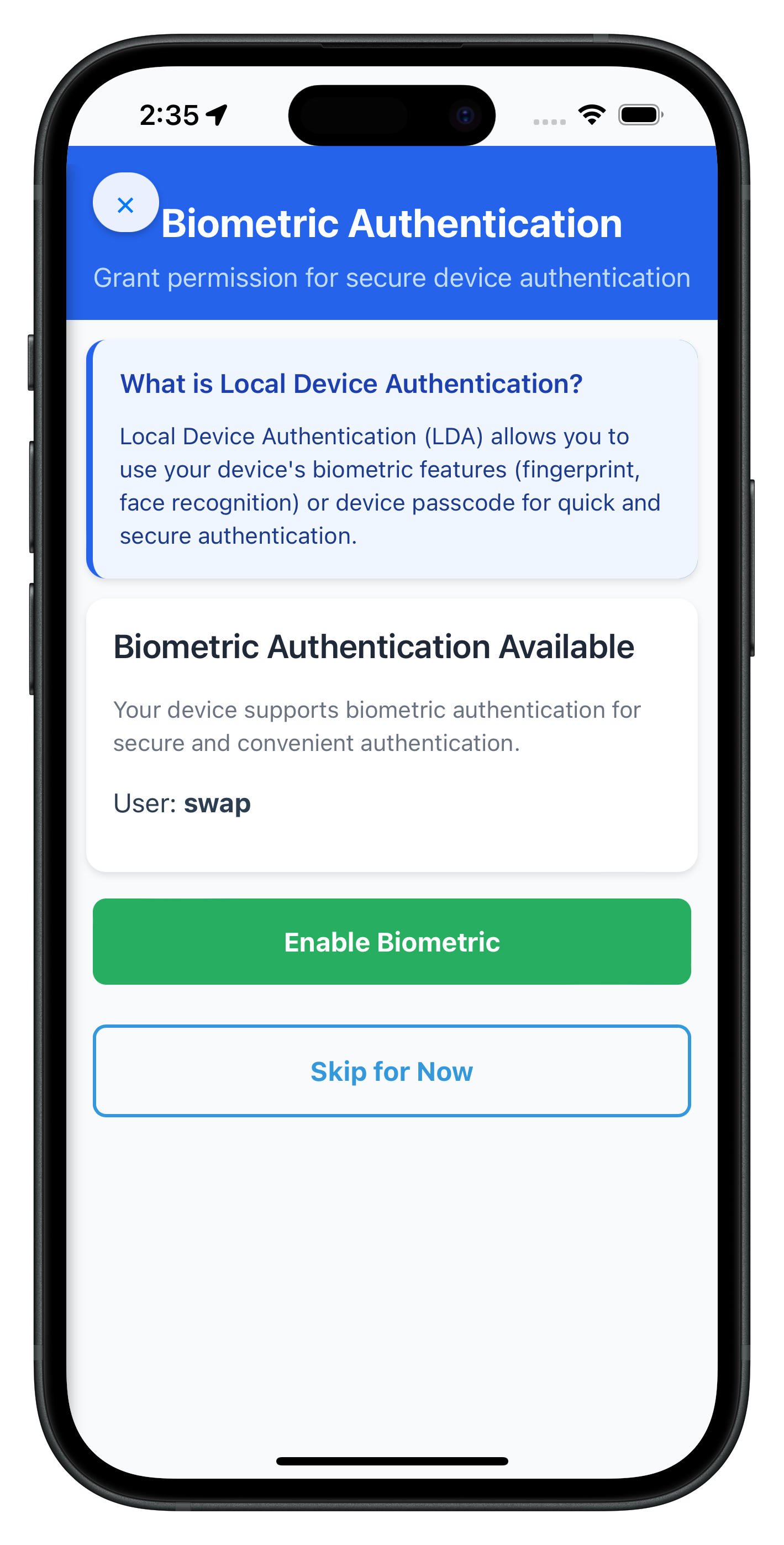
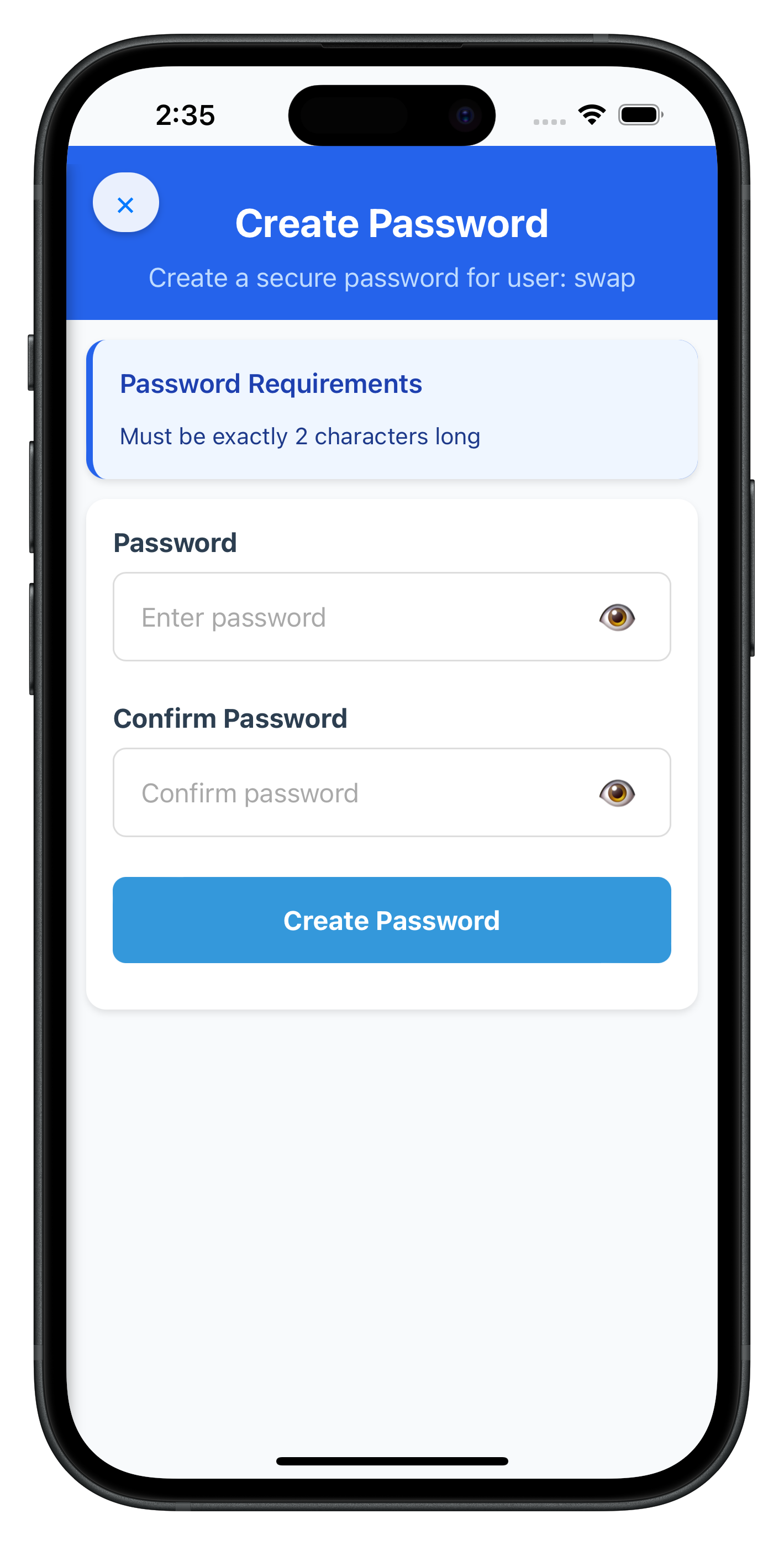
The following images showcase the device authentication screens from the sample application:
User LDA Consent Screen:
Set Password Screen:
The Dashboard screen serves as the primary landing destination after successful activation or login completion. When the plugin triggers the onUserLoggedIn event, it indicates that the user session has started and provides session details including userID and session tokens. This event should trigger navigation to the Dashboard screen, marking the successful completion of either the activation or login flow.
Implementing User Logout API and Events
Complete MFA systems need secure logout functionality with proper session cleanup.
Understanding Logout Flow
The logout flow follows this sequence:
- User initiates logout (button press)
- Call
logOff()API to clean up session - SDK triggers
onUserLoggedOffevent - Navigate back to initial screen
- SDK automatically triggers
getUserevent (flow restarts)
Adding logOff API to Service Layer
The logOff API should already be in your service layer. Here's the implementation:
// www/src/uniken/services/rdnaService.js

async logOff(userID) {
  return new Promise((resolve, reject) => {
    console.log('RdnaService - Logging off user:', userID);

    com.uniken.rdnaplugin.RdnaClient.logOff(
      (response) => {
        console.log('RdnaService - LogOff sync callback received');
        const result = JSON.parse(response);
        console.log('RdnaService - LogOff sync response success');
        resolve(result);
      },
      (error) => {
        console.error('RdnaService - LogOff sync response error');
        const result = JSON.parse(error);
        reject(result);
      },
      [userID]
    );
  });
}
Building Dashboard with Logout Functionality
Create the Dashboard screen at www/src/tutorial/screens/mfa/DashboardScreen.js:
/**
 * Dashboard Screen - SPA Module
 *
 * Main dashboard displayed after successful MFA authentication.
 * Shows session information and provides logout functionality.
 */

const DashboardScreen = {
  state: {
    userID: '',
    sessionID: '',
    sessionType: '',
    jwtToken: '',
    loginTime: '',
    isLoggingOut: false
  },

  /**
   * Called when screen content is loaded into #app-content
   * @param {Object} params - Navigation parameters with session data
   */
  onContentLoaded(params) {
    console.log('DashboardScreen - Content loaded with params:', JSON.stringify(params, null, 2));

    // Store state from params
    this.state = {
      userID: params.userID || '',
      sessionID: params.sessionID || '',
      sessionType: params.sessionType || '',
      jwtToken: params.jwtToken || '',
      loginTime: params.loginTime || new Date().toLocaleString(),
      isLoggingOut: false
    };

    // Setup DOM event listeners
    this.setupEventListeners();

    // Populate session data in UI
    this.populateSessionData();
  },

  /**
   * Attach event listeners to DOM elements
   */
  setupEventListeners() {
    const menuBtn = document.getElementById('dashboard-menu-btn');
    const drawerLogoutLink = document.getElementById('drawer-logout-link');

    if (menuBtn) {
      menuBtn.onclick = () => {
        console.log('DashboardScreen - Menu button clicked, opening drawer');
        NavigationService.openDrawer();
      };
    }

    if (drawerLogoutLink) {
      // Reset logout link state (in case it was disabled from previous session)
      drawerLogoutLink.style.opacity = '1';
      drawerLogoutLink.style.pointerEvents = 'auto';

      drawerLogoutLink.onclick = (e) => {
        e.preventDefault();
        NavigationService.closeDrawer();
        this.handleLogOut();
      };
    }

    // Populate drawer with user info
    this.updateDrawerUserInfo();
  },

  /**
   * Populate session data in UI
   */
  populateSessionData() {
    // Set username
    const usernameEl = document.getElementById('dashboard-username');
    if (usernameEl) {
      usernameEl.textContent = this.state.userID;
    }

    // Set session ID
    const sessionIdEl = document.getElementById('dashboard-session-id');
    if (sessionIdEl) {
      sessionIdEl.textContent = this.state.sessionID || 'N/A';
    }

    // Set session type
    const sessionTypeEl = document.getElementById('dashboard-session-type');
    if (sessionTypeEl) {
      sessionTypeEl.textContent = this.state.sessionType || 'N/A';
    }

    // Set login time
    const loginTimeEl = document.getElementById('dashboard-login-time');
    if (loginTimeEl) {
      loginTimeEl.textContent = this.state.loginTime;
    }

    // Parse and display JWT info if available
    if (this.state.jwtToken) {
      this.displayJWTInfo();
    }
  },

  /**
   * Handle logout button click
   */
  handleLogOut() {
    // Show confirmation dialog
    const confirmed = confirm('Are you sure you want to log out from the application?');

    if (confirmed) {
      this.performLogOut();
    }
  },

  /**
   * Perform the actual logout operation
   */
  async performLogOut() {
    if (this.state.isLoggingOut) return;

    console.log('DashboardScreen - Initiating logOff for user:', this.state.userID);
    this.setLoggingOut(true);

    try {
      const syncResponse = await rdnaService.logOff(this.state.userID);
      console.log('DashboardScreen - logOff sync response received');

      // Sync response successful - SDK will trigger onUserLoggedOff and getUser events
      console.log('DashboardScreen - LogOff successful, waiting for SDK events');

    } catch (error) {
      console.error('DashboardScreen - logOff error:', error);
      this.setLoggingOut(false);

      const errorMessage = error.error?.errorString || 'Failed to log out';
      alert('Logout Error\n\n' + errorMessage);
    }
  },

  /**
   * Set logging out state
   */
  setLoggingOut(isLoggingOut) {
    this.state.isLoggingOut = isLoggingOut;

    // Disable drawer logout link during logout
    const drawerLogoutLink = document.getElementById('drawer-logout-link');
    if (drawerLogoutLink) {
      drawerLogoutLink.style.opacity = isLoggingOut ? '0.5' : '1';
      drawerLogoutLink.style.pointerEvents = isLoggingOut ? 'none' : 'auto';
    }
  },

  /**
   * Update drawer with user information
   */
  updateDrawerUserInfo() {
    const drawerUserInfo = document.getElementById('drawer-user-info');
    const drawerUsername = document.getElementById('drawer-username');

    if (drawerUserInfo && drawerUsername && this.state.userID) {
      drawerUsername.textContent = this.state.userID;
      drawerUserInfo.style.display = 'block';
    }
  }
};

// Expose to global scope for NavigationService
window.DashboardScreen = DashboardScreen;
Dashboard Features
The Dashboard screen provides:
- Session Information Display: Shows user ID, session ID, session type, and login timestamp
- JWT Token Information: Parses and displays JWT token details
- Drawer Menu: Side navigation with logout functionality
- Logout Confirmation: Confirms before logging out users
- Event-Driven Logout: Waits for SDK events after logout API call
- State Management: Disables logout button during logout process
Handling onUserLoggedOff Event
The SDKEventProvider already handles the onUserLoggedOff event:
// In SDKEventProvider.js - handleUserLoggedOff
handleUserLoggedOff(data) {
  console.log('SDKEventProvider - User logged off event received');

  // After logout, SDK will automatically trigger getUser
  // So we just log here and let the getUser handler navigate
  console.log('SDKEventProvider - Waiting for SDK to trigger getUser event after logout');
}
After logOff() succeeds:
- SDK triggers
onUserLoggedOffevent - SDK automatically triggers
getUserevent - SDKEventProvider navigates to CheckUserScreen
- User can start fresh authentication
Dashboard HTML Template
The Dashboard template is already in www/index.html as Dashboard-template with:
<template id="Dashboard-template">
  <div class="screen-container">
    <div class="header">
      <button id="dashboard-menu-btn" class="menu-button">☰</button>
      <h1 class="title">Dashboard</h1>
    </div>

    <div class="card welcome-card">
      <h2 class="welcome-title">Welcome, <span id="dashboard-username">-</span></h2>
      <p class="welcome-subtitle">You have successfully authenticated!</p>
    </div>

    <div class="card session-card">
      <h3 class="card-title">Session Information</h3>
      <div class="info-row">
        <span class="info-label">Session ID:</span>
        <span id="dashboard-session-id" class="info-value">-</span>
      </div>
      <div class="info-row">
        <span class="info-label">Session Type:</span>
        <span id="dashboard-session-type" class="info-value">-</span>
      </div>
      <div class="info-row">
        <span class="info-label">Login Time:</span>
        <span id="dashboard-login-time" class="info-value">-</span>
      </div>
    </div>
  </div>
</template>
Using Drawer Menu for Logout
The sample app uses a slide-out drawer menu for logout. The menu button (☰) opens the drawer with logout option:
// Drawer menu HTML (persistent element in index.html)
<nav id="drawer-menu" class="drawer-menu">
  <div class="drawer-header">
    <h2 class="drawer-title">REL-ID MFA</h2>
  </div>
  <ul class="drawer-nav">
    <li><a href="#" id="drawer-logout-link">🚪 Log Out</a></li>
  </ul>
</nav>
The drawer provides a clean, professional logout UI that works across the entire authenticated session.
Screen Mockups
The following images showcase the Dashboard and logout flow from the sample application:
Dashboard Screen:
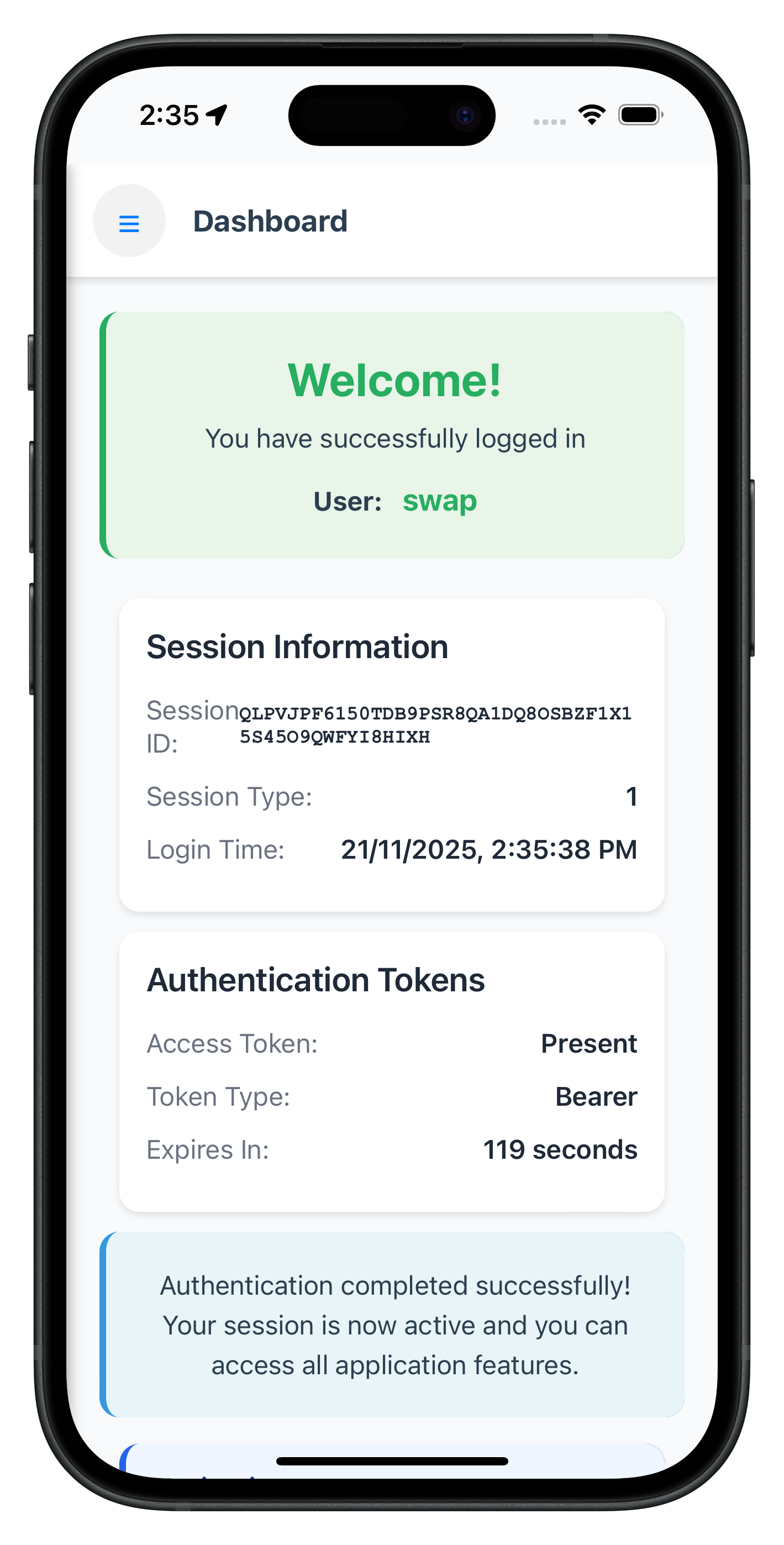
Logout Confirmation:
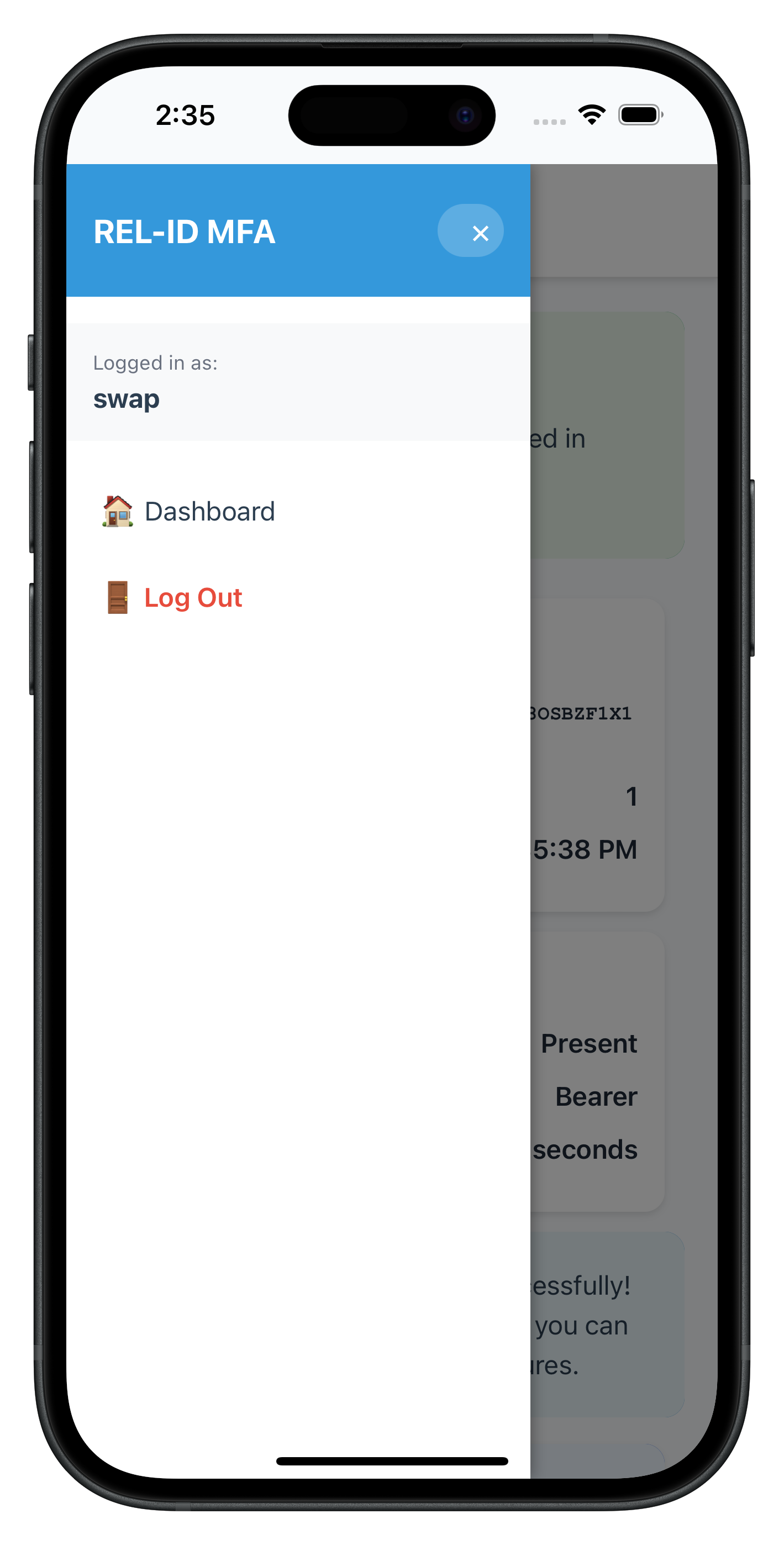
📝 What We're Building: Streamlined authentication for returning users with automatic biometric prompts and password verification.
Understanding Login vs Activation
Login Flow Occurs When:
- User has previously activated on this device
- Device is registered but user session expired
- User logged out and is logging back in
Flow Detection: The same plugin events (getUser, getPassword) are used for both flows. The difference is in:
- Context: plugin knows user history
- UI Adaptation: Screens show login-specific content
- Skip Steps: OTP verification often skipped
- Automatic LDA Prompts or Password Verification: Biometric authentication is triggered automatically if LDA is enabled; otherwise, password verification is required.
Login Flow Events Sequence
SDK Initialization Complete
        ↓
   getUser Event (Challenge: checkuser)
        ↓
   setUser API Call → User Recognition
        ↓
   [SDK Decision - Skip OTP for known users]
        ↓
   Device Authentication:
   ├─ LDA Enabled? → [Automatic Biometric Prompt]
   │                 ├─ Success → onUserLoggedIn Event
   │                 └─ Failed/Cancelled → getUser Event with error
   │
   └─ Password Only? → getPassword Event (verification mode)
                       ↓
                       setPassword API Call
        ↓
   onUserLoggedIn Event (Success) → Dashboard Screen
Same screen will be used which is in activation flow.
Specific Status Code Handling
Status Code | Event Name | Meaning |
141 |
| User blocked due to exceeded verify password attempts. Use resetBlockedUserAccount |
The Verify Password screen handles password verification during the login flow when users need to enter their existing password. This screen is triggered when challengeMode = 0 in the getPassword event, indicating password verification rather than password creation.
Key Features
- Single Password Input: Only requires password entry (no confirmation needed)
- Challenge Mode 0 Handling: Specifically designed for login flow password verification
- Attempts Tracking: Displays remaining login attempts to users
- Streamlined UI: Focused interface for quick authentication
- Error Recovery: Handles verification failures with clear feedback
The complete implementation is available in www/src/tutorial/screens/mfa/VerifyPasswordScreen.js following the same SPA pattern as other screens.
Specific Status Code Handling
Status Code | Event Name | Meaning |
102 |
| Invalid password provided in setPassword API with challengeMode=0 |
Key Differences from SetPasswordScreen
Login Flow Optimizations:
- Single Input Field: Only requires password entry, no confirmation needed
- Welcome Back Message: Shows "Welcome back" instead of "Welcome" for returning users
- Attempts Tracking: Displays remaining login attempts with warning styling
- No Password Policy: Doesn't show policy requirements since password already exists
- Streamlined Validation: Simpler form validation focused on authentication
Challenge Mode Handling: The screen automatically handles challengeMode = 0 for password verification:
// challengeMode = 0 indicates login flow password verification
const syncResponse = await rdnaService.setPassword(trimmedPassword, challengeMode);
The following image showcases the screen from the sample application:
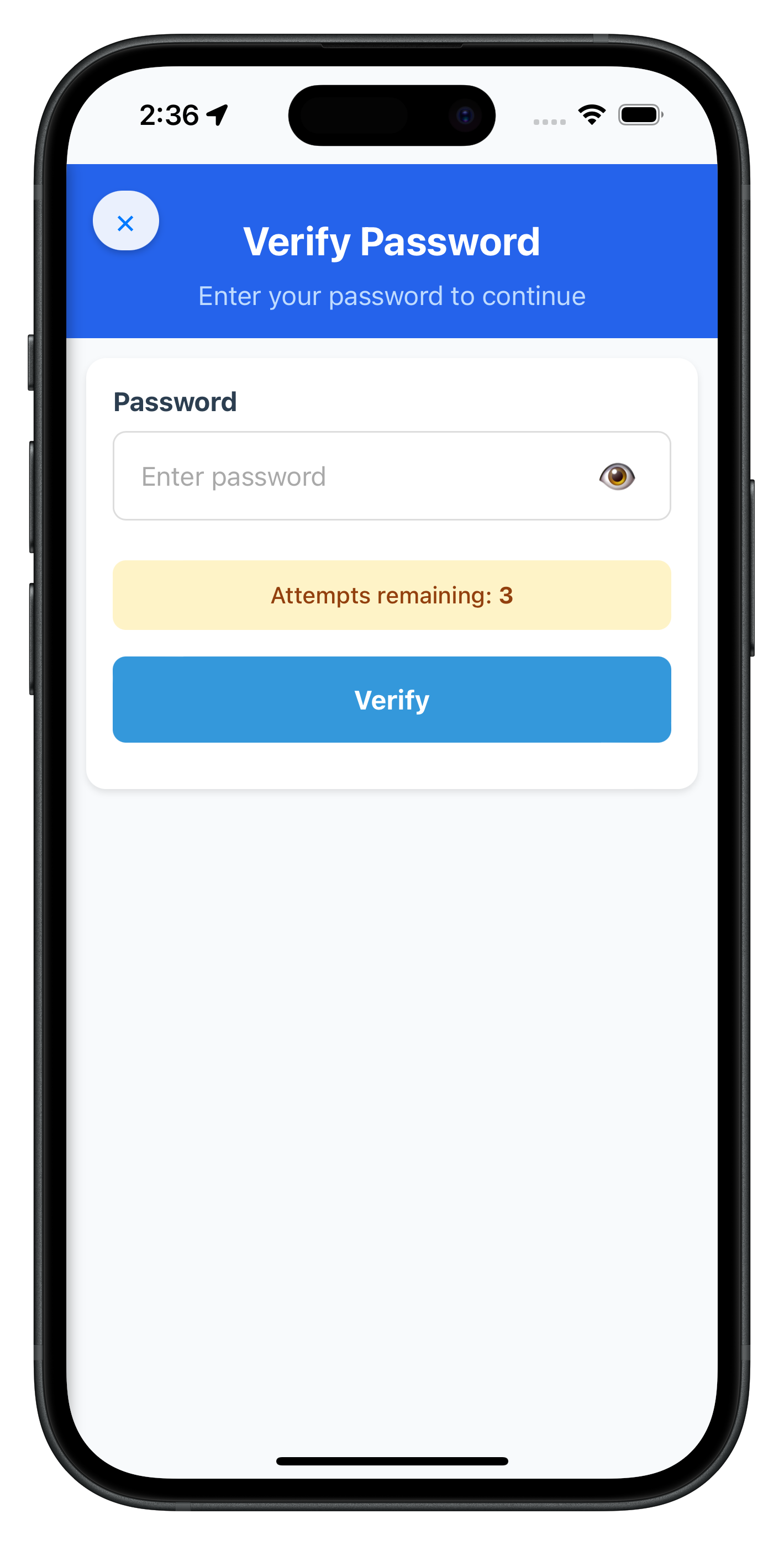
This implementation provides a focused, user-friendly interface for password verification during login flows while maintaining consistency with the overall app design and error handling patterns.
The screens we built for activation automatically handle login flow contexts. The SDK Event Provider manages routing to appropriate screens based on challenge modes.
SDK Event Provider
The same www/src/uniken/providers/SDKEventProvider.js handles event routing for both activation and login flows. The handleGetPassword() method automatically routes to:
VerifyPasswordScreenwhenchallengeMode = 0(login)SetPasswordScreenwhenchallengeMode = 1(activation)
Test both activation and login flows to ensure proper implementation.
Testing Preparation
Before Testing:
- Clear app data to simulate first-time user
- Ensure device has biometric authentication available
- Have valid test credentials ready
- Enable debug logging in development
End-to-End Testing Scenarios
Scenario 1: Complete Activation Flow (New User)
1. Launch app → TutorialHome
2. Tap "Initialize" → onInitialized → getUser event → CheckUserScreen
3. Enter username → setUser API → getActivationCode event → ActivationCodeScreen
4. Enter OTP → setActivationCode API → getUserConsentForLDA event → UserLDAConsentScreen
5. Enable biometric → setUserConsentForLDA API → [Biometric prompt]
6. Complete biometric → onUserLoggedIn event → DashboardScreen
✅ Validation Points:
- Each screen transition happens smoothly
- No duplicate event handling
- Loading states show during API calls
- Biometric prompt appears automatically
- Dashboard shows activation success
Scenario 2: Login Flow (Returning User with Biometric)
1. Launch app (user previously activated)
2. SDK auto-triggers getUser event → CheckUserScreen
3. Enter username → setUser API → [Automatic biometric prompt]
4. Complete biometric authentication → onUserLoggedIn event → DashboardScreen
✅ Validation Points:
- No OTP screen (skipped for known users)
- Biometric prompt appears immediately after user validation
- Fast login experience (< 5 seconds)
- Direct navigation to Dashboard
Scenario 3: Login Flow with Password
1. Launch app (user with password auth)
2. getUser event → CheckUserScreen
3. Enter username → setUser API → getPassword event (mode 0) → VerifyPasswordScreen
4. Enter password → setPassword API → onUserLoggedIn event → DashboardScreen
✅ Validation Points:
- VerifyPasswordScreen shows (not SetPasswordScreen)
- Single password field (no confirmation)
- Attempts counter displays correctly
- Wrong password shows error with remaining attempts
Scenario 4: Error Recovery - Invalid Username
1. getUser event → CheckUserScreen
2. Enter invalid username → setUser API → getUser event (repeated) → CheckUserScreen
3. Error message displays
4. Enter valid username → Continues to next step
✅ Validation Points:
- Cyclical getUser handling works
- Error messages display properly
- Screen doesn't crash or duplicate
- User can retry without resetting flow
Scenario 5: Activation Code Resend
1. getActivationCode event → ActivationCodeScreen
2. Tap "Resend Activation Code" → resendActivationCode API
3. Success message shows
4. getActivationCode event (new code) → Screen updates
5. Enter new code → Success
✅ Validation Points:
- Resend button works
- Loading state shows during resend
- Success message displays
- New attempts counter updates
- Can enter new code successfully
Debugging Tips
Enable Verbose Logging:
In Cordova, use Safari Web Inspector (iOS) or Chrome DevTools (Android):
iOS Debugging:
Safari → Develop → [Your Device] → Your App
Android Debugging:
Chrome → chrome://inspect → Select your device
Common Console Patterns:
// Successful API call
RdnaService - SetUser sync response success, waiting for async events

// Event received
RdnaEventManager - Get activation code event received

// Navigation
SDKEventProvider - Get user event received
NavigationService - Navigating to: CheckUser
CheckUserScreen - Content loaded with params
Error Investigation:
- Check for API errors:
error.longErrorCode !== 0 - Check for status errors:
status.statusCode !== 100 - Verify event listeners are registered
- Confirm NavigationService finds screen objects
- Check template IDs match route names
Performance Testing
Measure Key Metrics:
- Time from username to OTP screen
- Time from OTP to biometric prompt
- Total activation time (start to dashboard)
- Login time for returning users
- App memory usage during MFA flow
Target Benchmarks:
- API response time: < 2 seconds
- Screen transitions: < 500ms
- Total activation: < 30 seconds
- Login (with biometric): < 5 seconds
Issue: Events Not Firing
Symptoms:
- SDK API calls succeed but nothing happens
- No navigation after API calls
- Console shows no event logs
Solutions:
- Verify Event Manager Initialization:
// Check in app.js deviceready
document.addEventListener('deviceready', function() {
  AppInitializer.initialize(); // This initializes event manager
  SDKEventProvider.initialize(); // This registers handlers
});
- Check Event Listener Registration:
// In RdnaEventManager, verify listeners are added
document.addEventListener('getUser', getUserListener, false);
- Confirm Handler Assignment:
// In SDKEventProvider.initialize()
eventManager.setGetUserHandler(this.handleGetUser.bind(this));
Issue: Screen Not Loading
Symptoms:
- Navigation called but screen doesn't appear
- Console shows "Screen object not found"
- Template not found error
Solutions:
- Check Template ID Naming:
<!-- Template ID should match route name -->
<template id="CheckUser-template">  <!-- Correct -->
<template id="CheckUserScreen-template">  <!-- Wrong -->
- Verify Screen Object Exposed:
// At end of screen file
window.CheckUserScreen = CheckUserScreen;
- Confirm Script Loading Order:
<!-- In index.html, load screens after services -->
<script src="src/uniken/services/rdnaService.js"></script>
<script src="src/tutorial/screens/mfa/CheckUserScreen.js"></script>
Issue: Plugin Not Found
Symptoms:
- "Cannot find variable: com" error
- Plugin methods undefined
- App crashes on API calls
Solutions:
- Verify Plugin Installation:
cordova plugin ls
# Should show: cordova-plugin-rdna or local plugin path
- For Local Plugin:
# Verify plugin directory exists
ls -la ./RdnaClient

# Reinstall if needed
cordova plugin remove cordova-plugin-rdna
cordova plugin add ./RdnaClient
cordova prepare
- Check deviceready:
// Ensure API calls only happen after deviceready
document.addEventListener('deviceready', function() {
  // Safe to call plugin APIs here
});
Issue: JSON Parsing Errors
Symptoms:
- "Unexpected token" errors
- "Failed to parse" in console
- Event data is undefined
Solutions:
- Verify JSON.parse() Usage:
// Cordova responses are JSON strings
const data = JSON.parse(event.response);  // Correct
const data = event.response;  // Wrong - string, not object
- Check Event Property Access:
// DOM events use 'response' property
document.addEventListener('getUser', (event) => {
  const data = JSON.parse(event.response);  // Correct
});
Issue: Biometric Prompt Not Showing
Symptoms:
- LDA consent accepted but no biometric prompt
- Silent failure after setUserConsentForLDA
- Returns to username screen
Solutions:
- Check Device Capabilities:
// Ensure device supports biometrics
// Test on physical device, not simulator
- Verify Permissions:
<!-- iOS - Info.plist -->
<key>NSFaceIDUsageDescription</key>
<string>We need Face ID for secure authentication</string>

<!-- Android - Check biometric permissions -->
- Check LDA Parameters:
// Pass correct parameters from event
await rdnaService.setUserConsentForLDA(
  true,  // isEnrollLDA
  data.challengeMode,  // From event
  data.authenticationType  // From event
);
Issue: Multiple Screen Instances
Symptoms:
- Screens stack up
- Multiple close buttons appear
- Memory increases over time
Solutions:
- Verify SPA Navigation:
// NavigationService should replace content, not append
container.innerHTML = '';  // Clear first
container.appendChild(content);  // Then add new
- Check Event Listener Cleanup:
// Remove old listeners if re-initializing
if (this._initialized) {
  return;  // Don't reinitialize
}
Cordova-Specific Issues
File Loading Fails:
// Use cordova-plugin-file for loading files
// Standard fetch() doesn't work with file:// URLs in iOS
Changes Not Reflecting:
# Always run prepare after www/ changes
cordova prepare
Plugin Reinstallation Needed:
# Remove and re-add plugin to pick up changes
cordova plugin remove cordova-plugin-rdna
cordova plugin add ./RdnaClient
cordova prepare
Security Best Practices
Input Validation
Always validate user input before sending to SDK:
// Validate username
const validateUsername = (username) => {
  const trimmed = username.trim();
  if (trimmed.length === 0) {
    return { valid: false, error: 'Username cannot be empty' };
  }
  if (trimmed.length < 3) {
    return { valid: false, error: 'Username must be at least 3 characters' };
  }
  return { valid: true };
};

// Validate activation code
const validateActivationCode = (code) => {
  const trimmed = code.trim();
  if (trimmed.length === 0) {
    return { valid: false, error: 'Activation code cannot be empty' };
  }
  return { valid: true };
};
Error Message Sanitization
Don't expose sensitive information in error messages:
// ❌ Bad - exposes internal details
showError(`Database error: ${error.stack}`);

// ✅ Good - user-friendly message
showError('An error occurred. Please try again.');
console.error('Internal error:', error);  // Log for debugging
Secure Data Handling
// Clear sensitive data from DOM
const clearSensitiveInputs = () => {
  const passwordInput = document.getElementById('password-input');
  if (passwordInput) {
    passwordInput.value = '';
  }

  const codeInput = document.getElementById('activationcode-input');
  if (codeInput) {
    codeInput.value = '';
  }
};

// Call on logout or screen transition
clearSensitiveInputs();
Logging Level Configuration
// Use appropriate logging level for production
const logLevel = (typeof DEBUG !== 'undefined' && DEBUG)
  ? com.uniken.rdnaplugin.RdnaClient.RDNALoggingLevel.RDNA_ALL_LOGS
  : com.uniken.rdnaplugin.RdnaClient.RDNALoggingLevel.RDNA_NO_LOGS;
Cordova-Specific Best Practices
1. Plugin Access Pattern
// ✅ Correct - Check for plugin availability
if (typeof com !== 'undefined' && com.uniken && com.uniken.rdnaplugin) {
  // Safe to use plugin
  await rdnaService.setUser(username);
} else {
  console.error('Plugin not loaded');
}
2. Event Listener Management
// ✅ Correct - Register once in SPA
const rdnaEventManager = {
  _initialized: false,

  initialize() {
    if (this._initialized) return;

    document.addEventListener('getUser', this.onGetUser.bind(this), false);
    this._initialized = true;
  }
};
3. Memory Management
// Clear references when no longer needed
const cleanup = () => {
  this.state = null;
  this.getUserHandler = null;
  // Clear other references
};
4. Error Handling Pattern
// Always handle both success and error callbacks
com.uniken.rdnaplugin.RdnaClient.setUser(
  (response) => {
    // Success - always has errorCode 0
    const result = JSON.parse(response);
    resolve(result);
  },
  (error) => {
    // Error - handle failure
    const result = JSON.parse(error);
    reject(result);
  },
  [username]
);
User Experience Best Practices
1. Loading States
Always show loading indicators during API calls:
const setLoading = (isLoading) => {
  const btn = document.getElementById('submit-btn');
  const loader = document.getElementById('btn-loader');

  if (btn) btn.disabled = isLoading;
  if (loader) loader.style.display = isLoading ? 'flex' : 'none';
};
2. Keyboard Navigation
Support Enter key for form submission:
input.onkeypress = (e) => {
  if (e.key === 'Enter') {
    e.preventDefault();
    handleSubmit();
  }
};
3. Auto-focus Management
Focus appropriate fields on screen load:
onContentLoaded(params) {
  // Setup UI
  this.setupEventListeners();

  // Focus first input
  const input = document.getElementById('username-input');
  if (input) {
    input.focus();
  }
}
4. Clear Error States
Clear errors as user types:
input.oninput = () => {
  this.state.value = input.value;
  this.hideError();  // Clear error on input
};
Performance Best Practices
1. Minimize DOM Manipulation
// ✅ Good - batch DOM updates
const updateUI = (data) => {
  const fragment = document.createDocumentFragment();
  // Add elements to fragment
  container.appendChild(fragment);  // Single DOM update
};
2. Debounce Expensive Operations
const debounce = (func, wait) => {
  let timeout;
  return function(...args) {
    clearTimeout(timeout);
    timeout = setTimeout(() => func.apply(this, args), wait);
  };
};

// Use for input validation
input.oninput = debounce(() => {
  validateInput(input.value);
}, 300);
3. Optimize Event Listeners
// ✅ Use event delegation for dynamic content
container.onclick = (e) => {
  if (e.target.matches('.action-button')) {
    handleAction(e.target.dataset.action);
  }
};
Production Deployment Checklist
✅ Security Review:
- [ ] Remove all debug logging in production builds
- [ ] Validate all user inputs on both client and server
- [ ] Implement proper error handling without information disclosure
- [ ] Use secure storage for any cached data
- [ ] Test with security scanning tools
✅ Performance Review:
- [ ] Test on various device types and OS versions
- [ ] Verify app performance under low memory conditions
- [ ] Test network error scenarios and offline behavior
- [ ] Measure and optimize screen transition times
✅ User Experience Review:
- [ ] Verify proper keyboard navigation
- [ ] Test with various screen sizes and orientations
- [ ] Validate user flows with actual users
- [ ] Ensure accessibility features work properly
✅ Cordova-Specific:
- [ ] Run
cordova preparebefore building - [ ] Test plugin functionality on real devices
- [ ] Verify all plugins are properly installed
- [ ] Check Content Security Policy configuration
Congratulations! You've successfully implemented a complete, production-ready MFA Activation and Login flow using Cordova and the REL-ID SDK plugin:
🎉 What You've Built
✅ Complete MFA Implementation:
- Activation Flow: Full first-time user onboarding with device enrollment
- Login Flow: Streamlined authentication for returning users
- Event-Driven Architecture: Robust handling of all SDK events and challenges
- SPA Architecture: Single page application with template-based navigation
- Production-Ready UI: Responsive screens with proper error handling and loading states
- Security Implementation: Following security best practices throughout
🏆 Key Cordova Patterns Mastered
- Plugin API Integration: Global namespace access, callback-first parameters
- Event System: DOM events with
document.addEventListener - SPA Navigation: Template-based content swapping without page reloads
- File Loading: Using cordova-plugin-file for reliable file access
- State Management: Object properties and manual DOM updates
- Screen Lifecycle: onContentLoaded() pattern for initialization
- Error Handling: Proper precedence (error object first, then status)
🚀 Architecture Benefits
Your implementation provides:
- One-Time Initialization: Event handlers registered once, persist forever
- Event Handler Persistence: No re-registration needed across screens
- Scalable Event System: Easy to extend for additional MFA challenges
- Reusable Patterns: Screen patterns that work across both flows
- Context-Aware Navigation: Smart navigation that adapts to user state
- Performance: Faster navigation with template swapping
🔄 What Happens Next
Next User Login Experience:
When users return to your app, they'll experience the optimized login flow:
- SDK automatically triggers
getUserevent - User enters credentials → Instant biometric prompt (if enabled)
- One-touch authentication → Direct access to app
🚀 Next Steps & Advanced Features
With this foundation, you're ready to explore:
Advanced MFA Features:
- Session Management with timeout handling
- Additional device activation flows
- Password update management
- Notification management
📚 References & Resources
🎯 You're now ready to deploy a production-grade MFA system in Cordova! Your implementation demonstrates enterprise-level security practices and provides an excellent foundation for building secure, user-friendly authentication experiences.