🎯 Learning Path:
- Complete REL-ID Complete Activation & Login Flow Codelab
- Complete REL-ID Additional Device Activation Flow Codelab
- You are here → Forgot Password Flow Implementation
Welcome to the REL-ID Forgot Password codelab! This tutorial builds upon your existing MFA implementation to add secure password recovery capabilities using REL-ID SDK's verification challenge.
What You'll Build
In this codelab, you'll enhance your existing MFA application with:
- 🔐 Conditional Forgot Password UI: Smart display logic based on challenge mode and server configuration
- 📧 Verification Challenge Flow: OTP and email verification for secure password reset
- 🔄 Multi-Path Reset Workflows: Dynamic routing through LDA consent or direct password reset
- 🎛️ Event Chain Orchestration: Complete forgot password event sequence management
- 🛡️ Security Best Practices: Secure password recovery with proper validation
What You'll Learn
By completing this codelab, you'll master:
- Forgot Password API Integration: Implementing
forgotPassword()API with proper sync response handling - Conditional UI Logic: Display forgot password based on
challengeModeandENABLE_FORGOT_PASSWORDconfiguration - Verification Challenge Handling: Managing DOM events for OTP/email verification
- Dynamic Post-Verification Flow: Navigate through LDA consent or direct password reset paths
- Complete Event Chain Management: Orchestrate forgot password → verification → reset → login sequences
- Production Security Patterns: Implement secure password recovery with comprehensive error handling
Prerequisites
Before starting this codelab, ensure you have:
- ✅ Completed REL-ID MFA Codelab - All MFA screens and flows must be fully implemented
- ✅ Completed REL-ID MFA Complete Activation & Login Flow Codelab and REL-ID Additional Device Activation Flow Codelab - All MFA screens and flows must be fully implemented
- ✅ Cordova Development Environment - Android Studio, Xcode, and Cordova CLI configured
- ✅ REL-ID SDK Integration - Latest SDK with forgot password support configured
- ✅ JavaScript Knowledge - Understanding of async/await patterns and DOM manipulation
- ✅ Server Configuration - REL-ID server with
ENABLE_FORGOT_PASSWORDcapability
Get the Code from GitHub
The code to get started can be found in a GitHub repository.
You can clone the repository using the following command:
git clone https://github.com/uniken-public/codelab-cordova.git
Navigate to the relid-MFA-forgot-password folder in the repository you cloned earlier
Codelab Architecture Overview
This codelab extends your MFA application with three core forgot password components:
- Enhanced VerifyPasswordScreen: Conditional forgot password link with proper challenge mode detection
- Forgot Password API Integration: Service layer implementation following established SDK patterns
- Event Chain Management: Complete forgot password event sequence handling with navigation coordination
Before implementing forgot password functionality, let's understand the key SDK events and APIs that power the password recovery workflow.
Forgot Password Event Flow
The password recovery process follows this event-driven pattern:
VerifyPasswordScreen (challengeMode=0 and ENABLE_FORGOT_PASSWORD=true) → forgotPassword() API → getActivationCode Event →
User Enters OTP → setActivationCode() API → getUserConsentForLDA/getPassword Event →
Password Reset Complete → onUserLoggedIn Event → Dashboard
Core Forgot Password Event Types
The REL-ID SDK triggers these main events during forgot password flow:
Event Type | Description | User Action Required |
Verification challenge triggered after forgotPassword() | User enters OTP/verification code | |
LDA setup required after verification (Path A) | User approves biometric authentication setup | |
Direct password reset required (Path B) | User creates new password with policy validation | |
Automatic login after successful password reset | System navigates to dashboard automatically |
Conditional Display Logic
Forgot password functionality requires specific conditions:
// Forgot password display conditions
challengeMode === 0 AND ENABLE_FORGOT_PASSWORD === "true"
Condition | Description | Display Forgot Password |
challengeMode = 0 | Manual password entry mode | Required condition |
challengeMode = 1 | Password creation mode | Not applicable |
ENABLE_FORGOT_PASSWORD = true | Server feature enabled | Required configuration |
ENABLE_FORGOT_PASSWORD = false | Server feature disabled | Hide forgot password link |
Forgot Password API Pattern
Here's the Cordova plugin API structure for forgot password:
// www/src/uniken/services/rdnaService.js (forgot password addition)

/**
 * Initiates forgot password flow for password reset
 * @param {string} userId Optional user ID for the forgot password flow
 * @returns {Promise<RDNASyncResponse>} that resolves with sync response structure
 */
async forgotPassword(userId) {
  return new Promise((resolve, reject) => {
    com.uniken.rdnaplugin.RdnaClient.forgotPassword(
      (response) => {
        const result = JSON.parse(response);
        if (result.error && result.error.longErrorCode === 0) {
          resolve(result);
        } else {
          reject(result);
        }
      },
      (error) => {
        const result = JSON.parse(error);
        reject(result);
      },
      [userId]
    );
  });
}
Let's implement the forgot password API in your service layer following established REL-ID SDK patterns.
Enhance rdnaService.js with Forgot Password
Add the forgot password method to your existing service implementation:
// www/src/uniken/services/rdnaService.js (addition to existing class)

/**
 * Initiates forgot password flow for password reset
 *
 * This method initiates the forgot password flow when challengeMode == 0 and ENABLE_FORGOT_PASSWORD is true.
 * It triggers a verification challenge followed by password reset process.
 * Can only be used on an active device and requires user verification.
 * Uses sync response pattern similar to other API methods.
 *
 * @see https://developer.uniken.com/docs/forgot-password
 *
 * Workflow:
 * 1. User initiates forgot password
 * 2. SDK triggers verification challenge (e.g., activation code, email OTP)
 * 3. User completes challenge
 * 4. SDK validates challenge
 * 5. User sets new password
 * 6. SDK logs user in automatically
 *
 * Response Validation Logic (following reference app pattern):
 * 1. Check error.longErrorCode: 0 = success, > 0 = error
 * 2. Success typically starts verification challenge flow
 * 3. Error Code 170 = Feature not supported
 * 4. Async events will be handled by event listeners
 *
 * @param {string} userId - User ID for the forgot password flow (optional)
 * @returns {Promise<RDNASyncResponse>} Promise that resolves with sync response structure
 */
async forgotPassword(userId = '') {
  return new Promise((resolve, reject) => {
    console.log('RdnaService - Initiating forgot password flow for userId:', userId || 'current user');

    com.uniken.rdnaplugin.RdnaClient.forgotPassword(
      (response) => {
        console.log('RdnaService - ForgotPassword sync callback received');

        const result = JSON.parse(response);
        console.log('RdnaService - forgotPassword sync response:', JSON.stringify({
          longErrorCode: result.error?.longErrorCode,
          shortErrorCode: result.error?.shortErrorCode,
          errorString: result.error?.errorString
        }, null, 2));

        // Success callback - always errorCode 0 (plugin routes by error code)
        console.log('RdnaService - ForgotPassword sync response success, starting verification challenge');
        resolve(result);
      },
      (error) => {
        console.error('RdnaService - forgotPassword error callback:', error);
        const result = JSON.parse(error);
        console.error('RdnaService - forgotPassword sync error:', JSON.stringify({
          longErrorCode: result.error?.longErrorCode,
          shortErrorCode: result.error?.shortErrorCode,
          errorString: result.error?.errorString
        }, null, 2));
        reject(result);
      },
      [userId] // Optional user ID parameter
    );
  });
}
Service Pattern Consistency
Notice how this implementation follows the exact pattern established by other service methods:
Pattern Element | Implementation Detail |
Promise Wrapper | Wraps native sync plugin callback in Promise for async/await usage |
Error Checking | Validates |
JSON Parsing | Parses JSON string responses from plugin |
Logging Strategy | Comprehensive console logging for debugging |
Error Handling | Proper reject/resolve based on sync response |
Now let's enhance your VerifyPasswordScreen to display forgot password functionality conditionally based on challenge mode and server configuration.
Add HTML Template for Forgot Password Link
First, add the forgot password link to your VerifyPasswordScreen template in www/index.html:
<!-- www/index.html (VerifyPassword template addition) -->

<!-- Verify Password Screen Template -->
<template id="VerifyPassword-template">
  <div class="screen-container">
    <!-- ... existing form fields ... -->

    <!-- FORGOT PASSWORD LINK (shown when challengeMode=0 and ENABLE_FORGOT_PASSWORD=true) -->
    <div id="forgot-password-container" class="forgot-password-container" style="display: none;">
      <a href="#" id="forgot-password-link" class="forgot-password-link">
        <span id="forgot-password-text">Forgot Password?</span>
        <span id="forgot-password-loader" class="forgot-password-loader" style="display: none;">
          <span class="spinner-small"></span>
          <span style="margin-left: 8px;">Initiating password reset...</span>
        </span>
      </a>
    </div>

    <!-- ... rest of template ... -->
  </div>
</template>
Template Structure:
- Container initially hidden with
display: none - Separate elements for text and loading state
- Loading spinner hidden by default
- Link styled for accessibility
Add Conditional Display Logic
Implement the logic to determine when forgot password should be available:
// www/src/tutorial/screens/mfa/VerifyPasswordScreen.js (additions)

/**
 * Check if forgot password feature is enabled
 * Shows "Forgot Password?" link only when:
 * - challengeMode === 0 (manual password entry for login)
 * - ENABLE_FORGOT_PASSWORD flag is true in responseData
 *
 * @returns {boolean} True if forgot password should be shown
 */
isForgotPasswordEnabled() {
  // Only show for challengeMode 0 (password verification, not creation)
  if (this.state.challengeMode !== 0) {
    return false;
  }

  // Check for ENABLE_FORGOT_PASSWORD in responseData
  if (this.state.responseData && this.state.responseData.challengeResponse) {
    const challengeInfo = this.state.responseData.challengeResponse.challenge;

    if (challengeInfo && challengeInfo.challengeData) {
      // Parse challengeData to find ENABLE_FORGOT_PASSWORD
      for (let i = 0; i < challengeInfo.challengeData.length; i++) {
        const item = challengeInfo.challengeData[i];
        if (item.Key === 'ENABLE_FORGOT_PASSWORD') {
          const enabled = item.Value === 'true';
          console.log('VerifyPasswordScreen - ENABLE_FORGOT_PASSWORD found:', enabled);
          return enabled;
        }
      }
    }
  }

  // Default to true for challengeMode 0 if configuration is not available
  // This maintains backward compatibility
  console.log('VerifyPasswordScreen - ENABLE_FORGOT_PASSWORD not found in config, defaulting to true for challengeMode 0');
  return true;
}
Add State Management for Forgot Password
Enhance your screen's state management to handle forgot password loading:
// www/src/tutorial/screens/mfa/VerifyPasswordScreen.js (state additions)

state: {
  password: '',
  userID: '',
  challengeMode: 0,
  attemptsLeft: 3,
  isSubmitting: false,
  isForgotPasswordLoading: false,  // Track forgot password loading state
  responseData: null
}
Update UI Visibility Based on Conditions
Add a method to show/hide the forgot password link:
// www/src/tutorial/screens/mfa/VerifyPasswordScreen.js (UI update method)

/**
 * Update forgot password link visibility based on conditions
 */
updateForgotPasswordDisplay() {
  const forgotPasswordContainer = document.getElementById('forgot-password-container');

  if (forgotPasswordContainer) {
    if (this.isForgotPasswordEnabled()) {
      console.log('VerifyPasswordScreen - Showing forgot password link');
      forgotPasswordContainer.style.display = 'block';
    } else {
      console.log('VerifyPasswordScreen - Hiding forgot password link');
      forgotPasswordContainer.style.display = 'none';
    }
  }
}
Implement Forgot Password Handler
Add the forgot password handling logic with proper error management:
// www/src/tutorial/screens/mfa/VerifyPasswordScreen.js (handler implementation)

/**
 * Handle forgot password flow
 * Calls rdnaService.forgotPassword() to initiate password reset
 * SDK will trigger verification challenge → password reset → automatic login
 */
async handleForgotPassword() {
  if (this.state.isForgotPasswordLoading || this.state.isSubmitting) {
    return;
  }

  if (!this.state.userID) {
    alert('Error\n\nUser ID is required for forgot password');
    return;
  }

  console.log('VerifyPasswordScreen - Initiating forgot password flow for userID:', this.state.userID);

  this.state.isForgotPasswordLoading = true;
  this.updateForgotPasswordLoadingState();
  this.hideError();

  try {
    await rdnaService.forgotPassword(this.state.userID);
    console.log('VerifyPasswordScreen - ForgotPassword sync response successful');
    console.log('VerifyPasswordScreen - SDK will now trigger verification challenge (e.g., activation code)');
    // SDK will handle the rest - verification challenge → reset flow → auto login
  } catch (error) {
    console.error('VerifyPasswordScreen - ForgotPassword sync error:', error);

    this.state.isForgotPasswordLoading = false;
    this.updateForgotPasswordLoadingState();

    const errorMessage = error.error?.errorString || 'Forgot password request failed';
    this.showError(errorMessage);

    // Show detailed error in alert
    alert('Forgot Password Error\n\n' + errorMessage +
          '\n\nError Code: ' + (error.error?.longErrorCode || 'Unknown'));
  }
}
Add Loading State Management
Implement loading state UI updates:
// www/src/tutorial/screens/mfa/VerifyPasswordScreen.js (loading state method)

/**
 * Update forgot password link loading state
 */
updateForgotPasswordLoadingState() {
  const forgotPasswordLink = document.getElementById('forgot-password-link');
  const forgotPasswordLoader = document.getElementById('forgot-password-loader');
  const forgotPasswordText = document.getElementById('forgot-password-text');

  if (this.state.isForgotPasswordLoading) {
    // Show loading state
    if (forgotPasswordLink) forgotPasswordLink.style.pointerEvents = 'none';
    if (forgotPasswordLink) forgotPasswordLink.style.opacity = '0.6';
    if (forgotPasswordText) forgotPasswordText.style.display = 'none';
    if (forgotPasswordLoader) forgotPasswordLoader.style.display = 'inline-flex';
  } else {
    // Restore normal state
    if (forgotPasswordLink) forgotPasswordLink.style.pointerEvents = 'auto';
    if (forgotPasswordLink) forgotPasswordLink.style.opacity = '1';
    if (forgotPasswordText) forgotPasswordText.style.display = 'inline';
    if (forgotPasswordLoader) forgotPasswordLoader.style.display = 'none';
  }
}
Attach Event Listener
Wire up the forgot password link in your event listener setup:
// www/src/tutorial/screens/mfa/VerifyPasswordScreen.js (setupEventListeners addition)

setupEventListeners() {
  const passwordInput = document.getElementById('verify-password-input');
  const verifyBtn = document.getElementById('verify-password-btn');
  const forgotPasswordLink = document.getElementById('forgot-password-link');

  // ... other handlers ...

  // Forgot password link handler
  if (forgotPasswordLink) {
    forgotPasswordLink.onclick = (e) => {
      e.preventDefault();
      this.handleForgotPassword();
    };
  }
}
The forgot password flow involves a sequence of events that your event manager must handle properly. Let's ensure your event handling supports the complete flow.
Event Chain Overview
After calling forgotPassword(), the SDK triggers this event sequence:
// Complete forgot password event flow
forgotPassword() → getActivationCode → getUserConsentForLDA/getPassword → onUserLoggedIn
Verify Event Manager Configuration
Ensure your rdnaEventManager.js has proper handlers for all forgot password events:
// www/src/uniken/services/rdnaEventManager.js (verify these handlers exist)

/**
 * Handle activation code request (triggered after forgotPassword)
 */
document.addEventListener('getActivationCode', (event) => {
  const data = event.detail;
  console.log('EventManager - getActivationCode triggered for forgot password flow');

  NavigationService.navigate('ActivationCodeScreen', {
    eventData: data,
    title: 'Verify Identity',
    subtitle: 'Enter the verification code sent to your registered email or phone',
    responseData: data
  });
}, false);

/**
 * Handle LDA consent request (one possible path after verification)
 */
document.addEventListener('getUserConsentForLDA', (event) => {
  const data = event.detail;
  console.log('EventManager - getUserConsentForLDA triggered in forgot password flow');

  NavigationService.navigate('UserLDAConsentScreen', {
    eventData: data,
    title: 'Biometric Setup',
    subtitle: 'Set up biometric authentication for your new password',
    responseData: data
  });
}, false);

/**
 * Handle password reset request (alternative path after verification)
 */
document.addEventListener('getPassword', (event) => {
  const data = event.detail;
  console.log('EventManager - getPassword triggered in forgot password flow');

  NavigationService.navigate('SetPasswordScreen', {
    eventData: data,
    title: 'Set New Password',
    subtitle: 'Create a new secure password for your account',
    challengeMode: data.challengeMode,
    responseData: data
  });
}, false);

/**
 * Handle successful login (final step of forgot password flow)
 */
document.addEventListener('onUserLoggedIn', (event) => {
  const data = event.detail;
  console.log('EventManager - onUserLoggedIn triggered - forgot password flow complete');

  NavigationService.navigate('Dashboard', {
    userSession: data,
    loginMethod: 'forgot_password_reset'
  });
}, false);
Cordova Event Handling Pattern:
- Use
document.addEventListener()for SDK events - Event data in
event.detailproperty (already parsed, no JSON.parse needed) - Third parameter
falsefor standard event bubbling
Understand how parameters flow between screens during the forgot password workflow.
Navigation Service Pattern
Cordova uses a custom NavigationService for SPA-style screen transitions:
// www/src/tutorial/navigation/NavigationService.js (navigation pattern)

/**
 * Navigate to a screen with parameters
 * @param {string} screenName - Screen identifier
 * @param {Object} params - Parameters to pass to screen
 */
navigate(screenName, params) {
  // Get template
  const template = document.getElementById(`${screenName}-template`);

  // Clone content
  const content = template.content.cloneNode(true);

  // Replace app content
  const appContent = document.getElementById('app-content');
  appContent.innerHTML = '';
  appContent.appendChild(content);

  // Initialize screen with parameters
  if (window[`${screenName}Screen`]) {
    window[`${screenName}Screen`].onContentLoaded(params);
  }
}
Parameter Structure for Forgot Password Flow
VerifyPasswordScreen Parameters:
{
  eventData: passwordData,        // Full SDK event data
  title: 'Verify Password',       // Screen title
  subtitle: 'Enter your password', // Screen subtitle
  userID: passwordData.userID,    // User identifier for forgotPassword()
  challengeMode: 0,               // 0 = verification mode
  attemptsLeft: 3,                // Remaining password attempts
  responseData: passwordData      // Full response for config checks
}
ActivationCodeScreen Parameters (after forgotPassword):
{
  eventData: activationData,
  title: 'Verify Identity',
  subtitle: 'Enter verification code',
  responseData: activationData
}
SetPasswordScreen Parameters (reset path):
{
  eventData: passwordData,
  title: 'Set New Password',
  subtitle: 'Create a new secure password',
  challengeMode: 1,               // 1 = password creation mode
  responseData: passwordData
}
Screen Parameter Access
Screens receive parameters in their onContentLoaded method:
// www/src/tutorial/screens/mfa/VerifyPasswordScreen.js

onContentLoaded(params) {
  // Extract and store parameters
  this.state.userID = params.userID || '';
  this.state.challengeMode = params.challengeMode || 0;
  this.state.attemptsLeft = params.attemptsLeft || 0;
  this.state.responseData = params.responseData || null;

  // Update UI based on parameters
  this.updateForgotPasswordDisplay();
  this.render();
}
Let's test your forgot password implementation with comprehensive scenarios to ensure proper functionality.
Test Scenario 1: Standard Forgot Password Flow
Setup Requirements:
- Server configuration:
ENABLE_FORGOT_PASSWORD = "true" - Navigation to VerifyPasswordScreen with
challengeMode = 0
Test Steps:
- Launch app and navigate to VerifyPasswordScreen
- Verify "Forgot Password?" link is visible
- Tap forgot password link
- Verify loading state displays: "Initiating password reset..."
- Complete OTP verification when ActivationCodeScreen appears
- Follow either LDA consent or password reset path
- Confirm automatic login to dashboard
Expected Results:
- ✅ Forgot password link appears conditionally
- ✅ Loading states provide clear user feedback
- ✅ Event chain completes successfully
- ✅ User reaches dashboard without manual navigation
Debugging Commands:
# Build and run on iOS
cordova prepare ios
cordova run ios

# Build and run on Android
cordova prepare android
cordova run android

# Check plugin installation
cordova plugin ls
Test Scenario 2: Forgot Password Disabled
Setup Requirements:
- Server configuration:
ENABLE_FORGOT_PASSWORD = "false"or missing - Navigation to VerifyPasswordScreen with
challengeMode = 0
Test Steps:
- Navigate to VerifyPasswordScreen
- Verify forgot password link is NOT visible
- Confirm only standard password verification is available
Expected Results:
- ❌ Forgot password link should not appear
- ✅ Standard password flow remains functional
Test Scenario 3: Wrong Challenge Mode
Setup Requirements:
- Navigation with
challengeMode = 1(password creation mode)
Test Steps:
- Navigate to VerifyPasswordScreen with challengeMode = 1
- Verify forgot password link is NOT visible
- Confirm only password creation flow is available
Expected Results:
- ❌ Forgot password link should not appear
- ✅ Password creation flow works normally
Debugging with Browser DevTools
iOS Debugging:
- Open Safari
- Go to Develop → Simulator → [Your App]
- Use Console tab to view logs
Android Debugging:
- Open Chrome
- Navigate to
chrome://inspect - Click "Inspect" under your app
- View console logs and network activity
Prepare your forgot password implementation for production deployment with these essential considerations.
Security Validation Checklist
- [ ] No Sensitive Data Logging: Verify no user credentials or verification codes are logged in production
- [ ] Rate Limiting Awareness: Handle verification attempt limits gracefully
- [ ] Session Management: Proper handling of session timeouts during password reset
- [ ] Input Validation: Validate all user inputs before sending to server
- [ ] Secure Storage: Never store passwords or tokens in localStorage
User Experience Optimization
- [ ] Clear Error Messages: User-friendly errors for all failure scenarios
- [ ] Consistent Loading States: Visual feedback during all async operations
- [ ] Accessibility Support: Screen reader compatibility and keyboard navigation
- [ ] Performance Testing: Validate performance with slow network conditions
- [ ] Background Handling: Proper app state management during password reset
Cordova-Specific Best Practices
- [ ] Plugin Verification: Always verify plugin installation with
cordova plugin ls - [ ] Platform Preparation: Run
cordova prepareafter code changes - [ ] Error Handling: Parse plugin error responses with proper JSON.parse()
- [ ] Event Cleanup: Remove event listeners in screen cleanup methods
- [ ] Content Security Policy: Configure CSP headers in index.html
Production Logging
// Set production logging level
com.uniken.rdnaplugin.RdnaClient.RDNALoggingLevel.RDNA_NO_LOGS
Here's your complete reference implementation combining all the patterns and best practices covered in this codelab.
Enhanced VerifyPasswordScreen with Forgot Password
// www/src/tutorial/screens/mfa/VerifyPasswordScreen.js (complete implementation)

/**
 * Verify Password Screen - SPA Module
 *
 * Password verification screen for MFA authentication flow.
 * Handles existing password verification for login.
 *
 * **FORGOT PASSWORD FEATURE:**
 * - Shows "Forgot Password?" link when challengeMode = 0 and ENABLE_FORGOT_PASSWORD = true
 * - Calls rdnaService.forgotPassword(userID) when link clicked
 * - SDK triggers verification challenge flow → password reset → automatic login
 *
 * Features:
 * - Password input with validation
 * - Password visibility toggle
 * - Forgot Password link (conditional)
 * - Attempts counter display
 * - Real-time error handling
 * - Loading states during API call
 */
const VerifyPasswordScreen = {
  state: {
    password: '',
    userID: '',
    challengeMode: 0,
    attemptsLeft: 3,
    isSubmitting: false,
    isForgotPasswordLoading: false,
    responseData: null
  },

  /**
   * Screen initialization
   */
  onContentLoaded(params) {
    console.log('VerifyPasswordScreen - Loading screen with params:', params);

    // Store parameters
    this.state.userID = params.userID || '';
    this.state.challengeMode = params.challengeMode || 0;
    this.state.attemptsLeft = params.attemptsLeft || 0;
    this.state.responseData = params.responseData || null;

    // Reset state
    this.state.password = '';
    this.state.isSubmitting = false;
    this.state.isForgotPasswordLoading = false;

    // Setup UI
    this.setupEventListeners();
    this.updateForgotPasswordDisplay();
    this.render();
  },

  /**
   * Setup event listeners
   */
  setupEventListeners() {
    const passwordInput = document.getElementById('verify-password-input');
    const verifyBtn = document.getElementById('verify-password-btn');
    const toggleBtn = document.getElementById('toggle-verify-password-btn');
    const closeBtn = document.getElementById('verifypwd-close-btn');
    const forgotPasswordLink = document.getElementById('forgot-password-link');

    if (passwordInput) {
      passwordInput.oninput = (e) => {
        this.state.password = e.target.value;
        this.hideError();
      };
    }

    if (verifyBtn) {
      verifyBtn.onclick = () => this.handleVerifyPassword();
    }

    if (toggleBtn) {
      toggleBtn.onclick = () => this.togglePasswordVisibility();
    }

    if (closeBtn) {
      closeBtn.onclick = () => this.handleClose();
    }

    if (forgotPasswordLink) {
      forgotPasswordLink.onclick = (e) => {
        e.preventDefault();
        this.handleForgotPassword();
      };
    }
  },

  /**
   * Check if forgot password feature is enabled
   */
  isForgotPasswordEnabled() {
    if (this.state.challengeMode !== 0) {
      return false;
    }

    if (this.state.responseData && this.state.responseData.challengeResponse) {
      const challengeInfo = this.state.responseData.challengeResponse.challenge;

      if (challengeInfo && challengeInfo.challengeData) {
        for (let i = 0; i < challengeInfo.challengeData.length; i++) {
          const item = challengeInfo.challengeData[i];
          if (item.Key === 'ENABLE_FORGOT_PASSWORD') {
            return item.Value === 'true';
          }
        }
      }
    }

    return true;
  },

  /**
   * Update forgot password link visibility
   */
  updateForgotPasswordDisplay() {
    const forgotPasswordContainer = document.getElementById('forgot-password-container');

    if (forgotPasswordContainer) {
      if (this.isForgotPasswordEnabled()) {
        forgotPasswordContainer.style.display = 'block';
      } else {
        forgotPasswordContainer.style.display = 'none';
      }
    }
  },

  /**
   * Handle forgot password flow
   */
  async handleForgotPassword() {
    if (this.state.isForgotPasswordLoading || this.state.isSubmitting) {
      return;
    }

    if (!this.state.userID) {
      alert('Error\n\nUser ID is required for forgot password');
      return;
    }

    console.log('VerifyPasswordScreen - Initiating forgot password for:', this.state.userID);

    this.state.isForgotPasswordLoading = true;
    this.updateForgotPasswordLoadingState();
    this.hideError();

    try {
      await rdnaService.forgotPassword(this.state.userID);
      console.log('VerifyPasswordScreen - Forgot password initiated, waiting for SDK events');
    } catch (error) {
      console.error('VerifyPasswordScreen - Forgot password error:', error);

      this.state.isForgotPasswordLoading = false;
      this.updateForgotPasswordLoadingState();

      const errorMessage = error.error?.errorString || 'Forgot password request failed';
      this.showError(errorMessage);
      alert('Forgot Password Error\n\n' + errorMessage);
    }
  },

  /**
   * Update forgot password loading state
   */
  updateForgotPasswordLoadingState() {
    const link = document.getElementById('forgot-password-link');
    const loader = document.getElementById('forgot-password-loader');
    const text = document.getElementById('forgot-password-text');

    if (this.state.isForgotPasswordLoading) {
      if (link) link.style.pointerEvents = 'none';
      if (link) link.style.opacity = '0.6';
      if (text) text.style.display = 'none';
      if (loader) loader.style.display = 'inline-flex';
    } else {
      if (link) link.style.pointerEvents = 'auto';
      if (link) link.style.opacity = '1';
      if (text) text.style.display = 'inline';
      if (loader) loader.style.display = 'none';
    }
  },

  /**
   * Handle password verification
   */
  async handleVerifyPassword() {
    if (this.state.isSubmitting) return;

    const trimmedPassword = this.state.password.trim();
    if (!trimmedPassword) {
      this.showError('Please enter your password');
      return;
    }

    this.state.isSubmitting = true;
    this.hideError();
    this.updateSubmitButton();

    try {
      await rdnaService.setPassword(trimmedPassword, this.state.challengeMode);
      console.log('VerifyPasswordScreen - Password verification successful');
    } catch (error) {
      console.error('VerifyPasswordScreen - Password verification error:', error);

      const errorMessage = error.error?.errorString || 'Password verification failed';
      this.showError(errorMessage);
      this.state.password = '';
      this.render();
    } finally {
      this.state.isSubmitting = false;
      this.updateSubmitButton();
    }
  },

  /**
   * Toggle password visibility
   */
  togglePasswordVisibility() {
    const input = document.getElementById('verify-password-input');
    if (input) {
      input.type = input.type === 'password' ? 'text' : 'password';
    }
  },

  /**
   * Handle close button
   */
  async handleClose() {
    try {
      await rdnaService.resetAuthState();
      NavigationService.navigate('Home');
    } catch (error) {
      console.error('VerifyPasswordScreen - Reset auth state error:', error);
    }
  },

  /**
   * Show error message
   */
  showError(message) {
    const errorDiv = document.getElementById('verify-password-error');
    if (errorDiv) {
      errorDiv.textContent = message;
      errorDiv.style.display = 'block';
    }
  },

  /**
   * Hide error message
   */
  hideError() {
    const errorDiv = document.getElementById('verify-password-error');
    if (errorDiv) {
      errorDiv.style.display = 'none';
    }
  },

  /**
   * Update submit button state
   */
  updateSubmitButton() {
    const btn = document.getElementById('verify-password-btn');
    if (btn) {
      btn.disabled = this.state.isSubmitting;
      btn.textContent = this.state.isSubmitting ? 'Verifying...' : 'Verify Password';
    }
  },

  /**
   * Render UI
   */
  render() {
    const passwordInput = document.getElementById('verify-password-input');
    const userDisplay = document.getElementById('verify-password-user-display');
    const attemptsDisplay = document.getElementById('verify-password-attempts');

    if (passwordInput) {
      passwordInput.value = this.state.password;
    }

    if (userDisplay) {
      userDisplay.textContent = this.state.userID;
    }

    if (attemptsDisplay && this.state.attemptsLeft > 0) {
      attemptsDisplay.textContent = `${this.state.attemptsLeft} attempt${this.state.attemptsLeft !== 1 ? 's' : ''} remaining`;
      attemptsDisplay.style.display = 'block';
    }
  },

  /**
   * Cleanup
   */
  cleanup() {
    this.state.password = '';
    this.state.isForgotPasswordLoading = false;
  }
};

// Make globally accessible
window.VerifyPasswordScreen = VerifyPasswordScreen;
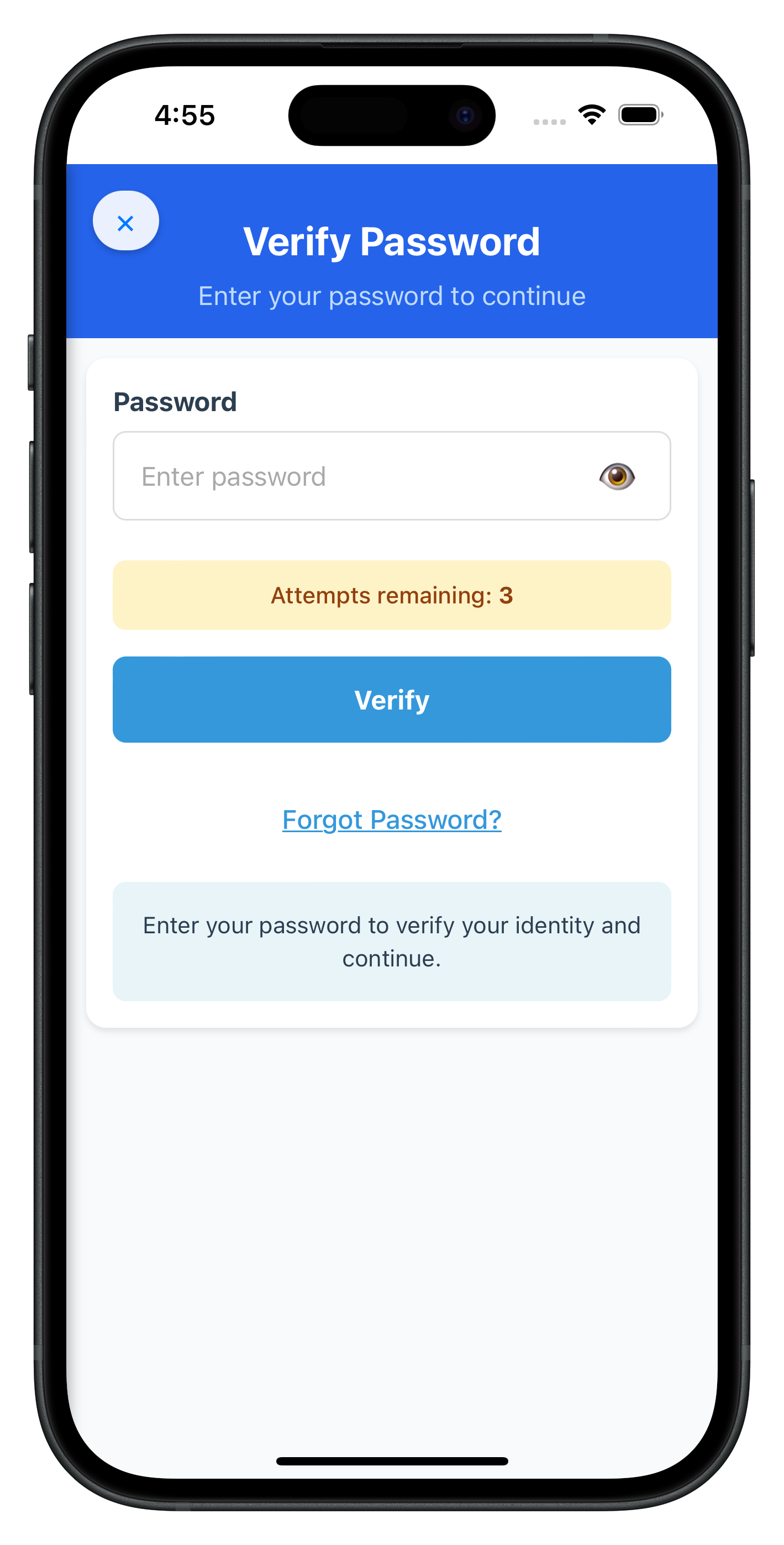
The following image showcases screen from the sample application:
Congratulations! You've successfully implemented secure forgot password functionality with the REL-ID SDK.
🚀 What You've Accomplished
✅ Conditional Forgot Password UI - Smart display logic based on challenge mode and server configuration
✅ Secure API Integration - Proper forgotPassword() implementation with error handling
✅ Event Chain Management - Complete flow from verification to password reset to login
✅ Production-Ready Code - Comprehensive error handling, loading states, and security practices
✅ User Experience Excellence - Clear feedback, intuitive flow, and accessibility support
Key Cordova Patterns Learned
- Plugin API Pattern:
com.uniken.rdnaplugin.RdnaClient.forgotPassword(successCb, errorCb, [userId]) - JSON Parsing: Always parse plugin responses with
JSON.parse() - DOM Event Handling: Use
document.addEventListener()for SDK events - State Management: Track loading states with object properties
- DOM Manipulation: Manual UI updates for loading states and visibility
- Error Handling: Three-layer error validation (API, status, promise)
📚 Additional Resources
- REL-ID Developer Documentation - Complete API reference
- Cordova Documentation - Platform documentation
- JavaScript Best Practices - Modern JavaScript patterns
🔐 You've mastered secure password recovery with REL-ID SDK!
Your implementation provides users with a seamless, secure way to recover their accounts while maintaining the highest security standards. Use this foundation to build robust authentication experiences that users can trust.