Learning Path:
- Complete REL-ID Complete Activation & Login Flow Codelab
- Complete REL-ID Additional Device Activation Flow Codelab
- You are here → Update Password Flow Implementation (Post-Login)
Welcome to the REL-ID Update Password codelab! This tutorial builds upon your existing MFA implementation to add secure user-initiated password update capabilities using REL-ID SDK's credential management APIs.
What You'll Build
In this codelab, you'll enhance your existing MFA application with:
- Post-Login Password Update: User-initiated password change from dashboard with
challengeMode = 2(RDNA_OP_UPDATE_CREDENTIALS) - Credential Availability Detection: Automatic detection using
getAllChallenges()API andonCredentialsAvailableForUpdateevent - Conditional Menu Display: Show "Update Password" only when credential is available for update
- Three-Field Password Form: Current password, new password, and confirm password validation with Compose IME handling
- ViewModel Event Handling: Proper
onUpdateCredentialResponseevent handling with coroutine flows - SDK Event Chain Management: Handle automatic
onUserLoggedOff→getUserevents for status codes 110/153
What You'll Learn
By completing this codelab, you'll master:
- Credential Availability Check: Post-login detection using
getAllChallenges()API - Update Flow Initiation: Triggering password update with
initiateUpdateFlowForCredential('Password')API - Dashboard Navigation Integration: Conditional navigation based on credential availability
- UpdatePassword API Integration: Implementing
updatePassword(current, new, 2)with challengeMode 2 - Password Policy Extraction: Parsing
RELID_PASSWORD_POLICYfrom challenge data - ViewModel Event Management:
onUpdateCredentialResponseevent handling with StateFlow/SharedFlow - SDK Event Chain Handling: Managing automatic logout events for specific status codes
- Compose IME Management: Proper keyboard handling for multi-field forms in Jetpack Compose
Prerequisites
Before starting this codelab, ensure you have:
- ✅ Completed REL-ID MFA Complete Activation & Login Flow Codelab - All MFA screens and flows must be fully implemented
- ✅ Android Development Environment - Android Studio with Kotlin support
- ✅ REL-ID SDK Integration - Latest SDK AAR with credential management APIs
- ✅ Kotlin Knowledge - Understanding of Kotlin coroutines and StateFlow patterns
- ✅ Jetpack Compose Knowledge - Understanding of Compose UI and navigation
- ✅ Dashboard Screen Setup - Dashboard screen configured with navigation
- ✅ Server Configuration - REL-ID server with password update credential enabled
Get the Code from GitHub
The code to get started can be found in a GitHub repository.
You can clone the repository using the following command:
git clone https://github.com/uniken-team/relid-codelab-android.git
Navigate to the relid-MFA-update-password folder in the repository you cloned earlier
Codelab Architecture Overview
This codelab extends your MFA application with five core password update components:
- UpdatePasswordScreen: Three-field password form with policy display and Compose IME handling
- Credential Availability Detection:
getAllChallenges()API integration after login withonCredentialsAvailableForUpdateevent handler - Update Flow Initiation:
initiateUpdateFlowForCredential('Password')API to trigger password update from dashboard - Conditional Navigation: Dynamic navigation based on
onCredentialsAvailableForUpdateevent - ViewModel Event Handling:
onUpdateCredentialResponsehandler with automatic cleanup using coroutine flows
Before implementing password update functionality, let's understand the key SDK events and APIs that power the user-initiated password update workflow (post-login).
Update Password Event Flow
The password update process follows this event-driven pattern:
User Logs In Successfully → getAllChallenges() Called →
onCredentialsAvailableForUpdate Event → Dashboard Shows "Update Password" →
User Taps Button → initiateUpdateFlowForCredential('Password') →
getPassword Event (challengeMode=2) → UpdatePasswordScreen Displays →
User Updates Password → updatePassword(current, new, 2) →
onUpdateCredentialResponse (statusCode 110/153) →
SDK Triggers onUserLoggedOff → getUser Event → Navigation to Login
Challenge Mode 2 vs Challenge Mode 4
It's crucial to understand the difference between user-initiated update and password expiry:
Challenge Mode | Use Case | Trigger | User Action | Screen Location |
| User-initiated password update (post-login) | User taps "Update Password" button | Provide current + new password | Dashboard navigation |
| Password expiry during login | Server detects expired password | Provide current + new password | Navigation from login |
| Password verification for login | User attempts to log in | Enter password | Login flow |
| Set new password during activation | First-time activation | Create password | Activation flow |
Credential Availability Detection Flow
Post-login password update requires credential availability check:
Step | API/Event | Description |
1. User Login |
| User successfully completes MFA login |
2. Credential Check |
| Check which credentials are available for update |
3. Availability Event |
| SDK returns array of updatable credentials (e.g., |
4. Menu Display | Conditional rendering | Show "Update Password" button if |
5. User Initiates |
| User taps button to start update flow |
6. SDK Triggers |
| SDK requests password update |
7. Screen Display | UpdatePasswordScreen | Show three-field password form |
Core Update Password APIs and Events
The REL-ID SDK provides these APIs and events for password update:
API/Event | Type | Description | User Action Required |
API | Check available credential updates after login | System calls automatically | |
Event | Receives array of updatable credentials | System stores in ViewModel | |
API | Initiate update flow for specific credential | User taps button | |
Event | Password update request with policy | User provides passwords | |
API | Submit password update | User submits form | |
Event | Password update result with status codes | System handles response |
Password Policy Extraction
Password update flow uses the standard policy key:
Flow | Policy Key | Description |
Password Creation (challengeMode=1) |
| Policy for new password creation |
Password Update (challengeMode=2) |
| Policy for user-initiated password update |
Password Expiry (challengeMode=4) |
| Policy for expired password update |
SDK Event Chain - Critical Status Codes
When onUpdateCredentialResponse receives these status codes, the SDK automatically triggers onUserLoggedOff → getUser event chain:
Status Code | Meaning | SDK Behavior | Action Required |
| Password has expired while updating | SDK triggers | Clear fields, user must re-login |
| Attempts exhausted | SDK triggers | Clear fields, user logs out |
| Password does not meet policy | No automatic logout but triggers | Clear fields, display error |
Navigation Pattern
Update Password flow uses dashboard navigation, not separate screen stacks:
Screen | Navigation Type | Reason | Access Method |
UpdatePasswordScreen | Dashboard navigation | Post-login feature, conditional access | Button in dashboard |
UpdateExpiryPasswordScreen | Login flow navigation | Login-blocking feature, forced update | Automatic SDK navigation |
SetPasswordScreen | Activation flow | First-time setup | Automatic SDK navigation |
VerifyPasswordScreen | Login flow | Authentication | Automatic SDK navigation |
ViewModel Event Handler Pattern
Update password uses ViewModel-level event handling with coroutine flows:
// UpdatePasswordViewModel.kt - ViewModel event handler
class UpdatePasswordViewModel(...) : ViewModel() {

    init {
        setupEventHandlers()
    }

    private fun setupEventHandlers() {
        viewModelScope.launch {
            eventManager.updateCredentialResponseEvent.collect { data ->
                handleUpdateCredentialResponse(data)
            }
        }
    }

    private fun handleUpdateCredentialResponse(data: UpdateCredentialResponseEventData) {
        // Process status codes 110, 153
        // SDK will trigger onUserLoggedOff → getUser after this
    }
}
Let's implement the credential management APIs in your service layer following established REL-ID SDK patterns.
Step 1: Add getAllChallenges API
Add this method to
app/src/main/java/com/relidcodelab/uniken/services/RDNAService.kt
:
// RDNAService.kt (addition to existing object)

/**
 * Get all available challenges for credential updates
 *
 * This method retrieves all available credential update options for the specified user.
 * After successful API call, the SDK triggers onCredentialsAvailableForUpdate event
 * with an array of available credential types (e.g., ["Password"]).
 *
 * Flow: User logged in → Dashboard → getAllChallenges() → onCredentialsAvailableForUpdate event
 *
 * Response Validation Logic:
 * 1. Check error.longErrorCode: 0 = success, > 0 = error
 * 2. An onCredentialsAvailableForUpdate event will be triggered with available options
 * 3. Async events will be handled by event listeners
 *
 * @param username The username for which to retrieve available challenges
 * @return RDNAError with status (longErrorCode = 0 indicates success, async event follows)
 */
fun getAllChallenges(username: String?): RDNAError {
    Log.d(TAG, "getAllChallenges() called for user: $username")

    val error = rdna.getAllChallenges(username)

    if (error.longErrorCode != 0) {
        Log.e(TAG, "getAllChallenges sync error: ${error.errorString} (code: ${error.longErrorCode})")
    } else {
        Log.d(TAG, "getAllChallenges sync success, waiting for onCredentialsAvailableForUpdate event")
    }

    return error
}
Step 2: Add initiateUpdateFlowForCredential API
Add this method to
app/src/main/java/com/relidcodelab/uniken/services/RDNAService.kt
:
// RDNAService.kt (addition to existing object)

/**
 * Initiate update flow for a specific credential type
 *
 * This method starts the credential update flow for the specified credential type.
 * After successful API call, the SDK triggers the appropriate getXXX event based on
 * the credential type (e.g., getPassword for "Password" credential with challengeMode = 2).
 *
 * Flow: getAllChallenges() → onCredentialsAvailableForUpdate → initiateUpdateFlowForCredential()
 *       → getPassword event (challengeMode=2) → User enters passwords → updatePassword()
 *
 * Response Validation Logic:
 * 1. Check error.longErrorCode: 0 = success, > 0 = error
 * 2. For "Password", triggers getPassword event with challengeMode = 2 (RDNA_OP_UPDATE_CREDENTIALS)
 * 3. Async events will be handled by event listeners
 *
 * @param credentialType The credential type to update (e.g., "Password")
 * @return RDNAError with status (longErrorCode = 0 indicates success, async event follows)
 */
fun initiateUpdateFlowForCredential(credentialType: String?): RDNAError {
    Log.d(TAG, "initiateUpdateFlowForCredential() called for credential: $credentialType")

    val error = rdna.initiateUpdateFlowForCredential(credentialType)

    if (error.longErrorCode != 0) {
        Log.e(TAG, "initiateUpdateFlowForCredential sync error: ${error.errorString} (code: ${error.longErrorCode})")
    } else {
        Log.d(TAG, "initiateUpdateFlowForCredential sync success, waiting for get credential event")
    }

    return error
}
Step 3: Add updatePassword API with challengeMode 2
Add this method to
app/src/main/java/com/relidcodelab/uniken/services/RDNAService.kt
:
// RDNAService.kt (addition to existing object)

/**
 * Update password for user-initiated password update (Post-Login)
 *
 * This method is specifically used for user-initiated password updates after login.
 * When user taps "Update Password" in dashboard and enters passwords, this API
 * submits the password update request with challengeMode=2 (RDNA_OP_UPDATE_CREDENTIALS).
 *
 * Workflow:
 * 1. User taps "Update Password" button (post-login)
 * 2. initiateUpdateFlowForCredential('Password') called
 * 3. SDK triggers getPassword with challengeMode=2
 * 4. App displays UpdatePasswordScreen
 * 5. User provides current and new passwords
 * 6. App calls updatePassword(current, new, 2)
 * 7. SDK validates and updates password
 * 8. SDK triggers onUpdateCredentialResponse event
 * 9. On statusCode 110/153, SDK auto-triggers onUserLoggedOff → getUser
 *
 * Response Validation Logic:
 * 1. Check error.longErrorCode: 0 = success, > 0 = error
 * 2. On success, triggers onUpdateCredentialResponse event
 * 3. On failure, may trigger getPassword again with error status
 * 4. StatusCode 100 = Success
 * 5. StatusCode 110 = Password expired (SDK triggers logout)
 * 6. StatusCode 153 = Attempts exhausted (SDK triggers logout)
 * 7. StatusCode 190 = Policy violation (no automatic logout)
 * 8. Async events will be handled by ViewModel
 *
 * @param currentPassword The user's current password
 * @param newPassword The new password to set
 * @param challengeMode Challenge mode (should be 2 for RDNA_OP_UPDATE_CREDENTIALS)
 * @return RDNAError with status (longErrorCode = 0 indicates success, async event follows)
 */
fun updatePassword(currentPassword: String?, newPassword: String?, challengeMode: Int): RDNAError {
    Log.d(TAG, "updatePassword() called with challengeMode: $challengeMode")

    val mode = when (challengeMode) {
        4 -> RDNAChallengeOpMode.RDNA_OP_UPDATE_CREDENTIALS
        2 -> RDNAChallengeOpMode.RDNA_OP_UPDATE_CREDENTIALS
        else -> {
            Log.w(TAG, "Unexpected challengeMode $challengeMode for updatePassword, using RDNA_OP_UPDATE_CREDENTIALS")
            RDNAChallengeOpMode.RDNA_OP_UPDATE_CREDENTIALS
        }
    }

    val error = rdna.updatePassword(currentPassword, newPassword, mode.intValue)

    if (error.longErrorCode != 0) {
        Log.e(TAG, "updatePassword sync error: ${error.errorString} (code: ${error.longErrorCode})")
    } else {
        Log.d(TAG, "updatePassword sync success, waiting for onUpdateCredentialResponse and onUserLoggedIn events")
    }

    return error
}
Step 4: Verify Service Layer Integration
Ensure RDNAService.kt has all the methods:
// RDNAService.kt structure
object RDNAService {
    // Existing MFA methods...

    // ✅ New credential management methods
    fun getAllChallenges(username: String?): RDNAError { /* ... */ }
    fun initiateUpdateFlowForCredential(credentialType: String?): RDNAError { /* ... */ }
    fun updatePassword(currentPassword: String?, newPassword: String?, challengeMode: Int): RDNAError { /* ... */ }
}
Now let's enhance your SDKEventProvider to handle credential availability detection and password update routing.
Step 1: Add Event Data Classes
Ensure these data classes exist in
app/src/main/java/com/relidcodelab/uniken/models/EventDataClasses.kt
:
// EventDataClasses.kt (additions)

/**
 * Credentials Available for Update Event Data
 * Triggered after getAllChallenges() API call
 */
data class CredentialsAvailableForUpdateEventData(
    val userId: String?,
    val credentials: Array<String>?,
    val error: RDNA.RDNAError?
)

/**
 * Update Credential Response Event Data
 * Triggered after updatePassword() API call
 */
data class UpdateCredentialResponseEventData(
    val userId: String?,
    val credType: String?,
    val status: RDNA.RDNAStatus<*>?,
    val error: RDNA.RDNAError?
)
Step 2: Add SharedFlow Events to RDNACallbackManager
Enhance
app/src/main/java/com/relidcodelab/uniken/services/RDNACallbackManager.kt
:
// RDNACallbackManager.kt (additions)

class RDNACallbackManager : RDNA.RDNACallbacks {

    // Existing events...

    // ✅ New events for credential management
    private val _credentialsAvailableForUpdateEvent = MutableSharedFlow<CredentialsAvailableForUpdateEventData>()
    val credentialsAvailableForUpdateEvent: SharedFlow<CredentialsAvailableForUpdateEventData> =
        _credentialsAvailableForUpdateEvent.asSharedFlow()

    private val _updateCredentialResponseEvent = MutableSharedFlow<UpdateCredentialResponseEventData>()
    val updateCredentialResponseEvent: SharedFlow<UpdateCredentialResponseEventData> =
        _updateCredentialResponseEvent.asSharedFlow()

    // ✅ Implement callback methods
    override fun onCredentialsAvailableForUpdate(
        userId: String?,
        credentials: Array<String>?,
        error: RDNA.RDNAError?
    ) {
        Log.d(TAG, "onCredentialsAvailableForUpdate callback received")
        Log.d(TAG, "  - userId: $userId")
        Log.d(TAG, "  - credentials: ${credentials?.joinToString()}")

        val eventData = CredentialsAvailableForUpdateEventData(
            userId = userId,
            credentials = credentials,
            error = error
        )

        CoroutineScope(Dispatchers.Main).launch {
            _credentialsAvailableForUpdateEvent.emit(eventData)
        }
    }

    override fun onUpdateCredentialResponse(
        userId: String?,
        credType: String?,
        status: RDNA.RDNAStatus<*>?,
        error: RDNA.RDNAError?
    ) {
        Log.d(TAG, "onUpdateCredentialResponse callback received")
        Log.d(TAG, "  - userId: $userId")
        Log.d(TAG, "  - credType: $credType")
        Log.d(TAG, "  - statusCode: ${status?.statusCode}")

        val eventData = UpdateCredentialResponseEventData(
            userId = userId,
            credType = credType,
            status = status,
            error = error
        )

        CoroutineScope(Dispatchers.Main).launch {
            _updateCredentialResponseEvent.emit(eventData)
        }
    }
}
Step 3: Add getAllChallenges Call in DashboardViewModel
Enhance the
DashboardViewModel
initialization in
app/src/main/java/com/relidcodelab/tutorial/viewmodels/DashboardViewModel.kt
:
// DashboardViewModel.kt (modification)

class DashboardViewModel(
    private val rdnaService: RDNAService,
    private val callbackManager: RDNACallbackManager,
    userID: String,
    // ... other parameters
) : ViewModel() {

    init {
        // ... existing initialization

        // ✅ NEW: Call getAllChallenges after successful login
        callGetAllChallenges()

        // Listen for credentials available for update
        setupCredentialsAvailableHandler()
    }

    /**
     * Call getAllChallenges API to detect available credentials for update
     */
    private fun callGetAllChallenges() {
        viewModelScope.launch {
            Log.d(TAG, "Calling getAllChallenges for user: ${_uiState.value.userID}")

            val error = rdnaService.getAllChallenges(_uiState.value.userID)

            if (error.longErrorCode != 0) {
                Log.e(TAG, "getAllChallenges error: ${error.errorString}")
                // Non-critical error - user can still use app without password update
            } else {
                Log.d(TAG, "getAllChallenges success, waiting for onCredentialsAvailableForUpdate event")
            }
        }
    }

    /**
     * Setup handler for credentialsAvailableForUpdate event
     */
    private fun setupCredentialsAvailableHandler() {
        viewModelScope.launch {
            callbackManager.credentialsAvailableForUpdateEvent.collect { eventData ->
                Log.d(TAG, "Credentials available for update: ${eventData.credentials?.joinToString()}")
                _uiState.update { it.copy(
                    credentialsAvailable = eventData.credentials?.toList() ?: emptyList()
                )}
            }
        }
    }
}
Step 4: Add getPassword Handler for Challenge Mode 2
Enhance the
handleGetPasswordEvents
in
app/src/main/java/com/relidcodelab/uniken/providers/SDKEventProvider.kt
:
// SDKEventProvider.kt (modification)

private suspend fun handleGetPasswordEvents(
    rdnaService: RDNAService,
    callbackManager: RDNACallbackManager,
    navController: NavController
) {
    callbackManager.getPasswordEvent.collect { eventData ->
        val challengeMode = eventData.mode?.intValue ?: 1

        when (challengeMode) {
            0 -> {
                // Mode 0 = VERIFY (existing password during login)
                // ... existing code
            }
            1 -> {
                // Mode 1 = SET (new password during activation)
                // ... existing code
            }
            2 -> {
                // ✅ NEW: Mode 2 = UPDATE_CREDENTIALS (credential update flow from dashboard)
                Log.d(TAG, "getPassword event (UPDATE_CREDENTIALS mode=2) - navigating to UpdatePasswordScreen")

                updatePasswordViewModel = UpdatePasswordViewModel(
                    rdnaService = rdnaService,
                    eventManager = callbackManager
                )

                // Initialize with event data
                val userId = eventData.userId ?: ""
                val attemptsLeft = eventData.attemptsLeft
                val passwordPolicyJson = eventData.response?.challengeInfo?.get("RELID_PASSWORD_POLICY") as? String

                updatePasswordViewModel?.initializeWithResponseData(
                    userId = userId,
                    challengeMode = challengeMode,
                    attemptsLeft = attemptsLeft,
                    passwordPolicyJson = passwordPolicyJson
                )

                navController.navigate(Routes.UPDATE_PASSWORD) {
                    popUpTo(Routes.DASHBOARD) { inclusive = false }
                }
            }
            4 -> {
                // Mode 4 = UPDATE_CREDENTIALS (expired password during login)
                // ... existing code
            }
        }
    }
}
Step 5: Add ViewModel Getter Method
Add getter method in
SDKEventProvider.kt
:
// SDKEventProvider.kt (addition)

/**
 * Get UpdatePasswordViewModel for navigation
 * NEW for Update Password codelab (credential update flow, challengeMode=2)
 */
fun getUpdatePasswordViewModel(): UpdatePasswordViewModel? = updatePasswordViewModel
Now let's create the UpdatePasswordViewModel to manage the password update screen state and logic.
Step 1: Create UpdatePasswordViewModel File
Create file:
app/src/main/java/com/relidcodelab/tutorial/viewmodels/UpdatePasswordViewModel.kt
Step 2: Implement UpdatePasswordViewModel
Add this complete implementation:
package com.relidcodelab.tutorial.viewmodels

import android.util.Log
import androidx.lifecycle.ViewModel
import androidx.lifecycle.viewModelScope
import com.relidcodelab.uniken.models.UpdateCredentialResponseEventData
import com.relidcodelab.uniken.services.RDNACallbackManager
import com.relidcodelab.uniken.services.RDNAService
import com.relidcodelab.uniken.utils.PasswordPolicyUtils
import com.uniken.rdna.RDNA
import kotlinx.coroutines.flow.*
import kotlinx.coroutines.launch

/**
 * UI State for UpdatePasswordScreen
 */
data class UpdatePasswordUiState(
    val currentPassword: String = "",
    val newPassword: String = "",
    val confirmPassword: String = "",
    val error: String? = null,
    val isSubmitting: Boolean = false,
    val challengeMode: Int = 2,  // RDNA_OP_UPDATE_CREDENTIALS
    val userName: String = "",
    val passwordPolicyMessage: String = "",
    val attemptsLeft: Int = 3
)

/**
 * UpdatePasswordViewModel - Manages state for Update Password screen
 *
 * Key Features:
 * - Three password inputs (current, new, confirm) with validation
 * - Password policy parsing and display
 * - Real-time error handling
 * - Attempts counter
 * - UpdateCredentialResponse event handling
 *
 * Flow:
 * 1. Screen receives getPassword event with challengeMode=2
 * 2. User enters current password, new password, confirm password
 * 3. ViewModel validates inputs
 * 4. Calls updatePassword() SDK method
 * 5. Listens for onUpdateCredentialResponse event
 * 6. Navigates to success or shows error
 */
class UpdatePasswordViewModel(
    private val rdnaService: RDNAService,
    private val eventManager: RDNACallbackManager
) : ViewModel() {

    companion object {
        private const val TAG = "UpdatePasswordVM"
    }

    // UI State as StateFlow
    private val _uiState = MutableStateFlow(UpdatePasswordUiState())
    val uiState: StateFlow<UpdatePasswordUiState> = _uiState.asStateFlow()

    // Navigation events
    private val _navigateToSuccess = MutableSharedFlow<UpdateCredentialResponseEventData>()
    val navigateToSuccess: SharedFlow<UpdateCredentialResponseEventData> = _navigateToSuccess.asSharedFlow()

    private val _showErrorAndNavigateToDashboard = MutableSharedFlow<String>()
    val showErrorAndNavigateToDashboard: SharedFlow<String> = _showErrorAndNavigateToDashboard.asSharedFlow()

    init {
        setupEventHandlers()
    }

    /**
     * Setup event handler for onUpdateCredentialResponse
     */
    private fun setupEventHandlers() {
        viewModelScope.launch {
            eventManager.updateCredentialResponseEvent.collect { data ->
                handleUpdateCredentialResponse(data)
            }
        }
    }

    /**
     * Handle update credential response event
     */
    private fun handleUpdateCredentialResponse(data: UpdateCredentialResponseEventData) {
        Log.d(TAG, "Update credential response: userId=${data.userId}, credType=${data.credType}")

        _uiState.update { it.copy(isSubmitting = false) }

        // Check for errors first
        if (data.error != null && data.error.longErrorCode != 0) {
            val errorMessage = "${data.error.errorString} (${data.error.longErrorCode})"
            Log.e(TAG, "Update credential error: $errorMessage")
            resetPasswords()
            viewModelScope.launch {
                _showErrorAndNavigateToDashboard.emit(errorMessage)
            }
            return
        }

        // Then check status
        val statusCode = data.status?.statusCode ?: -1
        val statusMessage = data.status?.statusMessage ?: "Update failed"

        Log.d(TAG, "Status code: $statusCode, message: $statusMessage")

        when {
            statusCode == 100 || statusCode == 0 -> {
                // Success case
                Log.d(TAG, "Password updated successfully")
                viewModelScope.launch {
                    _navigateToSuccess.emit(data)
                }
            }
            else -> {
                // Critical error cases that trigger logout
                // 110: Password has expired
                // 153: Attempts exhausted
                // 190: Password does not meet policy standards

                Log.e(TAG, "Update credential error: $statusMessage")
                resetPasswords()
                viewModelScope.launch {
                    _showErrorAndNavigateToDashboard.emit(statusMessage)
                }
            }
        }
    }

    /**
     * Initialize screen with response data
     */
    fun initializeWithResponseData(
        userId: String,
        challengeMode: Int,
        attemptsLeft: Int,
        passwordPolicyJson: String?
    ) {
        Log.d(TAG, "Initializing with userId=$userId, challengeMode=$challengeMode, attempts=$attemptsLeft")

        val policyMessage = PasswordPolicyUtils.parseAndGeneratePolicyMessage(passwordPolicyJson)
        Log.d(TAG, "Parsed policy message: $policyMessage")

        _uiState.update {
            it.copy(
                userName = userId,
                challengeMode = challengeMode,
                attemptsLeft = attemptsLeft,
                passwordPolicyMessage = policyMessage
            )
        }
    }

    /**
     * Update current password field
     */
    fun onCurrentPasswordChange(password: String) {
        _uiState.update {
            it.copy(
                currentPassword = password,
                error = null
            )
        }
    }

    /**
     * Update new password field
     */
    fun onNewPasswordChange(password: String) {
        _uiState.update {
            it.copy(
                newPassword = password,
                error = null
            )
        }
    }

    /**
     * Update confirm password field
     */
    fun onConfirmPasswordChange(password: String) {
        _uiState.update {
            it.copy(
                confirmPassword = password,
                error = null
            )
        }
    }

    /**
     * Reset password fields
     */
    private fun resetPasswords() {
        _uiState.update {
            it.copy(
                currentPassword = "",
                newPassword = "",
                confirmPassword = ""
            )
        }
    }

    /**
     * Clear password fields when screen comes into focus
     */
    fun onScreenFocused() {
        Log.d(TAG, "Screen focused, clearing password fields")
        _uiState.update {
            it.copy(
                currentPassword = "",
                newPassword = "",
                confirmPassword = "",
                error = null,
                isSubmitting = false
            )
        }
    }

    /**
     * Handle password update submission
     */
    fun updatePassword() {
        val state = _uiState.value
        if (state.isSubmitting) return

        val currentPassword = state.currentPassword.trim()
        val newPassword = state.newPassword.trim()
        val confirmPassword = state.confirmPassword.trim()

        // Validation
        when {
            currentPassword.isEmpty() -> {
                _uiState.update { it.copy(error = "Please enter your current password") }
                return
            }
            newPassword.isEmpty() -> {
                _uiState.update { it.copy(error = "Please enter a new password") }
                return
            }
            confirmPassword.isEmpty() -> {
                _uiState.update { it.copy(error = "Please confirm your new password") }
                return
            }
            newPassword != confirmPassword -> {
                _uiState.update { it.copy(
                    error = "New password and confirm password do not match",
                    newPassword = "",
                    confirmPassword = ""
                )}
                return
            }
            currentPassword == newPassword -> {
                _uiState.update { it.copy(
                    error = "New password must be different from current password",
                    newPassword = "",
                    confirmPassword = ""
                )}
                return
            }
        }

        // All validations passed - call SDK
        _uiState.update { it.copy(isSubmitting = true, error = null) }

        viewModelScope.launch {
            Log.d(TAG, "Calling updatePassword with challengeMode: ${state.challengeMode}")

            val error = rdnaService.updatePassword(
                currentPassword,
                newPassword,
                state.challengeMode
            )

            if (error.longErrorCode != 0) {
                // Sync error
                Log.e(TAG, "UpdatePassword sync error: ${error.errorString}")
                _uiState.update { it.copy(
                    isSubmitting = false,
                    error = "${error.errorString} (${error.longErrorCode})"
                )}
                resetPasswords()
            } else {
                // Success - wait for async onUpdateCredentialResponse event
                Log.d(TAG, "UpdatePassword sync success, waiting for async event")
            }
        }
    }

    /**
     * Check if form is valid
     */
    fun isFormValid(): Boolean {
        val state = _uiState.value
        return state.currentPassword.trim().isNotEmpty() &&
                state.newPassword.trim().isNotEmpty() &&
                state.confirmPassword.trim().isNotEmpty() &&
                state.error == null
    }

    override fun onCleared() {
        super.onCleared()
        Log.d(TAG, "ViewModel cleared")
    }
}
Now let's create the UpdatePasswordScreen using Jetpack Compose with proper keyboard management and three-field password validation.
Step 1: Create UpdatePasswordScreen File
Create file:
app/src/main/java/com/relidcodelab/tutorial/screens/updatepassword/UpdatePasswordScreen.kt
Step 2: Implement UpdatePasswordScreen with Full Code
Add this complete Compose implementation:
package com.relidcodelab.tutorial.screens.updatepassword
import androidx.compose.foundation.background
import androidx.compose.foundation.layout.*
import androidx.compose.foundation.rememberScrollState
import androidx.compose.foundation.shape.RoundedCornerShape
import androidx.compose.foundation.text.KeyboardActions
import androidx.compose.foundation.text.KeyboardOptions
import androidx.compose.foundation.verticalScroll
import androidx.compose.material.icons.Icons
import androidx.compose.material.icons.filled.Menu
import androidx.compose.material3.*
import androidx.compose.runtime.*
import androidx.compose.ui.Alignment
import androidx.compose.ui.Modifier
import androidx.compose.ui.focus.FocusRequester
import androidx.compose.ui.focus.focusRequester
import androidx.compose.ui.graphics.Color
import androidx.compose.ui.platform.LocalFocusManager
import androidx.compose.ui.res.colorResource
import androidx.compose.ui.text.font.FontWeight
import androidx.compose.ui.text.input.ImeAction
import androidx.compose.ui.text.input.KeyboardType
import androidx.compose.ui.text.input.PasswordVisualTransformation
import androidx.compose.ui.text.style.TextAlign
import androidx.compose.ui.unit.dp
import androidx.compose.ui.unit.sp
import androidx.lifecycle.compose.collectAsStateWithLifecycle
import com.relidcodelab.R
import com.relidcodelab.tutorial.screens.components.StatusBanner
import com.relidcodelab.tutorial.screens.components.StatusBannerType
import com.relidcodelab.tutorial.viewmodels.UpdatePasswordViewModel
import com.relidcodelab.ui.theme.*
/**
* UpdatePasswordScreen - Jetpack Compose screen for updating user password
*
* Key Features:
* - Three password inputs (current, new, confirm) with validation
* - Password policy display
* - Attempts counter
* - Real-time error handling
* - Loading states
* - challengeMode = 2 (RDNA_OP_UPDATE_CREDENTIALS)
*/
@OptIn(ExperimentalMaterial3Api::class)
@Composable
fun UpdatePasswordScreen(
viewModel: UpdatePasswordViewModel,
onNavigateBack: () -> Unit
) {
val uiState by viewModel.uiState.collectAsStateWithLifecycle()
val focusManager = LocalFocusManager.current
var errorDialogMessage by remember { mutableStateOf<String?>(null) }
var showSuccessDialog by remember { mutableStateOf(false) }
// Focus requesters for keyboard navigation
val currentPasswordFocusRequester = remember { FocusRequester() }
val newPasswordFocusRequester = remember { FocusRequester() }
val confirmPasswordFocusRequester = remember { FocusRequester() }
// Handle success navigation
LaunchedEffect(Unit) {
viewModel.navigateToSuccess.collect {
showSuccessDialog = true
}
}
// Handle error navigation
LaunchedEffect(Unit) {
viewModel.showErrorAndNavigateToDashboard.collect { errorMessage ->
errorDialogMessage = errorMessage
}
}
// Auto-focus current password field on screen load
LaunchedEffect(Unit) {
currentPasswordFocusRequester.requestFocus()
}
// Clear fields when screen comes into focus
DisposableEffect(Unit) {
viewModel.onScreenFocused()
onDispose { }
}
// Success dialog
if (showSuccessDialog) {
AlertDialog(
onDismissRequest = {
showSuccessDialog = false
onNavigateBack()
},
title = { Text("Success") },
text = { Text("Password updated successfully") },
confirmButton = {
TextButton(
onClick = {
showSuccessDialog = false
onNavigateBack()
}
) {
Text("OK")
}
}
)
}
// Error dialog
errorDialogMessage?.let { message ->
AlertDialog(
onDismissRequest = {
errorDialogMessage = null
onNavigateBack()
},
title = { Text("Update Password Failed") },
text = { Text(message) },
confirmButton = {
TextButton(
onClick = {
errorDialogMessage = null
onNavigateBack()
}
) {
Text("OK")
}
}
)
}
Scaffold(
containerColor = PageBackground,
topBar = {
UpdatePasswordHeader(
onMenuClick = { if (!uiState.isSubmitting) onNavigateBack() },
isEnabled = !uiState.isSubmitting
)
}
) { paddingValues ->
Column(
modifier = Modifier
.fillMaxSize()
.padding(paddingValues)
.verticalScroll(rememberScrollState())
.padding(20.dp)
) {
// User Information
if (uiState.userName.isNotEmpty()) {
Column(
modifier = Modifier
.fillMaxWidth()
.padding(bottom = 20.dp),
horizontalAlignment = Alignment.CenterHorizontally
) {
Text(
text = "User",
fontSize = 18.sp,
color = Color(0xFF2C3E50),
modifier = Modifier.padding(bottom = 4.dp)
)
Text(
text = uiState.userName,
fontSize = 20.sp,
fontWeight = FontWeight.Bold,
color = Color(0xFF3498DB),
modifier = Modifier.padding(bottom = 10.dp)
)
}
}
// Attempts Left Counter
if (uiState.attemptsLeft <= 3) {
Surface(
modifier = Modifier
.fillMaxWidth()
.padding(bottom = 20.dp),
shape = RoundedCornerShape(8.dp),
color = if (uiState.attemptsLeft == 1) Color(0xFFF8D7DA) else Color(0xFFFFF3CD)
) {
Row(
modifier = Modifier.padding(12.dp)
) {
// Left border indicator
Box(
modifier = Modifier
.width(4.dp)
.height(20.dp)
.background(
if (uiState.attemptsLeft == 1) Color(0xFFDC3545) else Color(0xFFFFC107),
RoundedCornerShape(2.dp)
)
)
Spacer(modifier = Modifier.width(8.dp))
Text(
text = "Attempts remaining: ${uiState.attemptsLeft}",
fontSize = 14.sp,
fontWeight = FontWeight.SemiBold,
color = if (uiState.attemptsLeft == 1) Color(0xFF721C24) else Color(0xFF856404),
modifier = Modifier.weight(1f),
textAlign = TextAlign.Center
)
}
}
}
// Password Policy Display
if (uiState.passwordPolicyMessage.isNotEmpty()) {
Surface(
modifier = Modifier
.fillMaxWidth()
.padding(bottom = 20.dp),
shape = RoundedCornerShape(8.dp),
color = Color(0xFFF0F8FF)
) {
Row(
modifier = Modifier.padding(16.dp)
) {
// Left border indicator
Box(
modifier = Modifier
.width(4.dp)
.fillMaxHeight()
.background(Color(0xFF3498DB), RoundedCornerShape(2.dp))
)
Spacer(modifier = Modifier.width(12.dp))
Column {
Text(
text = "Password Requirements",
fontSize = 16.sp,
fontWeight = FontWeight.Bold,
color = Color(0xFF2C3E50),
modifier = Modifier.padding(bottom = 8.dp)
)
Text(
text = uiState.passwordPolicyMessage,
fontSize = 14.sp,
color = Color(0xFF2C3E50),
lineHeight = 20.sp
)
}
}
}
}
// Error Display
uiState.error?.let { errorMessage ->
StatusBanner(
type = StatusBannerType.ERROR,
message = errorMessage,
modifier = Modifier.padding(bottom = 20.dp)
)
}
// Current Password Input
OutlinedTextField(
value = uiState.currentPassword,
onValueChange = viewModel::onCurrentPasswordChange,
label = { Text("Current Password") },
placeholder = { Text("Enter current password") },
visualTransformation = PasswordVisualTransformation(),
keyboardOptions = KeyboardOptions(
keyboardType = KeyboardType.Password,
imeAction = ImeAction.Next
),
keyboardActions = KeyboardActions(
onNext = { newPasswordFocusRequester.requestFocus() }
),
enabled = !uiState.isSubmitting,
modifier = Modifier
.fillMaxWidth()
.padding(bottom = 20.dp)
.focusRequester(currentPasswordFocusRequester),
colors = OutlinedTextFieldDefaults.colors(
focusedBorderColor = colorResource(R.color.primary_blue),
unfocusedBorderColor = colorResource(R.color.border)
),
singleLine = true
)
// New Password Input
OutlinedTextField(
value = uiState.newPassword,
onValueChange = viewModel::onNewPasswordChange,
label = { Text("New Password") },
placeholder = { Text("Enter new password") },
visualTransformation = PasswordVisualTransformation(),
keyboardOptions = KeyboardOptions(
keyboardType = KeyboardType.Password,
imeAction = ImeAction.Next
),
keyboardActions = KeyboardActions(
onNext = { confirmPasswordFocusRequester.requestFocus() }
),
enabled = !uiState.isSubmitting,
modifier = Modifier
.fillMaxWidth()
.padding(bottom = 20.dp)
.focusRequester(newPasswordFocusRequester),
colors = OutlinedTextFieldDefaults.colors(
focusedBorderColor = colorResource(R.color.primary_blue),
unfocusedBorderColor = colorResource(R.color.border)
),
singleLine = true
)
// Confirm New Password Input
OutlinedTextField(
value = uiState.confirmPassword,
onValueChange = viewModel::onConfirmPasswordChange,
label = { Text("Confirm New Password") },
placeholder = { Text("Confirm new password") },
visualTransformation = PasswordVisualTransformation(),
keyboardOptions = KeyboardOptions(
keyboardType = KeyboardType.Password,
imeAction = ImeAction.Done
),
keyboardActions = KeyboardActions(
onDone = {
focusManager.clearFocus()
if (viewModel.isFormValid()) {
viewModel.updatePassword()
}
}
),
enabled = !uiState.isSubmitting,
modifier = Modifier
.fillMaxWidth()
.padding(bottom = 20.dp)
.focusRequester(confirmPasswordFocusRequester),
colors = OutlinedTextFieldDefaults.colors(
focusedBorderColor = colorResource(R.color.primary_blue),
unfocusedBorderColor = colorResource(R.color.border)
),
singleLine = true
)
// Submit Button
Button(
onClick = { viewModel.updatePassword() },
enabled = viewModel.isFormValid() && !uiState.isSubmitting,
modifier = Modifier
.fillMaxWidth()
.height(56.dp),
colors = ButtonDefaults.buttonColors(
containerColor = colorResource(R.color.primary_blue),
disabledContainerColor = colorResource(R.color.background_disabled)
),
shape = RoundedCornerShape(8.dp)
) {
if (uiState.isSubmitting) {
Row(
verticalAlignment = Alignment.CenterVertically,
horizontalArrangement = Arrangement.Center
) {
CircularProgressIndicator(
modifier = Modifier.size(20.dp),
color = Color.White,
strokeWidth = 2.dp
)
Spacer(modifier = Modifier.width(8.dp))
Text(
text = "Updating Password...",
fontSize = 16.sp,
fontWeight = FontWeight.SemiBold
)
}
} else {
Text(
text = "Update Password",
fontSize = 16.sp,
fontWeight = FontWeight.SemiBold
)
}
}
// Help Text
Surface(
modifier = Modifier
.fillMaxWidth()
.padding(top = 20.dp),
shape = RoundedCornerShape(8.dp),
color = Color(0xFFE8F4F8)
) {
Text(
text = "Update your password. Your new password must be different from your current password and meet all policy requirements.",
fontSize = 14.sp,
color = Color(0xFF2C3E50),
textAlign = TextAlign.Center,
lineHeight = 20.sp,
modifier = Modifier.padding(16.dp)
)
}
}
}
}
/**
* Update Password Header
*/
@OptIn(ExperimentalMaterial3Api::class)
@Composable
private fun UpdatePasswordHeader(
onMenuClick: () -> Unit,
isEnabled: Boolean = true
) {
TopAppBar(
title = {
Text(
text = "Update Password",
fontSize = 18.sp,
fontWeight = FontWeight.Bold,
color = DarkGray
)
},
navigationIcon = {
IconButton(
onClick = onMenuClick,
enabled = isEnabled
) {
Icon(
imageVector = Icons.Default.Menu,
contentDescription = "Menu",
tint = DarkGray
)
}
},
colors = TopAppBarDefaults.topAppBarColors(
containerColor = CardBackground
)
)
}
The following images showcase screens from the sample application:
|
|
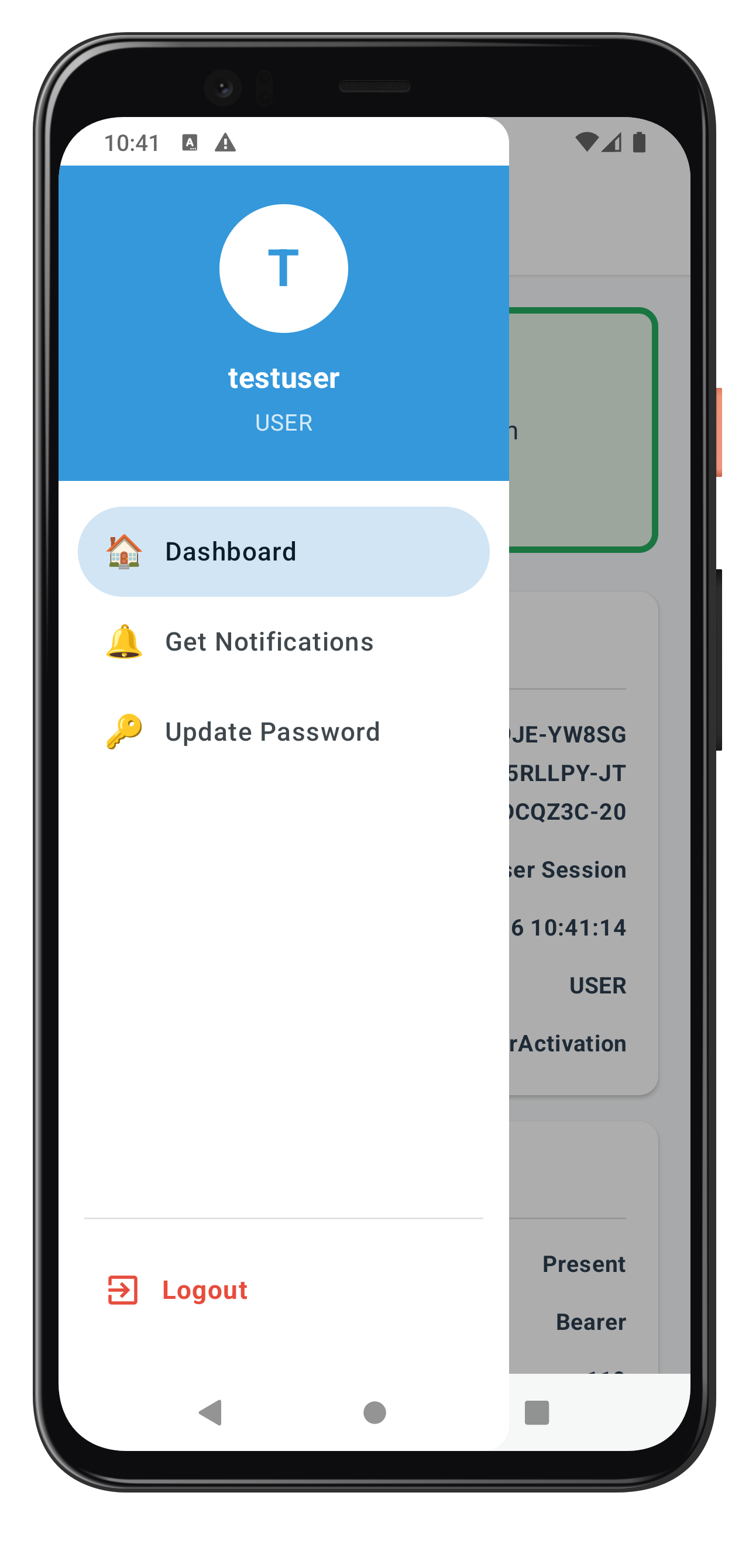
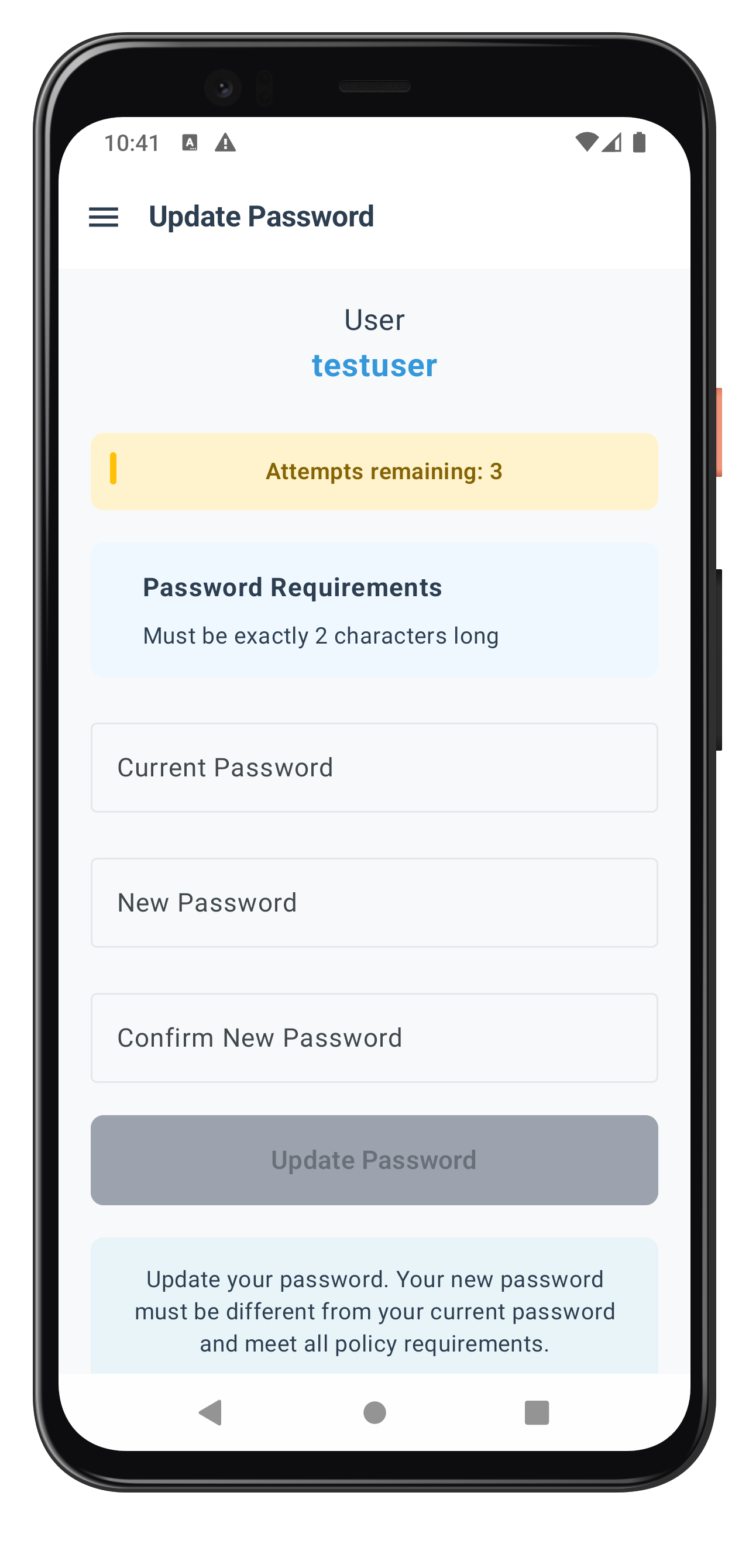
Now let's integrate the UpdatePasswordScreen into your navigation and add conditional button rendering in Dashboard.
Step 1: Add Route to Navigation Routes
Enhance
app/src/main/java/com/relidcodelab/tutorial/navigation/Routes.kt
:
// Routes.kt (addition)

object Routes {
    // Existing routes...

    // ✅ NEW: Update Password route
    const val UPDATE_PASSWORD = "update_password"
}
Step 2: Add UpdatePasswordScreen to NavHost
Enhance
app/src/main/java/com/relidcodelab/tutorial/navigation/AppNavigator.kt
:
// AppNavigator.kt (modification)

@Composable
fun AppNavHost(
    navController: NavHostController,
    // ... parameters
) {
    NavHost(
        navController = navController,
        startDestination = Routes.TUTORIAL_HOME
    ) {
        // Existing composables...

        // ✅ NEW: Update Password screen
        composable(Routes.UPDATE_PASSWORD) {
            val viewModel = SDKEventProvider.getUpdatePasswordViewModel()
            if (viewModel != null) {
                UpdatePasswordScreen(
                    viewModel = viewModel,
                    onNavigateBack = {
                        navController.navigate(Routes.DASHBOARD) {
                            popUpTo(Routes.DASHBOARD) { inclusive = true }
                        }
                    }
                )
            } else {
                // Fallback if ViewModel is not available
                LaunchedEffect(Unit) {
                    navController.navigate(Routes.DASHBOARD) {
                        popUpTo(Routes.DASHBOARD) { inclusive = true }
                    }
                }
            }
        }
    }
}
Step 3: Add Conditional Button in DashboardScreen
Modify
app/src/main/java/com/relidcodelab/tutorial/screens/mfa/DashboardScreen.kt
to add "Update Password" button:
// DashboardScreen.kt (modification and addition)

@Composable
fun DashboardScreen(
    viewModel: DashboardViewModel,
    onNavigateToGetNotifications: () -> Unit,
    onLogoutComplete: () -> Unit
) {
    val uiState by viewModel.uiState.collectAsStateWithLifecycle()
    var showLogoutDialog by remember { mutableStateOf(false) }

    Scaffold(
        containerColor = PageBackground,
        topBar = {
            DashboardHeader(userName = uiState.userID)
        }
    ) { paddingValues ->
        Column(
            modifier = Modifier
                .fillMaxSize()
                .padding(paddingValues)
                .verticalScroll(rememberScrollState())
                .padding(20.dp)
        ) {
            // ... existing dashboard content

            // ✅ NEW: Conditional Update Password Button
            if (uiState.credentialsAvailable.contains("Password")) {
                Button(
                    onClick = {
                        viewModel.initiateCredentialUpdate("Password")
                    },
                    modifier = Modifier
                        .fillMaxWidth()
                        .padding(vertical = 8.dp)
                        .height(56.dp),
                    colors = ButtonDefaults.buttonColors(
                        containerColor = colorResource(R.color.secondary_orange)
                    ),
                    shape = RoundedCornerShape(8.dp)
                ) {
                    Row(
                        verticalAlignment = Alignment.CenterVertically,
                        horizontalArrangement = Arrangement.Center
                    ) {
                        Text(
                            text = "🔑",
                            fontSize = 20.sp,
                            modifier = Modifier.padding(end = 8.dp)
                        )
                        Text(
                            text = "Update Password",
                            fontSize = 16.sp,
                            fontWeight = FontWeight.SemiBold
                        )
                    }
                }
            }

            // Existing Get Notifications button...
            // Existing Logout button...
        }
    }

    // Logout confirmation dialog
    if (showLogoutDialog) {
        AlertDialog(
            onDismissRequest = { showLogoutDialog = false },
            title = { Text("Log Off") },
            text = { Text("Are you sure you want to log off?") },
            confirmButton = {
                TextButton(
                    onClick = {
                        showLogoutDialog = false
                        viewModel.performLogOut(onLogoutComplete)
                    }
                ) {
                    Text("Log Off", color = Color.Red)
                }
            },
            dismissButton = {
                TextButton(
                    onClick = { showLogoutDialog = false }
                ) {
                    Text("Cancel")
                }
            }
        )
    }
}
Step 4: Update DashboardViewModel with initiateCredentialUpdate
This method is already implemented in DashboardViewModel from our earlier step:
// DashboardViewModel.kt (reference - already implemented)

/**
 * Initiate credential update flow
 * Calls getAllChallenges followed by initiateUpdateFlowForCredential
 */
fun initiateCredentialUpdate(credentialType: String = "Password") {
    viewModelScope.launch {
        Log.d(TAG, "Initiating credential update for: $credentialType")

        try {
            // Step 1: Get all challenges
            val getAllError = rdnaService.getAllChallenges(_uiState.value.userID)
            if (getAllError.longErrorCode != 0) {
                Log.e(TAG, "getAllChallenges error: ${getAllError.errorString}")
                return@launch
            }

            Log.d(TAG, "getAllChallenges successful")

            // Step 2: Initiate update flow for credential
            val initiateError = rdnaService.initiateUpdateFlowForCredential(credentialType)
            if (initiateError.longErrorCode != 0) {
                Log.e(TAG, "initiateUpdateFlowForCredential error: ${initiateError.errorString}")
                return@launch
            }

            Log.d(TAG, "initiateUpdateFlowForCredential successful - awaiting getPassword callback")
        } catch (e: Exception) {
            Log.e(TAG, "Exception during credential update initiation", e)
        }
    }
}
Let's verify your password update implementation with comprehensive manual testing scenarios.
Test Scenario 1: Successful Password Update
Steps:
- Launch the app and complete MFA login flow successfully
- Verify navigation to Dashboard screen
- Check Logcat for: "Calling getAllChallenges for user"
- Wait for: "Credentials available for update event received"
- Verify "🔑 Update Password" button is visible on dashboard
- Tap "🔑 Update Password" button
- Verify navigation to UpdatePasswordScreen
- Verify screen displays:
- User name
- Attempts remaining counter
- Password policy requirements
- Three password fields (Current, New, Confirm)
- Enter valid current password
- Enter valid new password (meeting policy requirements)
- Enter matching confirm password
- Tap "Update Password" button
- Verify button shows "Updating Password..." with loading indicator
- Wait for success dialog: "Password updated successfully"
- Tap "OK" on dialog
- Verify navigation back to Dashboard
- IMPORTANT: After a few seconds, verify SDK automatically triggers logout
- Verify navigation to CheckUserScreen (login screen)
Expected Logcat Logs:
UpdatePasswordVM: Calling updatePassword with challengeMode: 2
RDNAService: updatePassword sync success
UpdatePasswordVM: Update credential response: statusCode: 100
SDKEventProvider: onUserLoggedOff event received
SDKEventProvider: getUser event received
Expected Result: ✅ Password updated successfully, user logged out automatically by SDK
Test Scenario 2: Password Mismatch Validation
Steps:
- Navigate to UpdatePasswordScreen (follow steps 1-8 from Scenario 1)
- Enter valid current password
- Enter valid new password
- Enter different confirm password (intentional mismatch)
- Tap "Update Password" button
Expected Result: ✅ Error message: "New password and confirm password do not match" Expected Behavior: New and confirm password fields cleared, error banner displayed
Test Scenario 3: Same Password Validation
Steps:
- Navigate to UpdatePasswordScreen
- Enter current password (e.g., "Test@1234")
- Enter same password as new password ("Test@1234")
- Enter same password as confirm password ("Test@1234")
- Tap "Update Password" button
Expected Result: ✅ Error message: "New password must be different from current password" Expected Behavior: New and confirm password fields cleared, error banner displayed
Test Scenario 4: Password Policy Violation
Steps:
- Navigate to UpdatePasswordScreen
- Verify password policy is displayed (e.g., "Minimum 8 characters, 1 uppercase, 1 digit")
- Enter valid current password
- Enter new password that violates policy (e.g., "weak" - too short)
- Enter matching confirm password
- Tap "Update Password" button
Expected Logcat Logs:
UpdatePasswordVM: Update credential response: statusCode: 190
UpdatePasswordVM: Update credential error: Password does not meet policy standards
Expected Result: ✅ Error dialog: "Password does not meet policy standards" Expected Behavior: All password fields cleared, navigate back to dashboard Expected SDK Behavior: ❌ SDK does NOT trigger automatic logout for statusCode 190
Test Scenario 5: Attempts Exhausted (Critical Error)
Prerequisites: Configure server to allow 3 password update attempts only
Steps:
- Navigate to UpdatePasswordScreen
- Verify "Attempts remaining: 3" displayed
- Enter incorrect current password 3 times (or violate policy 3 times)
- On third attempt, verify SDK responds with statusCode 153
Expected Logcat Logs:
UpdatePasswordVM: Update credential response: statusCode: 153
UpdatePasswordVM: Update credential error: Attempts exhausted
SDKEventProvider: onUserLoggedOff event received
SDKEventProvider: getUser event received
Expected Result: ✅ Error dialog: "Attempts exhausted" or similar message
Expected Behavior:
- All password fields cleared
- After closing dialog, SDK automatically triggers logout
- Navigation to CheckUserScreen (login screen)
Test Scenario 6: Password Expired While Updating (statusCode 110)
Prerequisites: Configure server with very short password expiry (e.g., 1 minute)
Steps:
- Login with password that will expire during update process
- Navigate to UpdatePasswordScreen
- Wait for password to expire on server side
- Enter passwords and attempt update
- Server responds with statusCode 110
Expected Logcat Logs:
UpdatePasswordVM: Update credential response: statusCode: 110
UpdatePasswordVM: Update credential error: Password has expired
SDKEventProvider: onUserLoggedOff event received
SDKEventProvider: getUser event received
Expected Result: ✅ Error dialog: "Password has expired while updating password" Expected Behavior:
- All password fields cleared
- SDK automatically triggers logout and getUser events
- Navigation to login screen
Test Scenario 7: Keyboard Management
Steps:
- Navigate to UpdatePasswordScreen
- Tap current password field
- Verify keyboard appears with "Next" action
- Tap "Next" on keyboard
- Verify focus moves to new password field
- Tap "Next" on keyboard
- Verify focus moves to confirm password field
- Enter confirm password
- Tap "Done" on keyboard
- Verify keyboard dismisses and form submits (if valid)
Expected Result: ✅ Proper keyboard navigation between fields, form submission on "Done"
Test Scenario 8: Screen Navigation Behavior
Steps:
- Navigate to UpdatePasswordScreen
- Enter passwords in all three fields (don't submit)
- Tap back/menu button
- Navigate back to Dashboard
- Tap "🔑 Update Password" again to return to UpdatePasswordScreen
Expected Behavior: ✅ All password fields are cleared (DisposableEffect cleanup) Expected Logcat Logs: "UpdatePasswordVM: Screen focused, clearing password fields"
Test Scenario 9: No Password Update Available
Prerequisites: Configure server to disable password update credential
Steps:
- Complete MFA login
- Wait for getAllChallenges() to complete
- Verify onCredentialsAvailableForUpdate event returns empty array or array without "Password"
- Check dashboard
Expected Result: ✅ "🔑 Update Password" button is NOT visible Expected Logcat Logs: "Credentials available for update: []" or similar
Test Scenario 10: Network Error During Update
Prerequisites: Simulate network issues or server downtime
Steps:
- Navigate to UpdatePasswordScreen
- Disable network connection or stop REL-ID server
- Enter valid passwords
- Tap "Update Password" button
Expected Result: ✅ Error dialog with network/connection error details Expected Behavior: Password fields cleared, error displayed
Issue 1: "Update Password" Button Not Appearing
Symptoms:
- Dashboard doesn't show "Update Password" button after login
- Logcat shows: "Credentials available for update: []"
Causes & Solutions:
Cause 1: Server credential not configured
Solution: Enable password update credential in REL-ID server configuration
- Log into REL-ID admin portal
- Navigate to User/Application Settings
- Enable "Password Update" credential
- Save and restart server if needed
Cause 2: getAllChallenges() not called after login
Solution: Verify DashboardViewModel calls getAllChallenges()
- Check Logcat for: "Calling getAllChallenges for user"
- Verify callGetAllChallenges() is in init block
- Ensure error handling doesn't silently fail
Cause 3: onCredentialsAvailableForUpdate not triggering
Solution: Verify event handler is registered in RDNACallbackManager
- Check onCredentialsAvailableForUpdate() callback implementation
- Verify SharedFlow emission in callback
- Check Logcat for: "Credentials available for update event received"
Cause 4: Conditional rendering logic error in DashboardScreen
Solution: Debug credentialsAvailable list
- Add Log.d in DashboardScreen: Log.d("Dashboard", "credentials: ${uiState.credentialsAvailable}")
- Verify collectAsStateWithLifecycle() is collecting properly
- Check contains() logic: credentialsAvailable.contains("Password")
Issue 2: Keyboard Covers Input Fields
Symptoms:
- Keyboard covers password input fields
- Cannot see confirm password field when keyboard is open
- Submit button hidden behind keyboard
Causes & Solutions:
Cause 1: Missing windowSoftInputMode in AndroidManifest
Solution: Add windowSoftInputMode to activity
- Open AndroidManifest.xml
- Find MainActivity declaration
- Add: android:windowSoftInputMode="adjustResize"
Cause 2: Incorrect Compose structure
Solution: Use Column with verticalScroll
- Wrap content in Column with Modifier.verticalScroll(rememberScrollState())
- Ensure Scaffold provides proper padding
- Test scrolling while keyboard is open
Cause 3: Missing IME padding
Solution: Add IME padding to Scaffold
- Use Modifier.imePadding() if needed
- Ensure contentPadding is applied from Scaffold
Issue 3: onUpdateCredentialResponse Not Firing
Symptoms:
- Password update submits but no response
- No success or error feedback
- Logcat shows sync success but no event
Causes & Solutions:
Cause 1: Event handler not registered in RDNACallbackManager
Solution: Verify callback implementation
- Check onUpdateCredentialResponse() is implemented in RDNACallbackManager
- Verify SharedFlow emission: _updateCredentialResponseEvent.emit(eventData)
- Ensure callback is called by SDK
Cause 2: ViewModel not collecting event
Solution: Check ViewModel event collection
- Verify setupEventHandlers() is called in init
- Check viewModelScope.launch with collect
- Ensure coroutine is not cancelled prematurely
Cause 3: Wrong challengeMode passed to updatePassword
Solution: Verify challengeMode parameter
- Check updatePassword() is called with challengeMode = 2
- Verify RDNAChallengeOpMode.RDNA_OP_UPDATE_CREDENTIALS is used
- Check Logcat: "Calling updatePassword with challengeMode: 2"
Cause 4: SDK callback not registered
Solution: Verify SDK callback setup
- Check RDNA.Initialize() receives RDNACallbackManager instance
- Verify callbacks parameter is not null
- Check SDK documentation for callback registration
Issue 4: Automatic Logout Not Happening (Status Codes 110/153)
Symptoms:
- Password update succeeds but user remains logged in
- Status code 100 received but no logout
- Logcat shows success but no onUserLoggedOff event
Causes & Solutions:
Cause 1: Misunderstanding SDK behavior
Solution: This is EXPECTED SDK behavior
- SDK automatically triggers onUserLoggedOff → getUser after status 110/153
- Your app doesn't trigger logout - SDK does it automatically
- Wait a few seconds after success dialog - logout will happen
- Check Logcat for: "onUserLoggedOff event received"
Cause 2: onUserLoggedOff handler not implemented
Solution: Verify RDNACallbackManager has logout handler
- Check onUserLoggedOff() is implemented in RDNACallbackManager
- Verify SharedFlow emission for logout event
- Ensure SDKEventProvider collects userLoggedOffEvent
Cause 3: Navigation prevents automatic flow
Solution: Don't manually navigate after success
- After statusCode 100, only show dialog and navigate to Dashboard
- SDK will handle the logout navigation automatically
- Don't call rdnaService.logOff() manually after password update
Cause 4: Event chain broken
Solution: Check both event handlers work
- Test onUserLoggedOff handler separately
- Test getUser handler separately
- Verify both handlers are registered in SDKEventProvider
- Check for errors in handler execution
Issue 5: Password Policy Not Displaying
Symptoms:
- "Password Requirements" section not showing
- passwordPolicyMessage is empty string
- Policy exists on server but not displayed
Causes & Solutions:
Cause 1: Wrong policy key
Solution: Use RELID_PASSWORD_POLICY, not PASSWORD_POLICY_BKP
- Check: eventData.response?.challengeInfo?.get("RELID_PASSWORD_POLICY")
- Verify key name matches server configuration
- Check Logcat: "Parsed policy message: ..."
Cause 2: getPassword event missing challenge data
Solution: Verify challengeMode 2 includes policy
- Check eventData.response?.challengeInfo map
- Verify server sends policy with challengeMode 2
- Log: eventData.response?.challengeInfo
Cause 3: PasswordPolicyUtils parsing error
Solution: Debug policy parsing utility
- Add try-catch around parseAndGeneratePolicyMessage()
- Log passwordPolicyJson before parsing
- Verify JSON structure matches expected format
- Check for parsing errors in utility function
Cause 4: Conditional rendering logic
Solution: Check Compose conditional
- Verify: if (uiState.passwordPolicyMessage.isNotEmpty()) { ... }
- Log: Log.d("UpdatePassword", "Policy: ${uiState.passwordPolicyMessage}")
- Ensure empty string evaluates to false
Issue 6: initiateUpdateFlowForCredential Errors
Symptoms:
- Tapping button shows error in Logcat
- Logcat: "initiateUpdateFlowForCredential sync error"
- No navigation to UpdatePasswordScreen
Causes & Solutions:
Cause 1: Incorrect credential type string
Solution: Use exact credential type name
- Use: "Password" (capital P)
- Not: "password", "PASSWORD", or "pwd"
- Match server credential type name exactly
- Check credentialsAvailable array for exact string
Cause 2: SDK not ready or session invalid
Solution: Verify user session is active
- Check user is logged in before calling API
- Verify session hasn't expired
- Test with fresh login
- Check Logcat for session-related errors
Cause 3: API not implemented in RDNAService
Solution: Verify API method exists
- Check: RDNAService.initiateUpdateFlowForCredential is defined
- Verify method signature matches usage
- Ensure proper error handling
- Check for typos in method name
Cause 4: Server doesn't support credential update
Solution: Verify server configuration
- Check REL-ID server version supports this API
- Verify credential update feature is enabled
- Test with different server environment
- Check server logs for API errors
Security Considerations
Password Handling:
- Never log actual password values in Logcat (only log presence/absence)
- Clear password fields immediately after errors
- Use
PasswordVisualTransformation()for all password inputs - Clear password fields when screen comes into focus
- Never send passwords over unencrypted channels
Session Management:
- Trust SDK-triggered logout events (status codes 110/153)
- Don't manually call logOff() after password update success
- Let SDK handle automatic logout flow
- Verify session validity before showing UpdatePasswordScreen
- Handle session expiration gracefully
Event Handler Management:
- Always use ViewModel-level event handlers with coroutine flows
- Lifecycle-aware collections automatically clean up
- Use SharedFlow for one-time events, StateFlow for state
- Never collect flows outside of composable lifecycle
Error Handling:
- Display user-friendly error messages, not raw error codes
- Log detailed error information to Logcat for debugging
- Clear sensitive data from memory after errors
- Handle network errors gracefully with retry options
- Validate inputs before API calls to prevent unnecessary server requests
User Experience Best Practices
Keyboard Management:
- Use proper
KeyboardOptionswith appropriateimeAction - Implement
KeyboardActionsfor field navigation - Use
FocusRequesterfor programmatic focus control - Test on both physical devices and emulators
- Verify keyboard dismiss on form submission
Form Validation:
- Validate on client-side before server call (password match, non-empty, different from current)
- Display real-time validation feedback
- Focus appropriate field after validation error
- Clear error messages when user starts typing
- Show loading states during API calls
Password Policy Display:
- Always display password policy requirements prominently
- Extract policy from RELID_PASSWORD_POLICY challenge value
- Use PasswordPolicyUtils.parseAndGeneratePolicyMessage()
- Show policy before user enters new password
- Highlight violated policy rules in error messages
Loading States:
- Show loading indicator in button during submission
- Display progress indicator during API calls
- Disable all inputs during loading states
- Prevent double-tap on submit button
- Clear loading states on both success and error
Code Organization
File Structure:
app/src/main/java/com/yourapp/
├── uniken/
│   ├── services/
│   │   ├── RDNAService.kt (✅ Add getAllChallenges, initiateUpdateFlowForCredential, updatePassword)
│   │   └── RDNACallbackManager.kt (✅ Add credential event callbacks)
│   ├── providers/
│   │   └── SDKEventProvider.kt (✅ Add credential detection and routing)
│   └── models/
│       └── EventDataClasses.kt (✅ Add credential event data classes)
└── tutorial/
    ├── navigation/
    │   ├── Routes.kt (✅ Add UPDATE_PASSWORD route)
    │   └── AppNavigator.kt (✅ Add route handling)
    ├── viewmodels/
    │   ├── UpdatePasswordViewModel.kt (✅ NEW)
    │   └── DashboardViewModel.kt (✅ Add getAllChallenges and handler)
    └── screens/
        ├── updatepassword/
        │   └── UpdatePasswordScreen.kt (✅ NEW)
        └── mfa/
            └── DashboardScreen.kt (✅ Add conditional button)
Component Responsibilities:
- SDKEventProvider: Global event handling, credential detection, routing
- DashboardViewModel: Session state, credential availability, initiateCredentialUpdate
- DashboardScreen: Conditional button rendering
- UpdatePasswordViewModel: Three-field form state, validation, event handling
- UpdatePasswordScreen: Compose UI, keyboard management
- RDNAService: API layer for all SDK operations
- RDNACallbackManager: Event callback implementations with SharedFlow
Performance Optimization
State Management:
- Use StateFlow for UI state, SharedFlow for events
- Collect flows with collectAsStateWithLifecycle() for automatic cleanup
- Use viewModelScope for coroutine lifecycle management
- Avoid unnecessary recompositions with proper state structure
Memory Management:
- ViewModel survives configuration changes automatically
- Coroutines in viewModelScope are cancelled when ViewModel is cleared
- Composables are disposed when they leave composition
- Use DisposableEffect for cleanup when needed
Network Optimization:
- Call getAllChallenges only once after login
- Cache credential availability in ViewModel state
- Handle offline scenarios gracefully
- Provide proper error messages for network issues
Testing Checklist
Before deploying to production, verify:
- ✅ Password update succeeds with valid credentials
- ✅ Password mismatch validation works
- ✅ Same password validation works
- ✅ Password policy violation handled correctly
- ✅ Status code 100 password update successfully
- ✅ Status code 110 triggers automatic logout
- ✅ Status code 153 triggers automatic logout
- ✅ Status code 190 does NOT trigger automatic logout
- ✅ Keyboard management works properly
- ✅ Screen navigation clears password fields
- ✅ Conditional button shows/hides based on credential availability
- ✅ Loading states display correctly
- ✅ Error messages are user-friendly
- ✅ Logcat logs provide debugging information
- ✅ No password values logged to Logcat
Congratulations! You've successfully implemented user-initiated password update functionality with REL-ID SDK for Android!
What You've Accomplished
In this codelab, you learned how to:
- ✅ Implement Credential Availability Detection - Automatic post-login check using
getAllChallenges()API - ✅ Handle Credential Update Events - Process
onCredentialsAvailableForUpdateevent and store available credentials - ✅ Create Conditional Button Rendering - Display "Update Password" only when credential is available
- ✅ Integrate Dashboard Navigation - Place UpdatePasswordScreen in navigation flow for post-login access
- ✅ Build Three-Field Password Form - Validate current, new, and confirm passwords with Compose IME management
- ✅ Extract Password Policy - Parse and display
RELID_PASSWORD_POLICYrequirements - ✅ Handle ViewModel Events - Implement
onUpdateCredentialResponsehandler with coroutine flows - ✅ Manage SDK Event Chain - Handle automatic
onUserLoggedOff→getUserevents for status codes 110/153 - ✅ Implement Compose IME Management - Proper keyboard handling for multi-field forms in Jetpack Compose
- ✅ Apply Security Best Practices - Clear sensitive data, validate inputs, handle errors gracefully
Key Takeaways
Challenge Mode 2 is for User-Initiated Updates:
- Triggered by user action from dashboard, not by SDK automatically
- Requires credential availability check with
getAllChallenges()first - Screen is in main navigation flow, not separate stack
- User must be logged in to access this flow
SDK Event Chain for Status Codes 110/153:
- These status codes are exclusive to
onUpdateCredentialResponseevent - SDK automatically triggers
onUserLoggedOff→getUserafter these codes - Your app should NOT manually trigger logout - SDK does it automatically
- Always handle these automatic logout events in SDKEventProvider
ViewModel Event Handlers:
- Use ViewModel-level handlers with coroutine flows for lifecycle management
- Collections in viewModelScope automatically clean up when ViewModel is cleared
- Use SharedFlow for one-time events, StateFlow for state
- No manual cleanup needed - coroutines handle it
Dashboard Navigation Integration:
- UpdatePasswordScreen is a post-login feature accessed via dashboard button
- Conditional rendering based on
onCredentialsAvailableForUpdateevent - Different from password expiry (challengeMode 4) which blocks login
- Provides voluntary password management for users
Additional Resources
- REL-ID SDK Documentation
- Updating Other Credentials Guide
- getAllChallenges API Reference
- onCredentialsAvailableForUpdate Event
- initiateUpdateFlowForCredential API
- onUpdateCredentialResponse Event
- Change Password Documentation
- Jetpack Compose Navigation
- Kotlin Coroutines Flow
Sample App Repository
The complete implementation is available in the GitHub repository:
git clone https://github.com/uniken-team/relid-codelab-android.git
cd relid-MFA-update-password
Thank you for completing this codelab! If you have questions or feedback, please reach out to the REL-ID Development Team.