🎯 Learning Path:
- Complete REL-ID Complete Activation & Login Flow Codelab
- Complete REL-ID Additional Device Activation Flow Codelab
- You are here → Update Password Flow Implementation (Post-Login)
Welcome to the REL-ID Update Password codelab! This tutorial builds upon your existing MFA implementation to add secure user-initiated password update capabilities using REL-ID SDK's credential management APIs.
What You'll Build
In this codelab, you'll enhance your existing MFA application with:
- 🔐 Post-Login Password Update: User-initiated password change from dashboard with
challengeMode = 2(RDNA_OP_UPDATE_CREDENTIALS) - 📋 Credential Availability Detection: Automatic detection using
getAllChallenges()API andonCredentialsAvailableForUpdateevent - 🎯 Conditional Menu Display: Show "Update Password" only when credential is available for update
- 📝 Three-Field Password Form: Current password, new password, and confirm password validation with keyboard management
- 🔄 Screen-Level Event Handling: Proper
onUpdateCredentialResponseevent handling with cleanup - ⚠️ SDK Event Chain Management: Handle automatic
onUserLoggedOff→getUserevents for status codes 110/153
What You'll Learn
By completing this codelab, you'll master:
- Credential Availability Check: Post-login detection using
getAllChallenges()API - Update Flow Initiation: Triggering password update with
initiateUpdateFlowForCredential('Password')API - Drawer Navigation Integration: Conditional menu item rendering based on credential availability
- UpdatePassword API Integration: Implementing
updatePassword(current, new, 2)with challengeMode 2 - Password Policy Extraction: Parsing
RELID_PASSWORD_POLICYfrom challenge data - Screen-Level Event Management:
onUpdateCredentialResponsehandler with proper cleanup - SDK Event Chain Handling: Managing automatic logout events for specific status codes
- Keyboard Management: Proper
KeyboardAvoidingViewimplementation for multi-field forms
Prerequisites
Before starting this codelab, ensure you have:
- ✅ Completed REL-ID MFA Complete Activation & Login Flow Codelab - All MFA screens and flows must be fully implemented
- ✅ React Native Development Environment - Android Studio, Xcode, and React Native CLI configured
- ✅ REL-ID SDK Integration - Latest SDK with credential management APIs
- ✅ TypeScript Knowledge - Understanding of TypeScript interfaces and type safety patterns
- ✅ Drawer Navigation Setup - DrawerNavigator configured with Dashboard screen
- ✅ Server Configuration - REL-ID server with password update credential enabled
Get the Code from GitHub
The code to get started can be found in a GitHub repository.
You can clone the repository using the following command:
git clone https://github.com/uniken-public/codelab-react-native.git
Navigate to the relid-MFA-update-password folder in the repository you cloned earlier
Codelab Architecture Overview
This codelab extends your MFA application with five core password update components:
- UpdatePasswordScreen: Three-field password form with policy display and keyboard management in drawer navigation
- Credential Availability Detection:
getAllChallenges()API integration after login withonCredentialsAvailableForUpdateevent handler - Update Flow Initiation:
initiateUpdateFlowForCredential('Password')API to trigger password update from drawer menu - Conditional Menu Rendering: Dynamic drawer menu based on
onCredentialsAvailableForUpdateevent - Screen-Level Event Handling:
onUpdateCredentialResponsehandler with automatic cleanup and SDK event chain management
Before implementing password update functionality, let's understand the key SDK events and APIs that power the user-initiated password update workflow (post-login).
Update Password Event Flow
The password update process follows this event-driven pattern:
User Logs In Successfully → getAllChallenges() Called →
onCredentialsAvailableForUpdate Event → Drawer Menu Shows "Update Password" →
User Taps Menu Item → initiateUpdateFlowForCredential('Password') →
getPassword Event (challengeMode=2) → UpdatePasswordScreen Displays →
User Updates Password → updatePassword(current, new, 2) →
onUpdateCredentialResponse (statusCode 110/153) →
SDK Triggers onUserLoggedOff → getUser Event → Navigation to Login
Challenge Mode 2 vs Challenge Mode 4
It's crucial to understand the difference between user-initiated update and password expiry:
Challenge Mode | Use Case | Trigger | User Action | Screen Location |
| User-initiated password update (post-login) | User taps "Update Password" menu | Provide current + new password | DrawerNavigator |
| Password expiry during login | Server detects expired password | Provide current + new password | Stack Navigator |
| Password verification for login | User attempts to log in | Enter password | Stack Navigator |
| Set new password during activation | First-time activation | Create password | Stack Navigator |
Credential Availability Detection Flow
Post-login password update requires credential availability check:
Step | API/Event | Description |
1. User Login |
| User successfully completes MFA login |
2. Credential Check |
| Check which credentials are available for update |
3. Availability Event |
| SDK returns array of updatable credentials (e.g., |
4. Menu Display | Conditional rendering | Show "Update Password" menu item if |
5. User Initiates |
| User taps menu item to start update flow |
6. SDK Triggers |
| SDK requests password update |
7. Screen Display | UpdatePasswordScreen | Show three-field password form in drawer |
Core Update Password APIs and Events
The REL-ID SDK provides these APIs and events for password update:
API/Event | Type | Description | User Action Required |
API | Check available credential updates after login | System calls automatically | |
Event | Receives array of updatable credentials | System stores in context | |
API | Initiate update flow for specific credential | User taps menu item | |
Event | Password update request with policy | User provides passwords | |
API | Submit password update | User submits form | |
Event | Password update result with status codes | System handles response |
Password Policy Extraction
Password update flow uses the standard policy key:
Flow | Policy Key | Description |
Password Creation (challengeMode=1) |
| Policy for new password creation |
Password Update (challengeMode=2) |
| Policy for user-initiated password update |
Password Expiry (challengeMode=4) |
| Policy for expired password update |
SDK Event Chain - Critical Status Codes
When onUpdateCredentialResponse receives these status codes, the SDK automatically triggers onUserLoggedOff → getUser event chain:
Status Code | Meaning | SDK Behavior | Action Required |
| Password has expired while updating | SDK triggers | Clear fields, user must re-login |
| Attempts exhausted | SDK triggers | Clear fields, user logs out |
| Password does not meet policy | No automatic logout but triggers | Clear fields, display error |
Drawer Navigation vs Stack Navigation
Update Password flow uses DrawerNavigator, not Stack navigation:
Screen | Navigation Type | Reason | Access Method |
UpdatePasswordScreen | DrawerNavigator | Post-login feature, conditional access | Menu item in drawer |
UpdateExpiryPasswordScreen | Stack Navigator | Login-blocking feature, forced update | Automatic SDK navigation |
SetPasswordScreen | Stack Navigator | Activation flow, first-time setup | Automatic SDK navigation |
VerifyPasswordScreen | Stack Navigator | Login flow, authentication | Automatic SDK navigation |
Screen-Level Event Handler Pattern
Update password uses screen-level event handling with cleanup:
// UpdatePasswordScreen.tsx - Screen-level event handler
useEffect(() => {
  const eventManager = rdnaService.getEventManager();

  // Set handler when screen mounts
  const handleUpdateCredentialResponse = (data: RDNAUpdateCredentialResponseData) => {
    // Process status codes 110, 153
    // SDK will trigger onUserLoggedOff → getUser after this
  };

  eventManager.setUpdateCredentialResponseHandler(handleUpdateCredentialResponse);

  // Cleanup when screen unmounts
  return () => {
    eventManager.setUpdateCredentialResponseHandler(undefined);
  };
}, [navigation]);
Let's implement the credential management APIs in your service layer following established REL-ID SDK patterns.
Step 1: Add getAllChallenges API
Add this method to
src/uniken/services/rdnaService.ts
:
// src/uniken/services/rdnaService.ts (addition to existing class)

/**
 * Get all available challenges for credential updates
 *
 * This API checks which credentials are available for update after successful login.
 * Call this immediately after onUserLoggedIn event to populate the drawer menu with
 * available credential update options.
 *
 * @see https://developer.uniken.com/docs/getallchallenges
 *
 * Workflow:
 * 1. User logs in successfully (onUserLoggedIn event)
 * 2. Call getAllChallenges(username) immediately after login
 * 3. SDK checks server for available credential updates
 * 4. SDK triggers onCredentialsAvailableForUpdate event
 * 5. Event handler receives options array (e.g., ["Password", "PIN"])
 * 6. App displays conditional menu items in drawer
 *
 * Response Validation Logic:
 * 1. Check error.longErrorCode: 0 = success, > 0 = error
 * 2. On success, triggers onCredentialsAvailableForUpdate event
 * 3. On failure, credentials update unavailable
 * 4. Async event will be handled by SDKEventProvider
 *
 * @param username The username to check credential availability
 * @returns Promise<RDNASyncResponse> that resolves with sync response structure
 */
async getAllChallenges(username: string): Promise<RDNASyncResponse> {
  return new Promise((resolve, reject) => {
    console.log('RdnaService - Getting all challenges for user:', username);

    RdnaClient.getAllChallenges(username, response => {
      console.log('RdnaService - GetAllChallenges sync callback received');
      const result: RDNASyncResponse = response;

      if (result.error && result.error.longErrorCode === 0) {
        console.log('RdnaService - GetAllChallenges sync response success, waiting for onCredentialsAvailableForUpdate event');
        resolve(result);
      } else {
        console.error('RdnaService - GetAllChallenges sync response error:', result);
        reject(result);
      }
    });
  });
}
Step 2: Add initiateUpdateFlowForCredential API
Add this method to
src/uniken/services/rdnaService.ts
:
// src/uniken/services/rdnaService.ts (addition to existing class)

/**
 * Initiate update flow for a specific credential
 *
 * This API triggers the SDK to start the credential update flow for a specific type.
 * Call this when user taps "Update Password" menu item in drawer.
 * The SDK will respond with getPassword event (challengeMode=2).
 *
 * @see https://developer.uniken.com/docs/initiateupdateflowforcredential
 *
 * Workflow:
 * 1. User taps "Update Password" menu item
 * 2. Call initiateUpdateFlowForCredential('Password')
 * 3. SDK processes request
 * 4. SDK triggers getPassword event with challengeMode=2
 * 5. SDKEventProvider navigates to UpdatePasswordScreen in drawer
 * 6. User provides current and new passwords
 *
 * Response Validation Logic:
 * 1. Check error.longErrorCode: 0 = success, > 0 = error
 * 2. On success, triggers getPassword event with challengeMode=2
 * 3. On failure, update flow cannot be initiated
 * 4. Async event will be handled by SDKEventProvider
 *
 * @param credentialType The credential type to update (e.g., "Password", "PIN")
 * @returns Promise<RDNASyncResponse> that resolves with sync response structure
 */
async initiateUpdateFlowForCredential(credentialType: string): Promise<RDNASyncResponse> {
  return new Promise((resolve, reject) => {
    console.log('RdnaService - Initiating update flow for credential:', credentialType);

    RdnaClient.initiateUpdateFlowForCredential(credentialType, response => {
      console.log('RdnaService - InitiateUpdateFlowForCredential sync callback received');
      const result: RDNASyncResponse = response;

      if (result.error && result.error.longErrorCode === 0) {
        console.log('RdnaService - InitiateUpdateFlowForCredential sync response success, waiting for getPassword event');
        resolve(result);
      } else {
        console.error('RdnaService - InitiateUpdateFlowForCredential sync response error:', result);
        reject(result);
      }
    });
  });
}
Step 3: Add updatePassword API with challengeMode 2
Add this method to
src/uniken/services/rdnaService.ts
:
// src/uniken/services/rdnaService.ts (addition to existing class)

/**
 * Updates password for user-initiated password update (Post-Login)
 *
 * This method is specifically used for user-initiated password updates after login.
 * When user taps "Update Password" in drawer and enters passwords, this API
 * submits the password update request with challengeMode=2 (RDNA_OP_UPDATE_CREDENTIALS).
 * Uses sync response pattern similar to setPassword() method.
 *
 * @see https://developer.uniken.com/docs/updating-other-credentials
 *
 * Workflow:
 * 1. User taps "Update Password" menu item (post-login)
 * 2. initiateUpdateFlowForCredential('Password') called
 * 3. SDK triggers getPassword with challengeMode=2
 * 4. App displays UpdatePasswordScreen in drawer
 * 5. User provides current and new passwords
 * 6. App calls updatePassword(current, new, 2)
 * 7. SDK validates and updates password
 * 8. SDK triggers onUpdateCredentialResponse event
 * 9. On statusCode 110/153, SDK auto-triggers onUserLoggedOff → getUser
 *
 * Response Validation Logic:
 * 1. Check error.longErrorCode: 0 = success, > 0 = error
 * 2. On success, triggers onUpdateCredentialResponse event
 * 3. On failure, may trigger getPassword again with error status
 * 4. StatusCode 100 = Success
 * 5. StatusCode 110 = Password expired (SDK triggers logout)
 * 6. StatusCode 153 = Attempts exhausted (SDK triggers logout)
 * 7. StatusCode 190 = Policy violation (no automatic logout)
 * 8. Async events will be handled by screen-level handler
 *
 * @param currentPassword The user's current password
 * @param newPassword The new password to set
 * @param challengeMode Challenge mode (should be 2 for RDNA_OP_UPDATE_CREDENTIALS)
 * @returns Promise<RDNASyncResponse> that resolves with sync response structure
 */
async updatePassword(
  currentPassword: string,
  newPassword: string,
  challengeMode: number = 2
): Promise<RDNASyncResponse> {
  return new Promise((resolve, reject) => {
    console.log('RdnaService - Updating password with challengeMode:', challengeMode);

    RdnaClient.updatePassword(currentPassword, newPassword, challengeMode, response => {
      console.log('RdnaService - UpdatePassword sync callback received');
      const result: RDNASyncResponse = response;

      if (result.error && result.error.longErrorCode === 0) {
        console.log('RdnaService - UpdatePassword sync response success, waiting for onUpdateCredentialResponse event');
        resolve(result);
      } else {
        console.error('RdnaService - UpdatePassword sync response error:', result);
        reject(result);
      }
    });
  });
}
Step 4: Verify Service Layer Integration
Ensure these imports exist in
src/uniken/services/rdnaService.ts
:
import RdnaClient from 'react-native-rdna-client';
import type { RDNASyncResponse } from '../types/rdnaEvents';
Verify your service class exports all methods:
class RdnaService {
  // Existing MFA methods...

  // ✅ New credential management methods
  async getAllChallenges(username: string): Promise<RDNASyncResponse> { /* ... */ }
  async initiateUpdateFlowForCredential(credentialType: string): Promise<RDNASyncResponse> { /* ... */ }
  async updatePassword(currentPassword: string, newPassword: string, challengeMode: number = 2): Promise<RDNASyncResponse> { /* ... */ }
}

export default new RdnaService();
Now let's enhance your SDKEventProvider to handle credential availability detection and password update routing.
Step 1: Add TypeScript Type Definitions
Ensure these types exist in
src/uniken/types/rdnaEvents.ts
:
// src/uniken/types/rdnaEvents.ts (additions)

/**
 * Credentials Available for Update Event Data
 * Triggered after getAllChallenges() API call
 */
export interface RDNACredentialsAvailableForUpdateData {
  userID: string;
  options: string[]; // Array of updatable credentials: ["Password", "PIN", etc.]
}

/**
 * Update Credential Response Event Data
 * Triggered after updatePassword() API call
 */
export interface RDNAUpdateCredentialResponseData {
  userID: string;
  credType: string; // "Password", "PIN", etc.
  status: {
    statusCode: number; // 100=success, 110=expired, 153=exhausted, 190=policy
    statusMessage: string;
  };
}

// Callback type definitions
export type RDNACredentialsAvailableForUpdateCallback = (data: RDNACredentialsAvailableForUpdateData) => void;
export type RDNAUpdateCredentialResponseCallback = (data: RDNAUpdateCredentialResponseData) => void;
Step 2: Add Event Handlers to rdnaEventManager
Enhance
src/uniken/services/rdnaEventManager.ts
:
// src/uniken/services/rdnaEventManager.ts (additions)

import type {
  // ... existing types
  RDNACredentialsAvailableForUpdateCallback,
  RDNAUpdateCredentialResponseCallback,
} from '../types/rdnaEvents';

class RdnaEventManager {
  // Existing callbacks...

  // ✅ New callback properties
  public onCredentialsAvailableForUpdateCallback?: RDNACredentialsAvailableForUpdateCallback;
  public onUpdateCredentialResponseCallback?: RDNAUpdateCredentialResponseCallback;

  // ✅ New setter methods
  setCredentialsAvailableForUpdateHandler(handler?: RDNACredentialsAvailableForUpdateCallback): void {
    this.onCredentialsAvailableForUpdateCallback = handler;
    if (handler) {
      RdnaClient.setOnCredentialsAvailableForUpdateListener(handler);
    }
  }

  setUpdateCredentialResponseHandler(handler?: RDNAUpdateCredentialResponseCallback): void {
    this.onUpdateCredentialResponseCallback = handler;
    if (handler) {
      RdnaClient.setOnUpdateCredentialResponseListener(handler);
    }
  }

  cleanup(): void {
    // Existing cleanup...
    this.onCredentialsAvailableForUpdateCallback = undefined;
    this.onUpdateCredentialResponseCallback = undefined;
  }
}
Step 3: Update SDKEventProvider Context Interface
Modify
src/uniken/providers/SDKEventProvider.tsx
:
// src/uniken/providers/SDKEventProvider.tsx (modifications)

interface SDKEventContextType {
  availableCredentials: string[]; // ✅ New: Store available credentials
}

export const SDKEventProvider: React.FC<SDKEventProviderProps> = ({ children }) => {
  const [availableCredentials, setAvailableCredentials] = useState<string[]>([]); // ✅ New state

  // ... existing handlers
Step 4: Add getAllChallenges Call in onUserLoggedIn
Enhance the
handleUserLoggedIn
handler in
src/uniken/providers/SDKEventProvider.tsx
:
// src/uniken/providers/SDKEventProvider.tsx (modification)

const handleUserLoggedIn = useCallback(async (data: RDNAUserLoggedInData) => {
  console.log('SDKEventProvider - User logged in event received for user:', data.userID);

  // Extract session information
  const sessionID = data.challengeResponse.session.sessionID;
  const sessionType = data.challengeResponse.session.sessionType;
  const additionalInfo = data.challengeResponse.additionalInfo;
  const jwtToken = additionalInfo.jwtJsonTokenInfo;
  const userRole = additionalInfo.idvUserRole;
  const currentWorkFlow = additionalInfo.currentWorkFlow;

  // Navigate to DrawerNavigator with session data
  const navigationParams = {
    userID: data.userID,
    sessionID,
    sessionType,
    jwtToken,
    loginTime: new Date().toLocaleString(),
    userRole,
    currentWorkFlow,
  };

  console.log('SDKEventProvider - Navigating to DrawerNavigator with params:', navigationParams);

  NavigationService.navigate('DrawerNavigator', {
    screen: 'Dashboard',
    params: navigationParams
  });

  // ✅ NEW: Call getAllChallenges after successful login
  try {
    console.log('SDKEventProvider - Calling getAllChallenges after login for user:', data.userID);
    await rdnaService.getAllChallenges(data.userID);
    console.log('SDKEventProvider - getAllChallenges called successfully, waiting for onCredentialsAvailableForUpdate event');
  } catch (error) {
    console.error('SDKEventProvider - getAllChallenges failed:', error);
    // Non-critical error - user can still use app without password update
  }
}, []);
Step 5: Add onCredentialsAvailableForUpdate Handler
Add this new handler in
src/uniken/providers/SDKEventProvider.tsx
:
// src/uniken/providers/SDKEventProvider.tsx (new handler)

/**
 * Event handler for credentials available for update event
 * Triggered after getAllChallenges() API call
 */
const handleCredentialsAvailableForUpdate = useCallback((data: RDNACredentialsAvailableForUpdateData) => {
  console.log('SDKEventProvider - Credentials available for update event received for user:', data.userID);
  console.log('SDKEventProvider - Available options:', data.options);

  // ✅ Store available credentials for drawer menu to use
  setAvailableCredentials(data.options);
}, []);
Step 6: Add getPassword Handler for Challenge Mode 2
Enhance the
handleGetPassword
handler in
src/uniken/providers/SDKEventProvider.tsx
:
// src/uniken/providers/SDKEventProvider.tsx (modification)

const handleGetPassword = useCallback((data: RDNAGetPasswordData) => {
  console.log('SDKEventProvider - Get password event received, status:', data.challengeResponse.status.statusCode);
  console.log('SDKEventProvider - UserID:', data.userID, 'ChallengeMode:', data.challengeMode, 'AttemptsLeft:', data.attemptsLeft);

  // Navigate to appropriate screen based on challengeMode
  if (data.challengeMode === 0) {
    // challengeMode = 0: Verify existing password
    NavigationService.navigateOrUpdate('VerifyPasswordScreen', {
      eventData: data,
      title: 'Verify Password',
      subtitle: `Enter your password to continue`,
      userID: data.userID,
      challengeMode: data.challengeMode,
      attemptsLeft: data.attemptsLeft,
      responseData: data,
    });
  } else if (data.challengeMode === 2) {
    // ✅ NEW: challengeMode = 2: Update password (RDNA_OP_UPDATE_CREDENTIALS)
    // Navigate within drawer navigator to UpdatePassword screen
    NavigationService.navigate('DrawerNavigator', {
      screen: 'UpdatePassword',
      params: {
        eventName: 'getPassword',
        eventData: data,
        responseData: data,
      }
    });
  } else if (data.challengeMode === 4) {
    // challengeMode = 4: Update expired password (RDNA_OP_UPDATE_ON_EXPIRY)
    const statusMessage = data.challengeResponse?.status?.statusMessage || 'Your password has expired. Please update it to continue.';

    NavigationService.navigateOrUpdate('UpdateExpiryPasswordScreen', {
      eventData: data,
      title: 'Update Expired Password',
      subtitle: statusMessage,
      responseData: data,
    });
  } else {
    // challengeMode = 1: Set new password
    NavigationService.navigateOrUpdate('SetPasswordScreen', {
      eventData: data,
      title: 'Set Password',
      subtitle: `Create a secure password for user: ${data.userID}`,
      responseData: data,
    });
  }
}, []);
Step 7: Add Fallback onUpdateCredentialResponse Handler
Add this fallback handler in
src/uniken/providers/SDKEventProvider.tsx
:
// src/uniken/providers/SDKEventProvider.tsx (new handler)

/**
 * Event handler for update credential response event
 * Note: This is a fallback handler. UpdatePasswordScreen sets its own handler when mounted.
 */
const handleUpdateCredentialResponse = useCallback((data: RDNAUpdateCredentialResponseData) => {
  console.log('SDKEventProvider - Update credential response event received (fallback handler):', {
    userID: data.userID,
    credType: data.credType,
    statusCode: data.status.statusCode,
    statusMessage: data.status.statusMessage
  });

  // This is a fallback handler in case the screen-specific handler is not set
  // Normally, UpdatePasswordScreen should handle this when it's open
}, []);
Step 8: Register Event Handlers in useEffect
Update the useEffect in
src/uniken/providers/SDKEventProvider.tsx
:
// src/uniken/providers/SDKEventProvider.tsx (modification)

useEffect(() => {
  const eventManager = rdnaService.getEventManager();

  // Existing MFA event handlers
  eventManager.setInitializedHandler(handleInitialized);
  eventManager.setGetUserHandler(handleGetUser);
  eventManager.setGetActivationCodeHandler(handleGetActivationCode);
  eventManager.setGetUserConsentForLDAHandler(handleGetUserConsentForLDA);
  eventManager.setGetPasswordHandler(handleGetPassword); // ✅ Now handles challengeMode 2
  eventManager.setOnUserLoggedInHandler(handleUserLoggedIn); // ✅ Now calls getAllChallenges
  eventManager.setOnUserLoggedOffHandler(handleUserLoggedOff);

  // ✅ NEW: Credential management event handlers
  eventManager.setCredentialsAvailableForUpdateHandler(handleCredentialsAvailableForUpdate);
  eventManager.setUpdateCredentialResponseHandler(handleUpdateCredentialResponse);

  // Other event handlers...
  eventManager.setAddNewDeviceOptionsHandler(handleAddNewDeviceOptions);

  // Only cleanup on component unmount
  return () => {
    console.log('SDKEventProvider - Component unmounting, cleaning up event handlers');
    eventManager.cleanup();
  };
}, []); // Empty dependency array - setup once on mount
Step 9: Update Context Value
Update the context value in
src/uniken/providers/SDKEventProvider.tsx
:
// src/uniken/providers/SDKEventProvider.tsx (modification)

const contextValue: SDKEventContextType = {
  availableCredentials, // ✅ Expose available credentials to components
};

return (
  <SDKEventContext.Provider value={contextValue}>
    {children}
  </SDKEventContext.Provider>
);
Now let's create the UpdatePasswordScreen with proper keyboard management and three-field password validation.
Step 1: Create UpdatePasswordScreen File Structure
Create new directory and file:
src/tutorial/screens/updatePassword/UpdatePasswordScreen.tsx
Step 2: Implement UpdatePasswordScreen with Full Code
Add this complete implementation to
UpdatePasswordScreen.tsx
:
/**
 * Update Password Screen (Password Update Credentials Flow)
 *
 * This screen is designed for updating passwords via the credential update flow.
 * It handles challengeMode = 2 (RDNA_OP_UPDATE_CREDENTIALS) where users can update
 * their password by providing current and new passwords.
 *
 * Key Features:
 * - Current password, new password, and confirm password inputs with validation
 * - Password policy parsing and validation
 * - Real-time error handling and loading states
 * - Attempts left counter display
 * - Success/error feedback
 * - Password policy display
 * - Challenge mode 2 handling for password updates
 * - Keyboard management with KeyboardAvoidingView
 * - Screen-level onUpdateCredentialResponse handler with cleanup
 *
 * Usage:
 * Navigation.navigate('UpdatePasswordScreen', {
 *   eventData: data,
 *   title: 'Update Password',
 *   subtitle: 'Update your account password',
 *   responseData: data
 * });
 */

import React, { useState, useEffect, useRef } from 'react';
import {
  View,
  Text,
  TextInput,
  StyleSheet,
  StatusBar,
  ScrollView,
  SafeAreaView,
  TouchableOpacity,
  Alert,
  KeyboardAvoidingView,
  Platform,
} from 'react-native';
import { useRoute, useNavigation, useFocusEffect } from '@react-navigation/native';
import type { RouteProp } from '@react-navigation/native';
import { RDNAEventUtils, RDNASyncUtils } from '../../../uniken/types/rdnaEvents';
import { parseAndGeneratePolicyMessage } from '../../../uniken/utils';
import type { RDNAGetPasswordData, RDNASyncResponse, RDNAUpdateCredentialResponseData } from '../../../uniken/types/rdnaEvents';
import rdnaService from '../../../uniken/services/rdnaService';
import { Button, Input, StatusBanner } from '../components';
import type { RootStackParamList } from '../../navigation/AppNavigator';

type UpdatePasswordScreenRouteProp = RouteProp<RootStackParamList, 'UpdatePasswordScreen'>;

/**
 * Update Password Screen Component
 */
const UpdatePasswordScreen: React.FC = () => {
  const route = useRoute<UpdatePasswordScreenRouteProp>();
  const navigation = useNavigation();

  const {
    eventData,
    responseData,
  } = route.params;

  const [currentPassword, setCurrentPassword] = useState<string>('');
  const [newPassword, setNewPassword] = useState<string>('');
  const [confirmPassword, setConfirmPassword] = useState<string>('');
  const [error, setError] = useState<string>('');
  const [isSubmitting, setIsSubmitting] = useState<boolean>(false);
  const [challengeMode, setChallengeMode] = useState<number>(2);
  const [userName, setUserName] = useState<string>('');
  const [passwordPolicyMessage, setPasswordPolicyMessage] = useState<string>('');
  const [attemptsLeft, setAttemptsLeft] = useState<number>(3);

  const currentPasswordRef = useRef<TextInput>(null);
  const newPasswordRef = useRef<TextInput>(null);
  const confirmPasswordRef = useRef<TextInput>(null);

  /**
   * Clear password fields when screen comes into focus
   */
  useFocusEffect(
    React.useCallback(() => {
      console.log('UpdatePasswordScreen - Screen focused, clearing password fields');
      setCurrentPassword('');
      setNewPassword('');
      setConfirmPassword('');
      setError('');
      setIsSubmitting(false);
    }, [])
  );

  /**
   * Set up event handler for onUpdateCredentialResponse when screen is mounted
   * CRITICAL: Screen-level handler to avoid conflicts with password expiry flow
   */
  useEffect(() => {
    const eventManager = rdnaService.getEventManager();

    // Set up handler for update credential response
    const handleUpdateCredentialResponse = (data: RDNAUpdateCredentialResponseData) => {
      console.log('UpdatePasswordScreen - Update credential response received:', {
        userID: data.userID,
        credType: data.credType,
        statusCode: data.status.statusCode,
        statusMessage: data.status.statusMessage
      });

      setIsSubmitting(false);

      const statusCode = data.status.statusCode;
      const statusMessage = data.status.statusMessage;

      // IMPORTANT: onUpdateCredentialResponse event with statusCode 100, 110, or 153
      // causes the SDK to automatically trigger onUserLoggedOff → getUser event chain
      // These status codes are specific to onUpdateCredentialResponse event only:
      // - 100: Password updated successfully
      // - 110: Password has expired while updating password
      // - 153: Attempts exhausted

      if (statusCode === 100 || statusCode === 0 ) {
        // statusCode 100 in onUpdateCredentialResponse = Password updated successfully
        // Success case - don't clear fields, just navigate
        Alert.alert(
          'Success',
          statusMessage || 'Password updated successfully',
          [
            {
              text: 'OK',
              onPress: () => {
                // Navigate back to dashboard
                (navigation as any).navigate('DrawerNavigator', {
                  screen: 'Dashboard',
                });
              }
            }
          ]
        );
        // SDK will trigger onUserLoggedOff → getUser after this
      } else if (statusCode === 110 || statusCode === 153 || statusCode === 190) {
        // statusCode 110/153 in onUpdateCredentialResponse = Password expired/Attempts exhausted
        // Critical error cases that trigger logout
        // statusCode 110: Password has expired
        // statusCode 153: Attempts exhausted, user/device blocked
        // statusCode 190: Password does not meet policy standards

        // Clear all password fields
        setCurrentPassword('');
        setNewPassword('');
        setConfirmPassword('');
        setError(statusMessage || 'Update failed');

        Alert.alert(
          'Update Failed',
          statusMessage,
          [
            {
              text: 'OK',
              onPress: () => {
                // SDK will trigger onUserLoggedOff → getUser, leading to logout
                // User will be logged off automatically by SDK
                // getUser event will be triggered and handled
                console.log('UpdatePasswordScreen - Critical error, waiting for onUserLoggedOff and getUser events');
              }
            }
          ]
        );
      } else {
        // Other error cases
        // Clear all password fields
        setCurrentPassword('');
        setNewPassword('');
        setConfirmPassword('');
        setError(statusMessage || 'Failed to update password');
        console.error('UpdatePasswordScreen - Update credential error:', statusMessage);
      }
    };

    eventManager.setUpdateCredentialResponseHandler(handleUpdateCredentialResponse);

    // Cleanup handler when screen unmounts
    return () => {
      console.log('UpdatePasswordScreen - Cleaning up update credential response handler');
      eventManager.setUpdateCredentialResponseHandler(undefined);
    };
  }, [navigation]);

  /**
   * Handle response data from route params
   */
  useEffect(() => {
    if (responseData) {
      console.log('UpdatePasswordScreen - Processing response data from route params:', responseData);

      // Extract challenge data
      setUserName(responseData.userID || '');
      setChallengeMode(responseData.challengeMode || 2);
      setAttemptsLeft(responseData.attemptsLeft || 3);

      // Extract and process password policy
      const policyJsonString = RDNAEventUtils.getChallengeValue(responseData, 'RELID_PASSWORD_POLICY');
      if (policyJsonString) {
        const policyMessage = parseAndGeneratePolicyMessage(policyJsonString);
        setPasswordPolicyMessage(policyMessage);
        console.log('UpdatePasswordScreen - Password policy extracted:', policyMessage);
      }

      console.log('UpdatePasswordScreen - Processed password data:', {
        userID: responseData.userID,
        challengeMode: responseData.challengeMode,
        attemptsLeft: responseData.attemptsLeft,
        passwordPolicy: policyJsonString ? 'Found' : 'Not found',
      });

      // Check for API errors first
      if (RDNAEventUtils.hasApiError(responseData)) {
        const errorMessage = RDNAEventUtils.getErrorMessage(responseData);
        console.log('UpdatePasswordScreen - API error:', errorMessage);
        setError(errorMessage);
        // Clear all password fields on error
        setCurrentPassword('');
        setNewPassword('');
        setConfirmPassword('');
        return;
      }

      // Check for status errors
      if (RDNAEventUtils.hasStatusError(responseData)) {
        const errorMessage = RDNAEventUtils.getErrorMessage(responseData);
        console.log('UpdatePasswordScreen - Status error:', errorMessage);
        setError(errorMessage);
        // Clear all password fields on error
        setCurrentPassword('');
        setNewPassword('');
        setConfirmPassword('');
        return;
      }

      // Success case - ready for input
      setIsSubmitting(false);
    }
  }, [responseData]);

  /**
   * Handle input changes
   */
  const handleCurrentPasswordChange = (text: string) => {
    setCurrentPassword(text);
    if (error) {
      setError('');
    }
  };

  const handleNewPasswordChange = (text: string) => {
    setNewPassword(text);
    if (error) {
      setError('');
    }
  };

  const handleConfirmPasswordChange = (text: string) => {
    setConfirmPassword(text);
    if (error) {
      setError('');
    }
  };

  /**
   * Reset form inputs
   */
  const resetInputs = () => {
    setCurrentPassword('');
    setNewPassword('');
    setConfirmPassword('');
    if (currentPasswordRef.current) {
      currentPasswordRef.current.focus();
    }
  };

  /**
   * Handle password update submission
   */
  const handleUpdatePassword = async () => {
    if (isSubmitting) return;

    const trimmedCurrentPassword = currentPassword.trim();
    const trimmedNewPassword = newPassword.trim();
    const trimmedConfirmPassword = confirmPassword.trim();

    // Basic validation
    if (!trimmedCurrentPassword) {
      setError('Please enter your current password');
      if (currentPasswordRef.current) {
        currentPasswordRef.current.focus();
      }
      return;
    }

    if (!trimmedNewPassword) {
      setError('Please enter a new password');
      if (newPasswordRef.current) {
        newPasswordRef.current.focus();
      }
      return;
    }

    if (!trimmedConfirmPassword) {
      setError('Please confirm your new password');
      if (confirmPasswordRef.current) {
        confirmPasswordRef.current.focus();
      }
      return;
    }

    // Check password match
    if (trimmedNewPassword !== trimmedConfirmPassword) {
      setError('New password and confirm password do not match');
      setNewPassword('');
      setConfirmPassword('');
      if (newPasswordRef.current) {
        newPasswordRef.current.focus();
      }
      return;
    }

    // Check if new password is same as current password
    if (trimmedCurrentPassword === trimmedNewPassword) {
      setError('New password must be different from current password');
      setNewPassword('');
      setConfirmPassword('');
      if (newPasswordRef.current) {
        newPasswordRef.current.focus();
      }
      return;
    }

    setIsSubmitting(true);
    setError('');

    try {
      console.log('UpdatePasswordScreen - Updating password with challengeMode:', challengeMode);

      const syncResponse: RDNASyncResponse = await rdnaService.updatePassword(
        trimmedCurrentPassword,
        trimmedNewPassword,
        challengeMode
      );

      console.log('UpdatePasswordScreen - UpdatePassword sync response successful, waiting for async events');
      console.log('UpdatePasswordScreen - Sync response received:', {
        longErrorCode: syncResponse.error?.longErrorCode,
        shortErrorCode: syncResponse.error?.shortErrorCode,
        errorString: syncResponse.error?.errorString
      });

      // Success - wait for onUpdateCredentialResponse event or getPassword with error
      // Event handlers in screen-level useEffect will handle the navigation

    } catch (error) {
      // This catch block handles sync response errors (rejected promises)
      console.error('UpdatePasswordScreen - UpdatePassword sync error:', error);

      // Cast the error back to RDNASyncResponse
      const result: RDNASyncResponse = error as RDNASyncResponse;
      const errorMessage = RDNASyncUtils.getErrorMessage(result);

      setError(errorMessage);
      resetInputs();
    } finally {
      setIsSubmitting(false);
    }
  };

  /**
   * Check if form is valid
   */
  const isFormValid = (): boolean => {
    return (
      currentPassword.trim().length > 0 &&
      newPassword.trim().length > 0 &&
      confirmPassword.trim().length > 0 &&
      !error
    );
  };

  return (
    <SafeAreaView style={styles.safeArea}>
      <StatusBar barStyle="dark-content" backgroundColor="#f8f9fa" />

      {/* Header with Menu Button */}
      <View style={styles.header}>
        <TouchableOpacity
          style={styles.menuButton}
          onPress={() => (navigation as any).openDrawer?.()}
          disabled={isSubmitting}
        >
          <Text style={styles.menuButtonText}>☰</Text>
        </TouchableOpacity>
        <Text style={styles.headerTitle}>Update Password</Text>
        <View style={styles.headerSpacer} />
      </View>

      <KeyboardAvoidingView
        style={styles.keyboardAvoidingView}
        behavior={Platform.OS === 'ios' ? 'padding' : 'height'}
        keyboardVerticalOffset={Platform.OS === 'ios' ? 0 : 20}
      >
        <ScrollView
          style={styles.container}
          contentContainerStyle={styles.scrollContent}
          keyboardShouldPersistTaps="handled"
        >
        <View style={styles.content}>
          {/* User Information */}
          {userName && (
            <View style={styles.userContainer}>
              <Text style={styles.welcomeText}>User</Text>
              <Text style={styles.userNameText}>{userName}</Text>
            </View>
          )}

          {/* Attempts Left Counter */}
          {attemptsLeft <= 3 && (
            <View style={[
              styles.attemptsContainer,
              attemptsLeft === 1 && styles.attemptsContainerCritical
            ]}>
              <Text style={[
                styles.attemptsText,
                attemptsLeft === 1 && styles.attemptsTextCritical
              ]}>
                Attempts remaining: {attemptsLeft}
              </Text>
            </View>
          )}

          {/* Password Policy Display */}
          {passwordPolicyMessage && (
            <View style={styles.policyContainer}>
              <Text style={styles.policyTitle}>Password Requirements</Text>
              <Text style={styles.policyText}>{passwordPolicyMessage}</Text>
            </View>
          )}

          {/* Error Display */}
          {error && (
            <StatusBanner
              type="error"
              message={error}
            />
          )}

          {/* Current Password Input */}
          <Input
            ref={currentPasswordRef}
            label="Current Password"
            value={currentPassword}
            onChangeText={handleCurrentPasswordChange}
            placeholder="Enter current password"
            secureTextEntry={true}
            returnKeyType="next"
            onSubmitEditing={() => newPasswordRef.current?.focus()}
            editable={!isSubmitting}
            autoFocus={true}
            containerStyle={styles.inputContainer}
          />

          {/* New Password Input */}
          <Input
            ref={newPasswordRef}
            label="New Password"
            value={newPassword}
            onChangeText={handleNewPasswordChange}
            placeholder="Enter new password"
            secureTextEntry={true}
            returnKeyType="next"
            onSubmitEditing={() => confirmPasswordRef.current?.focus()}
            editable={!isSubmitting}
            containerStyle={styles.inputContainer}
          />

          {/* Confirm New Password Input */}
          <Input
            ref={confirmPasswordRef}
            label="Confirm New Password"
            value={confirmPassword}
            onChangeText={handleConfirmPasswordChange}
            placeholder="Confirm new password"
            secureTextEntry={true}
            returnKeyType="done"
            onSubmitEditing={handleUpdatePassword}
            editable={!isSubmitting}
            containerStyle={styles.inputContainer}
          />

          {/* Submit Button */}
          <Button
            title={isSubmitting ? 'Updating Password...' : 'Update Password'}
            onPress={handleUpdatePassword}
            loading={isSubmitting}
            disabled={!isFormValid()}
          />

          {/* Help Text */}
          <View style={styles.helpContainer}>
            <Text style={styles.helpText}>
              Update your password. Your new password must be different from your current password and meet all policy requirements.
            </Text>
          </View>
        </View>
        </ScrollView>
      </KeyboardAvoidingView>
    </SafeAreaView>
  );
};

const styles = StyleSheet.create({
  safeArea: {
    flex: 1,
    backgroundColor: '#f8f9fa',
  },
  keyboardAvoidingView: {
    flex: 1,
  },
  scrollContent: {
    flexGrow: 1,
  },
  header: {
    flexDirection: 'row',
    alignItems: 'center',
    justifyContent: 'space-between',
    paddingHorizontal: 16,
    paddingVertical: 16,
    backgroundColor: '#fff',
    borderBottomWidth: 1,
    borderBottomColor: '#e0e0e0',
    elevation: 2,
    shadowColor: '#000',
    shadowOffset: { width: 0, height: 2 },
    shadowOpacity: 0.1,
    shadowRadius: 3,
  },
  menuButton: {
    width: 40,
    height: 40,
    justifyContent: 'center',
    alignItems: 'center',
  },
  menuButtonText: {
    fontSize: 24,
    color: '#3498db',
    fontWeight: 'bold',
  },
  headerTitle: {
    fontSize: 18,
    fontWeight: '600',
    color: '#2c3e50',
    flex: 1,
    textAlign: 'center',
  },
  headerSpacer: {
    width: 40,
  },
  container: {
    flex: 1,
  },
  content: {
    flex: 1,
    padding: 20,
    paddingTop: 20,
  },
  userContainer: {
    alignItems: 'center',
    marginBottom: 20,
  },
  welcomeText: {
    fontSize: 18,
    color: '#2c3e50',
    marginBottom: 4,
  },
  userNameText: {
    fontSize: 20,
    fontWeight: 'bold',
    color: '#3498db',
    marginBottom: 10,
  },
  attemptsContainer: {
    backgroundColor: '#fff3cd',
    borderLeftColor: '#ffc107',
    borderLeftWidth: 4,
    borderRadius: 8,
    padding: 12,
    marginBottom: 20,
  },
  attemptsContainerCritical: {
    backgroundColor: '#f8d7da',
    borderLeftColor: '#dc3545',
  },
  attemptsText: {
    fontSize: 14,
    color: '#856404',
    fontWeight: '600',
    textAlign: 'center',
  },
  attemptsTextCritical: {
    color: '#721c24',
  },
  inputContainer: {
    marginBottom: 20,
  },
  helpContainer: {
    backgroundColor: '#e8f4f8',
    borderRadius: 8,
    padding: 16,
    marginTop: 20,
  },
  helpText: {
    fontSize: 14,
    color: '#2c3e50',
    textAlign: 'center',
    lineHeight: 20,
  },
  policyContainer: {
    backgroundColor: '#f0f8ff',
    borderLeftColor: '#3498db',
    borderLeftWidth: 4,
    borderRadius: 8,
    padding: 16,
    marginBottom: 20,
  },
  policyTitle: {
    fontSize: 16,
    fontWeight: 'bold',
    color: '#2c3e50',
    marginBottom: 8,
  },
  policyText: {
    fontSize: 14,
    color: '#2c3e50',
    lineHeight: 20,
  },
});

export default UpdatePasswordScreen;
The following images showcase screens from the sample application:
|
|
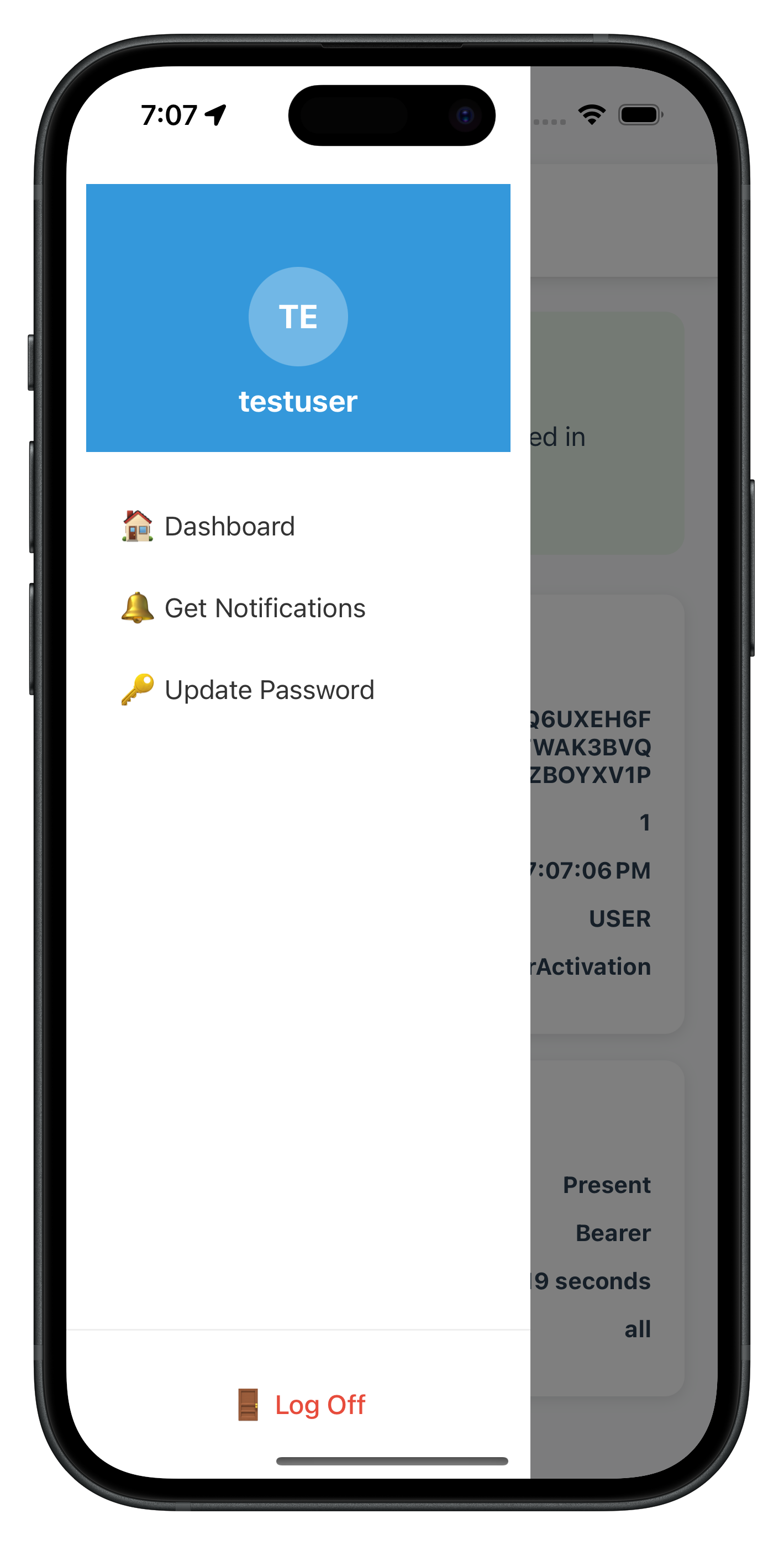
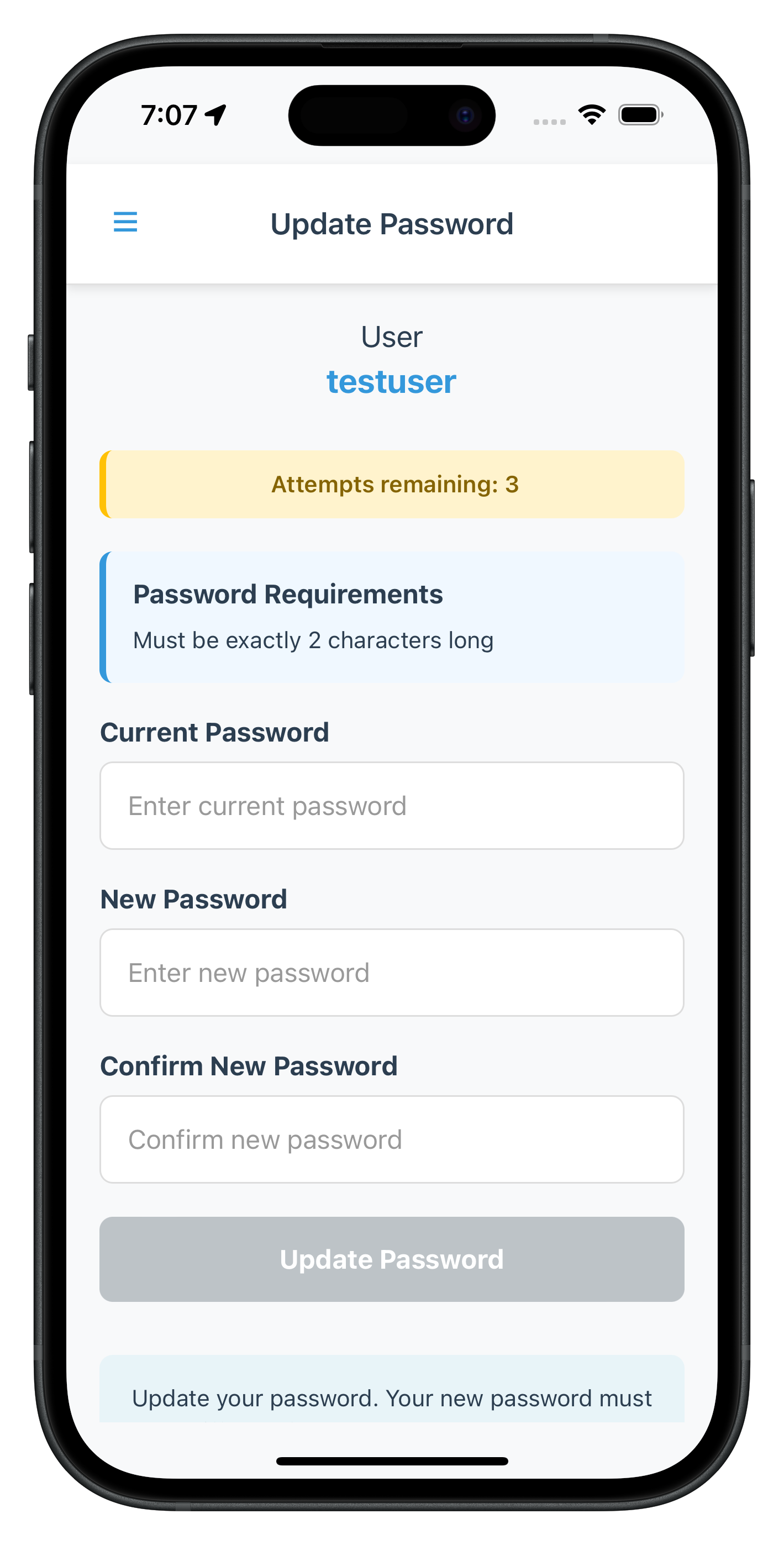
Step 3: Create Index Export File
Create
src/tutorial/screens/updatePassword/index.ts
:
export { default as UpdatePasswordScreen } from './UpdatePasswordScreen';
Now let's integrate the UpdatePasswordScreen into your DrawerNavigator and add conditional menu rendering.
Step 1: Add UpdatePasswordScreen to DrawerNavigator
Enhance
src/tutorial/navigation/DrawerNavigator.tsx
:
// src/tutorial/navigation/DrawerNavigator.tsx (modifications)

import { createDrawerNavigator } from '@react-navigation/drawer';
import { DashboardScreen } from '../screens/mfa';
import { GetNotificationsScreen } from '../screens/notification';
import { UpdatePasswordScreen } from '../screens/updatePassword'; // ✅ NEW: Import UpdatePasswordScreen
import DrawerContent from '../screens/components/DrawerContent';

const Drawer = createDrawerNavigator();

const DrawerNavigator = () => {
  return (
    <Drawer.Navigator
      drawerContent={(props) => <DrawerContent {...props} userParams={props.route?.params} />}
      screenOptions={{
        headerShown: false,
        drawerType: 'front',
      }}
    >
      <Drawer.Screen name="Dashboard" component={DashboardScreen} />
      <Drawer.Screen name="GetNotifications" component={GetNotificationsScreen} />
      {/* ✅ NEW: Add UpdatePassword screen to drawer */}
      <Drawer.Screen name="UpdatePassword" component={UpdatePasswordScreen} />
    </Drawer.Navigator>
  );
};

export default DrawerNavigator;
Step 2: Update AppNavigator Route Types
Add UpdatePasswordScreen to
src/tutorial/navigation/AppNavigator.tsx
type definitions:
// src/tutorial/navigation/AppNavigator.tsx (type additions)

export type RootStackParamList = {
  // Existing screens...

  // ✅ NEW: UpdatePassword screen in drawer
  UpdatePasswordScreen: {
    eventName: string;
    eventData: any;
    responseData: any;
  };
};
Step 3: Implement Conditional Menu in DrawerContent
Modify
src/tutorial/screens/components/DrawerContent.tsx
to add conditional "Update Password" menu:
// src/tutorial/screens/components/DrawerContent.tsx (modifications and additions)

import React, { useState } from 'react';
import {
  View,
  Text,
  StyleSheet,
  TouchableOpacity,
  Alert,
  ActivityIndicator,
} from 'react-native';
import {
  DrawerContentScrollView,
  DrawerContentComponentProps,
} from '@react-navigation/drawer';
import rdnaService from '../../../uniken/services/rdnaService';
import { RDNASyncUtils } from '../../../uniken/types/rdnaEvents';
import type { RDNASyncResponse } from '../../../uniken/types/rdnaEvents';
import { useSDKEvent } from '../../../uniken/providers/SDKEventProvider'; // ✅ NEW: Import useSDKEvent hook

interface DrawerContentProps extends DrawerContentComponentProps {
  userParams?: {
    userID: string;
    sessionID: string;
    sessionType: number;
    jwtToken: string;
    loginTime?: string;
    userRole?: string;
    currentWorkFlow?: string;
  };
}

const DrawerContent: React.FC<DrawerContentProps> = ({ userParams, ...props }) => {
  const [isLoggingOut, setIsLoggingOut] = useState(false);
  const [isInitiatingUpdate, setIsInitiatingUpdate] = useState(false); // ✅ NEW: Loading state for password update
  const { availableCredentials } = useSDKEvent(); // ✅ NEW: Get available credentials from context

  console.log('DrawerContent - Received userParams:', userParams);
  console.log('DrawerContent - userParams.userID:', userParams?.userID);
  console.log('DrawerContent - Available credentials:', availableCredentials); // ✅ NEW: Log credentials

  const userID = userParams?.userID || 'Unknown User';

  // ✅ NEW: Check if Password update is available
  const isPasswordUpdateAvailable = availableCredentials.includes('Password');

  const handleLogOut = () => {
    Alert.alert(
      'Log Off',
      'Are you sure you want to log off?',
      [
        { text: 'Cancel', style: 'cancel' },
        { text: 'Log Off', style: 'destructive', onPress: performLogOut },
      ]
    );
  };

  const performLogOut = async () => {
    setIsLoggingOut(true);
    try {
      console.log('DrawerContent - Initiating logOff for user:', userID);

      const syncResponse: RDNASyncResponse = await rdnaService.logOff(userID);
      console.log('DrawerContent - LogOff sync response successful');
      console.log('DrawerContent - Sync response received:', {
        longErrorCode: syncResponse.error?.longErrorCode,
        shortErrorCode: syncResponse.error?.shortErrorCode,
        errorString: syncResponse.error?.errorString
      });

    } catch (error) {
      console.error('DrawerContent - LogOff sync error:', error);
      const result: RDNASyncResponse = error as RDNASyncResponse;
      const errorMessage = RDNASyncUtils.getErrorMessage(result);
      Alert.alert('Logout Error', errorMessage);
    } finally {
      setIsLoggingOut(false);
    }
  };

  // ✅ NEW: Handle Update Password menu tap
  const handleUpdatePassword = async () => {
    setIsInitiatingUpdate(true);
    try {
      console.log('DrawerContent - Initiating update password flow');

      // Call initiateUpdateFlowForCredential API
      await rdnaService.initiateUpdateFlowForCredential('Password');
      console.log('DrawerContent - InitiateUpdateFlowForCredential called successfully, waiting for getPassword event');

      // The SDK will trigger getPassword event with challengeMode = 2
      // SDKEventProvider will handle navigation to UpdatePasswordScreen

    } catch (error) {
      console.error('DrawerContent - InitiateUpdateFlowForCredential sync error:', error);

      const result: RDNASyncResponse = error as RDNASyncResponse;
      const errorMessage = RDNASyncUtils.getErrorMessage(result);

      Alert.alert('Update Password Error', errorMessage);
    } finally {
      setIsInitiatingUpdate(false);
    }
  };

  return (
    <View style={styles.container}>
      <DrawerContentScrollView {...props}>
        {/* Header */}
        <View style={styles.header}>
          <View style={styles.avatar}>
            <Text style={styles.avatarText}>
              {userID.substring(0, 2).toUpperCase()}
            </Text>
          </View>
          <Text style={styles.userName}>{userID}</Text>
        </View>

        {/* Menu Items */}
        <View style={styles.menu}>
          <TouchableOpacity
            style={styles.menuItem}
            onPress={() => props.navigation.navigate('Dashboard')}
          >
            <Text style={styles.menuText}>🏠 Dashboard</Text>
          </TouchableOpacity>
          <TouchableOpacity
            style={styles.menuItem}
            onPress={() => props.navigation.navigate('GetNotifications')}
          >
            <Text style={styles.menuText}>🔔 Get Notifications</Text>
          </TouchableOpacity>

          {/* ✅ NEW: Conditional Update Password Menu Item */}
          {isPasswordUpdateAvailable && (
            <TouchableOpacity
              style={styles.menuItem}
              onPress={handleUpdatePassword}
              disabled={isInitiatingUpdate}
            >
              {isInitiatingUpdate ? (
                <View style={styles.menuItemWithLoader}>
                  <Text style={styles.menuText}>🔑 Update Password</Text>
                  <ActivityIndicator size="small" color="#3498db" style={styles.menuLoader} />
                </View>
              ) : (
                <Text style={styles.menuText}>🔑 Update Password</Text>
              )}
            </TouchableOpacity>
          )}
        </View>
      </DrawerContentScrollView>

      {/* Logout Button */}
      <View style={styles.footer}>
        <TouchableOpacity
          style={styles.logoutButton}
          onPress={handleLogOut}
          disabled={isLoggingOut}
        >
          {isLoggingOut ? (
            <ActivityIndicator size="small" color="#e74c3c" />
          ) : (
            <Text style={styles.logoutText}>🚪 Log Off</Text>
          )}
        </TouchableOpacity>
      </View>
    </View>
  );
};

const styles = StyleSheet.create({
  container: {
    flex: 1,
    backgroundColor: '#fff',
  },
  header: {
    backgroundColor: '#3498db',
    padding: 20,
    paddingTop: 50,
    alignItems: 'center',
  },
  avatar: {
    width: 60,
    height: 60,
    borderRadius: 30,
    backgroundColor: 'rgba(255,255,255,0.3)',
    justifyContent: 'center',
    alignItems: 'center',
    marginBottom: 10,
  },
  avatarText: {
    color: '#fff',
    fontSize: 20,
    fontWeight: 'bold',
  },
  userName: {
    color: '#fff',
    fontSize: 18,
    fontWeight: 'bold',
  },
  menu: {
    flex: 1,
    paddingTop: 20,
  },
  menuItem: {
    paddingHorizontal: 20,
    paddingVertical: 15,
  },
  menuText: {
    fontSize: 16,
    color: '#333',
  },
  // ✅ NEW: Styles for loading indicator in menu item
  menuItemWithLoader: {
    flexDirection: 'row',
    alignItems: 'center',
  },
  menuLoader: {
    marginLeft: 10,
  },
  footer: {
    borderTopWidth: 1,
    borderTopColor: '#eee',
    padding: 20,
  },
  logoutButton: {
    paddingVertical: 15,
    alignItems: 'center',
  },
  logoutText: {
    fontSize: 16,
    color: '#e74c3c',
    fontWeight: '500',
  },
});

export default DrawerContent;
Let's verify your password update implementation with comprehensive manual testing scenarios.
Test Scenario 1: Successful Password Update
Steps:
- Launch the app and complete MFA login flow successfully
- Verify navigation to Dashboard screen in DrawerNavigator
- Check console logs for: "SDKEventProvider - Calling getAllChallenges after login"
- Wait for: "SDKEventProvider - Credentials available for update event received"
- Open drawer menu (☰ button or swipe from left)
- Verify "🔑 Update Password" menu item is visible
- Tap "🔑 Update Password" menu item
- Verify loading indicator appears briefly
- Verify navigation to UpdatePasswordScreen within drawer
- Verify screen displays:
- User name
- Attempts remaining counter
- Password policy requirements
- Three password fields (Current, New, Confirm)
- Enter valid current password
- Enter valid new password (meeting policy requirements)
- Enter matching confirm password
- Tap "Update Password" button
- Verify button shows "Updating Password..." with loading indicator
- Wait for success alert: "Password updated successfully"
- Tap "OK" on alert
- Verify navigation back to Dashboard
- IMPORTANT: After a few seconds, verify SDK automatically triggers logout
- Verify navigation to CheckUserScreen (login screen)
Expected Console Logs:
UpdatePasswordScreen - Updating password with challengeMode: 2
RdnaService - UpdatePassword sync response success
UpdatePasswordScreen - Update credential response received: statusCode: 100
SDKEventProvider - User logged off event received
SDKEventProvider - Get user event received
Expected Result: ✅ Password updated successfully, user logged out automatically by SDK
Test Scenario 2: Password Mismatch Validation
Steps:
- Navigate to UpdatePasswordScreen (follow steps 1-10 from Scenario 1)
- Enter valid current password
- Enter valid new password
- Enter different confirm password (intentional mismatch)
- Tap "Update Password" button
Expected Result: ✅ Error message: "New password and confirm password do not match" Expected Behavior: New and confirm password fields cleared, focus on new password field
Test Scenario 3: Same Password Validation
Steps:
- Navigate to UpdatePasswordScreen
- Enter current password (e.g., "Test@1234")
- Enter same password as new password ("Test@1234")
- Enter same password as confirm password ("Test@1234")
- Tap "Update Password" button
Expected Result: ✅ Error message: "New password must be different from current password" Expected Behavior: New and confirm password fields cleared, focus on new password field
Test Scenario 4: Password Policy Violation
Steps:
- Navigate to UpdatePasswordScreen
- Verify password policy is displayed (e.g., "Minimum 8 characters, 1 uppercase, 1 digit")
- Enter valid current password
- Enter new password that violates policy (e.g., "weak" - too short)
- Enter matching confirm password
- Tap "Update Password" button
Expected Console Logs:
UpdatePasswordScreen - Update credential response received: statusCode: 190
UpdatePasswordScreen - Update credential error: Password does not meet policy standards
Expected Result: ✅ Error message: "Password does not meet policy standards" Expected Behavior: All password fields cleared Expected SDK Behavior: ❌ SDK does NOT trigger automatic logout for statusCode 190
Test Scenario 5: Attempts Exhausted (Critical Error)
Prerequisites: Configure server to allow 3 password update attempts only
Steps:
- Navigate to UpdatePasswordScreen
- Verify "Attempts remaining: 3" displayed
- Enter incorrect current password 3 times (or violate policy 3 times)
- On third attempt, verify SDK responds with statusCode 153
Expected Console Logs:
UpdatePasswordScreen - Update credential response received: statusCode: 153
UpdatePasswordScreen - Critical error, waiting for onUserLoggedOff and getUser events
SDKEventProvider - User logged off event received
SDKEventProvider - Get user event received
Expected Result: ✅ Alert: "Attempts exhausted" or similar message
Expected Behavior:
- All password fields cleared
- After closing alert, SDK automatically triggers logout
- Navigation to CheckUserScreen (login screen)
Test Scenario 6: Password Expired While Updating (statusCode 110)
Prerequisites: Configure server with very short password expiry (e.g., 1 minute)
Steps:
- Login with password that will expire during update process
- Navigate to UpdatePasswordScreen
- Wait for password to expire on server side
- Enter passwords and attempt update
- Server responds with statusCode 110
Expected Console Logs:
UpdatePasswordScreen - Update credential response received: statusCode: 110
UpdatePasswordScreen - Critical error, waiting for onUserLoggedOff and getUser events
SDKEventProvider - User logged off event received
SDKEventProvider - Get user event received
Expected Result: ✅ Alert: "Password has expired while updating password" Expected Behavior:
- All password fields cleared
- SDK automatically triggers logout and getUser events
- Navigation to login screen
Test Scenario 7: Keyboard Management
Steps:
- Navigate to UpdatePasswordScreen
- Tap current password field
- Verify keyboard appears and content scrolls up (iOS) or view resizes (Android)
- Verify all three password fields and button remain accessible
- Tap new password field while keyboard is visible
- Verify field gains focus and keyboard remains visible
- Tap confirm password field while keyboard is visible
- Verify field gains focus
- Tap "Update Password" button while keyboard is visible
- Verify button tap works and keyboard dismisses
Expected Result: ✅ All fields accessible with keyboard visible, proper scrolling behavior
Test Scenario 8: Screen Focus Behavior
Steps:
- Navigate to UpdatePasswordScreen
- Enter passwords in all three fields (don't submit)
- Open drawer menu (☰ button)
- Navigate to Dashboard
- Open drawer menu again
- Tap "🔑 Update Password" to return to UpdatePasswordScreen
Expected Behavior: ✅ All password fields are cleared (useFocusEffect cleanup) Expected Console Logs: "UpdatePasswordScreen - Screen focused, clearing password fields"
Test Scenario 9: No Password Update Available
Prerequisites: Configure server to disable password update credential
Steps:
- Complete MFA login
- Wait for getAllChallenges() to complete
- Verify onCredentialsAvailableForUpdate event returns empty array or array without "Password"
- Open drawer menu
Expected Result: ✅ "🔑 Update Password" menu item is NOT visible Expected Console Logs: "SDKEventProvider - Available options: []" or similar
Test Scenario 10: Network Error During Update
Prerequisites: Simulate network issues or server downtime
Steps:
- Navigate to UpdatePasswordScreen
- Disable network connection or stop REL-ID server
- Enter valid passwords
- Tap "Update Password" button
Expected Result: ✅ Error message with network/connection error details Expected Behavior: Password fields cleared, error banner displayed
Issue 1: "Update Password" Menu Not Appearing
Symptoms:
- Drawer menu doesn't show "🔑 Update Password" option after login
- Console shows: "Available credentials: []"
Causes & Solutions:
Cause 1: Server credential not configured
Solution: Enable password update credential in REL-ID server configuration
- Log into REL-ID admin portal
- Navigate to User/Application Settings
- Enable "Password Update" credential
- Save and restart server if needed
Cause 2: getAllChallenges() not called after login
Solution: Verify SDKEventProvider handleUserLoggedIn calls getAllChallenges()
- Check console for: "Calling getAllChallenges after login"
- Verify async/await syntax is correct
- Ensure error handling doesn't silently fail
Cause 3: onCredentialsAvailableForUpdate not triggering
Solution: Verify event handler is registered
- Check rdnaEventManager.setCredentialsAvailableForUpdateHandler() is called
- Verify handler is set before getAllChallenges() is called
- Check console for: "Credentials available for update event received"
Cause 4: Conditional rendering logic error in DrawerContent
Solution: Debug availableCredentials array
- Add console.log in DrawerContent: console.log('availableCredentials:', availableCredentials)
- Verify useSDKEvent hook returns correct context value
- Check string matching: availableCredentials.includes('Password')
Issue 2: Keyboard Obscures Input Fields
Symptoms:
- Keyboard covers password input fields
- Cannot scroll to see confirm password field
- Submit button hidden behind keyboard
Causes & Solutions:
Cause 1: Missing KeyboardAvoidingView
Solution: Wrap ScrollView with KeyboardAvoidingView
- Verify KeyboardAvoidingView wraps ScrollView, not inside it
- Set behavior prop: iOS='padding', Android='height'
- Add keyboardVerticalOffset if needed
Cause 2: Incorrect behavior prop
Solution: Platform-specific behavior
- iOS: behavior="padding"
- Android: behavior="height"
- Import Platform from 'react-native'
- Use: Platform.OS === 'ios' ? 'padding' : 'height'
Cause 3: Missing keyboardShouldPersistTaps
Solution: Add to ScrollView props
- Add: keyboardShouldPersistTaps="handled"
- This allows tapping inputs while keyboard is visible
Cause 4: ScrollView contentContainerStyle missing
Solution: Add flexGrow style
- Add: contentContainerStyle={styles.scrollContent}
- Create style: scrollContent: { flexGrow: 1 }
Issue 3: onUpdateCredentialResponse Not Firing
Symptoms:
- Password update submits but no response
- No success or error feedback
- Console shows sync success but no event
Causes & Solutions:
Cause 1: Event handler not registered
Solution: Verify screen-level useEffect setup
- Check UpdatePasswordScreen has useEffect for event handler
- Verify eventManager.setUpdateCredentialResponseHandler() is called
- Ensure handler is set BEFORE updatePassword() API call
Cause 2: Handler cleanup removes handler too early
Solution: Check useEffect dependencies
- Verify useEffect dependencies don't cause re-renders
- Ensure cleanup only runs on unmount
- Use empty dependency array for setup: useEffect(() => {}, [navigation])
Cause 3: Global handler in SDKEventProvider conflicts
Solution: Use screen-level handler, not global
- Remove or make fallback the global handler in SDKEventProvider
- Screen-level handler should override global handler
- Ensure cleanup resets to undefined, not previous handler
Cause 4: Event listener not set in rdnaEventManager
Solution: Verify RdnaClient listener registration
- Check: RdnaClient.setOnUpdateCredentialResponseListener(handler)
- Verify react-native-rdna-client version supports this event
- Check SDK documentation for event name
Issue 4: Automatic Logout Not Happening (Status Codes 110/153)
Symptoms:
- Password update succeeds but user remains logged in
- Status code 100 received but no logout
- Console shows success but no onUserLoggedOff event
Causes & Solutions:
Cause 1: Misunderstanding SDK behavior
Solution: This is EXPECTED SDK behavior
- SDK automatically triggers onUserLoggedOff → getUser after status 110/153
- Your app doesn't trigger logout - SDK does it automatically
- Wait a few seconds after success alert - logout will happen
- Check console for: "User logged off event received"
Cause 2: onUserLoggedOff handler not set
Solution: Verify SDKEventProvider has logout handler
- Check: eventManager.setOnUserLoggedOffHandler(handleUserLoggedOff)
- Verify handler logs: "User logged off event received"
- Ensure getUser handler navigates to login screen
Cause 3: Navigation prevents automatic flow
Solution: Don't manually navigate after success
- After statusCode 100, only show alert and navigate to Dashboard
- SDK will handle the logout navigation automatically
- Don't call resetAuthState() or logOff() manually
Cause 4: Event chain broken
Solution: Check both event handlers work
- Test onUserLoggedOff handler separately
- Test getUser handler separately
- Verify both handlers are registered in SDKEventProvider
- Check for errors in handler execution
Issue 5: Password Policy Not Displaying
Symptoms:
- "Password Requirements" section not showing
- passwordPolicyMessage is empty string
- Policy exists on server but not displayed
Causes & Solutions:
Cause 1: Wrong policy key
Solution: Use RELID_PASSWORD_POLICY, not PASSWORD_POLICY_BKP
- Check: RDNAEventUtils.getChallengeValue(responseData, 'RELID_PASSWORD_POLICY')
- Verify key name matches server configuration
- Check console: "Password policy extracted: ..."
Cause 2: getPassword event missing challenge data
Solution: Verify challengeMode 2 includes policy
- Check responseData.challengeResponse.challengeInfo array
- Verify server sends policy with challengeMode 2
- Log: responseData.challengeResponse.challengeInfo
Cause 3: parseAndGeneratePolicyMessage error
Solution: Debug policy parsing utility
- Add try-catch around parseAndGeneratePolicyMessage()
- Log policyJsonString before parsing
- Verify JSON structure matches expected format
- Check for parsing errors in utility function
Cause 4: Conditional rendering logic
Solution: Check rendering condition
- Verify: {passwordPolicyMessage && (<View>...</View>)}
- Log: console.log('Policy message:', passwordPolicyMessage)
- Ensure empty string evaluates to falsy
Issue 6: initiateUpdateFlowForCredential Errors
Symptoms:
- Tapping menu item shows error alert
- Console: "InitiateUpdateFlowForCredential sync error"
- No navigation to UpdatePasswordScreen
Causes & Solutions:
Cause 1: Incorrect credential type string
Solution: Use exact credential type name
- Use: 'Password' (capital P)
- Not: 'password', 'PASSWORD', or 'pwd'
- Match server credential type name exactly
- Check availableCredentials array for exact string
Cause 2: SDK not ready or session invalid
Solution: Verify user session is active
- Check user is logged in before calling API
- Verify session hasn't expired
- Test with fresh login
- Check console for session-related errors
Cause 3: API not implemented in rdnaService
Solution: Verify API method exists
- Check: rdnaService.initiateUpdateFlowForCredential is defined
- Verify method signature matches usage
- Ensure Promise-based implementation
- Check for typos in method name
Cause 4: Server doesn't support credential update
Solution: Verify server configuration
- Check REL-ID server version supports this API
- Verify credential update feature is enabled
- Test with different server environment
- Check server logs for API errors
Security Considerations
Password Handling:
- Never log actual password values in console (only log presence/absence)
- Clear password fields immediately after errors
- Use
secureTextEntry={true}for all password inputs - Clear password fields when screen comes into focus
- Never send passwords over unencrypted channels
Session Management:
- Trust SDK-triggered logout events (status codes 110/153)
- Don't manually call resetAuthState() after password update success
- Let SDK handle automatic logout flow
- Verify session validity before showing UpdatePasswordScreen
- Handle session expiration gracefully
Event Handler Management:
- Always clean up screen-level event handlers in useEffect return function
- Use screen-level handlers for UpdatePasswordScreen to avoid conflicts
- Keep global handlers in SDKEventProvider as fallbacks only
- Never set multiple handlers for the same event simultaneously
Error Handling:
- Display user-friendly error messages, not raw error codes
- Log detailed error information to console for debugging
- Clear sensitive data from memory after errors
- Handle network errors gracefully with retry options
- Validate inputs before API calls to prevent unnecessary server requests
User Experience Best Practices
Keyboard Management:
- Always use KeyboardAvoidingView for multi-field forms
- Set platform-specific behavior (iOS: padding, Android: height)
- Use keyboardShouldPersistTaps="handled" for ScrollView
- Implement proper keyboard dismiss on submit
- Test on both iOS and Android devices
Form Validation:
- Validate on client-side before server call (password match, non-empty, different from current)
- Display real-time validation feedback
- Focus appropriate field after validation error
- Clear error messages when user starts typing
- Show loading states during API calls
Password Policy Display:
- Always display password policy requirements prominently
- Extract policy from RELID_PASSWORD_POLICY challenge value
- Parse and format policy for user-friendly display
- Show policy before user enters new password
- Highlight violated policy rules in error messages
Loading States:
- Show loading indicator on "Update Password" button during submission
- Display loading spinner in menu item during initiateUpdateFlowForCredential
- Disable all inputs during loading states
- Prevent double-tap on submit button
- Clear loading states on both success and error
Code Organization
File Structure:
src/
├── uniken/
│   ├── services/
│   │   ├── rdnaService.ts (✅ Add getAllChallenges, initiateUpdateFlowForCredential, updatePassword)
│   │   └── rdnaEventManager.ts (✅ Add credential event handlers)
│   ├── providers/
│   │   └── SDKEventProvider.tsx (✅ Add credential detection and routing)
│   └── types/
│       └── rdnaEvents.ts (✅ Add credential event types)
└── tutorial/
    ├── navigation/
    │   ├── DrawerNavigator.tsx (✅ Add UpdatePassword screen)
    │   └── AppNavigator.tsx (✅ Add route types)
    └── screens/
        ├── updatePassword/
        │   ├── UpdatePasswordScreen.tsx (✅ NEW)
        │   └── index.ts (✅ NEW)
        └── components/
            └── DrawerContent.tsx (✅ Add conditional menu and handler)
Component Responsibilities:
- SDKEventProvider: Global event handling, credential detection, routing
- DrawerContent: Conditional menu rendering, initiateUpdateFlowForCredential call
- UpdatePasswordScreen: Three-field form, validation, screen-level event handler, keyboard management
- rdnaService: API layer for all SDK operations
- rdnaEventManager: Event listener registration and cleanup
Performance Optimization
Render Optimization:
- Use useFocusEffect for field clearing instead of useEffect with navigation dependency
- Memoize handlers with useCallback when needed
- Avoid unnecessary re-renders with proper state management
- Keep availableCredentials in context to share across components
Memory Management:
- Always clean up event handlers in useEffect return function
- Clear password state when screen unmounts
- Remove listeners when components unmount
- Use weak references for large data structures if needed
Network Optimization:
- Call getAllChallenges only once after login, not on every drawer open
- Cache credential availability in context
- Batch API calls when possible
- Handle offline scenarios gracefully
Testing Checklist
Before deploying to production, verify:
- ✅ Password update succeeds with valid credentials
- ✅ Password mismatch validation works
- ✅ Same password validation works
- ✅ Password policy violation handled correctly
- ✅ Status code 100 password update successfully
- ✅ Status code 110 triggers automatic logout
- ✅ Status code 153 triggers automatic logout
- ✅ Status code 190 does NOT trigger automatic logout
- ✅ Keyboard management works on iOS and Android
- ✅ Screen focus clears password fields
- ✅ Conditional menu shows/hides based on credential availability
- ✅ Loading states display correctly
- ✅ Error messages are user-friendly
- ✅ Console logs provide debugging information
- ✅ No password values logged to console
Congratulations! You've successfully implemented user-initiated password update functionality with REL-ID SDK!
What You've Accomplished
In this codelab, you learned how to:
- ✅ Implement Credential Availability Detection - Automatic post-login check using
getAllChallenges()API - ✅ Handle Credential Update Events - Process
onCredentialsAvailableForUpdateevent and store available credentials - ✅ Create Conditional Menu Rendering - Display "Update Password" only when credential is available
- ✅ Integrate Drawer Navigation - Place UpdatePasswordScreen in DrawerNavigator for post-login access
- ✅ Build Three-Field Password Form - Validate current, new, and confirm passwords with keyboard management
- ✅ Extract Password Policy - Parse and display
RELID_PASSWORD_POLICYrequirements - ✅ Handle Screen-Level Events - Implement
onUpdateCredentialResponsehandler with proper cleanup - ✅ Manage SDK Event Chain - Handle automatic
onUserLoggedOff→getUserevents for status codes 110/153 - ✅ Implement Keyboard Management - Proper
KeyboardAvoidingViewfor multi-field forms - ✅ Apply Security Best Practices - Clear sensitive data, validate inputs, handle errors gracefully
Key Takeaways
Challenge Mode 2 is for User-Initiated Updates:
- Triggered by user action from drawer menu, not by SDK automatically
- Requires credential availability check with
getAllChallenges()first - Screen lives in DrawerNavigator, not Stack navigator
- User must be logged in to access this flow
SDK Event Chain for Status Codes 110/153:
- These status codes are exclusive to
onUpdateCredentialResponseevent - SDK automatically triggers
onUserLoggedOff→getUserafter these codes - Your app should NOT manually trigger logout - SDK does it automatically
- Always handle these automatic logout events in SDKEventProvider
Screen-Level Event Handlers:
- Use screen-level handlers to avoid conflicts with password expiry flow
- Always clean up handlers in useEffect return function
- Screen-level handlers override global handlers
- Essential for multiple screens using the same event type
Drawer Navigation Integration:
- UpdatePasswordScreen is a post-login feature accessed via drawer menu
- Conditional rendering based on
onCredentialsAvailableForUpdateevent - Different from password expiry (challengeMode 4) which blocks login
- Provides voluntary password management for users
Additional Resources
- REL-ID SDK Documentation
- Updating Other Credentials Guide
- getAllChallenges API Reference
- onCredentialsAvailableForUpdate Event
- initiateUpdateFlowForCredential API
- onUpdateCredentialResponse Event
- Change Password Documentation
- React Native Drawer Navigation
- React Native KeyboardAvoidingView
Sample App Repository
The complete implementation is available in the GitHub repository:
git clone https://github.com/uniken-public/codelab-react-native.git
cd relid-MFA-update-password
Thank you for completing this codelab! If you have questions or feedback, please reach out to the REL-ID Development Team.