🎯 Learning Path:
- Complete REL-ID Complete Activation & Login Flow Codelab
- Complete REL-ID Additional Device Activation Flow With Notifications Codelab
- You are here → Step-Up Authentication for Notification Actions
Welcome to the REL-ID Step-Up Authentication with Notifications codelab! This tutorial builds upon your existing MFA implementation to add secure re-authentication for sensitive notification actions using REL-ID SDK's step-up authentication capabilities.
What You'll Build
In this codelab, you'll enhance your existing notification application with:
- 🔐 Step-Up Authentication Flow: Re-authentication when acting on sensitive notifications with
challengeMode = 3(RDNA_OP_AUTHORIZE_NOTIFICATION) - 🔑 Password Step-Up Dialog: Modal dialog with password input, attempts counter, and error handling
- 📱 LDA Step-Up Support: Biometric authentication with automatic password fallback
- 🔄 Screen-Level Event Handling: Proper
getPasswordcallback preservation for challengeMode 3 - ⚠️ Error Recovery: Critical status code handling (110, 153) with alerts before logout and error code (131) as cancelled LDA
- ⌨️ Keyboard Management: ScrollView and KeyboardAvoidingView for proper form display
What You'll Learn
By completing this codelab, you'll master:
- Step-Up Authentication Concept: Understanding when and why re-authentication is required for notification actions
- Authentication Method Selection: How SDK determines password vs LDA based on user's login method
- Screen-Level Event Handlers: Implementing callback preservation pattern for challengeMode 3
- StepUpPasswordDialog Component: Building modal password dialog with attempts counter
- LDA Fallback Handling: Managing biometric cancellation with automatic password fallback
- Keyboard Optimization: Implementing ScrollView to prevent keyboard from hiding buttons
- Error State Management: Auto-clearing password fields on authentication failure
- Critical Status Code Handling: Displaying alerts before SDK triggers logout for status codes 110 and 153
- Error Code Management: Managing LDA cancellation (error code 131) with retry
Prerequisites
Before starting this codelab, ensure you have:
- ✅ Completed REL-ID MFA Complete Activation & Login Flow Codelab - All MFA screens and flows must be fully implemented
- ✅ Completed REL-ID Additional Device Activation Flow With Notifications Codelab - Notification retrieval and display must be working
- ✅ React Native Development Environment - Android Studio, Xcode, and React Native CLI configured
- ✅ REL-ID SDK Integration - Latest SDK with step-up authentication support
- ✅ TypeScript Knowledge - Understanding of TypeScript interfaces and type safety patterns
- ✅ React Hooks Familiarity - Experience with useState, useEffect, useCallback, useRef
- ✅ Server Configuration - REL-ID server with step-up authentication enabled for notification actions
Get the Code from GitHub
The code to get started can be found in a GitHub repository.
You can clone the repository using the following command:
git clone https://github.com/uniken-public/codelab-react-native.git
Navigate to the relid-step-up-auth-notification folder in the repository you cloned earlier
Codelab Architecture Overview
This codelab extends your notification application with three core step-up authentication components:
- StepUpPasswordDialog: Modal password dialog with attempts counter, error display, and keyboard management
- Screen-Level Event Handler:
getPasswordcallback preservation for challengeMode 3 in GetNotificationsScreen - Enhanced Error Handling:
onUpdateNotificationevent handler for critical errors (110, 153, 131)
Before implementing step-up authentication, let's understand the key SDK events and APIs that power the notification action re-authentication workflow.
What is Step-Up Authentication?
Step-up authentication is a security mechanism that requires users to re-authenticate when performing sensitive operations, even if they're already logged in. For notification actions, this adds an extra layer of security.
User Logged In → Acts on Notification → updateNotification() API →
SDK Checks if Action Requires Auth → Step-Up Authentication Required →
Password or LDA Verification → onUpdateNotification Event → Success/Failure
Step-Up Authentication Event Flow
The step-up authentication process follows this event-driven pattern:
User Taps Notification Action → updateNotification(uuid, action) API Called →
SDK Determines Auth Method (Based on Login Method + Enrolled Credentials) →

IF Password Required:
  SDK Triggers getPassword Event (challengeMode=3) →
  StepUpPasswordDialog Displays → User Enters Password →
  setPassword(password, 3) API → onUpdateNotification Event

IF LDA Required:
  SDK Prompts Biometric Internally → User Authenticates →
  onUpdateNotification Event (No getPassword event)

IF LDA Cancelled AND Password Enrolled:
  SDK Directly Triggers getPassword Event (challengeMode=3) → No Error, Seamless Fallback →
  StepUpPasswordDialog Displays → User Enters Password →
  setPassword(password, 3) API → onUpdateNotification Event

IF LDA Cancelled AND Password NOT Enrolled:
  onUpdateNotification Event with error code 131 →
  Show Alert "Authentication Cancelled" → User Can Retry LDA
Challenge Mode 3 - RDNA_OP_AUTHORIZE_NOTIFICATION
Challenge Mode 3 is specifically for notification action authorization:
Challenge Mode | Purpose | User Action Required | Screen | Trigger |
| Verify existing password | Enter password to login | VerifyPasswordScreen | User login attempt |
| Set new password | Create password during activation | SetPasswordScreen | First-time activation |
| Update password (user-initiated) | Provide current + new password | UpdatePasswordScreen | User taps "Update Password" |
| Authorize notification action | Re-enter password for verification | StepUpPasswordDialog (Modal) | updateNotification() requires auth |
| Update expired password | Provide current + new password | UpdateExpiryPasswordScreen | Server detects expired password |
Authentication Method Selection Logic
Important: The SDK automatically determines which authentication method to use based on:
- How the user logged in (Password or LDA)
- What authentication methods are enrolled for the app
Login Method | Enrolled Methods | Step-Up Authentication Method | SDK Behavior |
Password | Password only | Password | SDK triggers |
LDA | LDA only | LDA | SDK prompts biometric internally, no |
Password | Both Password & LDA | Password | SDK triggers |
LDA | Both Password & LDA | LDA (with Password fallback) | SDK attempts LDA first. If user cancels, SDK directly triggers |
Core Step-Up Authentication Events
The REL-ID SDK triggers these main events during step-up authentication:
Event Type | Description | User Action Required |
Password required for notification action authorization | User re-enters password for verification | |
Notification action result (success/failure/auth errors) | System handles response and displays result |
Error Codes and Status Handling
Step-up authentication can fail with these critical errors:
Error/Status Code | Type | Meaning | SDK Behavior | Action Required |
| Status | Success - action completed | Continue normal flow | Display success message |
| Status | Password expired during action | SDK triggers logout | Show alert BEFORE logout |
| Status | Attempts exhausted | SDK triggers logout | Show alert BEFORE logout |
| Error | LDA cancelled and Password NOT enrolled | No fallback available | Show alert, allow retry |
UpdateNotification API Pattern
Add these TypeScript definitions to understand the updateNotification API structure:
// src/uniken/services/rdnaService.ts (notification APIs)

/**
 * Updates notification with user's action selection
 * @param notificationUUID The unique identifier of the notification
 * @param action The action selected by the user
 * @returns Promise<RDNASyncResponse> that resolves with sync response structure
 *
 * Note: If action requires authentication, SDK will trigger:
 * - getPassword event with challengeMode 3 (if password required)
 * - Biometric prompt internally (if LDA required)
 */
async updateNotification(
  notificationUUID: string,
  action: string
): Promise<RDNASyncResponse> {
  return new Promise((resolve, reject) => {
    RdnaClient.updateNotification(notificationUUID, action, response => {
      const result: RDNASyncResponse = response;
      if (result.error && result.error.longErrorCode === 0) {
        resolve(result);
      } else {
        reject(result);
      }
    });
  });
}
The REL-ID SDK includes comprehensive Identity Document Verification (IDV) capabilities with selfie capture functionality. This section covers the IDV selfie process start confirmation flow.
What is IDV Selfie Process?
IDV (Identity Document Verification) selfie process is a biometric verification step that captures the user's selfie and compares it with their identity documents for verification purposes.
IDV Flow Trigger → getIDVSelfieProcessStartConfirmation Event →
User Confirms Selfie Capture → setIDVSelfieProcessStartConfirmation API →
SDK Initiates Selfie Capture Process → IDV Verification Complete
IDV Selfie Event Flow
The IDV selfie process follows this event-driven pattern:
SDK Triggers IDV Flow → getIDVSelfieProcessStartConfirmation Event →
IDVSelfieProcessStartConfirmationScreen Displays → User Reviews Guidelines →
User Selects Camera (Front/Back) → User Taps "Capture Selfie" →
setIDVSelfieProcessStartConfirmation(true, useBackCamera, idvWorkflow) API →
SDK Initiates Camera/Capture Process
IDV Workflow Types
The IDV selfie process supports various workflow types for different verification scenarios:
IDV Workflow | Type | Description | Usage Context |
0 | IDV activation process | Initial identity verification during enrollment | New user activation |
1 | IDV activation with template verification | Activation with existing biometric template matching | User with existing template |
2 | Additional device activation | Adding new device to existing identity | Device enrollment |
3 | Additional device without template | Device enrollment without existing template | New device, no template |
4 | Account recovery with template | Recovering access with existing biometric data | Account recovery |
5 | Account recovery without template | Recovery requiring new biometric enrollment | Account recovery, new template |
6 | Post-login KYC process | Know Your Customer verification after login | Compliance verification |
8 | Post-login selfie biometric | Biometric authentication after login | Enhanced security |
9 | Step-up authentication | Additional verification for sensitive operations | Transaction verification |
10 | Biometric opt-in process | User enrolling in biometric authentication | Enrollment process |
13 | Agent KYC process | Agent-assisted customer verification | Customer service |
15 | Login selfie biometric | Biometric verification during login | Login verification |
IDV Selfie Components Overview
The implementation includes these key components:
- IDVSelfieProcessStartConfirmationScreen: React Native screen component with selfie capture guidelines and camera selection
- getIDVSelfieProcessStartConfirmation: Event callback that triggers when IDV selfie process starts
- setIDVSelfieProcessStartConfirmation: API method to confirm or cancel selfie capture process
Key IDV Features
- 🎯 Workflow-Specific Guidelines: Tailored instructions based on IDV workflow type
- 📷 Camera Selection: Front/back camera toggle with user preference
- 📝 Dynamic Guidelines: Context-specific instructions for each workflow
- 🔄 Process Control: User can confirm or cancel the selfie capture
- ⚡ Event-Driven: Automatic navigation when SDK triggers the event
Let's create the modal password dialog component that will be displayed when step-up authentication is required.
Understanding the Dialog Requirements
The StepUpPasswordDialog needs to:
- Display notification context (title) so user knows what they're authorizing
- Show attempts counter with color-coding (green → orange → red)
- Handle password input with visibility toggle
- Clear password field automatically when authentication fails
- Prevent keyboard from hiding action buttons using ScrollView
- Support loading states during authentication
- Disable hardware back button during submission
Create the StepUpPasswordDialog Component
Create a new file for the password dialog modal:
// src/uniken/components/modals/StepUpPasswordDialog.tsx

/**
 * Step-Up Password Dialog Component
 *
 * Modal dialog for step-up authentication during notification actions.
 * Handles challengeMode = 3 (RDNA_OP_AUTHORIZE_NOTIFICATION) when the SDK
 * requires password verification before allowing a notification action.
 *
 * Features:
 * - Password input with visibility toggle
 * - Attempts left counter with color-coding
 * - Error message display
 * - Loading state during authentication
 * - Notification context display (title)
 * - Auto-focus on password field
 * - Auto-clear password on error
 * - Keyboard management with ScrollView
 *
 * Usage:
 * ```tsx
 * <StepUpPasswordDialog
 *   visible={showStepUpAuth}
 *   notificationTitle="Payment Approval"
 *   notificationMessage="Approve payment of $500"
 *   userID="john.doe"
 *   attemptsLeft={3}
 *   errorMessage="Incorrect password"
 *   isSubmitting={false}
 *   onSubmitPassword={(password) => handlePasswordSubmit(password)}
 *   onCancel={() => setShowStepUpAuth(false)}
 * />
 * ```
 */

import React, { useState, useEffect, useRef } from 'react';
import {
  Modal,
  View,
  Text,
  TextInput,
  TouchableOpacity,
  StyleSheet,
  ScrollView,
  BackHandler,
  ActivityIndicator,
  KeyboardAvoidingView,
  Platform,
} from 'react-native';

interface StepUpPasswordDialogProps {
  visible: boolean;
  notificationTitle: string;
  notificationMessage: string;
  userID: string;
  attemptsLeft: number;
  errorMessage?: string;
  isSubmitting: boolean;
  onSubmitPassword: (password: string) => void;
  onCancel: () => void;
}

const StepUpPasswordDialog: React.FC<StepUpPasswordDialogProps> = ({
  visible,
  notificationTitle,
  notificationMessage, // Keep for future use
  userID, // Keep for future use
  attemptsLeft,
  errorMessage,
  isSubmitting,
  onSubmitPassword,
  onCancel,
}) => {
  const [password, setPassword] = useState<string>('');
  const [showPassword, setShowPassword] = useState<boolean>(false);
  const passwordInputRef = useRef<TextInput>(null);

  // Clear password when modal becomes visible
  useEffect(() => {
    if (visible) {
      setPassword('');
      setShowPassword(false);
      // Auto-focus password input after a short delay
      setTimeout(() => {
        passwordInputRef.current?.focus();
      }, 300);
    }
  }, [visible]);

  // Clear password field when error message changes (wrong password)
  // This ensures the field is cleared when SDK triggers getPassword again after failure
  useEffect(() => {
    if (errorMessage) {
      setPassword('');
    }
  }, [errorMessage]);

  // Disable hardware back button when modal is visible
  useEffect(() => {
    const handleBackPress = () => {
      if (visible && !isSubmitting) {
        onCancel();
        return true; // Prevent default back action
      }
      return false;
    };

    const backHandler = BackHandler.addEventListener('hardwareBackPress', handleBackPress);

    return () => backHandler.remove();
  }, [visible, isSubmitting, onCancel]);

  const handleSubmit = () => {
    if (!password.trim() || isSubmitting) {
      return;
    }
    onSubmitPassword(password.trim());
  };

  const handlePasswordChange = (text: string) => {
    setPassword(text);
  };

  // Color-code attempts based on remaining count
  const getAttemptsColor = (): string => {
    if (attemptsLeft === 1) return '#dc2626'; // Red
    if (attemptsLeft === 2) return '#f59e0b'; // Orange
    return '#10b981'; // Green
  };

  return (
    <Modal
      visible={visible}
      transparent={true}
      animationType="fade"
      onRequestClose={() => {
        if (!isSubmitting) {
          onCancel();
        }
      }}
    >
      <KeyboardAvoidingView
        style={styles.modalOverlay}
        behavior={Platform.OS === 'ios' ? 'padding' : undefined}
        keyboardVerticalOffset={Platform.OS === 'ios' ? 0 : 20}
      >
        <View style={styles.modalContainer}>
          {/* Header */}
          <View style={styles.modalHeader}>
            <Text style={styles.modalTitle}>🔐 Authentication Required</Text>
            <Text style={styles.modalSubtitle}>
              Please verify your password to authorize this action
            </Text>
          </View>

          <ScrollView
            style={styles.scrollContainer}
            contentContainerStyle={styles.contentContainer}
            keyboardShouldPersistTaps="handled"
            showsVerticalScrollIndicator={false}
          >
            {/* Notification Title */}
            <View style={styles.notificationContainer}>
              <Text style={styles.notificationTitle}>{notificationTitle}</Text>
            </View>

            {/* Attempts Left Counter */}
            {attemptsLeft <= 3 && (
              <View style={[
                styles.attemptsContainer,
                { backgroundColor: `${getAttemptsColor()}20` }
              ]}>
                <Text style={[
                  styles.attemptsText,
                  { color: getAttemptsColor() }
                ]}>
                  {attemptsLeft} attempt{attemptsLeft !== 1 ? 's' : ''} remaining
                </Text>
              </View>
            )}

            {/* Error Display */}
            {errorMessage && (
              <View style={styles.errorContainer}>
                <Text style={styles.errorText}>{errorMessage}</Text>
              </View>
            )}

            {/* Password Input */}
            <View style={styles.inputContainer}>
              <Text style={styles.inputLabel}>Password</Text>
              <View style={styles.passwordInputWrapper}>
                <TextInput
                  ref={passwordInputRef}
                  style={styles.passwordInput}
                  value={password}
                  onChangeText={handlePasswordChange}
                  placeholder="Enter your password"
                  placeholderTextColor="#9ca3af"
                  secureTextEntry={!showPassword}
                  autoCapitalize="none"
                  autoCorrect={false}
                  returnKeyType="done"
                  onSubmitEditing={handleSubmit}
                  editable={!isSubmitting}
                />
                <TouchableOpacity
                  style={styles.visibilityButton}
                  onPress={() => setShowPassword(!showPassword)}
                  disabled={isSubmitting}
                >
                  <Text style={styles.visibilityIcon}>
                    {showPassword ? '👁️' : '🙈'}
                  </Text>
                </TouchableOpacity>
              </View>
            </View>
          </ScrollView>

          {/* Action Buttons */}
          <View style={styles.buttonContainer}>
            <TouchableOpacity
              style={[
                styles.submitButton,
                (!password.trim() || isSubmitting) && styles.buttonDisabled
              ]}
              onPress={handleSubmit}
              disabled={!password.trim() || isSubmitting}
            >
              {isSubmitting ? (
                <View style={styles.buttonLoadingContent}>
                  <ActivityIndicator size="small" color="#ffffff" />
                  <Text style={styles.submitButtonText}>Verifying...</Text>
                </View>
              ) : (
                <Text style={styles.submitButtonText}>Verify & Continue</Text>
              )}
            </TouchableOpacity>

            <TouchableOpacity
              style={[styles.cancelButton, isSubmitting && styles.buttonDisabled]}
              onPress={onCancel}
              disabled={isSubmitting}
            >
              <Text style={styles.cancelButtonText}>Cancel</Text>
            </TouchableOpacity>
          </View>
        </View>
      </KeyboardAvoidingView>
    </Modal>
  );
};

const styles = StyleSheet.create({
  modalOverlay: {
    flex: 1,
    backgroundColor: 'rgba(0, 0, 0, 0.75)',
    justifyContent: 'center',
    alignItems: 'center',
    padding: 20,
  },
  modalContainer: {
    backgroundColor: '#ffffff',
    borderRadius: 16,
    width: '100%',
    maxWidth: 480,
    maxHeight: '80%',
    elevation: 10,
    shadowColor: '#000',
    shadowOffset: { width: 0, height: 4 },
    shadowOpacity: 0.3,
    shadowRadius: 8,
  },
  modalHeader: {
    backgroundColor: '#3b82f6',
    padding: 20,
    borderTopLeftRadius: 16,
    borderTopRightRadius: 16,
    alignItems: 'center',
  },
  modalTitle: {
    fontSize: 20,
    fontWeight: 'bold',
    color: '#ffffff',
    textAlign: 'center',
    marginBottom: 8,
  },
  modalSubtitle: {
    fontSize: 14,
    color: '#dbeafe',
    textAlign: 'center',
    lineHeight: 20,
  },
  scrollContainer: {
    flexGrow: 0,
  },
  contentContainer: {
    padding: 20,
  },
  notificationContainer: {
    backgroundColor: '#f0f9ff',
    borderRadius: 8,
    padding: 12,
    marginBottom: 16,
    borderLeftWidth: 4,
    borderLeftColor: '#3b82f6',
  },
  notificationTitle: {
    fontSize: 15,
    fontWeight: '600',
    color: '#1e40af',
    textAlign: 'center',
  },
  attemptsContainer: {
    borderRadius: 8,
    padding: 12,
    marginBottom: 16,
    alignItems: 'center',
  },
  attemptsText: {
    fontSize: 14,
    fontWeight: '600',
  },
  errorContainer: {
    backgroundColor: '#fef2f2',
    borderRadius: 8,
    padding: 12,
    marginBottom: 16,
    borderLeftWidth: 4,
    borderLeftColor: '#dc2626',
  },
  errorText: {
    fontSize: 14,
    color: '#7f1d1d',
    lineHeight: 20,
    textAlign: 'center',
  },
  inputContainer: {
    marginBottom: 16,
  },
  inputLabel: {
    fontSize: 14,
    fontWeight: '600',
    color: '#374151',
    marginBottom: 8,
  },
  passwordInputWrapper: {
    flexDirection: 'row',
    alignItems: 'center',
    borderWidth: 1,
    borderColor: '#d1d5db',
    borderRadius: 8,
    backgroundColor: '#ffffff',
  },
  passwordInput: {
    flex: 1,
    padding: 12,
    fontSize: 16,
    color: '#1f2937',
  },
  visibilityButton: {
    padding: 12,
  },
  visibilityIcon: {
    fontSize: 20,
  },
  buttonContainer: {
    padding: 20,
    borderTopWidth: 1,
    borderTopColor: '#f3f4f6',
  },
  submitButton: {
    backgroundColor: '#3b82f6',
    padding: 16,
    borderRadius: 8,
    alignItems: 'center',
    marginBottom: 12,
    elevation: 2,
  },
  submitButtonText: {
    color: '#ffffff',
    fontSize: 16,
    fontWeight: '600',
  },
  cancelButton: {
    backgroundColor: '#f3f4f6',
    padding: 16,
    borderRadius: 8,
    alignItems: 'center',
  },
  cancelButtonText: {
    color: '#6b7280',
    fontSize: 16,
    fontWeight: '600',
  },
  buttonDisabled: {
    opacity: 0.6,
  },
  buttonLoadingContent: {
    flexDirection: 'row',
    alignItems: 'center',
    gap: 8,
  },
});

export default StepUpPasswordDialog;
Export the Dialog Component
Update the modals index file to export the new component:
// src/uniken/components/modals/index.ts

export {default as StepUpPasswordDialog} from './StepUpPasswordDialog';
The following image showcase screen from the sample application:
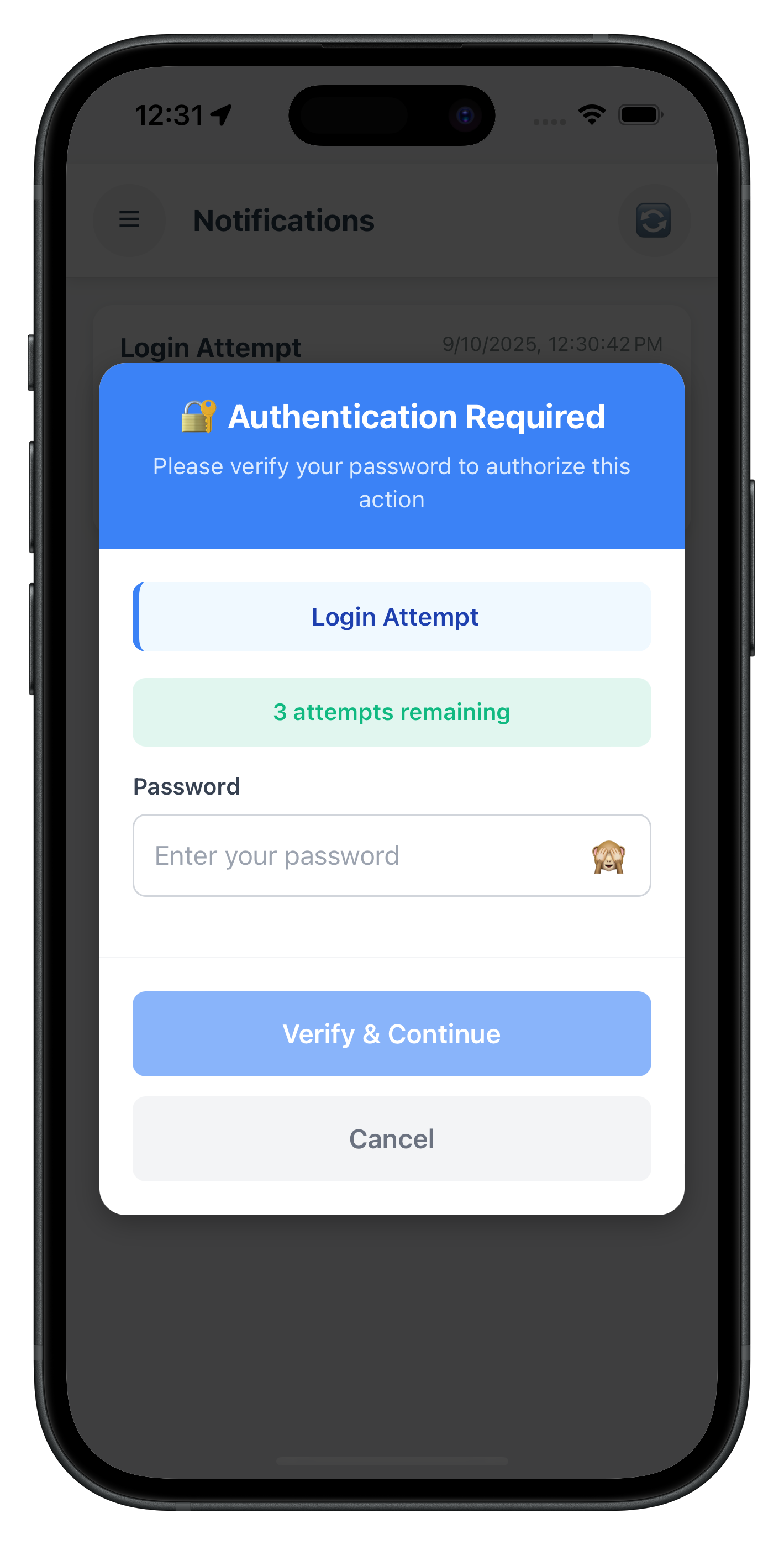
Now let's implement the screen-level event handler that will intercept getPassword events with challengeMode = 3 and display our step-up password dialog.
Understanding Callback Preservation Pattern
The callback preservation pattern ensures our screen-level handler doesn't break existing global handlers:
// Preserve original handler
const originalHandler = eventManager.onGetPasswordCallback;

// Set new handler that chains with original
eventManager.onGetPasswordCallback = (data: RDNAGetPasswordData) => {
  if (data.challengeMode === 3) {
    // Handle challengeMode 3 in screen
    handleScreenSpecificLogic(data);
  } else {
    // Pass other modes to original handler
    if (originalHandler) originalHandler(data);
  }
};

// Cleanup: restore original handler when screen unmounts
return () => {
  eventManager.onGetPasswordCallback = originalHandler;
};
Enhance GetNotificationsScreen with Step-Up Auth State
Add step-up authentication state management to your GetNotificationsScreen:
// src/tutorial/screens/notification/GetNotificationsScreen.tsx (additions)

import React, { useState, useEffect, useCallback } from 'react';
import {
  View,
  Text,
  FlatList,
  TouchableOpacity,
  Alert,
  ActivityIndicator,
  StyleSheet,
  Modal,
  ScrollView,
  BackHandler,
  RefreshControl,
} from 'react-native';
import { useRoute, useNavigation } from '@react-navigation/native';
import type { RouteProp } from '@react-navigation/native';
import rdnaService from '../../../uniken/services/rdnaService';
import { StepUpPasswordDialog } from '../../../uniken/components/modals';
import type {
  RDNAGetNotificationsData,
  RDNANotificationItem,
  RDNANotificationAction,
  RDNAUpdateNotificationData,
  RDNAGetPasswordData,
  RDNASyncResponse,
} from '../../../uniken/types/rdnaEvents';
import { RDNASyncUtils } from '../../../uniken/types/rdnaEvents';

const GetNotificationsScreen: React.FC = () => {
  const route = useRoute<RouteProp<any>>();
  const navigation = useNavigation<any>();

  // Existing notification state
  const [notifications, setNotifications] = useState<RDNANotificationItem[]>([]);
  const [loading, setLoading] = useState<boolean>(false);
  const [refreshing, setRefreshing] = useState<boolean>(false);
  const [selectedNotification, setSelectedNotification] = useState<RDNANotificationItem | null>(null);
  const [showActionModal, setShowActionModal] = useState<boolean>(false);
  const [selectedAction, setSelectedAction] = useState<string | null>(null);
  const [error, setError] = useState<string | null>(null);
  const [actionLoading, setActionLoading] = useState<boolean>(false);

  // Step-up authentication state
  const [showStepUpAuth, setShowStepUpAuth] = useState<boolean>(false);
  const [stepUpNotificationUUID, setStepUpNotificationUUID] = useState<string | null>(null);
  const [stepUpNotificationTitle, setStepUpNotificationTitle] = useState<string>('');
  const [stepUpNotificationMessage, setStepUpNotificationMessage] = useState<string>('');
  const [stepUpAction, setStepUpAction] = useState<string | null>(null);
  const [stepUpAttemptsLeft, setStepUpAttemptsLeft] = useState<number>(3);
  const [stepUpErrorMessage, setStepUpErrorMessage] = useState<string>('');
  const [stepUpSubmitting, setStepUpSubmitting] = useState<boolean>(false);

  // ... existing code ...
};
Implement getPassword Handler for ChallengeMode 3
Add the handler that intercepts getPassword events with challengeMode = 3:
// src/tutorial/screens/notification/GetNotificationsScreen.tsx (addition)

/**
 * Handle getPassword event for step-up authentication (challengeMode = 3)
 * This handler intercepts only challengeMode 3 and passes other modes to the global handler
 */
const handleGetPasswordStepUp = useCallback((
  data: RDNAGetPasswordData,
  originalHandler?: (data: RDNAGetPasswordData) => void
) => {
  console.log('GetNotificationsScreen - getPassword event:', {
    challengeMode: data.challengeMode,
    attemptsLeft: data.attemptsLeft,
    statusCode: data.challengeResponse.status.statusCode
  });

  // Only handle challengeMode 3 (RDNA_OP_AUTHORIZE_NOTIFICATION)
  if (data.challengeMode !== 3) {
    console.log('GetNotificationsScreen - Not challengeMode 3, passing to original handler');
    // Pass to original handler for other challenge modes (0, 1, 2, 4)
    if (originalHandler) {
      originalHandler(data);
    }
    return;
  }

  // Hide action modal to show step-up modal on top
  setShowActionModal(false);

  // Update step-up auth state
  setStepUpAttemptsLeft(data.attemptsLeft);
  setStepUpSubmitting(false);

  // Check for error status codes
  const statusCode = data.challengeResponse.status.statusCode;
  const statusMessage = data.challengeResponse.status.statusMessage;

  if (statusCode !== 100) {
    // Failed authentication - show error
    setStepUpErrorMessage(statusMessage || 'Authentication failed. Please try again.');
  } else {
    // Clear any previous errors
    setStepUpErrorMessage('');
  }

  // Show step-up modal
  setShowStepUpAuth(true);
}, []);
Set Up Event Handler with Cleanup
Wire up the event handler with proper lifecycle management:
// src/tutorial/screens/notification/GetNotificationsScreen.tsx (addition)

useEffect(() => {
  loadNotifications();

  // Set up event handlers
  const eventManager = rdnaService.getEventManager();

  // Preserve original getPassword handler
  const originalGetPasswordHandler = eventManager.onGetPasswordCallback;

  // Set new handler that chains with original
  eventManager.onGetPasswordCallback = (data: RDNAGetPasswordData) => {
    handleGetPasswordStepUp(data, originalGetPasswordHandler);
  };

  // Set notification event handlers
  eventManager.setGetNotificationsHandler(handleNotificationsReceived);
  eventManager.setUpdateNotificationHandler(handleUpdateNotificationReceived);

  // Cleanup: restore original handlers when screen unmounts
  return () => {
    eventManager.onGetPasswordCallback = originalGetPasswordHandler;
    eventManager.setGetNotificationsHandler(undefined);
    eventManager.setUpdateNotificationHandler(undefined);
  };
}, [handleGetPasswordStepUp, handleNotificationsReceived, handleUpdateNotificationReceived]);
Now let's implement the password submission handler that will be called when the user submits their password from the StepUpPasswordDialog.
Handle Password Submission
Add the handler that submits the password to the SDK:
// src/tutorial/screens/notification/GetNotificationsScreen.tsx (addition)

/**
 * Handle password submission from StepUpPasswordDialog
 * Calls setPassword API with challengeMode 3
 */
const handleStepUpPasswordSubmit = useCallback(async (password: string) => {
  console.log('GetNotificationsScreen - Submitting step-up password');

  setStepUpSubmitting(true);
  setStepUpErrorMessage('');

  try {
    // Call setPassword with challengeMode 3 for step-up auth
    await rdnaService.setPassword(password, 3);
    console.log('GetNotificationsScreen - setPassword API call successful');

    // If successful, SDK will trigger onUpdateNotification event
    // Keep modal open until we receive the response
  } catch (error) {
    console.error('GetNotificationsScreen - setPassword API error:', error);
    setStepUpSubmitting(false);

    // Extract error message
    const errorMessage = RDNASyncUtils.getErrorMessage(error);

    setStepUpErrorMessage(errorMessage);
  }
}, []);

/**
 * Handle step-up authentication cancellation
 * Closes the dialog and resets state
 */
const handleStepUpCancel = useCallback(() => {
  console.log('GetNotificationsScreen - Step-up authentication cancelled');

  setShowStepUpAuth(false);
  setStepUpNotificationUUID(null);
  setStepUpAction(null);
  setStepUpErrorMessage('');
  setStepUpSubmitting(false);
}, []);
Store Notification Context on Action Selection
When user selects an action, store the notification context for the step-up dialog:
// src/tutorial/screens/notification/GetNotificationsScreen.tsx (modification)

/**
 * Handle notification action selection
 * Calls updateNotification API, which may trigger step-up auth
 */
const handleActionPress = async (action: RDNANotificationAction) => {
  if (!selectedNotification || actionLoading) {
    return;
  }

  const notification = selectedNotification;

  console.log('GetNotificationsScreen - Action selected:', action.action);
  setSelectedAction(action.action);
  setActionLoading(true);

  // Store notification context for potential step-up auth
  setStepUpNotificationUUID(notification.notification_uuid);
  setStepUpNotificationTitle(notification.body[0]?.subject || 'Notification Action');
  setStepUpNotificationMessage(notification.body[0]?.message || '');
  setStepUpAction(action.action);
  setStepUpAttemptsLeft(3); // Reset attempts
  setStepUpErrorMessage(''); // Clear errors

  try {
    console.log('GetNotificationsScreen - Calling updateNotification API');
    await rdnaService.updateNotification(notification.notification_uuid, action.action);
    console.log('GetNotificationsScreen - UpdateNotification API call successful');
    // Response will be handled by handleUpdateNotificationReceived
    // If step-up auth is required, SDK will trigger getPassword with challengeMode 3
  } catch (error) {
    console.error('GetNotificationsScreen - UpdateNotification API error:', error);
    setActionLoading(false);
    setStepUpNotificationUUID(null);
    setStepUpAction(null);

    // Extract error message from the error object
    const errorMessage = RDNASyncUtils.getErrorMessage(error);

    Alert.alert(
      'Update Failed',
      errorMessage,
      [{ text: 'OK' }]
    );
  }
};
Now let's implement comprehensive error handling for the onUpdateNotification event, including critical errors that require alerts before logout.
Implement Enhanced UpdateNotification Handler
Add the handler that processes onUpdateNotification events with proper error handling:
// src/tutorial/screens/notification/GetNotificationsScreen.tsx (addition)

/**
 * Handle onUpdateNotification event
 * Processes success, critical errors, and LDA cancellation
 */
const handleUpdateNotificationReceived = useCallback((data: RDNAUpdateNotificationData) => {
  console.log('GetNotificationsScreen - onUpdateNotification event:', {
    errorCode: data.error.longErrorCode,
    responseData: data.responseData
  });

  setActionLoading(false);
  setStepUpSubmitting(false);

  // Check for LDA cancelled (error code 131)
  // This only occurs when LDA is cancelled AND Password is NOT enrolled
  // If Password IS enrolled, SDK directly triggers getPassword (no error)
  if (data.error.longErrorCode === 131) {
    console.log('GetNotificationsScreen - LDA cancelled, Password not enrolled');
    setShowStepUpAuth(false);

    Alert.alert(
      'Authentication Cancelled',
      'Local device authentication was cancelled. Please try again.',
      [{
        text: 'OK',
        onPress: () => {
          // Keep action modal open to allow user to retry LDA
          // Action modal is still visible for retry
        }
      }]
    );
    return;
  }

  // Extract response data
  const responseData = data.responseData;
  const statusCode = responseData?.StatusCode;
  const statusMessage = responseData?.StatusMessage || 'Action completed successfully';

  console.log('GetNotificationsScreen - Response status:', {
    statusCode,
    statusMessage
  });

  if (statusCode === 100) {
    // Success - action completed
    console.log('GetNotificationsScreen - Notification action successful');
    setShowStepUpAuth(false);
    setShowActionModal(false);

    Alert.alert(
      'Success',
      statusMessage,
      [{
        text: 'OK',
        onPress: () => {
          // Navigate to dashboard
          navigation.navigate('DrawerNavigator', { screen: 'Dashboard' });
        }
      }]
    );

    // Reload notifications to reflect the change
    loadNotifications();
  } else if (statusCode === 110 || statusCode === 153) {
    // Critical errors - show alert BEFORE SDK logout
    // statusCode 110 = Password expired during action
    // statusCode 153 = Attempts exhausted
    console.log('GetNotificationsScreen - Critical error, SDK will trigger logout');

    setShowStepUpAuth(false);
    setShowActionModal(false);

    Alert.alert(
      'Authentication Failed',
      statusMessage,
      [{
        text: 'OK',
        onPress: () => {
          console.log('GetNotificationsScreen - Waiting for SDK to trigger logout flow');
          // SDK will automatically trigger onUserLoggedOff event
          // SDKEventProvider will handle navigation to login
        }
      }]
    );
  } else {
    // Other errors
    console.log('GetNotificationsScreen - Update notification failed with status:', statusCode);
    setShowStepUpAuth(false);
    setShowActionModal(false);

    Alert.alert(
      'Update Failed',
      statusMessage,
      [{ text: 'OK' }]
    );
  }
}, [navigation, loadNotifications]);
Understanding Error Code Flow
The error handling flow for different scenarios:
LDA Cancelled (Password IS enrolled):
  User cancels biometric → SDK directly triggers getPassword (challengeMode 3) →
  No error, seamless fallback → StepUpPasswordDialog shows

LDA Cancelled (Password NOT enrolled):
  User cancels biometric → onUpdateNotification (error code 131) →
  Show alert "Authentication Cancelled" → User can retry LDA

Password Expired (statusCode 110):
  Password authentication fails → onUpdateNotification (statusCode 110) →
  Show alert "Authentication Failed - Password Expired" →
  SDK triggers onUserLoggedOff → SDKEventProvider navigates to login

Attempts Exhausted (statusCode 153):
  Too many failed attempts → onUpdateNotification (statusCode 153) →
  Show alert "Authentication Failed - Attempts Exhausted" →
  SDK triggers onUserLoggedOff → SDKEventProvider navigates to login

Success (statusCode 100):
  Authentication successful → onUpdateNotification (statusCode 100) →
  Show alert "Success" → Navigate to dashboard
Now let's add the dialog to the screen's render method so it displays when step-up authentication is required.
Add Dialog to Render Method
Add the StepUpPasswordDialog component to your GetNotificationsScreen render:
// src/tutorial/screens/notification/GetNotificationsScreen.tsx (addition to return statement)

return (
  <View style={styles.container}>
    {/* Existing notification list UI */}
    <FlatList
      data={notifications}
      renderItem={renderNotificationItem}
      keyExtractor={(item) => item.notification_uuid}
      refreshControl={
        <RefreshControl refreshing={refreshing} onRefresh={onRefresh} />
      }
      ListEmptyComponent={
        loading ? (
          <View style={styles.centerContainer}>
            <ActivityIndicator size="large" color="#3b82f6" />
            <Text style={styles.loadingText}>Loading notifications...</Text>
          </View>
        ) : (
          <View style={styles.centerContainer}>
            <Text style={styles.emptyText}>No notifications available</Text>
          </View>
        )
      }
    />

    {/* Existing Action Selection Modal */}
    <Modal
      visible={showActionModal}
      transparent={true}
      animationType="slide"
      onRequestClose={() => !actionLoading && setShowActionModal(false)}
    >
      {/* ... existing action modal content ... */}
    </Modal>

    {/* Step-Up Password Dialog */}
    <StepUpPasswordDialog
      visible={showStepUpAuth}
      notificationTitle={stepUpNotificationTitle}
      notificationMessage={stepUpNotificationMessage}
      userID={route.params?.userID || ''}
      attemptsLeft={stepUpAttemptsLeft}
      errorMessage={stepUpErrorMessage}
      isSubmitting={stepUpSubmitting}
      onSubmitPassword={handleStepUpPasswordSubmit}
      onCancel={handleStepUpCancel}
    />
  </View>
);
Verify useCallback Dependencies
Ensure all callback handlers are wrapped in useCallback to prevent closure issues:
// src/tutorial/screens/notification/GetNotificationsScreen.tsx (verification)

// Wrap all event handlers in useCallback
const handleGetPasswordStepUp = useCallback((data, originalHandler) => {
  // ... implementation ...
}, []); // Empty deps - no external dependencies

const handleUpdateNotificationReceived = useCallback((data) => {
  // ... implementation ...
}, [navigation, loadNotifications]); // Depends on navigation and loadNotifications

const handleNotificationsReceived = useCallback((data) => {
  // ... implementation ...
}, []); // Empty deps

const handleStepUpPasswordSubmit = useCallback(async (password) => {
  // ... implementation ...
}, []); // Empty deps

const handleStepUpCancel = useCallback(() => {
  // ... implementation ...
}, []); // Empty deps
Now let's test the complete step-up authentication implementation with various scenarios.
Server Configuration
Before testing, ensure your REL-ID server is configured for step-up authentication:
Test Scenario 1: Password Step-Up (User Logged in with Password)
Test the basic password step-up flow:
- Complete MFA flow and log in to dashboard using password
- Navigate to Notifications screen from drawer menu
- Verify notifications loaded - Check that
getNotifications()succeeded - Tap notification action button (e.g., "Approve", "Reject")
- Verify updateNotification API called - Check console logs
- Verify step-up dialog appears:
- Modal should display with notification title
- "Authentication Required" header visible
- Password input field should be focused
- Attempts counter shows "3 attempts remaining" in green
- Action modal should be closed
- Enter incorrect password and submit
- Verify error handling:
getPasswordevent triggered again with error- Error message displayed in red box
- Password field automatically cleared
- Attempts counter decremented to "2 attempts remaining" (orange)
- Enter correct password and submit
- Verify success:
onUpdateNotificationevent with statusCode 100- Success alert displayed
- Dialog closes
- Navigates to dashboard
Test Scenario 2: LDA Step-Up (User Logged in with LDA)
Test biometric authentication step-up:
- Complete MFA flow and log in to dashboard using LDA (biometric)
- Navigate to Notifications screen
- Tap notification action button
- Verify LDA prompt appears:
- System biometric prompt (Face ID, Touch ID, Fingerprint)
- No
getPasswordevent triggered - No password dialog displayed
- Complete biometric authentication
- Verify success:
onUpdateNotificationevent with statusCode 100- Success alert displayed
- Navigates to dashboard
Test Scenario 3: LDA Cancellation with Password Fallback
Test automatic fallback when user cancels biometric (requires both Password & LDA enrolled):
- Enroll both Password and LDA during activation
- Log in using LDA (biometric)
- Navigate to Notifications screen
- Tap notification action button
- LDA prompt appears - System biometric prompt
- Cancel the biometric prompt (tap "Cancel" or use back button)
- Verify fallback behavior:
- Alert displays: "Authentication Cancelled"
- Tap "OK" on alert
- SDK automatically triggers
getPasswordwith challengeMode 3 - StepUpPasswordDialog appears as fallback
- Enter password and submit
- Verify success:
onUpdateNotificationevent with statusCode 100- Success alert displayed
- Navigates to dashboard
Test Scenario 4: Critical Error - Password Expired (statusCode 110)
Test error handling when password expires during action:
- Log in with password that will expire during the action
- Navigate to Notifications screen
- Tap notification action button
- Enter password in step-up dialog
- Verify critical error handling:
onUpdateNotificationreceives statusCode 110- Alert displays BEFORE logout: "Authentication Failed - Password Expired"
- Step-up dialog closes
- Action modal closes
- Tap "OK" on alert
- Verify logout flow:
- SDK triggers
onUserLoggedOffevent - SDKEventProvider handles logout
- User navigated to login screen
- SDK triggers
Test Scenario 5: Critical Error - Attempts Exhausted (statusCode 153)
Test error handling when authentication attempts are exhausted:
- Log in with password
- Navigate to Notifications screen
- Tap notification action button
- Enter wrong password 3 times:
- First attempt: "3 attempts remaining" (green)
- Second attempt: "2 attempts remaining" (orange)
- Third attempt: "1 attempt remaining" (red)
- Verify attempts exhausted:
onUpdateNotificationreceives statusCode 153- Alert displays BEFORE logout: "Authentication Failed - Attempts Exhausted"
- Step-up dialog closes
- Action modal closes
- Tap "OK" on alert
- Verify logout flow:
- SDK triggers
onUserLoggedOffevent - SDKEventProvider handles logout
- User navigated to login screen
- SDK triggers
Test Scenario 6: Keyboard Management
Test that keyboard doesn't hide action buttons:
- Log in and navigate to Notifications screen
- Tap notification action button
- Step-up dialog appears
- Tap password input field
- Verify keyboard behavior:
- Keyboard appears
- Dialog buttons ("Verify & Continue", "Cancel") remain visible
- ScrollView allows scrolling if needed
- Buttons are not hidden behind keyboard
- Test on both iOS and Android
Verification Checklist
Use this checklist to verify your implementation:
- [ ] Password step-up works for password login
- [ ] LDA step-up works for biometric login (no password dialog)
- [ ] LDA cancellation triggers password fallback (when both enrolled)
- [ ] Wrong password shows error and clears field automatically
- [ ] Attempts counter color-codes correctly (green→orange→red)
- [ ] Critical errors (110, 153) show alert BEFORE logout
- [ ] Success shows alert and navigates to dashboard
- [ ] Keyboard doesn't hide dialog buttons
- [ ] Hardware back button is disabled during submission
- [ ] Modal dismisses properly on cancel
- [ ] Screen-level handler doesn't break other challenge modes (0, 1, 2, 4)
Now let's implement the complete IDV selfie process functionality, including the callback handler, API method, and screen integration.
Step 1: Implementing setIDVSelfieProcessStartConfirmation API
First, add the IDV selfie API method to the RDNA service:
// src/uniken/services/rdnaService.ts

/**
 * Sets IDV selfie process start confirmation for IDV authentication flows
 *
 * This method confirms or cancels the IDV selfie capture process during various IDV workflows.
 * It processes the user's decision and camera preference for selfie capture.
 * Uses sync response pattern similar to other API methods.
 *
 * IDV Workflow Types:
 * - 0: IDV activation process
 * - 1: IDV activation with template verification
 * - 2: Additional device activation
 * - 3: Additional device without template
 * - 4: Account recovery with template
 * - 5: Account recovery without template
 * - 6: Post-login KYC process
 * - 8: Post-login selfie biometric
 * - 9: Step-up authentication
 * - 10: Biometric opt-in process
 * - 13: Agent KYC process
 * - 15: Login selfie biometric
 *
 * Response Validation Logic (following reference app pattern):
 * 1. Check error.longErrorCode: 0 = success, > 0 = error
 * 2. Async events will be handled by event listeners for subsequent steps
 * 3. Success typically navigates to selfie capture flow or next step
 *
 * @param confirmation User's confirmation decision (true = proceed, false = cancel)
 * @param useBackCamera Camera preference (true = back camera, false = front camera)
 * @param idvWorkflow IDV workflow type identifier
 * @returns Promise<RDNASyncResponse> that resolves with sync response structure
 */
async setIDVSelfieProcessStartConfirmation(
  confirmation: boolean,
  useBackCamera: boolean,
  idvWorkflow: number
): Promise<RDNASyncResponse> {
  return new Promise((resolve, reject) => {
    console.log('RdnaService - Setting IDV selfie process start confirmation:', {
      confirmation,
      useBackCamera,
      idvWorkflow
    });

    RdnaClient.setIDVSelfieProcessStartConfirmation(confirmation, useBackCamera, idvWorkflow, response => {
      console.log('RdnaService - SetIDVSelfieProcessStartConfirmation sync callback received');

      const result: RDNASyncResponse = response;

      if (result.error && result.error.longErrorCode === 0) {
        console.log('RdnaService - SetIDVSelfieProcessStartConfirmation sync response success, waiting for async events');
        resolve(result);
      } else {
        console.error('RdnaService - SetIDVSelfieProcessStartConfirmation sync response error:', result);
        reject(result);
      }
    });
  });
}
Step 2: Adding IDV Selfie Types
Add the TypeScript types for IDV selfie functionality:
// src/uniken/types/rdnaEvents.ts

// --- IDV Events ---

/**
 * RDNA Get IDV Selfie Process Start Confirmation Data
 * Event triggered for IDV selfie capture confirmation
 */
export interface RDNAGetIDVSelfieProcessStartConfirmationData extends RDNAEvent {
  idvWorkflow: number;
  useDeviceBackCamera: boolean;
}

// IDV Callbacks
export type RDNAGetIDVSelfieProcessStartConfirmationCallback = (
  data: RDNAGetIDVSelfieProcessStartConfirmationData
) => void;
Step 3: Implementing getIDVSelfieProcessStartConfirmation Callback Handler
Add the event handler to the RDNA event manager:
// src/uniken/services/rdnaEventManager.ts

import type {
  // ... existing imports
  RDNAGetIDVSelfieProcessStartConfirmationData,
  RDNAGetIDVSelfieProcessStartConfirmationCallback
} from '../types/rdnaEvents';

class RdnaEventManager {
  // ... existing properties

  // IDV handlers
  private getIDVSelfieProcessStartConfirmationHandler?: RDNAGetIDVSelfieProcessStartConfirmationCallback;

  constructor() {
    this.rdnaEmitter = new NativeEventEmitter(NativeModules.RdnaClient);
    this.registerEventListeners();
  }

  /**
   * Registers native event listeners for all SDK events
   */
  private registerEventListeners() {
    console.log('RdnaEventManager - Registering native event listeners');

    this.listeners.push(
      // ... existing listeners

      // IDV event listeners
      this.rdnaEmitter.addListener('getIDVSelfieProcessStartConfirmation', this.onGetIDVSelfieProcessStartConfirmation.bind(this))
    );

    console.log('RdnaEventManager - Native event listeners registered');
  }

  /**
   * Handles IDV selfie process start confirmation events
   * @param response Raw response from native SDK
   */
  private onGetIDVSelfieProcessStartConfirmation(response: RDNAJsonResponse) {
    console.log("RdnaEventManager - Get IDV selfie process start confirmation event received");

    try {
      const idvSelfieData: RDNAGetIDVSelfieProcessStartConfirmationData = JSON.parse(response.response);

      console.log("RdnaEventManager - IDV selfie process start confirmation data:", {
        idvWorkflow: idvSelfieData.idvWorkflow,
        useDeviceBackCamera: idvSelfieData.useDeviceBackCamera,
        statusCode: idvSelfieData.challengeResponse.status.statusCode
      });

      if (this.getIDVSelfieProcessStartConfirmationHandler) {
        this.getIDVSelfieProcessStartConfirmationHandler(idvSelfieData);
      }
    } catch (error) {
      console.error("RdnaEventManager - Failed to parse IDV selfie process start confirmation:", error);
    }
  }

  // IDV Handler Setters

  public setGetIDVSelfieProcessStartConfirmationHandler(
    callback?: RDNAGetIDVSelfieProcessStartConfirmationCallback
  ): void {
    this.getIDVSelfieProcessStartConfirmationHandler = callback;
  }

  /**
   * Cleans up all event listeners and handlers
   */
  public cleanup() {
    console.log('RdnaEventManager - Cleaning up event listeners and handlers');

    // ... existing cleanup code

    // Clear IDV handlers
    this.getIDVSelfieProcessStartConfirmationHandler = undefined;

    console.log('RdnaEventManager - Cleanup completed');
  }
}
Step 4: Adding IDV Selfie Navigation Support
Update the navigation types and routes:
// src/tutorial/navigation/AppNavigator.tsx

// Import RDNA types
import type {
  // ... existing imports
  RDNAGetIDVSelfieProcessStartConfirmationData
} from '../../uniken/types/rdnaEvents';

import IDVSelfieProcessStartConfirmationScreen from '../screens/idv/IDVSelfieProcessStartConfirmationScreen';

// IDV Selfie Process Start Confirmation Screen Parameters
interface IDVSelfieProcessStartConfirmationScreenParams {
  eventName: string;
  eventData: RDNAGetIDVSelfieProcessStartConfirmationData;
  title: string;
  subtitle: string;
  responseData?: RDNAGetIDVSelfieProcessStartConfirmationData; // Direct response data
}

export type RootStackParamList = {
  // ... existing routes
  IDVSelfieProcessStartConfirmationScreen: IDVSelfieProcessStartConfirmationScreenParams;
};

const AppNavigator = () => {
  return (
    <NavigationContainer ref={navigationRef}>
      <Stack.Navigator screenOptions={{headerShown: false}} initialRouteName="TutorialHome">
        {/* ... existing screens */}

        <Stack.Screen
          name="IDVSelfieProcessStartConfirmationScreen"
          component={IDVSelfieProcessStartConfirmationScreen}
          options={{
            title: 'IDV Selfie Process Start Confirmation',
            headerShown: false,
          }}
        />

        {/* ... remaining screens */}
      </Stack.Navigator>
    </NavigationContainer>
  );
};
Step 5: Adding IDV Selfie Handler to SDKEventProvider
Integrate the IDV selfie callback with automatic navigation:
// src/uniken/providers/SDKEventProvider.tsx

import type {
  // ... existing imports
  RDNAGetIDVSelfieProcessStartConfirmationData
} from '../types/rdnaEvents';

export const SDKEventProvider: React.FC<SDKEventProviderProps> = ({ children }) => {
  // ... existing state and handlers

  /**
   * Event handler for IDV selfie process start confirmation
   */
  const handleGetIDVSelfieProcessStartConfirmation = useCallback((
    data: RDNAGetIDVSelfieProcessStartConfirmationData
  ) => {
    console.log('SDKEventProvider - Get IDV selfie process start confirmation event received');
    console.log('SDKEventProvider - IDV Workflow:', data.idvWorkflow);
    console.log('SDKEventProvider - Use back camera:', data.useDeviceBackCamera);
    console.log('SDKEventProvider - Challenge status:', data.challengeResponse.status.statusCode);

    // Use navigateOrUpdate to prevent duplicate screens and update existing screen with new event data
    NavigationService.navigateOrUpdate('IDVSelfieProcessStartConfirmationScreen', {
      eventName: 'getIDVSelfieProcessStartConfirmation',
      eventData: data,
      title: 'IDV Selfie Capture',
      subtitle: 'Prepare to capture your selfie for identity verification',
      // Pass response data directly
      responseData: data,
    });
  }, []);

  /**
   * Set up SDK Event Subscriptions on mount
   */
  useEffect(() => {
    const eventManager = rdnaService.getEventManager();

    // ... existing handler registrations
    eventManager.setGetIDVSelfieProcessStartConfirmationHandler(handleGetIDVSelfieProcessStartConfirmation);

    // Only cleanup on component unmount
    return () => {
      console.log('SDKEventProvider - Component unmounting, cleaning up event handlers');
      eventManager.cleanup();
    };
  }, []); // Empty dependency array - setup once on mount

  // ... rest of component
};
Step 6: Testing IDV Selfie Process Flow
To test the IDV selfie functionality:
Prerequisites:
- REL-ID server configured with IDV workflows enabled
- IDV selfie module integrated in the native SDK
- Test user with appropriate IDV permissions
Testing Scenarios:
- Basic IDV Selfie Flow:
SDK Triggers IDV → getIDVSelfieProcessStartConfirmation event → Screen displays with guidelines → User selects camera → User taps "Capture Selfie" → setIDVSelfieProcessStartConfirmation(true, false, 9) → SDK initiates selfie capture flow - IDV Selfie Cancellation:
User on IDV selfie screen → User taps cancel/close button → setIDVSelfieProcessStartConfirmation(false, false, idvWorkflow) → SDK cancels IDV flow - Camera Preference:
User toggles camera switch → useBackCamera state updates →
API call includes camera preference → setIDVSelfieProcessStartConfirmation(true, true, idvWorkflow)
IDV Implementation Verification Checklist
Callback Implementation:
- [ ]
getIDVSelfieProcessStartConfirmationevent registered in event manager - [ ] Event handler parses response correctly and extracts
idvWorkflowanduseDeviceBackCamera - [ ] Handler is registered in SDKEventProvider with automatic navigation
- [ ] Navigation parameters include all required event data
API Implementation:
- [ ]
setIDVSelfieProcessStartConfirmationmethod implemented in RdnaService - [ ] Method accepts confirmation, camera preference, and workflow parameters
- [ ] API uses proper sync response pattern with error handling
- [ ] Method is accessible from IDVSelfieProcessStartConfirmationScreen
Screen Integration:
- [ ] IDVSelfieProcessStartConfirmationScreen is in navigation routes
- [ ] Screen displays workflow-specific guidelines based on
idvWorkflow - [ ] Camera toggle works and updates
useBackCamerastate - [ ] "Capture Selfie" button calls API with correct parameters
- [ ] Cancel/close button calls API with
confirmation: false
Type Safety:
- [ ]
RDNAGetIDVSelfieProcessStartConfirmationDatainterface defined - [ ] Navigation parameters interface includes IDV screen parameters
- [ ] TypeScript types imported correctly in all relevant files
- [ ] No TypeScript compilation errors
Pro Tip: The IDV selfie screen uses the same event-driven pattern as other SDK screens. The key is properly handling the idvWorkflow parameter to show appropriate guidelines and passing the correct camera preference to the SDK.
Let's understand why we chose screen-level handling for challengeMode = 3 instead of global handling.
Design Decision Rationale
The implementation handles getPassword with challengeMode = 3 at the screen level (GetNotificationsScreen) rather than globally. This is a deliberate architectural choice with significant benefits.
Screen-Level Handler Approach (Current Implementation)
Advantages:
- Context Access: Direct access to notification data (title, message, action) already loaded in screen
- Modal Management: Easy to manage modal stack (close action modal → open password dialog)
- State Locality: All step-up auth state lives where it's used, no prop drilling
- UI Flow: Modal overlay maintains screen context, better UX
- Lifecycle Management: Handler active only when screen mounted, automatic cleanup
- Callback Preservation: Chains with global handler, doesn't break other challenge modes
// GetNotificationsScreen.tsx - Screen-level approach
const handleGetPasswordStepUp = useCallback((data, originalHandler) => {
  // Only handle challengeMode 3
  if (data.challengeMode !== 3) {
    if (originalHandler) originalHandler(data);
    return;
  }

  // Screen has direct access to notification context
  setShowStepUpAuth(true);
  // Notification title, message, action already in state
}, []);
Global Handler Approach (Alternative - Not Used)
Disadvantages if we used global approach:
- No Context Access: Notification data not available in global provider
- Complex State Management: Need Redux/Context to pass notification data
- Navigation Overhead: Navigate to new screen instead of modal overlay
- Poor UX: User loses context of which notification they're acting on
- Tight Coupling: Hard to reuse pattern for other step-up auth scenarios
- Maintenance Burden: Flow scattered across multiple files
// SDKEventProvider.tsx - Global approach (NOT USED)
const handleGetPassword = useCallback((data) => {
  if (data.challengeMode === 3) {
    // Problems:
    // - Notification context not available here
    // - Need complex state management to pass data
    // - Navigation to new screen breaks UX
    NavigationService.navigate('StepUpAuthScreen', { ??? });
  }
}, []);
Architecture Comparison
Aspect | Screen-Level Handler (✅ Current) | Global Handler (❌ Alternative) |
Context Access | Direct access to notification data | Need state management layer |
UI Pattern | Modal overlay on same screen | Navigate to new screen |
Modal Management | Simple (close one, open another) | Complex (cross-screen modals) |
Code Locality | All related code in one place | Scattered across multiple files |
Maintenance | Easy to understand and modify | Hard to trace flow |
Cleanup | Automatic on unmount | Manual cleanup needed |
Reusability | Pattern reusable for other screens | Tightly coupled to specific flow |
State Management | Local useState, no props | Need global state (Redux/Context) |
When to Use Each Pattern
Screen-level handlers are recommended when:
- Handler needs access to screen-specific context/data
- UI pattern uses modal overlays rather than navigation
- State is specific to the screen and doesn't need global access
- Handler should only be active when screen is mounted
Global handlers are appropriate when:
- Handler needs to work across all screens
- Navigation to dedicated screen is the desired UX
- State needs to be shared globally
- Handler should always be active regardless of current screen
Let's address common issues you might encounter when implementing step-up authentication.
Issue 1: Step-Up Dialog Not Appearing
Symptoms:
getPasswordevent logged but modal doesn't display- State updates not reflected in UI
Possible Causes & Solutions:
- Missing useCallback: Event handlers not wrapped in
useCallbackcausing closure issues
// ❌ Wrong - No useCallback
const handleGetPasswordStepUp = (data, originalHandler) => {
  // ... implementation ...
};

// ✅ Correct - With useCallback
const handleGetPasswordStepUp = useCallback((data, originalHandler) => {
  // ... implementation ...
}, []); // Empty dependencies
- Incorrect useEffect Dependencies: Missing handlers in useEffect dependencies
// ❌ Wrong - Missing handleGetPasswordStepUp in deps
useEffect(() => {
  const eventManager = rdnaService.getEventManager();
  const originalHandler = eventManager.onGetPasswordCallback;

  eventManager.onGetPasswordCallback = (data) => {
    handleGetPasswordStepUp(data, originalHandler);
  };

  return () => {
    eventManager.onGetPasswordCallback = originalHandler;
  };
}, []); // Missing handleGetPasswordStepUp

// ✅ Correct - Include handler in deps
useEffect(() => {
  const eventManager = rdnaService.getEventManager();
  const originalHandler = eventManager.onGetPasswordCallback;

  eventManager.onGetPasswordCallback = (data) => {
    handleGetPasswordStepUp(data, originalHandler);
  };

  return () => {
    eventManager.onGetPasswordCallback = originalHandler;
  };
}, [handleGetPasswordStepUp]); // Include handler
- Modal Hidden Behind Action Modal: Action modal not closed before showing password dialog
// ❌ Wrong - Action modal still visible
setShowStepUpAuth(true);

// ✅ Correct - Close action modal first
setShowActionModal(false);
setShowStepUpAuth(true);
Issue 2: Password Field Not Clearing on Retry
Symptoms:
- Wrong password entered
- Field not cleared when
getPasswordtriggers again
Solution: Add useEffect to clear password when error changes
// ✅ Correct - Auto-clear password on error
useEffect(() => {
  if (errorMessage) {
    setPassword('');
  }
}, [errorMessage]);
Issue 3: Keyboard Hiding Action Buttons
Symptoms:
- Keyboard appears
- "Verify & Continue" and "Cancel" buttons hidden behind keyboard
Solution: Ensure proper ScrollView and maxHeight configuration
// ✅ Correct - ScrollView with proper config
<View style={styles.modalContainer}> {/* maxHeight: '80%' */}
  <ScrollView
    style={styles.scrollContainer} {/* flexGrow: 0 */}
    contentContainerStyle={styles.contentContainer}
    keyboardShouldPersistTaps="handled"
    showsVerticalScrollIndicator={false}
  >
    {/* Content */}
  </ScrollView>

  <View style={styles.buttonContainer}>
    {/* Buttons outside ScrollView */}
  </View>
</View>
Issue 4: Global Handler Broken After Screen Unmounts
Symptoms:
- Other challenge modes (0, 1, 2, 4) not working after visiting notifications screen
getPasswordevents for other modes not handled
Solution: Ensure proper cleanup in useEffect return
// ✅ Correct - Restore original handler on cleanup
useEffect(() => {
  const eventManager = rdnaService.getEventManager();
  const originalHandler = eventManager.onGetPasswordCallback;

  eventManager.onGetPasswordCallback = (data) => {
    handleGetPasswordStepUp(data, originalHandler);
  };

  // Critical: restore original handler
  return () => {
    eventManager.onGetPasswordCallback = originalHandler;
  };
}, [handleGetPasswordStepUp]);
Issue 5: Alert Not Showing Before Logout
Symptoms:
- Status codes 110 or 153 received
- User logged out without seeing error message
Solution: Ensure alert is shown in onUpdateNotification handler
// ✅ Correct - Show alert BEFORE SDK logout
if (statusCode === 110 || statusCode === 153) {
  setShowStepUpAuth(false);
  setShowActionModal(false);

  // Show alert first
  Alert.alert(
    'Authentication Failed',
    statusMessage,
    [{
      text: 'OK',
      onPress: () => {
        // SDK will trigger logout after this
        console.log('Waiting for SDK logout');
      }
    }]
  );
}
Issue 6: LDA Fallback Not Working
Symptoms:
- User cancels biometric (LDA)
- Password dialog doesn't appear as fallback
Solution: Verify both Password and LDA are enrolled
// This fallback only works when BOTH Password and LDA are enrolled
// If only LDA is enrolled, cancellation should allow retry, not fallback

// In onUpdateNotification handler:
if (data.error.longErrorCode === 131) {
  // LDA cancelled
  Alert.alert(
    'Authentication Cancelled',
    'Local device authentication was cancelled. Please try again.',
    [{ text: 'OK' }]
  );

  // SDK will automatically trigger getPassword if Password is enrolled
  // Otherwise, user can retry LDA by tapping action again
}
Issue 7: Modal Not Dismissible on Android
Symptoms:
- Hardware back button doesn't close modal
- User stuck on modal screen
Solution: Implement BackHandler in StepUpPasswordDialog
// ✅ Already implemented in StepUpPasswordDialog
useEffect(() => {
  const handleBackPress = () => {
    if (visible && !isSubmitting) {
      onCancel();
      return true; // Prevent default back action
    }
    return false;
  };

  const backHandler = BackHandler.addEventListener('hardwareBackPress', handleBackPress);

  return () => backHandler.remove();
}, [visible, isSubmitting, onCancel]);
Debugging Tips
Enable detailed logging to troubleshoot issues:
// Add detailed console logs at each step
console.log('GetNotificationsScreen - getPassword event:', {
  challengeMode: data.challengeMode,
  attemptsLeft: data.attemptsLeft,
  statusCode: data.challengeResponse.status.statusCode,
  statusMessage: data.challengeResponse.status.statusMessage
});

console.log('GetNotificationsScreen - State before showing modal:', {
  showStepUpAuth,
  stepUpAttemptsLeft,
  stepUpErrorMessage,
  stepUpNotificationTitle
});

console.log('GetNotificationsScreen - onUpdateNotification:', {
  errorCode: data.error.longErrorCode,
  statusCode: responseData?.StatusCode,
  statusMessage: responseData?.StatusMessage
});
Let's review important security considerations for step-up authentication implementation.
Password Handling
Never log or expose passwords:
// ❌ Wrong - Logging password
console.log('Password submitted:', password);

// ✅ Correct - Only log that password was submitted
console.log('Password submitted for step-up auth');
Clear sensitive data on unmount:
// ✅ Correct - Clear password on unmount
useEffect(() => {
  return () => {
    setPassword('');
    setStepUpErrorMessage('');
  };
}, []);
Authentication Method Respect
Never bypass step-up authentication:
// ❌ Wrong - Allowing action without auth
if (requiresAuth) {
  // Don't try to bypass by calling action again
}

// ✅ Correct - Always respect SDK's auth requirement
try {
  await rdnaService.updateNotification(uuid, action);
  // Let SDK handle auth requirement via events
} catch (error) {
  // Handle API errors only
}
Error Message Sanitization
Don't expose sensitive information in error messages:
// ❌ Wrong - Exposing system details
Alert.alert('Error', `Database connection failed: ${sqlError.details}`);

// ✅ Correct - User-friendly generic message
Alert.alert('Error', 'Unable to process action. Please try again.');
Attempt Limiting
Respect server-configured attempt limits:
// ✅ Correct - Use SDK-provided attempts
setStepUpAttemptsLeft(data.attemptsLeft);

// ❌ Wrong - Ignoring SDK attempts and implementing custom limit
const maxAttempts = 5; // Don't do this
Session Security
Handle critical errors properly:
// ✅ Correct - Show alert BEFORE logout
if (statusCode === 110 || statusCode === 153) {
  Alert.alert(
    'Authentication Failed',
    statusMessage,
    [{
      text: 'OK',
      onPress: () => {
        // SDK will trigger logout automatically
      }
    }]
  );
}
Biometric Fallback Security
Implement proper LDA cancellation handling:
// ✅ Correct - Allow retry or fallback based on enrollment
if (data.error.longErrorCode === 131) {
  // If both Password & LDA enrolled: SDK falls back to password
  // If only LDA enrolled: Allow user to retry LDA
  Alert.alert(
    'Authentication Cancelled',
    'Local device authentication was cancelled. Please try again.'
  );
}
Modal Security
Prevent dismissal during sensitive operations:
// ✅ Correct - Disable dismissal during submission
<Modal
  visible={visible}
  onRequestClose={() => {
    if (!isSubmitting) {
      onCancel();
    }
  }}
>

// Disable cancel button during submission
<TouchableOpacity
  onPress={onCancel}
  disabled={isSubmitting}
>
Audit and Monitoring
Log security-relevant events:
// ✅ Correct - Log auth attempts and results
console.log('Step-up authentication initiated for notification:', notificationUUID);
console.log('Step-up authentication result:', {
  success: statusCode === 100,
  attemptsRemaining: attemptsLeft,
  authMethod: challengeMode === 3 ? 'Password' : 'LDA'
});
Testing Security Scenarios
Always test these security scenarios:
- Attempt exhaustion: Verify logout after max attempts
- Password expiry: Verify proper error handling for expired passwords
- Concurrent sessions: Test behavior with multiple devices
- Network failures: Ensure graceful handling of connection issues
- Biometric spoofing: Verify SDK handles biometric security
- Replay attacks: SDK prevents replay of authentication tokens
Let's optimize the step-up authentication implementation for better performance.
useCallback Optimization
Wrap all callbacks to prevent unnecessary re-renders:
// ✅ Correct - Minimal dependencies
const handleGetPasswordStepUp = useCallback((data, originalHandler) => {
  // Pure function, no external dependencies
}, []); // Empty deps

const handleStepUpPasswordSubmit = useCallback(async (password) => {
  // Only uses rdnaService, no state dependencies
}, []); // Empty deps

// ✅ Correct - Include necessary dependencies
const handleUpdateNotificationReceived = useCallback((data) => {
  // Uses navigation and loadNotifications
}, [navigation, loadNotifications]); // Include deps
Avoid Unnecessary State Updates
Batch related state updates:
// ❌ Wrong - Multiple state updates
setShowActionModal(false);
setShowStepUpAuth(true);
setStepUpErrorMessage('');
setStepUpAttemptsLeft(3);

// ✅ Better - Use functional updates to batch
React.unstable_batchedUpdates(() => {
  setShowActionModal(false);
  setShowStepUpAuth(true);
  setStepUpErrorMessage('');
  setStepUpAttemptsLeft(3);
});

// Note: In React 18+, batching is automatic
Optimize Modal Rendering
Only render modal when needed:
// ✅ Correct - Conditional rendering
{showStepUpAuth && (
  <StepUpPasswordDialog
    visible={showStepUpAuth}
    // ... props
  />
)}

// Or use visible prop (modal handles internal optimization)
<StepUpPasswordDialog
  visible={showStepUpAuth}
  // ... props
/>
Debounce Password Input
Optional: Debounce validation if implementing complex password rules:
// Optional optimization for complex validation
import { useMemo } from 'react';
import debounce from 'lodash/debounce';

const debouncedValidation = useMemo(
  () => debounce((password) => {
    // Complex validation logic
  }, 300),
  []
);

const handlePasswordChange = (text: string) => {
  setPassword(text);
  debouncedValidation(text);
};
Memoize Complex Calculations
Cache attempts color calculation:
// ✅ Correct - Memoize color calculation
const attemptsColor = useMemo(() => {
  if (attemptsLeft === 1) return '#dc2626';
  if (attemptsLeft === 2) return '#f59e0b';
  return '#10b981';
}, [attemptsLeft]);
Lazy Load Modal Content
Optional: Lazy load dialog content:
// Optional optimization for very complex dialogs
const StepUpPasswordDialog = React.lazy(() =>
  import('../../../uniken/components/modals/StepUpPasswordDialog')
);

// Wrap with Suspense
<Suspense fallback={<ActivityIndicator />}>
  {showStepUpAuth && (
    <StepUpPasswordDialog
      visible={showStepUpAuth}
      // ... props
    />
  )}
</Suspense>
Memory Management
Clean up timers and listeners:
// ✅ Already implemented - Cleanup pattern
useEffect(() => {
  const timeout = setTimeout(() => {
    passwordInputRef.current?.focus();
  }, 300);

  return () => clearTimeout(timeout);
}, [visible]);

useEffect(() => {
  const backHandler = BackHandler.addEventListener('hardwareBackPress', handleBackPress);
  return () => backHandler.remove();
}, [visible, isSubmitting, onCancel]);
Performance Monitoring
Monitor step-up auth performance:
// Optional: Add performance monitoring
const startTime = performance.now();

try {
  await rdnaService.setPassword(password, 3);
  const duration = performance.now() - startTime;
  console.log(`Step-up auth completed in ${duration}ms`);
} catch (error) {
  const duration = performance.now() - startTime;
  console.log(`Step-up auth failed after ${duration}ms`);
}
Congratulations! You've successfully implemented step-up authentication for notification actions with REL-ID SDK.
What You've Accomplished
In this codelab, you've learned how to:
✅ Understand Step-Up Authentication: Learned when and why re-authentication is required for sensitive operations
✅ Create StepUpPasswordDialog: Built a modal password dialog with attempts counter, error handling, and keyboard management
✅ Implement Screen-Level Event Handler: Used callback preservation pattern to handle challengeMode = 3 at screen level
✅ Handle LDA and Password Flows: Supported both biometric authentication and password-based step-up with automatic fallback
✅ Manage Critical Errors: Properly handled status codes 110, 153 with alerts before logout and error code 131 with alert
✅ Optimize Keyboard Behavior: Implemented ScrollView and KeyboardAvoidingView to prevent buttons from being hidden
✅ Auto-Clear Password Fields: Automatically cleared password when authentication failed and SDK triggered retry
✅ Understand Architecture Decisions: Learned why screen-level handlers are better than global handlers for step-up auth
Key Takeaways
Authentication Method Selection:
- SDK determines password vs LDA based on login method
- Login with Password → Step-up uses Password
- Login with LDA → Step-up uses LDA with Password fallback
Error Handling:
- Status 110/153: Show alert BEFORE SDK logout
- Error 131: LDA cancelled, SDK falls back to password (if both enrolled)
- Always use
RDNASyncUtils.getErrorMessage()for user-friendly errors
Architecture Pattern:
- Screen-level handlers for context-specific events (challengeMode 3)
- Callback preservation to maintain global handler compatibility
- Proper cleanup in useEffect to prevent memory leaks
Security Best Practices:
- Never log or expose passwords
- Respect SDK's attempt limits
- Clear sensitive data on unmount
- Handle critical errors with user notifications
Additional Resources
- REL-ID Step-Up Authentication Documentation - Comprehensive guide to step-up authentication
- REL-ID Notification Management Documentation - Learn about notification features
- REL-ID SDK API Reference - Complete API documentation
- GitHub Repository - Source code and examples
Thank you for completing this codelab! You now have the knowledge to implement secure, production-ready step-up authentication for notification actions in your React Native applications.
Happy Coding! 🚀