🎯 Learning Path:
- Complete REL-ID Complete Activation & Login Flow Codelab
- Complete REL-ID Additional Device Activation Flow Codelab
- Complete REL-ID Forgot Password Flow Codelab
- You are here → Password Expiry Flow Implementation
Welcome to the REL-ID Password Expiry codelab! This tutorial builds upon your existing MFA implementation to add secure expired password update capabilities using REL-ID SDK's updatePassword API.
What You'll Build
In this codelab, you'll enhance your existing MFA application with:
- 🔐 Password Expiry Detection: getPassword callback with
challengeMode = 4(RDNA_OP_UPDATE_ON_EXPIRY) - 📝 Three-Field Password Form: Current password, new password, and confirm password validation
- 📋 Password Policy Display: Extract and display
RELID_PASSWORD_POLICYrequirements - 🔄 Password Reuse Detection: Handle statusCode 164 with automatic field clearing
- 🛡️ Security Best Practices: Secure password update with comprehensive validation
What You'll Learn
By completing this codelab, you'll master:
- Password Expiry Detection: Identifying when password has expired and routing to update flow
- UpdatePassword API Integration: Implementing
updatePassword(current, new, 4)with proper handling - Password Policy Extraction: Parsing
RELID_PASSWORD_POLICYfrom challenge data - Password Reuse Handling: Detecting and recovering from password reuse errors (statusCode 164)
- Three-Field Validation: Validating current, new, and confirm passwords with proper error messages
- Production Security Patterns: Implement secure password expiry with comprehensive error handling
Prerequisites
Before starting this codelab, ensure you have:
- ✅ Completed REL-ID MFA Complete Activation & Login Flow Codelab - All MFA screens and flows must be fully implemented
- ✅ iOS Development Environment - Xcode 13.0 or later installed
- ✅ REL-ID SDK Integration - Latest SDK with password expiry usecase
- ✅ Swift Knowledge - Understanding of Swift, UIKit, and iOS patterns
- ✅ Server Configuration - REL-ID server with password expiry time/policies configured
Get the Code from GitHub
The code to get started can be found in a GitHub repository.
You can clone the repository using the following command:
git clone https://github.com/uniken-public/codelab-ios.git
Navigate to the relid-MFA-password-expiry folder in the repository you cloned earlier
Codelab Architecture Overview
This codelab extends your MFA application with three core password expiry components:
- UpdateExpiryPasswordViewController: Three-field password form with policy display and validation
- UpdatePassword API Integration: Service layer implementation following established SDK patterns
- getPassword Callback Routing Enhancement: AppCoordinator routing for challengeMode 4 detection
Before implementing password expiry functionality, let's understand the key SDK events and APIs that power the expired password update workflow.
Password Expiry Event Flow
The password expiry process follows this callback-driven pattern:
Login with Expired Password with challengeMode=0(RDNA_CHALLENGE_OP_VERIFY) → Server Detects Expiry (statusCode 118) →
SDK Triggers getPassword Callback with challengeMode=4(RDNA_OP_UPDATE_ON_EXPIRY) → UpdateExpiryPasswordViewController Displays →
User Updates Password → updatePassword(current, new, 4) API → onUserLoggedIn Callback → Dashboard
Password Expiry Trigger Mechanism
When a user's password expires, the login flow changes:
Step | Event | Description |
1. User Login | VerifyPasswordViewController with | User enters credentials for standard login |
2. Password Expired | Server returns | Server detects password has expired |
3. SDK Re-triggers |
| SDK automatically requests password update |
4. User Shows Screen | UpdateExpiryPasswordViewController displays | Show UpdateExpiryPasswordViewController with current, new, and confirm password fields |
5. User Update Password | updatePassword API | User must provide current and new password |
Challenge Mode 4 - RDNA_OP_UPDATE_ON_EXPIRY
Challenge Mode 4 is specifically for expired password updates:
Challenge Mode | Purpose | User Action Required | Screen |
| Verify existing password | Enter password to login | VerifyPasswordViewController |
| Set new password | Create password during activation | SetPasswordViewController |
| Update expired password | Provide current + new password | UpdateExpiryPasswordViewController |
Core Password Expiry callback Types
The REL-ID SDK triggers these main callbacks during password expiry flow:
Callback | Description | User Action Required |
Password expiry detected, update required | User provides current and new passwords | |
Automatic login after successful password update | System navigates to dashboard automatically |
Password Policy Extraction
Password expiry flow uses the same default policy key as password creation:
Flow | Policy Key | Description |
Password Creation (challengeMode=1) |
| Policy for new password creation |
Password Expiry (challengeMode=4) |
| Policy for expired password update |
Password Reuse Detection
The server maintains password history and detects reuse:
Status Code | Meaning | Action |
| Password has expired | Initial trigger for password update |
| Password reuse detected | Clear fields and prompt for different password |
UpdatePassword API Pattern
The REL-ID iOS SDK provides the updatePassword method for expired password updates:
// src/uniken/services/RDNAService.swift (password expiry addition)

/// Update Password - Update expired password (Password Expiry Flow)
///
/// SDK Method from RDNA.h:
/// - (RDNAError *)updatePassword:(NSString *)currentPassword
///   withNewPassword:(NSString *)newPassword
///   challengeMode:(RDNAChallengeOpMode)mode;
///
/// Workflow:
/// 1. User attempts login with expired password
/// 2. SDK triggers getPassword with challengeMode=4 (RDNA_OP_UPDATE_ON_EXPIRY)
/// 3. App navigates to UpdateExpiryPasswordViewController
/// 4. User enters: current password, new password, confirm
/// 5. App calls updatePassword() with challengeMode=4
/// 6. SDK validates both passwords and updates
/// 7. SDK triggers onUpdateCredentialResponse callback
/// 8. SDK triggers onUserLoggedIn on success
func updatePassword(_ currentPassword: String,
                    withNewPassword newPassword: String,
                    challengeMode mode: RDNAChallengeOpMode) -> RDNAError {
    let error = rdna.updatePassword(currentPassword,
                                    withNewPassword: newPassword,
                                    challenge: mode)
    return error
}
Let's implement the updatePassword API in your service layer following established REL-ID SDK patterns.
Enhance RDNAService.swift with UpdatePassword
Add the updatePassword method to your existing service implementation:
// RDNAService.swift (addition to existing class)

/// Update Password - Update expired password (Password Expiry Flow)
/// ⭐ KEY METHOD FOR PASSWORD EXPIRY CODELAB ⭐
///
/// SDK Method from RDNA.h line 744:
/// - (RDNAError *)updatePassword:(NSString *)currentPassword
///   withNewPassword:(NSString *)newPassword
///   challengeMode:(RDNAChallengeOpMode)mode;
///
/// Workflow:
/// 1. User attempts login with expired password
/// 2. SDK triggers getPassword with challengeMode=4 (RDNA_OP_UPDATE_ON_EXPIRY)
/// 3. App navigates to UpdateExpiryPasswordViewController
/// 4. User enters: current password, new password, confirm
/// 5. App calls updatePassword() with challengeMode=4
/// 6. SDK validates both passwords and updates
/// 7. SDK triggers onUpdateCredentialResponse callback
/// 8. SDK triggers onUserLoggedIn on success
func updatePassword(_ currentPassword: String,
                    withNewPassword newPassword: String,
                    challengeMode mode: RDNAChallengeOpMode) -> RDNAError {
    print("RDNAService - Updating password with challengeMode: \(mode.rawValue)")

    let error = rdna.updatePassword(currentPassword,
                                    withNewPassword: newPassword,
                                    challenge: mode)

    if error.longErrorCode == 0 {
        print("RDNAService - UpdatePassword successful, awaiting callbacks")
    } else {
        print("RDNAService - UpdatePassword failed: \(error.errorString)")
    }

    return error
}
Service Pattern Consistency
Notice how this implementation follows the exact pattern established by other service methods:
Pattern Element | Implementation Detail |
Synchronous Call | Direct SDK call returning RDNAError immediately |
Error Checking | Validates |
Logging Strategy | Comprehensive console logging for debugging (without exposing passwords) |
Error Handling | Returns RDNAError for caller to handle |
Challenge Mode | Accepts challengeMode parameter (use 4 for RDNA_OP_UPDATE_ON_EXPIRY) |
Now let's enhance your AppCoordinator to detect and route challengeMode 4 to the UpdateExpiryPasswordViewController.
Add Challenge Mode 4 Detection
Update your existing showPasswordScreen method in AppCoordinator:
// AppCoordinator.swift (enhancement to existing method)

/// Navigate to password screen based on challengeMode
/// ⭐ PASSWORD EXPIRY CHECK - challengeMode=4 (RDNA_OP_UPDATE_ON_EXPIRY)
func showPasswordScreen(userID: String, challengeMode: RDNAChallengeOpMode,
                       attemptsLeft: Int, response: RDNAChallengeResponse,
                       error: RDNAError) {
    // Check if password is expired (challengeMode=4)
    if challengeMode == .OP_UPDATE_ON_EXPIRY {
        print("Password expiry detected (challengeMode=4), routing to UpdateExpiryPasswordViewController")
        self.showUpdateExpiryPassword(userID: userID, challengeMode: challengeMode,
                                     attemptsLeft: attemptsLeft, response: response, error: error)
        return
    }

    let isSetMode = (challengeMode == .CHALLENGE_OP_SET)

    // Check if correct screen already visible (for retry handling)
    if isSetMode, let existingVC = navigationController?.topViewController as? SetPasswordViewController {
        existingVC.reconfigure(userID: userID, challengeMode: challengeMode,
                             attemptsLeft: attemptsLeft, response: response, error: error)
        return
    } else if !isSetMode, let existingVC = navigationController?.topViewController as? VerifyPasswordViewController {
        existingVC.reconfigure(userID: userID, challengeMode: challengeMode,
                             attemptsLeft: attemptsLeft, response: response, error: error)
        return
    }

    // Instantiate and configure appropriate view controller
    let viewControllerID = isSetMode ? "SetPasswordViewController" : "VerifyPasswordViewController"
    guard let vc = storyboard.instantiateViewController(withIdentifier: viewControllerID) as? UIViewController else {
        print("Failed to instantiate \(viewControllerID)")
        return
    }

    if let setPasswordVC = vc as? SetPasswordViewController {
        setPasswordVC.configure(userID: userID, challengeMode: challengeMode,
                              attemptsLeft: attemptsLeft, response: response, error: error)
    } else if let verifyPasswordVC = vc as? VerifyPasswordViewController {
        verifyPasswordVC.configure(userID: userID, challengeMode: challengeMode,
                                 attemptsLeft: attemptsLeft, response: response, error: error)
    }

    navigationController?.pushViewController(vc, animated: true)
}
Challenge Mode Routing Logic
The enhanced routing logic handles three password scenarios:
Challenge Mode | Screen | Purpose |
| VerifyPasswordViewController | Verify existing password for login |
| SetPasswordViewController | Set new password during activation |
| UpdateExpiryPasswordViewController | Update expired password |
Add UpdateExpiryPassword Navigation Method
Add a dedicated navigation method for the password expiry screen:
// AppCoordinator.swift (new method)

/// Navigate to UpdateExpiryPassword screen (PASSWORD-EXPIRY-SPECIFIC!) ⭐
func showUpdateExpiryPassword(userID: String, challengeMode: RDNAChallengeOpMode,
                             attemptsLeft: Int, response: RDNAChallengeResponse,
                             error: RDNAError) {
    // Check if already visible (for retry handling)
    if let existingVC = navigationController?.topViewController as? UpdateExpiryPasswordViewController {
        print("UpdateExpiryPasswordViewController already visible, reconfiguring...")
        existingVC.reconfigure(userID: userID, challengeMode: challengeMode,
                             attemptsLeft: attemptsLeft, response: response, error: error)
        return
    }

    guard let vc = storyboard.instantiateViewController(
        withIdentifier: "UpdateExpiryPasswordViewController"
    ) as? UpdateExpiryPasswordViewController else {
        print("Failed to instantiate UpdateExpiryPasswordViewController")
        return
    }

    vc.titleText = "Update Expired Password"
    vc.subtitleText = "Your password has expired. Please update it to continue."
    vc.configure(userID: userID, challengeMode: challengeMode,
                attemptsLeft: attemptsLeft, response: response, error: error)

    navigationController?.pushViewController(vc, animated: true)
}
Status Message Extraction
Extract the server's status message for better user experience:
// Extract dynamic status message from server response
let statusMessage = response.status.statusMessage.isEmpty ?
                   "Your password has expired. Please update it to continue." :
                   response.status.statusMessage
Status Code | Typical Status Message |
| "Password has expired. Please contact the admin." |
| "Please enter a new password as your entered password has been used by you previously. You are not allowed to use last N passwords." |
Now let's create the UpdateExpiryPasswordViewController with three password fields, comprehensive validation, and proper state management.
Create the View Controller Class
Create a new Swift file for the password expiry view controller:
// UpdateExpiryPasswordViewController.swift

import UIKit

class UpdateExpiryPasswordViewController: UIViewController {
    // MARK: - IBOutlets for three password fields
    @IBOutlet weak var titleLabel: UILabel!
    @IBOutlet weak var subtitleLabel: UILabel!
    @IBOutlet weak var userNameLabel: UILabel!
    @IBOutlet weak var passwordPolicyLabel: UILabel!
    @IBOutlet weak var errorBannerView: UIView!
    @IBOutlet weak var errorLabel: UILabel!
    @IBOutlet weak var currentPasswordTextField: UITextField!
    @IBOutlet weak var newPasswordTextField: UITextField!
    @IBOutlet weak var confirmPasswordTextField: UITextField!
    @IBOutlet weak var updateButton: UIButton!
    @IBOutlet weak var activityIndicator: UIActivityIndicatorView!
    @IBOutlet weak var closeButton: UIButton!

    // MARK: - Properties
    var titleText: String = "Update Expired Password"
    var subtitleText: String = "Your password has expired. Please update it to continue."

    private var userID: String = ""
    private var challengeMode: RDNAChallengeOpMode = RDNAChallengeOpMode(rawValue: 4) ?? .OP_UPDATE_ON_EXPIRY
    private var attemptsLeft: Int = 0
    private var response: RDNAChallengeResponse?
    private var error: RDNAError?
    private var passwordPolicyMessage: String = ""
    private var isSubmitting: Bool = false

    // MARK: - Lifecycle Methods
    override func viewDidLoad() {
        super.viewDidLoad()
        setupUI()
        setupTextFields()
        updateInfoLabels()
        extractPasswordPolicy()
        checkAndDisplayErrors()
    }

    // MARK: - Setup Methods
    private func setupUI() {
        titleLabel.text = titleText
        subtitleLabel.text = subtitleText
        errorBannerView.isHidden = true
        activityIndicator.stopAnimating()

        updateButton.layer.cornerRadius = 8
        updateButton.setTitle("Update Password", for: .normal)
        updateButtonState()
    }

    private func setupTextFields() {
        currentPasswordTextField.delegate = self
        newPasswordTextField.delegate = self
        confirmPasswordTextField.delegate = self

        currentPasswordTextField.addTarget(self, action: #selector(textFieldDidChange), for: .editingChanged)
        newPasswordTextField.addTarget(self, action: #selector(textFieldDidChange), for: .editingChanged)
        confirmPasswordTextField.addTarget(self, action: #selector(textFieldDidChange), for: .editingChanged)

        currentPasswordTextField.isSecureTextEntry = true
        newPasswordTextField.isSecureTextEntry = true
        confirmPasswordTextField.isSecureTextEntry = true
    }

    private func updateInfoLabels() {
        userNameLabel.text = userID.isEmpty ? "" : "Welcome, \(userID)"
        passwordPolicyLabel.text = passwordPolicyMessage
        passwordPolicyLabel.isHidden = passwordPolicyMessage.isEmpty
    }

    // MARK: - Configuration Methods
    func configure(userID: String, challengeMode: RDNAChallengeOpMode,
                   attemptsLeft: Int, response: RDNAChallengeResponse, error: RDNAError) {
        self.userID = userID
        self.challengeMode = challengeMode
        self.attemptsLeft = attemptsLeft
        self.response = response
        self.error = error

        if isViewLoaded {
            updateInfoLabels()
            extractPasswordPolicy()
            checkAndDisplayErrors()
        }
    }

    /// Reconfigure when SDK calls getPassword again (for retries)
    func reconfigure(userID: String, challengeMode: RDNAChallengeOpMode,
                     attemptsLeft: Int, response: RDNAChallengeResponse, error: RDNAError) {
        // If we were submitting and SDK calls again, it means update failed
        if isSubmitting {
            isSubmitting = false
            activityIndicator.stopAnimating()
        }

        self.userID = userID
        self.challengeMode = challengeMode
        self.attemptsLeft = attemptsLeft
        self.response = response
        self.error = error

        updateInfoLabels()
        extractPasswordPolicy()
        checkAndDisplayErrors()
    }

    // ... (Continue with remaining methods in next section)
}

extension UpdateExpiryPasswordViewController: UITextFieldDelegate {
    func textFieldShouldReturn(_ textField: UITextField) -> Bool {
        if textField == currentPasswordTextField {
            newPasswordTextField.becomeFirstResponder()
        } else if textField == newPasswordTextField {
            confirmPasswordTextField.becomeFirstResponder()
        } else if textField == confirmPasswordTextField {
            textField.resignFirstResponder()
            updatePasswordTapped(updateButton)
        }
        return true
    }
}
Key Implementation Features
Feature | Implementation Detail |
Three Password Fields | Current, new, and confirm password with UITextField delegation |
IQKeyboardManager | Automatic keyboard management (configured in AppDelegate) |
Policy Extraction | Extracts from |
Error Handling | Automatic field clearing on API and status errors |
Loading States | Proper isSubmitting state management with activity indicator |
Let's implement comprehensive password validation for the three-field form.
Add Validation Methods
Add validation and state management methods to UpdateExpiryPasswordViewController:
// UpdateExpiryPasswordViewController.swift (additions)

// MARK: - Validation Methods

private func isFormValid() -> Bool {
    let currentText = currentPasswordTextField.text?.trimmingCharacters(in: .whitespaces) ?? ""
    let newText = newPasswordTextField.text?.trimmingCharacters(in: .whitespaces) ?? ""
    let confirmText = confirmPasswordTextField.text?.trimmingCharacters(in: .whitespaces) ?? ""

    return !currentText.isEmpty && !newText.isEmpty && !confirmText.isEmpty
}

@objc private func textFieldDidChange() {
    hideError()
    updateButtonState()
}

private func updateButtonState() {
    let isValid = isFormValid()
    updateButton.isEnabled = isValid && !isSubmitting

    if isSubmitting {
        updateButton.setTitle("Updating Password...", for: .normal)
        updateButton.backgroundColor = UIColor(hex: "#3498db")
    } else {
        updateButton.setTitle("Update Password", for: .normal)
        updateButton.backgroundColor = isValid ? UIColor(hex: "#3498db") : UIColor(hex: "#95a5a6")
    }
}

// MARK: - Error Display Methods

private func showError(_ message: String) {
    errorLabel.text = message
    errorBannerView.isHidden = false

    // Clear password fields on error
    currentPasswordTextField.text = ""
    newPasswordTextField.text = ""
    confirmPasswordTextField.text = ""
    currentPasswordTextField.becomeFirstResponder()

    updateButtonState()
}

private func hideError() {
    errorLabel.text = ""
    errorBannerView.isHidden = true
}

private func resetInputs() {
    currentPasswordTextField.text = ""
    newPasswordTextField.text = ""
    confirmPasswordTextField.text = ""
    currentPasswordTextField.becomeFirstResponder()
}
Implement Update Password Logic
Add the main update password action:
// UpdateExpiryPasswordViewController.swift (additions)

// MARK: - Actions

@IBAction func updatePasswordTapped(_ sender: UIButton) {
    guard !isSubmitting else { return }

    let currentPassword = currentPasswordTextField.text?.trimmingCharacters(in: .whitespaces) ?? ""
    let newPassword = newPasswordTextField.text?.trimmingCharacters(in: .whitespaces) ?? ""
    let confirmPassword = confirmPasswordTextField.text?.trimmingCharacters(in: .whitespaces) ?? ""

    // Basic validation
    if currentPassword.isEmpty {
        showError("Please enter your current password")
        return
    }

    if newPassword.isEmpty {
        showError("Please enter a new password")
        return
    }

    if confirmPassword.isEmpty {
        showError("Please confirm your new password")
        return
    }

    // Check password match
    if newPassword != confirmPassword {
        showError("New password and confirm password do not match")

        let alert = UIAlertController(
            title: "Password Mismatch",
            message: "New password and confirm password do not match",
            preferredStyle: .alert
        )
        alert.addAction(UIAlertAction(title: "OK", style: .default) { [weak self] _ in
            self?.newPasswordTextField.text = ""
            self?.confirmPasswordTextField.text = ""
            self?.newPasswordTextField.becomeFirstResponder()
        })
        present(alert, animated: true)
        return
    }

    // Check if new password is same as current password
    if currentPassword == newPassword {
        showError("New password must be different from current password")

        let alert = UIAlertController(
            title: "Invalid New Password",
            message: "Your new password must be different from your current password",
            preferredStyle: .alert
        )
        alert.addAction(UIAlertAction(title: "OK", style: .default) { [weak self] _ in
            self?.newPasswordTextField.text = ""
            self?.confirmPasswordTextField.text = ""
            self?.newPasswordTextField.becomeFirstResponder()
        })
        present(alert, animated: true)
        return
    }

    // Start submission
    isSubmitting = true
    hideError()
    updateButtonState()
    activityIndicator.startAnimating()
    view.endEditing(true)

    // Call SDK updatePassword method
    let error = RDNAService.shared.updatePassword(
        currentPassword,
        withNewPassword: newPassword,
        challengeMode: challengeMode
    )

    // Handle synchronous response
    if error.longErrorCode == 0 {
        print("UpdateExpiryPasswordViewController - Sync success, awaiting callbacks")
        // Callbacks in RDNADelegateManager/AppCoordinator will handle navigation
    } else {
        // Error occurred - show and reset UI
        isSubmitting = false
        activityIndicator.stopAnimating()
        showError(error.errorString)
        resetInputs()
        updateButtonState()
    }
}

@IBAction func closeButtonTapped(_ sender: UIButton) {
    view.endEditing(true)

    let error = RDNAService.shared.resetAuthState()

    if error.longErrorCode == 0 {
        print("UpdateExpiryPasswordViewController - ResetAuthState successful")
    } else {
        print("UpdateExpiryPasswordViewController - ResetAuthState error: \(error.errorString)")
    }
}
Validation Rules Summary
Validation Rule | Error Message | Action |
Current password empty | "Please enter your current password" | Focus current password field |
New password empty | "Please enter a new password" | Focus new password field |
Confirm password empty | "Please confirm your new password" | Focus confirm password field |
Passwords don't match | "New password and confirm password do not match" | Clear new and confirm fields |
New = Current password | "New password must be different from current password" | Clear new and confirm fields |
Now let's add the password policy extraction and error handling logic.
Add Password Policy Extraction
Add the policy extraction method:
// UpdateExpiryPasswordViewController.swift (additions)

// MARK: - Password Policy Methods

private func extractPasswordPolicy() {
    guard let response = response else { return }

    if let policyJsonString = getChallengeValue(from: response, key: "RELID_PASSWORD_POLICY") {
        passwordPolicyMessage = PasswordPolicyHelper.parseAndGeneratePolicyMessage(from: policyJsonString)
        print("UpdateExpiryPasswordViewController - Password policy extracted")
    } else {
        passwordPolicyMessage = ""
        print("UpdateExpiryPasswordViewController - No password policy found")
    }

    if isViewLoaded {
        updateInfoLabels()
    }
}

private func getChallengeValue(from response: RDNAChallengeResponse, key: String) -> String? {
    guard let challengeInfo = response.info as? [RDNAChallengeInfo] else {
        return nil
    }

    for info in challengeInfo {
        if info.infoKey == key {
            return info.infoMessage
        }
    }

    return nil
}
Add Error Checking Logic
Add the error detection and handling:
// UpdateExpiryPasswordViewController.swift (additions)

// MARK: - Error Handling

private func checkAndDisplayErrors() {
    // Check API error first
    if let error = error, error.longErrorCode != 0 {
        showError(error.errorString)
        resetInputs()
        return
    }

    // Check status error (statusCode 100 = success, other codes = error)
    if let response = response, response.status.statusCode != 100 && response.status.statusCode != 0 {
        showError(response.status.statusMessage)
        resetInputs()
        return
    }
}
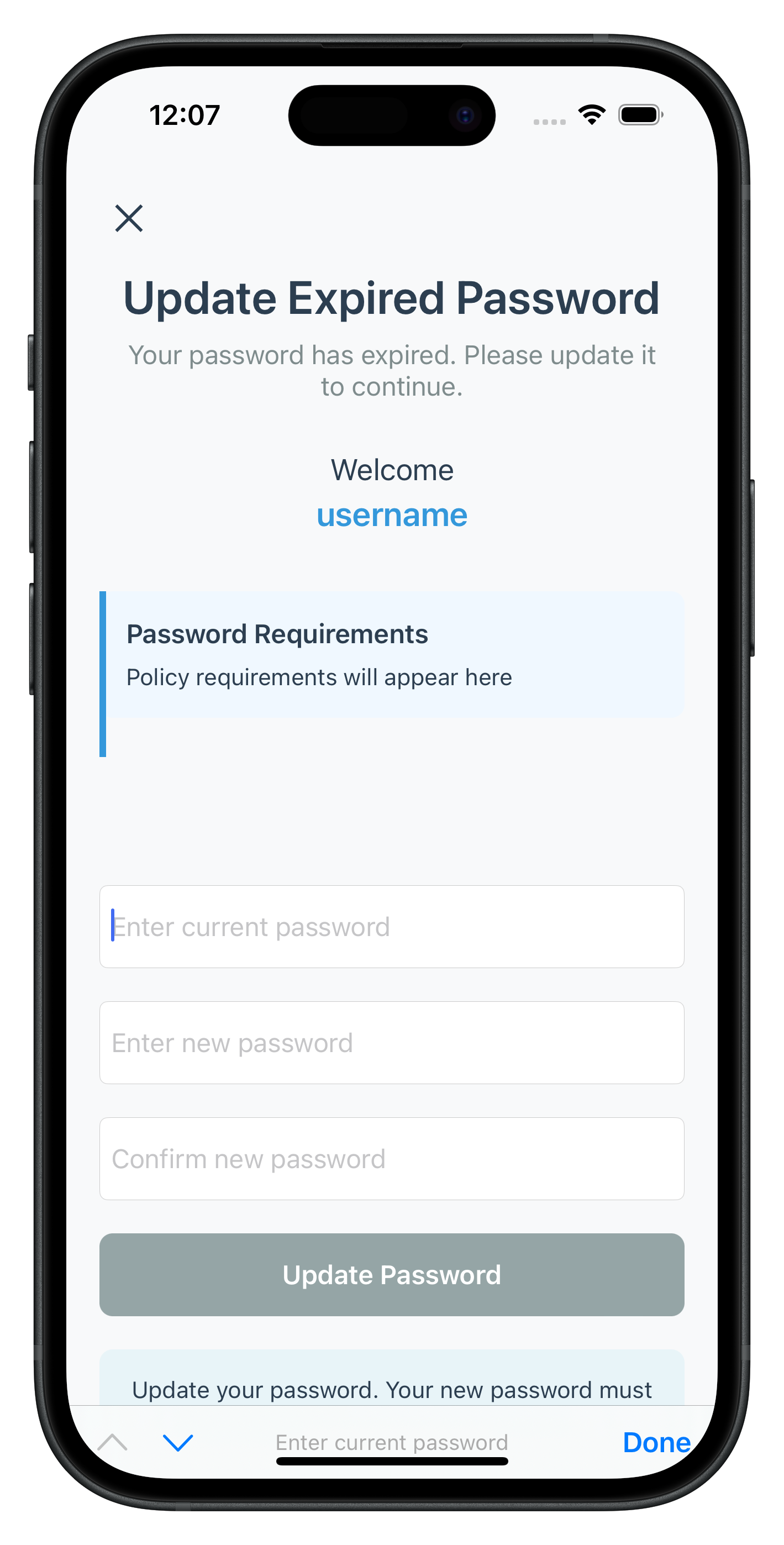
UI Layout Requirements
Create a storyboard layout with these elements:
Component | Purpose | Constraints |
Close Button | Allow user to cancel and reset auth | Top-right, 44x44pt |
Title Label | Display "Update Expired Password" | Centered, bold font |
Subtitle Label | Display status message from server | Below title, gray text |
User Name Label | Display "Welcome, [username]" | Below subtitle |
Policy Label | Display password requirements | Multiline, light blue background |
Error Banner | Display errors (including statusCode 164) | Red background, initially hidden |
Current Password Field | First password input | Secure text entry |
New Password Field | Second password input | Secure text entry |
Confirm Password Field | Third password input | Secure text entry |
Update Button | Trigger password update | Full width, rounded corners |
Activity Indicator | Show loading state | Centered on button |
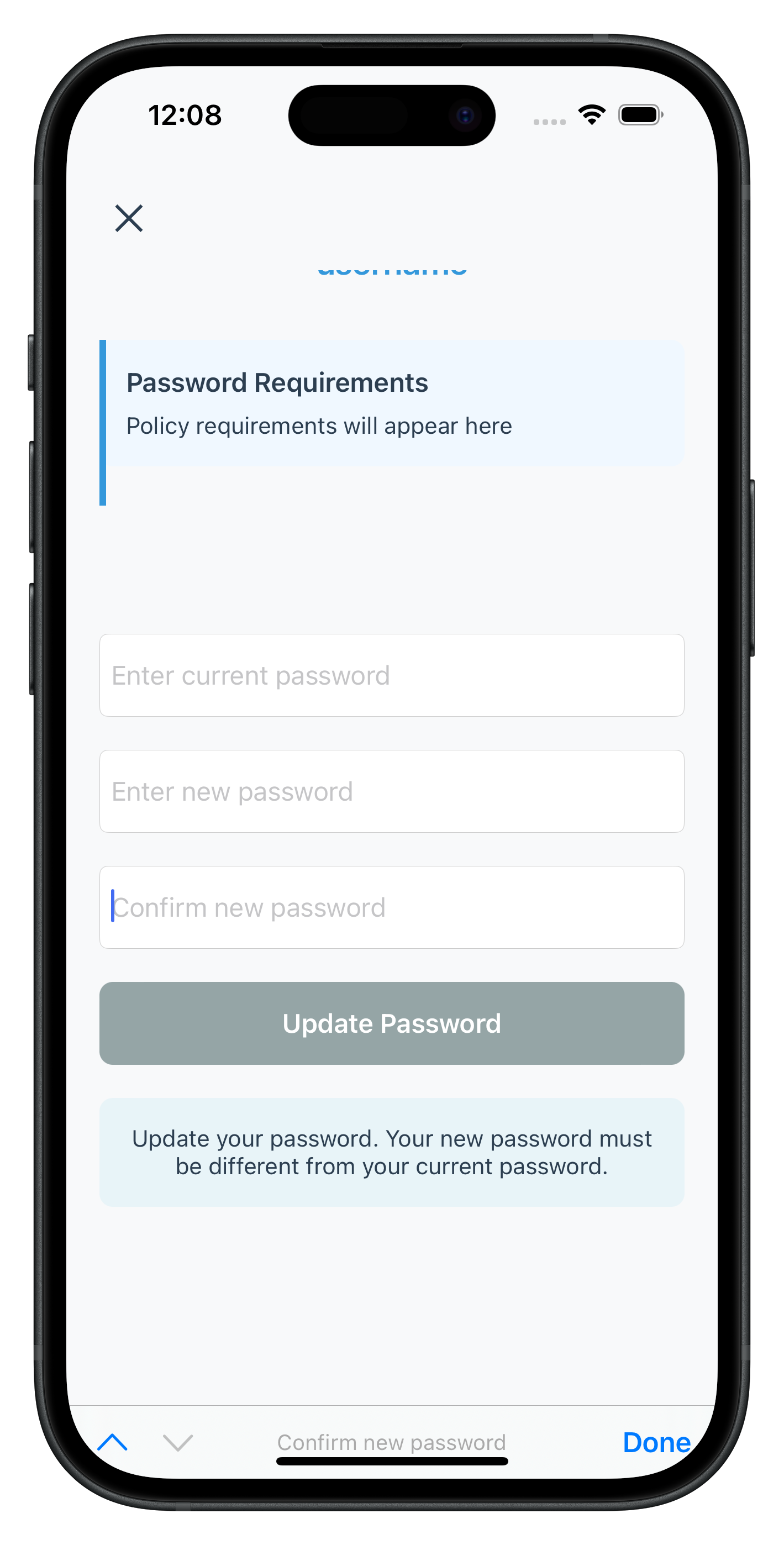
The following images showcase screens from the sample application:
|
|
Let's register the UpdateExpiryPasswordViewController in your storyboard and ensure proper navigation configuration.
Add View Controller to Main.storyboard
In Xcode, add the view controller to your storyboard:
- Open Main.storyboard in Xcode Interface Builder
- Add View Controller:
- Drag a new View Controller from Object Library
- Set Storyboard ID:
UpdateExpiryPasswordViewController - Set Class:
UpdateExpiryPasswordViewController - Set Module: (Your app module)
- Create UI Elements:
- Add UILabels for title, subtitle, user name, password policy
- Add UIView for error banner (with UILabel inside)
- Add three UITextFields for passwords (set Secure Text Entry = YES)
- Add UIButton for update action
- Add UIActivityIndicatorView
- Add UIButton for close action (top-right)
- Connect IBOutlets:
- Connect all UI elements to their corresponding
@IBOutletproperties - Connect update button to
updatePasswordTapped:action - Connect close button to
closeButtonTapped:action
- Connect all UI elements to their corresponding
- Configure Text Fields:
- Set Placeholder text: "Current Password", "New Password", "Confirm Password"
- Set Content Type: Password (for password managers)
- Set Return Key Type: Next (current/new), Done (confirm)
- Enable Auto Layout constraints
Navigation Flow Verification
Verify your navigation flow is complete:
Step | Navigation Event | Screen |
1. User Login |
| VerifyPasswordViewController |
2. Password Expired |
| UpdateExpiryPasswordViewController |
3. Password Updated |
| DashboardViewController |
Now let's test the complete password expiry implementation with various scenarios.
Test Scenario 1: Standard Password Expiry Flow
Follow these steps to test standard password expiry:
- Login with expired password
- Use VerifyPasswordViewController (challengeMode = 0)
- Enter credentials for user with expired password
- Verify automatic navigation
- SDK should detect expiry (statusCode 118)
- SDK triggers getPassword with challengeMode = 4
- App navigates to UpdateExpiryPasswordViewController
- Check password policy display
- Verify "Password Requirements" section appears
- Confirm default policy is extracted from RELID_PASSWORD_POLICY
- Check policy message is user-friendly
- Update password
- Enter current password
- Enter new password (meeting policy requirements)
- Enter confirm password (matching new password)
- Tap "Update Password"
- Verify automatic login
- SDK should trigger onUserLoggedIn callback
- App should navigate to Dashboard automatically
Test Scenario 2: Password Reuse Detection
Test password reuse error handling:
- Navigate to UpdateExpiryPasswordViewController (following Scenario 1 steps 1-3)
- Enter recently used password
- Current password: [user's current password]
- New password: [password used in last N passwords]
- Confirm password: [same as new password]
- Tap "Update Password"
- Verify reuse detection
- SDK returns statusCode 164
- SDK re-triggers getPassword with challengeMode = 4
- Error message displayed: "Please enter a new password as your entered password has been used by you previously..."
- Verify automatic field clearing
- All three password fields should clear automatically
- User can retry with different password
- Error message remains visible
- Retry with valid password
- Enter current password again
- Enter new password (not in history)
- Enter confirm password
- Verify successful update and login
Test Scenario 3: Validation Errors
Test all validation rules:
Test Case | Expected Error | Expected Behavior |
Empty current password | "Please enter your current password" | Focus current password field |
Empty new password | "Please enter a new password" | Focus new password field |
Empty confirm password | "Please confirm your new password" | Focus confirm password field |
Passwords don't match | "New password and confirm password do not match" | Alert + clear new/confirm fields |
New = Current password | "New password must be different from current password" | Alert + clear new/confirm fields |
Test Scenario 4: Password Policy Violations
Test password policy enforcement:
- Navigate to UpdateExpiryPasswordViewController
- Check displayed policy requirements
- Note minimum length, character requirements
- Note any special restrictions
- Enter policy-violating password
- Example: Too short, missing uppercase, etc.
- Tap "Update Password"
- Verify server-side validation
- Server should return policy violation error
- SDK re-triggers getPassword with error
- Fields should clear automatically
- Error message should display policy violation
Debugging Tips
If you encounter issues, check these areas:
Issue | Possible Cause | Solution |
Policy not displaying | Using wrong policy key | Use RELID_PASSWORD_POLICY key |
Fields not clearing | Missing field clear logic in error handling | Add currentPasswordTextField.text = "", etc. |
Navigation not working | challengeMode 4 not routed in AppCoordinator | Add if challengeMode == .OP_UPDATE_ON_EXPIRY routing |
API not called | Form validation failing | Check isFormValid() logic |
Keyboard covering inputs | IQKeyboardManager not configured | Check AppDelegate configuration |
Before deploying password expiry functionality to production, review these important considerations.
Security Best Practices
Practice | Implementation | Importance |
Never log passwords | Remove all print statements that might expose passwords | Critical |
Password history | Respect server-configured history limits | High |
Policy enforcement | Always display and enforce RELID_PASSWORD_POLICY | High |
Error handling | Clear fields on all errors to prevent data exposure | High |
User Experience Optimization
Enhance user experience with these patterns:
// 1. Clear, specific error messages
if newPassword == currentPassword {
    showError("New password must be different from current password")
    // Show alert with actionable guidance
    let alert = UIAlertController(title: "Invalid New Password",
                                  message: "Your new password must be different from your current password",
                                  preferredStyle: .alert)
    alert.addAction(UIAlertAction(title: "OK", style: .default))
    present(alert, animated: true)
}

// 2. Automatic field clearing on errors
private func checkAndDisplayErrors() {
    if let response = response, response.status.statusCode != 100 && response.status.statusCode != 0 {
        showError(response.status.statusMessage)
        resetInputs()  // Clears all fields
    }
}

// 3. Keyboard navigation with IQKeyboardManager
// Configured in AppDelegate for automatic handling
IQKeyboardManager.shared.isEnabled = true
IQKeyboardManager.shared.enableAutoToolbar = true

// 4. TextField delegate for return key handling
func textFieldShouldReturn(_ textField: UITextField) -> Bool {
    if textField == currentPasswordTextField {
        newPasswordTextField.becomeFirstResponder()
    } else if textField == newPasswordTextField {
        confirmPasswordTextField.becomeFirstResponder()
    } else {
        updatePasswordTapped(updateButton)
    }
    return true
}
Performance Considerations
Consideration | Implementation |
UI responsiveness | All SDK calls return immediately; async results via callbacks |
Memory management | Use weak self in closures; proper deallocation |
Loading states | Show clear activity indicators during API calls |
Error recovery | Implement retry logic with proper state cleanup |
Testing Checklist
Before production deployment, verify:
- [ ] Password expiry detection works (challengeMode 4 routing)
- [ ] Password policy extracted from RELID_PASSWORD_POLICY
- [ ] Password reuse detection (statusCode 164) with field clearing
- [ ] All validation rules working (empty fields, mismatch, same password)
- [ ] Keyboard navigation with return keys
- [ ] IQKeyboardManager configured and working
- [ ] Loading states during API calls
- [ ] Error messages clear and actionable
- [ ] Automatic login after successful update
- [ ] Close button resets auth state properly
- [ ] No passwords logged to console (remove debug prints)
- [ ] UI matches design system
- [ ] Works on various iOS versions (13.0+)
What You've Accomplished
Congratulations! You've successfully implemented REL-ID Password Expiry functionality in your iOS application.
You now have:
✅ Password Expiry Detection: Automatic detection and routing of challengeMode 4
✅ UpdatePassword API: Full integration with proper error handling
✅ Three-Field Validation: Current, new, and confirm password validation
✅ Password Policy Display: Extraction and display of RELID_PASSWORD_POLICY
✅ Password Reuse Handling: StatusCode 164 detection with automatic field clearing
✅ Production-Ready: Secure, user-friendly password expiry flow
Additional Resources
- REL-ID Password Expiry Documentation - Complete API reference
- REL-ID Challenge Modes - Understanding challenge modes
Thank you for completing the REL-ID Password Expiry Flow Codelab!
You're now equipped to build secure, production-ready password expiry workflows that provide excellent user experience while maintaining strong security standards.