🎯 Learning Path:
- Complete RELID Initialization first
- You are here → MFA Activation & Login Implementation
This comprehensive codelab teaches you to implement complete Multi-Factor Authentication using the RDNA iOS SDK. You'll build both Activation Flow (first-time users) and Login Flow (returning users) with error handling and security practices.
🚀 What You'll Build
By the end of this codelab, you'll have a complete MFA system that handles:
📱 Activation Flow (First-Time Users):
- Complete user onboarding and device enrollment
- Multi-factor verification with cyclical challenge handling
- Flexible authentication (biometric + password fallback)
🔐 Login Flow (Returning Users):
- Streamlined biometric authentication
- Password verification with attempt tracking
- Graceful error recovery and fallbacks
✅ Technical Requirements
Before starting, verify you have:
- [ ] Completed RELID Initialization codelab
- [ ] Xcode 14.0+ installed
- [ ] iOS 13.0+ deployment target
- [ ] CocoaPods for dependency management
✅ Knowledge Prerequisites
You should be comfortable with:
- [ ] Swift & UIKit fundamentals
- [ ] UIViewController lifecycle
- [ ] Closures & Delegates patterns
- [ ] Auto Layout basics
Get the Code from GitHub
The code to get started is stored in a GitHub repository.
You can clone the repository using the following command:
git clone https://github.com/uniken-public/codelab-ios.git
Navigate to the relid-MFA folder in the repository you cloned earlier
iOS-Specific Permissions
The RDNA iOS SDK requires specific permissions for optimal MFA functionality:
Info.plist Configuration: Add the following keys to your Info.plist:
<!-- Face ID authentication -->
<key>NSFaceIDUsageDescription</key>
<string>We use Face ID to securely authenticate you</string>

<!-- Location for login verification -->
<key>NSLocationWhenInUseUsageDescription</key>
<string>Location is used to enhance security during login</string>

<!-- Network threat detection (optional) -->
<key>NSLocalNetworkUsageDescription</key>
<string>Network access is used for threat detection</string>
Understanding MFA Flow Types
Quick Overview: This codelab covers two flows:
- Activation Flow: For first-time users
- Login Flow: For returning users
📊 Flow Comparison at a Glance
Aspect | 🆕 Activation Flow | 🔄 Login Flow |
When | First-time users, new devices | Returning users, registered devices |
Purpose | Device registration + auth setup | Quick authentication |
Steps | Username → OTP → Device Auth or Password → Success | Username → Device Auth/Password → Success |
Device Auth(LDA) | Optional setup during flow | Automatic if previously enabled |
🔄 What Does Activation and Login Flow Mean
Activation Flow Occurs When:
- User registers for the first time
- User has never activated on any device
- Initial device enrollment scenarios
Login Flow Occurs When:
- User has previously activated on this device
- Device is registered but user session expired
- User explicitly logged out and logging back in
🏗️ SDK Architecture & Callback System
The SDK uses a callback-driven architecture where:
- SDK Callbacks → Trigger challenges requiring user input
- API Calls → Respond to challenges with user data
- Callback Handling → Handle callback responses and navigate accordingly
Key Architecture Pattern: Synchronous API + Asynchronous Callbacks
// Synchronous API call
let error = RDNAService.shared.setUser(username)

// Asynchronous callback handling via RDNADelegateManager
RDNADelegateManager.shared.onGetUser = { userNames, recentUser, response, error in
    // Handle the challenge in UI
    AppCoordinator.shared.showCheckUser(...)
}
📋 Quick Reference: Core Callbacks & APIs
SDK Callback | API Response | Purpose | Flow |
|
| User identification | Both |
|
| OTP verification | Activation |
|
| Biometric setup | Activation |
|
| Password setup/verify | Both |
| N/A | Success notification (user logged in) | Both |
|
| User Session cleanup (if user logged in) | Both |
Both - Activation and Login
📝 What We're Building: Complete first-time user registration with device enrollment, OTP verification, and LDA setup.
Understanding Activation Flow Sequence
Please refer to the flow diagram from uniken developer documentation portal, user activation
Activation Challenge Phases
Phase | Challenge Type | User Action | SDK Validation | Result |
1. User ID |
| Enter username/email | Validates user exists/format | Proceeds or repeats |
2. OTP Verify |
| Enter activation code | Validates code from email/SMS | Proceeds or shows error |
3. Device Auth |
| Choose biometric or password | Sets up device authentication | Completes activation |
4. Success | N/A | Automatic navigation | User session established | User activated & logged in |
🔄 Cyclical Challenge Handling
Important: The getUser callback can trigger multiple times if:
- Username validation fails
- User enters invalid format
- Network errors occur during validation
Your UI must handle repeated callbacks gracefully without breaking navigation.
The RDNAService provides simple wrapper methods for SDK integration. Let's review the MFA-specific methods:
Core MFA Methods
// Sources/Uniken/Services/RDNAService.swift

/// Set User - Submit username for MFA flow
func setUser(_ userName: String) -> RDNAError {
    let error = rdna.setUser(userName)
    return error
}

/// Set Activation Code - Submit activation code/OTP
func setActivationCode(_ activationCode: String) -> RDNAError {
    let error = rdna.setActivationCode(activationCode)
    return error
}

/// Resend Activation Code - Request new activation code
func resendActivationCode() -> RDNAError {
    let error = rdna.resendActivationCode()
    return error
}

/// Set User Consent for LDA - Submit biometric consent
func setUserConsentForLDA(
    shouldEnrollLDA: Bool,
    challengeMode: RDNAChallengeOpMode,
    authenticationType: RDNALDACapabilities
) -> RDNAError {
    let error = rdna.setUserConsentForLDA(
        shouldEnrollLDA: shouldEnrollLDA,
        challengeMode: challengeMode,
        authenticationType: authenticationType
    )
    return error
}

/// Set Password - Submit password (creation or verification)
func setPassword(
    _ password: String,
    challengeMode: RDNAChallengeOpMode
) -> RDNAError {
    let error = rdna.setPassword(password, challenge: challengeMode)
    return error
}

/// Reset Auth State - Reset authentication flow to beginning
func resetAuthState() -> RDNAError {
    let error = rdna.resetAuthState()
    return error
}

/// Log Off - Logout user and terminate session
func logOff(_ userID: String) -> RDNAError {
    let error = rdna.logOff(userID)
    return error
}
Understanding resetAuthState API
The resetAuthState API is a critical method for managing authentication flow state. It provides a clean way to reset the current authentication session and return the SDK to its initial state.
When to Use resetAuthState
The resetAuthState API should be called in these pre-login scenarios:
- User-Initiated Cancellation: When the user decides to cancel the authentication process
- Switching Users: When switching between different user accounts during the login process
- Error Recovery: When recovering from authentication errors or timeout conditions during login
Note: These use cases only apply during the authentication process, before onUserLoggedIn callback is triggered.
How resetAuthState Works
// The resetAuthState API triggers a clean state transition
let error = RDNAService.shared.resetAuthState()

if error.longErrorCode == 0 {
    // Success - SDK will immediately trigger a new 'getUser' callback
    // This allows you to restart the authentication flow cleanly
}
Key Behaviors:
- Immediately clears the current authentication session
- Triggers a fresh
getUsercallback after successful reset - Returns the SDK to its initial state, ready for new authentication
- Provides synchronous response indicating success/failure of the reset operation
Implementation Pattern in View Controllers
Here's how resetAuthState is typically used in view controllers for user cancellation:
// Example from ActivationCodeViewController - handling close button
@IBAction func closeTapped(_ sender: UIButton) {
    let error = RDNAService.shared.resetAuthState()

    if error.longErrorCode != 0 {
        // Error occurred - show error
        showResult(error.errorString ?? "Failed to reset auth state", isSuccess: false)
        return
    }

    // Success - SDK will trigger getUser callback for navigation
}
Best Practices
- Check error response:
resetAuthStatereturns synchronous error status - Handle errors gracefully: Show user-friendly error messages on failure
- Expect getUser callback: After successful reset, the SDK will trigger a new
getUsercallback - Use for clean transitions: Prefer
resetAuthStateover navigation-only solutions when canceling flows
Flow Diagram
User Cancels/Error Occurs
         ↓
Call resetAuthState()
         ↓
SDK Clears Session State
         ↓
Synchronous Response (success/error)
         ↓
SDK Triggers getUser Callback
         ↓
App Handles Fresh Authentication Flow
Understanding resendActivationCode API
The resendActivationCode API is used when the user has not received their activation code (OTP) via email or SMS and requests a new one.
Purpose and Functionality
Calling this method sends a new OTP to the user and triggers a new getActivationCode callback. This allows users to receive a fresh activation code without having to restart the entire authentication process.
When to Use resendActivationCode
The resendActivationCode API should be used in these scenarios:
- OTP Not Received: When the user reports they haven't received the initial activation code
- Code Expired: When the activation code has expired before the user could enter it
- Delivery Issues: When there are suspected issues with email or SMS delivery
- User Request: When the user explicitly requests a new activation code
How resendActivationCode Works
// The resendActivationCode API sends a new OTP and triggers fresh callback
let error = RDNAService.shared.resendActivationCode()

if error.longErrorCode == 0 {
    // Success - SDK will trigger a new 'getActivationCode' callback
    // This provides fresh OTP data to the application
}
Key Behaviors:
- Sends a new OTP to the user via their registered email or SMS
- Triggers a fresh
getActivationCodecallback with new OTP details - Provides synchronous response indicating success/failure of the resend request
- Does not reset the overall authentication state (unlike
resetAuthState)
Implementation Pattern in View Controllers
Here's how resendActivationCode is typically used in activation code screens:
// Example from ActivationCodeViewController - handling resend button
@IBAction func resendTapped(_ sender: UIButton) {
    hideResult()

    // Disable button temporarily to prevent multiple requests
    resendButton.isEnabled = false
    resendButton.alpha = 0.5

    // Call SDK resendActivationCode method
    let error = RDNAService.shared.resendActivationCode()

    if error.longErrorCode != 0 {
        // Error occurred
        showResult(error.errorString ?? "Failed to resend activation code", isSuccess: false)
        resendButton.isEnabled = true
        resendButton.alpha = 1.0
    } else {
        // Success
        showResult("Activation code resent successfully", isSuccess: true)

        // Re-enable button after 3 seconds
        DispatchQueue.main.asyncAfter(deadline: .now() + 3) { [weak self] in
            self?.resendButton.isEnabled = true
            self?.resendButton.alpha = 1.0
        }
    }
}
Best Practices
- Prevent Multiple Requests: Disable the resend button while a request is in progress
- Provide User Feedback: Show loading states and success/failure messages
- Handle Rate Limiting: Be aware that there may be limits on how frequently codes can be resent
- Expect New Callback: After successful resend, wait for the new
getActivationCodecallback with updated data
Flow Diagram
User Requests Resend
         ↓
Call resendActivationCode()
         ↓
SDK Sends New OTP (Email/SMS)
         ↓
Synchronous Response (success/error)
         ↓
SDK Triggers getActivationCode Callback
         ↓
App Receives Fresh OTP Data
API Response Handling Pattern
All activation APIs follow the same response handling pattern:
- Synchronous Response: Immediate return value indicates if SDK accepted the data
- Success Condition:
longErrorCode == 0means SDK accepted the data - Asynchronous Callbacks: Next challenge callback triggered after successful API call
- Error Handling: Non-zero error codes contain
RDNAErrorwith error details
The RDNADelegateManager implements the RDNACallbacks protocol and dispatches events via closures. Let's review the MFA-specific callback handlers:
MFA Callback Closures
// Sources/Uniken/Services/RDNADelegateManager.swift

// MARK: - MFA Callback Closures

/// Closure invoked when SDK requests username
/// MFA-SPECIFIC: Navigate to CheckUserScreen
var onGetUser: ((
    _ userNames: [String],
    _ recentlyLoggedInUser: String,
    _ response: RDNAChallengeResponse,
    _ error: RDNAError
) -> Void)?

/// Closure invoked when SDK requests activation code
/// MFA-SPECIFIC: Navigate to ActivationCodeScreen
var onGetActivationCode: ((
    _ userID: String,
    _ verificationKey: String,
    _ attemptsLeft: Int,
    _ response: RDNAChallengeResponse,
    _ error: RDNAError
) -> Void)?

/// Closure invoked when SDK requests password
/// MFA-SPECIFIC: Navigate to SetPasswordScreen or VerifyPasswordScreen based on challengeMode
var onGetPassword: ((
    _ userID: String,
    _ challengeMode: RDNAChallengeOpMode,
    _ attemptsLeft: Int,
    _ response: RDNAChallengeResponse,
    _ error: RDNAError
) -> Void)?

/// Closure invoked when SDK requests LDA consent
/// MFA-SPECIFIC: Navigate to UserLDAConsentScreen
var onGetUserConsentForLDA: ((
    _ userID: String,
    _ challengeMode: RDNAChallengeOpMode,
    _ authenticationType: RDNALDACapabilities,
    _ response: RDNAChallengeResponse,
    _ error: RDNAError
) -> Void)?

/// Closure invoked when user successfully logs in
/// MFA-SPECIFIC: Navigate to DashboardScreen
var onUserLoggedIn: ((
    _ userID: String,
    _ response: RDNAChallengeResponse,
    _ error: RDNAError
) -> Void)?

/// Closure invoked when user logs off
/// MFA-SPECIFIC: Navigate back to TutorialHomeScreen
var onUserLoggedOff: ((
    _ response: RDNAChallengeResponse,
    _ error: RDNAError
) -> Void)?
RDNACallbacks Protocol Implementation
// MARK: - RDNACallbacks Protocol Implementation

func getUser(
    _ userNames: [String],
    recentlyLoggedInUser: String,
    response: RDNAChallengeResponse,
    error: RDNAError
) {
    // MFA-SPECIFIC: SDK requests username input
    DispatchQueue.main.async { [weak self] in
        self?.onGetUser?(userNames, recentlyLoggedInUser, response, error)
    }
}

func getActivationCode(
    _ userID: String,
    verificationKey: String,
    attemptsLeft: Int32,
    response: RDNAChallengeResponse,
    error: RDNAError
) {
    // MFA-SPECIFIC: SDK requests activation code input
    DispatchQueue.main.async { [weak self] in
        self?.onGetActivationCode?(userID, verificationKey, Int(attemptsLeft), response, error)
    }
}

func getPassword(
    _ userID: String,
    challenge mode: RDNAChallengeOpMode,
    attemptsLeft: Int32,
    response: RDNAChallengeResponse,
    error: RDNAError
) {
    // MFA-SPECIFIC: SDK requests password input
    // challengeMode indicates SET (creation) or VERIFY (verification)
    DispatchQueue.main.async { [weak self] in
        self?.onGetPassword?(userID, mode, Int(attemptsLeft), response, error)
    }
}

func getUserConsentForLDA(
    userID: String,
    challengeMode: RDNAChallengeOpMode,
    authenticationType: RDNALDACapabilities,
    response: RDNAChallengeResponse,
    error: RDNAError
) {
    // MFA-SPECIFIC: SDK requests LDA (biometric) consent
    DispatchQueue.main.async { [weak self] in
        self?.onGetUserConsentForLDA?(userID, challengeMode, authenticationType, response, error)
    }
}

func onUserLogged(
    in userID: String,
    challengeResponse response: RDNAChallengeResponse,
    error: RDNAError
) {
    // MFA-SPECIFIC: User successfully logged in
    DispatchQueue.main.async { [weak self] in
        self?.onUserLoggedIn?(userID, response, error)
    }
}

func onUserLoggedOff(
    _ response: RDNAChallengeResponse,
    error: RDNAError
) {
    // MFA-SPECIFIC: User logged off
    DispatchQueue.main.async { [weak self] in
        self?.onUserLoggedOff?(response, error)
    }
}
🔑 Key Implementation Features
- Main Thread Dispatch: All callbacks are dispatched to the main thread for UI updates
- Closure-Based Callbacks: Simple closure pattern for flexible event handling
- Type Safety: Full Swift type safety with SDK enum types
- Weak References: Prevents retain cycles with
[weak self]pattern
The AppCoordinator manages navigation throughout the MFA flows. It uses the coordinator pattern with closure-based callbacks from the SDK.
AppCoordinator Navigation Methods
// Sources/Tutorial/Navigation/AppCoordinator.swift

/// Navigate to CheckUser screen (MFA-SPECIFIC!)
func showCheckUser(
    userNames: [String],
    recentlyLoggedInUser: String,
    response: RDNAChallengeResponse,
    error: RDNAError
) {
    // Check if CheckUserViewController is already on top (happens when SDK calls getUser again for retry)
    if let existingVC = navigationController?.topViewController as? CheckUserViewController {
        print("AppCoordinator: CheckUserViewController already visible, reconfiguring...")
        existingVC.reconfigure(userNames: userNames, recentlyLoggedInUser: recentlyLoggedInUser, response: response, error: error)
        return
    }

    guard let vc = storyboard.instantiateViewController(
        withIdentifier: "CheckUserViewController"
    ) as? CheckUserViewController else {
        print("AppCoordinator: Failed to instantiate CheckUserViewController")
        return
    }

    vc.configure(userNames: userNames, recentlyLoggedInUser: recentlyLoggedInUser, response: response, error: error)
    navigationController?.pushViewController(vc, animated: true)
}

/// Navigate to ActivationCode screen (MFA-SPECIFIC!)
func showActivationCode(
    userID: String,
    verificationKey: String,
    attemptsLeft: Int,
    response: RDNAChallengeResponse,
    error: RDNAError
) {
    // Check if ActivationCodeViewController is already on top (happens when SDK calls getActivationCode again for retry)
    if let existingVC = navigationController?.topViewController as? ActivationCodeViewController {
        print("AppCoordinator: ActivationCodeViewController already visible, reconfiguring...")
        existingVC.reconfigure(userID: userID, verificationKey: verificationKey, attemptsLeft: attemptsLeft, response: response, error: error)
        return
    }

    guard let vc = storyboard.instantiateViewController(
        withIdentifier: "ActivationCodeViewController"
    ) as? ActivationCodeViewController else {
        print("AppCoordinator: Failed to instantiate ActivationCodeViewController")
        return
    }

    vc.configure(userID: userID, verificationKey: verificationKey, attemptsLeft: attemptsLeft, response: response, error: error)
    navigationController?.pushViewController(vc, animated: true)
}

/// Navigate to SetPassword or VerifyPassword screen (MFA-SPECIFIC!)
func showPasswordScreen(
    userID: String,
    challengeMode: RDNAChallengeOpMode,
    attemptsLeft: Int,
    response: RDNAChallengeResponse,
    error: RDNAError
) {
    let isSetMode = (challengeMode == .CHALLENGE_OP_SET)

    // Check if the correct password screen is already on top
    if isSetMode, let existingVC = navigationController?.topViewController as? SetPasswordViewController {
        print("AppCoordinator: SetPasswordViewController already visible, reconfiguring...")
        existingVC.reconfigure(userID: userID, challengeMode: challengeMode, attemptsLeft: attemptsLeft, response: response, error: error)
        return
    } else if !isSetMode, let existingVC = navigationController?.topViewController as? VerifyPasswordViewController {
        print("AppCoordinator: VerifyPasswordViewController already visible, reconfiguring...")
        existingVC.reconfigure(userID: userID, challengeMode: challengeMode, attemptsLeft: attemptsLeft, response: response, error: error)
        return
    }

    let viewControllerID = isSetMode ? "SetPasswordViewController" : "VerifyPasswordViewController"

    guard let vc = storyboard.instantiateViewController(withIdentifier: viewControllerID) as? UIViewController else {
        print("AppCoordinator: Failed to instantiate \(viewControllerID)")
        return
    }

    // Configure based on type
    if let setPasswordVC = vc as? SetPasswordViewController {
        setPasswordVC.configure(userID: userID, challengeMode: challengeMode, attemptsLeft: attemptsLeft, response: response, error: error)
    } else if let verifyPasswordVC = vc as? VerifyPasswordViewController {
        verifyPasswordVC.configure(userID: userID, challengeMode: challengeMode, attemptsLeft: attemptsLeft, response: response, error: error)
    }

    navigationController?.pushViewController(vc, animated: true)
}

/// Navigate to UserLDAConsent screen (MFA-SPECIFIC!)
func showUserLDAConsent(
    userID: String,
    challengeMode: RDNAChallengeOpMode,
    authenticationType: RDNALDACapabilities,
    response: RDNAChallengeResponse,
    error: RDNAError
) {
    // Check if UserLDAConsentViewController is already on top
    if let existingVC = navigationController?.topViewController as? UserLDAConsentViewController {
        print("AppCoordinator: UserLDAConsentViewController already visible, reconfiguring...")
        existingVC.reconfigure(userID: userID, challengeMode: challengeMode, authenticationType: authenticationType, response: response, error: error)
        return
    }

    guard let vc = storyboard.instantiateViewController(
        withIdentifier: "UserLDAConsentViewController"
    ) as? UserLDAConsentViewController else {
        print("AppCoordinator: Failed to instantiate UserLDAConsentViewController")
        return
    }

    vc.configure(userID: userID, challengeMode: challengeMode, authenticationType: authenticationType, response: response, error: error)
    navigationController?.pushViewController(vc, animated: true)
}

/// Navigate to Dashboard screen (MFA-SPECIFIC!)
func showDashboard(
    userID: String,
    response: RDNAChallengeResponse,
    error: RDNAError
) {
    guard let vc = storyboard.instantiateViewController(
        withIdentifier: "DashboardViewController"
    ) as? DashboardViewController else {
        print("AppCoordinator: Failed to instantiate DashboardViewController")
        return
    }

    vc.configure(userID: userID, response: response, error: error)
    navigationController?.pushViewController(vc, animated: true)
}
Global Callback Navigation Setup
// MARK: - Global Callback Navigation

/// Setup global SDK callback navigation (MFA-COMPLETE!)
private func setupGlobalCallbackNavigation() {

    // MARK: MFA Flow Handlers (Event-Driven Navigation)

    RDNADelegateManager.shared.onGetUser = { [weak self] userNames, recentlyLoggedInUser, response, error in
        print("AppCoordinator - onGetUser called")
        self?.showCheckUser(
            userNames: userNames,
            recentlyLoggedInUser: recentlyLoggedInUser,
            response: response,
            error: error
        )
    }

    RDNADelegateManager.shared.onGetActivationCode = { [weak self] userID, verificationKey, attemptsLeft, response, error in
        print("AppCoordinator - onGetActivationCode called")
        self?.showActivationCode(
            userID: userID,
            verificationKey: verificationKey,
            attemptsLeft: attemptsLeft,
            response: response,
            error: error
        )
    }

    RDNADelegateManager.shared.onGetUserConsentForLDA = { [weak self] userID, challengeMode, authenticationType, response, error in
        print("AppCoordinator - onGetUserConsentForLDA called")
        self?.showUserLDAConsent(
            userID: userID,
            challengeMode: challengeMode,
            authenticationType: authenticationType,
            response: response,
            error: error
        )
    }

    RDNADelegateManager.shared.onGetPassword = { [weak self] userID, challengeMode, attemptsLeft, response, error in
        print("AppCoordinator - onGetPassword called (mode: \(challengeMode.rawValue))")
        self?.showPasswordScreen(
            userID: userID,
            challengeMode: challengeMode,
            attemptsLeft: attemptsLeft,
            response: response,
            error: error
        )
    }

    RDNADelegateManager.shared.onGetDeviceName = { [weak self] userID, deviceName, response, error in
        print("AppCoordinator - onGetDeviceName called")
        // Auto-submit default device name for MFA codelab (simplified)
        let defaultName = deviceName.isEmpty ? UIDevice.current.name : deviceName
        let submitError = RDNAService.shared.setDeviceName(defaultName)

        if submitError.longErrorCode != 0 {
            print("AppCoordinator - Failed to set device name: \(submitError.errorString ?? "Unknown error")")
            self?.showTutorialError(
                shortErrorCode: Int(submitError.errorCode.rawValue),
                longErrorCode: Int(submitError.longErrorCode),
                errorString: submitError.errorString ?? "Failed to set device name"
            )
        }
    }

    RDNADelegateManager.shared.onUserLoggedIn = { [weak self] userID, response, error in
        print("AppCoordinator - onUserLoggedIn called")
        self?.showDashboard(userID: userID, response: response, error: error)
    }

    RDNADelegateManager.shared.onUserLoggedOff = { [weak self] response, error in
        print("AppCoordinator - onUserLoggedOff called")
        // Navigate back to home
        self?.showTutorialHome()
    }
}
Key Navigation Patterns
1. Configure/Reconfigure Pattern: Screens support both initial configuration and reconfiguration for cyclical challenges
2. Duplicate Screen Prevention: Checks if target screen is already visible before pushing new instance
3. Automatic Navigation: SDK callbacks automatically trigger appropriate screen transitions
4. Context Preservation: All callback parameters passed to view controllers for display
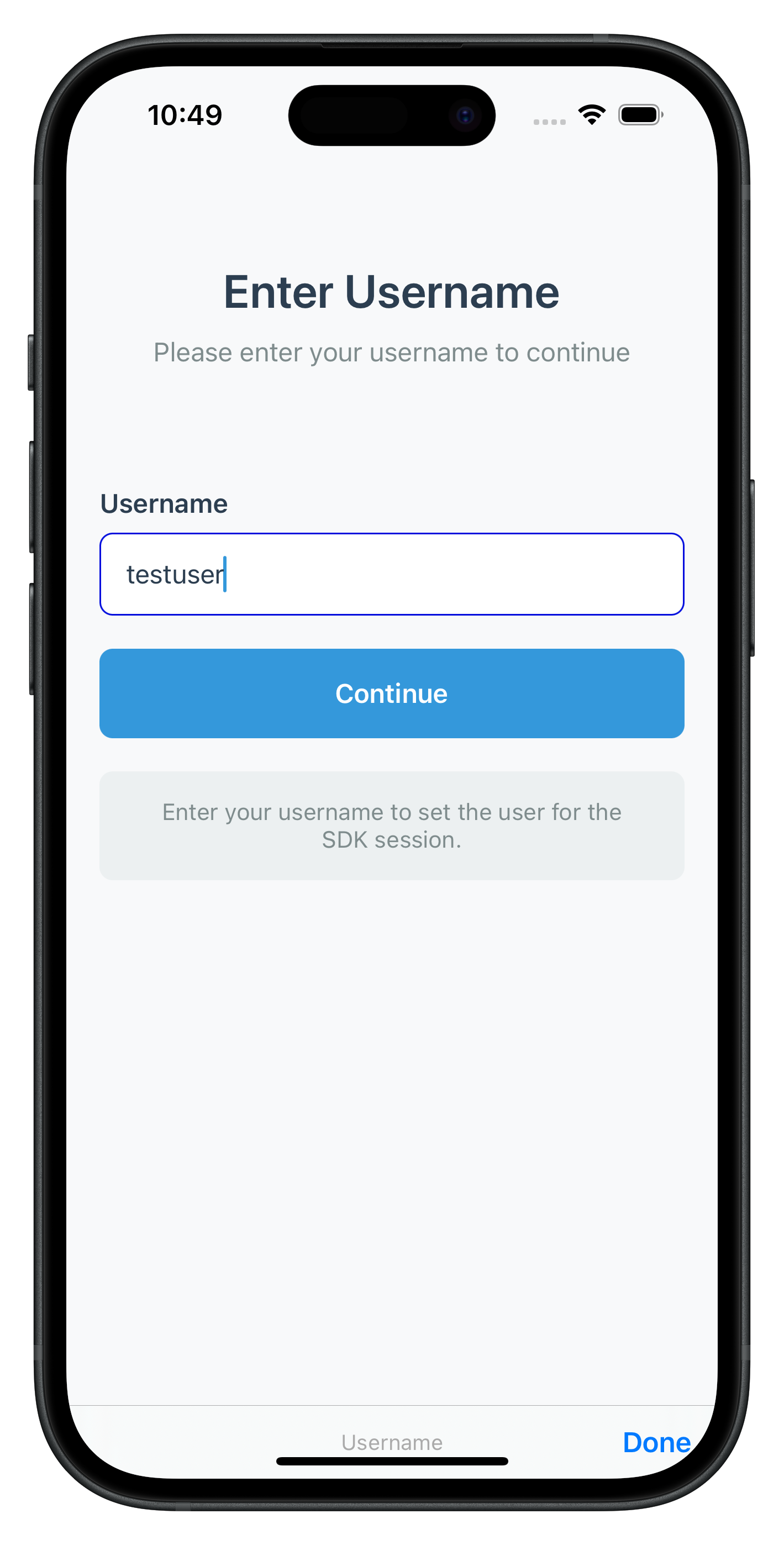
Create the first screen in the activation flow - user identification. This screen handles the getUser callback and can be triggered multiple times.
CheckUserViewController Implementation
// Sources/Tutorial/Screens/MFA/CheckUserViewController.swift

/// CheckUserViewController - Username input screen
/// Triggered by SDK's getUser callback
class CheckUserViewController: UIViewController {

    // MARK: - IBOutlets

    @IBOutlet weak var titleLabel: UILabel!
    @IBOutlet weak var subtitleLabel: UILabel!
    @IBOutlet weak var resultContainerView: UIView!
    @IBOutlet weak var resultLabel: UILabel!
    @IBOutlet weak var inputLabel: UILabel!
    @IBOutlet weak var usernameTextField: UITextField!
    @IBOutlet weak var submitButton: UIButton!
    @IBOutlet weak var helpContainerView: UIView!
    @IBOutlet weak var helpLabel: UILabel!

    // MARK: - Properties

    private var userNames: [String] = []
    private var recentlyLoggedInUser: String = ""
    private var response: RDNAChallengeResponse?
    private var error: RDNAError?

    // MARK: - Lifecycle

    override func viewDidLoad() {
        super.viewDidLoad()
        setupUI()
        setupTextField()

        // Pre-fill with recently logged in user if available
        if !recentlyLoggedInUser.isEmpty {
            usernameTextField.text = recentlyLoggedInUser
        }

        // Check and display errors/success message
        checkAndDisplayErrors()
    }

    // MARK: - Public Methods

    /// Configure the view controller with callback data
    func configure(
        userNames: [String],
        recentlyLoggedInUser: String,
        response: RDNAChallengeResponse,
        error: RDNAError
    ) {
        self.userNames = userNames
        self.recentlyLoggedInUser = recentlyLoggedInUser
        self.response = response
        self.error = error

        // Update UI if view is loaded
        if isViewLoaded {
            if !recentlyLoggedInUser.isEmpty {
                usernameTextField.text = recentlyLoggedInUser
            }
            checkAndDisplayErrors()
        }
    }

    /// Reconfigure with new data (called when SDK calls getUser again for retry)
    func reconfigure(
        userNames: [String],
        recentlyLoggedInUser: String,
        response: RDNAChallengeResponse,
        error: RDNAError
    ) {
        self.userNames = userNames
        self.recentlyLoggedInUser = recentlyLoggedInUser
        self.response = response
        self.error = error

        // Check and display errors
        checkAndDisplayErrors()
    }

    // MARK: - Actions

    @IBAction func submitTapped(_ sender: UIButton) {
        guard let username = usernameTextField.text?.trimmingCharacters(in: .whitespaces),
              !username.isEmpty else {
            showResult("Please enter a username", isSuccess: false)
            return
        }

        hideResult()

        // Call SDK setUser method
        let error = RDNAService.shared.setUser(username)

        if error.longErrorCode != 0 {
            // Error occurred
            showResult(error.errorString ?? "Failed to submit username", isSuccess: false)
        }
        // Success case will trigger SDK callback and navigate automatically
    }

    // MARK: - Helper Methods

    /// Check for API and status errors, display if found
    private func checkAndDisplayErrors() {
        guard let error = error else { return }

        // 1. Check API error first
        if error.longErrorCode != 0 {
            let errorMessage = error.errorString ?? "Invalid username. Please try again."
            showResult(errorMessage, isSuccess: false)
            return
        }

        // 2. Check status error (statusCode 100 = success)
        if response?.status.statusCode != 100 {
            let errorMessage = response?.status.statusMessage ?? "Invalid error message. Please try again."
            showResult(errorMessage, isSuccess: false)
            return
        }
    }

    /// Show result banner
    private func showResult(_ message: String, isSuccess: Bool) {
        resultLabel.text = message

        if isSuccess {
            // Success styles
            resultContainerView.backgroundColor = UIColor(hex: "#f0f8f0")
            resultLabel.textColor = UIColor(hex: "#27ae60")
        } else {
            // Error styles
            resultContainerView.backgroundColor = UIColor(hex: "#fff0f0")
            resultLabel.textColor = UIColor(hex: "#e74c3c")
            usernameTextField.shake()
        }

        resultContainerView.isHidden = false
    }
}
Specific Status Code Handling
Status Code | Event Name | Meaning |
101 |
| Triggered when an invalid user is provided in setUser API |
138 |
| User is blocked due to exceeded OTP attempts or blocked by admin |
Key Implementation Features
The CheckUserViewController demonstrates several important patterns:
- Cyclical Callback Handling: Supports repeated
getUsercallbacks if validation fails - Response Data Processing: Checks both API errors and status errors
- Form Validation: Real-time validation with user feedback
- Error/Status Display: User-friendly error/status messages from API and callback responses
The following image showcases screen from the sample application:
Create the activation code input screen that handles OTP verification during the activation flow.
ActivationCodeViewController Implementation
// Sources/Tutorial/Screens/MFA/ActivationCodeViewController.swift

/// ActivationCodeViewController - Activation code/OTP input screen
/// Triggered by SDK's getActivationCode callback
class ActivationCodeViewController: UIViewController {

    // MARK: - IBOutlets

    @IBOutlet weak var titleLabel: UILabel!
    @IBOutlet weak var subtitleLabel: UILabel!
    @IBOutlet weak var attemptsContainerView: UIView!
    @IBOutlet weak var attemptsLabel: UILabel!
    @IBOutlet weak var resultContainerView: UIView!
    @IBOutlet weak var resultLabel: UILabel!
    @IBOutlet weak var inputLabel: UILabel!
    @IBOutlet weak var activationCodeTextField: UITextField!
    @IBOutlet weak var submitButton: UIButton!
    @IBOutlet weak var resendButton: UIButton!
    @IBOutlet weak var helpContainerView: UIView!
    @IBOutlet weak var helpLabel: UILabel!
    @IBOutlet weak var closeButton: UIButton!

    // MARK: - Properties

    private var userID: String = ""
    private var verificationKey: String = ""
    private var attemptsLeft: Int = 0
    private var response: RDNAChallengeResponse?
    private var error: RDNAError?

    // MARK: - Lifecycle

    override func viewDidLoad() {
        super.viewDidLoad()
        setupUI()
        setupTextField()
        updateInfoLabels()
        checkAndDisplayErrors()
    }

    // MARK: - Public Methods

    /// Configure the view controller with callback data
    func configure(
        userID: String,
        verificationKey: String,
        attemptsLeft: Int,
        response: RDNAChallengeResponse,
        error: RDNAError
    ) {
        self.userID = userID
        self.verificationKey = verificationKey
        self.attemptsLeft = attemptsLeft
        self.response = response
        self.error = error

        if isViewLoaded {
            updateInfoLabels()
            checkAndDisplayErrors()
        }
    }

    /// Reconfigure with new data
    func reconfigure(
        userID: String,
        verificationKey: String,
        attemptsLeft: Int,
        response: RDNAChallengeResponse,
        error: RDNAError
    ) {
        self.userID = userID
        self.verificationKey = verificationKey
        self.attemptsLeft = attemptsLeft
        self.response = response
        self.error = error

        updateInfoLabels()
        checkAndDisplayErrors()
    }

    // MARK: - Actions

    @IBAction func submitTapped(_ sender: UIButton) {
        guard let code = activationCodeTextField.text?.trimmingCharacters(in: .whitespaces),
              !code.isEmpty else {
            showResult("Please enter the activation code", isSuccess: false)
            return
        }

        hideResult()

        // Call SDK setActivationCode method
        let error = RDNAService.shared.setActivationCode(code)

        if error.longErrorCode != 0 {
            showResult(error.errorString ?? "Failed to submit activation code", isSuccess: false)
        }
    }

    @IBAction func resendTapped(_ sender: UIButton) {
        hideResult()

        // Disable button temporarily
        resendButton.isEnabled = false
        resendButton.alpha = 0.5

        // Call SDK resendActivationCode method
        let error = RDNAService.shared.resendActivationCode()

        if error.longErrorCode != 0 {
            showResult(error.errorString ?? "Failed to resend activation code", isSuccess: false)
            resendButton.isEnabled = true
            resendButton.alpha = 1.0
        } else {
            showResult("Activation code resent successfully", isSuccess: true)

            // Re-enable button after 3 seconds
            DispatchQueue.main.asyncAfter(deadline: .now() + 3) { [weak self] in
                self?.resendButton.isEnabled = true
                self?.resendButton.alpha = 1.0
            }
        }
    }

    @IBAction func closeTapped(_ sender: UIButton) {
        // Reset auth state
        let error = RDNAService.shared.resetAuthState()

        if error.longErrorCode != 0 {
            showResult(error.errorString ?? "Failed to reset auth state", isSuccess: false)
            return
        }

        // Success - SDK will trigger getUser callback for navigation
    }

    // MARK: - Helper Methods

    private func updateInfoLabels() {
        // Update attempts left warning banner
        if attemptsLeft > 0 {
            attemptsLabel.text = "Attempts remaining: \(attemptsLeft)"
            attemptsContainerView.isHidden = false
        } else {
            attemptsContainerView.isHidden = true
        }
    }

    private func checkAndDisplayErrors() {
        guard let response = response, let error = error else { return }

        if error.longErrorCode != 0 {
            let errorMessage = error.errorString ?? "Invalid activation code. Please try again."
            showResult(errorMessage, isSuccess: false)
            return
        }

        if response.status.statusCode != 100 {
            let errorMessage = response.status.statusMessage
            showResult(errorMessage, isSuccess: false)
            return
        }
    }
}
Specific Status Code Handling
Status Code | Event Name | Meaning |
106 |
| Triggered when an invalid OTP is provided in setActivationCode API |
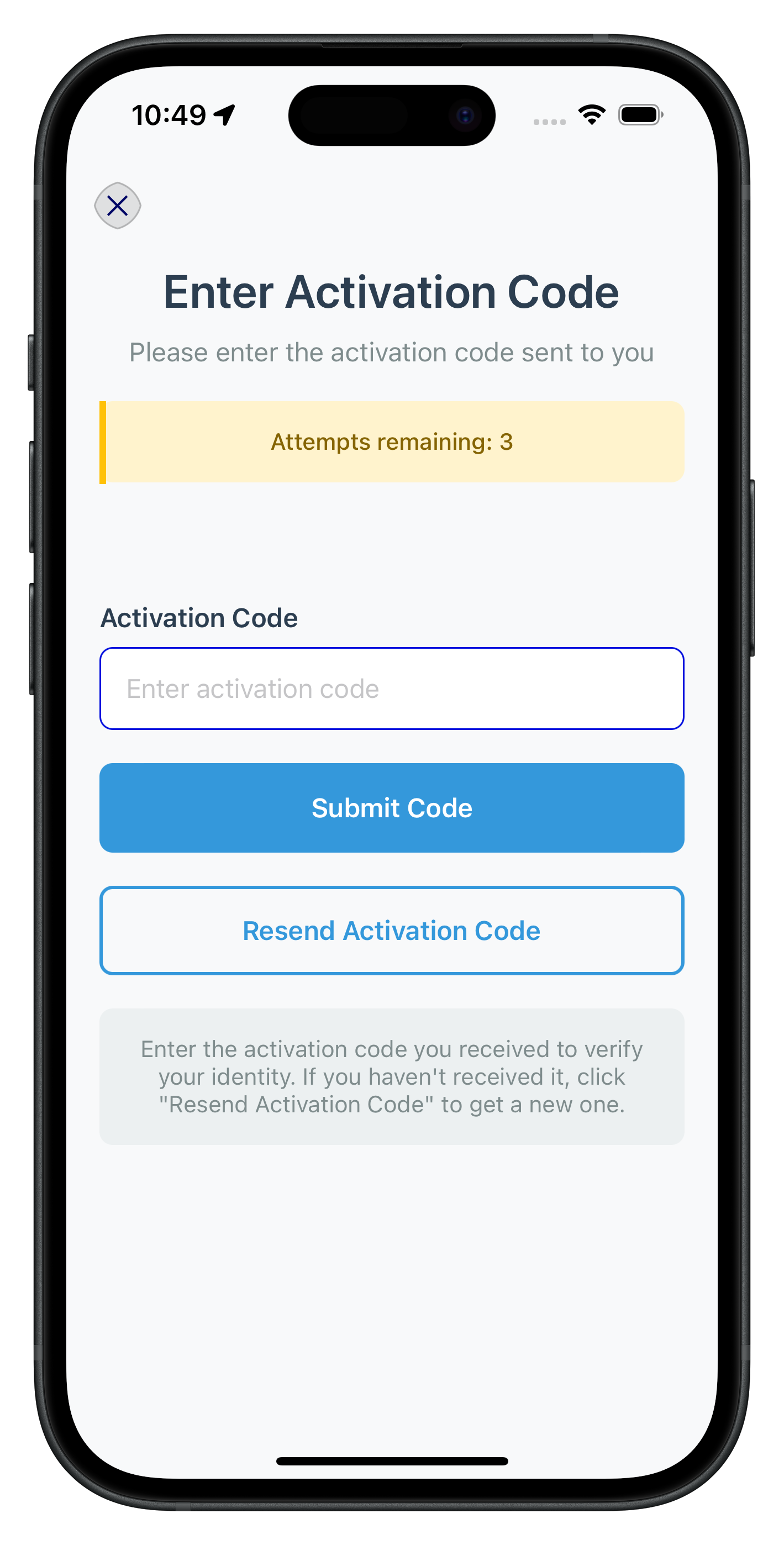
Activation Code Screen Features
- Attempts Tracking: Displays remaining attempts from
getActivationCodecallback data - Resend Functionality: Allows users to request new activation codes
- Input Validation: Real-time validation with clear error messaging
- Loading States: Separate loading states for validation and resend operations
- Error Recovery: Clear error states and retry mechanisms
The following image showcases screen from the sample application:
This section outlines the decision-making flow for Local Device Authentication (LDA) in the SDK. It guides how the SDK handles user input for biometric or password-based setup during activation flow.
SDK checks if LDA is available:
- If available:
- Trigger getUserConsentForLDA callback
- User chooses:
- Biometric: setUserConsentForLDA(true) API → biometric prompt → onUserLoggedIn callback
- Password: setUserConsentForLDA(false) API → getPassword callback → enter password → setPassword() → onUserLoggedIn callback
- User chooses:
- If not available:
- Directly trigger getPassword
- Show password screen → setPassword() API → onUserLoggedIn callback
getUserConsentForLDA Callback
        ↓
    User Decision:
    ├─ Allow Biometric → setUserConsentForLDA(true, challengeMode, authType) → SDK handles biometric → onUserLoggedIn
    └─ Use Password → setUserConsentForLDA(false, challengeMode, authType) → getPassword Callback → Password Screen
                                                                        ↓
                                                               setPassword(password, challengeMode) → onUserLoggedIn

Alternative Flow (No LDA):
getPassword Callback → Password Screen → setPassword(password, challengeMode) → onUserLoggedIn
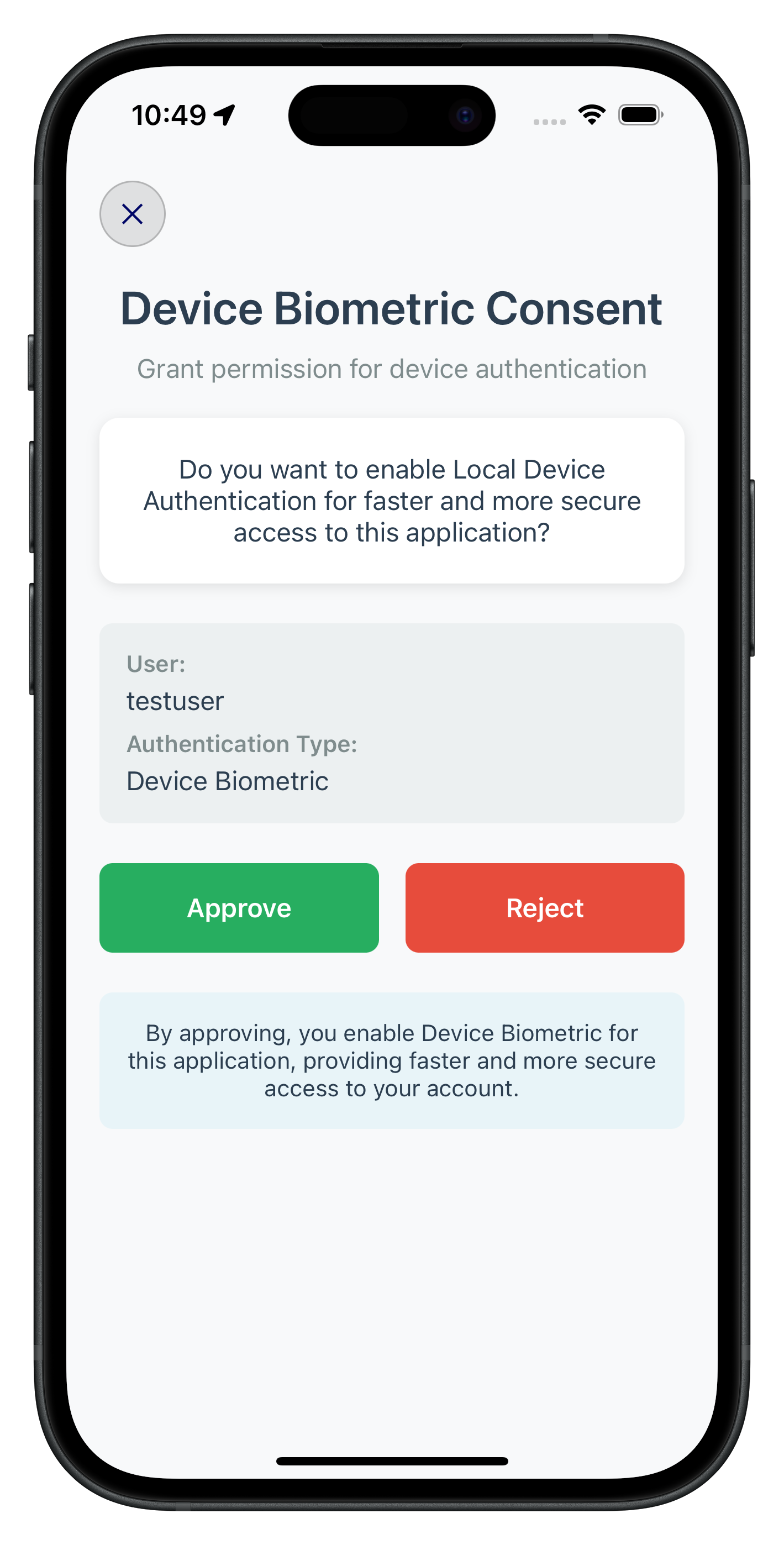
After OTP verification, users need to set up device authentication. The SDK will trigger either getUserConsentForLDA (biometric) or getPassword (password) callbacks.
User LDA Consent Screen
// Sources/Tutorial/Screens/MFA/UserLDAConsentViewController.swift

/// UserLDAConsentViewController - Biometric authentication consent screen
/// Triggered by SDK's getUserConsentForLDA callback
class UserLDAConsentViewController: UIViewController {

    // MARK: - IBOutlets

    @IBOutlet weak var titleLabel: UILabel!
    @IBOutlet weak var subtitleLabel: UILabel!
    @IBOutlet weak var resultContainerView: UIView!
    @IBOutlet weak var resultLabel: UILabel!
    @IBOutlet weak var messageContainerView: UIView!
    @IBOutlet weak var messageLabel: UILabel!
    @IBOutlet weak var infoContainerView: UIView!
    @IBOutlet weak var userInfoLabel: UILabel!
    @IBOutlet weak var userInfoValue: UILabel!
    @IBOutlet weak var authTypeInfoLabel: UILabel!
    @IBOutlet weak var authTypeInfoValue: UILabel!
    @IBOutlet weak var approveButton: UIButton!
    @IBOutlet weak var rejectButton: UIButton!
    @IBOutlet weak var helpContainerView: UIView!
    @IBOutlet weak var helpLabel: UILabel!
    @IBOutlet weak var closeButton: UIButton!

    // MARK: - Properties

    private var userID: String = ""
    private var challengeMode: RDNAChallengeOpMode = .CHALLENGE_OP_SET
    private var authenticationType: RDNALDACapabilities = .RDNA_LDA_INVALID
    private var response: RDNAChallengeResponse?
    private var error: RDNAError?

    // MARK: - Lifecycle

    override func viewDidLoad() {
        super.viewDidLoad()
        setupUI()
        updateInfoLabels()
        checkAndDisplayErrors()
    }

    // MARK: - Public Methods

    func configure(
        userID: String,
        challengeMode: RDNAChallengeOpMode,
        authenticationType: RDNALDACapabilities,
        response: RDNAChallengeResponse,
        error: RDNAError
    ) {
        self.userID = userID
        self.challengeMode = challengeMode
        self.authenticationType = authenticationType
        self.response = response
        self.error = error

        if isViewLoaded {
            updateInfoLabels()
            checkAndDisplayErrors()
        }
    }

    func reconfigure(
        userID: String,
        challengeMode: RDNAChallengeOpMode,
        authenticationType: RDNALDACapabilities,
        response: RDNAChallengeResponse,
        error: RDNAError
    ) {
        self.userID = userID
        self.challengeMode = challengeMode
        self.authenticationType = authenticationType
        self.response = response
        self.error = error

        updateInfoLabels()
        checkAndDisplayErrors()
    }

    // MARK: - Actions

    @IBAction func approveTapped(_ sender: UIButton) {
        submitConsent(shouldEnrollLDA: true)
    }

    @IBAction func rejectTapped(_ sender: UIButton) {
        submitConsent(shouldEnrollLDA: false)
    }

    @IBAction func closeTapped(_ sender: UIButton) {
        let error = RDNAService.shared.resetAuthState()

        if error.longErrorCode != 0 {
            showAlert(title: "Error", message: error.errorString ?? "Failed to reset auth state")
            return
        }
    }

    // MARK: - Helper Methods

    private func updateInfoLabels() {
        let authTypeName = getAuthenticationTypeName(authenticationType)

        titleLabel.text = "\(authTypeName) Consent"
        userInfoValue.text = userID
        authTypeInfoValue.text = authTypeName

        let message: String
        switch authenticationType {
        case .RDNA_LDA_FINGERPRINT:
            message = "Do you want to enable Touch ID for faster and more secure access to this application?"
        case .RDNA_LDA_FACE:
            message = "Do you want to enable Face ID for faster and more secure access to this application?"
        default:
            message = "Do you want to enable Local Device Authentication for faster and more secure access to this application?"
        }
        messageLabel.text = message

        helpLabel.text = "By approving, you enable \(authTypeName) for this application, providing faster and more secure access to your account."
    }

    private func submitConsent(shouldEnrollLDA: Bool) {
        let error = RDNAService.shared.setUserConsentForLDA(
            shouldEnrollLDA: shouldEnrollLDA,
            challengeMode: challengeMode,
            authenticationType: authenticationType
        )

        if error.longErrorCode != 0 {
            showAlert(title: "Error", message: error.errorString ?? "Failed to submit consent")
        }
    }

    private func getAuthenticationTypeName(_ type: RDNALDACapabilities) -> String {
        switch type {
        case .RDNA_LDA_FINGERPRINT:
            return "Touch ID"
        case .RDNA_LDA_FACE:
            return "Face ID"
        case .RDNA_LDA_DEVICE_PASSCODE:
            return "Device Passcode"
        case .RDNA_LDA_BIOMETRIC:
            return "Biometric"
        default:
            return "Unknown"
        }
    }
}
The following image showcases screen from the sample application:
Set Password Screen
// Sources/Tutorial/Screens/MFA/SetPasswordViewController.swift
/// SetPasswordViewController - Password creation screen
/// Triggered by SDK's getPassword callback with challengeMode = .CHALLENGE_OP_SET
class SetPasswordViewController: UIViewController {
// MARK: - IBOutlets
@IBOutlet weak var titleLabel: UILabel!
@IBOutlet weak var subtitleLabel: UILabel!
@IBOutlet weak var welcomeLabel: UILabel!
@IBOutlet weak var userNameLabel: UILabel!
@IBOutlet weak var policyContainerView: UIView!
@IBOutlet weak var policyTitleLabel: UILabel!
@IBOutlet weak var policyTextLabel: UILabel!
@IBOutlet weak var resultContainerView: UIView!
@IBOutlet weak var resultLabel: UILabel!
@IBOutlet weak var passwordInputLabel: UILabel!
@IBOutlet weak var passwordTextField: UITextField!
@IBOutlet weak var passwordToggleButton: UIButton!
@IBOutlet weak var confirmPasswordInputLabel: UILabel!
@IBOutlet weak var confirmPasswordTextField: UITextField!
@IBOutlet weak var confirmPasswordToggleButton: UIButton!
@IBOutlet weak var submitButton: UIButton!
@IBOutlet weak var helpContainerView: UIView!
@IBOutlet weak var helpLabel: UILabel!
@IBOutlet weak var closeButton: UIButton!
// MARK: - Properties
private var userID: String = ""
private var challengeMode: RDNAChallengeOpMode = .CHALLENGE_OP_SET
private var attemptsLeft: Int = 0
private var response: RDNAChallengeResponse?
private var error: RDNAError?
private var passwordPolicyMessage: String?
private var isPasswordVisible = false
private var isConfirmPasswordVisible = false
// MARK: - Lifecycle
override func viewDidLoad() {
super.viewDidLoad()
setupUI()
setupTextFields()
updateInfoLabels()
checkAndDisplayErrors()
}
// MARK: - Public Methods
func configure(
userID: String,
challengeMode: RDNAChallengeOpMode,
attemptsLeft: Int,
response: RDNAChallengeResponse,
error: RDNAError
) {
self.userID = userID
self.challengeMode = challengeMode
self.attemptsLeft = attemptsLeft
self.response = response
self.error = error
// Extract password policy from response
extractPasswordPolicy()
if isViewLoaded {
updateInfoLabels()
checkAndDisplayErrors()
}
}
func reconfigure(
userID: String,
challengeMode: RDNAChallengeOpMode,
attemptsLeft: Int,
response: RDNAChallengeResponse,
error: RDNAError
) {
self.userID = userID
self.challengeMode = challengeMode
self.attemptsLeft = attemptsLeft
self.response = response
self.error = error
extractPasswordPolicy()
updateInfoLabels()
checkAndDisplayErrors()
}
// MARK: - Actions
@IBAction func submitTapped(_ sender: UIButton) {
guard let password = passwordTextField.text, !password.isEmpty else {
showResult("Please enter a password", isSuccess: false)
return
}
guard let confirmPassword = confirmPasswordTextField.text, !confirmPassword.isEmpty else {
showResult("Please confirm your password", isSuccess: false)
return
}
guard password == confirmPassword else {
showResult("Passwords do not match", isSuccess: false)
confirmPasswordTextField.shake()
return
}
hideResult()
// Call SDK setPassword method
let error = RDNAService.shared.setPassword(password, challengeMode: challengeMode)
if error.longErrorCode != 0 {
showResult(error.errorString ?? "Failed to set password", isSuccess: false)
}
}
@IBAction func passwordToggleTapped(_ sender: UIButton) {
isPasswordVisible.toggle()
passwordTextField.isSecureTextEntry = !isPasswordVisible
passwordToggleButton.setTitle(isPasswordVisible ? "👁🗨" : "👁", for: .normal)
}
@IBAction func confirmPasswordToggleTapped(_ sender: UIButton) {
isConfirmPasswordVisible.toggle()
confirmPasswordTextField.isSecureTextEntry = !isConfirmPasswordVisible
confirmPasswordToggleButton.setTitle(isConfirmPasswordVisible ? "👁🗨" : "👁", for: .normal)
}
@IBAction func closeTapped(_ sender: UIButton) {
let error = RDNAService.shared.resetAuthState()
if error.longErrorCode != 0 {
showResult(error.errorString ?? "Failed to reset auth state", isSuccess: false)
return
}
}
// MARK: - Helper Methods
private func extractPasswordPolicy() {
if let response = response,
let policyMessage = PasswordPolicyHelper.extractPasswordPolicy(from: response.info) {
passwordPolicyMessage = policyMessage
}
}
private func updateInfoLabels() {
if !userID.isEmpty {
userNameLabel.text = userID
welcomeLabel.isHidden = false
userNameLabel.isHidden = false
} else {
welcomeLabel.isHidden = true
userNameLabel.isHidden = true
}
if let policyMessage = passwordPolicyMessage {
policyTextLabel.text = policyMessage
policyContainerView.isHidden = false
} else {
policyTextLabel.text = "Please create a secure password"
policyContainerView.isHidden = false
}
}
}
Specific Status Code Handling
Status Code | Event Name | Meaning |
190 |
| Triggered when the provided password does not meet the password policy requirements in the setPassword API |
164 |
| Please enter a new password. The password you entered using setPassword API has been used previously. You are not allowed to reuse any of your last 5 passwords |
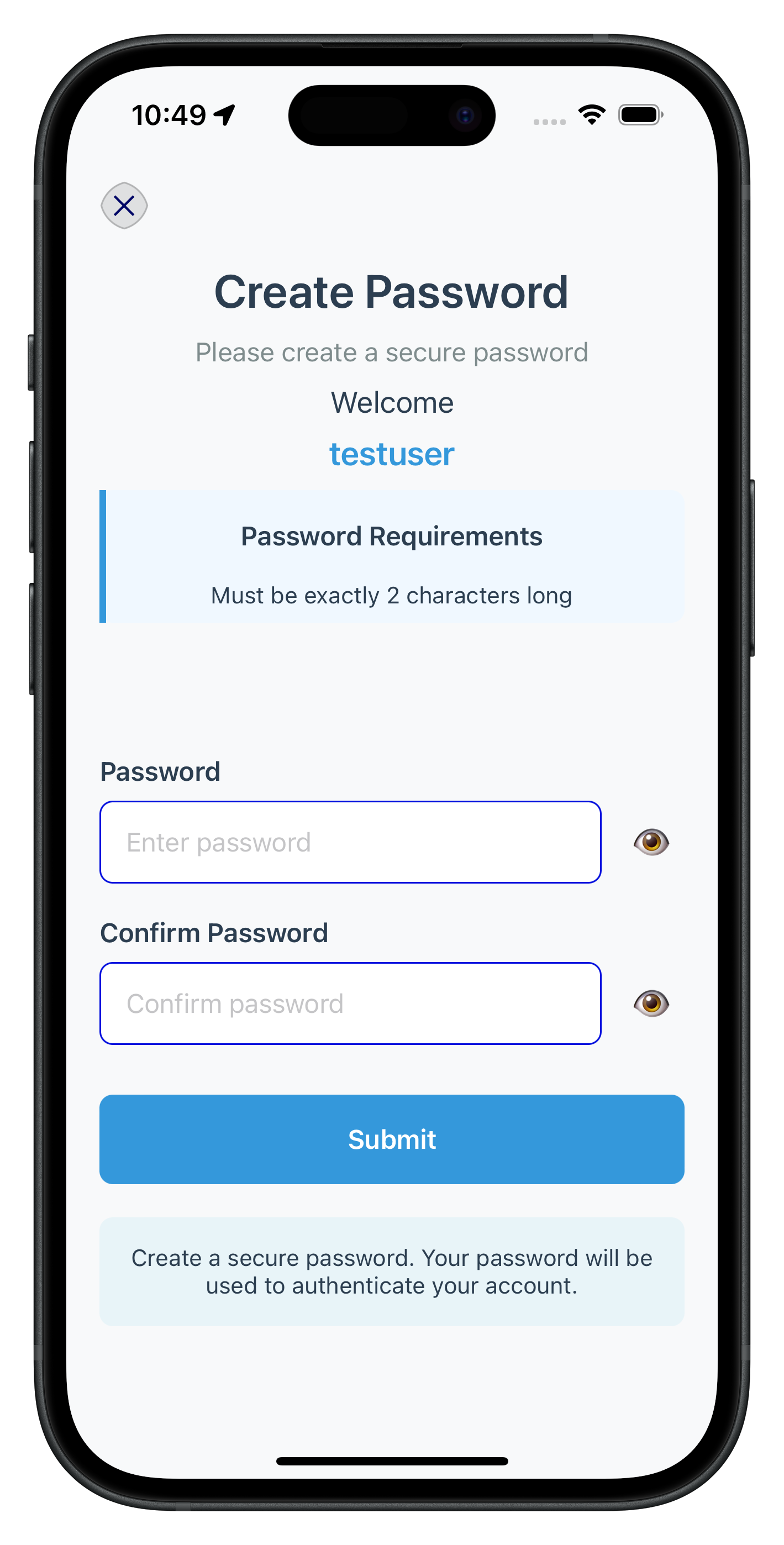
The following image showcases screen from the sample application:
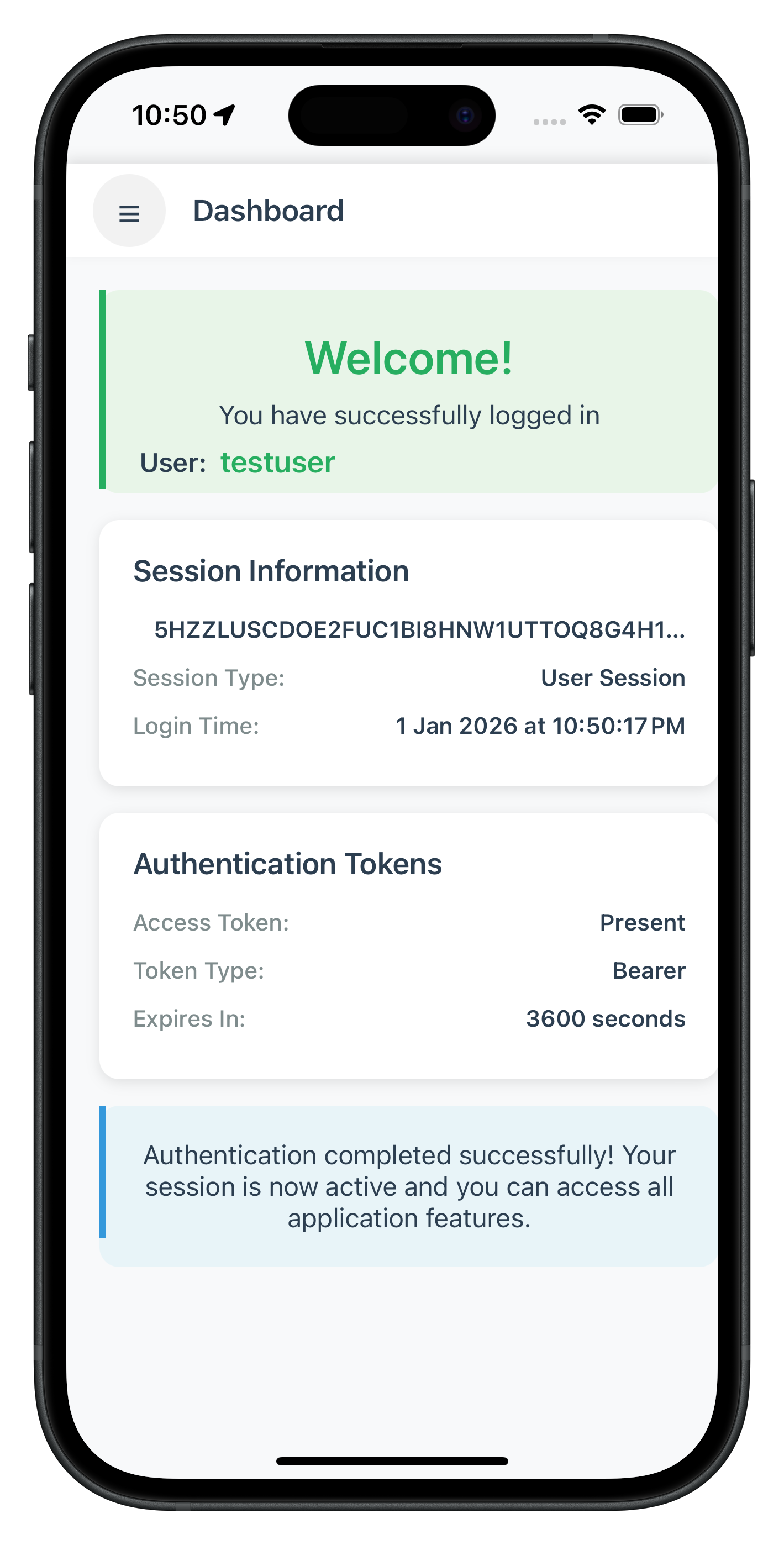
The Dashboard screen serves as the primary landing destination after successful activation or login completion. When the SDK triggers the onUserLoggedIn callback, it indicates that the user session has started and provides session details.
Understanding User Logout API and Callbacks
Complete MFA systems need secure logout functionality with proper session cleanup.
Understanding Logout Flow
The logout flow follows this sequence:
- User initiates logout (button press)
- Call
logOff()API to clean up session - SDK triggers
onUserLoggedOffcallback - Navigate back to initial screen
- SDK automatically triggers
getUsercallback (flow restarts)
DashboardViewController Implementation
// Sources/Tutorial/Screens/MFA/DashboardViewController.swift

/// DashboardViewController - Post-login dashboard screen
/// Triggered by SDK's onUserLoggedIn callback
class DashboardViewController: UIViewController {

    // MARK: - IBOutlets

    @IBOutlet weak var menuButton: UIButton!
    @IBOutlet weak var headerTitleLabel: UILabel!
    @IBOutlet weak var welcomeContainerView: UIView!
    @IBOutlet weak var welcomeTitleLabel: UILabel!
    @IBOutlet weak var welcomeSubtitleLabel: UILabel!
    @IBOutlet weak var userInfoLabel: UILabel!
    @IBOutlet weak var userInfoValue: UILabel!
    @IBOutlet weak var sessionContainerView: UIView!
    @IBOutlet weak var sessionTitleLabel: UILabel!
    @IBOutlet weak var sessionIDLabel: UILabel!
    @IBOutlet weak var sessionIDValue: UILabel!
    @IBOutlet weak var sessionTypeLabel: UILabel!
    @IBOutlet weak var sessionTypeValue: UILabel!
    @IBOutlet weak var loginTimeLabel: UILabel!
    @IBOutlet weak var loginTimeValue: UILabel!
    @IBOutlet weak var successContainerView: UIView!
    @IBOutlet weak var successLabel: UILabel!

    // MARK: - Properties

    private var userID: String = ""
    private var response: RDNAChallengeResponse?
    private var error: RDNAError?

    // MARK: - Lifecycle

    override func viewDidLoad() {
        super.viewDidLoad()
        setupUI()
        updateSessionInfo()
    }

    // MARK: - Public Methods

    func configure(
        userID: String,
        response: RDNAChallengeResponse,
        error: RDNAError
    ) {
        self.userID = userID
        self.response = response
        self.error = error
    }

    // MARK: - Actions

    @IBAction func menuTapped(_ sender: UIButton) {
        // Show action sheet with logout option
        let alert = UIAlertController(
            title: nil,
            message: nil,
            preferredStyle: .actionSheet
        )

        alert.addAction(UIAlertAction(title: "Log Off", style: .destructive) { [weak self] _ in
            self?.confirmLogout()
        })

        alert.addAction(UIAlertAction(title: "Cancel", style: .cancel))

        // For iPad
        alert.popoverPresentationController?.sourceView = sender
        alert.popoverPresentationController?.sourceRect = sender.bounds

        present(alert, animated: true)
    }

    // MARK: - Helper Methods

    private func confirmLogout() {
        let alert = UIAlertController(
            title: "Log Off",
            message: "Are you sure you want to log off from the application?",
            preferredStyle: .alert
        )

        alert.addAction(UIAlertAction(title: "Cancel", style: .cancel))
        alert.addAction(UIAlertAction(title: "Log Off", style: .destructive) { [weak self] _ in
            self?.performLogout()
        })

        present(alert, animated: true)
    }

    private func performLogout() {
        // Call SDK logOff method
        let error = RDNAService.shared.logOff(userID)

        if error.longErrorCode != 0 {
            showError(error.errorString ?? "Failed to logout")
        }
        // Success case will trigger SDK onUserLoggedOff callback
        // and navigate back to home automatically
    }

    private func updateSessionInfo() {
        userInfoValue.text = userID

        if let response = response {
            let sessionInfo = response.sessionInfo
            sessionIDValue.text = sessionInfo.sessionID

            let sessionTypeName = getSessionTypeName(sessionInfo.sessionType)
            sessionTypeValue.text = sessionTypeName

            let dateFormatter = DateFormatter()
            dateFormatter.dateStyle = .medium
            dateFormatter.timeStyle = .medium
            loginTimeValue.text = dateFormatter.string(from: Date())
        } else {
            sessionIDValue.text = "Not available"
            sessionTypeValue.text = "Not available"
            loginTimeValue.text = "N/A"
        }
    }

    private func getSessionTypeName(_ type: RDNASessionType) -> String {
        switch type {
        case .APP_SESSION:
            return "App Session"
        case .USER_SESSION:
            return "User Session"
        case .INVALID_SESSION:
            return "Invalid Session"
        @unknown default:
            return "Unknown"
        }
    }

    private func showError(_ message: String) {
        let alert = UIAlertController(
            title: "Logout Error",
            message: message,
            preferredStyle: .alert
        )
        alert.addAction(UIAlertAction(title: "OK", style: .default))
        present(alert, animated: true)
    }
}
Logout Flow Sequence
User clicks Menu → Log Off button
        ↓
Confirmation dialog
        ↓
logOff() API call
        ↓
Check sync response
        ↓
onUserLoggedOff callback triggered
        ↓
Navigate to TutorialHome Screen
        ↓
getUser callback automatically triggered
        ↓
Navigate to CheckUserScreen (flow restarts)
Key Implementation Notes
- Confirmation Dialog: Always confirm logout to prevent accidental logouts
- Loading States: Show loading indicator during logout process
- Callback Handling: Properly handle
onUserLoggedOffcallback for navigation - Flow Restart: SDK automatically triggers
getUserafter logout - Error Handling: Handle logout failures gracefully
The following images showcase screens from the sample application:
|
|

📝 What We're Building: Streamlined authentication for returning users with biometric prompts and password verification.
Login Flow vs Activation Flow
Key Differences:
Aspect | Activation Flow | Login Flow |
User Type | First-time users | Returning users |
OTP Required | Always required | Usually not required |
Biometric Setup | User chooses to enable | Automatic prompt if enabled |
Password Setup | Creates new password | Verifies existing password |
Navigation | Multiple screens | Fewer screens |
When Login Flow Occurs
Login Flow Triggers When:
- User previously completed activation on any device
- User has an existing account with established credentials
- Device authentication is already configured
- User logged out and is logging back in
Flow Detection: The same SDK callbacks (getUser, getPassword) are used for both flows. The difference is in:
- Context: SDK knows user history
- UI Adaptation: Screens show login-specific content
- Skip Steps: OTP verification often skipped
- Automatic LDA Prompts or Password Verification: Biometric authentication is triggered automatically if LDA is enabled; otherwise, password verification is required
Login Flow Events Sequence
SDK Initialization Complete
        ↓
   getUser Callback (Challenge: checkuser)
        ↓
   setUser API Call → User Recognition
        ↓
   [SDK Decision - Skip OTP for known users]
        ↓
   Device Authentication:
   ├─ LDA Enabled? → [Automatic Biometric Prompt]
   │                 ├─ Success → onUserLoggedIn Callback
   │                 └─ Failed/Cancelled → getUser Callback with error
   │
   └─ Password Only? → getPassword Callback (verification mode)
                       ↓
                       setPassword API Call
        ↓
   onUserLoggedIn Callback (Success) → Dashboard Screen
Same CheckUserViewController will be used which in activation flow.
Specific Status Code Handling
Status Code | Event Name | Meaning |
141 |
| Triggered when a user is blocked due to exceeded verify password attempts. This means the user can be unblocked using the resetBlockedUserAccount API |
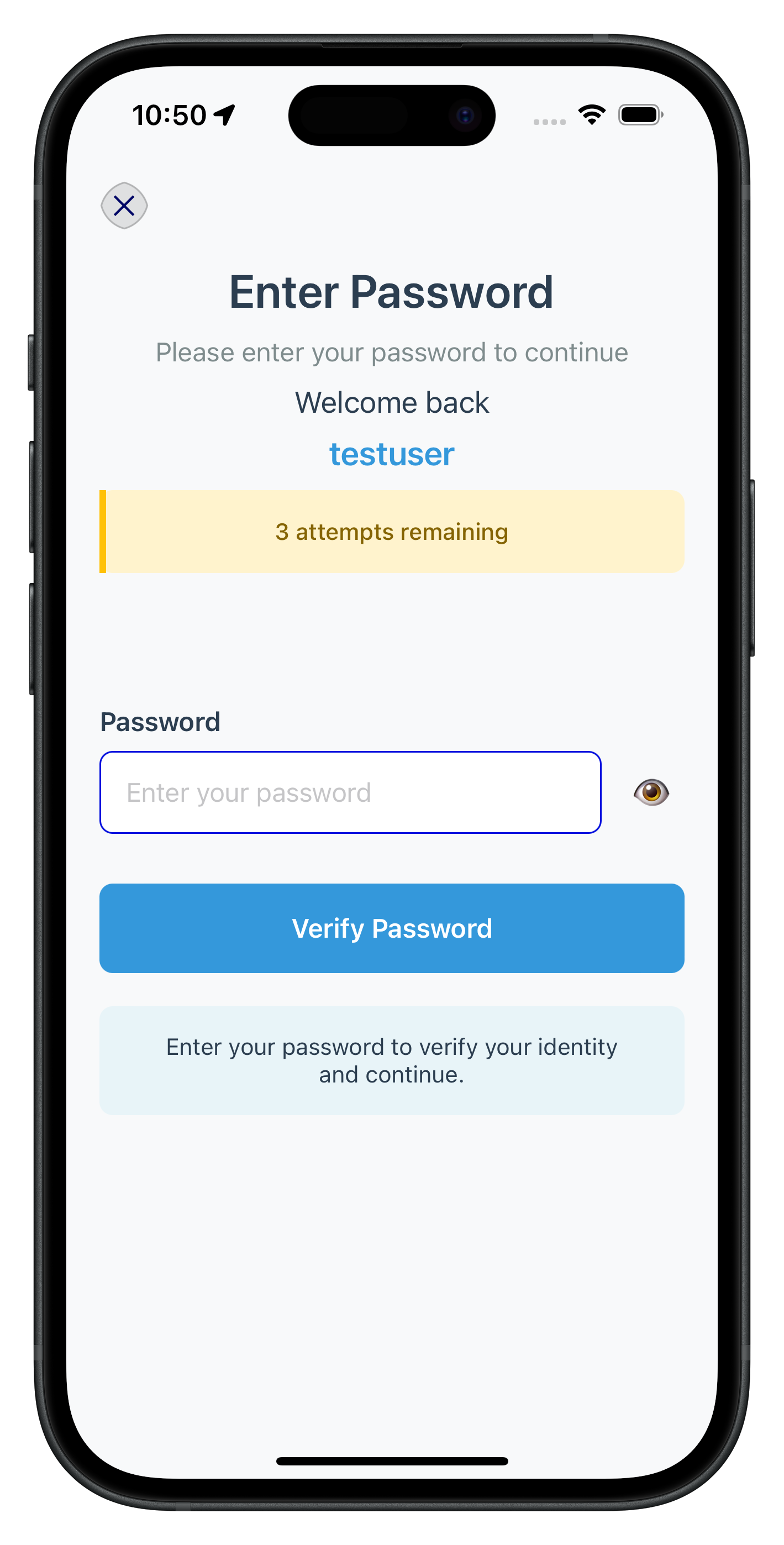
The Verify Password screen handles password verification during the login flow when users need to enter their existing password. This screen is triggered when challengeMode = .CHALLENGE_OP_VERIFY in the getPassword callback.
Key Features
- Single Password Input: Only requires password entry (no confirmation needed)
- Challenge Mode VERIFY Handling: Specifically designed for login flow password verification
- Attempts Tracking: Displays remaining login attempts to users
- Streamlined UI: Focused interface for quick authentication
- Error Recovery: Handles verification failures with clear feedback
VerifyPasswordViewController Implementation
// Sources/Tutorial/Screens/MFA/VerifyPasswordViewController.swift
/// VerifyPasswordViewController - Password verification screen
/// Triggered by SDK's getPassword callback with challengeMode = .CHALLENGE_OP_VERIFY
class VerifyPasswordViewController: UIViewController {
// MARK: - IBOutlets
@IBOutlet weak var titleLabel: UILabel!
@IBOutlet weak var subtitleLabel: UILabel!
@IBOutlet weak var welcomeLabel: UILabel!
@IBOutlet weak var userNameLabel: UILabel!
@IBOutlet weak var attemptsContainerView: UIView!
@IBOutlet weak var attemptsLabel: UILabel!
@IBOutlet weak var resultContainerView: UIView!
@IBOutlet weak var resultLabel: UILabel!
@IBOutlet weak var passwordInputLabel: UILabel!
@IBOutlet weak var passwordTextField: UITextField!
@IBOutlet weak var passwordToggleButton: UIButton!
@IBOutlet weak var submitButton: UIButton!
@IBOutlet weak var helpContainerView: UIView!
@IBOutlet weak var helpLabel: UILabel!
@IBOutlet weak var closeButton: UIButton!
// MARK: - Properties
private var userID: String = ""
private var challengeMode: RDNAChallengeOpMode = .CHALLENGE_OP_VERIFY
private var attemptsLeft: Int = 0
private var response: RDNAChallengeResponse?
private var error: RDNAError?
private var isPasswordVisible = false
// MARK: - Lifecycle
override func viewDidLoad() {
super.viewDidLoad()
setupUI()
setupTextField()
updateInfoLabels()
checkAndDisplayErrors()
}
// MARK: - Public Methods
func configure(
userID: String,
challengeMode: RDNAChallengeOpMode,
attemptsLeft: Int,
response: RDNAChallengeResponse,
error: RDNAError
) {
self.userID = userID
self.challengeMode = challengeMode
self.attemptsLeft = attemptsLeft
self.response = response
self.error = error
if isViewLoaded {
updateInfoLabels()
checkAndDisplayErrors()
}
}
func reconfigure(
userID: String,
challengeMode: RDNAChallengeOpMode,
attemptsLeft: Int,
response: RDNAChallengeResponse,
error: RDNAError
) {
self.userID = userID
self.challengeMode = challengeMode
self.attemptsLeft = attemptsLeft
self.response = response
self.error = error
updateInfoLabels()
checkAndDisplayErrors()
}
// MARK: - Actions
@IBAction func submitTapped(_ sender: UIButton) {
guard let password = passwordTextField.text, !password.isEmpty else {
showResult("Please enter your password", isSuccess: false)
return
}
hideResult()
// Call SDK setPassword method
let error = RDNAService.shared.setPassword(password, challengeMode: challengeMode)
if error.longErrorCode != 0 {
let errorMessage = error.errorString ?? "Failed to verify password"
showResult(errorMessage, isSuccess: false)
// Decrement attempts and update UI
if attemptsLeft > 0 {
attemptsLeft -= 1
attemptsLabel.text = "\(attemptsLeft) attempt\(attemptsLeft != 1 ? "s" : "") remaining"
if attemptsLeft == 0 {
attemptsLabel.text = "No attempts remaining - account may be locked"
submitButton.isEnabled = false
submitButton.backgroundColor = UIColor(hex: "#bdc3c7")
}
}
}
}
@IBAction func passwordToggleTapped(_ sender: UIButton) {
isPasswordVisible.toggle()
passwordTextField.isSecureTextEntry = !isPasswordVisible
passwordToggleButton.setTitle(isPasswordVisible ? "👁🗨" : "👁", for: .normal)
}
@IBAction func closeTapped(_ sender: UIButton) {
let error = RDNAService.shared.resetAuthState()
if error.longErrorCode != 0 {
showResult(error.errorString ?? "Failed to reset auth state", isSuccess: false)
return
}
}
// MARK: - Helper Methods
private func updateInfoLabels() {
if !userID.isEmpty {
userNameLabel.text = userID
welcomeLabel.isHidden = false
userNameLabel.isHidden = false
} else {
welcomeLabel.isHidden = true
userNameLabel.isHidden = true
}
if attemptsLeft > 0 {
attemptsLabel.text = "\(attemptsLeft) attempt\(attemptsLeft != 1 ? "s" : "") remaining"
attemptsContainerView.isHidden = false
} else {
attemptsContainerView.isHidden = true
}
}
private func checkAndDisplayErrors() {
guard let response = response, let error = error else { return }
if error.longErrorCode != 0 {
let errorMessage = error.errorString ?? "Incorrect password. Please try again."
showResult(errorMessage, isSuccess: false)
return
}
if response.status.statusCode != 100 {
let errorMessage = response.status.statusMessage
showResult(errorMessage, isSuccess: false)
return
}
}
private func showResult(_ message: String, isSuccess: Bool) {
resultLabel.text = message
if isSuccess {
resultContainerView.backgroundColor = UIColor(hex: "#f0f8f0")
resultLabel.textColor = UIColor(hex: "#27ae60")
} else {
resultContainerView.backgroundColor = UIColor(hex: "#fff0f0")
resultLabel.textColor = UIColor(hex: "#e74c3c")
passwordTextField.shake()
passwordTextField.text = ""
}
resultContainerView.isHidden = false
}
}
Specific Status Code Handling
Status Code | Event Name | Meaning |
102 |
| Triggered when an invalid password is provided in setPassword API with challengeMode = .CHALLENGE_OP_VERIFY |
Key Differences from SetPasswordViewController
Login Flow Optimizations:
- Single Input Field: Only requires password entry, no confirmation needed
- Welcome Back Message: Shows "Welcome back" instead of "Welcome" for returning users
- Attempts Tracking: Displays remaining login attempts with warning styling
- No Password Policy: Doesn't show policy requirements since password already exists
- Streamlined Validation: Simpler form validation focused on authentication
The following image showcases screen from the sample application:
The screens we built for activation automatically handle login flow contexts through the same AppCoordinator setup. The coordinator's global callback navigation already handles both flows.
SDK Coordinator Integration
The same AppCoordinator.setupGlobalCallbackNavigation() method handles event routing for both activation and login flows. The SDK automatically determines which flow to use based on user state.
Test both activation and login flows to ensure proper implementation.
Testing Preparation
Before Testing:
- Clear app data to simulate first-time user
- Ensure device has biometric authentication available
- Have valid test credentials ready
- Enable debug logging in development
End-to-End Testing Scenarios
Scenario 1: Complete Activation Flow (New User)
1. Launch app → TutorialHomeScreen
2. Tap "Start MFA" → getUser callback → CheckUserScreen
3. Enter username → setUser API → getActivationCode callback → ActivationCodeScreen
4. Enter OTP → setActivationCode API → getUserConsentForLDA callback → UserLDAConsentScreen
5. Enable biometric → setUserConsentForLDA API → [Biometric prompt]
6. Complete biometric → onUserLoggedIn callback → DashboardScreen
Validation Points:
- Each screen transition happens smoothly
- No duplicate callback handling
- Loading states show during API calls
- Biometric prompt appears automatically
- Dashboard shows activation success
Scenario 2: Login Flow (Returning User with Biometric)
1. Launch app (user previously activated)
2. SDK auto-triggers getUser callback → CheckUserScreen
3. Enter username → setUser API → [Automatic biometric prompt]
4. Complete biometric authentication → onUserLoggedIn callback → DashboardScreen
Validation Points:
- No OTP screen (skipped for known users)
- Biometric prompt appears immediately after user validation
- Fast login experience (< 5 seconds)
- Direct navigation to Dashboard
Scenario 3: Login Flow with Password
1. Launch app → CheckUserScreen
2. Enter username → setUser API → getPassword callback → VerifyPasswordScreen
3. Enter password → setPassword API → onUserLoggedIn callback → DashboardScreen
Validation Points:
- Password screen shows verification context
- Error recovery works smoothly
Scenario 4: Logout and Re-login Cycle
1. From Dashboard → Tap logout → Confirmation dialog
2. Confirm logout → logOff API → onUserLoggedOff callback → TutorialHomeScreen
3. SDK auto-triggers getUser callback → CheckUserScreen
4. Complete login flow → Back to Dashboard
Validation Points:
- Clean logout process
- Proper session cleanup
- Automatic flow restart
- All callback handlers reset properly
Testing Validation Points
Callback Sequence Validation
Monitor console logs for proper callback flow:
// Expected activation flow logs
AppCoordinator - onGetUser called
RDNAService - setUser API called
AppCoordinator - onGetActivationCode called
RDNAService - setActivationCode API called
AppCoordinator - onGetUserConsentForLDA called
RDNAService - setUserConsentForLDA API called
AppCoordinator - onUserLoggedIn called

// Expected login flow logs
AppCoordinator - onGetUser called
RDNAService - setUser API called
[Biometric prompt - no API logs]
AppCoordinator - onUserLoggedIn called
Navigation Flow Verification
Ensure proper screen navigation:
// Activation flow navigation
TutorialHomeScreen → CheckUserScreen → ActivationCodeScreen →
UserLDAConsentScreen → DashboardScreen

// Login flow navigation (typical)
TutorialHomeScreen → CheckUserScreen → DashboardScreen

// Login flow navigation (password validation)
TutorialHomeScreen → CheckUserScreen → VerifyPasswordScreen → DashboardScreen
Callback Handler Issues
Callback Not Triggering
Problem: SDK callbacks not firing after API calls
Solutions:
// 1. Verify callback handler registration in AppCoordinator
private func setupGlobalCallbackNavigation() {
    print("Setting up global callback navigation...")

    RDNADelegateManager.shared.onGetUser = { [weak self] userNames, recentUser, response, error in
        print("onGetUser callback received")
        self?.showCheckUser(...)
    }
}

// 2. Check weak reference preservation
// Use [weak self] in closures to prevent retain cycles
Navigation Issues
Duplicate Screens in Navigation Stack
Problem: Same screen appears multiple times in navigation stack when SDK callbacks fire repeatedly
Symptoms:
- Multiple instances of the same screen in navigation history
- Back button behavior is confusing (goes through duplicate screens)
- Memory usage increases with duplicate screens
- Performance degradation
Solution: AppCoordinator checks if target screen is already visible:
// Example from AppCoordinator.showCheckUser
if let existingVC = navigationController?.topViewController as? CheckUserViewController {
    print("AppCoordinator: CheckUserViewController already visible, reconfiguring...")
    existingVC.reconfigure(userNames: userNames, recentlyLoggedInUser: recentlyLoggedInUser, response: response, error: error)
    return
}
API Response Issues
Sync Response Errors
Problem: API calls returning error codes
Debugging:
let error = RDNAService.shared.setUser(username)
print("API Response - longErrorCode: \(error.longErrorCode)")
print("API Response - errorString: \(error.errorString ?? "N/A")")

// Common error codes:
// 0 - Success
// Non-zero - Various error conditions, check errorString
Activation Code Expired
Problem: Valid activation code expired
Solutions:
// Ensure to get new activation code if not received or expired
let error = RDNAService.shared.resendActivationCode()
Biometric Authentication Problems
Biometric Prompt Not Showing
Problem: LDA consent not showing biometric prompt
Solutions:
Ensure that the required permission is declared in Info.plist and granted at runtime, and that biometric authentication is available on the device.
Secure Data Handling
User Credentials Protection
// DON'T: Store credentials in plain text
struct UserData {
    let username: String
    let password: String // Never store passwords
    let activationCode: String // Never store activation codes
}

// DO: Handle credentials securely
func handleUserInput(username: String) {
    // Validate input format
    guard isValidEmail(username) else {
        showError("Please enter a valid email address")
        return
    }

    // Send to SDK immediately, don't store
    let error = RDNAService.shared.setUser(username)

    // Clear sensitive form data
    DispatchQueue.main.asyncAfter(deadline: .now() + 1) {
        self.usernameTextField.text = ""
    }
}
Error Message Security
// DON'T: Expose sensitive information in errors
if error.errorString.contains("user not found") {
    showError("User does not exist in our system") // Reveals user existence
}

// DO: Use generic error messages
func getSafeErrorMessage(error: RDNAError) -> String {
    // Map specific errors to user-friendly messages
    let errorMap: [Int64: String] = [
        101: "Please check your credentials and try again",
        106: "Invalid activation code. Please try again",
        // Add more mappings as needed
    ]

    return errorMap[error.longErrorCode] ?? "An error occurred. Please try again"
}
Session Management Security
Secure Logout Implementation
func performSecureLogout() {
    // 1. Clear sensitive data from memory
    usernameTextField.text = ""
    passwordTextField.text = ""

    // 2. Call SDK logout
    let error = RDNAService.shared.logOff(userID)

    if error.longErrorCode != 0 {
        print("Logout error: \(error.errorString ?? "Unknown")")
        // Force navigation even on error
    }

    // 3. Reset navigation stack (handled by AppCoordinator via onUserLoggedOff callback)
}
Memory Security
Secure Memory Management
// Clear sensitive data from view controller
deinit {
    passwordTextField.text = ""
    activationCodeTextField.text = ""
}

// Handle app backgrounding
override func viewWillDisappear(_ animated: Bool) {
    super.viewWillDisappear(animated)

    // Clear sensitive data when view disappears
    if isMovingFromParent {
        passwordTextField.text = ""
        activationCodeTextField.text = ""
    }
}
Production Deployment Checklist
Security Review:
- [ ] Remove all debug logging in production builds
- [ ] Validate all user inputs on both client and server
- [ ] Implement proper error handling without information disclosure
- [ ] Use Keychain for any cached data
- [ ] Implement certificate pinning for external API calls
- [ ] Test with security scanning tools
Performance Review:
- [ ] Optimize view controller lifecycle
- [ ] Implement proper memory management
- [ ] Test on various device types and iOS versions
- [ ] Verify app performance under low memory conditions
- [ ] Test network error scenarios and offline behavior
User Experience Review:
- [ ] Verify proper keyboard navigation
- [ ] Test with various screen sizes and orientations
- [ ] Validate user flows with actual users
Congratulations! You've successfully implemented a complete, production-ready MFA Activation and Login flow using the RDNA iOS SDK:
What You've Built
Complete MFA Implementation:
- Activation Flow: Full first-time user onboarding with device enrollment
- Login Flow: Streamlined authentication for returning users
- Callback-Driven Architecture: Robust handling of all SDK callbacks and challenges
- Production-Ready UI: Responsive screens with proper error handling and loading states
- Security Implementation: Following security best practices throughout
- Testing Strategy: Comprehensive testing approach for both flows
Key Implementation Patterns Mastered
- Challenge-Response Pattern: Understanding how SDK callbacks map to API calls
- Synchronous API + Asynchronous Callbacks: Combining immediate API responses with callback handling
- Cyclical Challenge Handling: Managing repeated callbacks gracefully
- Flow Detection Logic: Distinguishing between activation and login contexts
- Error Boundary Implementation: Graceful error handling at API and UI levels
- Coordinator Pattern: Centralized navigation with closure-based callbacks
Architecture Benefits
Your implementation provides:
- Scalable Callback System: Easy to extend for additional MFA challenges
- Reusable Components: UI patterns that work across both flows
- Context-Aware Navigation: Smart navigation that adapts to user state
- Robust Error Recovery: Users can recover from errors without restarting flows
- Performance Optimization: Streamlined login experience for returning users
What Happens Next
Next User Login Experience:
When users return to your app, they'll experience the optimized login flow:
- SDK automatically triggers
getUsercallback - User enters credentials → Instant biometric prompt (if enabled)
- One-touch authentication → Direct access to app
Next Steps & Advanced Features
With this foundation, you're ready to explore:
Advanced MFA Features:
- Session Management
- Additional device activation
References & Resources
You're now ready to deploy a production-grade MFA system! Your implementation demonstrates enterprise-level security practices and provides an excellent foundation for building secure, user-friendly authentication experiences.
The complete working implementation is available in the sample app for reference and further customization.