🎯 Learning Path:
- Complete REL-ID Complete Activation & Login Flow Codelab
- Complete REL-ID Additional Device Activation Flow Codelab
- Complete REL-ID Forgot Password Flow Codelab
- You are here → LDA Toggling Implementation
Welcome to the REL-ID LDA Toggling codelab! This tutorial builds upon your existing MFA implementation to add seamless authentication mode switching capabilities, allowing users to toggle between password and Local Device Authentication (LDA).
What You'll Build
In this codelab, you'll enhance your existing MFA application with:
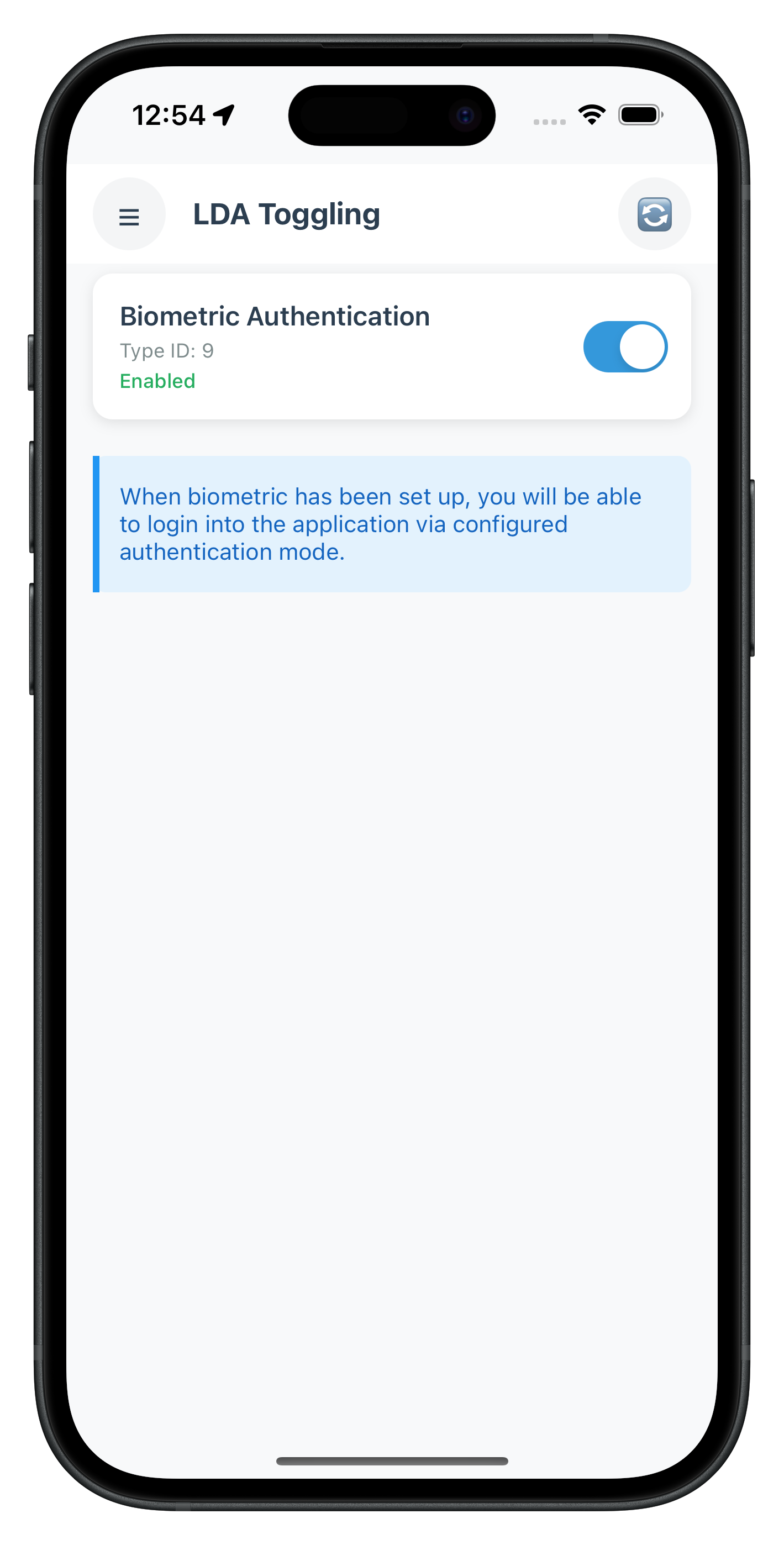
- 🔐 LDA Management Screen: Interactive list of available authentication methods with toggle switches
- 🔄 Two-Way Authentication Switching: Enable switching from Password to LDA and LDA to Password
- 📱 Device Capability Detection: Automatic detection and display of supported authentication types
- 🎛️ Real-time Status Updates: Live feedback on authentication mode changes
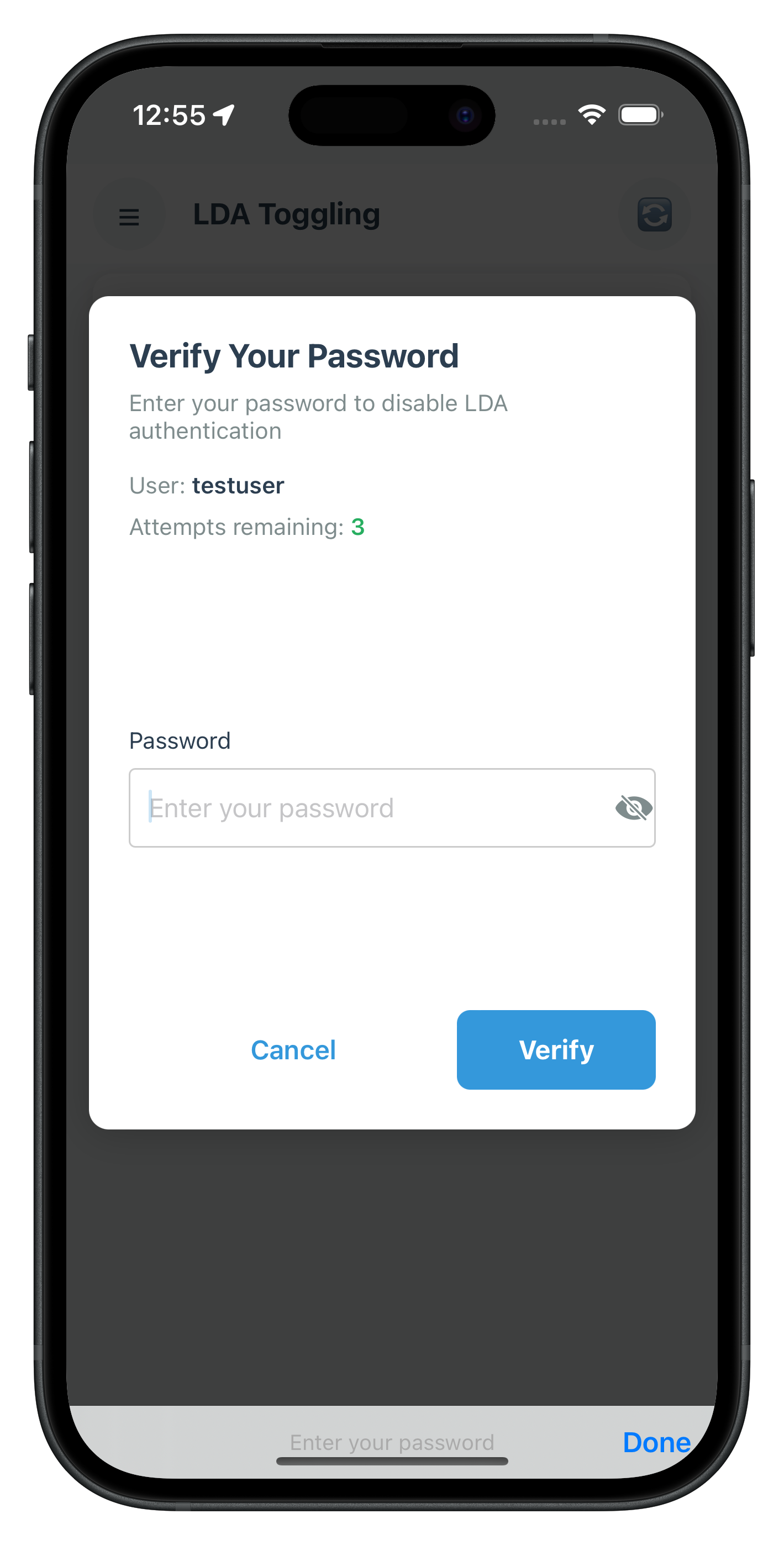
- 🛡️ Secure Revalidation Flow: Password verification or consent prompts during mode switching
What You'll Learn
By completing this codelab, you'll master:
- Device Authentication Details API: Retrieving supported LDA types using
getDeviceAuthenticationDetails() - Authentication Mode Management: Implementing
manageDeviceAuthenticationModes()for toggling - Event-Driven Status Updates: Handling
onDeviceAuthManagementStatusfor real-time feedback - Challenge Mode Routing: Managing password verification and consent flows during toggling
- UIKit View Controller Patterns: Building table views with custom cells and toggle switches
- Production UI Patterns: Creating intuitive toggle interfaces with loading and error states
Prerequisites
Before starting this codelab, ensure you have:
- ✅ Completed REL-ID MFA Codelab - All MFA screens and flows must be fully implemented
- ✅ iOS Development Environment - Xcode 13.0 or later installed and configured
- ✅ REL-ID iOS SDK Integration - Latest SDK with LDA toggling support
- ✅ Swift Knowledge - Understanding of Swift syntax, optionals, and closures
- ✅ Device with Biometrics - Physical device or simulator with biometric authentication enrolled
Get the Code from GitHub
The code to get started can be found in a GitHub repository.
You can clone the repository using the following command:
git clone https://github.com/uniken-public/codelab-ios.git
Navigate to the relid-MFA-lda-toggling folder in the repository you cloned earlier
Codelab Architecture Overview
This codelab extends your MFA application with four core LDA toggling components:
- Swift Type Extensions: Structures for authentication capabilities and status events
- Service Layer Integration: SDK methods for retrieving and managing authentication modes
- Delegate Management: Closure-based handlers for
onDeviceAuthManagementStatuscallback - LDA Toggling View Controller: Interactive UITableView for displaying and toggling authentication methods
Before implementing LDA toggling functionality, let's understand the key SDK events, APIs, and workflows that power authentication mode switching.
LDA Toggling Overview
LDA Toggling enables users to seamlessly switch between authentication methods:
Toggling Type | Description | User Action |
Password → LDA | Switch from password to LDA | User enables LDA such as biometric authentication |
LDA → Password | Switch from LDA to password | User disables LDA |
Core LDA Toggling APIs
The REL-ID iOS SDK provides these essential methods for LDA management:
API Method | Purpose | Response Type |
Retrieve available LDA types and their configuration status | Synchronous return with tuple | |
Enable or disable specific LDA type | Synchronous return + async delegate callback | |
Receive status update after mode change | Async delegate callback |
LDA Toggling Event Flow
The authentication mode switching process follows this event-driven pattern:
LDA Toggling Screen → getDeviceAuthenticationDetails() API → Display Available LDA Types →
User Toggles Switch → manageDeviceAuthenticationModes() API →
[getPassword or getUserConsentForLDA Event] →
onDeviceAuthManagementStatus Delegate → UI Update with Status
Authentication Type Mappings
The SDK uses enum values for different authentication types:
Authentication Type | Value | Platform | Description |
| 1 | iOS/Android | Touch ID / Fingerprint |
| 2 | iOS/Android | Face ID / Face Recognition |
| 3 | Android | Pattern Authentication |
| 4 | Android | Biometric Authentication |
| 9 | iOS/Android | Biometric Authentication |
Challenge Modes in LDA Toggling
During LDA toggling, the SDK may trigger revalidation events with specific challenge modes:
Challenge Mode | Delegate Triggered | Purpose | User Action Required |
0 or 5 or 15 |
| Verify existing password before toggling | User enters current password |
14 |
| Set new password when disabling LDA | User creates new password |
16 |
| Get consent for LDA enrollment | User approves or denies the consent to setup LDA |
Response Structure Examples
getDeviceAuthenticationDetails Response:
// Returns tuple: ([RDNADeviceAuthenticationDetails], RDNAError)
let (details, error) = RDNAService.shared.getDeviceAuthenticationDetails()

// Each detail contains:
struct RDNADeviceAuthenticationDetails {
    var authenticationType: RDNALDACapabilities  // Enum value
    var isEnabled: Bool                          // Configuration status
}
onDeviceAuthManagementStatus Delegate:
RDNADelegateManager.shared.onDeviceAuthManagementStatus = { userID, isEnabled, authType, status, error in
    // userID: String
    // isEnabled: Bool (true = enabled, false = disabled)
    // authType: RDNALDACapabilities (enum)
    // status: RDNARequestStatus (statusCode, statusMessage)
    // error: RDNAError (longErrorCode, errorString)
}
Let's establish the iOS project structure for LDA toggling implementation.
Sample App Directory Structure
Your iOS application should follow this structure:
relidcodelab/
├── AppDelegate.swift                    # App lifecycle
├── SceneDelegate.swift                  # Scene lifecycle (iOS 13+)
├── Sources/
│   ├── Uniken/
│   │   ├── Services/
│   │   │   ├── RDNAService.swift        # SDK service wrapper
│   │   │   └── RDNADelegateManager.swift # Event handling
│   │   └── Utils/
│   │       └── ConnectionProfileParser.swift
│   └── Tutorial/
│       ├── Navigation/
│       │   └── AppCoordinator.swift     # Navigation coordinator
│       └── Screens/
│           ├── MFA/
│           │   ├── DashboardViewController.swift
│           │   ├── VerifyPasswordViewController.swift
│           │   ├── SetPasswordViewController.swift
│           │   └── UserLDAConsentViewController.swift
│           └── LDAToggling/
│               ├── LDATogglingViewController.swift
│               └── LDAToggleAuthViewController.swift  # Modal auth dialog
├── Resources/
│   └── agent_info.json                  # Connection profile
├── Assets.xcassets/                     # Images and colors
├── Main.storyboard                      # UI layout
├── Info.plist                           # App configuration
└── Podfile                              # Dependencies (CocoaPods)
Key Components
Component | Purpose | Pattern |
AppDelegate.swift | App lifecycle and SDK initialization | Entry point |
RDNAService.swift | SDK wrapper with singleton pattern | Service layer |
RDNADelegateManager.swift | RDNACallbacks protocol implementation | Delegate pattern |
AppCoordinator.swift | Centralized navigation management | Coordinator pattern |
LDATogglingViewController.swift | LDA toggling UI and logic | View controller |
LDAToggleAuthViewController.swift | Modal authentication dialog for challenges | Modal view controller |
Main.storyboard | UI layout with Interface Builder | Storyboard-based UI |
Challenge Mode Authentication Flow
During LDA toggling, the SDK triggers authentication challenges that require user verification:
Challenge Mode | Screen | Purpose |
5 or 15 | LDAToggleAuthViewController (modal) | Verify existing password before toggling |
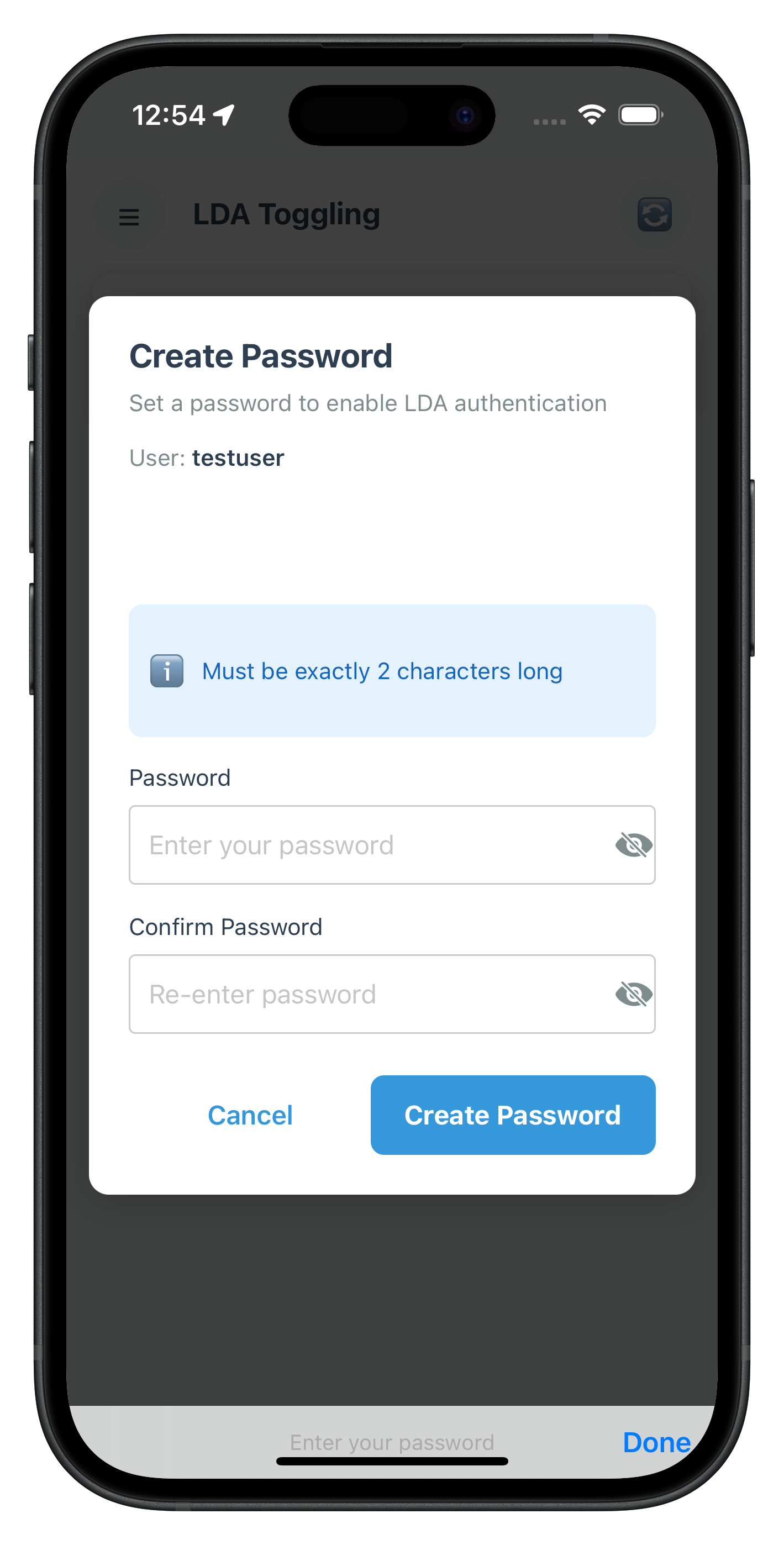
14 | LDAToggleAuthViewController (modal) | Set new password when disabling LDA |
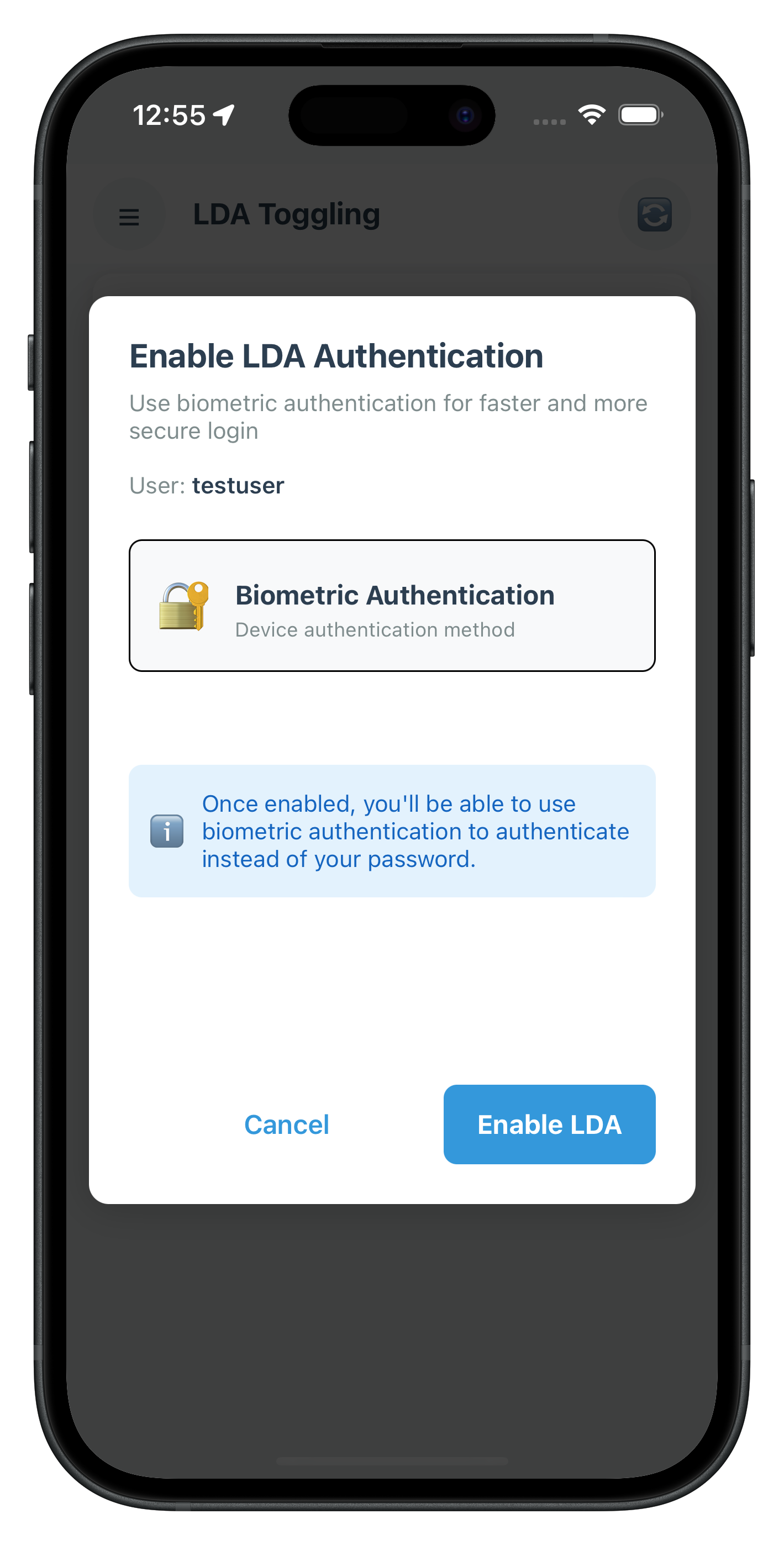
16 | LDAToggleAuthViewController (modal) | Get user consent for enabling LDA |
Key Difference: LDAToggleAuthViewController is a modal dialog that appears over the LDA Toggling screen for inline challenges, while the full MFA flows use full-screen view controllers (VerifyPasswordViewController, SetPasswordViewController, UserLDAConsentViewController).
Let's implement the LDA toggling methods in your RDNAService.swift wrapper.
Add getDeviceAuthenticationDetails Method
Add this method to your RDNAService.swift:
// RDNAService.swift (addition after existing methods)

/// Get device authentication details
///
/// This method retrieves the current authentication mode details and available authentication types.
/// Returns data synchronously as a tuple.
///
/// - Returns: Tuple containing array of authentication details and error
func getDeviceAuthenticationDetails() -> ([RDNADeviceAuthenticationDetails], RDNAError) {
    print("RDNAService - Calling getDeviceAuthenticationDetails")

    let details = rdna.getDeviceAuthenticationDetails()
    let error = RDNAError()
    error.longErrorCode = 0
    error.errorString = "Success"

    print("RDNAService - Received \(details.count) authentication capabilities")

    return (details, error)
}
Add manageDeviceAuthenticationModes Method
Add this method after getDeviceAuthenticationDetails:
// RDNAService.swift (continued addition)

/// Manage device authentication modes (enables or disables LDA types)
///
/// This method initiates the process of switching authentication modes.
/// The SDK may return data directly or trigger async delegate callbacks.
/// May also trigger getPassword or getUserConsentForLDA delegates based on the scenario.
///
/// Challenge Mode Flow:
/// - Enable LDA: May trigger challengeMode 5 (verify password) → challengeMode 16 (consent)
/// - Disable LDA: May trigger challengeMode 15 (verify password) → challengeMode 14 (set password)
///
/// - Parameters:
///   - isEnabled: true to enable, false to disable the authentication type
///   - authenticationType: The LDA type to manage (RDNALDACapabilities enum)
/// - Returns: RDNAError indicating immediate success/failure
func manageDeviceAuthenticationModes(isEnabled: Bool, authenticationType: RDNALDACapabilities) -> RDNAError {
    print("RDNAService - Calling manageDeviceAuthenticationModes")
    print("  IsEnabled: \(isEnabled), AuthType: \(authenticationType.rawValue)")

    let error = rdna.manageDeviceAuthenticationMode(isEnabled, authenticationType: authenticationType)

    print("RDNAService - manageDeviceAuthenticationModes returned")
    print("  Error Code: \(error.longErrorCode)")

    // SDK will trigger:
    // 1. getPassword delegate (challengeMode 5, 14, or 15)
    // 2. getUserConsentForLDA delegate (challengeMode 16)
    // 3. onDeviceAuthManagementStatus delegate (final status)

    return error
}
Service Implementation Architecture
Both methods follow the iOS SDK service pattern:
Pattern Element | Implementation Detail |
Synchronous Returns | Direct return values, no Promise wrappers needed |
Tuple Returns | Swift tuple for multiple return values |
Error Handling | RDNAError object with longErrorCode and errorString |
Logging Strategy | Comprehensive console logging for debugging |
Delegate Triggering | SDK triggers async delegates for status updates |
Now let's enhance your delegate manager to handle the onDeviceAuthManagementStatus async callback.
Add Closure Property
Add this closure property to your RDNADelegateManager.swift:
// RDNADelegateManager.swift (additions to closure properties)

// MARK: - LDA Management Callback Closures

/// Closure invoked when device authentication mode management completes
/// LDA-TOGGLING-SPECIFIC: Handle success/failure of enable/disable operations
var onDeviceAuthManagementStatus: ((_ userID: String, _ isEnabled: Bool, _ authenticationType: RDNALDACapabilities, _ status: RDNARequestStatus, _ error: RDNAError) -> Void)?
Implement Delegate Method
Add the RDNACallbacks protocol implementation:
// RDNADelegateManager.swift (additions to protocol implementations)

// MARK: - RDNACallbacks Protocol - LDA Management

func deviceAuthManagementStatus(
    _ userID: String,
    isAuthTypeEnabled: Bool,
    authenticationType: RDNALDACapabilities,
    status: RDNARequestStatus,
    error: RDNAError
) {
    print("RDNADelegateManager - Device auth management status received")
    print("  UserID: \(userID)")
    print("  IsEnabled: \(isAuthTypeEnabled)")
    print("  AuthType: \(authenticationType.rawValue)")
    print("  Status Code: \(status.statusCode)")
    print("  Error Code: \(error.longErrorCode)")

    // Dispatch to main thread for UI updates
    DispatchQueue.main.async { [weak self] in
        self?.onDeviceAuthManagementStatus?(userID, isAuthTypeEnabled, authenticationType, status, error)
    }
}
Delegate Flow Architecture
The delegate management follows this pattern:
Native SDK → deviceAuthManagementStatus() → Dispatch to Main Thread → onDeviceAuthManagementStatus Closure → LDA Screen
During LDA toggling, the SDK may trigger password verification or consent delegates. The iOS implementation uses a modal dialog pattern to handle these challenges while keeping the user in context.
Modal Dialog Pattern with LDAToggleAuthViewController
The LDATogglingViewController uses a callback preservation pattern to temporarily override global delegate handlers and show a modal dialog for authentication challenges. This provides a better user experience by keeping the user in context on the LDA Toggling screen.
LDAToggleAuthViewController is a unified modal dialog that handles ALL authentication challenges (modes 5, 14, 15, 16) in a single component:
// LDATogglingViewController.swift (event handler setup)

private func setupEventHandlers() {
    let delegateManager = RDNADelegateManager.shared

    // Preserve original handlers (callback preservation pattern)
    originalPasswordHandler = delegateManager.onGetPassword
    originalConsentHandler = delegateManager.onGetUserConsentForLDA

    // Override for LDA toggling - show modal dialog
    delegateManager.onGetPassword = { [weak self] userID, challengeMode, attemptsLeft, response, error in
        let mode = Int(challengeMode.rawValue)

        // Only handle LDA toggling modes (5, 14, 15)
        if mode == 5 || mode == 14 || mode == 15 {
            // Show MODAL dialog, not full-screen navigation
            LDAToggleAuthViewController.show(
                in: self,
                challengeMode: mode,
                userID: userID,
                attemptsLeft: attemptsLeft,
                passwordData: (response, error),
                onCancelled: { [weak self] in
                    self?.processingAuthType = nil
                    self?.tableView.reloadData()
                }
            )
        } else {
            // Other modes: call preserved original handler
            self?.originalPasswordHandler?(userID, challengeMode, attemptsLeft, response, error)
        }
    }

    delegateManager.onGetUserConsentForLDA = { [weak self] userID, challengeMode, authType, response, error in
        let mode = Int(challengeMode.rawValue)

        // Only handle LDA toggling consent (16)
        if mode == 16 {
            // Show MODAL dialog for consent
            LDAToggleAuthViewController.show(
                in: self,
                challengeMode: mode,
                userID: userID,
                attemptsLeft: 1,
                consentData: (authType, response, error),
                onCancelled: { [weak self] in
                    self?.processingAuthType = nil
                    self?.tableView.reloadData()
                }
            )
        } else {
            // Other modes: call preserved original handler
            self?.originalConsentHandler?(userID, challengeMode, authType, response, error)
        }
    }
}

deinit {
    // Restore preserved handlers on cleanup
    let delegateManager = RDNADelegateManager.shared
    delegateManager.onGetPassword = originalPasswordHandler
    delegateManager.onGetUserConsentForLDA = originalConsentHandler
}
Challenge Mode Flow Chart
The challenge mode routing follows this decision tree:
manageDeviceAuthenticationModes() Called
│
├─ Enable LDA (isEnabled = true)
│  ├─ challengeMode = 5 → Verify Password Modal → challengeMode = 16 → User Consent Modal → Success
│  └─ challengeMode = 16 → User Consent Modal → Success
│
└─ Disable LDA (isEnabled = false)
   ├─ challengeMode = 15 → Verify Password Modal → challengeMode = 14 → Set Password Modal → Success
   └─ challengeMode = 14 → Set Password Modal → Success
All challenge modes are handled by LDAToggleAuthViewController.show() which presents a modal dialog over the LDA Toggling screen.
Key Benefits:
Benefit | Description |
Context Preservation | User stays on LDA Toggling screen, sees toggle switches |
Better UX | No full-screen navigation interruption |
Single Modal Component | One unified dialog handles all challenge modes (5, 14, 15, 16) |
Callback Preservation | Original handlers restored when screen is dismissed |
Cancelation Support | User can cancel without completing authentication |
Now let's create the main LDA Toggling view controller with interactive toggle switches.
Create Authentication Type Mapping
First, define the authentication type name mapping:
// LDATogglingViewController.swift (new file)

import UIKit
import RELID

/// Authentication Type Mapping
/// Maps RDNALDACapabilities enum values to human-readable names
private let authTypeNames: [Int: String] = [
    0: "None",
    1: "Biometric Authentication",  // RDNA_LDA_FINGERPRINT
    2: "Face ID",                    // RDNA_LDA_FACE
    3: "Pattern Authentication",     // RDNA_LDA_PATTERN
    4: "Biometric Authentication",   // RDNA_LDA_SSKB_PASSWORD
    9: "Biometric Authentication",   // RDNA_DEVICE_LDA
]
Implement View Controller State Management
Set up the view controller with proper state management:
// LDATogglingViewController.swift (continued)

class LDATogglingViewController: UIViewController {

    // MARK: - IBOutlets

    @IBOutlet weak var tableView: UITableView!
    @IBOutlet weak var loadingContainer: UIView!
    @IBOutlet weak var activityIndicator: UIActivityIndicatorView!

    // MARK: - Properties

    /// Session data passed from Dashboard
    var userID: String = ""
    var sessionID: String = ""
    var jwtToken: String = ""

    /// Authentication capabilities from SDK
    private var authCapabilities: [RDNADeviceAuthenticationDetails] = []

    /// UI State
    private var isLoading = true
    private var errorMessage: String?
    private var processingAuthType: Int?

    /// Preserved original handlers (for callback preservation pattern)
    private var originalPasswordHandler: ((_ userID: String, _ challengeMode: RDNAChallengeOpMode, _ attemptsLeft: Int, _ response: RDNAChallengeResponse, _ error: RDNAError) -> Void)?
    private var originalConsentHandler: ((_ userID: String, _ challengeMode: RDNAChallengeOpMode, _ authenticationType: RDNALDACapabilities, _ response: RDNAChallengeResponse, _ error: RDNAError) -> Void)?

    override func viewDidLoad() {
        super.viewDidLoad()
        setupTableView()
        setupEventHandlers()
        loadAuthenticationDetails()
    }

    deinit {
        cleanupEventHandlers()
    }
}
Implement Data Loading
Add the method to load authentication details:
// LDATogglingViewController.swift (continued)

// MARK: - Data Loading

private func loadAuthenticationDetails() {
    print("LDATogglingViewController - Calling getDeviceAuthenticationDetails API")

    isLoading = true
    errorMessage = nil
    updateUI()

    // Get authentication details (synchronous)
    let (details, error) = RDNAService.shared.getDeviceAuthenticationDetails()

    print("LDATogglingViewController - getDeviceAuthenticationDetails API response received")
    print("  Error Code: \(error.longErrorCode)")

    if error.longErrorCode != 0 {
        let message = error.errorString
        print("LDATogglingViewController - Authentication details error: \(message)")
        isLoading = false
        errorMessage = message
        updateUI()
        return
    }

    // Success
    print("LDATogglingViewController - Received capabilities: \(details.count)")
    authCapabilities = details
    isLoading = false
    updateUI()
}
Setup Event Handlers
Implement the event handler setup with callback preservation:
// LDATogglingViewController.swift (continued)

// MARK: - Setup

private func setupEventHandlers() {
    print("LDATogglingViewController - Setting up event handlers")

    let delegateManager = RDNADelegateManager.shared

    // Preserve original handlers (callback preservation pattern)
    originalPasswordHandler = delegateManager.onGetPassword
    originalConsentHandler = delegateManager.onGetUserConsentForLDA

    print("LDATogglingViewController - Preserved original handlers")

    // Set up handlers for LDA toggling challengeModes
    delegateManager.onDeviceAuthManagementStatus = { [weak self] userID, isEnabled, authType, status, error in
        self?.handleAuthManagementStatusReceived(userID: userID, isEnabled: isEnabled, authType: authType, status: status, error: error)
    }

    delegateManager.onGetPassword = { [weak self] userID, challengeMode, attemptsLeft, response, error in
        let mode = Int(challengeMode.rawValue)

        // Only handle LDA toggling password modes (5, 14, 15)
        if mode == 5 || mode == 14 || mode == 15 {
            print("LDATogglingViewController - Handling challengeMode \(mode) for LDA toggling")
            // Navigate to password screen via AppCoordinator
            AppCoordinator.shared.showVerifyOrSetPassword(/* ... */)
        } else {
            // Other modes: call preserved original handler
            self?.originalPasswordHandler?(userID, challengeMode, attemptsLeft, response, error)
        }
    }

    delegateManager.onGetUserConsentForLDA = { [weak self] userID, challengeMode, authType, response, error in
        let mode = Int(challengeMode.rawValue)

        // Only handle LDA toggling consent mode (16)
        if mode == 16 {
            print("LDATogglingViewController - Handling challengeMode 16 for LDA toggling consent")
            // Navigate to consent screen via AppCoordinator
            AppCoordinator.shared.showUserLDAConsent(/* ... */)
        } else {
            // Other modes: call preserved original handler
            self?.originalConsentHandler?(userID, challengeMode, authType, response, error)
        }
    }

    print("LDATogglingViewController - Event handlers registered with callback preservation")
}

private func cleanupEventHandlers() {
    print("LDATogglingViewController - Cleaning up event handlers")

    let delegateManager = RDNADelegateManager.shared

    // Clear our handler
    delegateManager.onDeviceAuthManagementStatus = nil

    // Restore preserved handlers
    delegateManager.onGetPassword = originalPasswordHandler
    delegateManager.onGetUserConsentForLDA = originalConsentHandler

    print("LDATogglingViewController - Event handlers restored")
}
Handle Async Callbacks
Implement the async callback handler:
// LDATogglingViewController.swift (continued)

// MARK: - Event Handlers

/// Handle auth management status received from onDeviceAuthManagementStatus delegate
private func handleAuthManagementStatusReceived(userID: String, isEnabled: Bool, authType: RDNALDACapabilities, status: RDNARequestStatus, error: RDNAError) {
    print("LDATogglingViewController - Received auth management status event")
    print("  UserID: \(userID), IsEnabled: \(isEnabled), AuthType: \(authType.rawValue)")
    print("  Status Code: \(status.statusCode), Error Code: \(error.longErrorCode)")

    processingAuthType = nil

    // Check for errors
    if error.longErrorCode != 0 {
        let errorCode = error.longErrorCode
        let message = error.errorString

        // Error code 217: User cancelled LDA consent - silently refresh, no error alert
        if errorCode == 217 {
            print("LDATogglingViewController - User cancelled LDA consent (error 217), refreshing without alert")
            loadAuthenticationDetails()
            return
        }

        // Other errors: show alert
        print("LDATogglingViewController - Auth management status error: \(message)")
        showAlert(title: "Update Failed", message: message)
        return
    }

    // Check status
    if status.statusCode == 100 {
        let opMode = isEnabled ? "enabled" : "disabled"
        let authTypeName = authTypeNames[Int(authType.rawValue)] ?? "Authentication Type \(authType.rawValue)"

        print("LDATogglingViewController - Auth management status success")

        showAlert(
            title: "Success",
            message: "\(authTypeName) has been \(opMode) successfully.",
            handler: { [weak self] in
                // Refresh to get updated status
                self?.loadAuthenticationDetails()
            }
        )
    } else {
        let message = status.statusMessage ?? "Unknown error occurred"
        print("LDATogglingViewController - Auth management status error: \(message)")
        showAlert(
            title: "Update Failed",
            message: message,
            handler: { [weak self] in
                self?.loadAuthenticationDetails()
            }
        )
    }
}
Implement Toggle Handler
Add the toggle switch change handler:
// LDATogglingViewController.swift (continued)

// MARK: - Actions

private func handleToggleChange(capability: RDNADeviceAuthenticationDetails, newValue: Bool) {
    let authType = capability.authenticationType
    let authTypeName = authTypeNames[Int(authType.rawValue)] ?? "Authentication Type \(authType.rawValue)"

    print("LDATogglingViewController - Toggle change: authType=\(authType.rawValue), authTypeName=\(authTypeName), currentValue=\(capability.isEnabled), newValue=\(newValue)")

    // Prevent multiple operations
    if processingAuthType != nil {
        print("LDATogglingViewController - Another operation is in progress, ignoring toggle")
        return
    }

    processingAuthType = Int(authType.rawValue)
    tableView.reloadData()

    print("LDATogglingViewController - Calling manageDeviceAuthenticationModes API")
    let error = RDNAService.shared.manageDeviceAuthenticationModes(isEnabled: newValue, authenticationType: authType)

    print("LDATogglingViewController - manageDeviceAuthenticationModes API response received")
    print("  Error Code: \(error.longErrorCode)")

    if error.longErrorCode != 0 {
        print("LDATogglingViewController - manageDeviceAuthenticationModes API error: \(error.errorString)")
        processingAuthType = nil
        tableView.reloadData()
        showAlert(title: "Update Failed", message: "Failed to update authentication mode. Please try again.")
        return
    }

    print("LDATogglingViewController - manageDeviceAuthenticationModes API call successful")
    // SDK will trigger getPassword (challengeMode 5/14/15) or getUserConsentForLDA (challengeMode 16)
    // Response will be handled by handleAuthManagementStatusReceived
}
Implement TableView DataSource
Add the table view data source methods:
// LDATogglingViewController.swift (continued)

// MARK: - UITableViewDataSource

extension LDATogglingViewController: UITableViewDataSource {

    func numberOfSections(in tableView: UITableView) -> Int {
        if errorMessage != nil {
            return 1 // Error section
        } else if authCapabilities.isEmpty && !isLoading {
            return 1 // Empty state section
        } else {
            return 2 // Capabilities + Footer
        }
    }

    func tableView(_ tableView: UITableView, numberOfRowsInSection section: Int) -> Int {
        if errorMessage != nil || (authCapabilities.isEmpty && !isLoading) {
            return 1
        }

        if section == 0 {
            return authCapabilities.count
        } else {
            return 1 // Footer
        }
    }

    func tableView(_ tableView: UITableView, cellForRowAt indexPath: IndexPath) -> UITableViewCell {
        // Error state
        if let errorMsg = errorMessage {
            return createErrorCell(message: errorMsg)
        }

        // Empty state
        if authCapabilities.isEmpty && !isLoading {
            return createEmptyStateCell()
        }

        // Footer
        if indexPath.section == 1 {
            return createFooterCell()
        }

        // Auth capability cell
        let cell = tableView.dequeueReusableCell(withIdentifier: "AuthCapabilityCell", for: indexPath) as! AuthCapabilityCell
        let capability = authCapabilities[indexPath.row]
        let isProcessing = processingAuthType == Int(capability.authenticationType.rawValue)

        cell.configure(
            capability: capability,
            isProcessing: isProcessing,
            onToggleChange: { [weak self] newValue in
                self?.handleToggleChange(capability: capability, newValue: newValue)
            }
        )

        return cell
    }
}
Let's implement the custom table view cell for authentication capabilities.
Auth Capability Cell Implementation
Add this cell class to your LDATogglingViewController.swift:
// LDATogglingViewController.swift (continued - add at end)

// MARK: - AuthCapabilityCell

private class AuthCapabilityCell: UITableViewCell {

    // MARK: - UI Components

    private let containerView: UIView = {
        let view = UIView()
        view.translatesAutoresizingMaskIntoConstraints = false
        view.backgroundColor = .white
        view.layer.cornerRadius = 12
        view.layer.shadowColor = UIColor.black.cgColor
        view.layer.shadowOpacity = 0.1
        view.layer.shadowOffset = CGSize(width: 0, height: 2)
        view.layer.shadowRadius = 4
        return view
    }()

    private let authTypeNameLabel: UILabel = {
        let label = UILabel()
        label.translatesAutoresizingMaskIntoConstraints = false
        label.font = UIFont.boldSystemFont(ofSize: 16)
        label.textColor = UIColor(hex: "#2c3e50")
        return label
    }()

    private let authTypeIdLabel: UILabel = {
        let label = UILabel()
        label.translatesAutoresizingMaskIntoConstraints = false
        label.font = UIFont.systemFont(ofSize: 12)
        label.textColor = UIColor(hex: "#7f8c8d")
        return label
    }()

    private let statusLabel: UILabel = {
        let label = UILabel()
        label.translatesAutoresizingMaskIntoConstraints = false
        label.font = UIFont.systemFont(ofSize: 12, weight: .medium)
        return label
    }()

    private let toggleSwitch: UISwitch = {
        let toggle = UISwitch()
        toggle.translatesAutoresizingMaskIntoConstraints = false
        toggle.onTintColor = UIColor(hex: "#3498db")
        return toggle
    }()

    private let activityIndicator: UIActivityIndicatorView = {
        let indicator = UIActivityIndicatorView(style: .medium)
        indicator.translatesAutoresizingMaskIntoConstraints = false
        indicator.color = UIColor(hex: "#3498db")
        return indicator
    }()

    private var onToggleChange: ((Bool) -> Void)?

    // MARK: - Initialization

    override init(style: UITableViewCell.CellStyle, reuseIdentifier: String?) {
        super.init(style: style, reuseIdentifier: reuseIdentifier)
        setupUI()
    }

    required init?(coder: NSCoder) {
        fatalError("init(coder:) has not been implemented")
    }

    private func setupUI() {
        selectionStyle = .none
        backgroundColor = .clear
        contentView.backgroundColor = .clear

        let infoStack = UIStackView(arrangedSubviews: [authTypeNameLabel, authTypeIdLabel, statusLabel])
        infoStack.translatesAutoresizingMaskIntoConstraints = false
        infoStack.axis = .vertical
        infoStack.spacing = 4

        containerView.addSubview(infoStack)
        containerView.addSubview(toggleSwitch)
        containerView.addSubview(activityIndicator)
        contentView.addSubview(containerView)

        NSLayoutConstraint.activate([
            containerView.topAnchor.constraint(equalTo: contentView.topAnchor, constant: 6),
            containerView.leadingAnchor.constraint(equalTo: contentView.leadingAnchor, constant: 16),
            containerView.trailingAnchor.constraint(equalTo: contentView.trailingAnchor, constant: -16),
            containerView.bottomAnchor.constraint(equalTo: contentView.bottomAnchor, constant: -6),

            infoStack.topAnchor.constraint(equalTo: containerView.topAnchor, constant: 16),
            infoStack.leadingAnchor.constraint(equalTo: containerView.leadingAnchor, constant: 16),
            infoStack.trailingAnchor.constraint(equalTo: toggleSwitch.leadingAnchor, constant: -16),
            infoStack.bottomAnchor.constraint(equalTo: containerView.bottomAnchor, constant: -16),

            toggleSwitch.centerYAnchor.constraint(equalTo: containerView.centerYAnchor),
            toggleSwitch.trailingAnchor.constraint(equalTo: containerView.trailingAnchor, constant: -16),

            activityIndicator.centerXAnchor.constraint(equalTo: toggleSwitch.centerXAnchor),
            activityIndicator.centerYAnchor.constraint(equalTo: toggleSwitch.centerYAnchor),
        ])

        toggleSwitch.addTarget(self, action: #selector(toggleChanged), for: .valueChanged)
    }

    // MARK: - Configuration

    func configure(capability: RDNADeviceAuthenticationDetails, isProcessing: Bool, onToggleChange: @escaping (Bool) -> Void) {
        let authType = Int(capability.authenticationType.rawValue)
        let authTypeName = authTypeNames[authType] ?? "Authentication Type \(authType)"
        let isEnabled = capability.isEnabled

        authTypeNameLabel.text = authTypeName
        authTypeIdLabel.text = "Type ID: \(authType)"
        statusLabel.text = isEnabled ? "Enabled" : "Disabled"
        statusLabel.textColor = isEnabled ? UIColor(hex: "#27ae60") : UIColor(hex: "#95a5a6")

        toggleSwitch.isOn = isEnabled
        self.onToggleChange = onToggleChange

        if isProcessing {
            toggleSwitch.isHidden = true
            activityIndicator.isHidden = false
            activityIndicator.startAnimating()
        } else {
            toggleSwitch.isHidden = false
            activityIndicator.isHidden = true
            activityIndicator.stopAnimating()
        }
    }

    @objc private func toggleChanged() {
        onToggleChange?(toggleSwitch.isOn)
    }
}
Cell Architecture
The custom cell demonstrates key iOS patterns:
Component | Purpose | Pattern |
UIStackView | Vertical layout of labels | Auto Layout |
UISwitch | Toggle control | Target-action pattern |
UIActivityIndicatorView | Loading state | Show/hide animation |
Closure Callback | Value change notification | Closure capture |
Programmatic UI | No storyboard for reusable cells | Code-based layout |
Let's integrate the LDA Toggling screen into your app navigation.
Add Navigation Method to AppCoordinator
Update your AppCoordinator.swift:
// AppCoordinator.swift (additions)

func showLDAToggling(userID: String, sessionID: String, sessionType: Int, jwtToken: String) {
    guard let vc = storyboard.instantiateViewController(
        withIdentifier: "LDATogglingViewController"
    ) as? LDATogglingViewController else {
        print("AppCoordinator - Failed to instantiate LDATogglingViewController")
        return
    }

    // Configure view controller with session data
    vc.userID = userID
    vc.sessionID = sessionID
    vc.jwtToken = jwtToken

    print("AppCoordinator - Navigating to LDA Toggling")
    navigationController?.pushViewController(vc, animated: true)
}
Add Navigation from Dashboard
Update your DashboardViewController.swift:
// DashboardViewController.swift (addition)

@IBAction func ldaTogglingButtonTapped(_ sender: UIButton) {
    guard let response = response else {
        print("DashboardViewController - No response available")
        return
    }

    let sessionInfo = response.sessionInfo

    AppCoordinator.shared.showLDAToggling(
        userID: userID,
        sessionID: sessionInfo.sessionID,
        sessionType: Int(sessionInfo.sessionType.rawValue),
        jwtToken: response.additionalInfo.jwtJsonTokenInfo ?? ""
    )
}
Add Storyboard Scene
In your Main.storyboard:
- Add a new View Controller scene
- Set Custom Class to
LDATogglingViewController - Set Storyboard ID to
LDATogglingViewController - Add UITableView, loading container, and activity indicator outlets
- Connect outlets to the view controller
Let's test your LDA toggling implementation with comprehensive scenarios.
Test Scenario 1: Enable Biometric Authentication
Setup Requirements:
- User logged in with password authentication
- Device has biometric authentication enrolled
- Navigate to LDA Toggling screen
Test Steps:
- Launch app and login with password
- Navigate to Dashboard
- Tap "LDA Toggling" button
- Verify list displays available authentication types
- Toggle ON an authentication type (e.g., "Biometric Authentication")
- Complete password verification when VerifyPasswordViewController appears
- Approve consent when UserLDAConsentViewController appears
- Verify success alert: "Biometric Authentication has been enabled successfully"
- Confirm toggle switch shows ON state after refresh
Expected Results:
- ✅ Authentication types load correctly
- ✅ Toggle triggers password verification
- ✅ Consent flow completes successfully
- ✅ Status updates reflect enabled state
- ✅ User returns to LDA Toggling screen automatically
- ✅ User can now login with LDA
Testing with Xcode:
# Build and run on simulator
xcodebuild -workspace YourApp.xcworkspace \
           -scheme YourApp \
           -sdk iphonesimulator \
           -destination 'platform=iOS Simulator,name=iPhone 14'

# Or use Xcode: Cmd+R
Test Scenario 2: Disable Biometric Authentication
Setup Requirements:
- User logged in with biometric authentication enabled
- Navigate to LDA Toggling screen
Test Steps:
- Navigate to LDA Toggling screen
- Toggle OFF the enabled authentication type
- Create new password when SetPasswordViewController appears
- Complete password verification when prompted
- Verify success alert: "Biometric Authentication has been disabled successfully"
- Confirm toggle switch shows OFF state after refresh
Expected Results:
- ✅ Toggle triggers password verification
- ✅ Password creation flow completes successfully
- ✅ Status updates reflect disabled state
- ✅ User can now login with new password
Test Scenario 3: No LDA Available
Setup Requirements:
- Device without biometric authentication enrolled
- Navigate to LDA Toggling screen
Test Steps:
- Navigate to LDA Toggling screen
- Wait for authentication details to load
- Verify empty state displays
- Confirm message: "No Local Device Authentication (LDA) capabilities are available"
Expected Results:
- ✅ Empty state displays correctly
- ✅ Refresh button is available
- ✅ No toggle switches are shown
Test Scenario 4: Error Handling
Setup Requirements:
- Simulate network error or server unavailability
Test Steps:
- Navigate to LDA Toggling screen with poor network
- Attempt to load authentication details
- Verify error message displays
- Tap retry button
- Confirm error handling works correctly
Expected Results:
- ✅ Error message displays user-friendly text
- ✅ Retry button is functional
- ✅ Loading states work correctly
Prepare your LDA toggling implementation for production deployment with these essential considerations.
Security Validation Checklist
- [ ] No Sensitive Data Logging: Verify no authentication tokens or credentials are logged in console
- [ ] Proper State Management: Handle authentication state changes across app lifecycle
- [ ] Error Recovery: Graceful handling of SDK errors and network failures
- [ ] Challenge Mode Validation: Verify all challenge modes route to correct view controllers
- [ ] Delegate Cleanup: Ensure delegates are properly cleaned up in deinit
User Experience Optimization
- [ ] Clear Status Feedback: Visual indicators for enabled/disabled states with color coding
- [ ] Loading States: Show progress during all async operations with activity indicators
- [ ] Error Messages: User-friendly errors for all failure scenarios
- [ ] Accessibility Support: VoiceOver compatibility and proper accessibility labels
- [ ] Performance: Minimize unnecessary API calls and table view reloads
Code Quality Standards
- [ ] Memory Management: Use
weak selfin closures to prevent retain cycles - [ ] Code Organization: Logical file structure with MARK comments for sections
- [ ] Documentation: Comprehensive comments for complex delegate patterns
- [ ] Testing: UI tests for view controller interactions
Production Deployment Checklist
- [ ] Platform Testing: Verify on both iOS physical devices and simulators
- [ ] Device Variety: Test on devices with different biometric capabilities (Face ID, Touch ID)
- [ ] Edge Cases: Handle devices without biometric enrollment gracefully
- [ ] Version Compatibility: Ensure iOS 13.0+ compatibility
- [ ] SDK Version: Verify using latest REL-ID iOS SDK version
- [ ] Code Signing: Proper provisioning profiles and certificates configured
- [ ] Analytics Integration: Track toggling usage and success rates
Memory Management Best Practices
// Always use weak self in closures
delegateManager.onDeviceAuthManagementStatus = { [weak self] userID, isEnabled, authType, status, error in
    self?.handleAuthManagementStatusReceived(/* ... */)
}

// Clean up delegates in deinit
deinit {
    cleanupEventHandlers()
}

// Use weak references for callback preservation
private weak var originalPasswordHandler: ((/* ... */) -> Void)?
Threading Best Practices
// Main thread for UI updates (automatically handled by RDNADelegateManager)
DispatchQueue.main.async { [weak self] in
    self?.tableView.reloadData()
}

// Background thread for heavy operations
DispatchQueue.global(qos: .userInitiated).async {
    // Heavy computation
    DispatchQueue.main.async {
        // UI update
    }
}
Here's your complete reference showing the full view controller implementation.
Complete LDA Toggling Screen
The complete LDATogglingViewController.swift includes:
Key Components:
- Authentication Type Mapping: Dictionary for human-readable names
- View Controller Properties: Session data, capabilities, UI state
- Lifecycle Management: viewDidLoad, deinit with proper cleanup
- Event Handler Setup: Delegate callbacks with preservation pattern
- Data Loading: Synchronous API calls with error handling
- Async Callback Handling: onDeviceAuthManagementStatus delegate
- Toggle Logic: manageDeviceAuthenticationModes API integration
- TableView DataSource: Custom cells with dynamic content
- Custom Cell Implementation: Programmatic Auto Layout with UISwitch
- Helper Methods: Alert display, UI updates, error/empty states
Architecture Highlights:
Component | Implementation | iOS Pattern |
State Management | Private properties with updateUI() | ViewController state |
Event Handling | Closure-based callbacks | Delegate pattern |
Navigation | AppCoordinator integration | Coordinator pattern |
UI Layout | Programmatic Auto Layout | UIKit constraints |
Data Display | UITableView with custom cells | Table view pattern |
Loading States | Activity indicator with container | Loading pattern |
Error Handling | Alert controller with retry | Error pattern |
Project Files Reference
All implementation files are located in your iOS project:
/Sources/Uniken/Services/RDNAService.swift- SDK wrapper with LDA methods/Sources/Uniken/Services/RDNADelegateManager.swift- Delegate callbacks/Sources/Tutorial/Navigation/AppCoordinator.swift- Navigation coordinator/Sources/Tutorial/Screens/LDAToggling/LDATogglingViewController.swift- Main screen/Main.storyboard- UI layout with Interface Builder
Visual Reference
The following image showcases the LDA Toggling screen from the sample application:
Common issues and solutions for iOS LDA toggling implementation.
Common SDK Errors
Error 217: User Cancelled LDA Consent
- User tapped Cancel on consent screen
- Solution: Handle gracefully by refreshing capabilities list, no error alert needed
Error: Invalid Authentication Type
- Device doesn't support the requested LDA type
- Solution: Only show available types from getDeviceAuthenticationDetails()
Error: Authentication Already Configured
- Attempting to enable already-enabled authentication
- Solution: Check capability.isEnabled before calling API
Error: Invalid Session
- Session expired or invalid
- Solution: Navigate user back to login screen
Debugging Tips
Enable SDK Logging:
// RDNAService.swift - Initialize with logging
RDNAService.shared.initialize(loggingLevel: .ALL_LOGS) { error in
    // SDK logs will appear in Xcode console
}
Add Breakpoints:
// Set breakpoints in these key methods:
- loadAuthenticationDetails()
- handleToggleChange(capability:newValue:)
- handleAuthManagementStatusReceived(...)
- setupEventHandlers()
- cleanupEventHandlers()
Check Delegate Connections:
// Add debug prints to verify delegate setup
print("Delegate set: \(RDNADelegateManager.shared.onDeviceAuthManagementStatus != nil)")
Congratulations! You've successfully implemented LDA toggling functionality with the REL-ID iOS SDK.
🚀 What You've Accomplished
- ✅ Device Authentication Detection - Automatic retrieval of supported LDA types
- ✅ Interactive Toggle Interface - User-friendly switches for enabling/disabling authentication
- ✅ Event-Driven Status Updates - Real-time feedback via
onDeviceAuthManagementStatus - ✅ Challenge Mode Routing - Proper handling of password verification and consent flows
- ✅ Production-Ready Code - Comprehensive error handling, loading states, and memory management
- ✅ Seamless User Experience - Auto-dismissing screens and clear status feedback
- ✅ iOS-Native Patterns - UIKit view controllers, delegates, closures, and Auto Layout
🔄 LDA Toggling Flow Summary
Your implementation handles two main toggling scenarios:
Password → LDA (Enable Biometric):
User toggles ON → Password Verification (mode 5) →
User Consent (mode 16) → Status Update → Biometric Enabled
LDA → Password (Disable Biometric):
User toggles OFF → Password Verification (mode 15) →
Set Password (mode 14) → Status Update → Password Enabled
📚 Additional Resources
- REL-ID iOS SDK Documentation - Complete iOS SDK reference
- LDA Toggling Documentation - Complete feature guide
- getDeviceAuthenticationDetails API - Retrieve authentication capabilities
- manageDeviceAuthenticationModes API - Toggle authentication modes
- onDeviceAuthManagementStatus Event - Status callback reference
- Apple Human Interface Guidelines - iOS design patterns
- UIKit Documentation - UIKit framework reference
🎯 Next Steps
Consider enhancing your implementation with:
- Custom UI Themes: Match your app's design system with custom colors and fonts
- Biometric Enrollment Check: Detect and prompt users to enroll biometrics in Settings
- iPad Support: Adapt layout for larger screens using size classes
- Dark Mode: Support system appearance with adaptive colors
- Localization: Support multiple languages with NSLocalizedString
🔐 You've mastered authentication mode switching with REL-ID iOS SDK!
Your implementation provides users with flexible authentication options while maintaining the highest security standards. Use this foundation to build adaptive authentication experiences that users can customize to their preferences.