🎯 Learning Path:
- Complete REL-ID Complete Activation & Login Flow Codelab
- You are here → Internationalization Implementation (Pre-Login and Post-Login)
Welcome to the REL-ID Internationalization codelab! This tutorial builds upon your existing MFA implementation to add comprehensive multi-language support with dynamic language switching using REL-ID iOS SDK's language management APIs.
What You'll Build
In this codelab, you'll enhance your existing MFA application with:
- 🌍 Language Initialization: Set language preference during SDK initialization with
RDNAInitOptions - 🔄 Dynamic Language Switching: Change language at runtime using
setSDKLanguage()API without app restart after SDK initialization - 📱 Language Selection UI: Create language selector modal with native script display (हिन्दी, Español, etc.)
- 🌐 Language State Management: Implement singleton
LanguageManagerwith NotificationCenter for centralized language state - 💾 Language Persistence: Save and restore language preferences using UserDefaults
- 🔊 Native Localization: Setup iOS
.stringsfiles for error code mapping - ↔️ RTL/LTR Support: Handle bidirectional text with
RDNALanguageDirectionenum - ⚠️ Two-Phase Error Handling: Initialization errors (mapped to native files) vs runtime errors (from SDK events)
What You'll Learn
By completing this codelab, you'll master:
- SDK Language Lifecycle: Two distinct phases - initialization vs runtime language management
- Language APIs Integration: Initialization with
RDNAInitOptions.internationalizationOptionsandsetSDKLanguage()API - Language Event Handling: Processing
onSetLanguageResponsedelegate callbacks for language updates - Native Platform Localization: How SDK automatically reads language-specific
.stringsfiles during initialization - Language State Management: Singleton pattern with NotificationCenter broadcasting and persistence
- Automatic Error Localization: SDK reads app's localization files and returns localized error messages
- Dynamic Language Updates: Changing UI language at runtime without component reloads
- RTL/LTR Support: Implementing bidirectional text support for various languages
Prerequisites
Before starting this codelab, ensure you have:
- ✅ Completed REL-ID MFA Complete Activation & Login Flow Codelab - All MFA screens and flows must be fully implemented
- ✅ iOS Development Environment - Xcode 13.0+ with Swift 5.5+ support
- ✅ REL-ID SDK Integration - Latest iOS SDK with language management APIs
- ✅ Swift Knowledge - Understanding of Swift protocols, closures, and structs
- ✅ Singleton Pattern - Experience with singleton pattern for state management
- ✅ UserDefaults Knowledge - Basic understanding of local data persistence
- ✅ Storyboard Navigation - Modal presentation and view controller instantiation
Get the Code from GitHub
The code to get started can be found in a GitHub repository.
You can clone the repository using the following command:
git clone https://github.com/uniken-public/codelab-ios.git
Navigate to the relid-internationalization folder in the repository you cloned earlier.
Codelab Architecture Overview
This codelab extends your MFA application with three core internationalization components:
- LanguageManager: Singleton with centralized language state management, UserDefaults persistence, synced with SDK supported languages via
onInitializeddelegate - LanguagePicker Modal: UI component for language selection with native script display
- Service Layer Integration: SDK initialization with
RDNAInitOptions,setSDKLanguage()API and delegate handlers
Before implementing internationalization, let's understand the two critical phases of language management with REL-ID iOS SDK.
Two-Phase Language Lifecycle
REL-ID SDK manages language in two distinct phases:
PHASE 1: SDK INITIALIZATION
  ↓
  App starts → Load default languages → Get user's saved language preference →
  Extract short language code (e.g., 'en-US' → 'en') →
  Create RDNAInitOptions with internationalizationOptions.localeCode = 'en' →
  Call initialize(initOptions:completion:) →
  SDK initializes with language preference →
  If error occurs: SDK internally reads app's .strings files (en.lproj/RELID.strings) →
                   SDK returns LOCALIZED error message (not error code) →
                   App displays error message directly to user
  If success: Fire onInitialized delegate with:
             - supportedLanguages (array of RDNASupportedLanguage)
             - selectedLanguage (initialized language code)
             → App calls updateFromSDKInitialization() to sync LanguageManager
  ↓
  ↓
PHASE 2: RUNTIME LANGUAGE SWITCHING (After initialization)
  ↓
  User selects language from UI → Call setSDKLanguage(_:direction:) →
  SDK processes request → Fire onSetLanguageResponse delegate →
  Response includes supportedLanguages and localeCode →
  Check error.longErrorCode for success (0 = success) →
  Update LanguageManager with new languages if successful →
  No app restart needed - UI updates dynamically via NotificationCenter
Language API Reference Table
Phase | API Method | Parameters | Response | Purpose | Documentation |
Initialization |
|
| Localized error message (if error) or success response | Set initial language preference with fallback to English | |
Runtime |
| locale: ‘en-US', ‘hi-IN'; direction: RDNALanguageDirection enum | Sync response with error code | Request language change | |
Runtime |
| Delegate method with language parameters | Complete language data + supported languages | Callback with language update result |
SDK Automatic Error Localization
During initialization, if an error occurs, the SDK automatically reads your app's localization files and returns the localized error message:
Initialize Called with initOptions.internationalizationOptions.localeCode = 'hi' (Hindi)
                     ↓
SDK initializes and encounters error
                     ↓
SDK internally reads: SharedLocalization/hi.lproj/RELID.strings
                     ↓
SDK finds localized message: "SDK प्रारंभीकरण विफल"
                     ↓
SDK Returns: RDNAError(longErrorCode: 50001, errorString: "SDK प्रारंभीकरण विफल")
                     ↓
App displays error message directly to user
No manual error code mapping needed - SDK handles reading localization files internally!
Supported Languages from onInitialized Delegate
On successful initialization, the SDK returns the list of supported languages via the onInitialized delegate method:
// In RDNADelegateManager (implements RDNACallbacks protocol)
func onInitialized(_ error: RDNAError, supportedLanguages: [RDNASupportedLanguage], selectedLanguage: String) {
    // Access supported languages array
    // supportedLanguages: [RDNASupportedLanguage] - All SDK-supported languages
    // selectedLanguage: String - Currently initialized language code (e.g., 'hi-IN')

    // Supported languages structure:
    // [
    //   RDNASupportedLanguage(language: 'en-US', displayText: 'English', direction: .LOCALE_LTR),
    //   RDNASupportedLanguage(language: 'hi-IN', displayText: 'Hindi', direction: .LOCALE_LTR),
    //   RDNASupportedLanguage(language: 'es-ES', displayText: 'Spanish', direction: .LOCALE_LTR)
    // ]

    // Update LanguageManager with SDK's languages
    LanguageManager.shared.updateFromSDKInitialization(
        sdkLanguages: supportedLanguages,
        selectedLanguageCode: selectedLanguage
    )
}
Key Points:
supportedLanguages- Array of all languages SDK supportsselectedLanguage- Currently selected language code- These values sync your app's language state with the SDK's state
- Use
updateFromSDKInitialization()to update LanguageManager after initialization
Supported Languages & Direction
The RDNALanguageDirection enum provides language direction options:
public enum RDNALanguageDirection: Int {
    case LOCALE_LTR = 0      // Left-to-Right (English, Spanish, Hindi)
    case LOCALE_RTL = 1      // Right-to-Left (Arabic, Hebrew)
    case LOCALE_TBRL = 2     // Top-Bottom Right-Left (vertical)
    case LOCALE_TBLR = 3     // Top-Bottom Left-Right (vertical)
    case LOCALE_UNSUPPORTED = 4
}
Example languages:
Language | Locale Code | Direction | Native Name |
English | en-US | LTR (0) | English |
Hindi | hi-IN | LTR (0) | हिन्दी |
Spanish | es-ES | LTR (0) | Español |
Arabic | ar-SA | RTL (1) | العربية |
Delegate Response Structure
After calling setSDKLanguage(), the SDK fires the onSetLanguageResponse delegate method with this structure:
func onSetLanguageResponse(
    _ localeCode: String,                     // 'es-ES'
    localeName: String,                       // 'Spanish'
    languageDirection: RDNALanguageDirection, // .LOCALE_LTR or .LOCALE_RTL
    supportedLanguages: [RDNASupportedLanguage], // All available languages
    appMessages: [String: String],            // Localized messages
    status: RDNARequestStatus,                // Status(statusCode: 100, statusMessage: "Success")
    error: RDNAError                          // Error(longErrorCode: 0, errorString: "")
)
Delegate Handler Cleanup Pattern
Language view controllers use proper delegate cleanup:
override func viewDidAppear(_ animated: Bool) {
    super.viewDidAppear(animated)

    // Setup delegate handler when view appears
    RDNADelegateManager.shared.onSetLanguageResponse = { [weak self] localeCode, localeName, direction, languages, messages, status, error in
        self?.handleSetLanguageResponse(localeCode, localeName, direction, languages, messages, status, error)
    }
}

override func viewDidDisappear(_ animated: Bool) {
    super.viewDidDisappear(animated)

    // Cleanup delegate handler when view disappears
    RDNADelegateManager.shared.onSetLanguageResponse = nil
}
Initialize error codes need to be mapped to localized strings. Let's set up native localization files for iOS.
How SDK Uses Localization Files
During SDK initialization, if an error occurs, the SDK automatically reads your app's localization files:
Scenario: User starts app with Spanish preference, but network is down
  1. App calls initialize(initOptions:) with internationalizationOptions.localeCode = 'es'
  2. SDK tries to initialize but fails due to network error
  3. SDK internally reads: SharedLocalization/es.lproj/RELID.strings
  4. SDK finds the localized error message: "Error de conexión de red"
  5. SDK returns: RDNAError(longErrorCode: 50001, errorString: "Error de conexión de red")
  6. App displays the error message to user in Spanish
Key Point: The SDK handles all localization internally. Your app just displays the error message it receives from the SDK.
iOS: Setting Up .strings Files
Create localized string files in your project's shared localization directory.
Step 1: Create SharedLocalization Directory Structure
Create this directory structure in your iOS project:
YourApp/
└── SharedLocalization/
    ├── en.lproj/
    │   ├── RELID.strings
    │   └── MTD.strings
    ├── es.lproj/
    │   ├── RELID.strings
    │   └── MTD.strings
    └── hi.lproj/
        ├── RELID.strings
        └── MTD.strings
Step 2: Create default English strings
Create file: SharedLocalization/en.lproj/RELID.strings
/* REL-ID SDK Error Codes */
"error_0" = "Success";
"error_1" = "SDK not initialized. Initialize the SDK for further activities.";
"error_5" = "Your session has expired.";
"error_50001" = "Network connection error";
"error_50002" = "Invalid server configuration";
"error_50003" = "SDK initialization timeout";
"error_UNKNOWN" = "An unexpected error occurred";
Step 3: Create Spanish localization
Create file: SharedLocalization/es.lproj/RELID.strings
/* REL-ID SDK Error Codes - Spanish */
"error_0" = "Éxito";
"error_1" = "SDK no inicializado. Inicialice el SDK para actividades adicionales.";
"error_5" = "Su sesión ha expirado.";
"error_50001" = "Error de conexión de red";
"error_50002" = "Configuración de servidor inválida";
"error_50003" = "Tiempo de espera de inicialización del SDK";
"error_UNKNOWN" = "Ocurrió un error inesperado";
Step 4: Create Hindi localization
Create file: SharedLocalization/hi.lproj/RELID.strings
/* REL-ID SDK Error Codes - Hindi */
"error_0" = "सफलता";
"error_1" = "SDK प्रारंभीकृत नहीं है। आगे की गतिविधियों के लिए SDK प्रारंभ करें।";
"error_5" = "आपका सत्र समाप्त हो गया है।";
"error_50001" = "नेटवर्क कनेक्शन त्रुटि";
"error_50002" = "अमान्य सर्वर कॉन्फ़िगरेशन";
"error_50003" = "SDK प्रारंभीकरण समय समाप्त";
"error_UNKNOWN" = "एक अप्रत्याशित त्रुटि हुई";
Step 5: Link to Xcode Project
In Xcode:
- Right-click project navigator
- Select "Add Files to Project"
- Navigate to
SharedLocalizationfolder - Uncheck "Copy items if needed" (to link, not copy)
- Select your target in "Add to targets"
- Click "Add"
This links the localization files to your project, ensuring they're bundled with the app binary.
Let's implement the language management APIs in your service layer following REL-ID iOS SDK patterns.
Step 1: Add setSDKLanguage API
Add this method to your
RDNAService.swift
file:
Location: Sources/Uniken/Services/RDNAService.swift
import RELID

class RDNAService {
    static let shared = RDNAService()
    private let rdna = RDNA.sharedInstance()

    /**
     * Changes the SDK language dynamically after initialization
     *
     * This method allows changing the SDK's language preference after initialization has completed.
     * The SDK will update all internal messages and supported language configurations accordingly.
     * After successful API call, the SDK triggers an onSetLanguageResponse delegate callback with updated language data.
     *
     * @see https://developer.uniken.com/docs/ios-internationalization
     *
     * Response Validation Logic:
     * 1. Check error.longErrorCode: 0 = success, > 0 = error
     * 2. An onSetLanguageResponse delegate will be triggered with updated language configuration
     * 3. Async events will be handled by delegate listeners
     *
     * @param localeCode The language locale code to set (e.g., 'en-US', 'hi-IN', 'ar-SA')
     * @param direction Language text direction (LOCALE_LTR = 0, LOCALE_RTL = 1)
     * @returns RDNAError with longErrorCode (0 = success, >0 = error) and errorString
     */
    func setSDKLanguage(_ localeCode: String, direction: RDNALanguageDirection) -> RDNAError {
        print("RDNAService - Setting SDK language:")
        print("  Locale Code: \(localeCode)")
        print("  Direction: \(direction.rawValue)")

        let error = rdna.setSDKLanguage(localeCode, localeName: localeCode, languageDirection: direction)

        print("RDNAService - SetSDKLanguage sync response:")
        print("  Error Code: \(error.longErrorCode)")
        print("  Error String: \(error.errorString)")

        return error
    }

    /**
     * Initialize SDK with connection profile and initialization options
     *
     * @param initOptions RDNAInitOptions containing language preferences and permissions
     * @param completion Completion handler called with initialization result
     */
    func initialize(initOptions: RDNAInitOptions, completion: @escaping (RDNAError) -> Void) {
        do {
            // Load connection profile from bundle
            let profile = try ConnectionProfileParser.loadFromJSON()

            print("RDNAService - Initializing SDK with:")
            print("  RelId: \(profile.relId)")
            print("  Host: \(profile.host)")
            print("  Port: \(profile.port)")
            print("  Language: \(initOptions.internationalizationOptions?.localeCode ?? "default")")

            // Initialize SDK
            rdna.initialize(
                withRelId: profile.relId,
                host: profile.host,
                port: profile.port,
                initOptions: initOptions
            ) { error in
                print("RDNAService - Initialize completion:")
                print("  Error Code: \(error.longErrorCode)")
                print("  Error String: \(error.errorString)")

                DispatchQueue.main.async {
                    completion(error)
                }
            }
        } catch {
            print("RDNAService - Failed to load connection profile: \(error)")
            let rdnaError = RDNAError()
            rdnaError.longErrorCode = 50002
            rdnaError.errorString = "Failed to load connection profile"

            DispatchQueue.main.async {
                completion(rdnaError)
            }
        }
    }
}
Step 2: Add RDNASupportedLanguage Extension
Add to
Sources/Tutorial/Types/Language.swift
:
import RELID

/**
 * Customer Language Structure
 * Separate from SDK's RDNASupportedLanguage - optimized for customer UI
 */
struct Language {
    let lang: String                    // 'en-US', 'hi-IN', 'es-ES'
    let displayText: String             // 'English', 'Hindi', 'Spanish'
    let nativeName: String              // 'English', 'हिन्दी', 'Español'
    let languageDirection: RDNALanguageDirection  // .LOCALE_LTR or .LOCALE_RTL
    let isRTL: Bool                     // Boolean flag for UI decisions

    var direction: Int {
        return languageDirection.rawValue
    }
}
Step 3: Add Delegate Handler to RDNADelegateManager
Add to your
RDNADelegateManager.swift
file:
Location: Sources/Uniken/Services/RDNADelegateManager.swift
import RELID

class RDNADelegateManager: NSObject, RDNACallbacks {
    static let shared = RDNADelegateManager()

    // Closure for language response
    var onSetLanguageResponse: ((_ localeCode: String, _ localeName: String, _ languageDirection: RDNALanguageDirection, _ supportedLanguages: [RDNASupportedLanguage], _ appMessages: [String: String], _ status: RDNARequestStatus, _ error: RDNAError) -> Void)?

    // Closure for initialization response
    var onInitialized: ((_ error: RDNAError, _ supportedLanguages: [RDNASupportedLanguage], _ selectedLanguage: String) -> Void)?

    private override init() {
        super.init()
    }

    // MARK: - RDNACallbacks Delegate Methods

    func onInitialized(_ error: RDNAError, supportedLanguages: [RDNASupportedLanguage], selectedLanguage: String) {
        print("RDNADelegateManager - onInitialized called")
        print("  Error Code: \(error.longErrorCode)")
        print("  Supported Languages Count: \(supportedLanguages.count)")
        print("  Selected Language: \(selectedLanguage)")

        DispatchQueue.main.async { [weak self] in
            self?.onInitialized?(error, supportedLanguages, selectedLanguage)
        }
    }

    func onSetLanguageResponse(_ localeCode: String, localeName: String, languageDirection: RDNALanguageDirection, supportedLanguages: [RDNASupportedLanguage], appMessages: [String : String], status: RDNARequestStatus, error: RDNAError) {
        print("RDNADelegateManager - onSetLanguageResponse called")
        print("  Locale Code: \(localeCode)")
        print("  Locale Name: \(localeName)")
        print("  Direction: \(languageDirection.rawValue)")
        print("  Supported Languages Count: \(supportedLanguages.count)")
        print("  Status Code: \(status.statusCode)")
        print("  Error Code: \(error.longErrorCode)")

        DispatchQueue.main.async { [weak self] in
            self?.onSetLanguageResponse?(localeCode, localeName, languageDirection, supportedLanguages, appMessages, status, error)
        }
    }

    // Call this to cleanup all handlers
    func cleanup() {
        onSetLanguageResponse = nil
        onInitialized = nil
    }
}
After successful initialization, the SDK provides supported languages via the onInitialized delegate callback. Let's integrate this with LanguageManager to sync UI with SDK's available languages.
Step 1: Setup onInitialized Delegate Handler
Add delegate handler registration in your initialization flow:
Location: Sources/Tutorial/Screens/TutorialHomeViewController.swift
import UIKit
import RELID

class TutorialHomeViewController: UIViewController {

    override func viewDidLoad() {
        super.viewDidLoad()
        setupDelegateHandlers()
    }

    private func setupDelegateHandlers() {
        // Register initialization handler to get supported languages
        RDNADelegateManager.shared.onInitialized = { [weak self] error, supportedLanguages, selectedLanguage in
            self?.handleInitialized(error: error, supportedLanguages: supportedLanguages, selectedLanguage: selectedLanguage)
        }
    }

    /**
     * Delegate handler for successful initialization
     * Called when SDK initialization completes successfully
     * Retrieves supported languages and currently selected language from SDK
     */
    private func handleInitialized(error: RDNAError, supportedLanguages: [RDNASupportedLanguage], selectedLanguage: String) {
        print("TutorialHomeViewController - onInitialized received")

        // Check for errors first
        if error.longErrorCode != 0 {
            print("TutorialHomeViewController - Initialization failed with error: \(error.errorString)")
            // Handle initialization error (navigate to error screen, etc.)
            return
        }

        // Extract supported languages and selected language from SDK response
        if !supportedLanguages.isEmpty {
            print("TutorialHomeViewController - Updating LanguageManager with SDK languages:")
            print("  Supported Count: \(supportedLanguages.count)")
            print("  Selected Language: \(selectedLanguage)")

            // Sync SDK's supported languages with LanguageManager
            // This replaces any default languages with SDK's actual available languages
            LanguageManager.shared.updateFromSDKInitialization(
                sdkLanguages: supportedLanguages,
                selectedLanguageCode: selectedLanguage
            )

            // Continue with post-initialization flow (navigate to next screen)
            navigateToNextScreen()
        } else {
            print("TutorialHomeViewController - No supported languages in SDK response")
        }
    }

    deinit {
        // Cleanup delegate handlers
        RDNADelegateManager.shared.onInitialized = nil
    }
}
Step 2: Understanding the Data Flow
Supported Languages Data Structure from onInitialized:
// From delegate callback parameters:
// supportedLanguages: [RDNASupportedLanguage]
// selectedLanguage: String

// RDNASupportedLanguage structure:
// [
//   RDNASupportedLanguage(
//     language: 'en-US',              // Full locale code
//     displayText: 'English',         // Display name
//     direction: .LOCALE_LTR          // Text direction enum
//   ),
//   RDNASupportedLanguage(
//     language: 'hi-IN',
//     displayText: 'Hindi',
//     direction: .LOCALE_LTR
//   ),
//   RDNASupportedLanguage(
//     language: 'es-ES',
//     displayText: 'Spanish',
//     direction: .LOCALE_LTR
//   )
// ]

// selectedLanguage structure:
// 'hi-IN' (Full locale code that was initialized with)
Step 3: Key Points
updateFromSDKInitialization()is called at key moments:- After
onInitialized- sync SDK's supported languages with app - After
onSetLanguageResponse(from runtime language change) - update with new language selection
- After
- Data is automatically localized:
- SDK returns error messages in the language specified in
RDNAInitOptions - Supported languages list is provided by the server in your app's language
- SDK returns error messages in the language specified in
- Two-phase synchronization:
- Phase 1: Default languages before initialization
- Phase 1 Complete: SDK languages after
onInitializeddelegate - Phase 2: Language change after
onSetLanguageResponsedelegate
Let's create the language state management singleton and UI components for language selection.
Step 1: Create LanguageManager Singleton
Create
Sources/Tutorial/Utils/LanguageManager.swift
:
import Foundation
import RELID

class LanguageManager {
    static let shared = LanguageManager()

    // NotificationCenter names for broadcasting language changes
    static let languageDidChangeNotification = Notification.Name("LanguageManagerDidChangeLanguage")
    static let languageChangeFailedNotification = Notification.Name("LanguageManagerChangeLanguageFailed")

    // Current language state
    private(set) var currentLanguage: Language {
        didSet {
            postLanguageDidChangeNotification()
        }
    }

    // Supported languages list
    private(set) var supportedLanguages: [Language] {
        didSet {
            postLanguageDidChangeNotification()
        }
    }

    private init() {
        // Load default languages before SDK initialization
        self.supportedLanguages = LanguageConfig.defaultLanguages

        // Load persisted language preference or default to English
        if let savedCode = LanguageStorage.load() {
            self.currentLanguage = LanguageConfig.getLanguage(byCode: savedCode, from: supportedLanguages) ?? supportedLanguages[0]
        } else {
            self.currentLanguage = supportedLanguages[0]
        }
    }

    /**
     * Select language before SDK initialization (Phase 1)
     * Just updates local state, no SDK interaction
     */
    func selectLanguage(_ language: Language) {
        print("LanguageManager - Selecting language (pre-init): \(language.displayText)")
        self.currentLanguage = language
        LanguageStorage.save(language.lang)
    }

    /**
     * Change language after SDK initialization (Phase 2)
     * Calls SDK API and waits for delegate callback
     */
    func changeLanguage(_ language: Language) {
        print("LanguageManager - Changing language (post-init): \(language.displayText)")

        let error = RDNAService.shared.setSDKLanguage(language.lang, direction: language.languageDirection)

        if error.longErrorCode != 0 {
            print("LanguageManager - Language change failed: \(error.errorString)")
            postLanguageChangeFailedNotification(error: error.errorString)
        }
        // Success will be handled by onSetLanguageResponse delegate
    }

    /**
     * Update language state from SDK initialization callback
     * Syncs LanguageManager with SDK's actual supported languages
     */
    func updateFromSDKInitialization(sdkLanguages: [RDNASupportedLanguage], selectedLanguageCode: String) {
        print("LanguageManager - Updating from SDK initialization")
        print("  SDK Languages Count: \(sdkLanguages.count)")
        print("  Selected Code: \(selectedLanguageCode)")

        // Convert SDK languages to app languages
        let convertedLanguages = sdkLanguages.map { LanguageConfig.convertSDKLanguage($0) }
        self.supportedLanguages = convertedLanguages

        // Update current language to match SDK's selection
        if let matchedLanguage = LanguageConfig.getLanguage(byCode: selectedLanguageCode, from: convertedLanguages) {
            self.currentLanguage = matchedLanguage
            LanguageStorage.save(matchedLanguage.lang)
            print("LanguageManager - Current language updated to: \(matchedLanguage.displayText)")
        }
    }

    // MARK: - NotificationCenter Broadcasting

    private func postLanguageDidChangeNotification() {
        NotificationCenter.default.post(
            name: LanguageManager.languageDidChangeNotification,
            object: nil,
            userInfo: ["language": currentLanguage]
        )
    }

    private func postLanguageChangeFailedNotification(error: String) {
        NotificationCenter.default.post(
            name: LanguageManager.languageChangeFailedNotification,
            object: nil,
            userInfo: ["error": error]
        )
    }
}
Step 2: Create Language Config and Utilities
Create
Sources/Tutorial/Utils/LanguageConfig.swift
:
import Foundation
import RELID

struct LanguageConfig {
    static let defaultLanguages: [Language] = [
        Language(
            lang: "en-US",
            displayText: "English",
            nativeName: "English",
            languageDirection: .LOCALE_LTR,
            isRTL: false
        ),
        Language(
            lang: "hi-IN",
            displayText: "Hindi",
            nativeName: "हिन्दी",
            languageDirection: .LOCALE_LTR,
            isRTL: false
        ),
        Language(
            lang: "es-ES",
            displayText: "Spanish",
            nativeName: "Español",
            languageDirection: .LOCALE_LTR,
            isRTL: false
        )
    ]

    private static let nativeNames: [String: String] = [
        "en": "English",
        "hi": "हिन्दी",
        "es": "Español",
        "ar": "العربية"
    ]

    /**
     * Convert SDK's RDNASupportedLanguage to app's Language struct
     */
    static func convertSDKLanguage(_ sdkLanguage: RDNASupportedLanguage) -> Language {
        let langCode = sdkLanguage.language ?? "en-US"
        let displayText = sdkLanguage.displayText ?? "English"
        let directionEnum = sdkLanguage.direction

        // Convert RDNALanguageDirection enum to direction int and RTL flag
        var direction = 0
        var isRTL = false

        switch directionEnum {
        case .LOCALE_RTL:
            direction = 1
            isRTL = true
        case .LOCALE_LTR:
            direction = 0
            isRTL = false
        case .LOCALE_TBRL:
            direction = 2
            isRTL = false
        case .LOCALE_TBLR:
            direction = 3
            isRTL = false
        case .LOCALE_UNSUPPORTED:
            direction = 4
            isRTL = false
        @unknown default:
            direction = 0
            isRTL = false
        }

        // Get native name from lookup table
        let shortCode = langCode.components(separatedBy: "-").first ?? "en"
        let nativeName = nativeNames[shortCode] ?? displayText

        return Language(
            lang: langCode,
            displayText: displayText,
            nativeName: nativeName,
            languageDirection: directionEnum,
            isRTL: isRTL
        )
    }

    /**
     * Get language by code from language list
     */
    static func getLanguage(byCode code: String, from languages: [Language]) -> Language? {
        return languages.first { $0.lang == code }
    }
}
Create
Sources/Tutorial/Utils/LanguageStorage.swift
:
import Foundation

class LanguageStorage {
    private static let storageKey = "app_language_preference"

    static func save(_ languageCode: String) {
        print("LanguageStorage - Saving language: \(languageCode)")
        UserDefaults.standard.set(languageCode, forKey: storageKey)
        UserDefaults.standard.synchronize()
    }

    static func load() -> String? {
        let code = UserDefaults.standard.string(forKey: storageKey)
        print("LanguageStorage - Loaded language: \(code ?? "nil")")
        return code
    }

    static func clear() {
        print("LanguageStorage - Clearing language preference")
        UserDefaults.standard.removeObject(forKey: storageKey)
        UserDefaults.standard.synchronize()
    }
}
Step 3: Create Language Picker View Controller
Create
Sources/Tutorial/Screens/Components/LanguagePickerViewController.swift
:
import UIKit

protocol LanguagePickerDelegate: AnyObject {
    func languagePickerDidSelectLanguage(_ language: Language)
}

class LanguagePickerViewController: UIViewController {

    @IBOutlet weak var tableView: UITableView!
    @IBOutlet weak var titleLabel: UILabel!
    @IBOutlet weak var subtitleLabel: UILabel!

    weak var delegate: LanguagePickerDelegate?

    private var languages: [Language] = []
    private var currentLanguage: Language?

    override func viewDidLoad() {
        super.viewDidLoad()
        setupTableView()
        setupLabels()
    }

    func configure(languages: [Language], currentLanguage: Language) {
        self.languages = languages
        self.currentLanguage = currentLanguage
    }

    private func setupTableView() {
        tableView.delegate = self
        tableView.dataSource = self
        tableView.register(UITableViewCell.self, forCellReuseIdentifier: "LanguageCell")
        tableView.separatorStyle = .singleLine
        tableView.tableFooterView = UIView()
    }

    private func setupLabels() {
        titleLabel.text = "Select Language"
        titleLabel.font = .systemFont(ofSize: 18, weight: .semibold)

        subtitleLabel.text = "Choose your preferred language"
        subtitleLabel.font = .systemFont(ofSize: 14, weight: .regular)
        subtitleLabel.textColor = .gray
    }

    @IBAction func closeButtonTapped(_ sender: UIButton) {
        dismiss(animated: true)
    }
}

// MARK: - UITableViewDataSource

extension LanguagePickerViewController: UITableViewDataSource {
    func tableView(_ tableView: UITableView, numberOfRowsInSection section: Int) -> Int {
        return languages.count
    }

    func tableView(_ tableView: UITableView, cellForRowAt indexPath: IndexPath) -> UITableViewCell {
        let cell = tableView.dequeueReusableCell(withIdentifier: "LanguageCell", for: indexPath)
        let language = languages[indexPath.row]
        let isSelected = language.lang == currentLanguage?.lang

        // Configure cell
        cell.textLabel?.text = "\(language.nativeName) (\(language.displayText))"
        cell.textLabel?.font = .systemFont(ofSize: 16, weight: isSelected ? .semibold : .regular)

        // Show checkmark for selected language
        cell.accessoryType = isSelected ? .checkmark : .none
        cell.tintColor = .systemBlue

        // Highlight selected cell
        if isSelected {
            cell.backgroundColor = UIColor.systemBlue.withAlphaComponent(0.1)
        } else {
            cell.backgroundColor = .clear
        }

        return cell
    }
}

// MARK: - UITableViewDelegate

extension LanguagePickerViewController: UITableViewDelegate {
    func tableView(_ tableView: UITableView, didSelectRowAt indexPath: IndexPath) {
        tableView.deselectRow(at: indexPath, animated: true)

        let selectedLanguage = languages[indexPath.row]

        // Don't do anything if same language selected
        guard selectedLanguage.lang != currentLanguage?.lang else {
            dismiss(animated: true)
            return
        }

        // Notify delegate of selection
        delegate?.languagePickerDidSelectLanguage(selectedLanguage)

        // Dismiss picker
        dismiss(animated: true)
    }

    func tableView(_ tableView: UITableView, heightForRowAt indexPath: IndexPath) -> CGFloat {
        return 60
    }
}
Step 4: Add Language Picker to Home Screen
Update
Sources/Tutorial/Screens/TutorialHomeViewController.swift
:
extension TutorialHomeViewController: LanguagePickerDelegate {

    @IBAction func languageButtonTapped(_ sender: UIButton) {
        showLanguagePicker()
    }

    private func showLanguagePicker() {
        let storyboard = UIStoryboard(name: "Main", bundle: nil)
        guard let languagePicker = storyboard.instantiateViewController(withIdentifier: "LanguagePickerViewController") as? LanguagePickerViewController else {
            return
        }

        let currentLang = LanguageManager.shared.currentLanguage
        let supportedLangs = LanguageManager.shared.supportedLanguages

        languagePicker.configure(languages: supportedLangs, currentLanguage: currentLang)
        languagePicker.delegate = self
        languagePicker.modalPresentationStyle = .pageSheet

        if let sheet = languagePicker.sheetPresentationController {
            sheet.detents = [.medium()]
            sheet.prefersGrabberVisible = true
        }

        present(languagePicker, animated: true)
    }

    // LanguagePickerDelegate - Called when user selects language before initialization
    func languagePickerDidSelectLanguage(_ language: Language) {
        print("TutorialHomeViewController - Language selected: \(language.displayText)")

        // PRE-INIT: Just select language, no SDK API call
        LanguageManager.shared.selectLanguage(language)

        // Update UI to show selected language
        updateLanguageDisplay()
    }

    private func updateLanguageDisplay() {
        let currentLang = LanguageManager.shared.currentLanguage
        currentLanguageLabel.text = currentLang.nativeName
    }
}
Step 5: Add Language Change to Menu (Post-Init)
Update
Sources/Tutorial/Screens/MFA/MenuViewController.swift
:
import UIKit

class MenuViewController: UITableViewController {

    override func viewDidLoad() {
        super.viewDidLoad()
        setupLanguageChangeHandlers()
    }

    override func viewWillAppear(_ animated: Bool) {
        super.viewWillAppear(animated)

        // Register delegate handler for language change response
        RDNADelegateManager.shared.onSetLanguageResponse = { [weak self] localeCode, localeName, direction, languages, messages, status, error in
            self?.handleSetLanguageResponse(localeCode, localeName, direction, languages, messages, status, error)
        }
    }

    override func viewWillDisappear(_ animated: Bool) {
        super.viewWillDisappear(animated)

        // Cleanup delegate handler
        RDNADelegateManager.shared.onSetLanguageResponse = nil
    }

    private func setupLanguageChangeHandlers() {
        // Observe language change notifications
        NotificationCenter.default.addObserver(
            self,
            selector: #selector(languageDidChange),
            name: LanguageManager.languageDidChangeNotification,
            object: nil
        )

        NotificationCenter.default.addObserver(
            self,
            selector: #selector(languageChangeFailed),
            name: LanguageManager.languageChangeFailedNotification,
            object: nil
        )
    }

    @objc private func languageDidChange(_ notification: Notification) {
        print("MenuViewController - Language changed notification received")
        // Reload menu to update language display
        tableView.reloadData()
    }

    @objc private func languageChangeFailed(_ notification: Notification) {
        if let error = notification.userInfo?["error"] as? String {
            showAlert(title: "Language Change Failed", message: error)
        }
    }

    // MARK: - Table View Data Source

    override func tableView(_ tableView: UITableView, didSelectRowAt indexPath: IndexPath) {
        tableView.deselectRow(at: indexPath, animated: true)

        // Check if "Change Language" menu item was tapped
        if indexPath.section == 0 && indexPath.row == 3 { // Adjust index based on your menu
            showLanguagePicker(from: self)
        }
    }

    // MARK: - Language Picker

    private func showLanguagePicker(from presentingViewController: UIViewController) {
        let storyboard = UIStoryboard(name: "Main", bundle: nil)
        guard let languagePicker = storyboard.instantiateViewController(withIdentifier: "LanguagePickerViewController") as? LanguagePickerViewController else {
            return
        }

        let currentLang = LanguageManager.shared.currentLanguage
        let supportedLangs = LanguageManager.shared.supportedLanguages

        languagePicker.configure(languages: supportedLangs, currentLanguage: currentLang)
        languagePicker.delegate = self
        languagePicker.modalPresentationStyle = .pageSheet

        if let sheet = languagePicker.sheetPresentationController {
            sheet.detents = [.medium()]
            sheet.prefersGrabberVisible = true
        }

        presentingViewController.present(languagePicker, animated: true)
    }

    // MARK: - Delegate Handlers

    private func handleSetLanguageResponse(
        _ localeCode: String,
        _ localeName: String,
        _ languageDirection: RDNALanguageDirection,
        _ supportedLanguages: [RDNASupportedLanguage],
        _ appMessages: [String: String],
        _ status: RDNARequestStatus,
        _ error: RDNAError
    ) {
        print("MenuViewController - onSetLanguageResponse received")
        print("  Locale: \(localeCode)")
        print("  Status Code: \(status.statusCode)")
        print("  Error Code: \(error.longErrorCode)")

        // Early error check
        if error.longErrorCode != 0 {
            showAlert(
                title: "Language Change Failed",
                message: "Failed to change language.\n\nError: \(error.errorString)"
            )
            return
        }

        // Check if language change was successful
        if status.statusCode == 100 || status.statusCode == 0 {
            print("MenuViewController - Language changed successfully to: \(localeName)")

            // Update LanguageManager with SDK's updated language configuration
            if !supportedLanguages.isEmpty {
                LanguageManager.shared.updateFromSDKInitialization(
                    sdkLanguages: supportedLanguages,
                    selectedLanguageCode: localeCode
                )

                // Show success message
                showAlert(
                    title: "Language Changed",
                    message: "Language has been successfully changed to \(localeName)."
                )
            }
        } else {
            // Language change failed due to status code
            showAlert(
                title: "Language Change Failed",
                message: "Failed to change language.\n\nStatus: \(status.statusMessage)"
            )
        }
    }

    private func showAlert(title: String, message: String) {
        let alert = UIAlertController(title: title, message: message, preferredStyle: .alert)
        alert.addAction(UIAlertAction(title: "OK", style: .default))
        present(alert, animated: true)
    }

    deinit {
        NotificationCenter.default.removeObserver(self)
    }
}

// MARK: - LanguagePickerDelegate

extension MenuViewController: LanguagePickerDelegate {
    func languagePickerDidSelectLanguage(_ language: Language) {
        print("MenuViewController - Language selected: \(language.displayText)")

        // POST-INIT: Call SDK API and await callback
        LanguageManager.shared.changeLanguage(language)

        // Show loading indicator
        // (In production, show a loading spinner while waiting for delegate callback)
    }
}
The following images showcase the screens from the sample application:
|
|
|
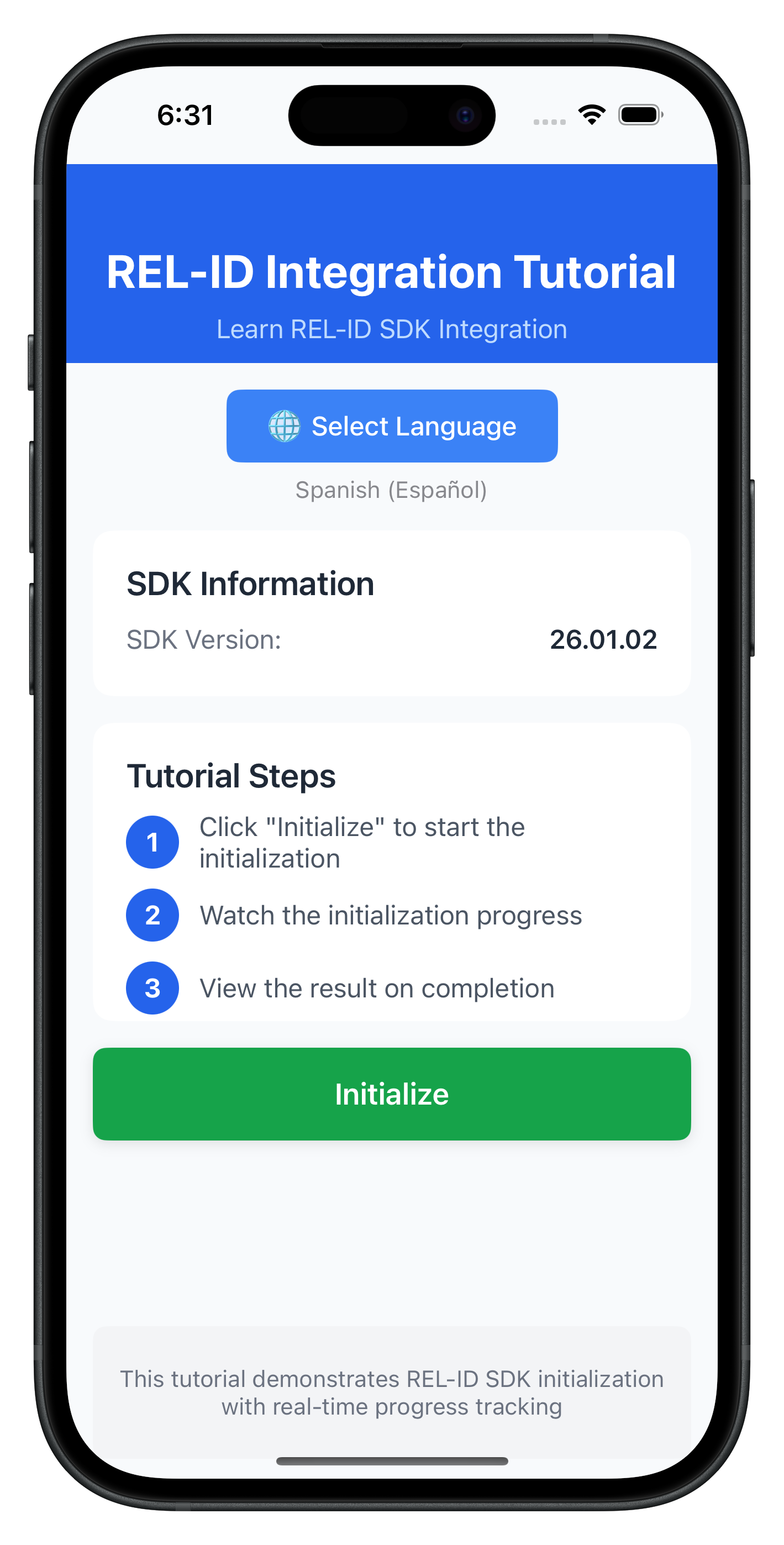
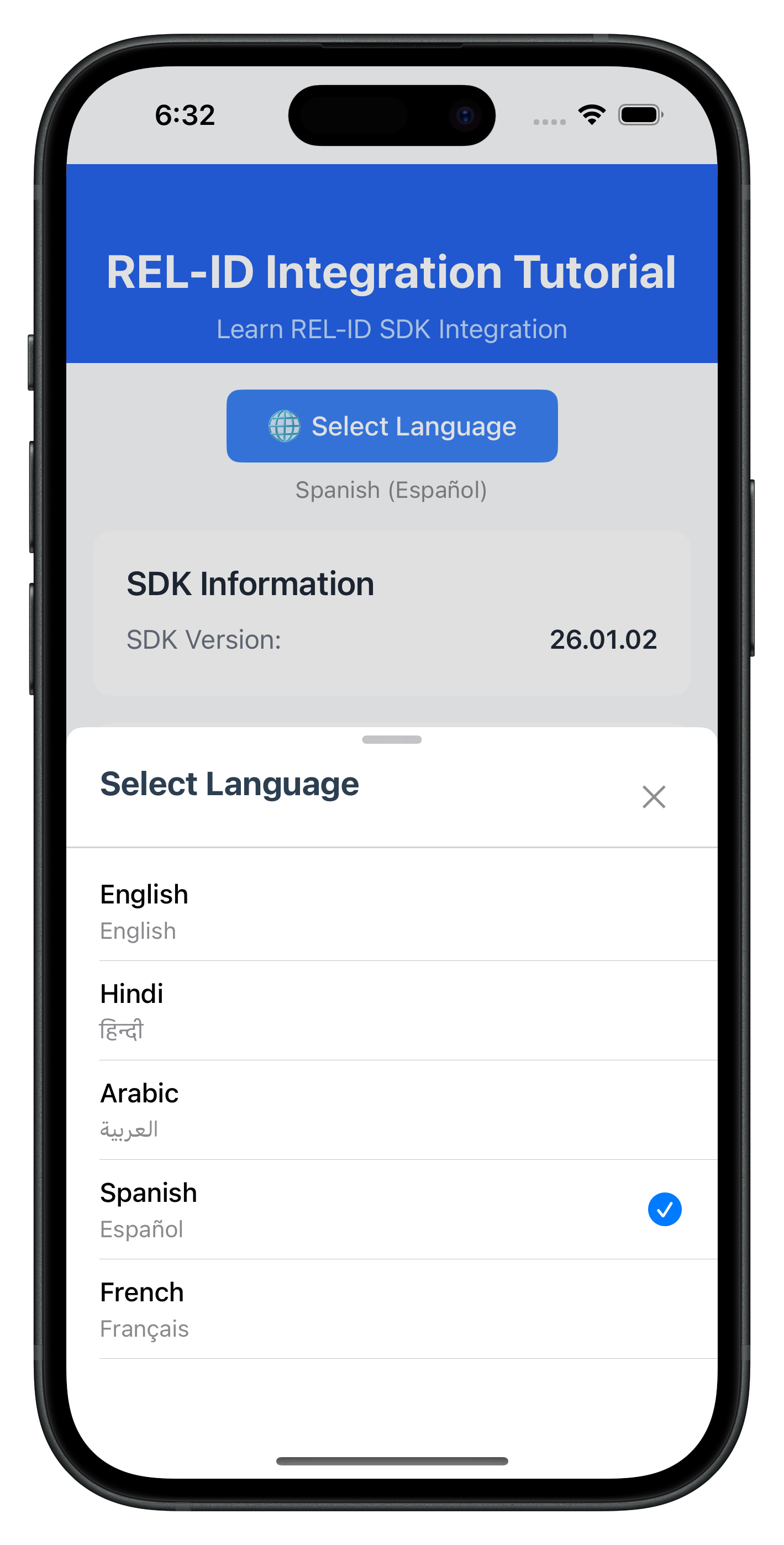
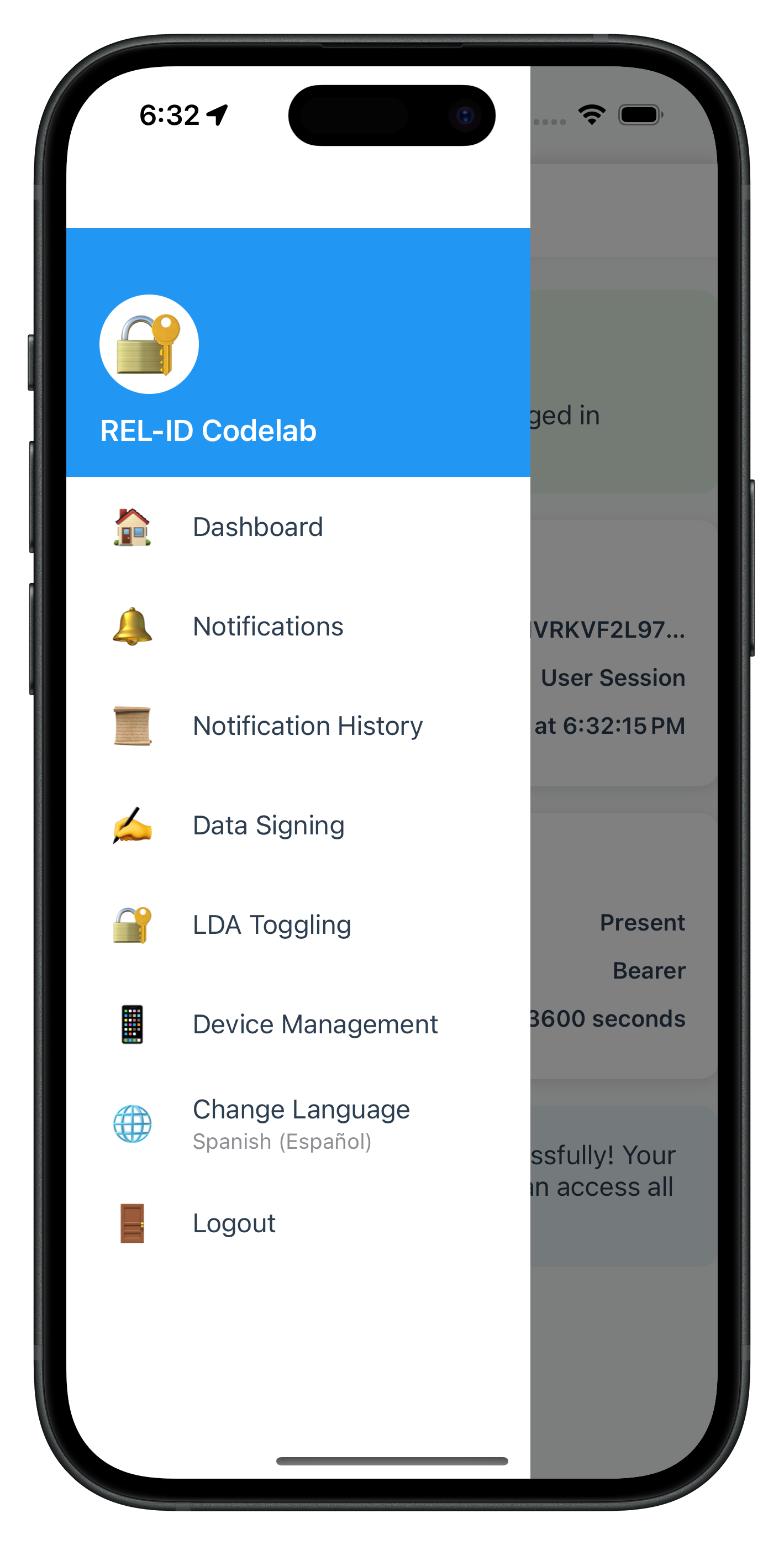
Let's verify that your internationalization implementation works correctly.
Verification Checklist
Follow these steps to test your i18n implementation:
Phase 1: SDK Initialization (App Startup)
- [ ] App starts with saved language preference (e.g., Spanish)
- [ ] SDK initializes with short language code (
initOptions.internationalizationOptions.localeCode = 'es') - [ ] If initialization succeeds, SDK returns supported languages via
onInitializeddelegate - [ ] If initialization fails with network down, SDK returns Spanish error message from
es.lproj/RELID.strings - [ ] Localized error message is displayed correctly to user without app-level mapping
Phase 2: Runtime Language Switching (Post-Login)
- [ ] Navigate to menu and tap "Change Language"
- [ ] Language Picker modal opens with all supported languages
- [ ] Current language is marked with checkmark
- [ ] Tapping a language calls
setSDKLanguage()API - [ ] Loading indicator appears during language change
- [ ]
onSetLanguageResponsedelegate fires after API call - [ ] If successful (error.longErrorCode === 0):
- [ ] LanguageManager updates with new language
- [ ] Success alert is shown to user
- [ ] All language-dependent UI updates immediately via NotificationCenter
- [ ] If failed (error.longErrorCode !== 0):
- [ ] Error alert is shown to user
- [ ] Language does NOT change
- [ ] User can retry language selection
Localization Files Setup (iOS)
- [ ] Verify
SharedLocalization/hi.lproj/RELID.stringsexists - [ ] Localization files are linked to Xcode project (not copied)
- [ ] Build app:
xcodebuildor Run in Xcode - [ ] Test initialization failure to confirm SDK reads localized strings
Internationalization Best Practices
- Use Short Codes for Initialization, Full Codes for APIs
- Initialize:
initOptions.internationalizationOptions.localeCode = 'en'(short code) - setSDKLanguage:
'en-US'(full code)
- Initialize:
- Bundle Localization Files with App
- SDK reads localization files during initialization errors
- Ensure .strings files are bundled with app binary
- Do not load localization files remotely - they won't be available if network is down
- Test error scenarios with network disconnected to verify error messages display
- Clean Up Delegate Handlers
- Always nil out delegate closures on viewWillDisappear
- Use weak self in closures to avoid retain cycles
- Prevent memory leaks and unpredictable delegate routing
- Validate Before API Calls
- Check if selected language equals current language
- Skip API call if no change needed
- Reduce unnecessary network requests
- Persist User Preferences
- Save language choice to UserDefaults
- Restore on app restart
- Respect user's language preferences across sessions
- Handle RTL Languages
- Detect RTL languages from
RDNALanguageDirectionenum - Show RTL indicator in language picker
- Test UI layout with RTL languages
- Detect RTL languages from
Memory Management
- Use weak self in closures:
RDNADelegateManager.shared.onSetLanguageResponse = { [weak self] localeCode, ... in self?.handleSetLanguageResponse(...) } - Clean up observers in deinit:
deinit {
    NotificationCenter.default.removeObserver(self)
    RDNADelegateManager.shared.onSetLanguageResponse = nil
}
Security Considerations
- Localization File Security
- Localization files are bundled with the app binary (not downloaded)
- Ensures error messages are always available even without network
- Review all error messages in .strings files - SDK will display them to users
- Keep error messages user-friendly without exposing internal error codes
- Language Validation
- Validate language codes before sending to SDK
- Use enum values like
RDNALanguageDirection - Prevent injection attacks through language selection
- Delegate Handler Isolation
- Each view controller should manage its own delegate handlers
- Clean up handlers when switching screens
- Prevent unintended delegate handling across screens
🎉 Congratulations! You've successfully implemented comprehensive internationalization support with REL-ID iOS SDK!
What You've Accomplished
In this codelab, you've learned and implemented:
✅ Two-Phase Language Lifecycle
- SDK initialization with language preference via
RDNAInitOptions - Runtime language switching using
setSDKLanguage()API - Automatic error localization via SDK reading native .strings files
- Event-driven language updates with
onSetLanguageResponsedelegate - Synchronizing supported languages from
onInitializeddelegate
✅ Native Platform Localization
- iOS
.stringsfile configuration for error codes - Multi-language support (English, Hindi, Spanish, and beyond)
- SharedLocalization directory structure
✅ Language State Management
- Singleton implementation with
LanguageManager - NotificationCenter broadcasting for UI updates
- UserDefaults persistence for language preferences
✅ User Interface Components
- Language Picker modal with native script display
- Menu integration for language change
- RTL/LTR support with direction indicators
✅ Production-Ready Error Handling
- Three-layer error detection (API response, status code, delegate)
- Early return pattern for cleaner code
- User-friendly error alerts and feedback
Next Steps
Your internationalization implementation is now production-ready! Consider these enhancements:
- Add More Languages: Expand your language support
- Add Arabic, French, German, or other languages to default languages
- Create corresponding .strings files in SharedLocalization
- Update native names lookup table in
LanguageConfig - Test RTL layout with Arabic or Hebrew languages
- Server-Side Language Management: Sync with backend
- Validate language availability against server-supported languages
- Store user language preference in user profile on backend
- Implement language fallback chains (e.g., ‘zh-TW' → ‘zh-CN' → ‘en')
- Handle cases where user's preferred language is not available
Happy coding with internationalization! 🌍
This codelab was created to help you master multi-language support with REL-ID iOS SDK. The patterns you've learned here are production-tested and used by enterprise applications worldwide.