🎯 Learning Path:
- Complete REL-ID Complete Activation & Login Flow Codelab
- You are here → Data Signing Flow Implementation
Welcome to the REL-ID Data Signing codelab! This tutorial builds upon your existing MFA implementation to add secure cryptographic data signing capabilities using REL-ID SDK's authentication and signing infrastructure.
What You'll Build
In this codelab, you'll enhance your existing MFA application with:
- 🔐 Cryptographic Data Signing: Secure payload signing with user authentication
- 📊 Multi-Level Authentication: Configurable authentication levels (0-4) for different security needs
- 🎛️ Authentication Type Selection: Support for various authenticator types (biometric, password, LDA)
- 🔄 Step-Up Authentication Flow: Password challenges for additional security when required
What You'll Learn
By completing this codelab, you'll master:
- Data Signing API Integration: Implementing
authenticateUserAndSignData()with proper parameter handling - Authentication Levels & Types: Understanding and implementing RDNAAuthLevel and RDNAAuthenticatorType enums
- Step-Up Authentication: Handling password challenges during sensitive signing operations
- Delegate Architecture: Managing SDK callbacks and delegate patterns for event handling
Prerequisites
Before starting this codelab, ensure you have:
- ✅ Completed REL-ID MFA Codelabs - All MFA screens and flows must be fully implemented
- ✅ iOS Development Environment - Xcode 14+ with Swift 5.5+ configured
- ✅ REL-ID SDK Integration - Latest SDK with data signing support configured via CocoaPods
- ✅ Server Configuration - REL-ID server with data signing capabilities enabled
Get the Code from GitHub
The code to get started can be found in a GitHub repository.
You can clone the repository using the following command:
git clone https://github.com/uniken-public/codelab-ios.git
Navigate to the relid-data-signing folder in the repository you cloned earlier
Codelab Architecture Overview
This codelab extends your MFA application with comprehensive data signing functionality:
- REL-ID SDK Integration: Direct integration with REL-ID data signing APIs
- Multi-Level Authentication: Support for REL-ID authentication levels 0, 1, and 4 only
- Step-Up Authentication Flow: Password challenges and biometric authentication
- Delegate-Driven Integration: Seamless integration with REL-ID SDK's callback architecture
- State Management: Proper cleanup using resetAuthenticateUserAndSignDataState API
Before implementing data signing functionality, let's understand the cryptographic concepts and security architecture that powers REL-ID's data signing capabilities.
What is Cryptographic Data Signing?
Data signing is a cryptographic process that creates a digital signature for a piece of data, providing:
- 🔐 Authentication: Proves the identity of the signer
- 🛡️ Data Integrity: Ensures data hasn't been tampered with
- 📝 Non-Repudiation: Prevents the signer from denying they signed the data
- 🔒 Legal Validity: Creates legally binding digital signatures
REL-ID Data Signing Architecture
REL-ID's data signing implementation follows enterprise security standards:
User Data Input → Authentication Challenge → Biometric/LDA/Password Verification →
Cryptographic Signing → Signed Payload → Verification
Key Security Features
- Multi-Level Authentication: 3 supported authentication levels (0, 1, 4) for different security requirements
- Supported Authenticator Types: NONE (auto-selection) and IDV Server Biometric only
- Step-Up Authentication: Additional password challenges for sensitive operations
- Secure State Management: Proper cleanup and reset to prevent authentication bypass
- Comprehensive Error Handling: Detailed error codes and recovery mechanisms
When to Use Data Signing
Data signing is ideal for:
- 📄 Document Authorization: Legal documents, contracts, approvals
- 💰 Financial Transactions: High-value payments, transfers, authorizations
- 🏥 Medical Records: Patient consent, prescription approvals, medical authorizations
- 🔐 Security Operations: Administrative actions, privilege escalations, policy changes
- 📊 Audit Trail Requirements: Operations requiring non-repudiable audit logs
Security Considerations
Key security guidelines:
- Authentication Level Selection: Match authentication level to data sensitivity
- Proper State Cleanup: Always reset authentication state after completion or cancellation
- Error Handling: Never expose sensitive error details to end users
- Audit Logging: Log all signing attempts for security monitoring
- User Experience: Balance security with usability for optimal user adoption
Let's explore the three core APIs that power REL-ID's data signing functionality, understanding their parameters, responses, and integration patterns.
authenticateUserAndSignData API
This is the primary API for initiating cryptographic data signing with user authentication.
API Signature
func authenticateUserAndSignData(
    payload: String,
    authLevel: RDNAAuthLevel,
    authenticatorType: RDNAAuthenticatorType,
    reason: String
) -> RDNAError
Parameters Deep Dive
Parameter | Type | Required | Description |
| String | ✅ | The data to be cryptographically signed (max 500 characters) |
| RDNAAuthLevel | ✅ | Authentication security level (0, 1, or 4 only) |
| RDNAAuthenticatorType | ✅ | Type of authentication method (0 or 1 only) |
| String | ✅ | Human-readable reason for signing (max 100 characters) |
Official REL-ID Data Signing Authentication Mapping
RDNAAuthLevel | RDNAAuthenticatorType | Supported Authentication | Description |
|
| No Authentication | No authentication required - NOT RECOMMENDED for production |
|
| Device biometric, Device passcode, or Password | Priority: Device biometric → Device passcode → Password |
| NOT SUPPORTED | ❌ SDK will error out | Level 2 is not supported for data signing |
| NOT SUPPORTED | ❌ SDK will error out | Level 3 is not supported for data signing |
|
| IDV Server Biometric | Maximum security - Any other authenticator type will cause SDK error |
How to Use AuthLevel and AuthenticatorType
REL-ID data signing supports three authentication modes:
1. No Authentication (Level 0)
authLevel: RDNAAuthLevel(rawValue: 0)!,
authenticatorType: RDNAAuthenticatorType(rawValue: 0)!
- Use Case: Testing environments only
- Security: No authentication required
- ⚠️ Warning: Never use in production applications
2. Re-Authentication (Level 1)
authLevel: RDNAAuthLevel(rawValue: 1)!,
authenticatorType: RDNAAuthenticatorType(rawValue: 0)!
- Use Case: Standard document signing with flexible authentication
- Security: User logs in the same way they logged into the app
- Authenticator Priority: Device biometric → Device passcode → Password
- Behavior: REL-ID automatically selects best available authenticator
3. Step-up Authentication (Level 4)
authLevel: RDNAAuthLevel(rawValue: 4)!,
authenticatorType: RDNAAuthenticatorType(rawValue: 1)!
- Use Case: High-value transactions, sensitive documents, compliance requirements
- Security: Maximum security with server-side biometric verification
- Requirement: Must use
RDNA_IDV_SERVER_BIOMETRIC- other types will cause errors - Behavior: Forces strong biometric authentication regardless of user's enrolled authenticators
Sync Response Pattern
// Success Response
let error = RDNAService.shared.authenticateUserAndSignData(...)
if error.longErrorCode == 0 {
    // Success - SDK will trigger getPassword callback with challengeMode=12
    print("Data signing initiated successfully")
}

// Error Response
if error.longErrorCode != 0 {
    // Handle error
    print("Error: \(error.errorString)")
}
Implementation Example
// Service layer implementation
func signData(payload: String, authLevel: RDNAAuthLevel,
              authenticatorType: RDNAAuthenticatorType, reason: String) {
    print("RDNAService - Initiating data signing")

    let error = RDNAService.shared.authenticateUserAndSignData(
        payload: payload,
        authLevel: authLevel,
        authenticatorType: authenticatorType,
        reason: reason
    )

    if error.longErrorCode == 0 {
        print("RDNAService - Data signing initiated successfully")
        // SDK will trigger getPassword callback with challengeMode=12
    } else {
        print("RDNAService - Data signing failed: \(error.errorString)")
        // Handle error appropriately
    }
}
resetAuthenticateUserAndSignDataState API
This API cleans up authentication state after signing completion or cancellation.
API Signature
func resetAuthenticateUserAndSignDataState() -> RDNAError
When to Use
- ✅ User Cancellation: When user cancels the signing process
- ✅ Error Recovery: After signing errors to clean state
- ✅ Navigation Away: When user navigates away from signing screens when signing is in progress
Implementation Example
// Service layer cleanup implementation
func resetDataSigningState() {
    print("RDNAService - Resetting data signing state")

    let error = RDNAService.shared.resetAuthenticateUserAndSignDataState()

    if error.longErrorCode == 0 {
        print("RDNAService - State reset successfully")
    } else {
        print("RDNAService - State reset failed: \(error.errorString)")
    }
}
onAuthenticateUserAndSignData Delegate
This delegate method delivers the final signing results after authentication completion.
Delegate Method Structure
func onAuthenticateUserAndSignData(
    _ dataSigningDetails: RDNADataSigningDetails,
    status: RDNARequestStatus,
    error: RDNAError
)
Response Fields
// RDNADataSigningDetails contains:
dataPayload: String           // Original payload that was signed
dataPayloadLength: Int        // Length of the payload
reason: String                // Reason provided for signing
payloadSignature: String      // Cryptographic signature
dataSignatureID: String       // Unique signature identifier
authLevel: RDNAAuthLevel      // Authentication level used
authenticatorType: RDNAAuthenticatorType  // Authentication type used

// RDNARequestStatus contains:
statusCode: Int               // Operation status (100 = success)
statusMessage: String         // Status message

// RDNAError contains:
longErrorCode: Int            // Error code (0 = success)
errorString: String           // Error message
Delegate Handler Implementation
func onAuthenticateUserAndSignData(
    _ dataSigningDetails: RDNADataSigningDetails,
    status: RDNARequestStatus,
    error: RDNAError
) {
    print("RDNADelegateManager - Data signing response received")

    // Check error first (priority over status)
    if error.longErrorCode != 0 {
        print("Error: \(error.errorString)")
        showAlert(title: "Signing Failed", message: error.errorString)
        return
    }

    // Check status
    if status.statusCode == 100 {
        // Success - navigate to result screen
        print("Data signing successful!")
        print("  Signature: \(dataSigningDetails.payloadSignature ?? "N/A")")
        print("  Signature ID: \(dataSigningDetails.dataSignatureID ?? "N/A")")

        AppCoordinator.shared.showDataSigningResult(
            dataSigningDetails: dataSigningDetails
        )
    } else {
        print("Status: \(status.statusMessage)")
        showAlert(title: "Signing Failed", message: status.statusMessage)
    }
}
Success vs Error Handling
Success Indicators:
error.longErrorCode == 0status.statusCode == 100- Valid
payloadSignatureanddataSignatureID
Error Handling:
- Log comprehensive error details
- Show user-friendly error messages
- Reset authentication state
- Allow retry opportunities
Now let's implement the service layer architecture that provides clean abstraction over REL-ID SDK data signing APIs. This follows the established patterns from your MFA implementation.
RDNAService Integration
First, let's examine the core SDK service implementation. This should already exist in your codelab:
// Sources/Uniken/Services/RDNAService.swift

/// Authenticate User And Sign Data - Sign data with user authentication
/// This method initiates a data signing operation with step-up authentication.
///
/// **Flow:**
/// 1. App calls authenticateUserAndSignData with payload and auth parameters
/// 2. SDK triggers getPassword callback with challengeMode=12 (RDNA_OP_STEP_UP_AUTH_AND_SIGN_DATA)
/// 3. App shows password modal, user enters password
/// 4. App calls setPassword(password, challengeMode: 12)
/// 5. SDK authenticates and signs data
/// 6. SDK triggers onAuthenticateUserAndSignData callback with signature result
///
/// - Parameters:
///   - payload: Data string to be signed
///   - authLevel: Authentication level (RDNAAuthLevel enum)
///     * RDNA_AUTH_LEVEL_1 = 1: Logging Credentials (LDA or Manual Password)
///     * RDNA_AUTH_LEVEL_3 = 3: Other Authenticators (Manual Password)
///     * RDNA_AUTH_LEVEL_4 = 4: Strong Authenticator (IDV Server Biometric) - Recommended
///   - authenticatorType: Authenticator type (RDNAAuthenticatorType enum)
///     * RDNA_AUTH_PASS = 2: Manual Password
///     * RDNA_AUTH_LDA = 3: Local Device Authentication
///     * RDNA_IDV_SERVER_BIOMETRIC = 1: IDV Server Biometric
///   - reason: Reason for signing (e.g., "Transaction", "Beneficiary Addition")
/// - Returns: RDNAError indicating success or failure
/// - Note: On success (errorCode == 0), SDK will trigger getPassword callback with challengeMode=12
/// - Note: After authentication, SDK triggers onAuthenticateUserAndSignData with signed data
func authenticateUserAndSignData(
    payload: String,
    authLevel: RDNAAuthLevel,
    authenticatorType: RDNAAuthenticatorType,
    reason: String
) -> RDNAError {
    print("RDNAService - Authenticating user and signing data")
    print("  Payload: \(payload)")
    print("  Auth Level: \(authLevel.rawValue)")
    print("  Authenticator Type: \(authenticatorType.rawValue)")
    print("  Reason: \(reason)")

    let error = rdna.authenticateUserAndSignData(
        payload,
        authLevel: authLevel,
        authenticatorType: authenticatorType,
        reason: reason
    )

    if error.longErrorCode == 0 {
        print("RDNAService - AuthenticateUserAndSignData request successful")
        print("  Awaiting getPassword callback with challengeMode=12")
    } else {
        print("RDNAService - AuthenticateUserAndSignData failed:")
        print("  Error: \(error.errorString)")
        print("  Code: \(error.longErrorCode)")
    }

    return error
}

/// Reset Authenticate User And Sign Data State - Reset data signing flow
/// Resets the internal state of the data signing operation.
/// Use this if you want to cancel an in-progress signing operation or restart the flow.
///
/// - Returns: RDNAError indicating success or failure
func resetAuthenticateUserAndSignDataState() -> RDNAError {
    print("RDNAService - Resetting authenticate user and sign data state")

    let error = rdna.resetAuthenticateUserAndSignDataState()

    if error.longErrorCode == 0 {
        print("RDNAService - Reset successful")
    } else {
        print("RDNAService - Reset failed: \(error.errorString)")
    }

    return error
}
Data Signing Validation Helpers
Add validation and helper methods to your ViewController:
// DataSigningInputViewController.swift - Validation helpers

private func validateForm() -> Bool {
    // Trim whitespace
    let trimmedPayload = payloadText.trimmingCharacters(in: .whitespacesAndNewlines)
    let trimmedReason = reasonText.trimmingCharacters(in: .whitespacesAndNewlines)

    // Validate payload
    if trimmedPayload.isEmpty {
        showAlert(title: "Validation Error",
                 message: "Please enter a data payload to sign")
        return false
    }

    // Validate reason
    if trimmedReason.isEmpty {
        showAlert(title: "Validation Error",
                 message: "Please enter a signing reason")
        return false
    }

    return true
}

private func getAuthLevelName(_ level: RDNAAuthLevel) -> String {
    switch level.rawValue {
    case 0:
        return "None (0)"
    case 1:
        return "Level 1 - Logging Credentials"
    case 2:
        return "Level 2 - NA"
    case 3:
        return "Level 3 - Other Authenticators"
    case 4:
        return "Level 4 - Strong Authenticator"
    default:
        return "Unknown (\(level.rawValue))"
    }
}

private func getAuthenticatorTypeName(_ type: RDNAAuthenticatorType) -> String {
    switch type.rawValue {
    case 0:
        return "None (0)"
    case 1:
        return "IDV Server Biometric (1)"
    case 2:
        return "Manual Password (2)"
    case 3:
        return "Local Device Authentication (3)"
    default:
        return "Unknown (\(type.rawValue))"
    }
}
Error Handling Patterns
Key error handling strategies in the service layer:
- Comprehensive Logging: Log all operations with context
- Error Transformation: Convert SDK errors to user-friendly messages
- State Cleanup: Always attempt to reset state on errors
- Non-Blocking Cleanup: Don't let cleanup errors block user flow
- Error Categorization: Different handling for different error types
Now let's implement the user interface components for data signing, including form inputs, pickers, and result display screens.
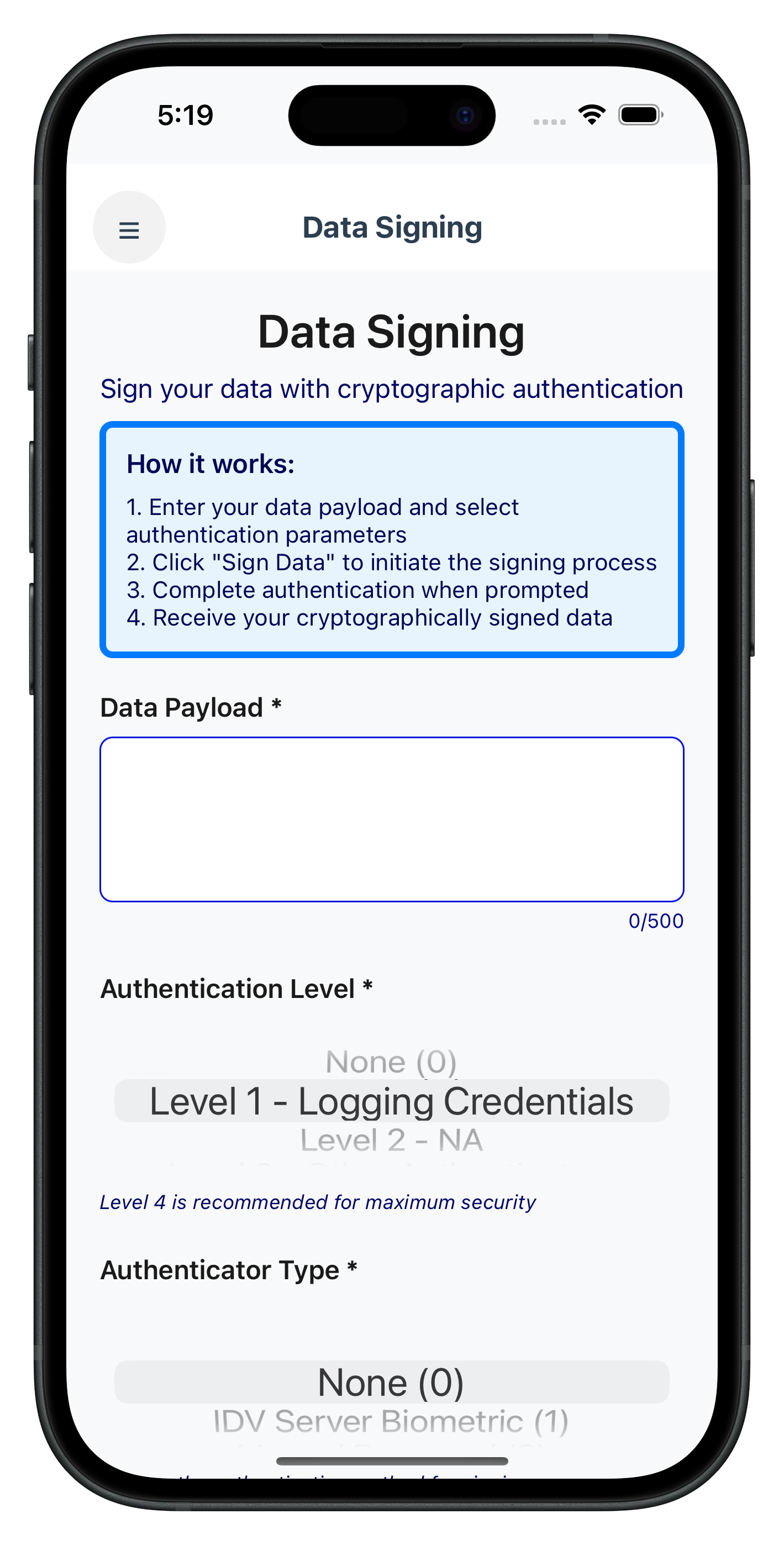
DataSigningInputViewController - Main Form Interface
This is the primary screen where users input data to be signed:
The following image showcases the data signing input screen from the sample application:
// Sources/Tutorial/Screens/DataSigning/DataSigningInputViewController.swift

import UIKit
import RELID

/// DataSigningInputViewController - Input screen for data signing
/// Maps RN DataSigningInputScreen component to iOS UIViewController
class DataSigningInputViewController: UIViewController {

    // MARK: - IBOutlets (from Storyboard)

    @IBOutlet weak var menuButton: UIButton!
    @IBOutlet weak var titleLabel: UILabel!
    @IBOutlet weak var subtitleLabel: UILabel!

    @IBOutlet weak var infoView: UIView!
    @IBOutlet weak var infoTitleLabel: UILabel!
    @IBOutlet weak var infoTextLabel: UILabel!

    @IBOutlet weak var payloadLabel: UILabel!
    @IBOutlet weak var payloadTextView: UITextView!
    @IBOutlet weak var payloadCharCountLabel: UILabel!

    @IBOutlet weak var authLevelLabel: UILabel!
    @IBOutlet weak var authLevelPicker: UIPickerView!
    @IBOutlet weak var authLevelHelpLabel: UILabel!

    @IBOutlet weak var authenticatorTypeLabel: UILabel!
    @IBOutlet weak var authenticatorTypePicker: UIPickerView!
    @IBOutlet weak var authenticatorTypeHelpLabel: UILabel!

    @IBOutlet weak var reasonLabel: UILabel!
    @IBOutlet weak var reasonTextField: UITextField!
    @IBOutlet weak var reasonCharCountLabel: UILabel!

    @IBOutlet weak var submitButton: UIButton!
    @IBOutlet weak var activityIndicator: UIActivityIndicatorView!

    // MARK: - Properties

    private var payloadText: String = "" {
        didSet {
            updatePayloadCharCount()
        }
    }

    private var reasonText: String = "" {
        didSet {
            updateReasonCharCount()
        }
    }

    // Use rawValue initializers
    private var selectedAuthLevel: RDNAAuthLevel = RDNAAuthLevel(rawValue: 4)!  // Default: Level 4
    private var selectedAuthenticatorType: RDNAAuthenticatorType = RDNAAuthenticatorType(rawValue: 2)!  // Default: Password

    private var isLoading: Bool = false {
        didSet {
            updateLoadingState()
        }
    }

    /// Preserved original password handler (callback preservation pattern)
    private var originalPasswordHandler: ((_ userID: String, _ challengeMode: RDNAChallengeOpMode, _ attemptsLeft: Int, _ response: RDNAChallengeResponse, _ error: RDNAError) -> Void)?

    // Auth level options
    private lazy var authLevelOptions: [(level: RDNAAuthLevel, name: String)] = {
        return [
            (RDNAAuthLevel(rawValue: 0)!, "None (0)"),
            (RDNAAuthLevel(rawValue: 1)!, "Level 1 - Logging Credentials"),
            (RDNAAuthLevel(rawValue: 2)!, "Level 2 - NA"),
            (RDNAAuthLevel(rawValue: 3)!, "Level 3 - Other Authenticators"),
            (RDNAAuthLevel(rawValue: 4)!, "Level 4 - Strong Authenticator (Recommended)")
        ]
    }()

    // Authenticator type options
    private lazy var authenticatorTypeOptions: [(type: RDNAAuthenticatorType, name: String)] = {
        return [
            (RDNAAuthenticatorType(rawValue: 0)!, "None (0)"),
            (RDNAAuthenticatorType(rawValue: 1)!, "IDV Server Biometric (1)"),
            (RDNAAuthenticatorType(rawValue: 2)!, "Manual Password (2)"),
            (RDNAAuthenticatorType(rawValue: 3)!, "Local Device Authentication (3)")
        ]
    }()

    // Limits
    private let payloadMaxLength = 500
    private let reasonMaxLength = 100

    // MARK: - Lifecycle

    override func viewDidLoad() {
        super.viewDidLoad()

        setupUI()
        setupPickers()
        setupTextInputs()
        MenuViewController.setupSideMenu(for: self)
        setupEventHandlers()

        // Set default picker selections
        selectAuthLevel(RDNAAuthLevel(rawValue: 4)!)  // Level 4 by default
        selectAuthenticatorType(RDNAAuthenticatorType(rawValue: 2)!)  // Password by default
    }

    deinit {
        cleanupEventHandlers()
    }

    // MARK: - Setup

    private func setupUI() {
        // Background
        view.backgroundColor = UIColor(hex: "#f8f9fa")

        // Menu button
        menuButton.layer.cornerRadius = 22
        menuButton.backgroundColor = UIColor(red: 0, green: 0, blue: 0, alpha: 0.05)
        menuButton.setTitle("☰", for: .normal)
        menuButton.setTitleColor(UIColor(hex: "#2c3e50"), for: .normal)
        menuButton.titleLabel?.font = UIFont.boldSystemFont(ofSize: 20)

        // Title
        titleLabel.text = "Data Signing"
        titleLabel.font = UIFont.boldSystemFont(ofSize: 28)
        titleLabel.textColor = UIColor(hex: "#1a1a1a")

        // Subtitle
        subtitleLabel.text = "Sign your data with cryptographic authentication"
        subtitleLabel.font = UIFont.systemFont(ofSize: 16)
        subtitleLabel.textColor = UIColor(hex: "#666")
        subtitleLabel.numberOfLines = 0

        // Info view
        infoView.backgroundColor = UIColor(hex: "#e8f4fd")
        infoView.layer.cornerRadius = 8
        infoView.layer.borderWidth = 4
        infoView.layer.borderColor = (UIColor(hex: "#007AFF") ?? UIColor.systemBlue).cgColor
        infoView.clipsToBounds = true

        infoTitleLabel.text = "How it works:"
        infoTitleLabel.font = UIFont.systemFont(ofSize: 16, weight: .semibold)
        infoTitleLabel.textColor = UIColor(hex: "#555")

        let infoText = """
        1. Enter your data payload and select authentication parameters
        2. Click "Sign Data" to initiate the signing process
        3. Complete authentication when prompted
        4. Receive your cryptographically signed data
        """
        infoTextLabel.text = infoText
        infoTextLabel.font = UIFont.systemFont(ofSize: 14)
        infoTextLabel.textColor = UIColor(hex: "#555")
        infoTextLabel.numberOfLines = 0

        // Labels
        let labelFont = UIFont.systemFont(ofSize: 16, weight: .semibold)
        let labelColor = UIColor(hex: "#1a1a1a")
        payloadLabel.font = labelFont
        payloadLabel.textColor = labelColor
        authLevelLabel.font = labelFont
        authLevelLabel.textColor = labelColor
        authenticatorTypeLabel.font = labelFont
        authenticatorTypeLabel.textColor = labelColor
        reasonLabel.font = labelFont
        reasonLabel.textColor = labelColor

        // Text inputs
        payloadTextView.layer.cornerRadius = 8
        payloadTextView.layer.borderWidth = 1
        payloadTextView.layer.borderColor = (UIColor(hex: "#ddd") ?? UIColor.lightGray).cgColor
        payloadTextView.backgroundColor = UIColor(hex: "#ffffff")
        payloadTextView.font = UIFont.systemFont(ofSize: 16)
        payloadTextView.textColor = UIColor(hex: "#1a1a1a")
        payloadTextView.textContainerInset = UIEdgeInsets(top: 12, left: 12, bottom: 12, right: 12)

        reasonTextField.layer.cornerRadius = 8
        reasonTextField.layer.borderWidth = 1
        reasonTextField.layer.borderColor = (UIColor(hex: "#ddd") ?? UIColor.lightGray).cgColor
        reasonTextField.backgroundColor = UIColor(hex: "#ffffff")
        reasonTextField.font = UIFont.systemFont(ofSize: 16)
        reasonTextField.textColor = UIColor(hex: "#1a1a1a")
        reasonTextField.leftView = UIView(frame: CGRect(x: 0, y: 0, width: 16, height: 40))
        reasonTextField.leftViewMode = .always

        // Character count labels
        payloadCharCountLabel.font = UIFont.systemFont(ofSize: 12)
        payloadCharCountLabel.textColor = UIColor(hex: "#888")
        reasonCharCountLabel.font = UIFont.systemFont(ofSize: 12)
        reasonCharCountLabel.textColor = UIColor(hex: "#888")

        // Help text labels
        authLevelHelpLabel.font = UIFont.italicSystemFont(ofSize: 12)
        authLevelHelpLabel.textColor = UIColor(hex: "#666")
        authenticatorTypeHelpLabel.font = UIFont.italicSystemFont(ofSize: 12)
        authenticatorTypeHelpLabel.textColor = UIColor(hex: "#666")

        // Submit button
        submitButton.backgroundColor = UIColor(hex: "#007AFF")
        submitButton.setTitleColor(.white, for: .normal)
        submitButton.titleLabel?.font = UIFont.systemFont(ofSize: 18, weight: .semibold)
        submitButton.layer.cornerRadius = 12
        submitButton.layer.shadowColor = (UIColor(hex: "#007AFF") ?? UIColor.systemBlue).cgColor
        submitButton.layer.shadowOffset = CGSize(width: 0, height: 2)
        submitButton.layer.shadowOpacity = 0.2
        submitButton.layer.shadowRadius = 4

        // Activity indicator
        activityIndicator.color = .white
        activityIndicator.hidesWhenStopped = true

        // Initial character counts
        updatePayloadCharCount()
        updateReasonCharCount()
    }

    private func setupPickers() {
        authLevelPicker.delegate = self
        authLevelPicker.dataSource = self

        authenticatorTypePicker.delegate = self
        authenticatorTypePicker.dataSource = self
    }

    private func setupTextInputs() {
        payloadTextView.delegate = self
        reasonTextField.delegate = self
        reasonTextField.addTarget(self, action: #selector(reasonTextChanged), for: .editingChanged)
    }

    private func setupEventHandlers() {
        print("DataSigningInputViewController - Setting up event handlers")

        let delegateManager = RDNADelegateManager.shared

        // Preserve original password handler
        originalPasswordHandler = delegateManager.onGetPassword

        // Register for data signing result callback
        delegateManager.onAuthenticateUserAndSignData = { [weak self] dataSigningDetails, status, error in
            self?.handleSigningResult(dataSigningDetails: dataSigningDetails, status: status, error: error)
        }

        // Register for password challenge with callback preservation
        delegateManager.onGetPassword = { [weak self] userID, challengeMode, attemptsLeft, response, error in
            self?.handleGetPasswordForDataSigning(userID: userID, challengeMode: challengeMode, attemptsLeft: attemptsLeft, response: response, error: error)
        }

        print("DataSigningInputViewController - Event handlers registered")
    }

    private func cleanupEventHandlers() {
        print("DataSigningInputViewController - Cleaning up event handlers")

        let delegateManager = RDNADelegateManager.shared

        // Clear our handler
        delegateManager.onAuthenticateUserAndSignData = nil

        // Restore preserved password handler
        delegateManager.onGetPassword = originalPasswordHandler

        print("DataSigningInputViewController - Event handlers restored")
    }

    // MARK: - Actions

    @IBAction func menuButtonTapped(_ sender: UIButton) {
        MenuViewController.presentMenu(from: self)
    }

    @IBAction func signDataTapped(_ sender: UIButton) {
        // Validate form
        guard validateForm() else {
            return
        }

        // Set loading state
        isLoading = true

        // Call SDK method
        let error = RDNAService.shared.authenticateUserAndSignData(
            payload: payloadText,
            authLevel: selectedAuthLevel,
            authenticatorType: selectedAuthenticatorType,
            reason: reasonText
        )

        if error.longErrorCode != 0 {
            // SDK call failed immediately
            isLoading = false
            showAlert(title: "Error", message: "Failed to initiate data signing: \(error.errorString)")
        }
        // If success (errorCode == 0), SDK will trigger getPassword callback with challengeMode=12
    }

    // MARK: - Event Handlers

    /// Handle getPassword events for data signing (challengeMode=12)
    private func handleGetPasswordForDataSigning(userID: String, challengeMode: RDNAChallengeOpMode, attemptsLeft: Int, response: RDNAChallengeResponse, error: RDNAError) {
        print("DataSigningInputViewController - Get password event received")
        print("  ChallengeMode: \(challengeMode.rawValue), AttemptsLeft: \(attemptsLeft)")

        let mode = Int(challengeMode.rawValue)

        // Only handle data signing password mode (12 = RDNA_OP_STEP_UP_AUTH_AND_SIGN_DATA)
        if mode == 12 {
            print("DataSigningInputViewController - Handling challengeMode 12 for data signing")
            presentPasswordChallengeModal(userID: userID, attemptsLeft: Int32(attemptsLeft), response: response, error: error)
        } else {
            // Other challengeModes: call preserved original handler
            print("DataSigningInputViewController - Non-data-signing challengeMode \(mode), calling original handler")
            originalPasswordHandler?(userID, challengeMode, attemptsLeft, response, error)
        }
    }

    private func handleSigningResult(dataSigningDetails: RDNADataSigningDetails, status: RDNARequestStatus, error: RDNAError) {
        isLoading = false

        // Check error first
        if error.longErrorCode != 0 {
            print("DataSigningInputViewController - Data signing failed (error)")
            print("  Error Code: \(error.longErrorCode)")
            print("  Error Message: \(error.errorString ?? "N/A")")

            showAlert(title: "Signing Failed", message: error.errorString ?? "An error occurred during data signing")
            return
        }

        // No error - check status
        if status.statusCode == 100 {
            // Success - navigate to result screen
            print("DataSigningInputViewController - Data signing successful!")
            print("  Signature: \(dataSigningDetails.payloadSignature ?? "N/A")")
            print("  Signature ID: \(dataSigningDetails.dataSignatureID ?? "N/A")")

            AppCoordinator.shared.showDataSigningResult(dataSigningDetails: dataSigningDetails)
        } else {
            print("DataSigningInputViewController - Data signing failed (status)")
            print("  Status Code: \(status.statusCode)")

            showAlert(title: "Signing Failed", message: status.statusMessage ?? "Data signing failed")
        }
    }

    private func presentPasswordChallengeModal(userID: String, attemptsLeft: Int32, response: RDNAChallengeResponse, error: RDNAError) {
        // Show password challenge modal from Storyboard
        PasswordChallengeModalViewController.show(
            in: self,
            userID: userID,
            attemptsLeft: attemptsLeft,
            response: response,
            error: error,
            onCancelled: { [weak self] in
                self?.isLoading = false
            }
        )
    }

    // MARK: - Helpers

    private func validateForm() -> Bool {
        let trimmedPayload = payloadText.trimmingCharacters(in: .whitespacesAndNewlines)
        let trimmedReason = reasonText.trimmingCharacters(in: .whitespacesAndNewlines)

        if trimmedPayload.isEmpty {
            showAlert(title: "Validation Error", message: "Please enter a data payload to sign")
            return false
        }

        if trimmedReason.isEmpty {
            showAlert(title: "Validation Error", message: "Please enter a signing reason")
            return false
        }

        return true
    }

    private func updatePayloadCharCount() {
        payloadCharCountLabel.text = "\(payloadText.count)/\(payloadMaxLength)"
    }

    private func updateReasonCharCount() {
        reasonCharCountLabel.text = "\(reasonText.count)/\(reasonMaxLength)"
    }

    private func updateLoadingState() {
        if isLoading {
            submitButton.setTitle("Processing...", for: .normal)
            submitButton.backgroundColor = UIColor(hex: "#ccc")
            submitButton.isEnabled = false
            activityIndicator.startAnimating()
        } else {
            submitButton.setTitle("Sign Data", for: .normal)
            submitButton.backgroundColor = UIColor(hex: "#007AFF")
            submitButton.isEnabled = true
            activityIndicator.stopAnimating()
        }
    }

    private func selectAuthLevel(_ level: RDNAAuthLevel) {
        if let index = authLevelOptions.firstIndex(where: { $0.level == level }) {
            authLevelPicker.selectRow(index, inComponent: 0, animated: false)
            selectedAuthLevel = level
        }
    }

    private func selectAuthenticatorType(_ type: RDNAAuthenticatorType) {
        if let index = authenticatorTypeOptions.firstIndex(where: { $0.type == type }) {
            authenticatorTypePicker.selectRow(index, inComponent: 0, animated: false)
            selectedAuthenticatorType = type
        }
    }

    private func showAlert(title: String, message: String) {
        let alert = UIAlertController(title: title, message: message, preferredStyle: .alert)
        alert.addAction(UIAlertAction(title: "OK", style: .default))
        present(alert, animated: true)
    }

    @objc private func reasonTextChanged() {
        if let text = reasonTextField.text {
            reasonText = String(text.prefix(reasonMaxLength))
            if text.count > reasonMaxLength {
                reasonTextField.text = reasonText
            }
        }
    }
}

// MARK: - UITextViewDelegate

extension DataSigningInputViewController: UITextViewDelegate {
    func textView(_ textView: UITextView, shouldChangeTextIn range: NSRange, replacementText text: String) -> Bool {
        let currentText = textView.text ?? ""
        guard let stringRange = Range(range, in: currentText) else { return false }
        let updatedText = currentText.replacingCharacters(in: stringRange, with: text)

        if updatedText.count <= payloadMaxLength {
            payloadText = updatedText
            return true
        }
        return false
    }
}

// MARK: - UITextFieldDelegate

extension DataSigningInputViewController: UITextFieldDelegate {
    func textFieldShouldReturn(_ textField: UITextField) -> Bool {
        textField.resignFirstResponder()
        return true
    }
}

// MARK: - UIPickerViewDataSource, UIPickerViewDelegate

extension DataSigningInputViewController: UIPickerViewDataSource, UIPickerViewDelegate {
    func numberOfComponents(in pickerView: UIPickerView) -> Int {
        return 1
    }

    func pickerView(_ pickerView: UIPickerView, numberOfRowsInComponent component: Int) -> Int {
        if pickerView == authLevelPicker {
            return authLevelOptions.count
        } else {
            return authenticatorTypeOptions.count
        }
    }

    func pickerView(_ pickerView: UIPickerView, titleForRow row: Int, forComponent component: Int) -> String? {
        if pickerView == authLevelPicker {
            return authLevelOptions[row].name
        } else {
            return authenticatorTypeOptions[row].name
        }
    }

    func pickerView(_ pickerView: UIPickerView, didSelectRow row: Int, inComponent component: Int) {
        if pickerView == authLevelPicker {
            selectedAuthLevel = authLevelOptions[row].level
        } else {
            selectedAuthenticatorType = authenticatorTypeOptions[row].type
        }
    }
}
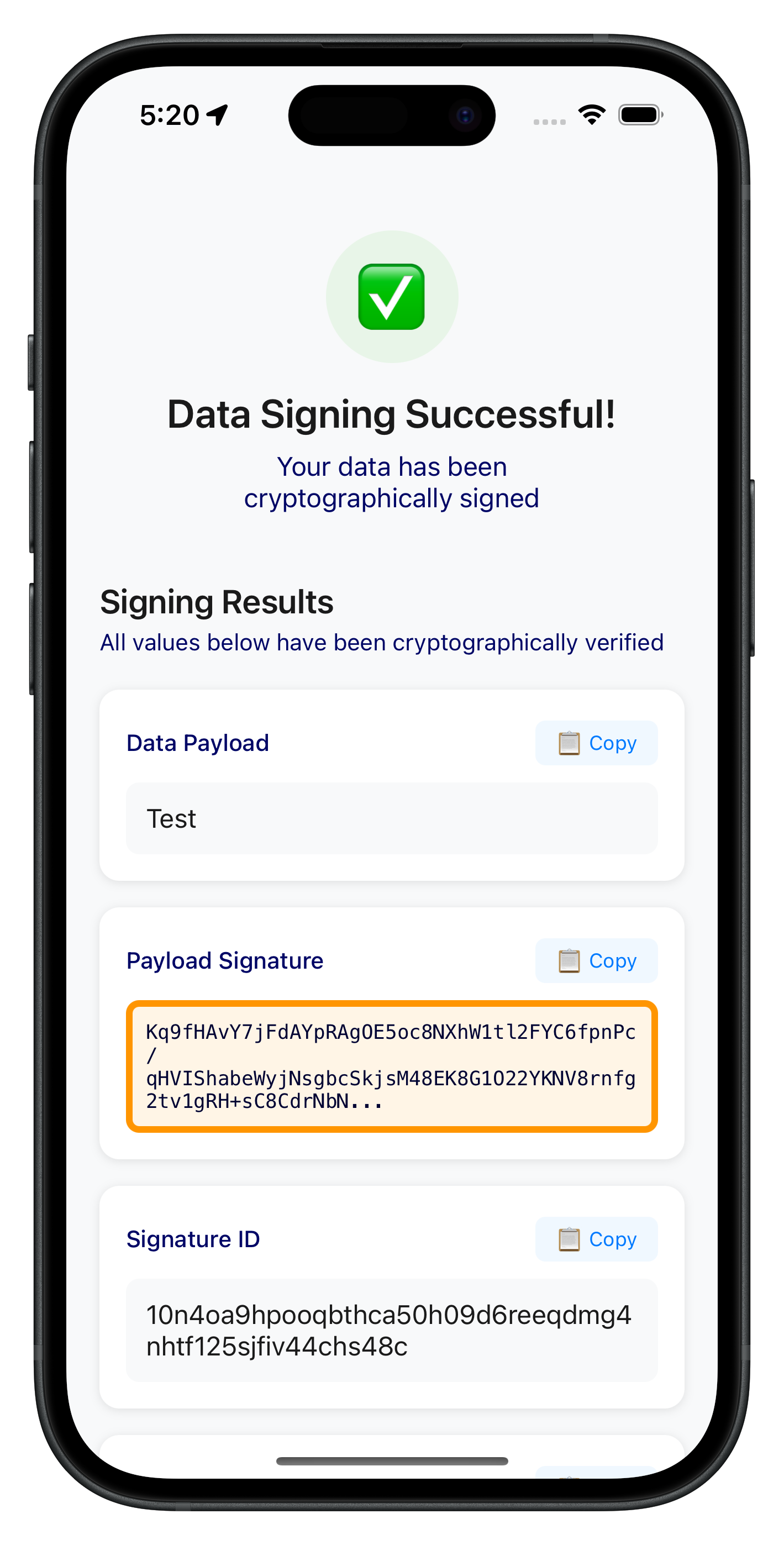
DataSigningResultViewController - Results Display
The following image showcases the successful data signing results screen from the sample application:
// Sources/Tutorial/Screens/DataSigning/DataSigningResultViewController.swift

import UIKit
import RELID

/// DataSigningResultViewController - Result screen for data signing
class DataSigningResultViewController: UIViewController {

    // MARK: - IBOutlets

    @IBOutlet weak var successHeaderView: UIView!
    @IBOutlet weak var successIconLabel: UILabel!
    @IBOutlet weak var successTitleLabel: UILabel!
    @IBOutlet weak var successSubtitleLabel: UILabel!

    @IBOutlet weak var sectionTitleLabel: UILabel!
    @IBOutlet weak var sectionSubtitleLabel: UILabel!
    @IBOutlet weak var resultsStackView: UIStackView!

    @IBOutlet weak var signAnotherButton: UIButton!

    @IBOutlet weak var securityInfoView: UIView!
    @IBOutlet weak var securityInfoTitleLabel: UILabel!
    @IBOutlet weak var securityInfoTextLabel: UILabel!

    // MARK: - Properties

    var dataSigningDetails: RDNADataSigningDetails!

    private var resultItems: [(name: String, value: String, isSignature: Bool)] = []
    private var copiedItems: Set<String> = []

    // MARK: - Lifecycle

    override func viewDidLoad() {
        super.viewDidLoad()

        setupUI()
        prepareResultItems()
        displayResults()
    }

    // MARK: - Setup

    private func setupUI() {
        // Background
        view.backgroundColor = UIColor(hex: "#f8f9fa")

        // Success header view
        successHeaderView.backgroundColor = .clear

        // Success icon
        successIconLabel.text = "✅"
        successIconLabel.font = UIFont.systemFont(ofSize: 40)
        successIconLabel.backgroundColor = UIColor(hex: "#e8f5e8")
        successIconLabel.layer.cornerRadius = 40
        successIconLabel.clipsToBounds = true
        successIconLabel.textAlignment = .center

        // Success title
        successTitleLabel.text = "Data Signing Successful!"
        successTitleLabel.font = UIFont.boldSystemFont(ofSize: 24)
        successTitleLabel.textColor = UIColor(hex: "#1a1a1a")
        successTitleLabel.textAlignment = .center

        // Success subtitle
        successSubtitleLabel.text = "Your data has been cryptographically signed"
        successSubtitleLabel.font = UIFont.systemFont(ofSize: 16)
        successSubtitleLabel.textColor = UIColor(hex: "#666")
        successSubtitleLabel.textAlignment = .center

        // Section title
        sectionTitleLabel.text = "Signing Results"
        sectionTitleLabel.font = UIFont.boldSystemFont(ofSize: 20)
        sectionTitleLabel.textColor = UIColor(hex: "#1a1a1a")

        // Section subtitle
        sectionSubtitleLabel.text = "All values below have been cryptographically verified"
        sectionSubtitleLabel.font = UIFont.systemFont(ofSize: 14)
        sectionSubtitleLabel.textColor = UIColor(hex: "#666")
        sectionSubtitleLabel.numberOfLines = 0

        // Results stack view
        resultsStackView.axis = .vertical
        resultsStackView.spacing = 16
        resultsStackView.distribution = .fill

        // Sign another button
        signAnotherButton.backgroundColor = UIColor(hex: "#007AFF") ?? UIColor.systemBlue
        signAnotherButton.setTitle("🔐 Sign Another Document", for: .normal)
        signAnotherButton.setTitleColor(.white, for: .normal)
        signAnotherButton.titleLabel?.font = UIFont.systemFont(ofSize: 16, weight: .semibold)
        signAnotherButton.layer.cornerRadius = 12
        signAnotherButton.layer.shadowColor = (UIColor(hex: "#007AFF") ?? UIColor.systemBlue).cgColor
        signAnotherButton.layer.shadowOffset = CGSize(width: 0, height: 2)
        signAnotherButton.layer.shadowOpacity = 0.2
        signAnotherButton.layer.shadowRadius = 4

        // Security info view
        securityInfoView.backgroundColor = UIColor(hex: "#e8f4fd")
        securityInfoView.layer.cornerRadius = 12
        securityInfoView.layer.borderWidth = 4
        securityInfoView.layer.borderColor = (UIColor(hex: "#007AFF") ?? UIColor.systemBlue).cgColor
        securityInfoView.clipsToBounds = true

        // Security info title
        securityInfoTitleLabel.text = "🛡️ Security Information"
        securityInfoTitleLabel.font = UIFont.systemFont(ofSize: 16, weight: .semibold)
        securityInfoTitleLabel.textColor = UIColor(hex: "#555")

        // Security info text
        let securityText = """
        • Your signature is cryptographically secure and tamper-proof
        • The signature ID uniquely identifies this signing operation
        • Data integrity is mathematically guaranteed
        • This signature can be verified independently
        """
        securityInfoTextLabel.text = securityText
        securityInfoTextLabel.font = UIFont.systemFont(ofSize: 14)
        securityInfoTextLabel.textColor = UIColor(hex: "#555")
        securityInfoTextLabel.numberOfLines = 0
    }

    private func prepareResultItems() {
        resultItems = [
            (name: "Data Payload", value: dataSigningDetails.dataPayload ?? "N/A", isSignature: false),
            (name: "Payload Signature", value: dataSigningDetails.payloadSignature ?? "N/A", isSignature: true),
            (name: "Signature ID", value: dataSigningDetails.dataSignatureID ?? "N/A", isSignature: false),
            (name: "Authentication Level", value: getAuthLevelName(dataSigningDetails.authLevel), isSignature: false),
            (name: "Authenticator Type", value: getAuthenticatorTypeName(dataSigningDetails.authenticatorType), isSignature: false),
            (name: "Signing Reason", value: dataSigningDetails.reason ?? "N/A", isSignature: false)
        ]
    }

    private func displayResults() {
        for item in resultItems {
            let resultCard = createResultCard(item: item)
            resultsStackView.addArrangedSubview(resultCard)
        }
    }

    private func createResultCard(item: (name: String, value: String, isSignature: Bool)) -> UIView {
        let cardView = UIView()
        cardView.backgroundColor = .white
        cardView.layer.cornerRadius = 12
        cardView.layer.shadowColor = (UIColor(hex: "#000000") ?? UIColor.black).cgColor
        cardView.layer.shadowOffset = CGSize(width: 0, height: 1)
        cardView.layer.shadowOpacity = 0.1
        cardView.layer.shadowRadius = 3
        cardView.translatesAutoresizingMaskIntoConstraints = false

        // Container for padding
        let containerView = UIView()
        containerView.translatesAutoresizingMaskIntoConstraints = false
        cardView.addSubview(containerView)

        NSLayoutConstraint.activate([
            containerView.topAnchor.constraint(equalTo: cardView.topAnchor, constant: 16),
            containerView.leadingAnchor.constraint(equalTo: cardView.leadingAnchor, constant: 16),
            containerView.trailingAnchor.constraint(equalTo: cardView.trailingAnchor, constant: -16),
            containerView.bottomAnchor.constraint(equalTo: cardView.bottomAnchor, constant: -16)
        ])

        // Header (label + copy button)
        let headerView = UIView()
        headerView.translatesAutoresizingMaskIntoConstraints = false
        containerView.addSubview(headerView)

        // Label
        let nameLabel = UILabel()
        nameLabel.text = item.name
        nameLabel.font = UIFont.systemFont(ofSize: 14, weight: .medium)
        nameLabel.textColor = UIColor(hex: "#666")
        nameLabel.translatesAutoresizingMaskIntoConstraints = false
        headerView.addSubview(nameLabel)

        // Copy button (only if value is not N/A)
        var copyButton: UIButton?
        if item.value != "N/A" {
            let button = UIButton(type: .system)
            button.setTitle("📋 Copy", for: .normal)
            button.setTitle("✓ Copied", for: .selected)
            button.titleLabel?.font = UIFont.systemFont(ofSize: 12)
            button.backgroundColor = UIColor(hex: "#f0f8ff")
            button.setTitleColor(UIColor(hex: "#007AFF"), for: .normal)
            button.layer.cornerRadius = 6
            button.contentEdgeInsets = UIEdgeInsets(top: 6, left: 12, bottom: 6, right: 12)
            button.translatesAutoresizingMaskIntoConstraints = false
            button.tag = resultItems.firstIndex(where: { $0.name == item.name }) ?? 0
            button.addTarget(self, action: #selector(copyButtonTapped(_:)), for: .touchUpInside)
            headerView.addSubview(button)
            copyButton = button
        }

        NSLayoutConstraint.activate([
            headerView.topAnchor.constraint(equalTo: containerView.topAnchor),
            headerView.leadingAnchor.constraint(equalTo: containerView.leadingAnchor),
            headerView.trailingAnchor.constraint(equalTo: containerView.trailingAnchor),

            nameLabel.leadingAnchor.constraint(equalTo: headerView.leadingAnchor),
            nameLabel.centerYAnchor.constraint(equalTo: headerView.centerYAnchor)
        ])

        if let copyButton = copyButton {
            NSLayoutConstraint.activate([
                copyButton.trailingAnchor.constraint(equalTo: headerView.trailingAnchor),
                copyButton.centerYAnchor.constraint(equalTo: headerView.centerYAnchor),
                copyButton.leadingAnchor.constraint(greaterThanOrEqualTo: nameLabel.trailingAnchor, constant: 8),
                headerView.heightAnchor.constraint(equalToConstant: 32)
            ])
        } else {
            headerView.heightAnchor.constraint(equalToConstant: 20).isActive = true
        }

        // Value container
        let valueContainerView = UIView()
        valueContainerView.backgroundColor = UIColor(hex: "#f8f9fa")
        valueContainerView.layer.cornerRadius = 8
        valueContainerView.translatesAutoresizingMaskIntoConstraints = false
        containerView.addSubview(valueContainerView)

        // Special styling for signature
        if item.isSignature {
            valueContainerView.backgroundColor = UIColor(hex: "#fff5e6") ?? UIColor.systemYellow.withAlphaComponent(0.1)
            valueContainerView.layer.borderWidth = 4
            valueContainerView.layer.borderColor = (UIColor(hex: "#ff9500") ?? UIColor.systemOrange).cgColor
        }

        // Value label
        let valueLabel = UILabel()
        valueLabel.text = truncateValue(item.value, maxLength: 100)
        valueLabel.font = item.isSignature ? UIFont(name: "Menlo", size: 12) : UIFont.systemFont(ofSize: 16)
        valueLabel.textColor = item.isSignature ? UIColor(hex: "#333") : UIColor(hex: "#1a1a1a")
        valueLabel.numberOfLines = 0
        valueLabel.translatesAutoresizingMaskIntoConstraints = false
        valueContainerView.addSubview(valueLabel)

        NSLayoutConstraint.activate([
            valueContainerView.topAnchor.constraint(equalTo: headerView.bottomAnchor, constant: 8),
            valueContainerView.leadingAnchor.constraint(equalTo: containerView.leadingAnchor),
            valueContainerView.trailingAnchor.constraint(equalTo: containerView.trailingAnchor),
            valueContainerView.bottomAnchor.constraint(equalTo: containerView.bottomAnchor),

            valueLabel.topAnchor.constraint(equalTo: valueContainerView.topAnchor, constant: 12),
            valueLabel.leadingAnchor.constraint(equalTo: valueContainerView.leadingAnchor, constant: 12),
            valueLabel.trailingAnchor.constraint(equalTo: valueContainerView.trailingAnchor, constant: -12),
            valueLabel.bottomAnchor.constraint(equalTo: valueContainerView.bottomAnchor, constant: -12)
        ])

        return cardView
    }

    // MARK: - Actions

    @IBAction func signAnotherButtonTapped(_ sender: UIButton) {
        print("DataSigningResultViewController - Navigating back to input screen")
        AppCoordinator.shared.showDataSigningInput()
    }

    @objc private func copyButtonTapped(_ sender: UIButton) {
        let index = sender.tag
        guard index < resultItems.count else { return }

        let item = resultItems[index]

        // Copy to clipboard
        UIPasteboard.general.string = item.value

        // Update button state
        sender.isSelected = true
        copiedItems.insert(item.name)

        // Reset after 2 seconds
        DispatchQueue.main.asyncAfter(deadline: .now() + 2.0) {
            sender.isSelected = false
            self.copiedItems.remove(item.name)
        }

        // Show feedback
        let generator = UIImpactFeedbackGenerator(style: .light)
        generator.impactOccurred()
    }

    // MARK: - Helpers

    private func getAuthLevelName(_ level: RDNAAuthLevel) -> String {
        switch level.rawValue {
        case 0:
            return "None (0)"
        case 1:
            return "Level 1 - Logging Credentials"
        case 2:
            return "Level 2 - NA"
        case 3:
            return "Level 3 - Other Authenticators"
        case 4:
            return "Level 4 - Strong Authenticator"
        default:
            return "Unknown (\(level.rawValue))"
        }
    }

    private func getAuthenticatorTypeName(_ type: RDNAAuthenticatorType) -> String {
        switch type.rawValue {
        case 0:
            return "None (0)"
        case 1:
            return "IDV Server Biometric (1)"
        case 2:
            return "Manual Password (2)"
        case 3:
            return "Local Device Authentication (3)"
        default:
            return "Unknown (\(type.rawValue))"
        }
    }

    private func truncateValue(_ value: String, maxLength: Int) -> String {
        if value.count > maxLength {
            let truncated = String(value.prefix(maxLength))
            return truncated + "..."
        }
        return value
    }
}
Key UI Features Implemented
- 📝 Form Validation: Real-time validation with character counters
- 🎛️ Picker Components: Native UIPickerView for dropdown selection
- ⏳ Loading States: Proper loading indicators during operations
- 📋 Copy Functionality: One-click copying of signature data
- 📱 Responsive Design: Clean, modern UI that works on all screen sizes
- 🔄 Navigation Flow: Smooth transitions between screens
- 🛡️ Error Handling: User-friendly error messages and recovery
Let's implement the delegate-based event management that coordinates between UI components and the REL-ID SDK event system.
RDNADelegateManager - Centralized Delegate Management
The RDNADelegateManager manages all SDK delegates and coordinates between UI and SDK:
// Sources/Uniken/Services/RDNADelegateManager.swift

import Foundation
import RELID

/// Singleton manager that implements the RDNACallbacks protocol
class RDNADelegateManager: NSObject, RDNACallbacks {

    // MARK: - Singleton

    static let shared = RDNADelegateManager()

    // MARK: - Data Signing Callback Closures

    /// Closure invoked when data signing operation completes
    var onAuthenticateUserAndSignData: ((_ dataSigningDetails: RDNADataSigningDetails, _ status: RDNARequestStatus, _ error: RDNAError) -> Void)?

    /// Closure invoked when SDK requests password
    var onGetPassword: ((_ userID: String, _ challengeMode: RDNAChallengeOpMode, _ attemptsLeft: Int, _ response: RDNAChallengeResponse, _ error: RDNAError) -> Void)?

    // MARK: - RDNACallbacks Protocol Implementation

    func onAuthenticateUserAndSignData(
        _ dataSigningDetails: RDNADataSigningDetails,
        status: RDNARequestStatus,
        error: RDNAError
    ) {
        print("RDNADelegateManager - onAuthenticateUserAndSignData called")
        print("  Payload: \(dataSigningDetails.dataPayload ?? "nil")")
        print("  Signature: \(dataSigningDetails.payloadSignature ?? "nil")")
        print("  Signature ID: \(dataSigningDetails.dataSignatureID ?? "nil")")
        print("  Auth Level: \(dataSigningDetails.authLevel.rawValue)")
        print("  Authenticator Type: \(dataSigningDetails.authenticatorType.rawValue)")
        print("  Reason: \(dataSigningDetails.reason ?? "nil")")
        print("  Status Code: \(status.statusCode)")
        print("  Error Code: \(error.longErrorCode)")

        // Dispatch to registered closure on main thread
        DispatchQueue.main.async { [weak self] in
            self?.onAuthenticateUserAndSignData?(dataSigningDetails, status, error)
        }
    }

    func getPassword(
        _ userID: String,
        challenge mode: RDNAChallengeOpMode,
        attemptsLeft: Int32,
        response: RDNAChallengeResponse,
        error: RDNAError
    ) {
        print("RDNADelegateManager - getPassword called")
        print("  ChallengeMode: \(mode.rawValue)")
        print("  AttemptsLeft: \(attemptsLeft)")

        // Dispatch to registered closure on main thread
        DispatchQueue.main.async { [weak self] in
            self?.onGetPassword?(userID, mode, Int(attemptsLeft), response, error)
        }
    }
}
Callback Preservation Pattern
The callback preservation pattern ensures that existing delegate handlers are not lost when new handlers are registered:
// In DataSigningInputViewController

// Preserve original password handler
private var originalPasswordHandler: ((_ userID: String, _ challengeMode: RDNAChallengeOpMode, _ attemptsLeft: Int, _ response: RDNAChallengeResponse, _ error: RDNAError) -> Void)?

private func setupEventHandlers() {
    let delegateManager = RDNADelegateManager.shared

    // Preserve original password handler
    originalPasswordHandler = delegateManager.onGetPassword

    // Register new handler
    delegateManager.onGetPassword = { [weak self] userID, challengeMode, attemptsLeft, response, error in
        self?.handleGetPasswordForDataSigning(userID: userID, challengeMode: challengeMode, attemptsLeft: attemptsLeft, response: response, error: error)
    }
}

private func cleanupEventHandlers() {
    let delegateManager = RDNADelegateManager.shared

    // Clear our handler
    delegateManager.onAuthenticateUserAndSignData = nil

    // Restore preserved password handler
    delegateManager.onGetPassword = originalPasswordHandler
}

private func handleGetPasswordForDataSigning(userID: String, challengeMode: RDNAChallengeOpMode, attemptsLeft: Int, response: RDNAChallengeResponse, error: RDNAError) {
    let mode = Int(challengeMode.rawValue)

    // Only handle data signing password mode (12)
    if mode == 12 {
        presentPasswordChallengeModal(...)
    } else {
        // Other challengeModes: call preserved original handler
        originalPasswordHandler?(userID, challengeMode, attemptsLeft, response, error)
    }
}
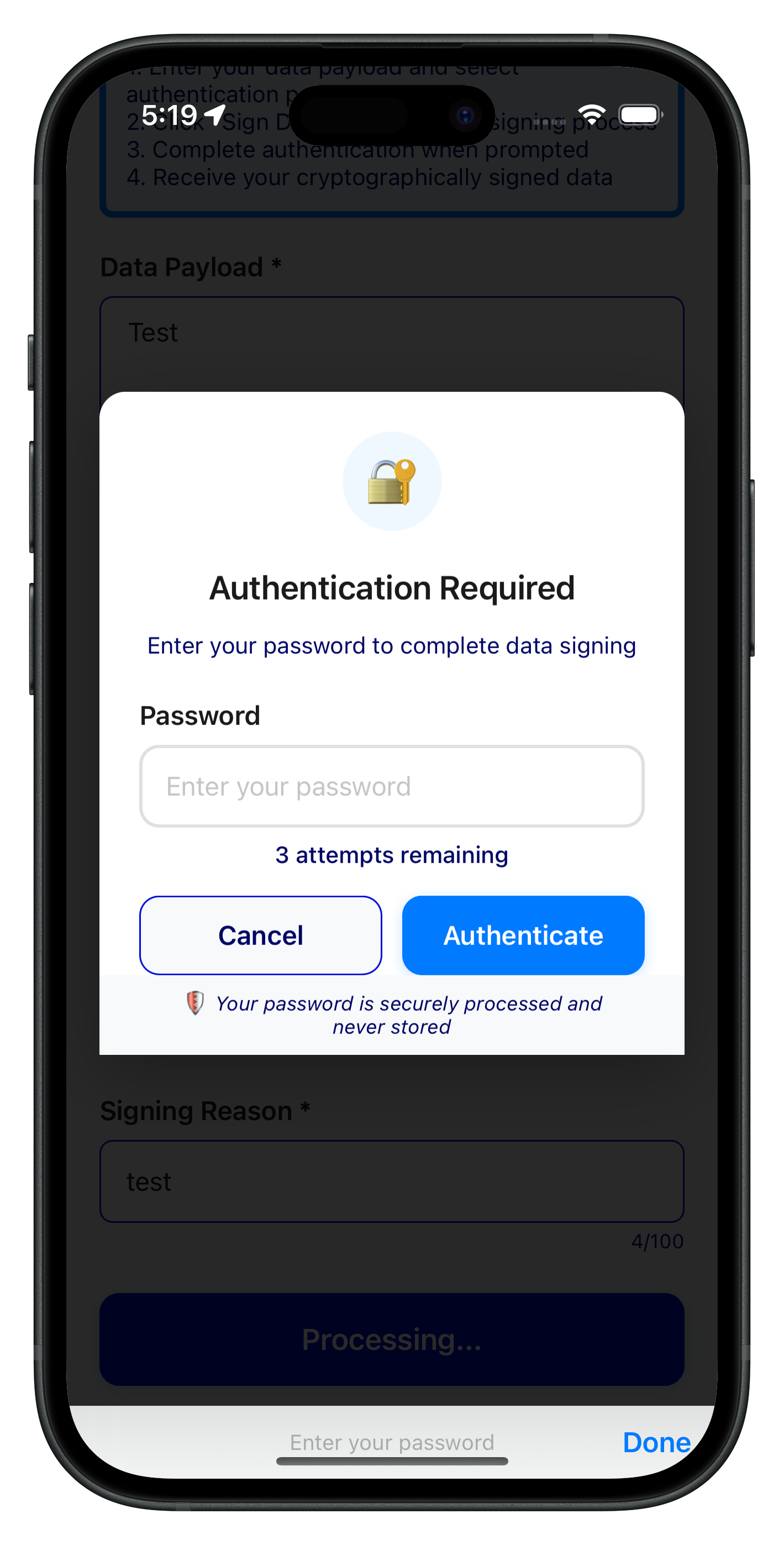
Password Challenge Modal Integration
The following image showcases the authentication required modal during step-up authentication:
// Sources/Tutorial/Screens/DataSigning/PasswordChallengeModalViewController.swift

import UIKit
import RELID

/// PasswordChallengeModalViewController - Modal for step-up authentication
class PasswordChallengeModalViewController: UIViewController {

    // MARK: - IBOutlets

    @IBOutlet weak var modalContentView: UIView!
    @IBOutlet weak var securityIconLabel: UILabel!
    @IBOutlet weak var modalTitleLabel: UILabel!
    @IBOutlet weak var modalSubtitleLabel: UILabel!
    @IBOutlet weak var inputLabel: UILabel!
    @IBOutlet weak var passwordTextField: UITextField!
    @IBOutlet weak var attemptsLabel: UILabel!
    @IBOutlet weak var cancelButton: UIButton!
    @IBOutlet weak var authenticateButton: UIButton!
    @IBOutlet weak var activityIndicator: UIActivityIndicatorView!
    @IBOutlet weak var securityInfoView: UIView!
    @IBOutlet weak var securityInfoLabel: UILabel!

    // MARK: - Properties

    var userID: String!
    var attemptsLeft: Int32 = 3
    var challengeMode: RDNAChallengeOpMode = RDNAChallengeOpMode(rawValue: 12)!
    var response: RDNAChallengeResponse!
    var getPasswordError: RDNAError!

    private var password: String = ""
    private var isSubmitting: Bool = false {
        didSet {
            updateSubmittingState()
        }
    }

    var onCancelled: (() -> Void)?

    // MARK: - Lifecycle

    override func viewDidLoad() {
        super.viewDidLoad()

        setupUI()
        setupKeyboard()
        updateAttemptsText()

        passwordTextField.becomeFirstResponder()
    }

    override func viewDidAppear(_ animated: Bool) {
        super.viewDidAppear(animated)
        displayGetPasswordError()
    }

    private func displayGetPasswordError() {
        // Display error or status from getPassword callback
        if getPasswordError.longErrorCode != 0 {
            print("PasswordChallengeModalViewController - Displaying error alert")
            print("  Error Code: \(getPasswordError.longErrorCode)")
            print("  Error Message: \(getPasswordError.errorString ?? "N/A")")

            let errorMessage = "\(getPasswordError.errorString ?? "Authentication failed") (Code: \(getPasswordError.longErrorCode))"
            showAlert(title: "Authentication Error", message: errorMessage)
            return
        }

        // No error - check status from response
        if let status = response?.status {
            if status.statusCode != 100 {
                print("PasswordChallengeModalViewController - Displaying status alert")
                print("  Status Code: \(status.statusCode)")

                let statusMessage = status.statusMessage ?? "Authentication failed with status code \(status.statusCode)"
                showAlert(title: "Authentication Failed", message: statusMessage)
            }
        }
    }

    // MARK: - Setup

    private func setupUI() {
        // Background overlay
        view.backgroundColor = UIColor(white: 0, alpha: 0.6)

        // Modal content
        modalContentView.backgroundColor = .white
        modalContentView.layer.cornerRadius = 16
        modalContentView.layer.shadowColor = UIColor.black.cgColor
        modalContentView.layer.shadowOffset = CGSize(width: 0, height: 10)
        modalContentView.layer.shadowOpacity = 0.3
        modalContentView.layer.shadowRadius = 20

        // Security icon
        securityIconLabel.text = "🔐"
        securityIconLabel.font = UIFont.systemFont(ofSize: 30)
        securityIconLabel.backgroundColor = UIColor(hex: "#f0f8ff")
        securityIconLabel.layer.cornerRadius = 30
        securityIconLabel.clipsToBounds = true
        securityIconLabel.textAlignment = .center

        // Modal title
        modalTitleLabel.text = "Authentication Required"
        modalTitleLabel.font = UIFont.boldSystemFont(ofSize: 20)
        modalTitleLabel.textColor = UIColor(hex: "#1a1a1a")
        modalTitleLabel.textAlignment = .center

        // Modal subtitle
        modalSubtitleLabel.text = "Enter your password to complete data signing"
        modalSubtitleLabel.font = UIFont.systemFont(ofSize: 14)
        modalSubtitleLabel.textColor = UIColor(hex: "#666")
        modalSubtitleLabel.textAlignment = .center
        modalSubtitleLabel.numberOfLines = 0

        // Input label
        inputLabel.text = "Password"
        inputLabel.font = UIFont.systemFont(ofSize: 16, weight: .semibold)
        inputLabel.textColor = UIColor(hex: "#1a1a1a")

        // Password text field
        passwordTextField.placeholder = "Enter your password"
        passwordTextField.isSecureTextEntry = true
        passwordTextField.autocorrectionType = .no
        passwordTextField.autocapitalizationType = .none
        passwordTextField.font = UIFont.systemFont(ofSize: 16)
        passwordTextField.textColor = UIColor(hex: "#1a1a1a")
        passwordTextField.backgroundColor = .white
        passwordTextField.layer.cornerRadius = 12
        passwordTextField.layer.borderWidth = 2
        passwordTextField.layer.borderColor = (UIColor(hex: "#e0e0e0") ?? UIColor.lightGray).cgColor
        passwordTextField.leftView = UIView(frame: CGRect(x: 0, y: 0, width: 16, height: 40))
        passwordTextField.leftViewMode = .always
        passwordTextField.rightView = UIView(frame: CGRect(x: 0, y: 0, width: 16, height: 40))
        passwordTextField.rightViewMode = .always
        passwordTextField.delegate = self
        passwordTextField.addTarget(self, action: #selector(passwordTextChanged), for: .editingChanged)

        // Attempts label
        attemptsLabel.font = UIFont.systemFont(ofSize: 14, weight: .medium)

        // Cancel button
        cancelButton.setTitle("Cancel", for: .normal)
        cancelButton.setTitleColor(UIColor(hex: "#666"), for: .normal)
        cancelButton.titleLabel?.font = UIFont.systemFont(ofSize: 16, weight: .semibold)
        cancelButton.backgroundColor = UIColor(hex: "#f8f9fa")
        cancelButton.layer.cornerRadius = 12
        cancelButton.layer.borderWidth = 1
        cancelButton.layer.borderColor = (UIColor(hex: "#ddd") ?? UIColor.lightGray).cgColor

        // Authenticate button
        authenticateButton.setTitle("Authenticate", for: .normal)
        authenticateButton.setTitleColor(.white, for: .normal)
        authenticateButton.titleLabel?.font = UIFont.systemFont(ofSize: 16, weight: .semibold)
        authenticateButton.backgroundColor = UIColor(hex: "#007AFF")
        authenticateButton.layer.cornerRadius = 12
        authenticateButton.layer.shadowColor = (UIColor(hex: "#007AFF") ?? UIColor.systemBlue).cgColor
        authenticateButton.layer.shadowOffset = CGSize(width: 0, height: 2)
        authenticateButton.layer.shadowOpacity = 0.2
        authenticateButton.layer.shadowRadius = 4

        // Activity indicator
        activityIndicator.color = .white
        activityIndicator.hidesWhenStopped = true

        // Security info
        securityInfoView.backgroundColor = UIColor(hex: "#f8f9fa")
        securityInfoLabel.text = "🛡️ Your password is securely processed and never stored"
        securityInfoLabel.font = UIFont.italicSystemFont(ofSize: 12)
        securityInfoLabel.textColor = UIColor(hex: "#666")
        securityInfoLabel.numberOfLines = 0
        securityInfoLabel.textAlignment = .center
    }

    private func setupKeyboard() {
        let tapGesture = UITapGestureRecognizer(target: self, action: #selector(dismissKeyboard))
        tapGesture.cancelsTouchesInView = false
        view.addGestureRecognizer(tapGesture)
    }

    private func updateAttemptsText() {
        let attemptsText: String
        let attemptsColor: UIColor

        if attemptsLeft <= 1 {
            attemptsText = "⚠️ Last attempt remaining"
            attemptsColor = UIColor(hex: "#ff3b30") ?? UIColor.systemRed
        } else if attemptsLeft <= 2 {
            attemptsText = "\(attemptsLeft) attempts remaining"
            attemptsColor = UIColor(hex: "#ff9500") ?? UIColor.systemOrange
        } else {
            attemptsText = "\(attemptsLeft) attempts remaining"
            attemptsColor = UIColor(hex: "#666") ?? UIColor.darkGray
        }

        attemptsLabel.text = attemptsText
        attemptsLabel.textColor = attemptsColor
    }

    private func updateSubmittingState() {
        if isSubmitting {
            authenticateButton.setTitle("Authenticating...", for: .normal)
            authenticateButton.backgroundColor = UIColor(hex: "#ccc")
            authenticateButton.isEnabled = false
            cancelButton.isEnabled = false
            activityIndicator.startAnimating()
        } else {
            authenticateButton.setTitle("Authenticate", for: .normal)
            authenticateButton.backgroundColor = UIColor(hex: "#007AFF")
            authenticateButton.isEnabled = !password.trimmingCharacters(in: .whitespacesAndNewlines).isEmpty
            cancelButton.isEnabled = true
            activityIndicator.stopAnimating()
        }
    }

    // MARK: - Actions

    @IBAction func cancelButtonTapped(_ sender: UIButton) {
        print("PasswordChallengeModalViewController - Cancel button tapped")

        // Reset data signing state in SDK
        let error = RDNAService.shared.resetAuthenticateUserAndSignDataState()

        if error.longErrorCode != 0 {
            print("PasswordChallengeModalViewController - Warning: Failed to reset state")
        } else {
            print("PasswordChallengeModalViewController - State reset successfully")
        }

        // Dismiss modal
        passwordTextField.resignFirstResponder()
        dismiss(animated: true) {
            self.onCancelled?()
        }
    }

    @IBAction func authenticateButtonTapped(_ sender: UIButton) {
        // Validate password
        let trimmedPassword = password.trimmingCharacters(in: .whitespacesAndNewlines)
        guard !trimmedPassword.isEmpty else {
            showAlert(title: "Invalid Input", message: "Please enter your password")
            return
        }

        // Set loading state
        isSubmitting = true
        passwordTextField.resignFirstResponder()

        // Call SDK setPassword with challengeMode=12
        let error = RDNAService.shared.setPassword(trimmedPassword, challengeMode: challengeMode)

        if error.longErrorCode != 0 {
            // SDK call failed immediately
            isSubmitting = false
            showAlert(title: "Error", message: "Failed to submit password: \(error.errorString)")
        } else {
            // Success - SDK will trigger onAuthenticateUserAndSignData callback
            dismiss(animated: true)
        }
    }

    @objc private func passwordTextChanged() {
        password = passwordTextField.text ?? ""
        updateSubmittingState()
    }

    @objc private func dismissKeyboard() {
        view.endEditing(true)
    }

    // MARK: - Helpers

    private func showAlert(title: String, message: String) {
        let alert = UIAlertController(title: title, message: message, preferredStyle: .alert)
        alert.addAction(UIAlertAction(title: "OK", style: .default))
        present(alert, animated: true)
    }

    // MARK: - Static Factory Method

    static func show(
        in parentViewController: UIViewController,
        userID: String,
        attemptsLeft: Int32,
        response: RDNAChallengeResponse,
        error: RDNAError,
        onCancelled: (() -> Void)? = nil
    ) {
        let storyboard = UIStoryboard(name: "Main", bundle: nil)

        guard let vc = storyboard.instantiateViewController(withIdentifier: "PasswordChallengeModalViewController") as? PasswordChallengeModalViewController else {
            print("PasswordChallengeModalViewController - Failed to instantiate from storyboard")
            return
        }

        // Configure BEFORE presenting
        vc.userID = userID
        vc.attemptsLeft = attemptsLeft
        vc.challengeMode = RDNAChallengeOpMode(rawValue: 12)!
        vc.response = response
        vc.getPasswordError = error
        vc.onCancelled = onCancelled

        // Present modally
        vc.modalPresentationStyle = .overFullScreen
        vc.modalTransitionStyle = .crossDissolve

        parentViewController.present(vc, animated: true)
    }
}

// MARK: - UITextFieldDelegate

extension PasswordChallengeModalViewController: UITextFieldDelegate {
    func textFieldShouldReturn(_ textField: UITextField) -> Bool {
        if !password.trimmingCharacters(in: .whitespacesAndNewlines).isEmpty {
            authenticateButtonTapped(authenticateButton)
        }
        return true
    }
}
Integration Benefits
- 🎛️ Seamless UI Coordination: UI components automatically sync with SDK events
- 🔄 Automatic State Updates: Real-time updates across all components
- 🛡️ Error Boundary Protection: Comprehensive error handling at delegate level
- ⚡ Performance Optimization: Minimal re-renders with targeted state updates
- 🧪 Testing Friendly: Mockable delegates for unit testing
Let's implement comprehensive testing scenarios to validate your data signing implementation and ensure robust error handling.
Testing Scenarios Overview
Your data signing implementation should handle these key scenarios:
- ✅ Happy Path Flow: Complete successful signing
- ⚠️ Error Scenarios: Network failures, authentication errors
- 🔄 State Cleanup: Proper reset on cancellation
- 🔒 Security Validation: Authentication level enforcement
- 📱 UI Responsiveness: Loading states and user feedback
Happy Path Testing
Test Case 1: Successful Data Signing Flow
// Manual Testing Steps:

1. **Input Validation**
   - Enter payload: "Test document for signing"
   - Select Auth Level: "Level 4 - Strong Authenticator (Recommended)"
   - Select Authenticator Type: "Manual Password (2)"
   - Enter reason: "Document authorization test"

2. **Form Submission**
   - Tap "Sign Data" button
   - Verify loading state appears
   - Check console logs for:
     ✅ "RDNAService - AuthenticateUserAndSignData request successful"
     ✅ "RDNAService - Awaiting getPassword callback with challengeMode=12"

3. **Password Challenge** (if triggered)
   - Verify password modal appears
   - Enter correct password
   - Tap "Authenticate" button
   - Check console logs for password submission success

4. **Final Result**
   - Verify navigation to results screen
   - Check all result fields are populated:
     ✅ Payload Signature (cryptographic signature)
     ✅ Data Signature ID (unique identifier)
     ✅ Original payload and parameters

5. **State Cleanup**
   - Tap "Sign Another Document"
   - Verify return to input screen with clean state
   - Check console logs for successful state reset
Expected Console Output Pattern:
DataSigningInputViewController - Submit button tapped
RDNAService - Authenticating user and signing data
  Payload: Test document for signing
  Auth Level: 4
  Authenticator Type: 2
  Reason: Document authorization test
RDNAService - AuthenticateUserAndSignData request successful
  Awaiting getPassword callback with challengeMode=12
[Password challenge if required]
RDNADelegateManager - onAuthenticateUserAndSignData called
  Payload: Test document for signing
  Signature: [cryptographic signature]
  Signature ID: [unique identifier]
  Status Code: 100
  Error Code: 0
DataSigningInputViewController - Data signing successful!
Error Scenario Testing
Test Case 2: Authentication Failure Handling
// Simulate authentication failure:

1. **Trigger Error Scenario**
   - Use invalid credentials during password challenge
   - Or disconnect network during signing process
   - Or use unsupported authentication type

2. **Verify Error Handling**
   ✅ Error alert displayed with user-friendly message
   ✅ Loading state properly cleared
   ✅ Form remains editable for retry
   ✅ Console logs show comprehensive error details

3. **Expected Error Messages**
   - "Authentication failed. Please check your credentials and try again." (Code 102)
   - "Authentication method not supported. Please try a different type." (Code 214)
   - "Operation cancelled by user." (Code 153)
Test Case 3: Network/Connection Errors
// Simulate network issues:

1. **Preparation**
   - Start data signing process
   - Disable network connection mid-process
   - Or simulate server timeout

2. **Verify Recovery**
   ✅ Appropriate error message shown
   ✅ State automatically reset
   ✅ User can retry operation
   ✅ No stuck loading states
State Cleanup Validation
Test Case 4: Cancel Flow Validation
// Test proper state cleanup:

1. **Password Modal Cancellation**
   - Start data signing process
   - When password modal appears, tap "Cancel"
   - Verify:
     ✅ Modal closes immediately
     ✅ Form returns to editable state
     ✅ Console shows: "PasswordChallengeModalViewController - Cancel button tapped"
     ✅ Console shows: "RDNAService - Reset successful"

2. **Navigation Cancellation**
   - Start signing process
   - Use device back button or navigation gesture
   - Verify proper state cleanup occurs

3. **Multiple Reset Calls**
   - Verify reset API can be called multiple times safely
   - No errors or crashes should occur
Security & Validation Testing
Test Case 5: Input Validation
// Test form validation:

1. **Required Field Validation**
   - Submit form with empty fields
   - Verify appropriate error messages

2. **Character Limit Validation**
   - Enter 501 characters in payload field
   - Enter 101 characters in reason field
   - Verify validation prevents submission

3. **Picker Validation**
   - Submit without selecting auth level/type
   - Verify validation error displayed
Test Case 6: Authentication Level Enforcement
// Test security levels:

1. **Level 4 Authentication (Recommended)**
   - Select "Level 4 - Strong Authenticator"
   - Verify biometric challenge is triggered
   - Confirm highest security enforcement

2. **Different Auth Types**
   - Test each authenticator type option
   - Verify appropriate challenge type appears
   - Confirm expected authentication flow
UI Responsiveness Testing
Test Case 7: Loading States & User Feedback
// Test UI behavior:

1. **Loading Indicators**
   ✅ Submit button shows "Processing..." with spinner
   ✅ Form fields become disabled during processing
   ✅ Password modal shows processing state

2. **Copy Functionality** (Results Screen)
   ✅ Copy buttons work for all result fields
   ✅ "Copied" confirmation appears briefly
   ✅ Long signatures can be viewed in full

3. **Responsive Design**
   ✅ UI works on different screen sizes (iPhone/iPad)
   ✅ Keyboard handling works properly
   ✅ Modal layouts adapt to content size
Validation Checklist
Use this checklist to ensure comprehensive testing:
Core Functionality
- [ ] Successful data signing with Level 4 auth
- [ ] Password step-up authentication works
- [ ] Results screen displays all signed data
- [ ] Copy functionality works for all fields
- [ ] "Sign Another Document" resets state properly
Error Handling
- [ ] Network errors handled gracefully
- [ ] Authentication failures show appropriate messages
- [ ] Invalid input validation prevents submission
- [ ] State cleanup works after all error types
Security Validation
- [ ] Authentication levels enforce proper security
- [ ] Biometric challenges work with Level 4
- [ ] Sensitive data is not logged or exposed
- [ ] State reset prevents authentication bypass
UI/UX Quality
- [ ] Loading states provide clear feedback
- [ ] Form validation shows helpful messages
- [ ] Modal interactions work smoothly
- [ ] Navigation flows are intuitive
Debugging Console Commands
Use these console checks during testing:
// Check current state (in Xcode debugger)
po payloadText
po reasonText
po selectedAuthLevel
po selectedAuthenticatorType
po isLoading

// Verify service availability
po RDNAService.shared
po RDNADelegateManager.shared

// Check delegate registration
po RDNADelegateManager.shared.onAuthenticateUserAndSignData
po RDNADelegateManager.shared.onGetPassword
Performance Monitoring
Monitor these performance indicators:
- Response Times: API calls should complete within 5-10 seconds
- Memory Usage: No memory leaks during repeated operations
- State Updates: UI should update within 100ms of state changes
- Network Efficiency: Minimal API calls with proper error recovery
Let's explore the essential security practices and production considerations for implementing REL-ID data signing in enterprise applications.
Authentication Level Guidelines
Security Level Selection Matrix (Data Signing Only)
Data Sensitivity | Recommended Level | Use Cases | Security Features |
Testing/Development | Level 0 | Testing environments only | ⚠️ No authentication - NOT for production |
Public/Standard | Level 1 | Standard documents, general approvals | Device biometric/passcode/password |
Confidential/High | Level 4 | Financial, legal, medical, high-value transactions | Biometric + Step-up Auth |
Implementation Guidelines
// ✅ GOOD: Production-ready authentication level selection for data signing
func getRecommendedAuthLevel(for dataType: String) -> RDNAAuthLevel {
    switch dataType {
    case "financial_transaction", "legal_document", "medical_record", "high_value_approval":
        return RDNAAuthLevel(rawValue: 4)!  // Maximum security

    case "general_document", "standard_approval":
        return RDNAAuthLevel(rawValue: 1)!  // Standard authentication

    case "testing_only":
        return RDNAAuthLevel(rawValue: 0)!  // Testing only - never use in production

    default:
        return RDNAAuthLevel(rawValue: 4)!  // Default to maximum security
    }
}

// ✅ GOOD: Correct authenticator type pairing for data signing
func getCorrectAuthenticatorType(for authLevel: RDNAAuthLevel) -> RDNAAuthenticatorType {
    switch authLevel.rawValue {
    case 0, 1:
        return RDNAAuthenticatorType(rawValue: 0)!  // Let REL-ID choose best available
    case 4:
        return RDNAAuthenticatorType(rawValue: 1)!  // Required for Level 4
    default:
        fatalError("Unsupported authentication level for data signing")
    }
}

// ❌ BAD: Using unsupported combinations
// Level 2 or 3 - Will cause SDK error!
// Level 4 with non-biometric type - Will cause SDK error!
State Management Security Patterns
Proper State Cleanup
// ✅ GOOD: Comprehensive state cleanup pattern
func secureStateCleanup() {
    // 1. Reset SDK authentication state
    let error = RDNAService.shared.resetAuthenticateUserAndSignDataState()

    if error.longErrorCode != 0 {
        print("Warning: SDK state reset failed - \(error.errorString)")
    }

    // 2. Clear sensitive form data
    payloadText = ""
    reasonText = ""
    selectedAuthLevel = RDNAAuthLevel(rawValue: 4)!
    selectedAuthenticatorType = RDNAAuthenticatorType(rawValue: 2)!
    isLoading = false

    // 3. Clear authentication modal state
    // (handled by modal dismiss)

    print("Secure state cleanup completed")
}

// ❌ BAD: Incomplete cleanup leaving sensitive data
func badCleanup() {
    isLoading = false
    // Password still in memory!
    // SDK state not reset!
}
Memory Management for Sensitive Data
// ✅ GOOD: Secure password handling
func handlePasswordSubmission(password: String) {
    // Use password immediately
    let error = RDNAService.shared.setPassword(password, challengeMode: challengeMode)

    // Clear password from local variable
    var clearedPassword = password
    clearedPassword = ""

    if error.longErrorCode != 0 {
        print("Password submission failed")
    }
}

// ❌ BAD: Password persists in memory
func badPasswordHandling(password: String) {
    RDNAService.shared.setPassword(password, challengeMode: challengeMode)
    // Password remains in memory and may be logged!
}
Error Handling Security Patterns
Secure Error Message Display
// ✅ GOOD: Security-aware error handling
func getSecureErrorMessage(from error: RDNAError) -> String {
    let errorCode = error.longErrorCode

    switch errorCode {
    case 0:
        return "Operation completed successfully"
    case 102:
        return "Authentication failed. Please verify your credentials."
    case 153:
        return "Operation was cancelled by user."
    case 214:
        return "Authentication method not supported. Please try another method."
    default:
        // ✅ GOOD: Don't expose internal error details
        print("Internal error details (not shown to user): \(error.errorString)")
        return "Operation failed. Please try again or contact support."
    }
}

// ❌ BAD: Exposing sensitive error information
func badErrorHandling(error: RDNAError) {
    showAlert(title: "Error", message: error.errorString)  // Exposes internal details!
}
Comprehensive Error Recovery
// ✅ GOOD: Robust error recovery with security cleanup
func handleSigningError(error: RDNAError) {
    print("Data signing error: \(error.errorString)")

    // 1. Attempt SDK state cleanup
    let resetError = RDNAService.shared.resetAuthenticateUserAndSignDataState()

    if resetError.longErrorCode != 0 {
        print("Warning: Failed to reset SDK state")
    }

    // 2. Clear sensitive local state
    secureStateCleanup()

    // 3. Show user-friendly error
    let userMessage = getSecureErrorMessage(from: error)

    let alert = UIAlertController(title: "Signing Error", message: userMessage, preferredStyle: .alert)
    alert.addAction(UIAlertAction(title: "Try Again", style: .default) { _ in
        self.resetToInitialState()
    })
    alert.addAction(UIAlertAction(title: "Cancel", style: .cancel))
    present(alert, animated: true)
}
Audit Logging Best Practices
// ✅ GOOD: Comprehensive audit logging (sanitized)
func logDataSigningAttempt(payload: String, authLevel: RDNAAuthLevel, result: String) {
    let logEntry = """
    Data Signing Attempt:
      Timestamp: \(Date())
      Payload Length: \(payload.count) characters
      Auth Level: \(authLevel.rawValue)
      Result: \(result)
      User: [REDACTED for security]
    """

    print(logEntry)
    // Send to secure logging service
}

// ❌ BAD: Logging sensitive information
func badLogging(payload: String, password: String) {
    print("Signing payload: \(payload)")  // May contain sensitive data!
    print("Password: \(password)")  // NEVER log passwords!
}
iOS-Specific Security Considerations
Keychain Integration
// ✅ GOOD: Store sensitive configuration in Keychain
func storeConfigSecurely(config: [String: Any]) {
    let data = try? JSONSerialization.data(withJSONObject: config)

    let query: [String: Any] = [
        kSecClass as String: kSecClassGenericPassword,
        kSecAttrAccount as String: "DataSigningConfig",
        kSecValueData as String: data as Any
    ]

    SecItemAdd(query as CFDictionary, nil)
}

// ❌ BAD: Storing sensitive data in UserDefaults
func badStorage(config: [String: Any]) {
    UserDefaults.standard.set(config, forKey: "DataSigningConfig")  // Insecure!
}
Congratulations! You've successfully implemented a complete, production-ready data signing solution using REL-ID SDK with iOS Swift.
What You've Accomplished
Throughout this codelab, you've built:
🔐 Secure Cryptographic Signing System
- Multi-level authentication with configurable security levels (0-4)
- Biometric step-up authentication for maximum security
- Cryptographic payload signing with non-repudiation guarantees
- Complete audit trail of all signing operations
🏗️ Production-Grade Architecture
- Service layer abstraction separating UI from SDK integration
- REL-ID SDK integration with proper delegate handling
- UIViewController patterns for complex authentication flows
- Error-resilient design with comprehensive cleanup mechanisms
📱 Native iOS User Experience
- Intuitive form interfaces with real-time validation
- Native UIPickerView components for parameter selection
- Professional results display with copy functionality
- Smooth modal interactions for authentication challenges
🛡️ Enterprise Security Practices
- Secure state management with proper cleanup
- Comprehensive error handling without information disclosure
- Memory management for sensitive data protection
- Audit logging patterns for compliance requirements
Key Learning Outcomes
You've mastered these essential concepts:
- REL-ID Data Signing APIs: Deep understanding of
authenticateUserAndSignData(),resetAuthenticateUserAndSignDataState(), andonAuthenticateUserAndSignDatadelegate patterns - Authentication Architecture: Implementation of authentication levels, authenticator types, and step-up authentication flows
- Delegate-Driven Integration: Seamless coordination between iOS UIViewControllers and REL-ID SDK event system
- Security Best Practices: Production-ready patterns for handling sensitive data, error recovery, and state cleanup
- REL-ID Integration Patterns: Proper SDK integration with comprehensive error handling and delegate management
Production Deployment Checklist
Before deploying to production, ensure:
Security Validation
- [ ] Authentication Level 4 used for all sensitive operations
- [ ] State cleanup implemented for all exit scenarios
- [ ] Error messages don't expose sensitive information
- [ ] Audit logging captures all signing attempts and results
- [ ] Memory management clears sensitive data promptly
Performance & Scalability
- [ ] Network timeouts configured appropriately
- [ ] Error retry logic implemented with exponential backoff
- [ ] Loading states provide clear user feedback
- [ ] Memory leaks tested and resolved
- [ ] Background/foreground state transitions handled
Next Steps & Advanced Features
Immediate Enhancements
- Batch Signing: Implement multiple document signing in single authentication session
- Signature Verification: Add signature validation and verification screens
- Document Templates: Pre-configured signing templates for common document types
- Offline Support: Cache signed documents for offline viewing and verification
Integration Opportunities
- Document Management: Integration with document storage systems
- Workflow Systems: Connect to approval and business process workflows
- Analytics Dashboard: User signing activity and security analytics
- Mobile Device Management: Enterprise MDM integration for additional security
Advanced Security Features
- Multi-Signature Support: Require multiple users to sign single document
- Time-Stamping: RFC 3161 timestamp authority integration
- Certificate Chaining: PKI certificate validation and trust chains
- Hardware Security Modules: HSM integration for enterprise deployments
Resources & Further Learning
REL-ID Documentation
iOS Development Resources
Thank you for completing the REL-ID Data Signing Flow codelab! 🎉
You're now equipped to build secure, production-grade data signing features in your iOS applications using REL-ID SDK's powerful cryptographic capabilities.