🎯 Learning Path:
- Complete REL-ID Complete Activation & Login Flow Codelab
- You are here → Internationalization Implementation (Pre-Login and Post-Login)
Welcome to the REL-ID Internationalization codelab! This tutorial builds upon your existing MFA implementation to add comprehensive multi-language support with dynamic language switching using REL-ID SDK's language management APIs.
What You'll Build
In this codelab, you'll enhance your existing MFA application with:
- 🌍 Language Initialization: Set language preference during SDK
initialize()withinitOptions - 🔄 Dynamic Language Switching: Change language at runtime using
setSDKLanguage()API without app restart after sdk initialization - 📱 Language Selection UI: Create language selector modal with native script display (हिन्दी, Español, etc.)
- 🌐 Language State Management: Implement Riverpod StateNotifier for centralized language state management
- 💾 Language Persistence: Save and restore language preferences using SharedPreferences
- 🔊 Native Localization: Setup Android
strings.xmland iOS.stringsfiles for error code mapping - ↔️ RTL/LTR Support: Handle bidirectional text with
RDNALanguageDirectionenum - ⚠️ Two-Phase Error Handling: Initialization errors (mapped to native files) vs runtime errors (from SDK events)
What You'll Learn
By completing this codelab, you'll master:
- SDK Language Lifecycle: Two distinct phases - initialization vs runtime language management
- Language APIs Integration:
initialize()withinitOptions.internationalizationOptionsandsetSDKLanguage()API - Language Event Handling: Processing
onSetLanguageResponsecallbacks for language updates - Native Platform Localization: How SDK automatically reads language-specific string resources during initialization
- Language State Management: Riverpod StateNotifier pattern with persistence and synchronization
- Automatic Error Localization: SDK reads app's localization files and returns localized error messages
- Dynamic Language Updates: Changing UI language at runtime without component reloads
- RTL/LTR Support: Implementing bidirectional text support for various languages
Prerequisites
Before starting this codelab, ensure you have:
- ✅ Completed REL-ID MFA Complete Activation & Login Flow Codelab - All MFA screens and flows must be fully implemented
- ✅ Flutter Development Environment - Android Studio, Xcode, and Flutter SDK configured
- ✅ REL-ID SDK Integration - Latest SDK with language management APIs
- ✅ Dart Knowledge - Understanding of Dart classes and type safety
- ✅ Riverpod Knowledge - Experience with Riverpod for state management
- ✅ SharedPreferences Knowledge - Basic understanding of local data persistence
- ✅ Drawer Navigation Setup - Drawer navigation configured with navigation infrastructure
Get the Code from GitHub
The code to get started can be found in a GitHub repository.
You can clone the repository using the following command:
git clone https://github.com/uniken-public/codelab-flutter.git
Navigate to the relid-internationalization folder in the repository you cloned earlier
Codelab Architecture Overview
This codelab extends your MFA application with three core internationalization components:
- LanguageProvider: Centralized language state management with SharedPreferences persistence, synced with SDK supported languages via
onInitializedcallback - LanguageSelector Widget: UI component for language selection with native script display
- Service Layer Integration: SDK initialization with
initOptions,setSDKLanguage()API and event handlers (onInitialized,onSetLanguageResponse)
Before implementing internationalization, let's understand the two critical phases of language management with REL-ID SDK.
Two-Phase Language Lifecycle
REL-ID SDK manages language in two distinct phases:
PHASE 1: SDK INITIALIZATION
  ↓
  App starts → Load default languages → Get user's saved language preference →
  Extract short language code (e.g., 'en-US' → 'en') →
  Call initialize() with initOptions.internationalizationOptions.localeCode = 'en' →
  SDK initializes with language preference →
  If error occurs: SDK internally reads app's localization files (strings.xml or .strings) →
                   SDK returns LOCALIZED error message (not error code) →
                   App displays error message directly to user
  If success: Fire onInitialized event with:
             - data.additionalInfo.supportedLanguage (array of available languages)
             - data.additionalInfo.selectedLanguage (initialized language code)
             → App calls updateFromSDK() to sync LanguageProvider
  ↓
  ↓
PHASE 2: RUNTIME LANGUAGE SWITCHING (After initialization)
  ↓
  User selects language from UI → Call setSDKLanguage('hi-IN', direction) →
  SDK processes request → Fire onSetLanguageResponse event →
  Response includes supportedLanguages and localeCode →
  Check statusCode and longErrorCode for success →
  Update LanguageProvider with new languages if successful →
  No app restart needed - UI updates dynamically
Language API Reference Table
Phase | API Method | Parameters | Response | Purpose | Documentation |
Initialization |
|
| Localized error message (if error) or success response | Set initial language preference with fallback to English | |
Runtime |
| locale: ‘en-US', ‘hi-IN'; direction: 0/1 | Sync response with error code | Request language change | |
Runtime |
| N/A | Complete language data + supported languages | Callback with language update result |
SDK Automatic Error Localization
During initialization, if an error occurs, the SDK automatically reads your app's localization files and returns the localized error message:
Initialize Called with initOptions.internationalizationOptions.localeCode = 'hi' (Hindi)
                     ↓
SDK initializes and encounters error
                     ↓
SDK internally reads: android/app/src/main/res/values-hi/strings_rel_id.xml
                  OR: ios/SharedLocalization/hi.lproj/RELID.strings
                     ↓
SDK finds localized message: "SDK प्रारंभीकरण विफल"
                     ↓
SDK Returns: { error: { errorString: "SDK प्रारंभीकरण विफल" } }
                     ↓
App displays error message directly to user
No manual error code mapping needed - SDK handles reading localization files internally!
Supported Languages from onInitialized Callback
On successful initialization, the SDK returns the list of supported languages via the onInitialized event:
// onInitialized callback returns RDNAInitialized
void handleInitialized(RDNAInitialized data) {
  // Access supported languages from additionalInfo
  final supportedLanguages = data.additionalInfo?.supportedLanguage; // List<RDNASupportedLanguage>
  final selectedLanguage = data.additionalInfo?.selectedLanguage;     // String (e.g., 'hi-IN')

  // Supported languages structure:
  // [
  //   RDNASupportedLanguage(lang: 'en-US', displayText: 'English', direction: 'LTR'),
  //   RDNASupportedLanguage(lang: 'hi-IN', displayText: 'Hindi', direction: 'LTR'),
  //   RDNASupportedLanguage(lang: 'es-ES', displayText: 'Spanish', direction: 'LTR')
  // ]

  // Selected language structure:
  // 'hi-IN' (Full locale code that was initialized with)

  // Update LanguageProvider with SDK's languages
  ref.read(languageProvider.notifier).updateFromSDK(supportedLanguages, selectedLanguage);
}
Key Points:
data.additionalInfo.supportedLanguage- Array of all languages SDK supportsdata.additionalInfo.selectedLanguage- Currently selected language code- These values sync your app's language context with the SDK's state
- Use
updateFromSDK()to update LanguageProvider after initialization
Supported Languages & Direction
The RDNALanguageDirection enum provides language direction options:
enum RDNALanguageDirection {
  RDNA_LOCALE_LTR,      // 0: Left-to-Right (English, Spanish, Hindi)
  RDNA_LOCALE_RTL,      // 1: Right-to-Left (Arabic, Hebrew)
  RDNA_LOCALE_TBRL,     // 2: Top-Bottom Right-Left (vertical)
  RDNA_LOCALE_TBLR,     // 3: Top-Bottom Left-Right (vertical)
  RDNA_LOCALE_UNSUPPORTED  // 4
}
Example languages:
Language | Locale Code | Direction | Native Name |
English | en-US | LTR (0) | English |
Hindi | hi-IN | LTR (0) | हिन्दी |
Spanish | es-ES | LTR (0) | Español |
Arabic | ar-SA | RTL (1) | العربية |
Event Response Structure
After calling setSDKLanguage(), the SDK fires onSetLanguageResponse with this structure:
class RDNASetLanguageResponse {
  final String? localeCode;                        // 'es-ES'
  final String? localeName;                        // 'Spanish'
  final String? languageDirection;                 // 'LTR' or 'RTL'
  final List<RDNASupportedLanguage>? supportedLanguages; // All available languages
  final Map<String, dynamic>? appMessages;         // Localized messages
  final RDNAStatus? status;                        // Status(statusCode: 100, statusMessage: 'Success')
  final RDNAError? error;                          // Error(longErrorCode: 0, errorString: '')
}
Event Handler Cleanup Pattern
Language screens use proper event handler cleanup:
@override
void initState() {
  super.initState();

  // Setup handler on screen mount
  final eventManager = rdnaService.getEventManager();
  eventManager.setSetLanguageResponseHandler(_handleSetLanguageResponse);
}

@override
void dispose() {
  // Cleanup when screen disposes
  final eventManager = rdnaService.getEventManager();
  eventManager.setSetLanguageResponseHandler(null);
  super.dispose();
}
Initialize error codes need to be mapped to localized strings. Let's set up native localization files for Android and iOS.
How SDK Uses Localization Files
During SDK initialization, if an error occurs, the SDK automatically reads your app's localization files:
Scenario: User starts app with Spanish preference, but network is down
  1. App calls initialize() with initOptions.internationalizationOptions.localeCode = 'es'
  2. SDK tries to initialize but fails due to network error
  3. SDK internally reads: android/app/src/main/res/values-es/strings_rel_id.xml
                       OR: ios/SharedLocalization/es.lproj/RELID.strings
  4. SDK finds the localized error message: "Error de conexión de red"
  5. SDK returns: { error: { errorString: "Error de conexión de red" } }
  6. App displays the error message to user in Spanish
Key Point: The SDK handles all localization internally. Your app just displays the error message it receives from the SDK.
Android: Setting Up strings.xml
Create localized string files in android/app/src/main/res/:
Step 1: Create default English strings
Create file: android/app/src/main/res/values/strings_rel_id.xml
<?xml version="1.0" encoding="utf-8"?>
<resources>
    <!-- REL-ID SDK Error Codes -->
    <string name="RDNA_ERR_50001">Network connection error</string>
    <string name="RDNA_ERR_50002">Invalid server configuration</string>
    <string name="RDNA_ERR_50003">SDK initialization timeout</string>
    <string name="RDNA_ERR_UNKNOWN">An unexpected error occurred</string>
</resources>
Step 2: Create Spanish localization
Create file: android/app/src/main/res/values-es/strings_rel_id.xml
<?xml version="1.0" encoding="utf-8"?>
<resources>
    <!-- REL-ID SDK Error Codes - Spanish -->
    <string name="RDNA_ERR_50001">Error de conexión de red</string>
    <string name="RDNA_ERR_50002">Configuración de servidor inválida</string>
    <string name="RDNA_ERR_50003">Tiempo de espera de inicialización del SDK</string>
    <string name="RDNA_ERR_UNKNOWN">Ocurrió un error inesperado</string>
</resources>
Step 3: Create Hindi localization
Create file: android/app/src/main/res/values-hi/strings_rel_id.xml
<?xml version="1.0" encoding="utf-8"?>
<resources>
    <!-- REL-ID SDK Error Codes - Hindi -->
    <string name="RDNA_ERR_50001">नेटवर्क कनेक्शन त्रुटि</string>
    <string name="RDNA_ERR_50002">अमान्य सर्वर कॉन्फ़िगरेशन</string>
    <string name="RDNA_ERR_50003">SDK प्रारंभीकरण समय समाप्त</string>
    <string name="RDNA_ERR_UNKNOWN">एक अप्रत्याशित त्रुटि हुई</string>
</resources>
iOS: Setting Up .strings Files
Create localized string files in ios/SharedLocalization/:
Step 1: Create default English strings
Create file: ios/SharedLocalization/en.lproj/RELID.strings
/* REL-ID SDK Error Codes */
"RDNA_ERR_50001" = "Network connection error";
"RDNA_ERR_50002" = "Invalid server configuration";
"RDNA_ERR_50003" = "SDK initialization timeout";
"RDNA_ERR_UNKNOWN" = "An unexpected error occurred";
Step 2: Create Spanish localization
Create file: ios/SharedLocalization/es.lproj/RELID.strings
/* REL-ID SDK Error Codes - Spanish */
"RDNA_ERR_50001" = "Error de conexión de red";
"RDNA_ERR_50002" = "Configuración de servidor inválida";
"RDNA_ERR_50003" = "Tiempo de espera de inicialización del SDK";
"RDNA_ERR_UNKNOWN" = "Ocurrió un error inesperado";
Step 3: Create Hindi localization
Create file: ios/SharedLocalization/hi.lproj/RELID.strings
/* REL-ID SDK Error Codes - Hindi */
"RDNA_ERR_50001" = "नेटवर्क कनेक्शन त्रुटि";
"RDNA_ERR_50002" = "अमान्य सर्वर कॉन्फ़िगरेशन";
"RDNA_ERR_50003" = "SDK प्रारंभीकरण समय समाप्त";
"RDNA_ERR_UNKNOWN" = "एक अप्रत्याशित त्रुटि हुई";
Step 4: Link to Xcode Project
In Xcode:
- Right-click project navigator
- Select "Add Files to Project"
- Navigate to
ios/SharedLocalizationfolder - Uncheck "Copy items if needed" (to link, not copy)
- Select your target
- Click "Add"
This links the same physical files to both projects, enabling shared localization updates.
Let's implement the language management APIs in your service layer following REL-ID SDK patterns.
Step 1: Add setSDKLanguage API
Add this method to
lib/uniken/services/rdna_service.dart
:
// lib/uniken/services/rdna_service.dart

import 'package:rdna_client/rdna_struct.dart';

/// Changes the SDK language dynamically after initialization
///
/// This method allows changing the SDK's language preference after initialization has completed.
/// The SDK will update all internal messages and supported language configurations accordingly.
/// After successful API call, the SDK triggers an onSetLanguageResponse event with updated language data.
/// Uses sync response pattern similar to other API methods.
///
/// ## Parameters
/// - [localeCode]: The language locale code to set (e.g., 'en-US', 'hi-IN', 'ar-SA')
/// - [languageDirection]: Language text direction (RDNA_LOCALE_LTR = 0, RDNA_LOCALE_RTL = 1)
///
/// ## Returns
/// RDNASyncResponse containing sync response (may have error or success)
///
/// ## Events Triggered
/// - `onSetLanguageResponse`: Triggered with updated language configuration after successful API call
///
/// ## Response Validation Logic
/// 1. Check error.longErrorCode: 0 = success, > 0 = error
/// 2. An onSetLanguageResponse event will be triggered with updated language configuration
/// 3. Async events will be handled by event listeners
///
/// ## Example
/// ```dart
/// // Change to Arabic (RTL language)
/// final response = await rdnaService.setSDKLanguage(
///   'ar-SA',
///   RDNALanguageDirection.RDNA_LOCALE_RTL,
/// );
/// if (response.error?.longErrorCode == 0) {
///   print('SetSDKLanguage sync success, waiting for onSetLanguageResponse event');
/// }
/// ```
Future<RDNASyncResponse> setSDKLanguage(
  String localeCode,
  RDNALanguageDirection languageDirection,
) async {
  print('RdnaService - Setting SDK language:');
  print('  Locale Code: $localeCode');
  print('  Language Direction: $languageDirection');

  final response = await _rdnaClient.setSDKLanguage(localeCode, languageDirection);

  print('RdnaService - SetSDKLanguage sync callback received');
  print('RdnaService - Sync response:');
  print('  Long Error Code: ${response.error?.longErrorCode}');
  print('  Short Error Code: ${response.error?.shortErrorCode}');

  return response;
}
Step 2: Add Event Handler to Event Manager
Add to
lib/uniken/services/rdna_event_manager.dart
:
// Import at top
// Language Management Callbacks
typedef RDNASetLanguageResponseCallback = void Function(RDNASetLanguageResponse);

// In RdnaEventManager class
class RdnaEventManager {
  // Language Management Handlers
  RDNASetLanguageResponseCallback? _setLanguageResponseHandler;

  // In _registerEventListeners method, add listener
  void _registerEventListeners() {
    // ... existing listeners ...

    // Language Management Event Listeners
    _listeners.add(
      _rdnaClient.on(RdnaClient.onSetLanguageResponse, _onSetLanguageResponse),
    );
  }

  // Add event handler method
  /// Handles set language response events containing updated language configuration
  void _onSetLanguageResponse(dynamic setLanguageData) {
    print('RdnaEventManager - Set language response event received');

    final languageResponse = setLanguageData as RDNASetLanguageResponse;

    print('RdnaEventManager - Set language response data:');
    print('  Locale Code: ${languageResponse.localeCode}');
    print('  Locale Name: ${languageResponse.localeName}');
    print('  Language Direction: ${languageResponse.languageDirection}');
    print('  Supported Languages: ${languageResponse.supportedLanguages?.length ?? 0}');
    print('  Status Code: ${languageResponse.status?.statusCode}');
    print('  Error Code: ${languageResponse.error?.longErrorCode}');

    if (_setLanguageResponseHandler != null) {
      _setLanguageResponseHandler!(languageResponse);
    }
  }

  // Add public setter for handler
  /// Sets the handler for set language response events
  void setSetLanguageResponseHandler(RDNASetLanguageResponseCallback? callback) {
    _setLanguageResponseHandler = callback;
  }

  // In cleanup method, add
  void cleanup() {
    // ... existing cleanup ...
    _setLanguageResponseHandler = null;
  }
}
After successful initialization, the SDK provides supported languages via the onInitialized callback. Let's integrate this with LanguageProvider to sync UI with SDK's available languages.
Step 1: Handle onInitialized Callback for Supported Languages
Add to
lib/uniken/providers/sdk_event_provider.dart
:
import '../../tutorial/providers/language_provider.dart';

class _SDKEventProviderWidgetState extends ConsumerState<SDKEventProviderWidget> {
  /// Event handler for successful initialization
  ///
  /// Automatically navigates to TutorialSuccess screen with session data,
  /// just like React Native's NavigationService.navigate call.
  ///
  /// Also updates language context with SDK's supported languages and selected language
  void _handleInitialized(RDNAInitialized data) {
    print('SDKEventProvider - Successfully initialized');
    print('  Session ID: ${data.session?.sessionId}');
    print('  Status Code: ${data.status?.statusCode}');
    print('  Session Type: ${data.session?.sessionType}');

    // Update language context with SDK's supported languages and selected language
    if (data.additionalInfo?.supportedLanguage != null &&
        data.additionalInfo!.supportedLanguage!.isNotEmpty) {
      print('SDKEventProvider - Updating language context with SDK languages:');
      print('  Supported Count: ${data.additionalInfo!.supportedLanguage!.length}');
      print('  Selected Language: ${data.additionalInfo!.selectedLanguage}');

      ref.read(languageProvider.notifier).updateFromSDK(
            data.additionalInfo!.supportedLanguage!,
            data.additionalInfo!.selectedLanguage ?? 'en',
          );
    } else {
      print('SDKEventProvider - No supported languages in SDK response, keeping defaults');
    }

    // Update state
    ref.read(initializedDataProvider.notifier).state = data;

    // Navigate to success screen
    appRouter.goNamed('tutorialSuccessScreen', extra: data);
  }

  /// Event handler for set language response event
  ///
  /// Called when setSDKLanguage API is invoked and SDK responds with updated language configuration.
  /// Updates language provider with the new language configuration from SDK.
  void _handleSetLanguageResponse(RDNASetLanguageResponse data) {
    print('SDKEventProvider - Set language response event received:');
    print('  Locale Code: ${data.localeCode}');
    print('  Locale Name: ${data.localeName}');
    print('  Language Direction: ${data.languageDirection}');
    print('  Supported Languages Count: ${data.supportedLanguages?.length ?? 0}');
    print('  Status Code: ${data.status?.statusCode}');
    print('  Error Code: ${data.error?.longErrorCode}');

    // Check if language change failed
    if (data.error?.longErrorCode != 0) {
      print('SDKEventProvider - Language change failed: ${data.error?.errorString}');
      return;
    }

    // Success - update language context with SDK's updated language configuration
    if (data.supportedLanguages != null && data.supportedLanguages!.isNotEmpty) {
      print('SDKEventProvider - Updating language context with new SDK languages');

      ref.read(languageProvider.notifier).updateFromSDK(
            data.supportedLanguages!,
            data.localeCode ?? 'en',
          );

      print('SDKEventProvider - Language context updated successfully');
    } else {
      print('SDKEventProvider - Warning: No supported languages in set language response');
    }
  }

  @override
  void initState() {
    super.initState();
    _setupSDKEventHandlers();
  }

  void _setupSDKEventHandlers() {
    final rdnaService = RdnaService.getInstance();
    final eventManager = rdnaService.getEventManager();

    eventManager.setInitializedHandler(_handleInitialized);
    eventManager.setSetLanguageResponseHandler(_handleSetLanguageResponse);
    // ... other handlers ...
  }
}
Step 2: Understanding the Data Flow
Supported Languages Data Structure from onInitialized:
// From: data.additionalInfo.supportedLanguage (List)
[
  RDNASupportedLanguage(
    lang: 'en-US',              // Full locale code
    displayText: 'English',     // Display name
    direction: 'LTR'            // Text direction: 'LTR' or 'RTL'
  ),
  RDNASupportedLanguage(
    lang: 'hi-IN',
    displayText: 'Hindi',
    direction: 'LTR'
  ),
  RDNASupportedLanguage(
    lang: 'es-ES',
    displayText: 'Spanish',
    direction: 'LTR'
  )
]

// From: data.additionalInfo.selectedLanguage (String)
'hi-IN'  // Currently selected language code (what was initialized with)
Step 3: Key Points
updateFromSDK()is called twice:- After
onInitialized- sync SDK's supported languages with app - After
onSetLanguageResponse(from runtime language change) - update with new language selection
- After
- Data is automatically localized:
- SDK returns error messages in the language specified in
initOptions - Supported languages list is provided by the server in your app's language
- SDK returns error messages in the language specified in
- Two-phase synchronization:
- Phase 1: Default languages before initialization
- Phase 1 Complete: SDK languages after
onInitializedevent - Phase 2: Language change after
onSetLanguageResponseevent
Let's create the language state management and UI components for language selection.
Step 1: Create Language Types
Create
lib/tutorial/types/language.dart
:
/// Customer Language Interface
///
/// Optimized for customer UI display and navigation.
/// Separate from SDK's RDNASupportedLanguage to provide better UX control.
class Language {
  final String lang;           // 'en-US', 'hi-IN', 'es-ES'
  final String displayText;    // 'English', 'Hindi', 'Spanish'
  final String nativeName;     // 'English', 'हिन्दी', 'Español'
  final int direction;         // 0 = LTR, 1 = RTL
  final bool isRTL;           // Boolean flag for UI decisions

  Language({
    required this.lang,
    required this.displayText,
    required this.nativeName,
    required this.direction,
    required this.isRTL,
  });

  @override
  bool operator ==(Object other) {
    if (identical(this, other)) return true;
    return other is Language && other.lang == lang;
  }

  @override
  int get hashCode => lang.hashCode;
}
Step 2: Create Language Configuration Utilities
Create
lib/tutorial/utils/language_config.dart
:
import 'package:rdna_client/rdna_struct.dart';
import '../types/language.dart';

/// Default Hardcoded Languages
final List<Language> defaultSupportedLanguages = [
  Language(
    lang: 'en-US',
    displayText: 'English',
    nativeName: 'English',
    direction: 0,
    isRTL: false,
  ),
  Language(
    lang: 'hi-IN',
    displayText: 'Hindi',
    nativeName: 'हिन्दी',
    direction: 0,
    isRTL: false,
  ),
  Language(
    lang: 'ar-SA',
    displayText: 'Arabic',
    nativeName: 'العربية',
    direction: 1,
    isRTL: true,
  ),
  Language(
    lang: 'es-ES',
    displayText: 'Spanish',
    nativeName: 'Español',
    direction: 0,
    isRTL: false,
  ),
  Language(
    lang: 'fr-FR',
    displayText: 'French',
    nativeName: 'Français',
    direction: 0,
    isRTL: false,
  ),
];

final Language defaultLanguage = defaultSupportedLanguages[0];

/// Native Name Lookup Table
final Map<String, String> nativeNameLookup = {
  'en': 'English',
  'hi': 'हिन्दी',
  'ar': 'العربية',
  'es': 'Español',
  'fr': 'Français',
};

/// Convert SDK's RDNASupportedLanguage to Customer's Language interface
Language convertSDKLanguageToCustomer(RDNASupportedLanguage sdkLang) {
  final directionNum = sdkLang.direction == 'RTL' ? 1 : 0;
  final isRTL = sdkLang.direction == 'RTL';
  final langCode = sdkLang.lang ?? 'en';
  final displayText = sdkLang.displayText ?? 'Unknown';
  final baseCode = langCode.split('-')[0];
  final nativeName = nativeNameLookup[baseCode] ?? displayText;

  return Language(
    lang: langCode,
    displayText: displayText,
    nativeName: nativeName,
    direction: directionNum,
    isRTL: isRTL,
  );
}

/// Extract short language code for SDK initOptions
String getShortLanguageCode(String fullLocale) {
  return fullLocale.split('-')[0];
}

/// Convert direction integer to RDNALanguageDirection enum
RDNALanguageDirection getLanguageDirectionEnum(int direction) {
  return direction == 1
      ? RDNALanguageDirection.RDNA_LOCALE_RTL
      : RDNALanguageDirection.RDNA_LOCALE_LTR;
}
Step 3: Create Language Storage Utility
Create
lib/tutorial/utils/language_storage.dart
:
import 'package:shared_preferences/shared_preferences.dart';

const String _languageKey = 'tutorial_app_language';

class LanguageStorage {
  /// Save selected language code to persistent storage
  static Future<void> save(String languageCode) async {
    try {
      final prefs = await SharedPreferences.getInstance();
      await prefs.setString(_languageKey, languageCode);
      print('Language saved to storage: $languageCode');
    } catch (error) {
      print('Failed to save language: $error');
      rethrow;
    }
  }

  /// Load previously saved language code
  static Future<String?> load() async {
    try {
      final prefs = await SharedPreferences.getInstance();
      final code = prefs.getString(_languageKey);
      print('Language loaded from storage: $code');
      return code;
    } catch (error) {
      print('Failed to load language: $error');
      return null;
    }
  }
}
Step 4: Create LanguageProvider
Create
lib/tutorial/providers/language_provider.dart
:
import 'package:flutter_riverpod/flutter_riverpod.dart';
import 'package:rdna_client/rdna_struct.dart';
import '../types/language.dart';
import '../utils/language_config.dart';
import '../utils/language_storage.dart';

/// Language Provider State
class LanguageState {
  final Language currentLanguage;
  final List<Language> supportedLanguages;
  final bool isLoading;

  LanguageState({
    required this.currentLanguage,
    required this.supportedLanguages,
    required this.isLoading,
  });

  LanguageState copyWith({
    Language? currentLanguage,
    List<Language>? supportedLanguages,
    bool? isLoading,
  }) {
    return LanguageState(
      currentLanguage: currentLanguage ?? this.currentLanguage,
      supportedLanguages: supportedLanguages ?? this.supportedLanguages,
      isLoading: isLoading ?? this.isLoading,
    );
  }
}

/// Language Provider Notifier
class LanguageNotifier extends StateNotifier<LanguageState> {
  LanguageNotifier()
      : super(LanguageState(
          currentLanguage: defaultLanguage,
          supportedLanguages: defaultSupportedLanguages,
          isLoading: true,
        )) {
    loadPersistedLanguage();
  }

  /// Load persisted language on initialization
  Future<void> loadPersistedLanguage() async {
    try {
      final savedCode = await LanguageStorage.load();

      if (savedCode != null) {
        final language = state.supportedLanguages.firstWhere(
          (l) => l.lang == savedCode,
          orElse: () => defaultLanguage,
        );
        state = state.copyWith(
          currentLanguage: language,
          isLoading: false,
        );
        print('LanguageProvider - Loaded persisted language: ${language.displayText}');
      } else {
        state = state.copyWith(isLoading: false);
        print('LanguageProvider - No persisted language, using default');
      }
    } catch (error) {
      print('LanguageProvider - Error loading language: $error');
      state = state.copyWith(isLoading: false);
    }
  }

  /// Change language and persist preference
  Future<void> changeLanguage(Language language) async {
    try {
      await LanguageStorage.save(language.lang);
      state = state.copyWith(currentLanguage: language);
      print('LanguageProvider - Language changed to: ${language.displayText}');
    } catch (error) {
      print('LanguageProvider - Error changing language: $error');
      rethrow;
    }
  }

  /// Update supported languages from SDK response
  void updateFromSDK(List<RDNASupportedLanguage> sdkLanguages, String sdkSelectedLanguage) {
    try {
      print('LanguageProvider - Updating from SDK:');
      print('  SDK Languages Count: ${sdkLanguages.length}');
      print('  SDK Selected Language: $sdkSelectedLanguage');

      final convertedLanguages = sdkLanguages.map(convertSDKLanguageToCustomer).toList();

      final sdkCurrentLanguage = convertedLanguages.firstWhere(
        (l) => l.lang == sdkSelectedLanguage,
        orElse: () => convertedLanguages.first,
      );

      state = state.copyWith(
        supportedLanguages: convertedLanguages,
        currentLanguage: sdkCurrentLanguage,
      );

      LanguageStorage.save(sdkCurrentLanguage.lang).catchError((error) {
        print('LanguageProvider - Failed to persist SDK language: $error');
      });
    } catch (error) {
      print('LanguageProvider - Error updating from SDK: $error');
    }
  }
}

/// Language Provider
final languageProvider = StateNotifierProvider<LanguageNotifier, LanguageState>((ref) {
  return LanguageNotifier();
});
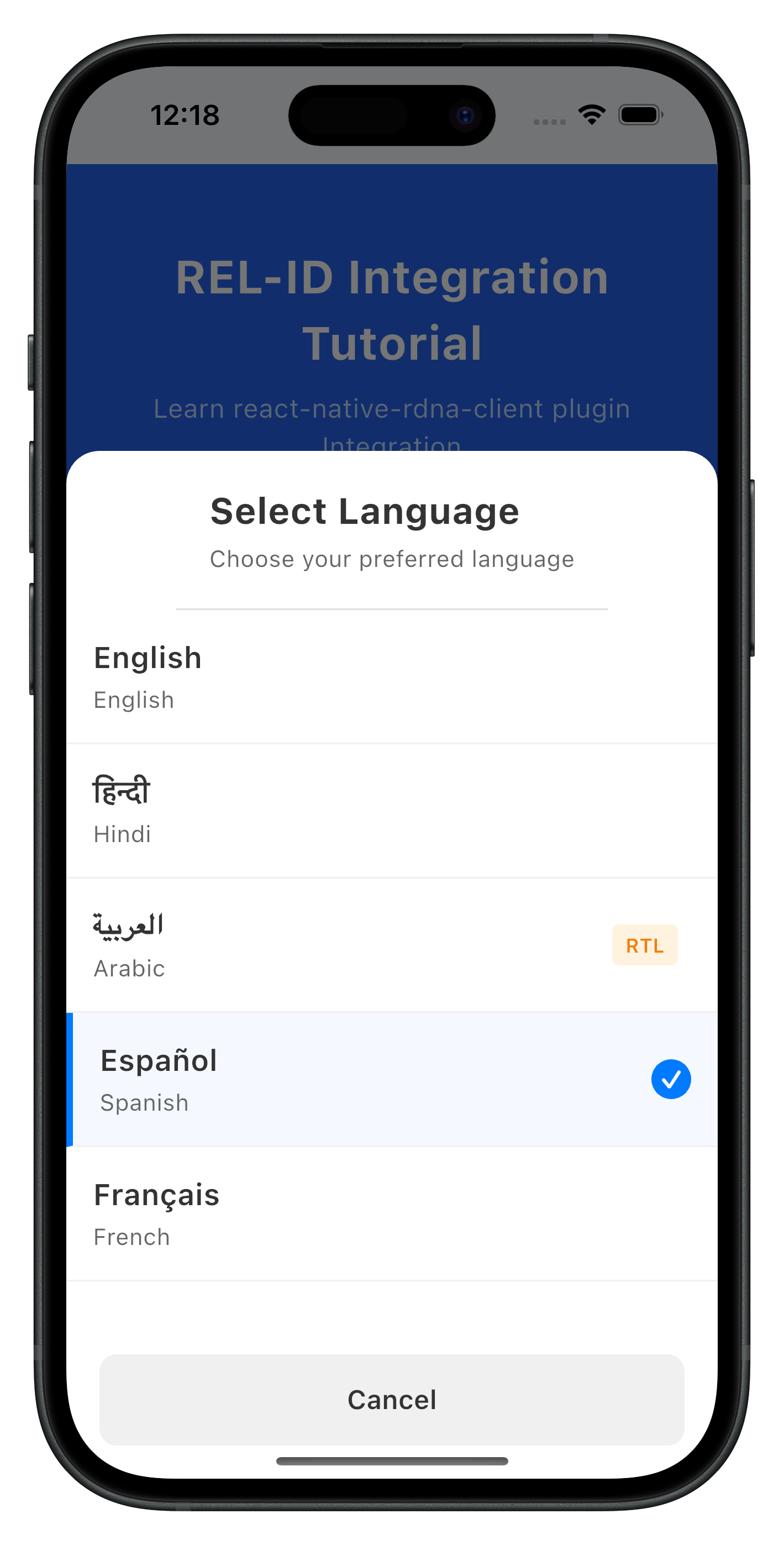
Step 5: Create Language Selector Component
Create
lib/tutorial/screens/components/language_selector.dart
:
import 'package:flutter/material.dart';
import '../../types/language.dart';

/// Language Selector Modal
class LanguageSelector extends StatelessWidget {
  final Language currentLanguage;
  final List<Language> supportedLanguages;
  final Function(Language) onSelectLanguage;

  const LanguageSelector({
    super.key,
    required this.currentLanguage,
    required this.supportedLanguages,
    required this.onSelectLanguage,
  });

  @override
  Widget build(BuildContext context) {
    return Container(
      decoration: const BoxDecoration(
        color: Colors.white,
        borderRadius: BorderRadius.only(
          topLeft: Radius.circular(20),
          topRight: Radius.circular(20),
        ),
      ),
      child: Column(
        mainAxisSize: MainAxisSize.min,
        children: [
          // Header
          Container(
            padding: const EdgeInsets.all(20),
            decoration: const BoxDecoration(
              border: Border(
                bottom: BorderSide(color: Color(0xFFE0E0E0), width: 1),
              ),
            ),
            child: const Column(
              crossAxisAlignment: CrossAxisAlignment.start,
              children: [
                Text(
                  'Select Language',
                  style: TextStyle(
                    fontSize: 22,
                    fontWeight: FontWeight.bold,
                    color: Color(0xFF333333),
                  ),
                ),
                SizedBox(height: 4),
                Text(
                  'Choose your preferred language',
                  style: TextStyle(fontSize: 14, color: Color(0xFF666666)),
                ),
              ],
            ),
          ),

          // Language List
          Flexible(
            child: ListView.builder(
              shrinkWrap: true,
              itemCount: supportedLanguages.length,
              itemBuilder: (context, index) {
                final language = supportedLanguages[index];
                final isSelected = currentLanguage.lang == language.lang;

                return InkWell(
                  onTap: () => onSelectLanguage(language),
                  child: Container(
                    padding: const EdgeInsets.all(16),
                    decoration: BoxDecoration(
                      color: isSelected ? const Color(0xFFF5F9FF) : Colors.white,
                      border: Border(
                        left: isSelected
                            ? const BorderSide(color: Color(0xFF007AFF), width: 4)
                            : BorderSide.none,
                        bottom: const BorderSide(color: Color(0xFFF0F0F0), width: 1),
                      ),
                    ),
                    child: Row(
                      children: [
                        // Language Info
                        Expanded(
                          child: Column(
                            crossAxisAlignment: CrossAxisAlignment.start,
                            children: [
                              Text(
                                language.nativeName,
                                style: const TextStyle(
                                  fontSize: 18,
                                  fontWeight: FontWeight.w600,
                                  color: Color(0xFF333333),
                                ),
                              ),
                              const SizedBox(height: 2),
                              Text(
                                language.displayText,
                                style: const TextStyle(
                                  fontSize: 14,
                                  color: Color(0xFF666666),
                                ),
                              ),
                            ],
                          ),
                        ),

                        // Metadata (RTL Badge + Checkmark)
                        Row(
                          children: [
                            if (language.isRTL) ...[
                              Container(
                                padding: const EdgeInsets.symmetric(
                                  horizontal: 8,
                                  vertical: 4,
                                ),
                                decoration: BoxDecoration(
                                  color: const Color(0xFFFFF3E0),
                                  borderRadius: BorderRadius.circular(4),
                                ),
                                child: const Text(
                                  'RTL',
                                  style: TextStyle(
                                    fontSize: 12,
                                    fontWeight: FontWeight.w600,
                                    color: Color(0xFFF57C00),
                                  ),
                                ),
                              ),
                              const SizedBox(width: 8),
                            ],
                            if (isSelected)
                              Container(
                                width: 24,
                                height: 24,
                                decoration: const BoxDecoration(
                                  color: Color(0xFF007AFF),
                                  shape: BoxShape.circle,
                                ),
                                child: const Center(
                                  child: Text(
                                    '✓',
                                    style: TextStyle(
                                      color: Colors.white,
                                      fontSize: 16,
                                      fontWeight: FontWeight.bold,
                                    ),
                                  ),
                                ),
                              ),
                          ],
                        ),
                      ],
                    ),
                  ),
                );
              },
            ),
          ),

          // Close Button
          Padding(
            padding: const EdgeInsets.fromLTRB(20, 10, 20, 20),
            child: SizedBox(
              width: double.infinity,
              child: TextButton(
                onPressed: () => Navigator.of(context).pop(),
                style: TextButton.styleFrom(
                  backgroundColor: const Color(0xFFF0F0F0),
                  padding: const EdgeInsets.all(16),
                  shape: RoundedRectangleBorder(
                    borderRadius: BorderRadius.circular(10),
                  ),
                ),
                child: const Text(
                  'Cancel',
                  style: TextStyle(
                    fontSize: 16,
                    fontWeight: FontWeight.w600,
                    color: Color(0xFF333333),
                  ),
                ),
              ),
            ),
          ),
        ],
      ),
    );
  }
}

/// Show Language Selector Modal
Future<void> showLanguageSelector(
  BuildContext context, {
  required Language currentLanguage,
  required List<Language> supportedLanguages,
  required Function(Language) onSelectLanguage,
}) async {
  return showModalBottomSheet(
    context: context,
    isScrollControlled: true,
    backgroundColor: Colors.transparent,
    useRootNavigator: true,
    builder: (context) => Container(
      constraints: BoxConstraints(
        maxHeight: MediaQuery.of(context).size.height * 0.8,
      ),
      child: LanguageSelector(
        currentLanguage: currentLanguage,
        supportedLanguages: supportedLanguages,
        onSelectLanguage: onSelectLanguage,
      ),
    ),
  );
}
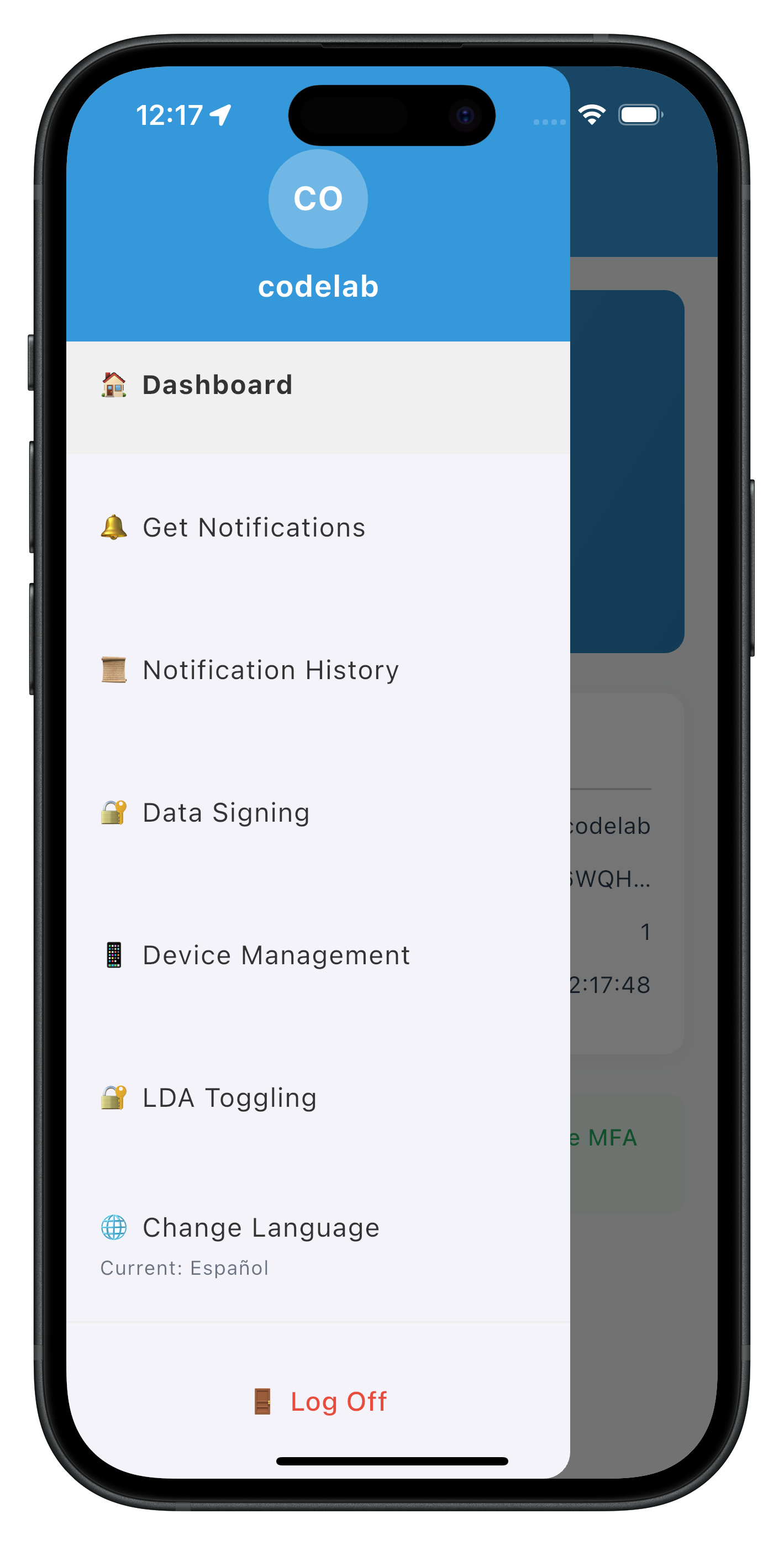
Step 6: Add Language Menu Item to Drawer
Add to
lib/tutorial/screens/components/drawer_content.dart
:
import 'package:flutter/material.dart';
import 'package:flutter_riverpod/flutter_riverpod.dart';
import 'package:rdna_client/rdna_struct.dart';
import '../../../uniken/services/rdna_service.dart';
import '../../providers/language_provider.dart';
import '../../utils/language_config.dart';
import 'language_selector.dart';

class DrawerContent extends ConsumerStatefulWidget {
  final RDNAUserLoggedIn? sessionData;
  final String? currentRoute;

  const DrawerContent({
    super.key,
    this.sessionData,
    this.currentRoute,
  });

  @override
  ConsumerState<DrawerContent> createState() => _DrawerContentState();
}

class _DrawerContentState extends ConsumerState<DrawerContent> {
  bool _isChangingLanguage = false;

  /// Handle change language menu item tap
  Future<void> _handleChangeLanguage() async {
    final languageState = ref.read(languageProvider);

    // Capture ScaffoldMessenger BEFORE showing modal
    final scaffoldMessenger = ScaffoldMessenger.of(context);
    final rootNavigator = Navigator.of(context, rootNavigator: true);

    // Show language selector modal
    showLanguageSelector(
      context,
      currentLanguage: languageState.currentLanguage,
      supportedLanguages: languageState.supportedLanguages,
      onSelectLanguage: (language) async {
        // Close modal
        rootNavigator.pop();

        // If selecting the same language, do nothing
        if (language.lang == languageState.currentLanguage.lang) {
          return;
        }

        // Show loading state
        if (mounted) {
          setState(() => _isChangingLanguage = true);
        }

        try {
          final rdnaService = RdnaService.getInstance();

          // Call setSDKLanguage API
          final response = await rdnaService.setSDKLanguage(
            language.lang,
            getLanguageDirectionEnum(language.direction),
          );

          if (mounted) {
            setState(() => _isChangingLanguage = false);
          }

          if (response.error?.longErrorCode == 0) {
            // Success - async event will update languageProvider
            scaffoldMessenger.showSnackBar(
              SnackBar(
                content: Text('Language changed to ${language.nativeName}'),
                backgroundColor: const Color(0xFF10B981),
                duration: const Duration(seconds: 2),
              ),
            );
          } else {
            // Error
            if (mounted) {
              showDialog(
                context: context,
                builder: (context) => AlertDialog(
                  title: const Text('Language Change Error'),
                  content: Text(response.error?.errorString ?? 'Language change failed'),
                  actions: [
                    TextButton(
                      onPressed: () => Navigator.of(context).pop(),
                      child: const Text('OK'),
                    ),
                  ],
                ),
              );
            }
          }
        } catch (error) {
          if (mounted) {
            setState(() => _isChangingLanguage = false);
          }
        }
      },
    );
  }

  @override
  Widget build(BuildContext context) {
    final languageState = ref.watch(languageProvider);

    return Drawer(
      child: ListView(
        padding: EdgeInsets.zero,
        children: [
          // ... other drawer items ...

          // Language Change Menu Item
          ListTile(
            leading: const Icon(Icons.language),
            title: const Text('Change Language'),
            subtitle: Text(languageState.currentLanguage.nativeName),
            trailing: _isChangingLanguage
                ? const SizedBox(
                    width: 20,
                    height: 20,
                    child: CircularProgressIndicator(strokeWidth: 2),
                  )
                : null,
            onTap: _isChangingLanguage ? null : _handleChangeLanguage,
          ),

          // ... other drawer items ...
        ],
      ),
    );
  }
}
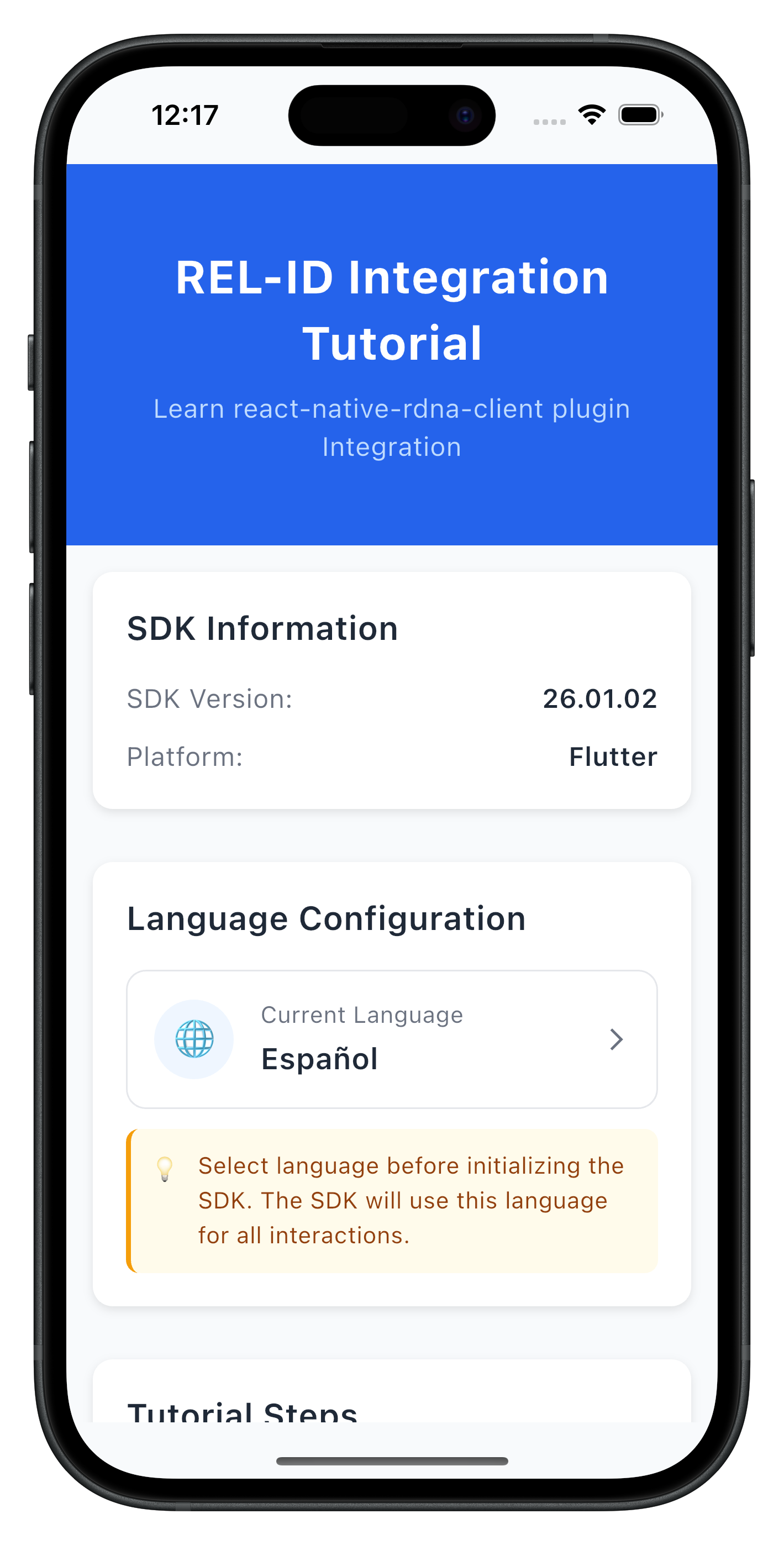
The following image showcases the screen from the sample application:
|
|
|
Let's verify that your internationalization implementation works correctly.
Verification Checklist
Follow these steps to test your i18n implementation:
Phase 1: SDK Initialization (App Startup)
- [ ] App starts with saved language preference (e.g., Spanish)
- [ ] SDK initializes with short language code (
initOptions.internationalizationOptions.localeCode = 'es') - [ ] If initialization succeeds, SDK returns supported languages
- [ ] If initialization fails with network down, SDK returns Spanish error message from
values-es/strings_rel_id.xml - [ ] Localized error message is displayed correctly to user without app-level mapping
Phase 2: Runtime Language Switching (Post-Login)
- [ ] Navigate to drawer menu and tap "Change Language"
- [ ] Language Selector modal opens with all supported languages
- [ ] Current language is marked with checkmark
- [ ] Tapping a language calls
setSDKLanguage()API - [ ] Loading indicator appears during language change
- [ ]
onSetLanguageResponseevent fires after API call - [ ] If successful (statusCode === 100 and longErrorCode === 0):
- [ ] LanguageProvider updates with new language
- [ ] Success snackbar is shown to user
- [ ] All language-dependent UI updates immediately
- [ ] If failed (longErrorCode !== 0):
- [ ] Error dialog is shown to user
- [ ] Language does NOT change
- [ ] User can retry language selection
Localization Files Setup (Android)
- [ ] Verify
android/app/src/main/res/values-hi/strings_rel_id.xmlexists - [ ] Error messages are properly formatted:
Hindi message here - [ ] Build app:
flutter run -d android - [ ] Test with network offline to verify SDK returns localized error messages
Localization Files Setup (iOS)
- [ ] Verify
ios/SharedLocalization/hi.lproj/RELID.stringsexists - [ ] Localization files are linked to Xcode project (not copied)
- [ ] Build app:
flutter run -d ios - [ ] Test initialization failure to confirm SDK reads localized strings
Internationalization Best Practices
- Use Short Codes for Initialization, Full Codes for APIs
- Initialize:
initOptions.internationalizationOptions.localeCode = 'en'(short code) - setSDKLanguage:
'en-US'(full code)
- Initialize:
- Bundle Localization Files with App
- SDK reads localization files during initialization errors
- Ensure strings.xml (Android) and .strings files (iOS) are bundled with app binary
- Do not load localization files remotely - they won't be available if network is down
- Test error scenarios with network disconnected to verify error messages display
- Clean Up Event Handlers
- Always unsubscribe from language events on dispose
- Use
dispose()for proper cleanup - Prevent memory leaks and unpredictable event routing
- Validate Before API Calls
- Check if selected language equals current language
- Skip API call if no change needed
- Reduce unnecessary network requests
- Persist User Preferences
- Save language choice to SharedPreferences
- Restore on app restart
- Respect user's language preferences across sessions
- Handle RTL Languages
- Detect RTL languages from
directionfield - Show RTL badge in language selector
- Test UI layout with RTL languages
- Detect RTL languages from
Security Considerations
- Localization File Security
- Localization files are bundled with the app binary (not downloaded)
- Ensures error messages are always available even without network
- Review all error messages in localization files - SDK will display them to users
- Keep error messages user-friendly without exposing internal error codes
- Language Validation
- Validate language codes before sending to SDK
- Use enum values like
RDNALanguageDirection - Prevent injection attacks through language selection
- Event Handler Isolation
- Each screen should have its own event handler
- Clean up handlers when switching screens
- Prevent unintended event handling across screens
🎉 Congratulations! You've successfully implemented comprehensive internationalization support with REL-ID SDK!
What You've Accomplished
In this codelab, you've learned and implemented:
✅ Two-Phase Language Lifecycle
- SDK initialization with language preference via
initOptions - Runtime language switching using
setSDKLanguage()API - Automatic error localization via SDK reading native localization files
- Event-driven language updates with
onSetLanguageResponse - Synchronizing supported languages from
onInitializedcallback
✅ Native Platform Localization
- Android
strings.xmlconfiguration for error codes - iOS
.stringsfile setup for localization - Multi-language support (English, Hindi, Spanish, and beyond)
✅ Language State Management
- Riverpod StateNotifier implementation with
LanguageProvider - SharedPreferences persistence for language preferences
✅ User Interface Components
- Language Selector modal with native script display
- Drawer menu integration for language change
- RTL/LTR support with direction indicators
✅ Production-Ready Error Handling
- Three-layer error detection (API, status code, promise)
- Early return pattern for cleaner code
- User-friendly error dialogs and feedback
Next Steps
Your internationalization implementation is now production-ready! Consider these enhancements:
- Add More Languages: Expand your language support
- Add Arabic, French, German, or other languages to
defaultSupportedLanguages - Create corresponding native localization files for Android and iOS
- Update the
nativeNameLookuptable inlanguage_config.dart - Test RTL layout with Arabic or Hebrew languages
- Add Arabic, French, German, or other languages to
- Server-Side Language Management: Sync with backend
- Validate language availability against server-supported languages
- Store user language preference in user profile on backend
- Implement language fallback chains (e.g., ‘zh-TW' → ‘zh-CN' → ‘en')
- Handle cases where user's preferred language is not available
Happy coding with internationalization! 🌍
This codelab was created to help you master multi-language support with REL-ID SDK. The patterns you've learned here are production-tested and used by enterprise applications worldwide.