🎯 Learning Path:
- Complete REL-ID Complete Activation & Login Flow Codelab
- Complete REL-ID Additional Device Activation Flow Codelab
- You are here → Device Management Implementation (Post-Login)
Welcome to the REL-ID Device Management codelab! This tutorial builds upon your existing MFA implementation to add comprehensive device management capabilities using REL-ID SDK's device management APIs.
What You'll Build
In this codelab, you'll enhance your existing MFA application with:
- 📱 Device List Display: View all registered devices with
getRegisteredDeviceDetails()API - 🔄 Pull-to-Refresh: Real-time device synchronization with manual refresh
- ⏳ Cooling Period Detection: Server-enforced cooling periods with visual warnings (StatusCode 146)
- ✏️ Device Rename: Update device names with
updateDeviceDetails()operationType 0 - 🗑️ Device Deletion: Remove non-current devices with
updateDeviceDetails()operationType 1 - 🛡️ Current Device Protection: Prevent accidental deletion of active device
- 🎯 Three-Layer Error Handling: API errors, status codes, and error exceptions
What You'll Learn
By completing this codelab, you'll master:
- Device Listing API Integration: Fetching registered devices with cooling period information
- Device Update Operations: Implementing rename and delete with proper JSON payloads
- Cooling Period Management: Detecting and handling server-enforced cooling periods
- Current Device Protection: Validating and preventing current device deletion
- Event-Driven Architecture: Handling
onGetRegistredDeviceDetailsandonUpdateDeviceDetailsevents - Three-Layer Error Handling: Comprehensive error detection and user feedback
- Real-time Synchronization: Auto-refresh with pull-to-refresh and navigation-based updates
- GoRouter Navigation Integration: Post-login device management access
Prerequisites
Before starting this codelab, ensure you have:
- ✅ Completed REL-ID MFA Complete Activation & Login Flow Codelab - All MFA screens and flows must be fully implemented
- ✅ Flutter Development Environment - Flutter SDK, Android Studio, Xcode configured
- ✅ REL-ID SDK Integration - Latest rdna_client plugin with device management APIs
- ✅ Dart Knowledge - Understanding of Dart classes, async/await, and Futures
- ✅ GoRouter Navigation Setup - GoRouter configured with Dashboard screen
- ✅ Server Configuration - REL-ID server with device management enabled
Get the Code from GitHub
The code to get started can be found in a GitHub repository.
You can clone the repository using the following command:
git clone https://github.com/uniken-public/codelab-flutter.git
Navigate to the relid-device-management folder in the repository you cloned earlier
Codelab Architecture Overview
This codelab extends your MFA application with three core device management components:
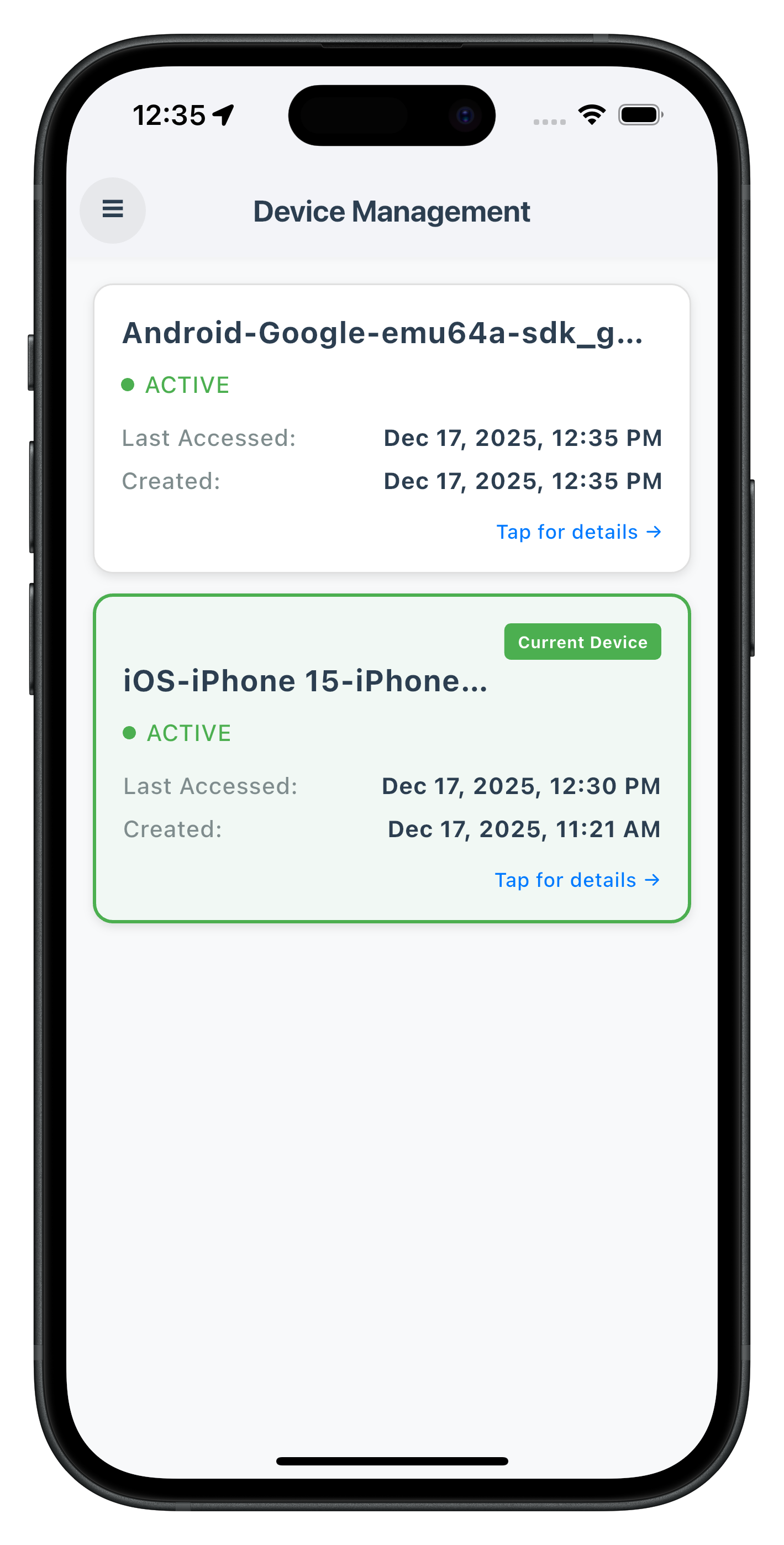
- DeviceManagementScreen: Device list with pull-to-refresh and cooling period detection in drawer navigation
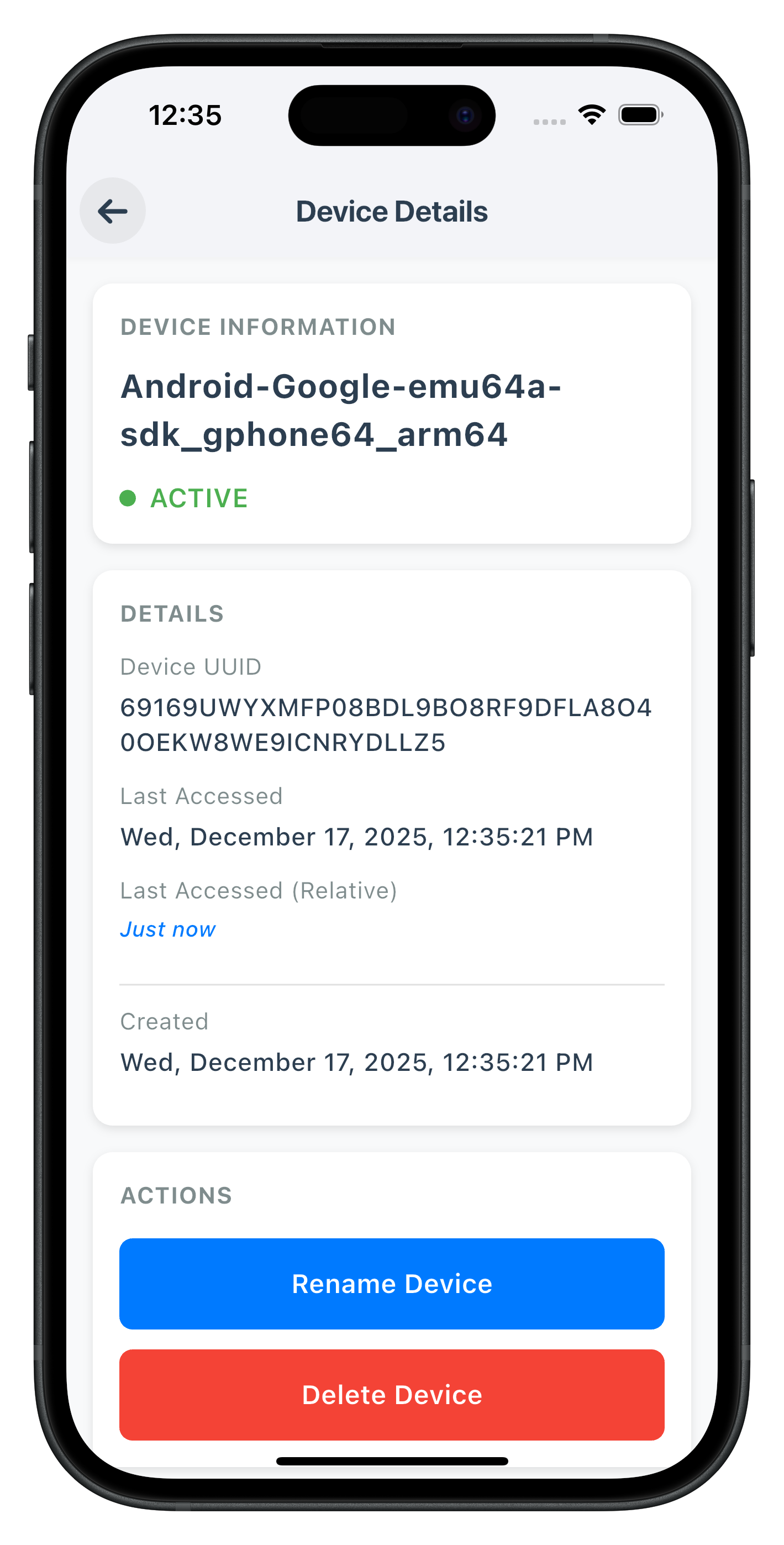
- DeviceDetailScreen: Device details with rename and delete operations
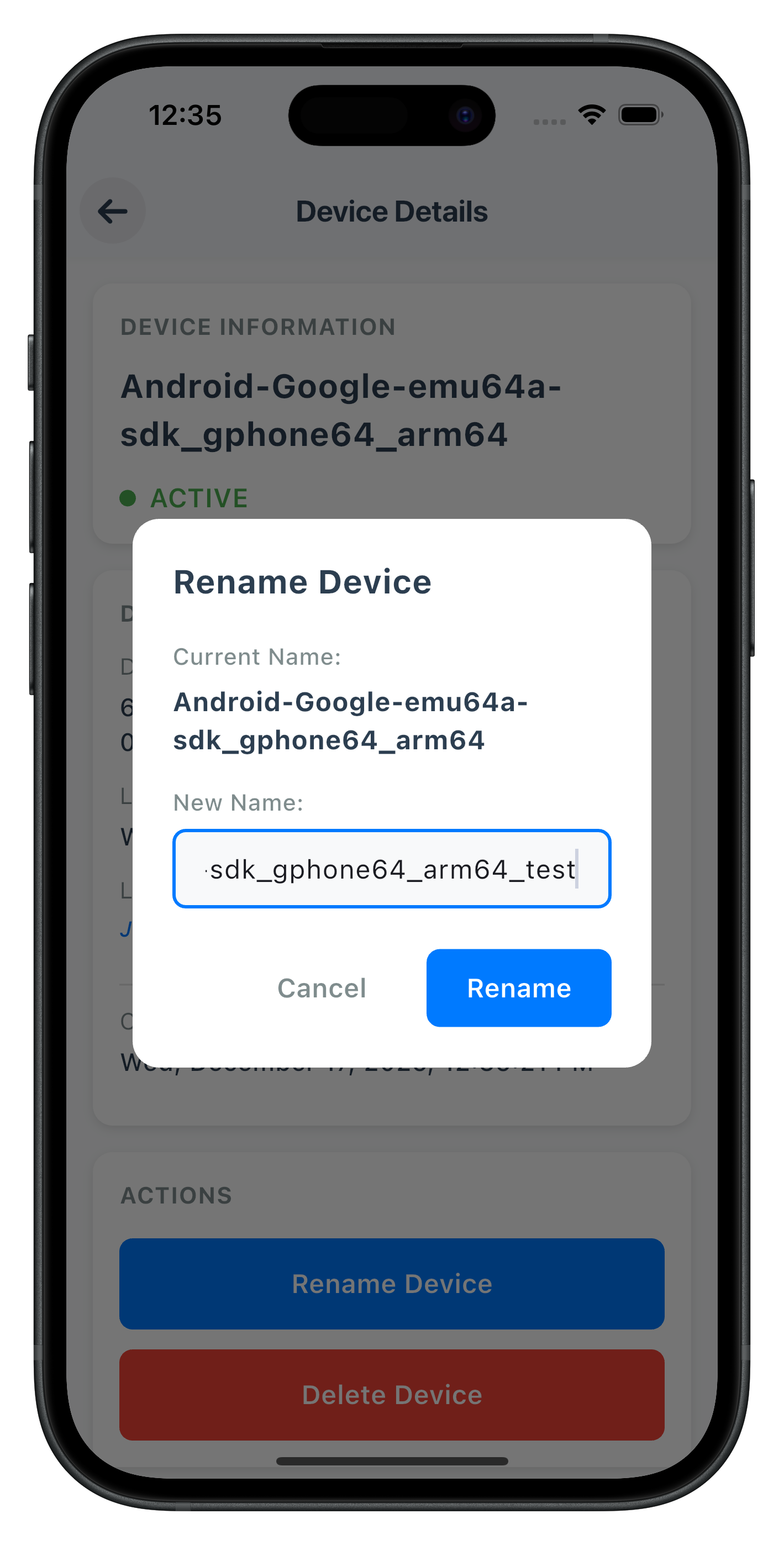
- RenameDeviceDialog: Modal dialog for device renaming with validation
Before implementing device management screens, let's understand the key SDK events and APIs that power the device lifecycle management workflow.
Device Management Event Flow
The device management process follows this event-driven pattern:
User Logs In → Navigate to Device Management →
getRegisteredDeviceDetails() Called → onGetRegistredDeviceDetails Event →
Device List Displayed with Cooling Period Check →
User Taps Device → Navigate to Detail Screen →
User Renames/Deletes → updateDeviceDetails() Called →
onUpdateDeviceDetails Event → Success/Error Feedback →
Navigate Back → Device List Auto-Refreshes
Core Device Management APIs and Events
The REL-ID SDK provides these APIs and events for device management:
API/Event | Type | Description | User Action Required |
API | Fetch all registered devices with cooling period info | System calls automatically | |
Event | Receives device list with metadata | System processes response | |
API | Rename or delete device with JSON payload | User taps action button | |
Event | Update operation result with status codes | System handles response |
Device Operation Types
The updateDeviceDetails() API supports two operation types via the status field in JSON payload:
Operation Type | Status Value | Description | devName Value |
Rename Device |
| Update device name | New device name string |
Delete Device |
| Remove device from account | NA or Empty string |
Device List Response Structure
The onGetRegistredDeviceDetails event returns this data structure:
class RDNAStatusGetRegisteredDeviceDetails {
  RDNAError? error;                      // API-level error (longErrorCode)
  PArgs? pArgs;                          // Response arguments
}

class PArgs {
  Response? response;
}

class Response {
  int? statusCode;                       // 100=success, 146=cooling period
  String? statusMsg;                     // Status message
  ResponseData? responseData;
}

class ResponseData {
  dynamic response;                      // Contains RDNAGetRegisteredDeviceDetailsResponse
}

class RDNAGetRegisteredDeviceDetailsResponse {
  List<RDNADeviceDetails>? device;       // Array of devices
  int? deviceManagementCoolingPeriodEndTimestamp;  // Cooling period end
}

class RDNADeviceDetails {
  String? devUuid;                       // Device unique identifier
  String? devName;                       // Device display name
  String? status;                        // "ACTIVE" or other status
  bool? currentDevice;                   // true if this is the current device
  int? lastAccessedTsEpoch;             // Last access timestamp (milliseconds)
  int? createdTsEpoch;                  // Creation timestamp (milliseconds)
  String? lastAccessedTs;               // Last access timestamp (formatted string)
  String? createdTs;                    // Creation timestamp (formatted string)
  String? appUuid;                      // Application identifier
  int? devBind;                         // Device binding status
}
Cooling Period Management
Cooling periods are server-enforced timeouts between device operations:
Status Code | Meaning | Cooling Period Active | Actions Allowed |
| Success | No | All actions enabled |
| Cooling period active | Yes | All actions disabled |
Current Device Protection
The currentDevice flag identifies the active device:
currentDevice Value | Delete Button | Rename Button | Reason |
| ❌ Disabled/Hidden | ✅ Enabled | Cannot delete active device |
| ✅ Enabled | ✅ Enabled | Can delete non-current devices |
Update Device JSON Payload Structure
The updateDeviceDetails() API requires a complete device object in JSON format:
Rename Operation Example:
{
  "device": [{
    "devUUID": "DEVICE_UUID_HERE",
    "devName": "My New Device Name",
    "status": "Update",
    "lastAccessedTs": "2025-10-09T11:39:49UTC",
    "lastAccessedTsEpoch": 1760009989000,
    "createdTs": "2025-10-09T11:38:34UTC",
    "createdTsEpoch": 1760009914000,
    "appUuid": "6b72172f-3e51-4ea9-b217-2f3e51aea9c3",
    "currentDevice": true,
    "devBind": 0
  }]
}
Delete Operation Example:
{
  "device": [{
    "devUUID": "DEVICE_UUID_HERE",
    "devName": "",
    "status": "Delete",
    "lastAccessedTs": "2025-10-09T11:39:49UTC",
    "lastAccessedTsEpoch": 1760009989000,
    "createdTs": "2025-10-09T11:38:34UTC",
    "createdTsEpoch": 1760009914000,
    "appUuid": "6b72172f-3e51-4ea9-b217-2f3e51aea9c3",
    "currentDevice": false,
    "devBind": 0
  }]
}
Three-Layer Error Handling
Device management implements comprehensive error detection:
Layer | Check | Error Source | Example |
Layer 1 |
| API-level errors | Network timeout, invalid userID |
Layer 2 |
| Status codes | 146 (cooling period), validation errors |
Layer 3 |
| SDK/Network failures | Connection refused, SDK errors |
Event Handler Cleanup Pattern
Device management screens use proper event handler cleanup:
// DeviceManagementScreen - dispose cleanup
@override
void dispose() {
  print('DeviceManagementScreen - Screen disposed, cleaning up event handlers');
  // Reset handler to prevent memory leaks
  _rdnaService.getEventManager().setGetRegisteredDeviceDetailsHandler(null);
  super.dispose();
}

// DeviceDetailScreen - dispose cleanup
@override
void dispose() {
  print('DeviceDetailScreen - Component disposing, cleaning up event handlers');
  // Reset handler to prevent memory leaks
  _rdnaService.getEventManager().setUpdateDeviceDetailsHandler(null);
  super.dispose();
}
Let's implement the device management APIs in your service layer following established REL-ID SDK patterns.
Step 1: Add getRegisteredDeviceDetails API
Add this method to
lib/uniken/services/rdna_service.dart
:
/// Gets registered device details for the current user
///
/// This method fetches all devices registered to the user's account. It follows the sync+async pattern:
/// the method returns a sync response, then triggers an onGetRegistredDeviceDetails event with device data.
///
/// ## Parameters
/// - [userId]: The user ID to fetch device details for
///
/// ## Returns
/// RDNASyncResponse containing sync response (error.longErrorCode: 0 = success)
///
/// ## Events Triggered
/// - `onGetRegistredDeviceDetails`: Event with device list data
///
/// ## Response Validation Logic
/// 1. Check error.longErrorCode: 0 = success, > 0 = error
/// 2. An onGetRegistredDeviceDetails event will be triggered with device list
/// 3. Async events will be handled by event listeners
/// 4. StatusCode 146 indicates cooling period is active for device management actions
///
/// ## Example
/// ```dart
/// final response = await rdnaService.getRegisteredDeviceDetails(userId);
/// if (response.error?.longErrorCode == 0) {
///   print('Device details requested, waiting for onGetRegistredDeviceDetails event');
/// }
/// ```
///
/// ## See Also
/// - [Get Registered Devices Documentation](https://developer.uniken.com/docs/get-registered-devices)
Future<RDNASyncResponse> getRegisteredDeviceDetails(String userId) async {
  print('RdnaService - Fetching registered device details for user: $userId');

  final response = await _rdnaClient.getRegisteredDeviceDetails(userId);

  print('RdnaService - GetRegisteredDeviceDetails sync response received');
  print('RdnaService - Sync response:');
  print('  Long Error Code: ${response.error?.longErrorCode}');
  print('  Short Error Code: ${response.error?.shortErrorCode}');

  return response;
}
Step 2: Add updateDeviceDetails API
Add this method to
lib/uniken/services/rdna_service.dart
:
/// Updates device details (rename or delete)
///
/// This method updates device information including renaming or deleting a device.
/// It follows the sync+async pattern: the method returns a sync response,
/// then triggers an onUpdateDeviceDetails event with operation result.
///
/// ## SDK Payload Format
/// ```json
/// {
///   "device": [{
///     "devUUID": "device-uuid",
///     "devName": "new-device-name",
///     "status": "Update" | "Delete"
///   }]
/// }
/// ```
///
/// ## Parameters
/// - [userId]: The user ID who owns the device
/// - [device]: Complete device object with all fields
/// - [newDevName]: The new device name (for rename) or empty string (for delete)
/// - [operationType]: Operation type: 0 = rename (status="Update"), 1 = delete (status="Delete")
///
/// ## Returns
/// RDNASyncResponse containing sync response (error.longErrorCode: 0 = success)
///
/// ## Events Triggered
/// - `onUpdateDeviceDetails`: Event with operation result
///
/// ## Response Validation Logic
/// 1. Check error.longErrorCode: 0 = success, > 0 = error
/// 2. An onUpdateDeviceDetails event will be triggered with operation result
/// 3. Async events will be handled by event listeners
/// 4. StatusCode 100 indicates successful operation
/// 5. StatusCode 146 indicates cooling period is active (operation not allowed)
///
/// ## Example
/// ```dart
/// // Rename device
/// final response = await rdnaService.updateDeviceDetails(
///   userId,
///   deviceObject,
///   'My New Phone',
///   0 // rename
/// );
/// if (response.error?.longErrorCode == 0) {
///   print('Device rename requested, waiting for onUpdateDeviceDetails event');
/// }
///
/// // Delete device
/// final response = await rdnaService.updateDeviceDetails(
///   userId,
///   deviceObject,
///   '',
///   1 // delete
/// );
/// ```
///
/// ## See Also
/// - [Update Device Details Documentation](https://developer.uniken.com/docs/update-device-details)
Future<RDNASyncResponse> updateDeviceDetails(
  String userId,
  RDNADeviceDetails device,
  String newDevName,
  int operationType
) async {
  final operation = operationType == 0 ? 'rename' : 'delete';
  print('RdnaService - Updating device details ($operation) for user: $userId');
  print('RdnaService - Device UUID: ${device.devUuid}');
  if (operationType == 0) {
    print('RdnaService - New device name: $newDevName');
  }

  // SDK expects JSON string payload with device array format
  // Status field: "Update" for rename, "Delete" for delete
  // IMPORTANT: Must include ALL device fields (matching Cordova implementation)
  final status = operationType == 0 ? 'Update' : 'Delete';

  final payload = jsonEncode({
    'device': [{
      'devUUID': device.devUuid,
      'devName': newDevName,
      'status': status,
      'lastAccessedTs': device.lastAccessedTs,
      'lastAccessedTsEpoch': device.lastAccessedTsEpoch,
      'createdTs': device.createdTs,
      'createdTsEpoch': device.createdTsEpoch,
      'appUuid': device.appUuid,
      'currentDevice': device.currentDevice,
      'devBind': device.devBind
    }]
  });

  print('RdnaService - JSON payload: $payload');

  final response = await _rdnaClient.updateDeviceDetails(userId, payload);

  print('RdnaService - UpdateDeviceDetails sync response received');
  print('RdnaService - Sync response:');
  print('  Long Error Code: ${response.error?.longErrorCode}');
  print('  Short Error Code: ${response.error?.shortErrorCode}');

  return response;
}
Step 3: Verify Service Layer Integration
Ensure these imports exist in
lib/uniken/services/rdna_service.dart
:
import 'dart:convert'; // For jsonEncode
import 'package:rdna_client/rdna_client.dart';
import 'package:rdna_client/rdna_struct.dart';
Verify your service class exports all methods:
class RdnaService {
  // Existing MFA methods...

  // ✅ New device management methods
  Future<RDNASyncResponse> getRegisteredDeviceDetails(String userId) async { /* ... */ }
  Future<RDNASyncResponse> updateDeviceDetails(String userId, RDNADeviceDetails device, String newDevName, int operationType) async { /* ... */ }
}
Now let's enhance your event manager to handle device management events and callbacks.
Step 1: Verify Event Manager Setup
The event manager already includes device management handlers in
lib/uniken/services/rdna_event_manager.dart
:
// Device Management Callbacks (already included in event manager)
typedef RDNAGetRegisteredDeviceDetailsCallback = void Function(RDNAStatusGetRegisteredDeviceDetails);
typedef RDNAUpdateDeviceDetailsCallback = void Function(RDNAStatusUpdateDeviceDetails);

class RdnaEventManager {
  // Device Management Handlers
  RDNAGetRegisteredDeviceDetailsCallback? _getRegisteredDeviceDetailsHandler;
  RDNAUpdateDeviceDetailsCallback? _updateDeviceDetailsHandler;

  // Event listeners are automatically registered in _registerEventListeners()
  void _registerEventListeners() {
    // ... existing listeners ...

    // Device Management Event Listeners
    _listeners.add(
      _rdnaClient.on(RdnaClient.onGetRegistredDeviceDetails, _onGetRegistredDeviceDetails),
    );
    _listeners.add(
      _rdnaClient.on(RdnaClient.onUpdateDeviceDetails, _onUpdateDeviceDetails),
    );
  }

  /// Handles registered device details response events
  void _onGetRegistredDeviceDetails(dynamic deviceDetailsData) {
    print('RdnaEventManager - Get registered device details event received');

    // Cast to RDNAStatusGetRegisteredDeviceDetails and pass to handler
    final statusData = deviceDetailsData as RDNAStatusGetRegisteredDeviceDetails;

    print('RdnaEventManager - Get registered device details data:');
    print('  Error Code: ${statusData.errCode}');
    final deviceResponse = statusData.pArgs?.response?.responseData?.response is RDNAGetRegisteredDeviceDetailsResponse
        ? statusData.pArgs?.response?.responseData?.response as RDNAGetRegisteredDeviceDetailsResponse
        : null;
    print('  Device Count: ${deviceResponse?.device?.length ?? 0}');
    print('  Status Code: ${statusData.pArgs?.response?.statusCode}');
    print('  Status Msg: ${statusData.pArgs?.response?.statusMsg}');

    if (_getRegisteredDeviceDetailsHandler != null) {
      _getRegisteredDeviceDetailsHandler!(statusData);
    }
  }

  /// Handles update device details response events (rename/delete)
  void _onUpdateDeviceDetails(dynamic updateDeviceData) {
    print('RdnaEventManager - Update device details event received');

    // Cast to RDNAStatusUpdateDeviceDetails and pass to handler
    final statusData = updateDeviceData as RDNAStatusUpdateDeviceDetails;

    print('RdnaEventManager - Update device details data:');
    print('  Error Code: ${statusData.errCode}');
    print('  Status Code: ${statusData.pArgs?.response?.statusCode}');
    print('  Status Msg: ${statusData.pArgs?.response?.statusMsg}');

    if (_updateDeviceDetailsHandler != null) {
      _updateDeviceDetailsHandler!(statusData);
    }
  }

  /// Sets the handler for get registered device details events
  void setGetRegisteredDeviceDetailsHandler(RDNAGetRegisteredDeviceDetailsCallback? callback) {
    _getRegisteredDeviceDetailsHandler = callback;
  }

  /// Sets the handler for update device details events
  void setUpdateDeviceDetailsHandler(RDNAUpdateDeviceDetailsCallback? callback) {
    _updateDeviceDetailsHandler = callback;
  }
}
Create the DeviceManagementScreen that displays the device list with pull-to-refresh, cooling period detection, and auto-refresh capabilities.
Step 1: Create DeviceManagementScreen File
The file already exists at:
lib/tutorial/screens/device_management/device_management_screen.dart
Step 2: Understanding DeviceManagementScreen Implementation
The complete implementation is in the reference app:
class DeviceManagementScreen extends ConsumerStatefulWidget {
  final String? userID;
  final RDNAUserLoggedIn? sessionData;

  const DeviceManagementScreen({
    super.key,
    this.userID,
    this.sessionData,
  });

  @override
  ConsumerState<DeviceManagementScreen> createState() => _DeviceManagementScreenState();
}

class _DeviceManagementScreenState extends ConsumerState<DeviceManagementScreen> {
  final RdnaService _rdnaService = RdnaService.getInstance();

  List<RDNADeviceDetails> _devices = [];
  bool _isLoading = true;
  bool _isRefreshing = false;
  int? _coolingPeriodEndTimestamp;
  String _coolingPeriodMessage = '';
  bool _isCoolingPeriodActive = false;

  @override
  void initState() {
    super.initState();
    print('DeviceManagementScreen - Screen initialized');
    // Use post-frame callback to load devices after first frame
    WidgetsBinding.instance.addPostFrameCallback((_) {
      _loadDevices();
    });
  }

  @override
  void dispose() {
    print('DeviceManagementScreen - Screen disposed, cleaning up event handlers');
    // Reset handler to prevent memory leaks
    _rdnaService.getEventManager().setGetRegisteredDeviceDetailsHandler(null);
    super.dispose();
  }

  /// Fetches registered device details from the SDK
  Future<void> _loadDevices() async {
    if (widget.userID == null || widget.userID!.isEmpty) {
      print('DeviceManagementScreen - No userID available');
      if (mounted) {
        _showError('User ID is required to load devices');
        setState(() {
          _isLoading = false;
          _isRefreshing = false;
        });
      }
      return;
    }

    print('DeviceManagementScreen - Loading devices for user: ${widget.userID}');
    if (!_isRefreshing) {
      setState(() => _isLoading = true);
    }

    try {
      // Set up event handler for device details response
      final eventManager = _rdnaService.getEventManager();
      bool handlerCalled = false;

      // Set callback for this screen
      eventManager.setGetRegisteredDeviceDetailsHandler((RDNAStatusGetRegisteredDeviceDetails data) {
        if (handlerCalled) return; // Prevent double handling
        handlerCalled = true;

        print('DeviceManagementScreen - Received device details event');

        // Extract and parse device data
        final parsedResponse = data.pArgs?.response?.responseData?.response;
        final deviceResponse = parsedResponse is RDNAGetRegisteredDeviceDetailsResponse ? parsedResponse : null;
        final deviceList = deviceResponse?.device ?? [];

        print('DeviceManagementScreen - Device count: ${deviceList.length}');
        print('DeviceManagementScreen - Status code: ${data.pArgs?.response?.statusCode}');

        // Check for errors using data.error.longErrorCode (sync error check, no try-catch)
        if (data.error?.longErrorCode != 0) {
          print('DeviceManagementScreen - API error: ${data.error?.longErrorCode}');
          if (mounted) {
            _showError(data.error?.errorString  ?? 'Failed to load devices. Please try again.');
            setState(() {
              _isLoading = false;
              _isRefreshing = false;
            });
          }
          return;
        }

        // Extract additional data
        final coolingPeriodEnd = deviceResponse?.deviceManagementCoolingPeriodEndTimestamp;
        final statusCode = data.pArgs?.response?.statusCode ?? 0;
        final statusMsg = data.pArgs?.response?.statusMsg ?? '';

        if (mounted) {
          setState(() {
            _devices = deviceList;
            _coolingPeriodEndTimestamp = coolingPeriodEnd;
            _coolingPeriodMessage = statusMsg;
            _isCoolingPeriodActive = statusCode == 146;
            _isLoading = false;
            _isRefreshing = false;
          });
        }

        print('DeviceManagementScreen - Devices loaded successfully');
      });

      // Call the API with userID (check sync error, no try-catch)
      final response = await _rdnaService.getRegisteredDeviceDetails(widget.userID!);

      // Check sync response error
      if (response.error?.longErrorCode != 0) {
        print('DeviceManagementScreen - API call failed: ${response.error?.errorString}');
        if (mounted) {
          _showError(response.error?.errorString ?? 'Failed to load devices');
          setState(() {
            _isLoading = false;
            _isRefreshing = false;
          });
        }
      }
    } catch (error) {
      print('DeviceManagementScreen - Unexpected error: $error');
      if (mounted) {
        _showError('Failed to load devices. Please try again.');
        setState(() {
          _isLoading = false;
          _isRefreshing = false;
        });
      }
    }
  }

  /// Handles device item tap
  void _handleDeviceTap(RDNADeviceDetails device) async {
    print('DeviceManagementScreen - Device tapped: ${device.devUuid}');

    // Navigate to DeviceDetailScreen and wait for result
    final result = await context.push('/device-detail', extra: {
      'device': device,
      'userID': widget.userID,
      'isCoolingPeriodActive': _isCoolingPeriodActive,
      'coolingPeriodEndTimestamp': _coolingPeriodEndTimestamp,
      'coolingPeriodMessage': _coolingPeriodMessage,
    });

    // Reload devices when returning from detail screen (in case of rename/delete)
    if (result == true || result == 'refresh') {
      print('DeviceManagementScreen - Reloading devices after detail screen return');
      _loadDevices();
    }
  }

  @override
  Widget build(BuildContext context) {
    return Scaffold(
      backgroundColor: const Color(0xFFF8F9FA),
      drawer: DrawerContent(
        sessionData: widget.sessionData,
        currentRoute: 'deviceManagementScreen',
      ),
      appBar: AppBar(/* ... */),
      body: Column(
        children: [
          // Cooling Period Banner
          if (_renderCoolingPeriodBanner() != null)
            _renderCoolingPeriodBanner()!,

          // Main Content with Pull-to-Refresh
          Expanded(
            child: _isLoading
                ? const Center(child: CircularProgressIndicator())
                : RefreshIndicator(
                    onRefresh: _onRefresh,
                    child: ListView.builder(
                      itemCount: _devices.length,
                      itemBuilder: (context, index) {
                        return _renderDeviceItem(_devices[index]);
                      },
                    ),
                  ),
          ),
        ],
      ),
    );
  }
}
Key DeviceManagementScreen Features
Auto-Loading and Refresh
- Auto-load on Mount: Automatically calls
getRegisteredDeviceDetails()when screen loads usingaddPostFrameCallback - Pull-to-Refresh: Swipe down to manually refresh device list
- Navigation-Based Refresh: Auto-refreshes when returning from DeviceDetailScreen
Cooling Period Management
- Detection: Checks
StatusCode == 146to detect active cooling period - Visual Warning: Displays prominent banner when cooling period is active
- Banner Content: Shows cooling period message and end timestamp
- Action Blocking: Passes cooling period state to DeviceDetailScreen for action disabling
Current Device Highlighting
- Visual Distinction: Green border and background for current device
- Current Device Badge: "Current Device" badge in top-right corner
- Status Indicators: Color-coded status dots (green = ACTIVE, red = inactive)
Event Handler Cleanup
- dispose Cleanup: Resets event handler when screen disposes
- Memory Leak Prevention: Cleans up handlers to prevent accumulation
- Navigation Integration: Proper cleanup ensures consistent behavior across navigation
The following image showcases the screen from the sample application:
Create the DeviceDetailScreen that displays device details and provides rename and delete operations.
Step 1: Create DeviceDetailScreen File
The file already exists at:
lib/tutorial/screens/device_management/device_detail_screen.dart
Step 2: Understanding DeviceDetailScreen Implementation
The complete implementation is in the reference app:
class DeviceDetailScreen extends StatefulWidget {
  final RDNADeviceDetails device;
  final String? userID;
  final bool isCoolingPeriodActive;
  final int? coolingPeriodEndTimestamp;
  final String coolingPeriodMessage;

  const DeviceDetailScreen({
    super.key,
    required this.device,
    required this.userID,
    required this.isCoolingPeriodActive,
    this.coolingPeriodEndTimestamp,
    required this.coolingPeriodMessage,
  });

  @override
  State<DeviceDetailScreen> createState() => _DeviceDetailScreenState();
}

class _DeviceDetailScreenState extends State<DeviceDetailScreen> {
  final RdnaService _rdnaService = RdnaService.getInstance();

  bool _isRenaming = false;
  bool _isDeleting = false;
  late String _currentDeviceName;

  @override
  void initState() {
    super.initState();
    _currentDeviceName = widget.device.devName ?? '';
  }

  @override
  void dispose() {
    print('DeviceDetailScreen - Component disposing, cleaning up event handlers');
    // Reset handler to prevent memory leaks
    _rdnaService.getEventManager().setUpdateDeviceDetailsHandler(null);
    super.dispose();
  }

  /// Unified method to handle device update operations (rename/delete)
  Future<void> _updateDevice({
    required String newName,
    required int operationType, // 0 = rename, 1 = delete
  }) async {
    final isRename = operationType == 0;
    final operation = isRename ? 'rename' : 'delete';

    if (isRename) {
      setState(() => _isRenaming = true);
    } else {
      setState(() => _isDeleting = true);
    }

    try {
      print('DeviceDetailScreen - $operation device: ${widget.device.devUuid}');

      final eventManager = _rdnaService.getEventManager();
      bool handlerCalled = false;

      // Set callback for this operation
      eventManager.setUpdateDeviceDetailsHandler((RDNAStatusUpdateDeviceDetails data) {
        if (handlerCalled) return; // Prevent double handling
        handlerCalled = true;

        print('DeviceDetailScreen - Received update device details event');

        // Check sync error (no try-catch)
        if (data.error?.longErrorCode != 0) {
          print('DeviceDetailScreen - $operation error: ${data.error?.longErrorCode}');
          if (mounted) {
            _showError(data.error?.errorString ?? 'Failed to $operation device. Please try again.');
            setState(() {
              if (isRename) {
                _isRenaming = false;
              } else {
                _isDeleting = false;
              }
            });
          }
          return;
        }

        final statusCode = data.pArgs?.response?.statusCode ?? 0;
        final statusMsg = data.pArgs?.response?.statusMsg ?? '';

        if (statusCode == 100) {
          print('DeviceDetailScreen - $operation successful');
          if (mounted) {
            if (isRename) {
              // Rename success
              setState(() {
                _currentDeviceName = newName;
                _isRenaming = false;
              });
              _showSuccess('Device renamed successfully');

              // Navigate back to device list after success
              Future.delayed(const Duration(milliseconds: 500), () {
                if (mounted) {
                  Navigator.of(context).pop(true); // Return true to trigger refresh
                }
              });
            } else {
              // Delete success
              showDialog(
                context: context,
                builder: (BuildContext context) {
                  return AlertDialog(
                    title: const Text('Success'),
                    content: const Text('Device deleted successfully'),
                    actions: [
                      TextButton(
                        onPressed: () {
                          Navigator.of(context).pop(); // Close dialog
                          Navigator.of(context).pop(true); // Go back to device list with refresh signal
                        },
                        child: const Text('OK'),
                      ),
                    ],
                  );
                },
              );
              setState(() => _isDeleting = false);
            }
          }
        } else if (statusCode == 146) {
          if (mounted) {
            _showError('Device management is currently in cooling period. Please try again later.');
            setState(() {
              if (isRename) {
                _isRenaming = false;
              } else {
                _isDeleting = false;
              }
            });
          }
        } else {
          if (mounted) {
            _showError(statusMsg.isNotEmpty ? statusMsg : 'Failed to $operation device');
            setState(() {
              if (isRename) {
                _isRenaming = false;
              } else {
                _isDeleting = false;
              }
            });
          }
        }
      });

      // Call the API (check sync error, no try-catch)
      final response = await _rdnaService.updateDeviceDetails(
        widget.userID!,
        widget.device,
        newName,
        operationType,
      );

      // Check sync response error
      if (response.error?.longErrorCode != 0) {
        print('DeviceDetailScreen - $operation API call failed: ${response.error?.errorString}');
        if (mounted) {
          _showError(response.error?.errorString ?? 'Failed to $operation device');
          setState(() {
            if (isRename) {
              _isRenaming = false;
            } else {
              _isDeleting = false;
            }
          });
        }
      }
    } catch (error) {
      print('DeviceDetailScreen - $operation unexpected error: $error');
      if (mounted) {
        _showError('Failed to $operation device. Please try again.');
        setState(() {
          if (isRename) {
            _isRenaming = false;
          } else {
            _isDeleting = false;
          }
        });
      }
    }
  }

  /// Handles rename device action
  Future<void> _handleRenameDevice(String newName) async {
    await _updateDevice(newName: newName, operationType: 0);
  }

  /// Handles delete device action
  void _handleDeleteDevice() {
    showDialog(
      context: context,
      builder: (BuildContext context) {
        return AlertDialog(
          title: const Text('Delete Device'),
          content: Text('Are you sure you want to delete "$_currentDeviceName"? This action cannot be undone.'),
          actions: [
            TextButton(
              onPressed: () => Navigator.of(context).pop(),
              child: const Text('Cancel'),
            ),
            TextButton(
              onPressed: () {
                Navigator.of(context).pop();
                _performDeleteDevice();
              },
              style: TextButton.styleFrom(
                foregroundColor: Colors.red,
              ),
              child: const Text('Delete'),
            ),
          ],
        );
      },
    );
  }

  Future<void> _performDeleteDevice() async {
    await _updateDevice(newName: '', operationType: 1);
  }

  @override
  Widget build(BuildContext context) {
    final isCurrentDevice = widget.device.currentDevice ?? false;

    return Scaffold(
      appBar: AppBar(/* ... */),
      body: SingleChildScrollView(
        child: Column(
          children: [
            // Current Device Banner
            if (isCurrentDevice)
              Container(/* ... Current device banner ... */),

            // Device Details Card
            Container(/* ... Device information ... */),

            // Cooling Period Warning
            if (widget.isCoolingPeriodActive)
              Container(/* ... Cooling period warning ... */),

            // Actions Card with Rename and Delete buttons
            Container(
              child: Column(
                children: [
                  // Rename Button
                  ElevatedButton(
                    onPressed: (widget.isCoolingPeriodActive || _isRenaming || _isDeleting)
                        ? null
                        : () async {
                            final newName = await showDialog<String>(
                              context: context,
                              builder: (BuildContext context) {
                                return RenameDeviceDialog(
                                  currentName: _currentDeviceName,
                                );
                              },
                            );

                            if (newName != null && newName.isNotEmpty && newName != _currentDeviceName) {
                              _handleRenameDevice(newName);
                            }
                          },
                    child: _isRenaming
                        ? const CircularProgressIndicator()
                        : const Text('Rename Device'),
                  ),

                  // Delete Button (only if not current device)
                  if (!isCurrentDevice)
                    ElevatedButton(
                      onPressed: (widget.isCoolingPeriodActive || _isRenaming || _isDeleting)
                          ? null
                          : _handleDeleteDevice,
                      child: _isDeleting
                          ? const CircularProgressIndicator()
                          : const Text('Delete Device'),
                    ),
                ],
              ),
            ),
          ],
        ),
      ),
    );
  }
}
Key DeviceDetailScreen Features
Three-Layer Error Handling
- Layer 1: API error detection via
data.error?.longErrorCode != 0 - Layer 2: Status code validation (100 = success, 146 = cooling period)
- Layer 3: try-catch handling for network/SDK failures
Current Device Protection
- Client-Side Validation: Checks
device.currentDevice == truebefore allowing delete - UI Protection: Delete button hidden for current device
- Warning Message: Displays protection message explaining why delete is disabled
Cooling Period Enforcement
- Visual Warning: Prominent banner when cooling period is active
- Action Disabling: Both rename and delete buttons disabled during cooling period
- Status Code Check: Validates StatusCode 146 in event responses
- User Feedback: Clear error messages when operations attempted during cooling period
Event Handler Cleanup
- dispose Cleanup: Resets event handler when component unmounts
- Memory Leak Prevention: Ensures no lingering handlers after screen navigation
- Unified Handler: Single event handler method for both rename and delete operations
The following images showcase the screen from the sample application:
Create the RenameDeviceDialog modal component for device renaming with validation.
Step 1: Create RenameDeviceDialog File
The file already exists at:
lib/tutorial/screens/device_management/rename_device_dialog.dart
Step 2: Understanding RenameDeviceDialog Implementation
The complete implementation is in the reference app:
class RenameDeviceDialog extends StatefulWidget {
  final String currentName;

  const RenameDeviceDialog({
    super.key,
    required this.currentName,
  });

  @override
  State<RenameDeviceDialog> createState() => _RenameDeviceDialogState();
}

class _RenameDeviceDialogState extends State<RenameDeviceDialog> {
  late TextEditingController _controller;
  String _error = '';

  @override
  void initState() {
    super.initState();
    _controller = TextEditingController(text: widget.currentName);
  }

  @override
  void dispose() {
    _controller.dispose();
    super.dispose();
  }

  void _handleSubmit() {
    final trimmedName = _controller.text.trim();

    if (trimmedName.isEmpty) {
      setState(() => _error = 'Device name cannot be empty');
      return;
    }

    if (trimmedName == widget.currentName) {
      setState(() => _error = 'New name must be different from current name');
      return;
    }

    if (trimmedName.length < 3) {
      setState(() => _error = 'Device name must be at least 3 characters');
      return;
    }

    if (trimmedName.length > 50) {
      setState(() => _error = 'Device name must be less than 50 characters');
      return;
    }

    Navigator.of(context).pop(trimmedName);
  }

  @override
  Widget build(BuildContext context) {
    return Dialog(
      shape: RoundedRectangleBorder(
        borderRadius: BorderRadius.circular(16),
      ),
      child: Container(
        padding: const EdgeInsets.all(24),
        child: Column(
          mainAxisSize: MainAxisSize.min,
          crossAxisAlignment: CrossAxisAlignment.start,
          children: [
            // Header
            const Text(
              'Rename Device',
              style: TextStyle(
                fontSize: 20,
                fontWeight: FontWeight.bold,
                color: Color(0xFF2C3E50),
              ),
            ),
            const SizedBox(height: 20),

            // Current Name Display
            const Text(
              'Current Name:',
              style: TextStyle(
                fontSize: 14,
                color: Color(0xFF7F8C8D),
                fontWeight: FontWeight.w500,
              ),
            ),
            const SizedBox(height: 6),
            Text(
              widget.currentName,
              style: const TextStyle(
                fontSize: 16,
                color: Color(0xFF2C3E50),
                fontWeight: FontWeight.bold,
              ),
            ),
            const SizedBox(height: 16),

            // New Name Input
            const Text(
              'New Name:',
              style: TextStyle(
                fontSize: 14,
                color: Color(0xFF7F8C8D),
                fontWeight: FontWeight.w500,
              ),
            ),
            const SizedBox(height: 6),
            TextField(
              controller: _controller,
              autofocus: true,
              maxLength: 50,
              decoration: InputDecoration(
                hintText: 'Enter new device name',
                errorText: _error.isEmpty ? null : _error,
                border: OutlineInputBorder(
                  borderRadius: BorderRadius.circular(8),
                ),
                counterText: '',
              ),
              onChanged: (value) {
                if (_error.isNotEmpty) {
                  setState(() => _error = '');
                }
              },
              onSubmitted: (_) => _handleSubmit(),
            ),
            const SizedBox(height: 24),

            // Actions
            Row(
              mainAxisAlignment: MainAxisAlignment.end,
              children: [
                TextButton(
                  onPressed: () => Navigator.of(context).pop(),
                  child: const Text('Cancel'),
                ),
                const SizedBox(width: 12),
                ElevatedButton(
                  onPressed: _handleSubmit,
                  child: const Text('Rename'),
                ),
              ],
            ),
          ],
        ),
      ),
    );
  }
}
Key RenameDeviceDialog Features
Input Validation
- Empty Name Check: Prevents empty device names
- Same Name Check: Validates new name differs from current name
- Length Validation: Minimum 3 characters, maximum 50 characters
- Real-time Error Clearing: Clears error messages as user types
User Experience
- Pre-filled Current Name: Input pre-populated with current device name
- Auto-focus: Input automatically focused when dialog opens
- TextEditingController: Proper text input management with disposal
- Submit on Enter: Pressing enter submits the form
Loading States
- Clean State Management: Uses StatefulWidget for simple dialog state
- Error Display: Shows validation errors inline with input
- Return Value: Returns new name via Navigator.pop() for parent handling
The following images showcase the screen from the sample application:
Now let's integrate the Device Management screens into your GoRouter for post-login access.
Step 1: Add Device Management to GoRouter
The routes are already configured in
lib/tutorial/navigation/app_router.dart
:
// Device Management Routes
GoRoute(
  path: '/device-management',
  name: 'deviceManagementScreen',
  builder: (context, state) {
    final sessionData = state.extra as RDNAUserLoggedIn?;
    return DeviceManagementScreen(
      userID: sessionData?.userId,
      sessionData: sessionData,
    );
  },
),
GoRoute(
  path: '/device-detail',
  name: 'deviceDetailScreen',
  builder: (context, state) {
    final params = state.extra as Map<String, dynamic>;
    return DeviceDetailScreen(
      device: params['device'] as RDNADeviceDetails,
      userID: params['userID'] as String?,
      isCoolingPeriodActive: params['isCoolingPeriodActive'] as bool,
      coolingPeriodEndTimestamp: params['coolingPeriodEndTimestamp'] as int?,
      coolingPeriodMessage: params['coolingPeriodMessage'] as String,
    );
  },
),
Step 2: Add Device Management Menu to DrawerContent
Modify
lib/tutorial/screens/components/drawer_content.dart
to add menu item:
// Add Device Management menu item to drawer
ListTile(
  leading: const Icon(Icons.devices, color: Color(0xFF2C3E50)),
  title: const Text(
    'Device Management',
    style: TextStyle(
      fontSize: 16,
      fontWeight: FontWeight.w500,
      color: Color(0xFF2C3E50),
    ),
  ),
  selected: currentRoute == 'deviceManagementScreen',
  selectedTileColor: const Color(0xFFE3F2FD),
  onTap: () {
    Navigator.of(context).pop(); // Close drawer
    context.push('/device-management', extra: sessionData);
  },
),
Navigation Patterns
Navigating to Device Management:
// From drawer or other screens
context.push('/device-management', extra: sessionData);
Navigating to Device Detail:
// From device list, passing all required parameters
final result = await context.push('/device-detail', extra: {
  'device': device,
  'userID': userID,
  'isCoolingPeriodActive': isCoolingPeriodActive,
  'coolingPeriodEndTimestamp': coolingPeriodEndTimestamp,
  'coolingPeriodMessage': coolingPeriodMessage,
});

// Handle refresh on return
if (result == true || result == 'refresh') {
  _loadDevices();
}
Returning with Refresh Signal:
// From DeviceDetailScreen after successful operation
Navigator.of(context).pop(true); // Return true to trigger refresh
Let's verify your device management implementation with comprehensive manual testing scenarios.
Test Scenario 1: Successful Device List Display
Steps:
- Launch the app and complete MFA login flow successfully
- Verify navigation to Dashboard screen
- Open drawer menu (☰ button or swipe from left)
- Tap "Device Management" menu item
- Verify loading indicator displays
- Wait for device list to load
Expected Console Logs:
DeviceManagementScreen - Loading devices for user: user@example.com
RdnaService - GetRegisteredDeviceDetails sync response success
DeviceManagementScreen - Received device details event
DeviceManagementScreen - Device count: 3
DeviceManagementScreen - Status code: 100
Expected Result: ✅ Device list displays with:
- Device names, status indicators, timestamps
- Current device highlighted with green border and badge
- "Tap for details →" indicator on each card
- No cooling period banner (StatusCode 100)
Test Scenario 2: Pull-to-Refresh
Steps:
- Navigate to Device Management screen (following Scenario 1)
- Pull down on device list
- Release when refresh indicator appears
- Verify refresh indicator spins
- Wait for device list to reload
Expected Behavior: ✅ Device list refreshes, refresh indicator disappears, updated device data displayed
Test Scenario 3: Successful Device Rename
Steps:
- Navigate to Device Management screen
- Tap on a device card
- Verify navigation to DeviceDetailScreen
- Verify device details displayed correctly
- Tap "Rename Device" button
- Verify rename modal opens with current name pre-filled
- Enter new device name (e.g., "My Updated Device")
- Tap "Rename" button
- Wait for success message
Expected Console Logs:
DeviceDetailScreen - Received update device details event
DeviceDetailScreen - Status code: 100
DeviceDetailScreen - rename successful
Expected Result: ✅ Success snackbar "Device renamed successfully", modal closes, device name updates in UI, navigates back to list
Test Scenario 4: Successful Device Deletion
Steps:
- Navigate to Device Management screen
- Tap on a NON-CURRENT device card (ensure
currentDevice: false) - Verify navigation to DeviceDetailScreen
- Scroll to Action Buttons section
- Verify "Delete Device" button is visible and enabled
- Tap "Delete Device" button
- Verify confirmation dialog: "Are you sure you want to delete..."
- Tap "Delete" button
- Wait for success dialog
Expected Console Logs:
DeviceDetailScreen - Received update device details event
DeviceDetailScreen - Status code: 100
DeviceDetailScreen - delete successful
Expected Result: ✅ Success dialog "Device deleted successfully", navigation back to device list, deleted device no longer appears
Test Scenario 5: Current Device Deletion Prevention
Steps:
- Navigate to Device Management screen
- Tap on CURRENT device card (has "Current Device" badge)
- Verify navigation to DeviceDetailScreen
- Verify green banner: "This is your current device"
- Scroll to Action Buttons section
- Verify "Delete Device" button is NOT visible
Expected Result: ✅ Delete button hidden, info message displayed explaining current device cannot be deleted
Test Scenario 6: Cooling Period Detection and Enforcement
Prerequisites: Perform a device operation (rename or delete) to trigger cooling period
Steps:
- Complete Scenario 3 or 4 to trigger cooling period
- Navigate back to Device Management screen
- Pull to refresh device list
- Verify cooling period banner displays with StatusCode 146
Expected Console Logs:
DeviceManagementScreen - Status code: 146
DeviceManagementScreen - Cooling period end: 1760013589000
Expected Result: ✅ Orange/yellow banner displays:
- "⏳ Cooling Period Active"
- Cooling period message from server
- All devices still listed but operations disabled
- Tap any device card
- Navigate to DeviceDetailScreen
- Verify cooling period warning banner displays
- Verify "Rename Device" button is DISABLED (grayed out)
- Verify "Delete Device" button is DISABLED (grayed out)
- Attempt to tap disabled button
Expected Result: ✅ Nothing happens, buttons remain disabled during cooling period
Test Scenario 7: Rename Validation
Test Empty Name:
- Navigate to DeviceDetailScreen
- Open rename dialog
- Clear all text from input
- Tap "Rename" button
Expected Result: ✅ Error message: "Device name cannot be empty"
Test Same Name:
- Open rename dialog
- Leave current name unchanged
- Tap "Rename" button
Expected Result: ✅ Error message: "New name must be different from current name"
Test Too Short:
- Open rename dialog
- Enter "AB" (2 characters)
- Tap "Rename" button
Expected Result: ✅ Error message: "Device name must be at least 3 characters"
Test Too Long:
- Open rename dialog
- Enter 51+ characters
- Tap "Rename" button
Expected Result: ✅ Error message: "Device name must be less than 50 characters"
Test Scenario 8: Auto-Refresh After Operations
Steps:
- Navigate to Device Management screen
- Note device list state
- Tap device, navigate to detail
- Rename device successfully
- Navigate back to Device Management screen
- Verify device list automatically refreshes
- Verify renamed device shows new name
Expected Behavior: ✅ Device list auto-refreshes when returning from detail screen, showing updated device name without manual refresh
Test Scenario 9: Event Handler Cleanup
Steps:
- Navigate to Device Management screen
- Let devices load completely
- Navigate to Dashboard
- Check console logs for cleanup message
- Navigate back to Device Management
- Verify devices load again without issues
Expected Console Logs:
DeviceManagementScreen - Screen disposed, cleaning up event handlers
DeviceManagementScreen - Screen initialized
Expected Result: ✅ Event handlers properly cleaned up and re-registered, no memory leaks or duplicate event handling
Issue 1: Device List Not Loading
Symptoms:
- Loading indicator stays visible indefinitely
- No devices appear in list
- Console shows: "No userID available"
Causes & Solutions:
Cause 1: UserID not passed to DeviceManagementScreen
Solution: Verify GoRouter passes userID via extra parameter
- Check: context.push('/device-management', extra: sessionData)
- Verify widget.userID in DeviceManagementScreen
- Ensure sessionData contains userId field
Cause 2: Event handler not triggered
Solution: Verify event handler registration
- Check: eventManager.setGetRegisteredDeviceDetailsHandler() is called
- Verify handler is set BEFORE API call
- Check console for: "Received device details event"
Cause 3: API call fails silently
Solution: Check sync response error handling
- Verify: rdnaService.getRegisteredDeviceDetails() returns Future
- Check error handling in event callback
- Verify Layer 1 error check: data.error?.longErrorCode != 0
Issue 2: Cooling Period Banner Not Appearing
Symptoms:
- StatusCode 146 received but no banner displayed
- Operations not disabled during cooling period
Causes & Solutions:
Cause 1: StatusCode check incorrect
Solution: Verify exact status code comparison
- Check: _isCoolingPeriodActive = statusCode == 146
- Verify statusCode is int, not String
- Log statusCode value: print('Status code: $statusCode ${statusCode.runtimeType}')
Cause 2: Banner render logic error
Solution: Check conditional rendering
- Verify: if (_renderCoolingPeriodBanner() != null)
- Ensure _isCoolingPeriodActive state is bool
- Check banner widget is not null
Cause 3: Status code extracted from wrong path
Solution: Verify response structure
- Check: data.pArgs?.response?.statusCode
- Log response structure: print('Response: ${data.pArgs?.response}')
- Verify SDK version matches expected response format
Issue 3: Cannot Delete Non-Current Device
Symptoms:
- Delete button disabled even for non-current devices
- Delete operation fails with current device error
Causes & Solutions:
Cause 1: currentDevice flag check incorrect
Solution: Verify boolean comparison
- Check: if (device.currentDevice ?? false) { ... }
- Ensure device.currentDevice is bool?
- Log device object: print('Current device: ${device.currentDevice}')
Cause 2: Device object not passed correctly
Solution: Verify navigation parameters
- Check: context.push('/device-detail', extra: {params})
- Verify params map contains device object
- Ensure complete device object passed, not just UUID
Cause 3: Cooling period active
Solution: Check cooling period state
- Verify: isCoolingPeriodActive is false
- Check cooling period end timestamp hasn't expired
- Log cooling period state before operations
Issue 4: Rename Dialog Not Appearing
Symptoms:
- Tapping "Rename Device" button does nothing
- Dialog doesn't open
Causes & Solutions:
Cause 1: showDialog not awaiting properly
Solution: Verify async/await pattern
- Check: final newName = await showDialog<String>(...)
- Ensure showDialog returns Future<String?>
- Verify RenameDeviceDialog returns value via Navigator.pop()
Cause 2: Dialog widget not rendering
Solution: Verify RenameDeviceDialog component
- Check: showDialog(builder: (context) => RenameDeviceDialog(...))
- Ensure component imported correctly
- Verify Dialog widget structure
Cause 3: Button disabled during cooling period
Solution: Check button disabled logic
- Verify: onPressed: (isCoolingPeriodActive || _isRenaming) ? null : ...
- Ensure cooling period is not active
- Check button enabled state
Issue 5: Event Handler Not Firing
Symptoms:
- API call succeeds but no event received
- Console shows sync success but no async event
Causes & Solutions:
Cause 1: Event handler not set before API call
Solution: Verify handler registration timing
- Set handler BEFORE calling API: eventManager.setGetRegisteredDeviceDetailsHandler()
- Verify timing: handler -> API call -> event received
- Check for race conditions
Cause 2: Event name mismatch
Solution: Verify exact event name
- Check: _rdnaClient.on(RdnaClient.onGetRegistredDeviceDetails, ...)
- Note spelling: 'Registred' not 'Registered' (SDK convention)
- Verify event name matches SDK documentation
Cause 3: Handler not cleaned up properly
Solution: Implement proper lifecycle cleanup
- Set handler when needed: eventManager.setHandler(callback)
- Clean up in dispose: eventManager.setHandler(null)
- Verify cleanup runs: Add print in dispose method
Issue 6: Memory Leaks and Duplicate Events
Symptoms:
- Events fire multiple times
- Screen becomes slow after multiple navigations
- Memory usage increases over time
Causes & Solutions:
Cause 1: Event handlers not cleaned up
Solution: Implement proper cleanup
- Add dispose cleanup: eventManager.setHandler(null)
- Verify cleanup runs on dispose: print('Cleaning up')
- Check handler is null after dispose
Cause 2: Multiple handlers registered
Solution: Remove handlers before setting new ones
- Check existing handler before setting
- Use single handler per screen
- Avoid setting handlers in build methods
Cause 3: Listeners not removed
Solution: Remove native event listeners
- Store listener: final listener = _rdnaClient.on(...)
- Remove on cleanup: _rdnaClient.off(listener)
- Verify listeners array cleared in event manager
Security Considerations
Device Data Handling:
- Never log complete device UUIDs in production (use partial logging:
uuid.substring(0, 10) + '...') - Validate userID on every API call
- Store device data securely, don't persist in plain text
Cooling Period Enforcement:
- Trust server cooling period detection (StatusCode 146)
- Disable ALL device management operations during cooling period
- Display prominent visual warnings to users
- Don't attempt to bypass cooling periods client-side
- Handle cooling period end timestamp correctly
Error Handling:
- Display user-friendly error messages, not raw error codes
- Log detailed error information to console for debugging
- Implement all three error detection layers
- Never expose sensitive error details to users
User Experience Best Practices
Loading States:
- Show loading indicators during ALL API operations
- Disable buttons and inputs during processing
- Prevent double-tap on action buttons
- Display progress for long-running operations
Visual Feedback:
- Highlight current device clearly (green border, badge)
- Use color-coded status indicators (green = active, red = inactive)
- Display cooling period warnings prominently
- Show timestamps in user's local format
- Use icons to enhance readability
Navigation:
- Auto-refresh device list when returning from detail screen
- Provide clear back navigation on detail screen
- Use drawer for main navigation access
- Implement pull-to-refresh for manual updates
- Navigate back automatically after successful delete
Validation:
- Validate device names client-side before API calls
- Provide real-time validation feedback in rename dialog
- Clear error messages when user starts typing
- Pre-fill current name in rename dialog
- Use TextEditingController for proper input management
Code Organization
File Structure:
lib/
├── uniken/
│   ├── services/
│   │   ├── rdna_service.dart (✅ Add getRegisteredDeviceDetails, updateDeviceDetails)
│   │   └── rdna_event_manager.dart (✅ Add device management event handlers)
│   └── utils/
│       └── connection_profile_parser.dart
└── tutorial/
    ├── navigation/
    │   └── app_router.dart (✅ Add device management routes)
    └── screens/
        ├── device_management/
        │   ├── device_management_screen.dart (✅ NEW)
        │   ├── device_detail_screen.dart (✅ NEW)
        │   └── rename_device_dialog.dart (✅ NEW)
        └── components/
            └── drawer_content.dart (✅ Add device management menu)
Component Responsibilities:
- DeviceManagementScreen: List display, auto-loading, pull-to-refresh, cooling period detection
- DeviceDetailScreen: Device details, rename/delete operations, three-layer error handling
- RenameDeviceDialog: Modal input, validation, TextEditingController management
- rdna_service: API layer for all device management operations
- rdna_event_manager: Event listener registration and callback management
Performance Optimization
Render Optimization:
- Use
WidgetsBinding.instance.addPostFrameCallbackfor initialization - Avoid unnecessary re-renders with proper state management
- Use ListView.builder for efficient device list rendering
- Implement const constructors where possible
Memory Management:
- Always clean up event handlers in dispose methods
- Dispose TextEditingControllers properly
- Clear state when screens lose focus
- Remove listeners when components unmount
Network Optimization:
- Call
getRegisteredDeviceDetails()only when screen initializes - Don't repeatedly fetch device list unnecessarily
- Use pull-to-refresh for user-initiated updates
- Handle network errors gracefully
Testing Checklist
Before deploying to production, verify:
- ✅ Device list loads successfully after login
- ✅ Pull-to-refresh works correctly
- ✅ Cooling period detected and enforced (StatusCode 146)
- ✅ Current device highlighted with badge and green border
- ✅ Current device delete button hidden
- ✅ Non-current device delete button visible and functional
- ✅ Rename dialog opens and validates input
- ✅ Rename operation succeeds with valid name
- ✅ Delete operation succeeds with confirmation
- ✅ Device list auto-refreshes after operations
- ✅ Three-layer error handling works for all error types
- ✅ Event handlers cleaned up on dispose
- ✅ No memory leaks after repeated navigation
- ✅ Loading indicators display during operations
- ✅ Error messages are user-friendly
- ✅ Console logs provide debugging information
- ✅ No sensitive data logged in production
Congratulations! You've successfully implemented comprehensive device management functionality with REL-ID SDK in Flutter!
What You've Accomplished
In this codelab, you learned how to:
- ✅ Implement Device Listing API - Fetching registered devices with
getRegisteredDeviceDetails() - ✅ Handle Device Management Events - Processing
onGetRegistredDeviceDetailsandonUpdateDeviceDetails - ✅ Build Device List UI - ListView with pull-to-refresh and auto-loading
- ✅ Detect Cooling Periods - StatusCode 146 detection and visual warnings
- ✅ Implement Device Rename - Dialog with validation and operationType 0
- ✅ Implement Device Deletion - Confirmation flow with operationType 1
- ✅ Protect Current Device - Client-side validation preventing accidental deletion
- ✅ Apply Three-Layer Error Handling - API errors, status codes, exceptions
- ✅ Integrate GoRouter Navigation - Post-login device management access
- ✅ Implement Event Handler Cleanup - Memory leak prevention with dispose