🎯 Learning Path:
- Complete REL-ID Complete Activation & Login Flow Codelab
- You are here → Data Signing Flow Implementation
Welcome to the REL-ID Data Signing codelab! This tutorial builds upon your existing MFA implementation to add secure cryptographic data signing capabilities using REL-ID SDK's authentication and signing infrastructure.
What You'll Build
In this codelab, you'll enhance your existing MFA application with:
- 🔐 Cryptographic Data Signing: Secure payload signing with user authentication
- 📊 Multi-Level Authentication: Configurable authentication levels (0-4) for different security needs
- 🎛️ Authentication Type Selection: Support for various authenticator types (biometric, password, LDA)
- 🔄 Step-Up Authentication Flow: Password challenges for additional security when required
What You'll Learn
By completing this codelab, you'll master:
- Data Signing API Integration: Implementing
authenticateUserAndSignData()with proper parameter handling - Authentication Levels & Types: Understanding and implementing RDNAAuthLevel and RDNAAuthenticatorType enums
- Step-Up Authentication: Handling password challenges during sensitive signing operations
- Event-Driven Architecture: Managing
onAuthenticateUserAndSignDatacallbacks and state updates
Prerequisites
Before starting this codelab, ensure you have:
- ✅ Completed REL-ID MFA Codelabs - All MFA screens and flows must be fully implemented
- ✅ Flutter Development Environment - Flutter SDK, Android Studio, Xcode configured
- ✅ REL-ID SDK Integration - Latest rdna_client Flutter plugin with data signing support
- ✅ Server Configuration - REL-ID server with data signing capabilities enabled
Get the Code from GitHub
The code to get started can be found in a GitHub repository.
You can clone the repository using the following command:
git clone https://github.com/uniken-public/codelab-flutter.git
Navigate to the relid-data-signing folder in the repository you cloned earlier
Codelab Architecture Overview
This codelab extends your MFA application with comprehensive data signing functionality:
- REL-ID SDK Integration: Direct integration with REL-ID data signing APIs
- Multi-Level Authentication: Support for REL-ID authentication levels 0, 1, and 4 only
- Step-Up Authentication Flow: Password challenges and biometric authentication
- Event-Driven Integration: Seamless integration with REL-ID SDK's callback architecture
- State Management: Proper cleanup using resetAuthenticateUserAndSignDataState API
Before implementing data signing functionality, let's understand the cryptographic concepts and security architecture that powers REL-ID's data signing capabilities.
What is Cryptographic Data Signing?
Data signing is a cryptographic process that creates a digital signature for a piece of data, providing:
- 🔐 Authentication: Proves the identity of the signer
- 🛡️ Data Integrity: Ensures data hasn't been tampered with
- 📝 Non-Repudiation: Prevents the signer from denying they signed the data
- 🔒 Legal Validity: Creates legally binding digital signatures
REL-ID Data Signing Architecture
REL-ID's data signing implementation follows enterprise security standards:
User Data Input → Authentication Challenge → Biometric/LDA/Password Verification →
Cryptographic Signing → Signed Payload → Verification
Key Security Features
- Multi-Level Authentication: 3 supported authentication levels (0, 1, 4) for different security requirements
- Supported Authenticator Types: NONE (auto-selection) and IDV Server Biometric only
- Step-Up Authentication: Additional password challenges for sensitive operations
- Secure State Management: Proper cleanup and reset to prevent authentication bypass
- Comprehensive Error Handling: Detailed error codes and recovery mechanisms
When to Use Data Signing
Data signing is ideal for:
- 📄 Document Authorization: Legal documents, contracts, approvals
- 💰 Financial Transactions: High-value payments, transfers, authorizations
- 🏥 Medical Records: Patient consent, prescription approvals, medical authorizations
- 🔐 Security Operations: Administrative actions, privilege escalations, policy changes
- 📊 Audit Trail Requirements: Operations requiring non-repudiable audit logs
Security Considerations
Key security guidelines:
- Authentication Level Selection: Match authentication level to data sensitivity
- Proper State Cleanup: Always reset authentication state after completion or cancellation
- Error Handling: Never expose sensitive error details to end users
- Audit Logging: Log all signing attempts for security monitoring
- User Experience: Balance security with usability for optimal user adoption
Let's explore the three core APIs that power REL-ID's data signing functionality, understanding their parameters, responses, and integration patterns.
authenticateUserAndSignData API
This is the primary API for initiating cryptographic data signing with user authentication.
API Signature
Future<RDNASyncResponse> authenticateUserAndSignData(
  String payload,
  int authLevel,
  int authenticatorType,
  String reason
)
Parameters Deep Dive
Parameter | Type | Required | Description |
| String | ✅ | The data to be cryptographically signed (max 500 characters) |
| int | ✅ | Authentication security level (0, 1, or 4 only) |
| int | ✅ | Type of authentication method (0 or 1 only) |
| String | ✅ | Human-readable reason for signing (max 100 characters) |
Official REL-ID Data Signing Authentication Mapping
Auth Level | Authenticator Type | Supported Authentication | Description |
|
| No Authentication | No authentication required - NOT RECOMMENDED for production |
|
| Device biometric, Device passcode, or Password | Priority: Device biometric → Device passcode → Password |
| NOT SUPPORTED | ❌ SDK will error out | Level 2 is not supported for data signing |
| NOT SUPPORTED | ❌ SDK will error out | Level 3 is not supported for data signing |
|
| IDV Server Biometric | Maximum security - Any other authenticator type will cause SDK error |
How to Use AuthLevel and AuthenticatorType
REL-ID data signing supports three authentication modes:
1. No Authentication (Level 0)
authLevel: 0,
authenticatorType: 0
- Use Case: Testing environments only
- Security: No authentication required
- ⚠️ Warning: Never use in production applications
2. Re-Authentication (Level 1)
authLevel: 1,
authenticatorType: 0
- Use Case: Standard document signing with flexible authentication
- Security: User logs in the same way they logged into the app
- Authenticator Priority: Device biometric → Device passcode → Password
- Behavior: REL-ID automatically selects best available authenticator
3. Step-up Authentication (Level 4)
authLevel: 4,
authenticatorType: 1
- Use Case: High-value transactions, sensitive documents, compliance requirements
- Security: Maximum security with server-side biometric verification
- Requirement: Must use authenticator type
1- other types will cause errors - Behavior: Forces strong biometric authentication regardless of user's enrolled authenticators
Sync Response Pattern
// Success Response
RDNASyncResponse(
  error: RDNAError(
    longErrorCode: 0,
    shortErrorCode: 0,
    errorString: ""
  ),
  // Additional response fields...
)

// Error Response
RDNASyncResponse(
  error: RDNAError(
    longErrorCode: 123,
    shortErrorCode: 45,
    errorString: "Authentication failed"
  )
)
Implementation Example
// Service layer implementation
Future<RDNASyncResponse> signData(DataSigningRequest request) async {
  print('DataSigningService - Starting data signing process');

  final response = await rdnaService.authenticateUserAndSignData(
    request.payload,
    request.authLevel,
    request.authenticatorType,
    request.reason,
  );

  if (response.error?.longErrorCode == 0) {
    print('DataSigningService - Data signing initiated successfully');
  } else {
    print('DataSigningService - Data signing sync error: ${response.error?.errorString}');
  }

  return response;
}
resetAuthenticateUserAndSignDataState API
This API cleans up authentication state after signing completion or cancellation.
API Signature
Future<RDNASyncResponse> resetAuthenticateUserAndSignDataState()
When to Use
- ✅ User Cancellation: When user cancels the signing process
- ✅ Error Recovery: After signing errors to clean state
- ✅ Navigation Away: When user navigates away from signing screens when signing is in progress
Implementation Example
// Service layer cleanup implementation
Future<RDNASyncResponse> resetState() async {
  print('DataSigningService - Resetting data signing state');

  final response = await rdnaService.resetAuthenticateUserAndSignDataState();

  if (response.error?.longErrorCode == 0) {
    print('DataSigningService - State reset successfully');
  } else {
    print('DataSigningService - State reset sync error: ${response.error?.errorString}');
  }

  return response;
}
onAuthenticateUserAndSignData Event
This callback event delivers the final signing results after authentication completion.
Event Response Structure
class AuthenticateUserAndSignData {
  String? dataPayload;           // Original payload that was signed
  int? dataPayloadLength;        // Length of the payload
  String? reason;                // Reason provided for signing
  String? payloadSignature;      // Cryptographic signature
  String? dataSignatureID;       // Unique signature identifier
  int? authLevel;                // Authentication level used
  int? authenticationType;       // Authentication type used
  RDNAStatus? status;           // Operation status
  RDNAError? error;             // Error details (if any)
}
Event Handler Implementation
void _handleDataSigningResponse(AuthenticateUserAndSignData response) {
  print('DataSigningInputScreen - Data signing response received');
  print('  Status Code: ${response.status?.statusCode}');
  print('  Error Code: ${response.error?.shortErrorCode}');

  // Stop loading state
  if (mounted) {
    setState(() => _isLoading = false);
  }

  // Check error first
  if (response.error?.shortErrorCode != 0) {
    // Error occurred
    print('DataSigningInputScreen - Data signing error:');
    print('  Error Code: ${response.error?.shortErrorCode}');
    print('  Error Message: ${response.error?.errorString}');

    if (mounted) {
      final errorMessage = response.error?.errorString ??
                          DataSigningService.getErrorMessage(response.error?.shortErrorCode ?? -1);
      _showErrorDialog('Data signing failed: $errorMessage');
    }
    return;
  }

  // Check status code
  if (response.status?.statusCode != 100) {
    // Status not success
    print('DataSigningInputScreen - Data signing status error:');
    print('  Status Code: ${response.status?.statusCode}');

    if (mounted) {
      _showErrorDialog('Data signing failed with status: ${response.status?.statusCode}');
    }
    return;
  }

  // Success - both error code 0 and status code 100
  print('DataSigningInputScreen - Data signing successful, navigating to result screen');

  // Navigate to results screen with the response data
  if (mounted) {
    context.push('/data-signing-result', extra: response);
  }
}
Success vs Error Handling
Success Indicators:
error.shortErrorCode == 0status.statusCode == 100- Valid
payloadSignatureanddataSignatureID
Error Handling:
- Log comprehensive error details
- Show user-friendly error messages
- Reset authentication state
- Allow retry opportunities
Now let's implement the service layer architecture that provides clean abstraction over REL-ID SDK data signing APIs. This follows the established patterns from your MFA implementation.
RdnaService Integration
First, let's examine the core SDK service implementation. This should already exist in your codelab:
// lib/uniken/services/rdna_service.dart

/// Authenticates user and signs data payload
///
/// This method initiates the data signing flow with step-up authentication.
/// It requires user authentication (typically biometric/PIN/password) and
/// cryptographically signs the provided payload upon successful authentication.
///
/// ## Parameters
/// - [payload]: The data payload to be cryptographically signed
/// - [authLevel]: Authentication level (0-4, recommended: 4 for biometric)
/// - [authenticatorType]: Type of authenticator (0-3)
/// - [reason]: Human-readable reason for signing (shown to user)
///
/// ## Returns
/// RDNASyncResponse containing sync response (error.longErrorCode: 0 = success)
///
/// ## Events Triggered
/// - `getPassword`: May trigger for step-up authentication
/// - `onAuthenticateUserAndSignData`: Final signing response with signature data
Future<RDNASyncResponse> authenticateUserAndSignData(
  String payload,
  int authLevel,
  int authenticatorType,
  String reason
) async {
  print('RdnaService - Initiating data signing:');
  print('  Payload length: ${payload.length}');
  print('  Auth level: $authLevel');
  print('  Authenticator type: $authenticatorType');
  print('  Reason: $reason');

  final response = await _rdnaClient.authenticateUserAndSignData(
    payload,
    authLevel,
    authenticatorType,
    reason
  );

  print('RdnaService - AuthenticateUserAndSignData sync response received');
  print('RdnaService - Sync response:');
  print('  Long Error Code: ${response.error?.longErrorCode}');
  print('  Short Error Code: ${response.error?.shortErrorCode}');

  return response;
}

/// Resets the data signing authentication state
///
/// This method clears any cached authentication state from the data signing flow.
/// Should be called after completing data signing or when cancelling the flow
/// to ensure clean state for subsequent operations.
///
/// ## Returns
/// RDNASyncResponse containing sync response (error.longErrorCode: 0 = success)
Future<RDNASyncResponse> resetAuthenticateUserAndSignDataState() async {
  print('RdnaService - Resetting data signing authentication state');

  final response = await _rdnaClient.resetAuthenticateUserAndSignDataState();

  print('RdnaService - ResetAuthenticateUserAndSignDataState sync response received');
  print('RdnaService - Sync response:');
  print('  Long Error Code: ${response.error?.longErrorCode}');
  print('  Short Error Code: ${response.error?.shortErrorCode}');

  return response;
}
DataSigningService - High-Level Service Wrapper
Create a high-level service that combines multiple concerns:
// lib/tutorial/screens/data_signing/data_signing_service.dart

import '../../../uniken/services/rdna_service.dart';
import 'dropdown_data_service.dart';
import 'data_signing_types.dart';
import 'package:rdna_client/rdna_struct.dart';
import 'package:rdna_client/rdna_client.dart';

/// High-level service for data signing operations
///
/// Provides a clean interface for UI components to interact with the
/// data signing functionality, combining low-level SDK calls with
/// business logic and validation.
class DataSigningService {
  // Private constructor to prevent instantiation
  DataSigningService._();

  /// Get RdnaService singleton instance
  static RdnaService get rdnaService => RdnaService.getInstance();

  // =============================================================================
  // DATA SIGNING OPERATIONS
  // =============================================================================

  /// Initiates data signing with proper numeric conversion
  ///
  /// This method initiates the data signing flow by calling the SDK's
  /// authenticateUserAndSignData API. The SDK will trigger getPassword
  /// for step-up authentication if required, and eventually trigger
  /// onAuthenticateUserAndSignData with the signed data.
  static Future<RDNASyncResponse> signData(DataSigningRequest request) async {
    print('DataSigningService - Starting data signing process');

    final response = await rdnaService.authenticateUserAndSignData(
      request.payload,
      request.authLevel,
      request.authenticatorType,
      request.reason,
    );

    if (response.error?.longErrorCode == 0) {
      print('DataSigningService - Data signing initiated successfully');
    } else {
      print('DataSigningService - Data signing sync error: ${response.error?.errorString}');
    }

    return response;
  }

  /// Submits password for step-up authentication during data signing
  ///
  /// This method is called when the SDK triggers getPassword event
  /// during the data signing flow. It submits the user's password
  /// for verification.
  static Future<RDNASyncResponse> submitPassword(String password, int challengeMode) async {
    print('DataSigningService - Submitting password for data signing (challengeMode: $challengeMode)');

    // Convert int challengeMode to RDNAChallengeOpMode enum
    // For data signing, we use RDNA_OP_STEP_UP_AUTH_AND_SIGN_DATA (index 12)
    final challengeModeEnum = RDNAChallengeOpMode.values[challengeMode];

    final response = await rdnaService.setPassword(password, challengeModeEnum);

    if (response.error?.longErrorCode == 0) {
      print('DataSigningService - Password submitted successfully');
    } else {
      print('DataSigningService - Password submission sync error: ${response.error?.errorString}');
    }

    return response;
  }

  /// Resets data signing state (cleanup)
  ///
  /// This method clears any cached authentication state from the
  /// data signing flow. Should be called after completing data signing
  /// or when cancelling the flow.
  static Future<RDNASyncResponse> resetState() async {
    print('DataSigningService - Resetting data signing state');

    final response = await rdnaService.resetAuthenticateUserAndSignDataState();

    if (response.error?.longErrorCode == 0) {
      print('DataSigningService - State reset successfully');
    } else {
      print('DataSigningService - State reset sync error: ${response.error?.errorString}');
    }

    return response;
  }

  // =============================================================================
  // DROPDOWN CONVERSION
  // =============================================================================

  /// Convert dropdown display values to SDK numeric values for API call
  static Map<String, int> convertDropdownToInts(
    String authLevelDisplay,
    String authenticatorTypeDisplay,
  ) {
    return {
      'authLevel': DropdownDataService.convertAuthLevelToInt(authLevelDisplay),
      'authenticatorType': DropdownDataService.convertAuthenticatorTypeToInt(authenticatorTypeDisplay),
    };
  }

  // =============================================================================
  // VALIDATION
  // =============================================================================

  /// Validates form input before submission
  static ValidationResult validateSigningInput({
    required String payload,
    required String authLevel,
    required String authenticatorType,
    required String reason,
  }) {
    final List<String> errors = [];

    // Validate payload
    if (payload.trim().isEmpty) {
      errors.add('Payload is required');
    } else if (payload.length > maxPayloadLength) {
      errors.add('Payload must be less than $maxPayloadLength characters');
    }

    // Validate auth level
    if (authLevel.isEmpty || !DropdownDataService.isValidAuthLevel(authLevel)) {
      errors.add('Please select a valid authentication level');
    }

    // Validate authenticator type
    if (authenticatorType.isEmpty || !DropdownDataService.isValidAuthenticatorType(authenticatorType)) {
      errors.add('Please select a valid authenticator type');
    }

    // Validate reason
    if (reason.trim().isEmpty) {
      errors.add('Reason is required');
    } else if (reason.length > maxReasonLength) {
      errors.add('Reason must be less than $maxReasonLength characters');
    }

    return errors.isEmpty
        ? ValidationResult.valid()
        : ValidationResult.invalidMultiple(errors);
  }

  /// Validates password input
  static ValidationResult validatePassword(String password) {
    if (password.trim().isEmpty) {
      return ValidationResult.invalid('Password is required');
    }

    return ValidationResult.valid();
  }

  // =============================================================================
  // RESULT FORMATTING
  // =============================================================================

  /// Converts raw data signing response to display format
  ///
  /// Excludes status and error fields as per requirements.
  /// Converts all numeric values to strings for display.
  static DataSigningResultDisplay formatSigningResultForDisplay(
    AuthenticateUserAndSignData response,
  ) {
    return DataSigningResultDisplay(
      authLevel: response.authLevel?.toString() ?? 'N/A',
      authenticationType: response.authenticationType?.toString() ?? 'N/A',
      dataPayloadLength: response.dataPayloadLength?.toString() ?? 'N/A',
      dataPayload: response.dataPayload ?? 'N/A',
      payloadSignature: response.payloadSignature ?? 'N/A',
      dataSignatureID: response.dataSignatureID ?? 'N/A',
      reason: response.reason ?? 'N/A',
    );
  }

  /// Converts display format to info items for results screen
  static List<ResultInfoItem> convertToResultInfoItems(
    DataSigningResultDisplay displayData,
  ) {
    return [
      ResultInfoItem(name: 'Payload Signature', value: displayData.payloadSignature),
      ResultInfoItem(name: 'Data Signature ID', value: displayData.dataSignatureID),
      ResultInfoItem(name: 'Reason', value: displayData.reason),
      ResultInfoItem(name: 'Data Payload', value: displayData.dataPayload),
      ResultInfoItem(name: 'Auth Level', value: displayData.authLevel),
      ResultInfoItem(name: 'Authentication Type', value: displayData.authenticationType),
      ResultInfoItem(name: 'Data Payload Length', value: displayData.dataPayloadLength),
    ];
  }

  // =============================================================================
  // ERROR HANDLING
  // =============================================================================

  /// Gets user-friendly error message for error codes
  static String getErrorMessage(int errorCode) {
    switch (errorCode) {
      case DataSigningErrorCodes.success:
        return 'Success';
      case DataSigningErrorCodes.authenticationNotSupported:
        return 'Authentication method not supported. Please try a different authentication type.';
      case DataSigningErrorCodes.authenticationFailed:
        return 'Authentication failed. Please check your credentials and try again.';
      case DataSigningErrorCodes.userCancelled:
        return 'Operation cancelled by user.';
      default:
        return 'Operation failed with error code: $errorCode';
    }
  }
}
DropdownDataService - Numeric Value Management
Create a service to manage dropdown data and numeric conversions:
// lib/tutorial/screens/data_signing/dropdown_data_service.dart

import 'data_signing_types.dart';

/// Service class for managing dropdown data and numeric conversions
///
/// Provides a clean interface for UI components to work with SDK numeric values.
/// All methods are static for easy access without instantiation.
class DropdownDataService {
  // Private constructor to prevent instantiation
  DropdownDataService._();

  /// Get all available authentication level options for dropdown
  ///
  /// Only includes levels supported for data signing: 0, 1, and 4
  static List<String> getAuthLevelOptions() {
    return [
      "NONE (0)",
      "RDNA_AUTH_LEVEL_1 (1)",
      "RDNA_AUTH_LEVEL_4 (4)",
      // Note: Levels 2 and 3 are NOT SUPPORTED for data signing
    ];
  }

  /// Get all available authenticator type options for dropdown
  ///
  /// Only includes types supported for data signing: 0 and 1
  static List<String> getAuthenticatorTypeOptions() {
    return [
      "NONE (0)",
      "RDNA_IDV_SERVER_BIOMETRIC (1)",
      // Note: RDNA_AUTH_PASS (2) and RDNA_AUTH_LDA (3) are NOT SUPPORTED for data signing
    ];
  }

  /// Convert human-readable auth level string to SDK numeric value
  ///
  /// Only handles levels supported for data signing
  static int convertAuthLevelToInt(String displayValue) {
    switch (displayValue) {
      case "NONE (0)":
        return 0;
      case "RDNA_AUTH_LEVEL_1 (1)":
        return 1;
      case "RDNA_AUTH_LEVEL_4 (4)":
        return 4;
      default:
        // Default to Level 4 for maximum security
        print('DropdownDataService - Unknown auth level: $displayValue, defaulting to 4');
        return 4;
    }
  }

  /// Convert human-readable authenticator type string to SDK numeric value
  ///
  /// Only handles types supported for data signing
  static int convertAuthenticatorTypeToInt(String displayValue) {
    switch (displayValue) {
      case "NONE (0)":
        return 0;
      case "RDNA_IDV_SERVER_BIOMETRIC (1)":
        return 1;
      default:
        // Default to biometric for maximum security
        print('DropdownDataService - Unknown authenticator type: $displayValue, defaulting to 1');
        return 1;
    }
  }

  /// Validate auth level display value
  static bool isValidAuthLevel(String displayValue) {
    return getAuthLevelOptions().contains(displayValue);
  }

  /// Validate authenticator type display value
  static bool isValidAuthenticatorType(String displayValue) {
    return getAuthenticatorTypeOptions().contains(displayValue);
  }
}
Error Handling Patterns
Key error handling strategies in the service layer:
- Comprehensive Logging: Log all operations with context
- Error Transformation: Convert SDK errors to user-friendly messages
- State Cleanup: Always attempt to reset state on errors
- Non-Blocking Cleanup: Don't let cleanup errors block user flow
- Error Categorization: Different handling for different error types
Now let's implement the user interface components for data signing, including form inputs, dropdowns, and result display screens.
DataSigningInputScreen - Main Form Interface
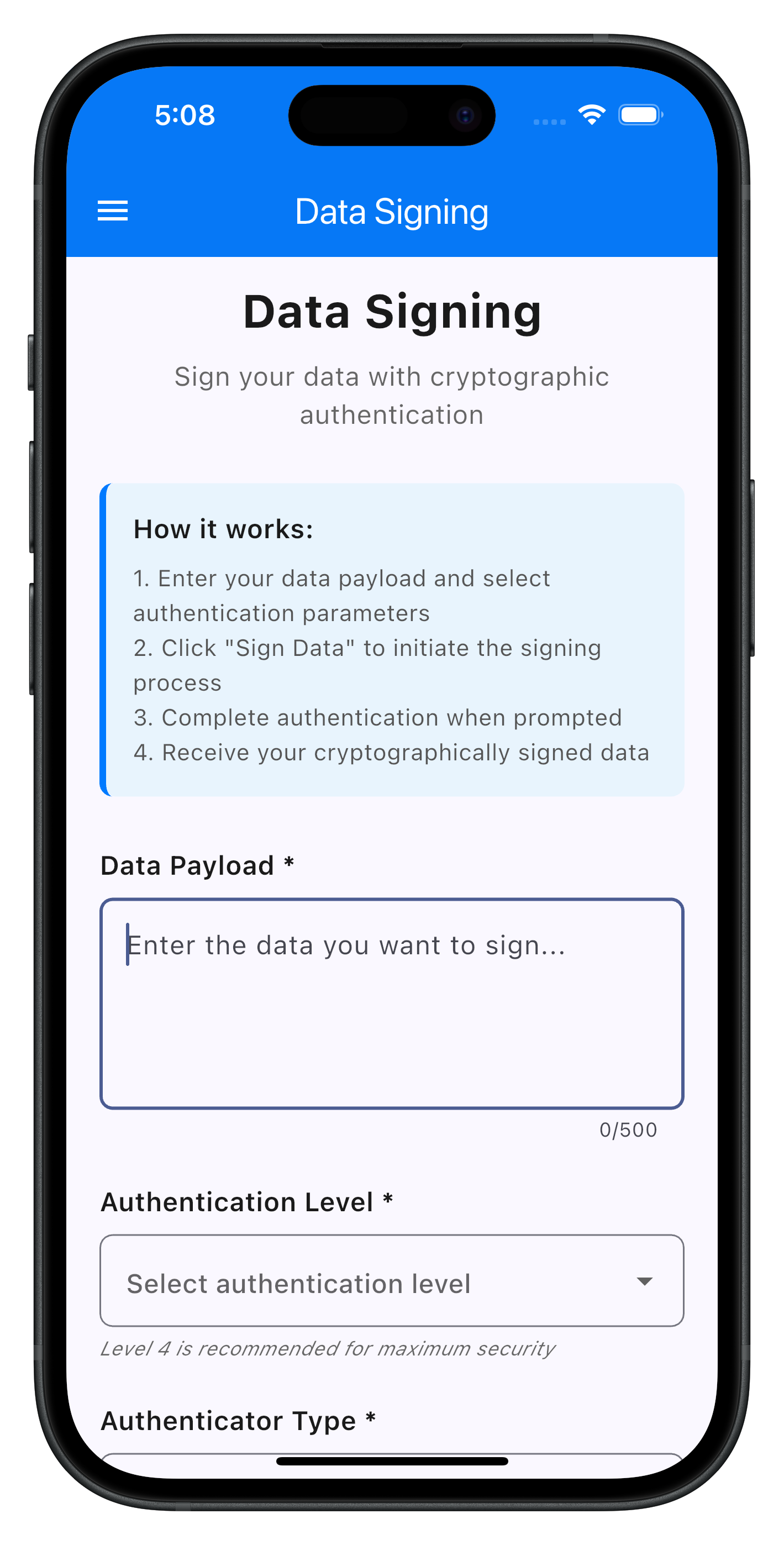
This is the primary screen where users input data to be signed:
The following image showcases the data signing input screen from the sample application:
// lib/tutorial/screens/data_signing/data_signing_input_screen.dart
import 'package:flutter/material.dart';
import 'package:flutter_riverpod/flutter_riverpod.dart';
import 'package:rdna_client/rdna_struct.dart';
import 'package:go_router/go_router.dart';
import 'data_signing_service.dart';
import 'dropdown_data_service.dart';
import 'data_signing_types.dart';
import '../components/drawer_content.dart';
import '../../../uniken/services/rdna_service.dart';
import '../../../uniken/services/rdna_event_manager.dart';
import 'components/password_challenge_modal.dart';
/// Data Signing Input Screen
///
/// Main screen for data signing input form.
/// Collects payload, auth level, authenticator type, and reason from user.
class DataSigningInputScreen extends ConsumerStatefulWidget {
final RDNAUserLoggedIn? sessionData;
const DataSigningInputScreen({
Key? key,
this.sessionData,
}) : super(key: key);
@override
ConsumerState<DataSigningInputScreen> createState() => _DataSigningInputScreenState();
}
class _DataSigningInputScreenState extends ConsumerState<DataSigningInputScreen> {
final _formKey = GlobalKey<FormState>();
final _payloadController = TextEditingController();
final _reasonController = TextEditingController();
String? _selectedAuthLevel;
String? _selectedAuthenticatorType;
bool _isLoading = false;
bool _handlersRegistered = false;
RDNADataSigningResponseCallback? _originalDataSigningHandler;
RDNAGetPasswordCallback? _originalGetPasswordHandler;
@override
void initState() {
super.initState();
_setupDataSigningEventHandler();
_setupGetPasswordEventHandler();
}
@override
void didChangeDependencies() {
super.didChangeDependencies();
// Re-register handlers when coming back to this screen
if (!_handlersRegistered) {
print('DataSigningInputScreen - didChangeDependencies: Re-registering handlers');
_setupDataSigningEventHandler();
_setupGetPasswordEventHandler();
}
}
@override
void dispose() {
_cleanupDataSigningEventHandler();
_cleanupGetPasswordEventHandler();
_payloadController.dispose();
_reasonController.dispose();
super.dispose();
}
/// Setup data signing event handler when screen mounts
void _setupDataSigningEventHandler() {
final rdnaService = RdnaService.getInstance();
final eventManager = rdnaService.getEventManager();
// Preserve existing handler (callback preservation pattern)
_originalDataSigningHandler = eventManager.getDataSigningResponseHandler;
// Set our handler
eventManager.setDataSigningResponseHandler(_handleDataSigningResponse);
print('DataSigningInputScreen - Data signing event handler registered');
}
/// Cleanup data signing event handler when screen unmounts
void _cleanupDataSigningEventHandler() {
final rdnaService = RdnaService.getInstance();
final eventManager = rdnaService.getEventManager();
// Only restore if current handler is still ours
final currentHandler = eventManager.getDataSigningResponseHandler;
if (currentHandler == _handleDataSigningResponse) {
eventManager.setDataSigningResponseHandler(_originalDataSigningHandler);
print('DataSigningInputScreen - Data signing event handler cleaned up and restored');
} else {
print('DataSigningInputScreen - Data signing handler was overwritten, not restoring');
}
_handlersRegistered = false;
}
/// Handles data signing response event
void _handleDataSigningResponse(AuthenticateUserAndSignData response) {
print('DataSigningInputScreen - Data signing response received');
print(' Status Code: ${response.status?.statusCode}');
print(' Error Code: ${response.error?.shortErrorCode}');
// Stop loading state
if (mounted) {
setState(() => _isLoading = false);
}
// Check error first
if (response.error?.shortErrorCode != 0) {
// Error occurred
print('DataSigningInputScreen - Data signing error:');
print(' Error Code: ${response.error?.shortErrorCode}');
print(' Error Message: ${response.error?.errorString}');
if (mounted) {
final errorMessage = response.error?.errorString ??
DataSigningService.getErrorMessage(response.error?.shortErrorCode ?? -1);
_showErrorDialog('Data signing failed: $errorMessage');
}
return;
}
// Check status code
if (response.status?.statusCode != 100) {
// Status not success
print('DataSigningInputScreen - Data signing status error:');
print(' Status Code: ${response.status?.statusCode}');
if (mounted) {
_showErrorDialog('Data signing failed with status: ${response.status?.statusCode}');
}
return;
}
// Success - both error code 0 and status code 100
print('DataSigningInputScreen - Data signing successful, navigating to result screen');
// Navigate to results screen with the response data
if (mounted) {
context.push('/data-signing-result', extra: response);
}
// Call original handler if it exists
if (_originalDataSigningHandler != null) {
_originalDataSigningHandler!(response);
}
}
/// Setup getPassword event handler for challengeMode 12
void _setupGetPasswordEventHandler() {
final rdnaService = RdnaService.getInstance();
final eventManager = rdnaService.getEventManager();
// Preserve existing handler
_originalGetPasswordHandler = eventManager.getPasswordHandler;
// Set our handler that intercepts challengeMode 12
eventManager.setGetPasswordHandler(_handleGetPassword);
_handlersRegistered = true;
print('DataSigningInputScreen - GetPassword event handler registered');
}
/// Cleanup getPassword event handler when screen unmounts
void _cleanupGetPasswordEventHandler() {
final rdnaService = RdnaService.getInstance();
final eventManager = rdnaService.getEventManager();
// Only restore if current handler is still ours
final currentHandler = eventManager.getPasswordHandler;
if (currentHandler == _handleGetPassword) {
eventManager.setGetPasswordHandler(_originalGetPasswordHandler);
print('DataSigningInputScreen - GetPassword event handler cleaned up and restored');
} else {
print('DataSigningInputScreen - GetPassword handler was overwritten, not restoring');
}
}
/// Handles getPassword event (intercepts challengeMode 12 for data signing)
void _handleGetPassword(RDNAGetPassword data) {
print('DataSigningInputScreen - GetPassword event received');
print(' ChallengeMode: ${data.challengeMode}');
print(' AttemptsLeft: ${data.attemptsLeft}');
// Check if this is data signing step-up authentication (challengeMode 12)
if (data.challengeMode == 12) {
print('DataSigningInputScreen - ChallengeMode 12 detected, showing password modal');
// Show password challenge modal
if (mounted) {
showDialog(
context: context,
barrierDismissible: false,
builder: (context) => PasswordChallengeModal(
challengeMode: data.challengeMode ?? 12,
attemptsLeft: data.attemptsLeft ?? 3,
onSubmit: (password) async {
final response = await DataSigningService.submitPassword(password, data.challengeMode ?? 12);
// Check sync response
if (response.error?.longErrorCode == 0) {
// Sync response success - close modal immediately
if (mounted) {
Navigator.of(context, rootNavigator: true).pop();
}
} else {
// Sync error - modal stays open
print('DataSigningInputScreen - Password submission sync error: ${response.error?.errorString}');
// Show error dialog
if (mounted) {
showDialog(
context: context,
builder: (context) => AlertDialog(
title: const Text('Password Error'),
content: Text(response.error?.errorString ?? 'Password submission failed'),
actions: [
TextButton(
onPressed: () => Navigator.of(context).pop(),
child: const Text('OK'),
),
],
),
);
}
}
},
onCancel: () async {
final response = await DataSigningService.resetState();
if (mounted) {
setState(() {
_isLoading = false;
});
// Check if reset had errors
if (response.error?.longErrorCode != 0) {
print('DataSigningInputScreen - Reset state error: ${response.error?.errorString}');
Future.delayed(const Duration(milliseconds: 300), () {
if (mounted) {
_showErrorDialog(response.error?.errorString ?? 'Failed to reset state');
}
});
}
}
},
context: DataSigningFormState(
payload: _payloadController.text,
selectedAuthLevel: _selectedAuthLevel ?? '',
selectedAuthenticatorType: _selectedAuthenticatorType ?? '',
reason: _reasonController.text,
),
),
);
}
} else {
// Not data signing, call original handler
print('DataSigningInputScreen - ChallengeMode ${data.challengeMode}, delegating to original handler');
if (_originalGetPasswordHandler != null) {
_originalGetPasswordHandler!(data);
}
}
}
/// Handles form submission
Future<void> _handleSubmit() async {
if (!_formKey.currentState!.validate()) {
return;
}
// Additional validation
final validation = DataSigningService.validateSigningInput(
payload: _payloadController.text,
authLevel: _selectedAuthLevel ?? '',
authenticatorType: _selectedAuthenticatorType ?? '',
reason: _reasonController.text,
);
if (!validation.isValid) {
_showErrorDialog(validation.errors.join('\n'));
return;
}
setState(() => _isLoading = true);
// Convert dropdown values to numeric values
final values = DataSigningService.convertDropdownToInts(
_selectedAuthLevel!,
_selectedAuthenticatorType!,
);
// Create request
final request = DataSigningRequest(
payload: _payloadController.text.trim(),
authLevel: values['authLevel']!,
authenticatorType: values['authenticatorType']!,
reason: _reasonController.text.trim(),
);
// Initiate data signing
final response = await DataSigningService.signData(request);
// Check sync response
if (response.error?.longErrorCode == 0) {
// Success - SDK will trigger getPassword event for step-up auth
// Modal will be shown, and on success, will navigate to results screen
} else {
// Sync error
print('DataSigningInputScreen - Sign data sync error: ${response.error?.errorString}');
if (mounted) {
setState(() => _isLoading = false);
_showErrorDialog(response.error?.errorString ?? 'Data signing failed');
}
}
}
/// Shows error dialog
void _showErrorDialog(String message) {
showDialog(
context: context,
builder: (context) => AlertDialog(
title: const Text('Validation Error'),
content: Text(message),
actions: [
TextButton(
onPressed: () => Navigator.of(context).pop(),
child: const Text('OK'),
),
],
),
);
}
@override
Widget build(BuildContext context) {
return Scaffold(
appBar: AppBar(
title: const Text('Data Signing'),
backgroundColor: const Color(0xFF007AFF),
foregroundColor: Colors.white,
),
drawer: DrawerContent(
sessionData: widget.sessionData,
currentRoute: 'dataSigningInputScreen',
),
body: SingleChildScrollView(
padding: const EdgeInsets.all(20),
child: Form(
key: _formKey,
child: Column(
crossAxisAlignment: CrossAxisAlignment.stretch,
children: [
// Header
_buildHeader(),
const SizedBox(height: 30),
// Info Section
_buildInfoSection(),
const SizedBox(height: 30),
// Payload Input
_buildPayloadInput(),
const SizedBox(height: 24),
// Auth Level Dropdown
_buildAuthLevelDropdown(),
const SizedBox(height: 24),
// Authenticator Type Dropdown
_buildAuthenticatorTypeDropdown(),
const SizedBox(height: 24),
// Reason Input
_buildReasonInput(),
const SizedBox(height: 30),
// Submit Button
_buildSubmitButton(),
],
),
),
),
);
}
/// Builds the header
Widget _buildHeader() {
return const Column(
children: [
Text(
'Data Signing',
style: TextStyle(
fontSize: 28,
fontWeight: FontWeight.bold,
color: Color(0xFF1A1A1A),
),
),
SizedBox(height: 8),
Text(
'Sign your data with cryptographic authentication',
style: TextStyle(
fontSize: 16,
color: Color(0xFF666666),
),
textAlign: TextAlign.center,
),
],
);
}
/// Builds the info section
Widget _buildInfoSection() {
return Container(
padding: const EdgeInsets.all(16),
decoration: BoxDecoration(
color: const Color(0xFFE8F4FD),
borderRadius: BorderRadius.circular(8),
border: const Border(
left: BorderSide(color: Color(0xFF007AFF), width: 4),
),
),
child: Column(
crossAxisAlignment: CrossAxisAlignment.start,
children: [
const Text(
'How it works:',
style: TextStyle(
fontSize: 16,
fontWeight: FontWeight.w600,
color: Color(0xFF1A1A1A),
),
),
const SizedBox(height: 8),
const Text(
'1. Enter your data payload and select authentication parameters\n'
'2. Click "Sign Data" to initiate the signing process\n'
'3. Complete authentication when prompted\n'
'4. Receive your cryptographically signed data',
style: TextStyle(
fontSize: 14,
color: Color(0xFF555555),
height: 1.5,
),
),
],
),
);
}
/// Builds the payload input
Widget _buildPayloadInput() {
return Column(
crossAxisAlignment: CrossAxisAlignment.start,
children: [
const Text(
'Data Payload *',
style: TextStyle(
fontSize: 16,
fontWeight: FontWeight.w600,
color: Color(0xFF1A1A1A),
),
),
const SizedBox(height: 8),
TextFormField(
controller: _payloadController,
maxLines: 4,
maxLength: maxPayloadLength,
enabled: !_isLoading,
decoration: InputDecoration(
hintText: 'Enter the data you want to sign...',
border: OutlineInputBorder(
borderRadius: BorderRadius.circular(8),
),
counterText: '${_payloadController.text.length}/$maxPayloadLength',
),
validator: (value) {
if (value == null || value.trim().isEmpty) {
return 'Payload is required';
}
return null;
},
onChanged: (value) => setState(() {}),
),
],
);
}
/// Builds the auth level dropdown
Widget _buildAuthLevelDropdown() {
return Column(
crossAxisAlignment: CrossAxisAlignment.start,
children: [
const Text(
'Authentication Level *',
style: TextStyle(
fontSize: 16,
fontWeight: FontWeight.w600,
color: Color(0xFF1A1A1A),
),
),
const SizedBox(height: 8),
DropdownButtonFormField<String>(
value: _selectedAuthLevel,
decoration: InputDecoration(
border: OutlineInputBorder(
borderRadius: BorderRadius.circular(8),
),
hintText: 'Select authentication level',
),
items: DropdownDataService.getAuthLevelOptions()
.map((option) => DropdownMenuItem(
value: option,
child: Text(option),
))
.toList(),
onChanged: _isLoading
? null
: (value) {
setState(() => _selectedAuthLevel = value);
},
validator: (value) {
if (value == null || value.isEmpty) {
return 'Please select an authentication level';
}
return null;
},
),
const SizedBox(height: 4),
const Text(
'Level 4 is recommended for maximum security',
style: TextStyle(
fontSize: 12,
color: Color(0xFF666666),
fontStyle: FontStyle.italic,
),
),
],
);
}
/// Builds the authenticator type dropdown
Widget _buildAuthenticatorTypeDropdown() {
return Column(
crossAxisAlignment: CrossAxisAlignment.start,
children: [
const Text(
'Authenticator Type *',
style: TextStyle(
fontSize: 16,
fontWeight: FontWeight.w600,
color: Color(0xFF1A1A1A),
),
),
const SizedBox(height: 8),
DropdownButtonFormField<String>(
value: _selectedAuthenticatorType,
decoration: InputDecoration(
border: OutlineInputBorder(
borderRadius: BorderRadius.circular(8),
),
hintText: 'Select authenticator type',
),
items: DropdownDataService.getAuthenticatorTypeOptions()
.map((option) => DropdownMenuItem(
value: option,
child: Text(option),
))
.toList(),
onChanged: _isLoading
? null
: (value) {
setState(() => _selectedAuthenticatorType = value);
},
validator: (value) {
if (value == null || value.isEmpty) {
return 'Please select an authenticator type';
}
return null;
},
),
const SizedBox(height: 4),
const Text(
'Choose the authentication method for signing',
style: TextStyle(
fontSize: 12,
color: Color(0xFF666666),
fontStyle: FontStyle.italic,
),
),
],
);
}
/// Builds the reason input
Widget _buildReasonInput() {
return Column(
crossAxisAlignment: CrossAxisAlignment.start,
children: [
const Text(
'Signing Reason *',
style: TextStyle(
fontSize: 16,
fontWeight: FontWeight.w600,
color: Color(0xFF1A1A1A),
),
),
const SizedBox(height: 8),
TextFormField(
controller: _reasonController,
maxLength: maxReasonLength,
enabled: !_isLoading,
decoration: InputDecoration(
hintText: 'Enter reason for signing',
border: OutlineInputBorder(
borderRadius: BorderRadius.circular(8),
),
counterText: '${_reasonController.text.length}/$maxReasonLength',
),
validator: (value) {
if (value == null || value.trim().isEmpty) {
return 'Reason is required';
}
return null;
},
onChanged: (value) => setState(() {}),
),
],
);
}
/// Builds the submit button
Widget _buildSubmitButton() {
return ElevatedButton(
onPressed: _isLoading ? null : _handleSubmit,
style: ElevatedButton.styleFrom(
padding: const EdgeInsets.symmetric(vertical: 16),
backgroundColor: const Color(0xFF007AFF),
disabledBackgroundColor: const Color(0xFFCCCCCC),
shape: RoundedRectangleBorder(
borderRadius: BorderRadius.circular(12),
),
elevation: 3,
),
child: _isLoading
? const Row(
mainAxisAlignment: MainAxisAlignment.center,
children: [
SizedBox(
width: 20,
height: 20,
child: CircularProgressIndicator(
color: Colors.white,
strokeWidth: 2,
),
),
SizedBox(width: 12),
Text(
'Processing...',
style: TextStyle(
fontSize: 18,
fontWeight: FontWeight.w600,
color: Colors.white,
),
),
],
)
: const Text(
'Sign Data',
style: TextStyle(
fontSize: 18,
fontWeight: FontWeight.w600,
color: Colors.white,
),
),
);
}
}
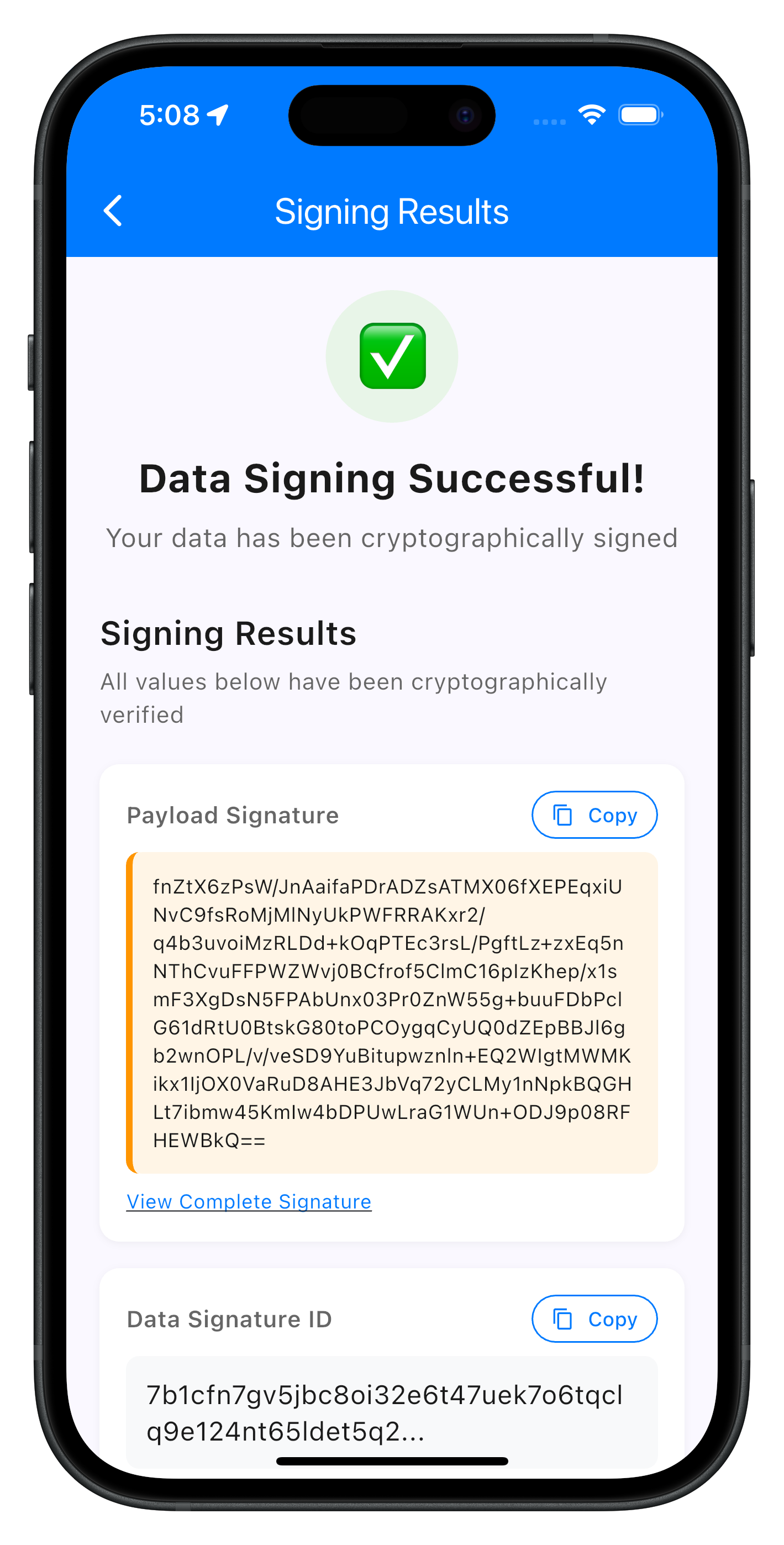
DataSigningResultScreen - Results Display
The following image showcases the successful data signing results screen from the sample application:
// lib/tutorial/screens/data_signing/data_signing_result_screen.dart

import 'package:flutter/material.dart';
import 'package:flutter/services.dart';
import 'package:flutter_riverpod/flutter_riverpod.dart';
import 'package:go_router/go_router.dart';
import 'data_signing_service.dart';
import 'data_signing_types.dart';
import 'package:rdna_client/rdna_struct.dart';

/// Data Signing Result Screen
///
/// Displays the cryptographically signed data with all metadata.
/// Allows users to copy values and sign another document.
class DataSigningResultScreen extends ConsumerStatefulWidget {
  final AuthenticateUserAndSignData resultData;

  const DataSigningResultScreen({
    Key? key,
    required this.resultData,
  }) : super(key: key);

  @override
  ConsumerState<DataSigningResultScreen> createState() => _DataSigningResultScreenState();
}

class _DataSigningResultScreenState extends ConsumerState<DataSigningResultScreen> {
  String? _copiedField;

  /// Handles copy to clipboard
  Future<void> _handleCopyToClipboard(String value, String fieldName) async {
    try {
      await Clipboard.setData(ClipboardData(text: value));

      setState(() => _copiedField = fieldName);

      // Reset copied state after 2 seconds
      Future.delayed(const Duration(seconds: 2), () {
        if (mounted) {
          setState(() => _copiedField = null);
        }
      });

      if (mounted) {
        ScaffoldMessenger.of(context).showSnackBar(
          SnackBar(
            content: Text('$fieldName copied to clipboard'),
            duration: const Duration(seconds: 2),
            behavior: SnackBarBehavior.floating,
          ),
        );
      }
    } catch (error) {
      print('DataSigningResultScreen - Failed to copy to clipboard: $error');
      if (mounted) {
        _showErrorDialog('Failed to copy to clipboard');
      }
    }
  }

  /// Handles sign another button
  Future<void> _handleSignAnother() async {
    print('DataSigningResultScreen - Sign another button pressed');

    final response = await DataSigningService.resetState();

    if (mounted) {
      // Check if reset had errors
      if (response.error?.longErrorCode != 0) {
        print('DataSigningResultScreen - Reset state error: ${response.error?.errorString}');
        showDialog(
          context: context,
          builder: (context) => AlertDialog(
            title: const Text('Reset Error'),
            content: Text(response.error?.errorString ?? 'Failed to reset state'),
            actions: [
              TextButton(
                onPressed: () {
                  Navigator.of(context).pop(); // Close dialog
                  context.pop(); // Go back anyway
                },
                child: const Text('OK'),
              ),
            ],
          ),
        );
      } else {
        // Success - go back to input screen
        context.pop();
      }
    }
  }

  /// Shows error dialog
  void _showErrorDialog(String message) {
    showDialog(
      context: context,
      builder: (context) => AlertDialog(
        title: const Text('Error'),
        content: Text(message),
        actions: [
          TextButton(
            onPressed: () => Navigator.of(context).pop(),
            child: const Text('OK'),
          ),
        ],
      ),
    );
  }

  /// Shows full value in dialog
  void _showFullValueDialog(String title, String value) {
    showDialog(
      context: context,
      builder: (context) => AlertDialog(
        title: Text(title),
        content: SingleChildScrollView(
          child: SelectableText(
            value,
            style: const TextStyle(
              fontFamily: 'monospace',
              fontSize: 12,
            ),
          ),
        ),
        actions: [
          TextButton(
            onPressed: () => Navigator.of(context).pop(),
            child: const Text('Close'),
          ),
        ],
      ),
    );
  }

  @override
  Widget build(BuildContext context) {
    // Format result for display
    final displayData = DataSigningService.formatSigningResultForDisplay(widget.resultData);
    final resultItems = DataSigningService.convertToResultInfoItems(displayData);

    return Scaffold(
      appBar: AppBar(
        title: const Text('Signing Results'),
        backgroundColor: const Color(0xFF007AFF),
        foregroundColor: Colors.white,
      ),
      body: SingleChildScrollView(
        padding: const EdgeInsets.all(20),
        child: Column(
          crossAxisAlignment: CrossAxisAlignment.stretch,
          children: [
            // Success Header
            _buildSuccessHeader(),
            const SizedBox(height: 32),

            // Results Section
            _buildResultsSection(resultItems),
            const SizedBox(height: 32),

            // Actions Section
            _buildActionsSection(),
            const SizedBox(height: 24),

            // Security Info
            _buildSecurityInfo(),
          ],
        ),
      ),
    );
  }

  /// Builds the success header
  Widget _buildSuccessHeader() {
    return Column(
      children: [
        Container(
          width: 80,
          height: 80,
          decoration: BoxDecoration(
            color: const Color(0xFFE8F5E8),
            borderRadius: BorderRadius.circular(40),
          ),
          child: const Center(
            child: Text(
              '✅',
              style: TextStyle(fontSize: 40),
            ),
          ),
        ),
        const SizedBox(height: 16),
        const Text(
          'Data Signing Successful!',
          style: TextStyle(
            fontSize: 24,
            fontWeight: FontWeight.w700,
            color: Color(0xFF1A1A1A),
          ),
          textAlign: TextAlign.center,
        ),
        const SizedBox(height: 8),
        const Text(
          'Your data has been cryptographically signed',
          style: TextStyle(
            fontSize: 16,
            color: Color(0xFF666666),
          ),
          textAlign: TextAlign.center,
        ),
      ],
    );
  }

  /// Builds the results section
  Widget _buildResultsSection(List<ResultInfoItem> items) {
    return Column(
      crossAxisAlignment: CrossAxisAlignment.start,
      children: [
        const Text(
          'Signing Results',
          style: TextStyle(
            fontSize: 20,
            fontWeight: FontWeight.w600,
            color: Color(0xFF1A1A1A),
          ),
        ),
        const SizedBox(height: 4),
        const Text(
          'All values below have been cryptographically verified',
          style: TextStyle(
            fontSize: 14,
            color: Color(0xFF666666),
          ),
        ),
        const SizedBox(height: 20),
        ...items.map((item) => _buildResultItem(item)).toList(),
      ],
    );
  }

  /// Builds a single result item
  Widget _buildResultItem(ResultInfoItem item) {
    final isSignature = item.name == 'Payload Signature';
    final isLongValue = item.value.length > 50;
    final displayValue = isLongValue && !isSignature
        ? '${item.value.substring(0, 50)}...'
        : item.value;

    return Container(
      margin: const EdgeInsets.only(bottom: 16),
      padding: const EdgeInsets.all(16),
      decoration: BoxDecoration(
        color: Colors.white,
        borderRadius: BorderRadius.circular(12),
        boxShadow: [
          BoxShadow(
            color: Colors.black.withOpacity(0.05),
            blurRadius: 3,
            offset: const Offset(0, 1),
          ),
        ],
      ),
      child: Column(
        crossAxisAlignment: CrossAxisAlignment.start,
        children: [
          // Header with label and copy button
          Row(
            mainAxisAlignment: MainAxisAlignment.spaceBetween,
            children: [
              Expanded(
                child: Text(
                  item.name,
                  style: const TextStyle(
                    fontSize: 14,
                    fontWeight: FontWeight.w600,
                    color: Color(0xFF666666),
                  ),
                ),
              ),
              if (item.value != 'N/A')
                OutlinedButton.icon(
                  onPressed: () => _handleCopyToClipboard(item.value, item.name),
                  icon: Icon(
                    _copiedField == item.name ? Icons.check : Icons.copy,
                    size: 14,
                  ),
                  label: Text(
                    _copiedField == item.name ? 'Copied' : 'Copy',
                    style: const TextStyle(fontSize: 12),
                  ),
                  style: OutlinedButton.styleFrom(
                    padding: const EdgeInsets.symmetric(horizontal: 12, vertical: 6),
                    minimumSize: const Size(0, 0),
                    tapTargetSize: MaterialTapTargetSize.shrinkWrap,
                    side: const BorderSide(color: Color(0xFF007AFF)),
                    foregroundColor: const Color(0xFF007AFF),
                  ),
                ),
            ],
          ),
          const SizedBox(height: 8),

          // Value container
          Container(
            padding: const EdgeInsets.all(12),
            decoration: BoxDecoration(
              color: isSignature ? const Color(0xFFFFF5E6) : const Color(0xFFF8F9FA),
              borderRadius: BorderRadius.circular(8),
              border: isSignature
                  ? const Border(left: BorderSide(color: Color(0xFFFF9500), width: 4))
                  : null,
            ),
            child: SelectableText(
              displayValue,
              style: TextStyle(
                fontSize: isSignature ? 12 : 16,
                color: const Color(0xFF1A1A1A),
                fontFamily: isSignature ? 'monospace' : null,
                height: 1.4,
              ),
            ),
          ),

          // Expand button for long values
          if (isLongValue || isSignature) ...[
            const SizedBox(height: 8),
            InkWell(
              onTap: () => _showFullValueDialog(item.name, item.value),
              child: Text(
                isSignature ? 'View Complete Signature' : 'View Full Value',
                style: const TextStyle(
                  fontSize: 12,
                  color: Color(0xFF007AFF),
                  decoration: TextDecoration.underline,
                ),
              ),
            ),
          ],
        ],
      ),
    );
  }

  /// Builds the actions section
  Widget _buildActionsSection() {
    return ElevatedButton(
      onPressed: _handleSignAnother,
      style: ElevatedButton.styleFrom(
        padding: const EdgeInsets.symmetric(vertical: 16),
        backgroundColor: const Color(0xFF007AFF),
        shape: RoundedRectangleBorder(
          borderRadius: BorderRadius.circular(12),
        ),
        elevation: 3,
      ),
      child: const Text(
        'Sign Another Document',
        style: TextStyle(
          fontSize: 16,
          fontWeight: FontWeight.w600,
          color: Colors.white,
        ),
      ),
    );
  }

  /// Builds the security info section
  Widget _buildSecurityInfo() {
    return Container(
      padding: const EdgeInsets.all(16),
      decoration: BoxDecoration(
        color: const Color(0xFFE8F4FD),
        borderRadius: BorderRadius.circular(12),
        border: const Border(
          left: BorderSide(color: Color(0xFF007AFF), width: 4),
        ),
      ),
      child: Column(
        crossAxisAlignment: CrossAxisAlignment.start,
        children: [
          const Text(
            'Security Information',
            style: TextStyle(
              fontSize: 16,
              fontWeight: FontWeight.w600,
              color: Color(0xFF1A1A1A),
            ),
          ),
          const SizedBox(height: 8),
          const Text(
            '• Your signature is cryptographically secure and tamper-proof\n'
            '• The signature ID uniquely identifies this signing operation\n'
            '• Data integrity is mathematically guaranteed\n'
            '• This signature can be verified independently',
            style: TextStyle(
              fontSize: 14,
              color: Color(0xFF555555),
              height: 1.5,
            ),
          ),
        ],
      ),
    );
  }
}
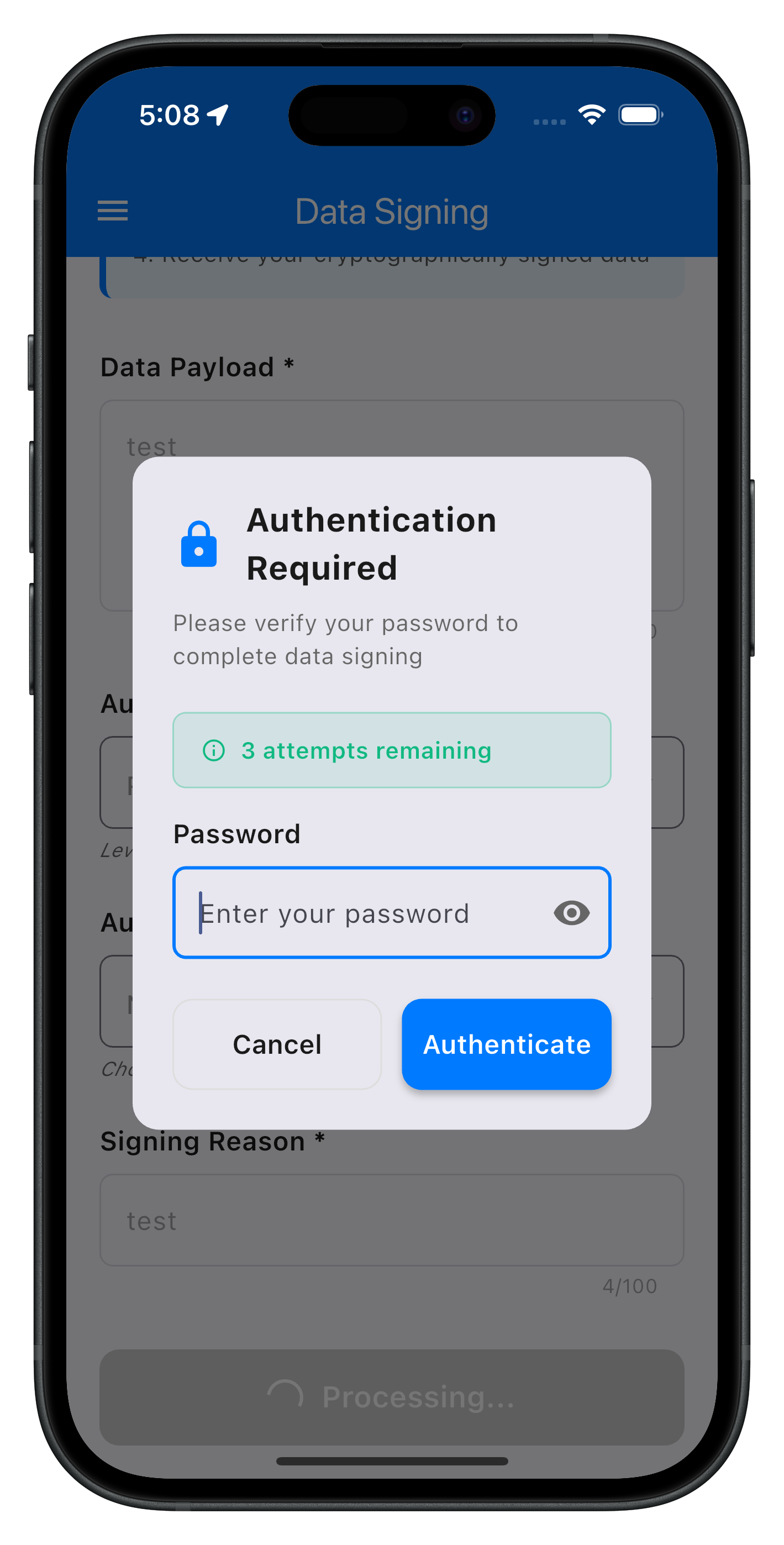
Password Challenge Modal Integration
The following image showcases the authentication required modal during step-up authentication:
// lib/tutorial/screens/data_signing/components/password_challenge_modal.dart

import 'package:flutter/material.dart';
import '../data_signing_service.dart';
import '../data_signing_types.dart';

/// Password Challenge Modal for Data Signing Step-Up Authentication
///
/// This modal is displayed when the SDK triggers a getPassword event
/// during the data signing flow, requiring user password verification.
///
/// Usage:
/// ```dart
/// showDialog(
///   context: context,
///   barrierDismissible: false,
///   builder: (context) => PasswordChallengeModal(
///     challengeMode: 12,
///     attemptsLeft: 3,
///     onSubmit: (password) async { ... },
///     onCancel: () async { ... },
///   ),
/// );
/// ```
class PasswordChallengeModal extends StatefulWidget {
  final int challengeMode;
  final int attemptsLeft;
  final Future<void> Function(String password) onSubmit;
  final Future<void> Function() onCancel;
  final DataSigningFormState? context;

  const PasswordChallengeModal({
    Key? key,
    required this.challengeMode,
    required this.attemptsLeft,
    required this.onSubmit,
    required this.onCancel,
    this.context,
  }) : super(key: key);

  @override
  State<PasswordChallengeModal> createState() => _PasswordChallengeModalState();
}

class _PasswordChallengeModalState extends State<PasswordChallengeModal> {
  final TextEditingController _passwordController = TextEditingController();
  final FocusNode _passwordFocusNode = FocusNode();
  bool _isPasswordVisible = false;
  bool _isSubmitting = false;
  String _errorMessage = '';

  @override
  void initState() {
    super.initState();
    // Auto-focus password input after a short delay
    Future.delayed(const Duration(milliseconds: 100), () {
      if (mounted) {
        _passwordFocusNode.requestFocus();
      }
    });
  }

  @override
  void dispose() {
    _passwordController.dispose();
    _passwordFocusNode.dispose();
    super.dispose();
  }

  /// Gets color for attempts counter based on remaining attempts
  Color _getAttemptsColor() {
    if (widget.attemptsLeft == 1) return const Color(0xFFDC2626); // Red
    if (widget.attemptsLeft == 2) return const Color(0xFFF59E0B); // Orange
    return const Color(0xFF10B981); // Green
  }

  /// Handles submit button press
  Future<void> _handleSubmit() async {
    if (_isSubmitting) return;

    final password = _passwordController.text;

    // Validate password
    final validation = DataSigningService.validatePassword(password);
    if (!validation.isValid) {
      setState(() {
        _errorMessage = validation.error ?? 'Password is required';
      });
      return;
    }

    // Clear error and set loading state
    setState(() {
      _errorMessage = '';
      _isSubmitting = true;
    });

    try {
      await widget.onSubmit(password);
      // Modal will be closed by parent on success
    } catch (error) {
      if (mounted) {
        setState(() {
          _isSubmitting = false;
          _errorMessage = error.toString().replaceAll('Exception: ', '');
        });
      }
    }
  }

  /// Handles cancel button press
  Future<void> _handleCancel() async {
    if (_isSubmitting) return;

    try {
      await widget.onCancel();
      if (mounted) {
        Navigator.of(context).pop();
      }
    } catch (error) {
      print('PasswordChallengeModal - Cancel error: $error');
      if (mounted) {
        Navigator.of(context).pop();
      }
    }
  }

  @override
  Widget build(BuildContext context) {
    return Dialog(
      shape: RoundedRectangleBorder(borderRadius: BorderRadius.circular(16)),
      child: Container(
        constraints: const BoxConstraints(maxWidth: 500),
        padding: const EdgeInsets.all(24),
        child: Column(
          mainAxisSize: MainAxisSize.min,
          crossAxisAlignment: CrossAxisAlignment.stretch,
          children: [
            // Header
            _buildHeader(),
            const SizedBox(height: 24),

            // Attempts Counter (if <= 3 attempts)
            if (widget.attemptsLeft <= 3) ...[
              _buildAttemptsCounter(),
              const SizedBox(height: 16),
            ],

            // Error Message
            if (_errorMessage.isNotEmpty) ...[
              _buildErrorMessage(),
              const SizedBox(height: 16),
            ],

            // Password Input
            _buildPasswordInput(),
            const SizedBox(height: 24),

            // Buttons
            _buildButtons(),
          ],
        ),
      ),
    );
  }

  /// Builds the header section
  Widget _buildHeader() {
    return Column(
      children: [
        Row(
          children: [
            const Icon(Icons.lock, size: 32, color: Color(0xFF007AFF)),
            const SizedBox(width: 12),
            const Expanded(
              child: Text(
                'Authentication Required',
                style: TextStyle(
                  fontSize: 20,
                  fontWeight: FontWeight.bold,
                  color: Color(0xFF1A1A1A),
                ),
              ),
            ),
          ],
        ),
        const SizedBox(height: 8),
        const Text(
          'Please verify your password to complete data signing',
          style: TextStyle(
            fontSize: 14,
            color: Color(0xFF666666),
          ),
        ),
      ],
    );
  }

  /// Builds the attempts counter badge
  Widget _buildAttemptsCounter() {
    final attemptsColor = _getAttemptsColor();

    return Container(
      padding: const EdgeInsets.symmetric(horizontal: 16, vertical: 12),
      decoration: BoxDecoration(
        color: attemptsColor.withOpacity(0.1),
        borderRadius: BorderRadius.circular(8),
        border: Border.all(color: attemptsColor.withOpacity(0.3)),
      ),
      child: Row(
        mainAxisSize: MainAxisSize.min,
        children: [
          Icon(Icons.info_outline, size: 16, color: attemptsColor),
          const SizedBox(width: 8),
          Text(
            '${widget.attemptsLeft} attempt${widget.attemptsLeft != 1 ? 's' : ''} remaining',
            style: TextStyle(
              fontSize: 14,
              fontWeight: FontWeight.w600,
              color: attemptsColor,
            ),
          ),
        ],
      ),
    );
  }

  /// Builds the error message banner
  Widget _buildErrorMessage() {
    return Container(
      padding: const EdgeInsets.symmetric(horizontal: 16, vertical: 12),
      decoration: BoxDecoration(
        color: const Color(0xFFFEE2E2),
        borderRadius: BorderRadius.circular(8),
        border: Border.all(color: const Color(0xFFDC2626).withOpacity(0.3)),
      ),
      child: Row(
        children: [
          const Icon(Icons.error_outline, size: 16, color: Color(0xFFDC2626)),
          const SizedBox(width: 8),
          Expanded(
            child: Text(
              _errorMessage,
              style: const TextStyle(
                fontSize: 14,
                color: Color(0xFFDC2626),
              ),
            ),
          ),
        ],
      ),
    );
  }

  /// Builds the password input field
  Widget _buildPasswordInput() {
    return Column(
      crossAxisAlignment: CrossAxisAlignment.start,
      children: [
        const Text(
          'Password',
          style: TextStyle(
            fontSize: 16,
            fontWeight: FontWeight.w600,
            color: Color(0xFF1A1A1A),
          ),
        ),
        const SizedBox(height: 8),
        TextField(
          controller: _passwordController,
          focusNode: _passwordFocusNode,
          obscureText: !_isPasswordVisible,
          enabled: !_isSubmitting,
          onSubmitted: (_) => _handleSubmit(),
          decoration: InputDecoration(
            hintText: 'Enter your password',
            border: OutlineInputBorder(
              borderRadius: BorderRadius.circular(8),
              borderSide: const BorderSide(color: Color(0xFFDDDDDD)),
            ),
            enabledBorder: OutlineInputBorder(
              borderRadius: BorderRadius.circular(8),
              borderSide: const BorderSide(color: Color(0xFFDDDDDD)),
            ),
            focusedBorder: OutlineInputBorder(
              borderRadius: BorderRadius.circular(8),
              borderSide: const BorderSide(color: Color(0xFF007AFF), width: 2),
            ),
            suffixIcon: IconButton(
              icon: Icon(
                _isPasswordVisible ? Icons.visibility_off : Icons.visibility,
                color: const Color(0xFF666666),
              ),
              onPressed: _isSubmitting
                  ? null
                  : () {
                      setState(() {
                        _isPasswordVisible = !_isPasswordVisible;
                      });
                    },
            ),
          ),
        ),
      ],
    );
  }

  /// Builds the submit and cancel buttons
  Widget _buildButtons() {
    return Row(
      children: [
        // Cancel Button
        Expanded(
          child: OutlinedButton(
            onPressed: _isSubmitting ? null : _handleCancel,
            style: OutlinedButton.styleFrom(
              padding: const EdgeInsets.symmetric(vertical: 16),
              shape: RoundedRectangleBorder(
                borderRadius: BorderRadius.circular(12),
              ),
              side: const BorderSide(color: Color(0xFFDDDDDD)),
            ),
            child: const Text(
              'Cancel',
              style: TextStyle(
                fontSize: 16,
                fontWeight: FontWeight.w600,
                color: Color(0xFF1A1A1A),
              ),
            ),
          ),
        ),
        const SizedBox(width: 12),
        // Submit Button
        Expanded(
          child: ElevatedButton(
            onPressed: _isSubmitting ? null : _handleSubmit,
            style: ElevatedButton.styleFrom(
              padding: const EdgeInsets.symmetric(vertical: 16),
              backgroundColor: const Color(0xFF007AFF),
              disabledBackgroundColor: const Color(0xFFCCCCCC),
              shape: RoundedRectangleBorder(
                borderRadius: BorderRadius.circular(12),
              ),
              elevation: 3,
            ),
            child: _isSubmitting
                ? Row(
                    mainAxisAlignment: MainAxisAlignment.center,
                    mainAxisSize: MainAxisSize.min,
                    children: [
                      const SizedBox(
                        width: 16,
                        height: 16,
                        child: CircularProgressIndicator(
                          color: Colors.white,
                          strokeWidth: 2,
                        ),
                      ),
                      const SizedBox(width: 8),
                      Flexible(
                        child: const Text(
                          'Authenticating...',
                          style: TextStyle(
                            fontSize: 16,
                            fontWeight: FontWeight.w600,
                            color: Colors.white,
                          ),
                          overflow: TextOverflow.ellipsis,
                        ),
                      ),
                    ],
                  )
                : const Text(
                    'Authenticate',
                    style: TextStyle(
                      fontSize: 16,
                      fontWeight: FontWeight.w600,
                      color: Colors.white,
                    ),
                  ),
          ),
        ),
      ],
    );
  }
}
Key Flutter Widget Features
- 🎨 Material Design Dialog: Clean modal dialog with rounded corners and padding
- 🔒 Password Visibility Toggle: IconButton to show/hide password
- 🎯 Auto-Focus: Automatically focuses password field when modal opens
- 🚦 Color-Coded Attempts: Green (3+) → Orange (2) → Red (1) remaining attempts
- ⚠️ Error Display: Inline error messages with red styling
- ⏳ Loading State: CircularProgressIndicator during authentication
- 📱 Responsive Layout: Constraints for optimal display on all screen sizes
- ♿ Accessibility: Proper focus management and keyboard support
The event management system in Flutter uses the RdnaEventManager to handle all SDK callbacks. Let's explore how data signing integrates with this architecture.
RdnaEventManager - Data Signing Events
The event manager handles the onAuthenticateUserAndSignData callback:
// lib/uniken/services/rdna_event_manager.dart (excerpt)

// Data Signing Callbacks
typedef RDNADataSigningResponseCallback = void Function(AuthenticateUserAndSignData);

class RdnaEventManager {
  // ...existing code...

  // Data Signing Handlers
  RDNADataSigningResponseCallback? _dataSigningResponseHandler;

  /// Gets the current data signing response handler (for callback preservation pattern)
  RDNADataSigningResponseCallback? get getDataSigningResponseHandler => _dataSigningResponseHandler;

  /// Sets the data signing response handler
  void setDataSigningResponseHandler(RDNADataSigningResponseCallback? handler) {
    _dataSigningResponseHandler = handler;
    print('RdnaEventManager - Data signing response handler set');
  }

  /// Registers native event listeners for all SDK events
  void _registerEventListeners() {
    // ...existing listeners...

    // Data Signing Event Listener
    _listeners.add(
      _rdnaClient.on(RdnaClient.onAuthenticateUserAndSignData, _onAuthenticateUserAndSignData),
    );
  }

  /// Internal handler for onAuthenticateUserAndSignData event
  void _onAuthenticateUserAndSignData(dynamic eventData, dynamic _) {
    print('RdnaEventManager - onAuthenticateUserAndSignData event received');

    try {
      final response = AuthenticateUserAndSignData.fromJson(
        Map<String, dynamic>.from(eventData as Map)
      );

      print('RdnaEventManager - Data signing response parsed:');
      print('  Status: ${response.status?.statusCode}');
      print('  Error: ${response.error?.shortErrorCode}');
      print('  Signature ID: ${response.dataSignatureID}');

      // Call registered handler if exists
      if (_dataSigningResponseHandler != null) {
        _dataSigningResponseHandler!(response);
      } else {
        print('RdnaEventManager - Warning: No data signing response handler registered');
      }
    } catch (error) {
      print('RdnaEventManager - Error parsing data signing response: $error');
    }
  }
}
Callback Preservation Pattern
The callback preservation pattern allows screens to temporarily override event handlers without breaking other flows:
// Pattern used in DataSigningInputScreen

class _DataSigningInputScreenState extends ConsumerState<DataSigningInputScreen> {
  RDNADataSigningResponseCallback? _originalDataSigningHandler;

  @override
  void initState() {
    super.initState();
    _setupDataSigningEventHandler();
  }

  void _setupDataSigningEventHandler() {
    final rdnaService = RdnaService.getInstance();
    final eventManager = rdnaService.getEventManager();

    // STEP 1: Preserve existing handler
    _originalDataSigningHandler = eventManager.getDataSigningResponseHandler;

    // STEP 2: Set our handler
    eventManager.setDataSigningResponseHandler(_handleDataSigningResponse);

    print('DataSigningInputScreen - Data signing event handler registered');
  }

  void _cleanupDataSigningEventHandler() {
    final rdnaService = RdnaService.getInstance();
    final eventManager = rdnaService.getEventManager();

    // STEP 3: Only restore if current handler is still ours
    final currentHandler = eventManager.getDataSigningResponseHandler;
    if (currentHandler == _handleDataSigningResponse) {
      eventManager.setDataSigningResponseHandler(_originalDataSigningHandler);
      print('DataSigningInputScreen - Handler cleaned up and restored');
    }
  }

  void _handleDataSigningResponse(AuthenticateUserAndSignData response) {
    // Handle response...

    // STEP 4: Call original handler if it exists
    if (_originalDataSigningHandler != null) {
      _originalDataSigningHandler!(response);
    }
  }

  @override
  void dispose() {
    _cleanupDataSigningEventHandler();
    super.dispose();
  }
}
GetPassword Handler for ChallengeMode 12
Data signing uses challengeMode 12 for step-up authentication. The input screen intercepts this specific challenge mode:
void _setupGetPasswordEventHandler() {
  final rdnaService = RdnaService.getInstance();
  final eventManager = rdnaService.getEventManager();

  // Preserve existing handler
  _originalGetPasswordHandler = eventManager.getPasswordHandler;

  // Set our handler that intercepts challengeMode 12
  eventManager.setGetPasswordHandler(_handleGetPassword);

  print('DataSigningInputScreen - GetPassword event handler registered');
}

void _handleGetPassword(RDNAGetPassword data) {
  print('DataSigningInputScreen - GetPassword event received');
  print('  ChallengeMode: ${data.challengeMode}');

  // Check if this is data signing step-up authentication
  if (data.challengeMode == 12) {
    print('DataSigningInputScreen - ChallengeMode 12 detected, showing password modal');

    // Show password challenge modal
    showDialog(
      context: context,
      barrierDismissible: false,
      builder: (context) => PasswordChallengeModal(
        challengeMode: data.challengeMode ?? 12,
        attemptsLeft: data.attemptsLeft ?? 3,
        onSubmit: (password) async {
          final response = await DataSigningService.submitPassword(password, data.challengeMode ?? 12);
          // Handle response...
        },
        onCancel: () async {
          final response = await DataSigningService.resetState();
          // Clean up...
        },
        context: DataSigningFormState(
          payload: _payloadController.text,
          selectedAuthLevel: _selectedAuthLevel ?? '',
          selectedAuthenticatorType: _selectedAuthenticatorType ?? '',
          reason: _reasonController.text,
        ),
      ),
    );
  } else {
    // Not data signing, delegate to original handler
    if (_originalGetPasswordHandler != null) {
      _originalGetPasswordHandler!(data);
    }
  }
}
State Management Best Practices
- Always Preserve Handlers: Store original handlers before overriding
- Check Before Restoring: Only restore if current handler is still yours
- Chain Handlers: Call original handler after your processing
- Clean Up on Dispose: Always clean up handlers when screen unmounts
- Handle didChangeDependencies: Re-register handlers when coming back to screen
Let's test your data signing implementation with comprehensive validation steps.
Local Testing Setup
Prerequisites Check
# Verify Flutter installation
flutter doctor -v

# Verify dependencies
flutter pub get

# Clean build artifacts
flutter clean
Run the Application
# Run on iOS simulator
flutter run -d ios

# Run on Android emulator
flutter run -d android

# Run in debug mode with logs
flutter run --debug
Functional Testing Checklist
1. Form Validation Tests
Test Case 1: Empty Fields Validation
- Steps:
- Navigate to Data Signing screen
- Leave all fields empty
- Tap "Sign Data" button
- Expected: Validation error showing required fields
- Status: ☐ Pass ☐ Fail
Test Case 2: Payload Length Validation
- Steps:
- Enter more than 500 characters in payload
- Attempt to submit
- Expected: Character counter shows limit, submission prevented
- Status: ☐ Pass ☐ Fail
Test Case 3: Reason Length Validation
- Steps:
- Enter more than 100 characters in reason
- Attempt to submit
- Expected: Character counter shows limit, submission prevented
- Status: ☐ Pass ☐ Fail
2. Authentication Level Tests
Test Case 4: Level 0 - No Authentication
- Configuration: Level 0, Type 0
- Expected: Immediate signing without authentication
- Status: ☐ Pass ☐ Fail
- ⚠️ Note: For testing only
Test Case 5: Level 1 - Re-Authentication
- Configuration: Level 1, Type 0
- Expected: Device biometric or password challenge
- Status: ☐ Pass ☐ Fail
Test Case 6: Level 4 - Step-Up Authentication
- Configuration: Level 4, Type 1
- Expected: Password modal (challengeMode 12) appears
- Status: ☐ Pass ☐ Fail
3. Password Challenge Tests
Test Case 7: Correct Password Submission
- Steps:
- Initiate Level 4 signing
- Enter correct password in modal
- Submit
- Expected: Modal closes, signing completes, navigate to results
- Status: ☐ Pass ☐ Fail
Test Case 8: Incorrect Password Handling
- Steps:
- Initiate Level 4 signing
- Enter incorrect password
- Observe attempts counter
- Expected: Modal remains, attempts decremented, error shown
- Status: ☐ Pass ☐ Fail
Test Case 9: Cancel Button Behavior
- Steps:
- Initiate Level 4 signing
- Click Cancel in password modal
- Expected: Modal closes, state reset, return to input form
- Status: ☐ Pass ☐ Fail
4. Result Display Tests
Test Case 10: Successful Signing Result Display
- Steps:
- Complete successful signing
- Verify all fields displayed
- Expected: All 7 fields (signature, ID, reason, payload, auth level, type, length) shown
- Status: ☐ Pass ☐ Fail
Test Case 11: Copy to Clipboard
- Steps:
- On results screen, tap Copy button for each field
- Verify clipboard contents
- Expected: Value copied, "Copied" confirmation shown
- Status: ☐ Pass ☐ Fail
Test Case 12: Sign Another Document
- Steps:
- On results screen, tap "Sign Another Document"
- Verify state reset
- Expected: Return to input form, all fields cleared, no errors
- Status: ☐ Pass ☐ Fail
Error Handling Tests
Test Case 13: Network Failure During Signing
- Steps:
- Disable network
- Attempt signing
- Expected: User-friendly error message, state cleaned up
- Status: ☐ Pass ☐ Fail
Test Case 14: Invalid Authentication Configuration
- Steps:
- Try Level 4 with Type 0 (invalid combination)
- Submit
- Expected: SDK error caught, user-friendly message shown
- Status: ☐ Pass ☐ Fail
Test Case 15: SDK Timeout
- Steps:
- Initiate signing
- Wait for timeout
- Expected: Timeout error handled gracefully
- Status: ☐ Pass ☐ Fail
State Management Tests
Test Case 16: Screen Navigation During Signing
- Steps:
- Initiate signing
- Navigate away before completion
- Expected: State cleaned up, no memory leaks
- Status: ☐ Pass ☐ Fail
Test Case 17: Multiple Consecutive Signings
- Steps:
- Complete signing
- Sign another document
- Repeat 3 times
- Expected: Each signing works correctly, no state pollution
- Status: ☐ Pass ☐ Fail
Console Log Verification
Expected log sequence for successful Level 4 signing:
DataSigningInputScreen - Submit button pressed
DataSigningService - Starting data signing process
RdnaService - Initiating data signing:
  Payload length: 50
  Auth level: 4
  Authenticator type: 1
  Reason: Test signing
RdnaService - AuthenticateUserAndSignData sync response received
  Long Error Code: 0
  Short Error Code: 0
DataSigningInputScreen - GetPassword event received
  ChallengeMode: 12
  AttemptsLeft: 3
DataSigningInputScreen - ChallengeMode 12 detected, showing password modal
DataSigningService - Submitting password for data signing (challengeMode: 12)
RdnaService - SetPassword sync response received
  Long Error Code: 0
  Short Error Code: 0
DataSigningInputScreen - Data signing response received
  Status Code: 100
  Error Code: 0
DataSigningInputScreen - Data signing successful, navigating to result screen
Performance Benchmarks
- Form Rendering: < 100ms
- API Call Initiation: < 50ms
- Password Modal Display: < 100ms
- Result Screen Navigation: < 200ms
- Copy to Clipboard: < 50ms
Security Best Practices
1. Authentication Level Selection
Production Recommendations:
// ✅ RECOMMENDED: Level 4 for sensitive operations
final request = DataSigningRequest(
  payload: transactionData,
  authLevel: 4,  // Maximum security
  authenticatorType: 1,  // Server biometric
  reason: 'High-value transaction approval',
);

// ⚠️ USE WITH CAUTION: Level 1 for standard operations
final request = DataSigningRequest(
  payload: documentData,
  authLevel: 1,  // Flexible authentication
  authenticatorType: 0,  // Auto-select
  reason: 'Document approval',
);

// ❌ NEVER IN PRODUCTION: Level 0
// Only use for testing environments
final request = DataSigningRequest(
  payload: testData,
  authLevel: 0,  // No authentication
  authenticatorType: 0,
  reason: 'Test only',
);
2. State Cleanup
Always reset state after operations:
// ✅ CORRECT: Always reset state
Future<void> handleCancellation() async {
  try {
    await DataSigningService.resetState();
    print('State cleaned up successfully');
  } catch (error) {
    print('Cleanup error: $error');
    // Still navigate away - don't block user
  }
  context.pop();
}

// ❌ WRONG: Forgetting to reset state
Future<void> handleCancellation() async {
  context.pop();  // State not cleaned!
}
3. Error Message Sanitization
Never expose internal errors to users:
// ✅ CORRECT: User-friendly messages
void handleError(RDNAError error) {
  final userMessage = error.shortErrorCode == 214
      ? 'Authentication method not supported. Please try a different option.'
      : 'Operation failed. Please try again.';

  // Log detailed error internally
  print('Internal error: ${error.longErrorCode} - ${error.errorString}');

  // Show sanitized message to user
  showErrorDialog(userMessage);
}

// ❌ WRONG: Exposing internal details
void handleError(RDNAError error) {
  showErrorDialog(error.errorString);  // May expose sensitive info
}
4. Input Validation
Validate all input before SDK calls:
// ✅ CORRECT: Comprehensive validation
Future<void> submitSigning() async {
  // Validate input
  final validation = DataSigningService.validateSigningInput(
    payload: payload,
    authLevel: authLevel,
    authenticatorType: authenticatorType,
    reason: reason,
  );

  if (!validation.isValid) {
    showErrorDialog(validation.errors.join('\n'));
    return;
  }

  // Proceed with signing
  await DataSigningService.signData(request);
}

// ❌ WRONG: No validation
Future<void> submitSigning() async {
  await DataSigningService.signData(request);  // May fail with bad input
}
Performance Optimization
1. Event Handler Management
// ✅ CORRECT: Proper handler lifecycle
class _DataSigningScreenState extends ConsumerState<DataSigningInputScreen> {
  @override
  void initState() {
    super.initState();
    _setupHandlers();  // Register on init
  }

  @override
  void dispose() {
    _cleanupHandlers();  // Clean up on dispose
    super.dispose();
  }
}
2. State Updates
// ✅ CORRECT: Batch state updates
setState(() {
  _isLoading = false;
  _error = null;
  _result = data;
});

// ❌ WRONG: Multiple setState calls
setState(() { _isLoading = false; });
setState(() { _error = null; });
setState(() { _result = data; });
3. Widget Rebuilds
// ✅ CORRECT: Minimize rebuilds with keys
ListView.builder(
  itemCount: items.length,
  itemBuilder: (context, index) {
    return ResultItem(
      key: ValueKey(items[index].name),  // Stable key
      item: items[index],
    );
  },
);
Audit Logging
Log all signing operations for audit trails:
void logSigningOperation(DataSigningRequest request, bool success) {
  final logEntry = {
    'timestamp': DateTime.now().toIso8601String(),
    'userId': currentUser.id,
    'operation': 'data_signing',
    'authLevel': request.authLevel,
    'authenticatorType': request.authenticatorType,
    'payloadLength': request.payload.length,
    'success': success,
    'reason': request.reason,
  };

  // Send to secure audit logging service
  auditLogger.log(logEntry);
}
User Experience Guidelines
1. Loading States
// Show clear loading indicators
if (_isLoading) {
  return Center(
    child: Column(
      mainAxisAlignment: MainAxisAlignment.center,
      children: [
        CircularProgressIndicator(),
        SizedBox(height: 16),
        Text('Processing your request...'),
      ],
    ),
  );
}
2. Error Recovery
// Provide clear recovery options
showDialog(
  context: context,
  builder: (context) => AlertDialog(
    title: Text('Signing Failed'),
    content: Text(errorMessage),
    actions: [
      TextButton(
        onPressed: () {
          Navigator.pop(context);
          retry();  // Allow retry
        },
        child: Text('Retry'),
      ),
      TextButton(
        onPressed: () {
          Navigator.pop(context);
          cancel();  // Allow cancellation
        },
        child: Text('Cancel'),
      ),
    ],
  ),
);
3. Progress Feedback
// Show progress for multi-step operations
LinearProgressIndicator(
  value: currentStep / totalSteps,
  backgroundColor: Colors.grey[200],
  valueColor: AlwaysStoppedAnimation<Color>(Colors.blue),
);
Configuration Management
Use environment-based configuration:
// lib/config/data_signing_config.dart
class DataSigningConfig {
  static const int maxPayloadLength = 500;
  static const int maxReasonLength = 100;

  // Environment-specific settings
  static int get defaultAuthLevel {
    return isProduction ? 4 : 1;
  }

  static bool get allowNoAuth {
    return !isProduction;  // Only in dev/test
  }
}
Congratulations! You've successfully implemented REL-ID's data signing functionality in your Flutter application.
What You've Accomplished
Throughout this codelab, you've learned:
✅ Data Signing API Integration: Implemented authenticateUserAndSignData() with proper parameter handling
✅ Multi-Level Authentication: Configured authentication levels 0, 1, and 4 for different security requirements
✅ Step-Up Authentication: Handled password challenges during sensitive signing operations
✅ Event-Driven Architecture: Managed onAuthenticateUserAndSignData callbacks and state updates
✅ Service Layer Design: Created clean, maintainable service abstractions
✅ UI Components: Built intuitive input forms and result displays
✅ State Management: Implemented proper cleanup and error handling
Architecture Summary
Your implementation now includes:
lib/
├── uniken/
│   ├── services/
│   │   ├── rdna_service.dart           # Core SDK methods
│   │   └── rdna_event_manager.dart     # Event handling
│   └── utils/
│       └── connection_profile_parser.dart
└── tutorial/
    └── screens/
        └── data_signing/
            ├── data_signing_input_screen.dart       # Main form
            ├── data_signing_result_screen.dart      # Results display
            ├── data_signing_service.dart           # Business logic
            ├── data_signing_types.dart             # Type definitions
            ├── dropdown_data_service.dart          # Dropdown management
            └── components/
                └── password_challenge_modal.dart   # Step-up auth
on both iOS and Android devices
Production Deployment Checklist
Before going live:
- [ ] Disable Level 0 (no authentication) in production builds
- [ ] Configure proper audit logging
- [ ] Set up error monitoring and alerting
- [ ] Review security configurations with your team
- [ ] Test with production server endpoints
- [ ] Validate biometric authentication on target devices
- [ ] Set up proper key management and encryption
Additional Resources
Documentation
Sample Code
Thank you for completing the REL-ID Data Signing Flow codelab! 🎉
You're now equipped to build secure, production-grade data signing features in your Cordova applications using REL-ID SDK's powerful cryptographic capabilities.