🎯 Learning Path:
- Complete REL-ID Complete Activation & Login Flow Codelab
- You are here → Internationalization Implementation (Pre-Login and Post-Login)
Welcome to the REL-ID Internationalization codelab! This tutorial builds upon your existing MFA implementation to add comprehensive multi-language support with dynamic language switching using REL-ID SDK's language management APIs.
What You'll Build
In this codelab, you'll enhance your existing MFA application with:
- 🌍 Language Initialization: Set language preference during SDK
initialize()withinitOptions - 🔄 Dynamic Language Switching: Change language at runtime using
setSDKLanguage()API without app restart after sdk initialization - 📱 Language Selection UI: Create language selector modal with native script display (हिन्दी, Español, etc.)
- 🌐 Language State Management: Implement singleton LanguageManager for centralized language state
- 💾 Language Persistence: Save and restore language preferences using localStorage
- 🔊 Native Localization: Setup Android
strings.xmland iOS.stringsfiles for error code mapping - ↔️ RTL/LTR Support: Handle bidirectional text with direction property
- ⚠️ Two-Phase Error Handling: Initialization errors (mapped to native files) vs runtime errors (from SDK events)
What You'll Learn
By completing this codelab, you'll master:
- SDK Language Lifecycle: Two distinct phases - initialization vs runtime language management
- Language APIs Integration:
initialize()withinitOptions.internationalizationOptionsandsetSDKLanguage()API - Language Event Handling: Processing
onSetLanguageResponsecallbacks for language updates - Native Platform Localization: How SDK automatically reads language-specific string resources during initialization
- Language State Management: Singleton pattern with persistence and synchronization
- Automatic Error Localization: SDK reads app's localization files and returns localized error messages
- Dynamic Language Updates: Changing UI language at runtime without page reloads
- RTL/LTR Support: Implementing bidirectional text support for various languages
Prerequisites
Before starting this codelab, ensure you have:
- ✅ Completed REL-ID MFA Complete Activation & Login Flow Codelab - All MFA screens and flows must be fully implemented
- ✅ Cordova Development Environment - Android Studio, Xcode, and Cordova CLI configured
- ✅ REL-ID SDK Integration - Latest SDK with language management APIs
- ✅ JavaScript Knowledge - Understanding of JavaScript ES6+ features
- ✅ DOM Events - Experience with JavaScript event handling
- ✅ localStorage Knowledge - Basic understanding of local data persistence
- ✅ Navigation Setup - Navigation infrastructure configured
Get the Code from GitHub
The code to get started can be found in a GitHub repository.
You can clone the repository using the following command:
git clone https://github.com/uniken-public/codelab-cordova.git
Navigate to the relid-internationalization folder in the repository you cloned earlier
Codelab Architecture Overview
This codelab extends your MFA application with three core internationalization components:
- LanguageManager: Centralized singleton for language state management with localStorage persistence, synced with SDK supported languages via
onInitializedcallback - LanguageSelector Modal: UI component for language selection with native script display
- Service Layer Integration: SDK initialization with
initOptions,setSDKLanguage()API and event handlers (onInitialized,onSetLanguageResponse)
Before implementing internationalization, let's understand the two critical phases of language management with REL-ID SDK.
Two-Phase Language Lifecycle
REL-ID SDK manages language in two distinct phases:
PHASE 1: SDK INITIALIZATION
  ↓
  App starts → Load default languages → Get user's saved language preference →
  Extract short language code (e.g., 'en-US' → 'en') →
  Call initialize() with internationalizationOptions.localeCode = 'en' →
  SDK initializes with language preference →
  If error occurs: SDK internally reads app's localization files (strings.xml or .strings) →
                   SDK returns LOCALIZED error message (not error code) →
                   App displays error message directly to user
  If success: Fire onInitialized event with:
             - data.additionalInfo.supportedLanguage (array of available languages)
             - data.additionalInfo.selectedLanguage (initialized language code)
             → App calls LanguageManager.updateFromSDK() to sync state
  ↓
  ↓
PHASE 2: RUNTIME LANGUAGE SWITCHING (After initialization)
  ↓
  User selects language from UI → Call setSDKLanguage('hi-IN', direction) →
  SDK processes request → Fire onSetLanguageResponse event →
  Response includes supportedLanguages and localeCode →
  Check statusCode and longErrorCode for success →
  Update LanguageManager with new languages if successful →
  No app restart needed - UI updates dynamically
Language API Reference Table
Phase | API Method | Parameters | Response | Purpose | Documentation |
Initialization |
|
| Localized error message (if error) or success response | Set initial language preference with fallback to English | |
Runtime |
| locale: ‘en-US', ‘hi-IN'; direction: 0/1 | Sync response with error code | Request language change | |
Runtime |
| N/A | Complete language data + supported languages | Callback with language update result |
SDK Automatic Error Localization
During initialization, if an error occurs, the SDK automatically reads your app's localization files and returns the localized error message:
Initialize Called with internationalizationOptions.localeCode = 'hi' (Hindi)
                     ↓
SDK initializes and encounters error
                     ↓
SDK internally reads: android/app/src/main/res/values-hi/strings_rel_id.xml
                  OR: ios/SharedLocalization/hi.lproj/RELID.strings
                     ↓
SDK finds localized message: "SDK प्रारंभीकरण विफल"
                     ↓
SDK Returns: { error: { errorString: "SDK प्रारंभीकरण विफल" } }
                     ↓
App displays error message directly to user
No manual error code mapping needed - SDK handles reading localization files internally!
Supported Languages from onInitialized Callback
On successful initialization, the SDK returns the list of supported languages via the onInitialized event:
// onInitialized callback returns RDNAInitializedData
const handleInitialized = (data) => {
  // Access supported languages from additionalInfo
  const supportedLanguages = data.additionalInfo.supportedLanguage; // Array of RDNASupportedLanguage
  const selectedLanguage = data.additionalInfo.selectedLanguage;     // string (e.g., 'hi-IN')

  // Supported languages structure:
  // [
  //   { lang: 'en-US', display_text: 'English', direction: 'LTR' },
  //   { lang: 'hi-IN', display_text: 'Hindi', direction: 'LTR' },
  //   { lang: 'es-ES', display_text: 'Spanish', direction: 'LTR' }
  // ]

  // Selected language structure:
  // 'hi-IN' (Full locale code that was initialized with)

  // Update LanguageManager with SDK's languages
  LanguageManager.updateFromSDK(supportedLanguages, selectedLanguage);
};
Key Points:
data.additionalInfo.supportedLanguage- Array of all languages SDK supportsdata.additionalInfo.selectedLanguage- Currently selected language code- These values sync your app's language context with the SDK's state
- Use
updateFromSDK()to update LanguageManager after initialization
Supported Languages & Direction
Language direction options:
// Direction Values
const RDNA_LOCALE_LTR = 0;      // Left-to-Right (English, Spanish, Hindi)
const RDNA_LOCALE_RTL = 1;      // Right-to-Left (Arabic, Hebrew)
const RDNA_LOCALE_TBRL = 2;     // Top-Bottom Right-Left (vertical)
const RDNA_LOCALE_TBLR = 3;     // Top-Bottom Left-Right (vertical)
const RDNA_LOCALE_UNSUPPORTED = 4;
Example languages:
Language | Locale Code | Direction | Native Name |
English | en-US | LTR (0) | English |
Hindi | hi-IN | LTR (0) | हिन्दी |
Spanish | es-ES | LTR (0) | Español |
Arabic | ar-SA | RTL (1) | العربية |
Event Response Structure
After calling setSDKLanguage(), the SDK fires onSetLanguageResponse with this structure:
/**
 * @typedef {Object} RDNASetLanguageResponseData
 * @property {string} localeCode - 'es-ES'
 * @property {string} localeName - 'Spanish'
 * @property {string} languageDirection - 'LTR' or 'RTL'
 * @property {Array<RDNASupportedLanguage>} supportedLanguages - All available languages
 * @property {Object} app_messages - Localized messages
 * @property {Object} status - { statusCode: 100, statusMessage: 'Success' }
 * @property {Object} error - { longErrorCode: 0, errorString: '' }
 */
Event Handler Cleanup Pattern
Language screens use proper event handler cleanup:
// Setup handler when screen becomes active
function initializeLanguageScreen() {
  const eventManager = rdnaService.getEventManager();
  eventManager.setSetLanguageResponseHandler(handleSetLanguageResponse);
}

// Cleanup when screen becomes inactive
function cleanupLanguageScreen() {
  const eventManager = rdnaService.getEventManager();
  eventManager.setSetLanguageResponseHandler(undefined);
}
Initialize error codes need to be mapped to localized strings. In Cordova, we use hooks to automatically configure native localization files for both Android and iOS without maintaining them in platform folders.
How SDK Uses Localization Files
During SDK initialization, if an error occurs, the SDK automatically reads your app's localization files:
Scenario: User starts app with Spanish preference, but network is down
  1. App calls initialize() with internationalizationOptions.localeCode = 'es'
  2. SDK tries to initialize but fails due to network error
  3. SDK internally reads: android/app/src/main/res/values-es/strings_rel_id.xml
                       OR: ios/App/Resources/es.lproj/RELID.strings
  4. SDK finds the localized error message: "Error de conexión de red"
  5. SDK returns: { error: { errorString: "Error de conexión de red" } }
  6. App displays the error message to user in Spanish
Key Point: The SDK handles all localization internally. Your app just displays the error message it receives from the SDK.
Step 1: Create Localization Folder Structure
Create a localization folder at your project root with the following structure:
your-cordova-project/
├── localization/
│   ├── ios/
│   │   ├── en.lproj/
│   │   │   ├── RELID.strings
│   │   │   └── MTD.strings
│   │   ├── es.lproj/
│   │   │   ├── RELID.strings
│   │   │   └── MTD.strings
│   │   └── hi.lproj/
│   │       ├── RELID.strings
│   │       └── MTD.strings
│   └── android/
│       ├── values/
│       │   ├── strings_rel_id.xml
│       │   └── strings_mtd.xml
│       ├── values-es/
│       │   ├── strings_rel_id.xml
│       │   └── strings_mtd.xml
│       └── values-hi/
│           ├── strings_rel_id.xml
│           └── strings_mtd.xml
Step 2: Create iOS Localization Hook
Create file: hooks/after_prepare/ios_localization.js
This hook will:
- Copy
.lprojfolders toplatforms/ios/App/Resources/ - Create Xcode variant groups for
.stringsfiles - Add languages to
knownRegionsin Xcode project - Link files to Resources build phase
Sample Hook Structure (simplified):
#!/usr/bin/env node

module.exports = function(context) {
    const fs = require('fs');
    const path = require('path');

    // Only run for iOS platform
    const platforms = context.opts.platforms;
    if (!platforms || !platforms.includes('ios')) {
        return;
    }

    console.log('🌐 Configuring iOS localizations...');

    // 1. Copy .lproj folders from localization/ios/ to platforms/ios/App/Resources/
    const sourceLocalesPath = path.join(context.opts.projectRoot, 'localization', 'ios');
    const destResourcesPath = path.join(context.opts.projectRoot, 'platforms/ios/App/Resources');

    // 2. Create PBXVariantGroup entries in project.pbxproj
    // 3. Add languages to knownRegions array
    // 4. Link to Resources build phase

    console.log('✅ iOS localization complete!');
};
Step 3: Create Android Localization Hook
Create file: hooks/after_prepare/android_localization.js
This hook will:
- Copy
values*/folders toplatforms/android/app/src/main/res/
Sample Hook Structure (simplified):
#!/usr/bin/env node

module.exports = function(context) {
    const fs = require('fs');
    const path = require('path');

    // Only run for Android platform
    const platforms = context.opts.platforms;
    if (!platforms || !platforms.includes('android')) {
        return;
    }

    console.log('🤖 Configuring Android localizations...');

    // Copy values* folders from localization/android/ to platforms/android/app/src/main/res/
    const sourceLocalesPath = path.join(context.opts.projectRoot, 'localization', 'android');
    const destResPath = path.join(context.opts.projectRoot, 'platforms/android/app/src/main/res');

    console.log('✅ Android localization complete!');
};
Step 4: Register Hooks in config.xml
Add hook registration to your config.xml:
<widget>
    <!-- ... other config ... -->

    <!-- iOS Localization Hook -->
    <platform name="ios">
        <hook type="after_prepare" src="hooks/after_prepare/ios_localization.js" />
    </platform>

    <!-- Android Localization Hook -->
    <platform name="android">
        <hook type="after_prepare" src="hooks/after_prepare/android_localization.js" />
    </platform>

</widget>
How Hooks Work:
- Hook Type:
after_prepareruns aftercordova prepareorcordova build - Automatic Execution: Hooks run automatically during build process
- Idempotent: Safe to run multiple times - old entries are removed before adding new ones
- Platform-Specific: Each platform has its own hook for native configuration
Step 5: Verify Hook Execution
Run Cordova prepare to trigger hooks:
# Prepare iOS (triggers ios_localization.js hook)
cordova prepare ios

# Expected output:
# 🌐 Configuring iOS localizations...
#   📁 Copying files...
#      ├─ en.lproj
#      ├─ es.lproj
#      ├─ hi.lproj
#   🔗 Creating variant groups...
#      📎 RELID.strings (en, es, hi)
#      📎 MTD.strings (en, es, hi)
# ✅ iOS localization complete!

# Prepare Android (triggers android_localization.js hook)
cordova prepare android

# Expected output:
# 🤖 Configuring Android localizations...
#   📁 Copying resource files...
#      ├─ values (en)
#      ├─ values-es (es)
#      ├─ values-hi (hi)
# ✅ Android localization complete!
Verify iOS Configuration:
Open Xcode project and check:
- Project → Info → Localizations: Should show en, es, hi with file counts
- Project Navigator:
App/Resources/should contain.lprojfolders
Verify Android Configuration:
Check Android project structure:
ls platforms/android/app/src/main/res/
# Should show: values, values-es, values-hi
Project Structure
This project includes a local Cordova plugin. Ensure the plugin directory exists in your project root:
# Verify plugin directory exists
ls -la ./RdnaClient
Add the SDK Plugin (Local)
The SDK plugin is included as a local plugin in the project. Install it from the local directory:
cordova plugin add ./RdnaClient
Add File Plugin
For loading local JSON files, install cordova-plugin-file:
cordova plugin add cordova-plugin-file
Platform Setup
# Add platforms
cordova platform add ios
cordova platform add android

# Prepare platforms
cordova prepare
Follow the Cordova platform setup guide for platform-specific configuration.
How Cordova Plugins Work
Cordova plugins are loaded automatically - no imports needed.
Loading Flow (Local Plugin):
- Install:
cordova plugin add ./RdnaClient - Build: Plugin registers JavaScript interface
- Access: Use global namespace
com.uniken.rdnaplugin.RdnaClient
// ❌ NOT NEEDED (no imports for Cordova plugins)
import RdnaClient from 'cordova-plugin-rdna';

// ✅ CORRECT - Direct access via global namespace
com.uniken.rdnaplugin.RdnaClient.getSDKVersion(successCallback, errorCallback);
Script Loading Order
In your HTML files, maintain this order:
<!-- 1. Cordova core -->
<script src="cordova.js"></script>

<!-- 2. Utilities -->
<script src="src/tutorial/utils/languageStorage.js"></script>
<script src="src/tutorial/utils/languageConfig.js"></script>
<script src="src/tutorial/types/language.js"></script>

<!-- 3. Context/State Management -->
<script src="src/tutorial/context/LanguageManager.js"></script>

<!-- 4. Services -->
<script src="src/uniken/services/rdnaEventManager.js"></script>
<script src="src/uniken/services/rdnaService.js"></script>

<!-- 5. Components -->
<script src="src/tutorial/components/LanguageSelector.js"></script>

<!-- 6. Your app -->
<script src="js/app.js"></script>
Let's implement the language management APIs in your service layer following REL-ID SDK patterns.
Step 1: Add setSDKLanguage API
Add this method to
www/src/uniken/services/rdnaService.js
:
/**
 * Changes the SDK language dynamically after initialization
 *
 * This method allows changing the SDK's language preference after initialization has completed.
 * The SDK will update all internal messages and supported language configurations accordingly.
 * After successful API call, the SDK triggers an onSetLanguageResponse event with updated language data.
 *
 * @see https://developer.uniken.com/docs/internationalization
 *
 * Response Validation Logic:
 * 1. Check error.longErrorCode: 0 = success, > 0 = error
 * 2. An onSetLanguageResponse event will be triggered with updated language configuration
 * 3. Async events will be handled by event listeners
 *
 * @param {string} localeCode - The language locale code to set (e.g., 'en-US', 'hi-IN', 'ar-SA')
 * @param {number} languageDirection - Language text direction (0 = LTR, 1 = RTL)
 * @returns {Promise<Object>} Promise that resolves with sync response structure
 */
async setSDKLanguage(localeCode, languageDirection) {
  return new Promise((resolve, reject) => {
    console.log('RdnaService - Setting SDK language:', JSON.stringify({
      localeCode: localeCode,
      languageDirection: languageDirection
    }, null, 2));

    com.uniken.rdnaplugin.RdnaClient.setSDKLanguage(
      (response) => {
        console.log('RdnaService - SetSDKLanguage sync callback received');
        console.log('RdnaService - SetSDKLanguage sync raw response:', response);

        const result = JSON.parse(response);

        if (result.error && result.error.longErrorCode === 0) {
          console.log('RdnaService - SetSDKLanguage sync response success');
          resolve(result);
        } else {
          console.error('RdnaService - SetSDKLanguage sync response error:', JSON.stringify(result, null, 2));
          reject(result);
        }
      },
      (error) => {
        console.error('RdnaService - SetSDKLanguage error callback:', error);
        const result = JSON.parse(error);
        reject(result);
      },
      [localeCode, languageDirection]
    );
  });
}
Step 2: Add Event Handler to Event Manager
Add to
www/src/uniken/services/rdnaEventManager.js
:
// In RdnaEventManager class initialization
registerEventListeners() {
  // ... other event listeners ...

  // Register language response event
  const setLanguageResponseListener = this.onSetLanguageResponse.bind(this);
  document.addEventListener('onSetLanguageResponse', setLanguageResponseListener, false);

  this.listeners.push({
    name: 'onSetLanguageResponse',
    handler: setLanguageResponseListener
  });
}

/**
 * Handle set language response event
 * Called when setSDKLanguage() API completes
 */
onSetLanguageResponse(event) {
  console.log("RdnaEventManager - Set language response event received");

  try {
    let setLanguageData;
    if (typeof event.response === 'string') {
      setLanguageData = JSON.parse(event.response);
    } else {
      setLanguageData = event.response;
    }

    console.log("RdnaEventManager - Set language response data:", JSON.stringify({
      localeCode: setLanguageData.localeCode,
      localeName: setLanguageData.localeName,
      statusCode: setLanguageData.status?.statusCode,
      errorCode: setLanguageData.error?.longErrorCode
    }, null, 2));

    if (this.setLanguageResponseHandler) {
      this.setLanguageResponseHandler(setLanguageData);
    }
  } catch (error) {
    console.error("RdnaEventManager - Failed to parse set language response:", error);
  }
}

/**
 * Set handler for language response events
 * @param {Function} callback - Handler function for language response
 */
setSetLanguageResponseHandler(callback) {
  this.setLanguageResponseHandler = callback;
}

// In cleanup method, add
cleanup() {
  this.setLanguageResponseHandler = undefined;
  // ... other cleanup ...
}
After successful initialization, the SDK provides supported languages via the onInitialized callback. Let's integrate this with LanguageManager to sync UI with SDK's available languages.
Step 1: Handle onInitialized Callback for Supported Languages
Add to
www/src/uniken/providers/SDKEventProvider.js
:
const SDKEventProvider = {
  _initialized: false,

  /**
   * Initialize SDK event provider
   * Registers global event handlers for SDK events
   */
  initialize() {
    if (this._initialized) {
      console.log('SDKEventProvider - Already initialized, skipping');
      return;
    }

    const eventManager = rdnaService.getEventManager();

    // Register initialization handler
    eventManager.setInitializedHandler(this.handleInitialized.bind(this));

    // Register language change handler
    eventManager.setSetLanguageResponseHandler(this.handleSetLanguageResponse.bind(this));

    this._initialized = true;
    console.log('SDKEventProvider - Successfully initialized');
  },

  /**
   * Event handler for successful initialization
   * Called when SDK initialization completes successfully
   * Retrieves supported languages and currently selected language from SDK
   */
  handleInitialized(data) {
    console.log('SDKEventProvider - Successfully initialized');

    // Extract supported languages and selected language from SDK response
    if (data.additionalInfo && data.additionalInfo.supportedLanguage &&
        data.additionalInfo.supportedLanguage.length > 0) {
      console.log('SDKEventProvider - Updating language context with SDK languages:', JSON.stringify({
        supportedCount: data.additionalInfo.supportedLanguage.length,
        selectedLanguage: data.additionalInfo.selectedLanguage
      }, null, 2));

      // Sync SDK's supported languages with LanguageManager
      // This replaces any default languages with SDK's actual available languages
      const languageManager = window.LanguageManager;
      if (languageManager) {
        languageManager.updateFromSDK(
          data.additionalInfo.supportedLanguage,  // Array of RDNASupportedLanguage
          data.additionalInfo.selectedLanguage    // Currently selected locale (e.g., 'hi-IN')
        );
      }
    } else {
      console.warn('SDKEventProvider - No supported languages in SDK response');
    }
  },

  /**
   * Event handler for language change response
   * Called when setSDKLanguage API is invoked and SDK responds with updated language configuration
   */
  handleSetLanguageResponse(data) {
    console.log('SDKEventProvider - Set language response received');

    // Early error check - exit immediately if error exists
    if (data.error && data.error.longErrorCode !== 0) {
      alert('Language Change Failed\n\nFailed to change language.\n\nError: ' + data.error.errorString);
      return;
    }

    // Check if language change was successful
    if (data.status && (data.status.statusCode === 100 || data.status.statusCode === 0)) {
      console.log('SDKEventProvider - Language changed successfully to:', data.localeName);

      // Update language manager with SDK's updated language configuration
      if (data.supportedLanguages && data.supportedLanguages.length > 0) {
        const languageManager = window.LanguageManager;
        if (languageManager) {
          languageManager.updateFromSDK(data.supportedLanguages, data.localeCode);

          // Show success message to user
          alert('Language Changed\n\nLanguage has been successfully changed to ' + data.localeName + '.');
        }
      }
    } else {
      // Language change failed due to status code
      alert('Language Change Failed\n\nFailed to change language.\n\nStatus: ' +
            (data.status ? data.status.statusMessage : 'Unknown error'));
    }
  },

  cleanup() {
    const eventManager = rdnaService.getEventManager();
    eventManager.setInitializedHandler(undefined);
    eventManager.setSetLanguageResponseHandler(undefined);
    this._initialized = false;
  }
};

if (typeof window !== 'undefined') {
  window.SDKEventProvider = SDKEventProvider;
}
Step 2: Understanding the Data Flow
Supported Languages Data Structure from onInitialized:
// From: data.additionalInfo.supportedLanguage (array)
[
  {
    lang: 'en-US',              // Full locale code
    display_text: 'English',    // Display name
    direction: 'LTR'            // Text direction: 'LTR' or 'RTL'
  },
  {
    lang: 'hi-IN',
    display_text: 'Hindi',
    direction: 'LTR'
  },
  {
    lang: 'es-ES',
    display_text: 'Spanish',
    direction: 'LTR'
  }
]

// From: data.additionalInfo.selectedLanguage (string)
'hi-IN'  // Currently selected language code (what was initialized with)
Step 3: Key Points
updateFromSDK()is called twice:- After
onInitialized- sync SDK's supported languages with app - After
onSetLanguageResponse(from runtime language change) - update with new language selection
- After
- Data is automatically localized:
- SDK returns error messages in the language specified in
initOptions - Supported languages list is provided by the server in your app's language
- SDK returns error messages in the language specified in
- Two-phase synchronization:
- Phase 1: Default languages before initialization
- Phase 1 Complete: SDK languages after
onInitializedevent - Phase 2: Language change after
onSetLanguageResponseevent
Let's create the language state management and UI components for language selection.
Step 1: Create LanguageManager
Create
www/src/tutorial/context/LanguageManager.js
:
/**
 * Language Manager Singleton
 * Centralized language state management with localStorage persistence
 */
const LanguageManager = {
  _instance: null,
  _initialized: false,

  // Current selected language
  currentLanguage: null,

  // Array of supported languages
  supportedLanguages: [],

  // Loading state
  isLoading: true,

  /**
   * Initialize language manager (idempotent)
   */
  async initialize() {
    if (this._initialized) {
      console.log('LanguageManager - Already initialized, skipping');
      return;
    }

    console.log('LanguageManager - Initializing');

    // Load language config defaults
    const config = window.languageConfig;
    if (!config) {
      console.error('LanguageManager - languageConfig not found');
      return;
    }

    this.supportedLanguages = config.DEFAULT_SUPPORTED_LANGUAGES;
    this.currentLanguage = config.DEFAULT_LANGUAGE;

    // Load persisted language from localStorage
    await this.loadPersistedLanguage();

    this.isLoading = false;
    this._initialized = true;
    this.notifyListeners();

    console.log('LanguageManager - Initialized with language:', this.currentLanguage.display_text);
  },

  /**
   * Load persisted language from localStorage
   */
  async loadPersistedLanguage() {
    const storage = window.languageStorage;
    if (!storage) return;

    try {
      const savedCode = await storage.load();
      if (savedCode) {
        const config = window.languageConfig;
        const language = config.getLanguageByCode(savedCode, this.supportedLanguages);
        if (language) {
          this.currentLanguage = language;
          console.log('LanguageManager - Loaded persisted language:', language.display_text);
        }
      }
    } catch (error) {
      console.error('LanguageManager - Error loading persisted language:', error);
    }
  },

  /**
   * Change language and persist
   * @param {Object} language - Language object to change to
   */
  async changeLanguage(language) {
    console.log('LanguageManager - Changing language to:', language.display_text);

    this.currentLanguage = language;

    const storage = window.languageStorage;
    if (storage) {
      try {
        await storage.save(language.lang);
      } catch (error) {
        console.error('LanguageManager - Error saving language:', error);
      }
    }

    this.notifyListeners();
  },

  /**
   * Update supported languages from SDK response
   * Called after initialization or setSDKLanguage event to sync UI with SDK languages
   *
   * @param {Array<Object>} sdkLanguages - Array of RDNASupportedLanguage from SDK
   * @param {string} sdkSelectedLanguage - Currently selected language code from SDK
   */
  updateFromSDK(sdkLanguages, sdkSelectedLanguage) {
    console.log('LanguageManager - Updating from SDK:', JSON.stringify({
      languagesCount: sdkLanguages.length,
      selectedLanguage: sdkSelectedLanguage
    }, null, 2));

    try {
      const config = window.languageConfig;

      // Convert SDK language format to customer language format
      const convertedLanguages = sdkLanguages.map(sdkLang =>
        config.convertSDKLanguageToCustomer(sdkLang)
      );

      this.supportedLanguages = convertedLanguages;

      // Find and set current language from SDK's selected language
      const sdkCurrentLanguage = convertedLanguages.find(
        lang => lang.lang === sdkSelectedLanguage
      ) || convertedLanguages[0];

      this.currentLanguage = sdkCurrentLanguage;

      // Persist to localStorage
      const storage = window.languageStorage;
      if (storage) {
        storage.save(sdkCurrentLanguage.lang).catch(err =>
          console.error('LanguageManager - Failed to persist SDK language:', err)
        );
      }

      this.notifyListeners();

      console.log('LanguageManager - Updated from SDK successfully');
    } catch (error) {
      console.error('LanguageManager - Error updating from SDK:', error);
    }
  },

  /**
   * Notify listeners of language change via custom events
   */
  notifyListeners() {
    const event = new CustomEvent('languageChanged', {
      detail: {
        language: this.currentLanguage,
        supportedLanguages: this.supportedLanguages
      }
    });
    document.dispatchEvent(event);
  },

  /**
   * Get current language
   * @returns {Object} Current language object
   */
  getCurrentLanguage() {
    return this.currentLanguage;
  },

  /**
   * Get supported languages
   * @returns {Array<Object>} Array of supported language objects
   */
  getSupportedLanguages() {
    return this.supportedLanguages;
  }
};

if (typeof window !== 'undefined') {
  window.LanguageManager = LanguageManager;
}
Step 2: Create Language Types and Utilities
Create
www/src/tutorial/types/language.js
:
/**
 * Customer Language Interface
 * Optimized for customer UI (separate from SDK's RDNASupportedLanguage)
 *
 * @typedef {Object} Language
 * @property {string} lang - Full locale code: 'en-US', 'hi-IN', 'ar-SA'
 * @property {string} display_text - Display name: 'English', 'Hindi', 'Arabic'
 * @property {string} nativeName - Native script: 'English', 'हिन्दी', 'العربية'
 * @property {number} direction - 0 = LTR, 1 = RTL
 * @property {boolean} isRTL - Helper for UI decisions
 */

/**
 * SDK's Supported Language Format
 * Returned by SDK in additionalInfo.supportedLanguage array
 *
 * @typedef {Object} RDNASupportedLanguage
 * @property {string} lang - Full locale code: 'en-US', 'hi-IN', 'ar-SA'
 * @property {string} display_text - Display name: 'English', 'Hindi', 'Arabic'
 * @property {string} direction - Direction: 'LTR' or 'RTL'
 */
Create
www/src/tutorial/utils/languageConfig.js
:
/**
 * Default Hardcoded Languages (before SDK initialization)
 */
const DEFAULT_SUPPORTED_LANGUAGES = [
  {
    lang: 'en-US',
    display_text: 'English',
    nativeName: 'English',
    direction: 0,  // 0 = LTR
    isRTL: false
  },
  {
    lang: 'hi-IN',
    display_text: 'Hindi',
    nativeName: 'हिन्दी',
    direction: 0,
    isRTL: false
  },
  {
    lang: 'ar-SA',
    display_text: 'Arabic',
    nativeName: 'العربية',
    direction: 1,  // 1 = RTL
    isRTL: true
  },
  {
    lang: 'es-ES',
    display_text: 'Spanish',
    nativeName: 'Español',
    direction: 0,
    isRTL: false
  },
  {
    lang: 'fr-FR',
    display_text: 'French',
    nativeName: 'Français',
    direction: 0,
    isRTL: false
  }
];

const DEFAULT_LANGUAGE = DEFAULT_SUPPORTED_LANGUAGES[0];

/**
 * Native Name Lookup Table
 * SDK doesn't provide native names, so we maintain this mapping
 */
const NATIVE_NAME_LOOKUP = {
  'en': 'English',
  'hi': 'हिन्दी',
  'ar': 'العربية',
  'es': 'Español',
  'fr': 'Français',
  'de': 'Deutsch',
  'it': 'Italiano',
  'pt': 'Português',
  'ru': 'Русский',
  'zh': '中文',
  'ja': '日本語',
  'ko': '한국어'
};

/**
 * Get native name for language code
 * @param {string} langCode - Language code (e.g., 'en-US', 'hi-IN')
 * @param {string} fallbackName - Fallback display name
 * @returns {string} Native name
 */
function getNativeName(langCode, fallbackName) {
  const baseCode = langCode.split('-')[0];
  return NATIVE_NAME_LOOKUP[baseCode] || fallbackName;
}

/**
 * Convert SDK's RDNASupportedLanguage to Customer's Language interface
 *
 * SDK Format: { lang: "en-US", display_text: "English", direction: "LTR" }
 * Customer Format: { lang: "en-US", display_text: "English", nativeName: "English", direction: 0, isRTL: false }
 *
 * @param {Object} sdkLang - SDK language object
 * @returns {Object} Customer language object
 */
function convertSDKLanguageToCustomer(sdkLang) {
  const directionNum = sdkLang.direction === 'RTL' ? 1 : 0;
  const isRTL = sdkLang.direction === 'RTL';
  const nativeName = getNativeName(sdkLang.lang, sdkLang.display_text);

  return {
    lang: sdkLang.lang,
    display_text: sdkLang.display_text,
    nativeName: nativeName,
    direction: directionNum,
    isRTL: isRTL
  };
}

/**
 * Get language by locale code - tries exact match then base code
 * @param {string} langCode - Language code to find
 * @param {Array<Object>} languages - Array of language objects
 * @returns {Object} Found language or default language
 */
function getLanguageByCode(langCode, languages) {
  // Try exact match first
  let found = languages.find(lang => lang.lang === langCode);

  // If not found, try matching base code (e.g., 'en' matches 'en-US')
  if (!found) {
    const baseCode = langCode.split('-')[0];
    found = languages.find(lang => lang.lang.startsWith(baseCode));
  }

  return found || DEFAULT_LANGUAGE;
}

/**
 * Extract short language code for SDK initOptions
 * SDK initOptions expects short codes like 'en', 'hi', 'ar'
 * @param {string} fullLocale - Full locale code (e.g., 'en-US')
 * @returns {string} Short language code (e.g., 'en')
 */
function getShortLanguageCode(fullLocale) {
  return fullLocale.split('-')[0];
}

if (typeof window !== 'undefined') {
  window.languageConfig = {
    DEFAULT_SUPPORTED_LANGUAGES: DEFAULT_SUPPORTED_LANGUAGES,
    DEFAULT_LANGUAGE: DEFAULT_LANGUAGE,
    NATIVE_NAME_LOOKUP: NATIVE_NAME_LOOKUP,
    getNativeName: getNativeName,
    convertSDKLanguageToCustomer: convertSDKLanguageToCustomer,
    getLanguageByCode: getLanguageByCode,
    getShortLanguageCode: getShortLanguageCode
  };
}
Create
www/src/tutorial/utils/languageStorage.js
:
/**
 * Language Storage
 * Handles persistence of language preference using localStorage
 */
const LANGUAGE_KEY = 'tutorial_app_language';

const languageStorage = {
  /**
   * Save language preference
   * @param {string} languageCode - Language code to save
   * @returns {Promise<void>}
   */
  save(languageCode) {
    return new Promise((resolve, reject) => {
      try {
        localStorage.setItem(LANGUAGE_KEY, languageCode);
        console.log('languageStorage - Saved language:', languageCode);
        resolve();
      } catch (error) {
        console.error('languageStorage - Error saving:', error);
        reject(error);
      }
    });
  },

  /**
   * Load language preference
   * @returns {Promise<string|null>} Language code or null if not found
   */
  load() {
    return new Promise((resolve, reject) => {
      try {
        const code = localStorage.getItem(LANGUAGE_KEY);
        console.log('languageStorage - Loaded language:', code);
        resolve(code);
      } catch (error) {
        console.error('languageStorage - Error loading:', error);
        reject(error);
      }
    });
  },

  /**
   * Clear language preference
   * @returns {Promise<void>}
   */
  clear() {
    return new Promise((resolve, reject) => {
      try {
        localStorage.removeItem(LANGUAGE_KEY);
        console.log('languageStorage - Cleared language');
        resolve();
      } catch (error) {
        console.error('languageStorage - Error clearing:', error);
        reject(error);
      }
    });
  }
};

if (typeof window !== 'undefined') {
  window.languageStorage = languageStorage;
}
Step 3: Create Language Selector Component
Create
www/src/tutorial/components/LanguageSelector.js
:
/**
 * Language Selector Component
 * Modal for selecting language from supported languages list
 */
const LanguageSelector = {
  isVisible: false,
  onSelectCallback: null,
  onCloseCallback: null,

  /**
   * Show language selector modal
   * @param {Object} options - Options with onSelect and onClose callbacks
   */
  show(options) {
    options = options || {};
    console.log('LanguageSelector - Showing modal');

    this.onSelectCallback = options.onSelect || null;
    this.onCloseCallback = options.onClose || null;
    this.isVisible = true;

    // Get modal elements from index.html
    const modal = document.getElementById('language-selector-modal');
    const overlay = document.getElementById('language-selector-overlay');

    if (!modal || !overlay) {
      console.error('LanguageSelector - Modal elements not found');
      return;
    }

    // Render language options
    this.renderLanguageOptions();

    // Show with animation
    overlay.style.display = 'block';
    modal.style.display = 'block';

    setTimeout(function() {
      overlay.classList.add('visible');
      modal.classList.add('visible');
    }, 10);

    // Setup event listeners
    this.setupEventListeners();
  },

  /**
   * Render language options in the modal
   */
  renderLanguageOptions() {
    const languageManager = window.LanguageManager;
    const currentLanguage = languageManager.getCurrentLanguage();
    const supportedLanguages = languageManager.getSupportedLanguages();

    const listContainer = document.getElementById('language-selector-list');
    listContainer.innerHTML = '';

    // Render each language option
    supportedLanguages.forEach(function(language) {
      const isSelected = currentLanguage.lang === language.lang;

      const optionEl = document.createElement('button');
      optionEl.className = 'language-option' + (isSelected ? ' selected' : '');
      optionEl.setAttribute('data-lang-code', language.lang);

      optionEl.innerHTML =
        '<div class="language-option-content">' +
          '<div class="language-icon">🌐</div>' +
          '<div class="language-text">' +
            '<div class="language-name">' + language.nativeName + '</div>' +
            '<div class="language-display">' + language.display_text + '</div>' +
          '</div>' +
          (language.isRTL ? '<div class="rtl-badge">RTL</div>' : '') +
          (isSelected ? '<div class="selected-badge">✓</div>' : '') +
        '</div>';

      optionEl.onclick = function() {
        LanguageSelector.handleLanguageSelect(language);
      };

      listContainer.appendChild(optionEl);
    });
  },

  /**
   * Setup event listeners for modal controls
   */
  setupEventListeners() {
    const closeBtn = document.getElementById('language-selector-close');
    const cancelBtn = document.getElementById('language-selector-cancel');
    const overlay = document.getElementById('language-selector-overlay');

    if (closeBtn) {
      closeBtn.onclick = function() {
        LanguageSelector.hide();
      };
    }

    if (cancelBtn) {
      cancelBtn.onclick = function() {
        LanguageSelector.hide();
      };
    }

    if (overlay) {
      overlay.onclick = function() {
        LanguageSelector.hide();
      };
    }
  },

  /**
   * Handle language selection
   * @param {Object} language - Selected language object
   */
  handleLanguageSelect(language) {
    console.log('LanguageSelector - Language selected:', language.display_text);

    if (this.onSelectCallback) {
      this.onSelectCallback(language);
    }

    this.hide();
  },

  /**
   * Hide language selector modal
   */
  hide() {
    const modal = document.getElementById('language-selector-modal');
    const overlay = document.getElementById('language-selector-overlay');

    if (!modal || !overlay) return;

    overlay.classList.remove('visible');
    modal.classList.remove('visible');

    setTimeout(function() {
      overlay.style.display = 'none';
      modal.style.display = 'none';
      LanguageSelector.isVisible = false;

      if (LanguageSelector.onCloseCallback) {
        LanguageSelector.onCloseCallback();
      }

      LanguageSelector.onSelectCallback = null;
      LanguageSelector.onCloseCallback = null;
    }, 300);
  }
};

if (typeof window !== 'undefined') {
  window.LanguageSelector = LanguageSelector;
}
Step 4: Add Language UI to Home Screen
Add to your home screen HTML (e.g.,
www/src/tutorial/screens/home.html
):
<!-- Language Selector Button -->
<div class="language-section">
  <button id="language-selector-btn" class="language-selector-btn">
    <div class="language-btn-content">
      <div class="language-btn-icon">🌐</div>
      <div class="language-btn-text">
        <div class="language-btn-label">Current Language</div>
        <div id="current-language-display" class="language-btn-value">English</div>
      </div>
      <div id="rtl-badge" class="rtl-badge" style="display: none;">RTL</div>
    </div>
  </button>
</div>

<!-- Language Selector Modal (Add to index.html or as part of home screen) -->
<div id="language-selector-overlay" class="language-selector-overlay" style="display: none;"></div>
<div id="language-selector-modal" class="language-selector-modal" style="display: none;">
  <div class="language-selector-container">
    <!-- Modal Header -->
    <div class="language-selector-header">
      <h2 class="language-selector-title">Select Language</h2>
      <button id="language-selector-close" class="language-selector-close-btn">✕</button>
    </div>

    <!-- Language Options List -->
    <div id="language-selector-list" class="language-selector-list">
      <!-- Language options rendered dynamically by LanguageSelector.js -->
    </div>

    <!-- Modal Footer -->
    <div class="language-selector-footer">
      <button id="language-selector-cancel" class="language-selector-cancel-btn">Cancel</button>
    </div>
  </div>
</div>
Add JavaScript to handle language selection (e.g., in your home screen JS file):
// Initialize language display
function initializeLanguageDisplay() {
  const languageManager = window.LanguageManager;
  const currentLanguage = languageManager.getCurrentLanguage();

  updateLanguageDisplay(currentLanguage);

  // Listen for language changes
  document.addEventListener('languageChanged', function(event) {
    updateLanguageDisplay(event.detail.language);
  });

  // Setup language selector button
  const languageSelectorBtn = document.getElementById('language-selector-btn');
  if (languageSelectorBtn) {
    languageSelectorBtn.addEventListener('click', function() {
      LanguageSelector.show({
        onSelect: handleLanguageSelect
      });
    });
  }
}

/**
 * Update language display
 */
function updateLanguageDisplay(language) {
  const displayEl = document.getElementById('current-language-display');
  const rtlBadge = document.getElementById('rtl-badge');

  if (displayEl) {
    displayEl.textContent = language.nativeName;
  }

  if (rtlBadge) {
    rtlBadge.style.display = language.isRTL ? 'inline' : 'none';
  }

  // Update document direction
  if (language.isRTL) {
    document.documentElement.dir = 'rtl';
  } else {
    document.documentElement.dir = 'ltr';
  }
}

/**
 * Handle language selection from modal
 */
async function handleLanguageSelect(language) {
  console.log('Selected language:', language.display_text);

  const languageManager = window.LanguageManager;
  const currentLanguage = languageManager.getCurrentLanguage();

  // Skip if same language
  if (language.lang === currentLanguage.lang) {
    console.log('Language already selected, skipping API call');
    return;
  }

  try {
    // Call setSDKLanguage API
    await rdnaService.setSDKLanguage(language.lang, language.direction);

    console.log('Language change request submitted, waiting for onSetLanguageResponse event');
    // Wait for onSetLanguageResponse event in SDKEventProvider
  } catch (error) {
    console.error('Language change error:', error);
    alert('Language Change Error\n\nFailed to change language: ' +
          (error.error ? error.error.errorString : 'Unknown error'));
  }
}

// Call this when home screen initializes
initializeLanguageDisplay();
The following images showcase screens from the sample application:
|
|
|
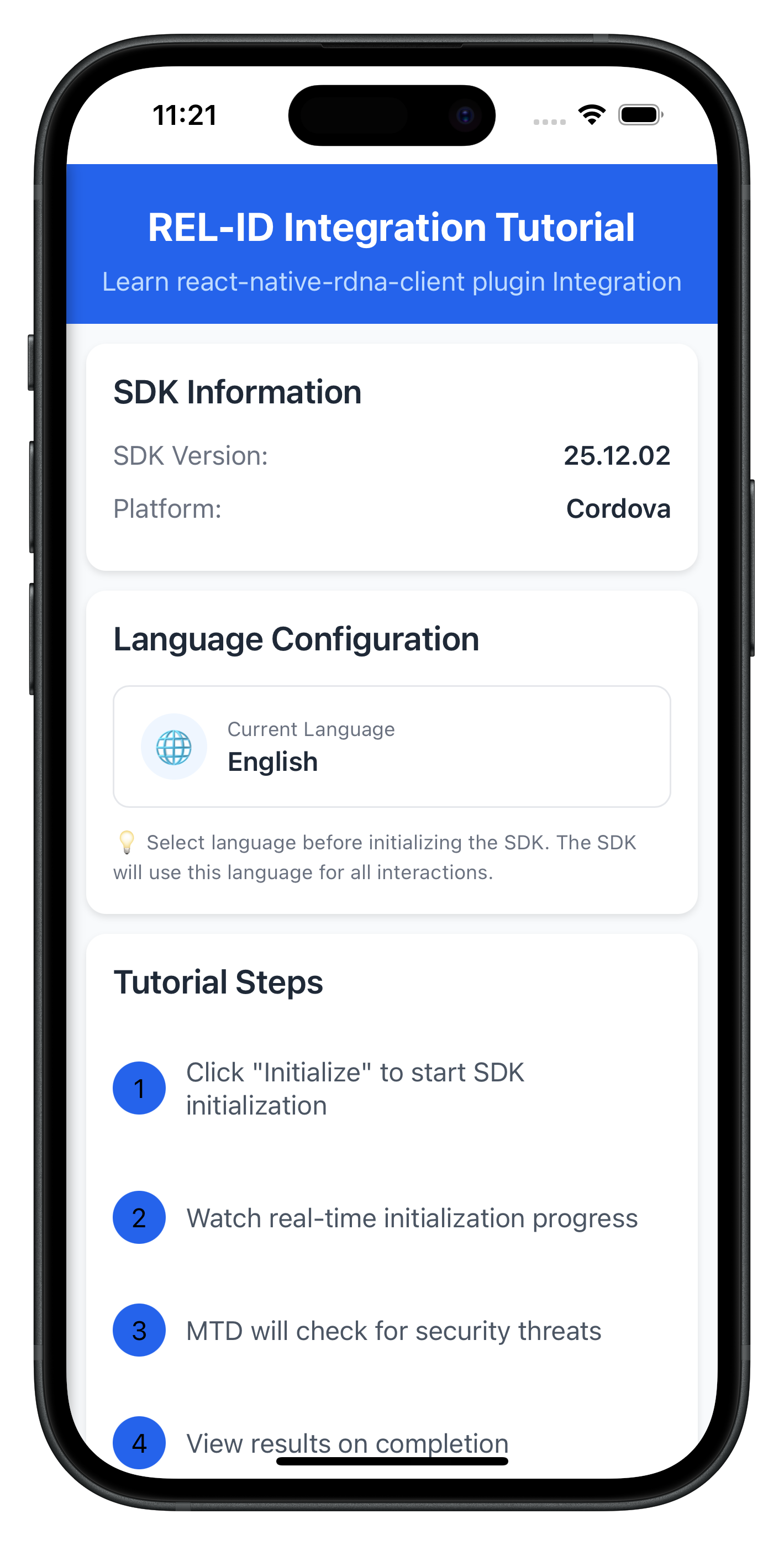
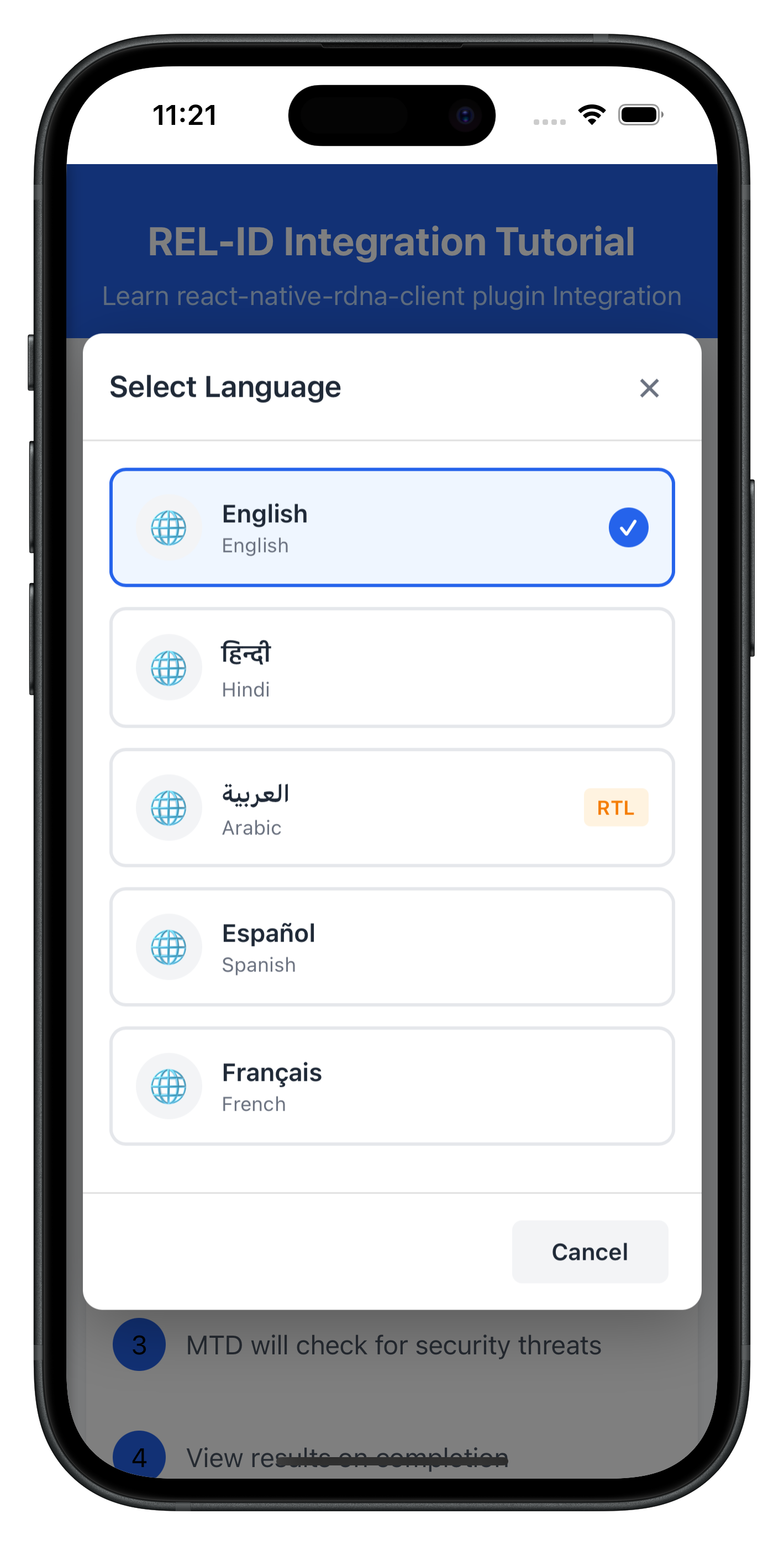
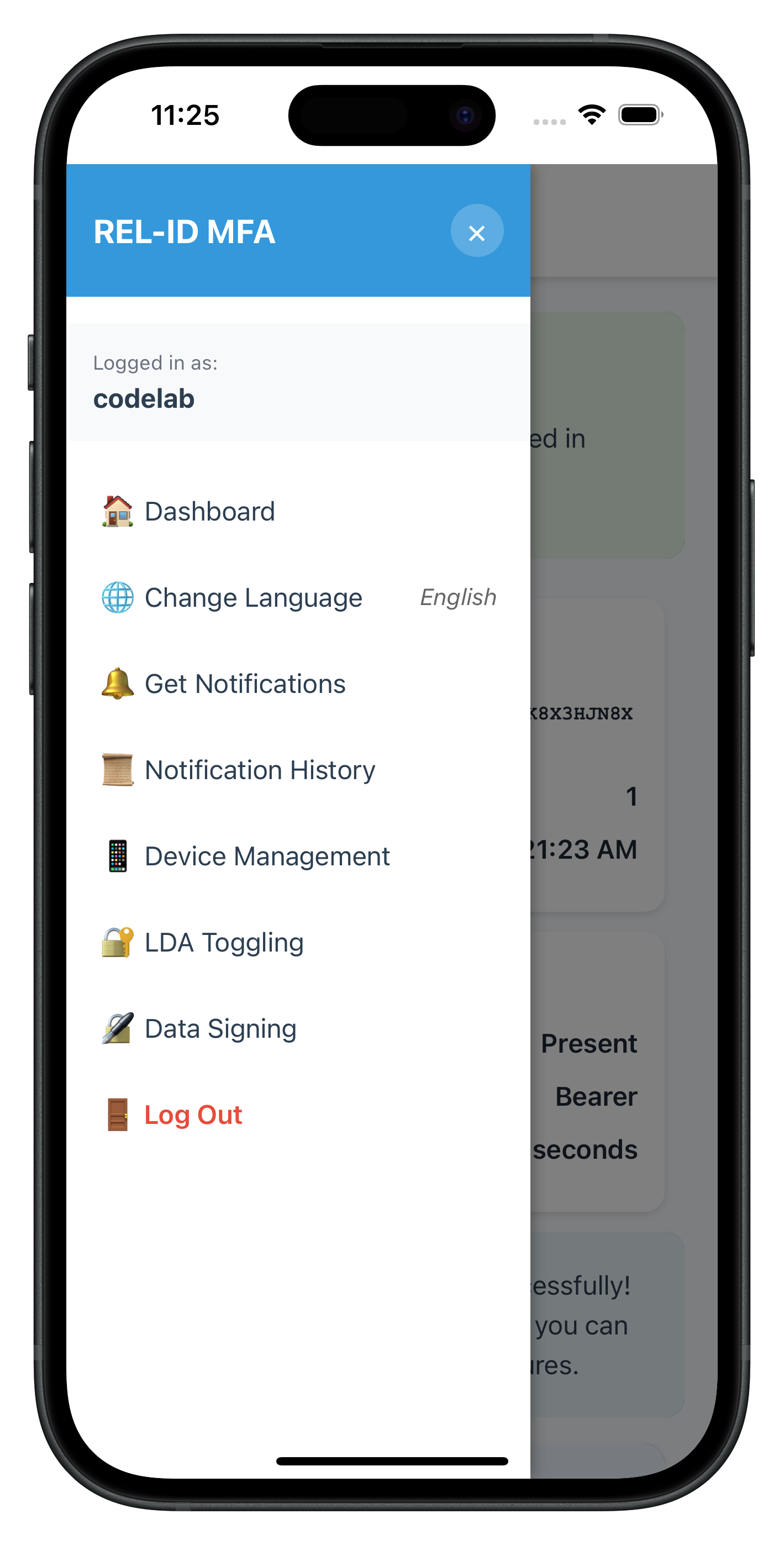
Let's verify that your internationalization implementation works correctly.
Verification Checklist
Follow these steps to test your i18n implementation:
Phase 1: SDK Initialization (App Startup)
- [ ] App starts with saved language preference (e.g., Spanish)
- [ ] SDK initializes with short language code (
internationalizationOptions.localeCode = 'es') - [ ] If initialization succeeds, SDK returns supported languages
- [ ] If initialization fails with network down, SDK returns Spanish error message from
values-es/strings_rel_id.xml - [ ] Localized error message is displayed correctly to user without app-level mapping
Phase 2: Runtime Language Switching (Post-Login)
- [ ] Navigate to home screen and tap language selector button
- [ ] Language Selector modal opens with all supported languages
- [ ] Current language is marked with checkmark
- [ ] Tapping a language calls
setSDKLanguage()API - [ ] Loading indicator appears during language change
- [ ]
onSetLanguageResponseevent fires after API call - [ ] If successful (statusCode === 100 and longErrorCode === 0):
- [ ] LanguageManager updates with new language
- [ ] Success alert is shown to user
- [ ] All language-dependent UI updates immediately
- [ ] If failed (longErrorCode !== 0):
- [ ] Error alert is shown to user
- [ ] Language does NOT change
- [ ] User can retry language selection
Localization Files Setup (Android)
- [ ] Verify
android/app/src/main/res/values-hi/strings_rel_id.xmlexists - [ ] Error messages are properly formatted:
Hindi message here - [ ] Build app:
cordova build androidorcordova run android - [ ] Test with network offline to verify SDK returns localized error messages
Localization Files Setup (iOS)
- [ ] Verify
ios/SharedLocalization/hi.lproj/RELID.stringsexists - [ ] Localization files are linked to Xcode project (not copied)
- [ ] Build app:
cordova build iosorcordova run ios - [ ] Test initialization failure to confirm SDK reads localized strings
Internationalization Best Practices
- Use Short Codes for Initialization, Full Codes for APIs
- Initialize:
internationalizationOptions.localeCode = 'en'(short code) - setSDKLanguage:
'en-US'(full code)
- Initialize:
- Bundle Localization Files with App
- SDK reads localization files during initialization errors
- Ensure strings.xml (Android) and .strings files (iOS) are bundled with app binary
- Do not load localization files remotely - they won't be available if network is down
- Test error scenarios with network disconnected to verify error messages display
- Clean Up Event Handlers
- Always unsubscribe from language events on unmount
- Use cleanup functions when navigating away from screens
- Prevent memory leaks and unpredictable event routing
- Validate Before API Calls
- Check if selected language equals current language
- Skip API call if no change needed
- Reduce unnecessary network requests
- Persist User Preferences
- Save language choice to localStorage
- Restore on app restart
- Respect user's language preferences across sessions
- Handle RTL Languages
- Detect RTL languages from
directionfield - Show RTL badge in language selector
- Update
document.documentElement.dirwhen language changes - Test UI layout with RTL languages
- Detect RTL languages from
Security Considerations
- Localization File Security
- Localization files are bundled with the app binary (not downloaded)
- Ensures error messages are always available even without network
- Review all error messages in localization files - SDK will display them to users
- Keep error messages user-friendly without exposing internal error codes
- Language Validation
- Validate language codes before sending to SDK
- Use numeric direction values (0 = LTR, 1 = RTL)
- Prevent injection attacks through language selection
- Event Handler Isolation
- Each screen should have its own event handler
- Clean up handlers when switching screens
- Prevent unintended event handling across screens
- localStorage Security
- localStorage is unencrypted and accessible to all scripts
- Only store non-sensitive data like language preferences
- Consider cordova-plugin-secure-storage for sensitive data
🎉 Congratulations! You've successfully implemented comprehensive internationalization support with REL-ID SDK!
What You've Accomplished
In this codelab, you've learned and implemented:
✅ Two-Phase Language Lifecycle
- SDK initialization with language preference via
initOptions - Runtime language switching using
setSDKLanguage()API - Automatic error localization via SDK reading native localization files
- Event-driven language updates with
onSetLanguageResponse - Synchronizing supported languages from
onInitializedcallback
✅ Native Platform Localization
- Android
strings.xmlconfiguration for error codes - iOS
.stringsfile setup for localization - Multi-language support (English, Hindi, Spanish, and beyond)
✅ Language State Management
- Singleton LanguageManager for centralized state
- localStorage persistence for language preferences
- Custom event dispatching for UI updates
✅ User Interface Components
- Language Selector modal with native script display
- Home screen integration for language change
- RTL/LTR support with direction indicators
✅ Production-Ready Error Handling
- Three-layer error detection (API, status code, promise)
- Early return pattern for cleaner code
- User-friendly error alerts and feedback
Next Steps
Your internationalization implementation is now production-ready! Consider these enhancements:
- Add More Languages: Expand your language support
- Add Arabic, French, German, or other languages to
DEFAULT_SUPPORTED_LANGUAGES - Create corresponding native localization files for Android and iOS
- Update the
NATIVE_NAME_LOOKUPtable inlanguageConfig.js - Test RTL layout with Arabic or Hebrew languages
- Add Arabic, French, German, or other languages to
- Server-Side Language Management: Sync with backend
- Validate language availability against server-supported languages
- Store user language preference in user profile on backend
- Implement language fallback chains (e.g., ‘zh-TW' → ‘zh-CN' → ‘en')
- Handle cases where user's preferred language is not available
Happy coding with internationalization! 🌍
This codelab was created to help you master multi-language support with REL-ID SDK. The patterns you've learned here are production-tested and used by enterprise applications worldwide.