🎯 Learning Path:
- Complete REL-ID Complete Activation & Login Flow Codelab
- You are here → Data Signing Flow Implementation
Welcome to the REL-ID Data Signing codelab! This tutorial builds upon your existing MFA implementation to add secure cryptographic data signing capabilities using REL-ID SDK's authentication and signing infrastructure.
What You'll Build
In this codelab, you'll enhance your existing MFA application with:
- 🔐 Cryptographic Data Signing: Secure payload signing with user authentication
- 📊 Multi-Level Authentication: Configurable authentication levels (0-4) for different security needs
- 🎛️ Authentication Type Selection: Support for various authenticator types (biometric, password, LDA)
- 🔄 Step-Up Authentication Flow: Password challenges for additional security when required
What You'll Learn
By completing this codelab, you'll master:
- Data Signing API Integration: Implementing
authenticateUserAndSignData()with proper parameter handling - Authentication Levels & Types: Understanding and implementing RDNAAuthLevel and RDNAAuthenticatorType enums
- Step-Up Authentication: Handling password challenges during sensitive signing operations
- Event-Driven Architecture: Managing
onAuthenticateUserAndSignDatacallbacks and state updates
Prerequisites
Before starting this codelab, ensure you have:
- ✅ Completed REL-ID MFA Codelabs - All MFA screens and flows must be fully implemented
- ✅ React Native Development Environment - Android Studio, Xcode, and React Native CLI configured
- ✅ REL-ID SDK Integration - Latest SDK with data signing support configured
- ✅ Server Configuration - REL-ID server with data signing capabilities enabled
Get the Code from GitHub
The code to get started can be found in a GitHub repository.
You can clone the repository using the following command:
git clone https://github.com/uniken-public/codelab-react-native.git
Navigate to the relid-data-signing folder in the repository you cloned earlier
Codelab Architecture Overview
This codelab extends your MFA application with comprehensive data signing functionality:
- REL-ID SDK Integration: Direct integration with REL-ID data signing APIs
- Multi-Level Authentication: Support for REL-ID authentication levels 0, 1, and 4 only
- Step-Up Authentication Flow: Password challenges and biometric authentication
- Event-Driven Integration: Seamless integration with REL-ID SDK's callback architecture
- State Management: Proper cleanup using resetAuthenticateUserAndSignDataState API
Before implementing data signing functionality, let's understand the cryptographic concepts and security architecture that powers REL-ID's data signing capabilities.
What is Cryptographic Data Signing?
Data signing is a cryptographic process that creates a digital signature for a piece of data, providing:
- 🔐 Authentication: Proves the identity of the signer
- 🛡️ Data Integrity: Ensures data hasn't been tampered with
- 📝 Non-Repudiation: Prevents the signer from denying they signed the data
- 🔒 Legal Validity: Creates legally binding digital signatures
REL-ID Data Signing Architecture
REL-ID's data signing implementation follows enterprise security standards:
User Data Input → Authentication Challenge → Biometric/Password Verification →
Cryptographic Signing → Signed Payload → Verification & Storage
Key Security Features
- Multi-Level Authentication: 3 supported authentication levels (0, 1, 4) for different security requirements
- Supported Authenticator Types: NONE (auto-selection) and IDV Server Biometric only
- Step-Up Authentication: Additional password challenges for sensitive operations
- Secure State Management: Proper cleanup and reset to prevent authentication bypass
- Comprehensive Error Handling: Detailed error codes and recovery mechanisms
When to Use Data Signing
Data signing is ideal for:
- 📄 Document Authorization: Legal documents, contracts, approvals
- 💰 Financial Transactions: High-value payments, transfers, authorizations
- 🏥 Medical Records: Patient consent, prescription approvals, medical authorizations
- 🔐 Security Operations: Administrative actions, privilege escalations, policy changes
- 📊 Audit Trail Requirements: Operations requiring non-repudiable audit logs
Security Considerations
Key security guidelines:
- Authentication Level Selection: Match authentication level to data sensitivity
- Proper State Cleanup: Always reset authentication state after completion or cancellation
- Error Handling: Never expose sensitive error details to end users
- Audit Logging: Log all signing attempts for security monitoring
- User Experience: Balance security with usability for optimal user adoption
Let's explore the three core APIs that power REL-ID's data signing functionality, understanding their parameters, responses, and integration patterns.
authenticateUserAndSignData API
This is the primary API for initiating cryptographic data signing with user authentication.
API Signature
authenticateUserAndSignData(
  payload: string,
  authLevel: RDNAAuthLevel,
  authenticatorType: RDNAAuthenticatorType,
  reason: string
): Promise<RDNASyncResponse>
Parameters Deep Dive
Parameter | Type | Required | Description |
| string | ✅ | The data to be cryptographically signed (max 500 characters) |
| RDNAAuthLevel | ✅ | Authentication security level (0, 1, or 4 only) |
| RDNAAuthenticatorType | ✅ | Type of authentication method (0 or 1 only) |
| string | ✅ | Human-readable reason for signing (max 100 characters) |
Official REL-ID Data Signing Authentication Mapping
RDNAAuthLevel | RDNAAuthenticatorType | Supported Authentication | Description |
|
| No Authentication | No authentication required - NOT RECOMMENDED for production |
|
| Device biometric, Device passcode, or Password | Priority: Device biometric → Device passcode → Password |
| NOT SUPPORTED | ❌ SDK will error out | Level 2 is not supported for data signing |
| NOT SUPPORTED | ❌ SDK will error out | Level 3 is not supported for data signing |
|
| IDV Server Biometric | Maximum security - Any other authenticator type will cause SDK error |
How to Use AuthLevel and AuthenticatorType
REL-ID data signing supports three authentication modes:
1. No Authentication (Level 0)
authLevel: RDNAAuthLevel.NONE,
authenticatorType: RDNAAuthenticatorType.NONE
- Use Case: Testing environments only
- Security: No authentication required
- ⚠️ Warning: Never use in production applications
2. Re-Authentication (Level 1)
authLevel: RDNAAuthLevel.RDNA_AUTH_LEVEL_1,
authenticatorType: RDNAAuthenticatorType.NONE
- Use Case: Standard document signing with flexible authentication
- Security: User logs in the same way they logged into the app
- Authenticator Priority: Device biometric → Device passcode → Password
- Behavior: REL-ID automatically selects best available authenticator
3. Step-up Authentication (Level 4)
authLevel: RDNAAuthLevel.RDNA_AUTH_LEVEL_4,
authenticatorType: RDNAAuthenticatorType.RDNA_IDV_SERVER_BIOMETRIC
- Use Case: High-value transactions, sensitive documents, compliance requirements
- Security: Maximum security with server-side biometric verification
- Requirement: Must use
RDNA_IDV_SERVER_BIOMETRIC- other types will cause errors - Behavior: Forces strong biometric authentication regardless of user's enrolled authenticators
Sync Response Pattern
// Success Response
{
  error: {
    longErrorCode: 0,
    shortErrorCode: 0,
    errorString: ""
  },
  // Additional response fields...
}

// Error Response
{
  error: {
    longErrorCode: 123,
    shortErrorCode: 45,
    errorString: "Authentication failed"
  }
}
Implementation Example
// Service layer implementation
async signData(request: DataSigningRequest): Promise<void> {
  console.log('DataSigningService - Starting data signing process');

  try {
    const response = await rdnaService.authenticateUserAndSignData(
      request.payload,
      request.authLevel,
      request.authenticatorType,
      request.reason
    );

    console.log('DataSigningService - Data signing initiated successfully');
    return Promise.resolve();
  } catch (error) {
    console.error('DataSigningService - Data signing failed:', error);
    throw error;
  }
}
resetAuthenticateUserAndSignDataState API
This API cleans up authentication state after signing completion or cancellation.
API Signature
resetAuthenticateUserAndSignDataState(): Promise<RDNASyncResponse>
When to Use
- ✅ User Cancellation: When user cancels the signing process
- ✅ Error Recovery: After signing errors to clean state
- ✅ Navigation Away: When user navigates away from signing screens when signing is in progress
Implementation Example
// Service layer cleanup implementation
async resetState(): Promise<void> {
  console.log('DataSigningService - Resetting data signing state');

  try {
    await rdnaService.resetAuthenticateUserAndSignDataState();
    console.log('DataSigningService - State reset successfully');
    return Promise.resolve();
  } catch (error) {
    console.error('DataSigningService - State reset failed:', error);
    throw error;
  }
}
onAuthenticateUserAndSignData Event
This callback event delivers the final signing results after authentication completion.
Event Response Structure
interface DataSigningResponse {
  dataPayload: string;           // Original payload that was signed
  dataPayloadLength: number;     // Length of the payload
  reason: string;                // Reason provided for signing
  payloadSignature: string;      // Cryptographic signature
  dataSignatureID: string;       // Unique signature identifier
  authLevel: number;             // Authentication level used
  authenticationType: number;    // Authentication type used
  status: ResponseStatus;        // Operation status
  error: ResponseError;          // Error details (if any)
}
Event Handler Implementation
const handleDataSigningResponse = useCallback((response: RDNADataSigningResponse) => {
  console.log('SDKEventProvider - Data signing response received:', response);

  // Convert SDK response to internal format
  const internalResponse: DataSigningResponse = {
    dataPayload: response.dataPayload,
    dataPayloadLength: response.dataPayloadLength,
    reason: response.reason,
    payloadSignature: response.payloadSignature,
    dataSignatureID: response.dataSignatureID,
    authLevel: response.authLevel,
    authenticationType: response.authenticationType,
    status: response.status,
    error: response.error,
  };

  // Update state
  setSigningResult(internalResponse);
  setFormState(prev => ({ ...prev, isLoading: false }));

  // Check if signing was successful
  if (response.error.shortErrorCode === 0 && response.status.statusCode === 100) {
    // Format result for display
    const displayData = DataSigningService.formatSigningResultForDisplay(internalResponse);
    setResultDisplay(displayData);

    console.log('SDKEventProvider - Data signing successful');
  } else {
    console.error('SDKEventProvider - Data signing failed:', response.error);
    // Handle error appropriately
  }
}, []);
Success vs Error Handling
Success Indicators:
error.shortErrorCode === 0status.statusCode === 100- Valid
payloadSignatureanddataSignatureID
Error Handling:
- Log comprehensive error details
- Show user-friendly error messages
- Reset authentication state
- Allow retry opportunities
Now let's implement the service layer architecture that provides clean abstraction over REL-ID SDK data signing APIs. This follows the established patterns from your MFA implementation.
RdnaService Integration
First, let's examine the core SDK service implementation. This should already exist in your codelab:
// src/uniken/services/rdnaService.ts

/**
 * Authenticates user and signs data payload
 *
 * This method initiates the data signing flow with step-up authentication.
 * It requires user authentication and cryptographically signs the provided
 * payload upon successful authentication.
 */
async authenticateUserAndSignData(
  payload: string,
  authLevel: RDNAAuthLevel,
  authenticatorType: RDNAAuthenticatorType,
  reason: string
): Promise<RDNASyncResponse> {
  return new Promise((resolve, reject) => {
    console.log('RdnaService - Initiating data signing:', {
      payloadLength: payload.length,
      authLevel,
      authenticatorType,
      reason,
    });

    RdnaClient.authenticateUserAndSignData(
      payload,
      authLevel,
      authenticatorType,
      reason,
      response => {
        console.log('RdnaService - AuthenticateUserAndSignData sync callback received');
        console.log('RdnaService - AuthenticateUserAndSignData sync raw response:', response);

        const result: RDNASyncResponse = response;

        if (result.error && result.error.longErrorCode === 0) {
          console.log('RdnaService - AuthenticateUserAndSignData sync response success');
          resolve(result);
        } else {
          console.error('RdnaService - AuthenticateUserAndSignData sync response error:', result);
          reject(result);
        }
      }
    );
  });
}

/**
 * Resets the data signing authentication state
 */
async resetAuthenticateUserAndSignDataState(): Promise<RDNASyncResponse> {
  return new Promise((resolve, reject) => {
    console.log('RdnaService - Resetting data signing authentication state');

    RdnaClient.resetAuthenticateUserAndSignDataState(response => {
      console.log('RdnaService - ResetAuthenticateUserAndSignDataState sync callback received');

      const result: RDNASyncResponse = response;

      if (result.error && result.error.longErrorCode === 0) {
        console.log('RdnaService - ResetAuthenticateUserAndSignDataState sync response success');
        resolve(result);
      } else {
        console.error('RdnaService - ResetAuthenticateUserAndSignDataState sync response error:', result);
        reject(result);
      }
    });
  });
}
DataSigningService - High-Level Service Wrapper
Create a high-level service that combines multiple concerns:
// src/tutorial/services/DataSigningService.ts

import { RDNAAuthLevel, RDNAAuthenticatorType } from 'react-native-rdna-client';
import rdnaService from '../../uniken/services/rdnaService';
import { DropdownDataService } from './DropdownDataService';
import type {
  DataSigningRequest,
  DataSigningResponse,
  DataSigningResultDisplay,
  ResultInfoItem,
} from '../types/DataSigningTypes';

/**
 * High-level service for data signing operations
 * Combines RdnaService and DropdownDataService for complete functionality
 */
class DataSigningServiceClass {

  /**
   * Get dropdown data service instance
   */
  get dropdownService() {
    return DropdownDataService;
  }

  /**
   * Get RDNA service instance
   */
  get rdnaService() {
    return rdnaService;
  }

  /**
   * Initiates data signing with proper enum conversion
   *
   * @param request Data signing request with display values
   * @returns Promise that resolves when sync response is received
   */
  async signData(request: DataSigningRequest): Promise<void> {
    console.log('DataSigningService - Starting data signing process');

    try {
      const response = await rdnaService.authenticateUserAndSignData(
        request.payload,
        request.authLevel,
        request.authenticatorType,
        request.reason
      );

      console.log('DataSigningService - Data signing initiated successfully');
      return Promise.resolve();
    } catch (error) {
      console.error('DataSigningService - Data signing failed:', error);
      throw error;
    }
  }

  /**
   * Submits password for step-up authentication during data signing
   *
   * @param password User's password
   * @param challengeMode Challenge mode from getPassword callback
   * @returns Promise that resolves when sync response is received
   */
  async submitPassword(password: string, challengeMode: number): Promise<void> {
    console.log('DataSigningService - Submitting password for data signing');

    try {
      const response = await rdnaService.setPassword(password, challengeMode);
      console.log('DataSigningService - Password submitted successfully');
      return Promise.resolve();
    } catch (error) {
      console.error('DataSigningService - Password submission failed:', error);
      throw error;
    }
  }

  /**
   * Resets data signing state (cleanup)
   *
   * @returns Promise that resolves when state is reset
   */
  async resetState(): Promise<void> {
    console.log('DataSigningService - Resetting data signing state');

    try {
      await rdnaService.resetAuthenticateUserAndSignDataState();
      console.log('DataSigningService - State reset successfully');
      return Promise.resolve();
    } catch (error) {
      console.error('DataSigningService - State reset failed:', error);
      throw error;
    }
  }

  /**
   * Convert dropdown values to SDK enums for API call
   */
  convertDropdownToEnums(
    authLevelDisplay: string,
    authenticatorTypeDisplay: string
  ): {
    authLevel: RDNAAuthLevel;
    authenticatorType: RDNAAuthenticatorType;
  } {
    return {
      authLevel: DropdownDataService.convertAuthLevelToEnum(authLevelDisplay),
      authenticatorType: DropdownDataService.convertAuthenticatorTypeToEnum(authenticatorTypeDisplay),
    };
  }

  /**
   * Validates form input before submission
   */
  validateSigningInput(
    payload: string,
    authLevel: string,
    authenticatorType: string,
    reason: string
  ): {
    isValid: boolean;
    errors: string[];
  } {
    const errors: string[] = [];

    // Validate payload
    if (!payload || payload.trim().length === 0) {
      errors.push('Payload is required');
    } else if (payload.length > 500) {
      errors.push('Payload must be less than 500 characters');
    }

    // Validate auth level
    if (!authLevel || !DropdownDataService.isValidAuthLevel(authLevel)) {
      errors.push('Please select a valid authentication level');
    }

    // Validate authenticator type
    if (!authenticatorType || !DropdownDataService.isValidAuthenticatorType(authenticatorType)) {
      errors.push('Please select a valid authenticator type');
    }

    // Validate reason
    if (!reason || reason.trim().length === 0) {
      errors.push('Reason is required');
    } else if (reason.length > 100) {
      errors.push('Reason must be less than 100 characters');
    }

    return {
      isValid: errors.length === 0,
      errors,
    };
  }

  /**
   * Converts raw data signing response to display format
   * Excludes status and error fields as per requirements
   */
  formatSigningResultForDisplay(response: DataSigningResponse): DataSigningResultDisplay {
    return {
      authLevel: response.authLevel?.toString() || 'N/A',
      authenticationType: response.authenticationType?.toString() || 'N/A',
      dataPayloadLength: response.dataPayloadLength?.toString() || 'N/A',
      dataPayload: response.dataPayload || 'N/A',
      payloadSignature: response.payloadSignature || 'N/A',
      dataSignatureID: response.dataSignatureID || 'N/A',
      reason: response.reason || 'N/A',
    };
  }

  /**
   * Converts display format to info items for results screen
   */
  convertToResultInfoItems(displayData: DataSigningResultDisplay): ResultInfoItem[] {
    return [
      {
        name: 'Payload Signature',
        value: displayData.payloadSignature,
      },
      {
        name: 'Data Signature ID',
        value: displayData.dataSignatureID,
      },
      {
        name: 'Reason',
        value: displayData.reason,
      },
      {
        name: 'Data Payload',
        value: displayData.dataPayload,
      },
      {
        name: 'Auth Level',
        value: displayData.authLevel,
      },
      {
        name: 'Authentication Type',
        value: displayData.authenticationType,
      },
      {
        name: 'Data Payload Length',
        value: displayData.dataPayloadLength,
      },
    ];
  }

  /**
   * Gets user-friendly error message for error codes
   */
  getErrorMessage(errorCode: number): string {
    switch (errorCode) {
      case 0:
        return 'Success';
      case 214:
        return 'Authentication method not supported. Please try a different authentication type.';
      case 102:
        return 'Authentication failed. Please check your credentials and try again.';
      case 153:
        return 'Operation cancelled by user.';
      default:
        return `Operation failed with error code: ${errorCode}`;
    }
  }
}

// Export singleton instance
export const DataSigningService = new DataSigningServiceClass();
DropdownDataService - Enum Management
Create a service to manage dropdown data and enum conversions:
// src/tutorial/services/DropdownDataService.ts

import { RDNAAuthLevel, RDNAAuthenticatorType } from 'react-native-rdna-client';
import type {
  DropdownOption,
  AuthLevelDropdownData,
  AuthenticatorTypeDropdownData,
} from '../types/DataSigningTypes';

/**
 * Service for managing dropdown data and enum conversions
 */
class DropdownDataServiceClass {

  /**
   * Get authentication level options for dropdown
   * Only includes levels supported for data signing: 0, 1, and 4
   */
  getAuthLevelOptions(): DropdownOption[] {
    return [
      { value: "NONE (0)" },
      { value: "RDNA_AUTH_LEVEL_1 (1)" },
      { value: "RDNA_AUTH_LEVEL_4 (4)" },
      // Note: Levels 2 and 3 are NOT SUPPORTED for data signing
    ];
  }

  /**
   * Get authenticator type options for dropdown
   * Only includes types supported for data signing: 0 and 1
   */
  getAuthenticatorTypeOptions(): DropdownOption[] {
    return [
      { value: "NONE (0)" },
      { value: "RDNA_IDV_SERVER_BIOMETRIC (1)" },
      // Note: RDNA_AUTH_PASS (2) and RDNA_AUTH_LDA (3) are NOT SUPPORTED for data signing
    ];
  }

  /**
   * Convert auth level display value to enum
   * Only handles levels supported for data signing
   */
  convertAuthLevelToEnum(displayValue: string): RDNAAuthLevel {
    switch (displayValue) {
      case "NONE (0)":
        return RDNAAuthLevel.NONE;
      case "RDNA_AUTH_LEVEL_1 (1)":
        return RDNAAuthLevel.RDNA_AUTH_LEVEL_1;
      case "RDNA_AUTH_LEVEL_4 (4)":
        return RDNAAuthLevel.RDNA_AUTH_LEVEL_4;
      default:
        // Default to Level 4 for maximum security
        return RDNAAuthLevel.RDNA_AUTH_LEVEL_4;
    }
  }

  /**
   * Convert authenticator type display value to enum
   * Only handles types supported for data signing
   */
  convertAuthenticatorTypeToEnum(displayValue: string): RDNAAuthenticatorType {
    switch (displayValue) {
      case "NONE (0)":
        return RDNAAuthenticatorType.NONE;
      case "RDNA_IDV_SERVER_BIOMETRIC (1)":
        return RDNAAuthenticatorType.RDNA_IDV_SERVER_BIOMETRIC;
      default:
        // Default to biometric for maximum security
        return RDNAAuthenticatorType.RDNA_IDV_SERVER_BIOMETRIC;
    }
  }

  /**
   * Validate auth level display value
   */
  isValidAuthLevel(displayValue: string): boolean {
    const validValues = this.getAuthLevelOptions().map(option => option.value);
    return validValues.includes(displayValue);
  }

  /**
   * Validate authenticator type display value
   */
  isValidAuthenticatorType(displayValue: string): boolean {
    const validValues = this.getAuthenticatorTypeOptions().map(option => option.value);
    return validValues.includes(displayValue);
  }
}

// Export singleton instance
export const DropdownDataService = new DropdownDataServiceClass();
Error Handling Patterns
Key error handling strategies in the service layer:
- Comprehensive Logging: Log all operations with context
- Error Transformation: Convert SDK errors to user-friendly messages
- State Cleanup: Always attempt to reset state on errors
- Non-Blocking Cleanup: Don't let cleanup errors block user flow
- Error Categorization: Different handling for different error types
Now let's implement the user interface components for data signing, including form inputs, dropdowns, and result display screens.
DataSigningInputScreen - Main Form Interface
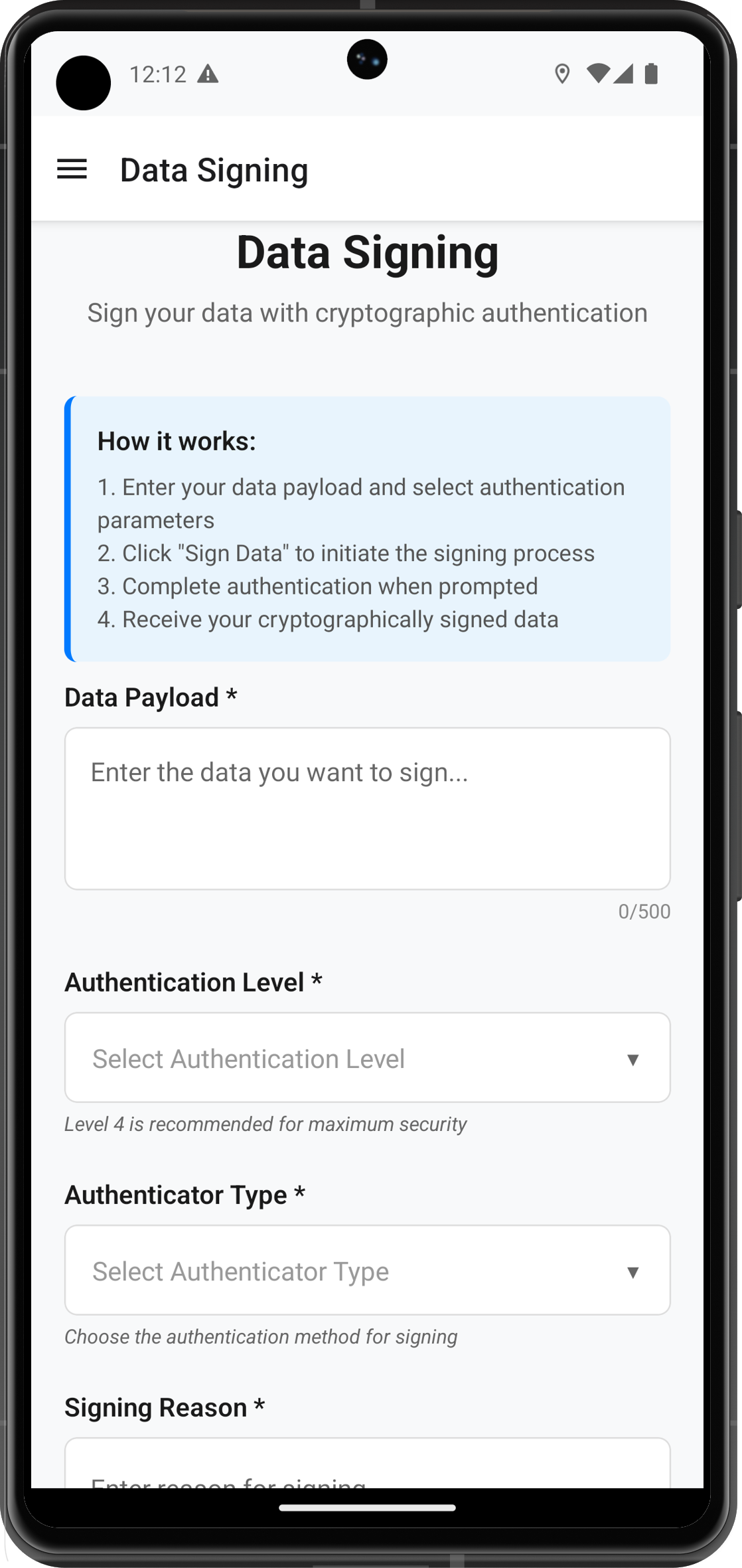
This is the primary screen where users input data to be signed:
The following image showcases the data signing input screen from the sample application:
// src/tutorial/screens/dataSigning/DataSigningInputScreen.tsx

import React from 'react';
import {
  View,
  Text,
  TextInput,
  TouchableOpacity,
  ScrollView,
  StyleSheet,
  Alert,
  ActivityIndicator,
} from 'react-native';
import { useNavigation } from '@react-navigation/native';
import { useDataSigning } from '../../../uniken/providers/SDKEventProvider';
import { DropdownDataService } from '../../services/DropdownDataService';
import AuthLevelDropdown from './components/AuthLevelDropdown';
import AuthenticatorTypeDropdown from './components/AuthenticatorTypeDropdown';
import PasswordChallengeModal from './components/PasswordChallengeModal';

/**
 * Main screen for data signing input
 */
const DataSigningInputScreen: React.FC = () => {
  const navigation = useNavigation();

  const {
    formState,
    updateFormState,
    passwordModalState,
    submitDataSigning,
    resultDisplay,
  } = useDataSigning();

  /**
   * Handles form submission
   */
  const handleSubmit = async () => {
    console.log('DataSigningInputScreen - Submit button pressed');

    // Validate required fields
    if (!formState.payload.trim()) {
      Alert.alert('Validation Error', 'Please enter a payload to sign');
      return;
    }

    if (!formState.selectedAuthLevel) {
      Alert.alert('Validation Error', 'Please select an authentication level');
      return;
    }

    if (!formState.selectedAuthenticatorType) {
      Alert.alert('Validation Error', 'Please select an authenticator type');
      return;
    }

    if (!formState.reason.trim()) {
      Alert.alert('Validation Error', 'Please enter a reason for signing');
      return;
    }

    try {
      await submitDataSigning();
    } catch (error) {
      console.error('DataSigningInputScreen - Submit error:', error);
      const errorMessage = error instanceof Error ? error.message : 'Failed to submit data signing request. Please try again.';
      Alert.alert('Error', errorMessage);
    }
  };

  /**
   * Navigates to result screen when signing is complete
   */
  React.useEffect(() => {
    if (resultDisplay) {
      console.log('DataSigningInputScreen - Navigating to results screen');
      navigation.navigate('DataSigningResult' as never);
    }
  }, [resultDisplay, navigation]);

  return (
    <View style={styles.container}>
      <ScrollView
        contentContainerStyle={styles.scrollContent}
        keyboardShouldPersistTaps="handled"
        showsVerticalScrollIndicator={false}
      >
        {/* Header */}
        <View style={styles.header}>
          <Text style={styles.title}>Data Signing</Text>
          <Text style={styles.subtitle}>
            Sign your data with cryptographic authentication
          </Text>
        </View>

        {/* Info Section */}
        <View style={styles.infoSection}>
          <Text style={styles.infoTitle}>How it works:</Text>
          <Text style={styles.infoText}>
            1. Enter your data payload and select authentication parameters{'\n'}
            2. Click "Sign Data" to initiate the signing process{'\n'}
            3. Complete authentication when prompted{'\n'}
            4. Receive your cryptographically signed data
          </Text>
        </View>

        {/* Form */}
        <View style={styles.form}>

          {/* Payload Input */}
          <View style={styles.inputGroup}>
            <Text style={styles.label}>Data Payload *</Text>
            <TextInput
              style={[styles.textInput, styles.multilineInput]}
              placeholder="Enter the data you want to sign..."
              value={formState.payload}
              onChangeText={(value) => updateFormState({ payload: value })}
              multiline={true}
              numberOfLines={4}
              maxLength={500}
              textAlignVertical="top"
              editable={!formState.isLoading}
            />
            <Text style={styles.charCount}>
              {formState.payload.length}/500
            </Text>
          </View>

          {/* Auth Level Dropdown */}
          <View style={styles.inputGroup}>
            <Text style={styles.label}>Authentication Level *</Text>
            <AuthLevelDropdown
              selectedValue={formState.selectedAuthLevel}
              onValueChange={(value) => updateFormState({ selectedAuthLevel: value })}
              enabled={!formState.isLoading}
            />
            <Text style={styles.helpText}>
              Level 4 is recommended for maximum security
            </Text>
          </View>

          {/* Authenticator Type Dropdown */}
          <View style={styles.inputGroup}>
            <Text style={styles.label}>Authenticator Type *</Text>
            <AuthenticatorTypeDropdown
              selectedValue={formState.selectedAuthenticatorType}
              onValueChange={(value) => updateFormState({ selectedAuthenticatorType: value })}
              enabled={!formState.isLoading}
            />
            <Text style={styles.helpText}>
              Choose the authentication method for signing
            </Text>
          </View>

          {/* Reason Input */}
          <View style={styles.inputGroup}>
            <Text style={styles.label}>Signing Reason *</Text>
            <TextInput
              style={styles.textInput}
              placeholder="Enter reason for signing"
              value={formState.reason}
              onChangeText={(value) => updateFormState({ reason: value })}
              maxLength={100}
              editable={!formState.isLoading}
            />
            <Text style={styles.charCount}>
              {formState.reason.length}/100
            </Text>
          </View>

        </View>

        {/* Submit Button */}
        <TouchableOpacity
          style={[styles.submitButton, formState.isLoading && styles.submitButtonDisabled]}
          onPress={handleSubmit}
          disabled={formState.isLoading}
        >
          {formState.isLoading ? (
            <View style={styles.loadingContainer}>
              <ActivityIndicator color="#FFFFFF" size="small" />
              <Text style={styles.submitButtonText}>Processing...</Text>
            </View>
          ) : (
            <Text style={styles.submitButtonText}>Sign Data</Text>
          )}
        </TouchableOpacity>

      </ScrollView>

      {/* Password Challenge Modal */}
      <PasswordChallengeModal />
    </View>
  );
};

const styles = StyleSheet.create({
  container: {
    flex: 1,
    backgroundColor: '#f8f9fa',
  },
  scrollContent: {
    flexGrow: 1,
    padding: 20,
  },
  header: {
    marginBottom: 30,
    alignItems: 'center',
  },
  title: {
    fontSize: 28,
    fontWeight: 'bold',
    color: '#1a1a1a',
    marginBottom: 8,
  },
  subtitle: {
    fontSize: 16,
    color: '#666',
    textAlign: 'center',
    lineHeight: 22,
  },
  form: {
    marginBottom: 30,
  },
  inputGroup: {
    marginBottom: 24,
  },
  label: {
    fontSize: 16,
    fontWeight: '600',
    color: '#1a1a1a',
    marginBottom: 8,
  },
  textInput: {
    borderWidth: 1,
    borderColor: '#ddd',
    borderRadius: 8,
    padding: 16,
    fontSize: 16,
    backgroundColor: '#fff',
    color: '#1a1a1a',
  },
  multilineInput: {
    height: 100,
    textAlignVertical: 'top',
  },
  charCount: {
    fontSize: 12,
    color: '#888',
    textAlign: 'right',
    marginTop: 4,
  },
  helpText: {
    fontSize: 12,
    color: '#666',
    marginTop: 4,
    fontStyle: 'italic',
  },
  submitButton: {
    backgroundColor: '#007AFF',
    borderRadius: 12,
    paddingVertical: 16,
    paddingHorizontal: 24,
    alignItems: 'center',
    justifyContent: 'center',
    elevation: 3,
    shadowColor: '#007AFF',
    shadowOffset: { width: 0, height: 2 },
    shadowOpacity: 0.2,
    shadowRadius: 4,
  },
  submitButtonDisabled: {
    backgroundColor: '#ccc',
    shadowOpacity: 0,
    elevation: 0,
  },
  submitButtonText: {
    color: '#FFFFFF',
    fontSize: 18,
    fontWeight: '600',
  },
  loadingContainer: {
    flexDirection: 'row',
    alignItems: 'center',
  },
  infoSection: {
    marginTop: 10,
    marginBottom: 10,
    padding: 16,
    backgroundColor: '#e8f4fd',
    borderRadius: 8,
    borderLeftWidth: 4,
    borderLeftColor: '#007AFF',
  },
  infoTitle: {
    fontSize: 16,
    fontWeight: '600',
    color: '#1a1a1a',
    marginBottom: 8,
  },
  infoText: {
    fontSize: 14,
    color: '#555',
    lineHeight: 20,
  },
});

export default DataSigningInputScreen;
AuthLevelDropdown - Reusable Dropdown Component
// src/tutorial/screens/dataSigning/components/AuthLevelDropdown.tsx

import React, { useState } from 'react';
import {
  View,
  Text,
  TouchableOpacity,
  Modal,
  FlatList,
  StyleSheet,
} from 'react-native';
import { DropdownDataService } from '../../../services/DropdownDataService';

interface AuthLevelDropdownProps {
  selectedValue: string;
  onValueChange: (value: string) => void;
  enabled?: boolean;
}

const AuthLevelDropdown: React.FC<AuthLevelDropdownProps> = ({
  selectedValue,
  onValueChange,
  enabled = true,
}) => {
  const [isVisible, setIsVisible] = useState(false);
  const options = DropdownDataService.getAuthLevelOptions();

  const handleSelect = (value: string) => {
    onValueChange(value);
    setIsVisible(false);
  };

  const displayValue = selectedValue || 'Select Authentication Level';

  return (
    <>
      <TouchableOpacity
        style={[styles.dropdown, !enabled && styles.dropdownDisabled]}
        onPress={() => enabled && setIsVisible(true)}
        disabled={!enabled}
      >
        <Text style={[styles.dropdownText, !selectedValue && styles.placeholderText]}>
          {displayValue}
        </Text>
        <Text style={styles.dropdownArrow}>▼</Text>
      </TouchableOpacity>

      <Modal
        visible={isVisible}
        transparent={true}
        animationType="fade"
        onRequestClose={() => setIsVisible(false)}
      >
        <View style={styles.modalOverlay}>
          <View style={styles.modalContent}>
            <View style={styles.modalHeader}>
              <Text style={styles.modalTitle}>Select Authentication Level</Text>
              <TouchableOpacity
                style={styles.closeButton}
                onPress={() => setIsVisible(false)}
              >
                <Text style={styles.closeButtonText}>✕</Text>
              </TouchableOpacity>
            </View>

            <FlatList
              data={options}
              keyExtractor={(item) => item.value}
              renderItem={({ item }) => (
                <TouchableOpacity
                  style={[
                    styles.option,
                    selectedValue === item.value && styles.selectedOption,
                  ]}
                  onPress={() => handleSelect(item.value)}
                >
                  <Text
                    style={[
                      styles.optionText,
                      selectedValue === item.value && styles.selectedOptionText,
                    ]}
                  >
                    {item.value}
                  </Text>
                </TouchableOpacity>
              )}
              showsVerticalScrollIndicator={false}
            />
          </View>
        </View>
      </Modal>
    </>
  );
};

const styles = StyleSheet.create({
  dropdown: {
    flexDirection: 'row',
    justifyContent: 'space-between',
    alignItems: 'center',
    borderWidth: 1,
    borderColor: '#ddd',
    borderRadius: 8,
    padding: 16,
    backgroundColor: '#fff',
    minHeight: 56,
  },
  dropdownDisabled: {
    backgroundColor: '#f5f5f5',
    opacity: 0.6,
  },
  dropdownText: {
    fontSize: 16,
    color: '#1a1a1a',
    flex: 1,
  },
  placeholderText: {
    color: '#999',
  },
  dropdownArrow: {
    fontSize: 12,
    color: '#666',
    marginLeft: 8,
  },
  modalOverlay: {
    flex: 1,
    backgroundColor: 'rgba(0, 0, 0, 0.5)',
    justifyContent: 'center',
    alignItems: 'center',
  },
  modalContent: {
    backgroundColor: '#fff',
    borderRadius: 12,
    width: '90%',
    maxHeight: '70%',
    elevation: 5,
    shadowColor: '#000',
    shadowOffset: { width: 0, height: 2 },
    shadowOpacity: 0.25,
    shadowRadius: 4,
  },
  modalHeader: {
    flexDirection: 'row',
    justifyContent: 'space-between',
    alignItems: 'center',
    padding: 20,
    borderBottomWidth: 1,
    borderBottomColor: '#eee',
  },
  modalTitle: {
    fontSize: 18,
    fontWeight: '600',
    color: '#1a1a1a',
  },
  closeButton: {
    padding: 4,
  },
  closeButtonText: {
    fontSize: 18,
    color: '#666',
    fontWeight: 'bold',
  },
  option: {
    padding: 16,
    borderBottomWidth: 1,
    borderBottomColor: '#f0f0f0',
  },
  selectedOption: {
    backgroundColor: '#e8f4fd',
  },
  optionText: {
    fontSize: 16,
    color: '#1a1a1a',
  },
  selectedOptionText: {
    color: '#007AFF',
    fontWeight: '600',
  },
});

export default AuthLevelDropdown;
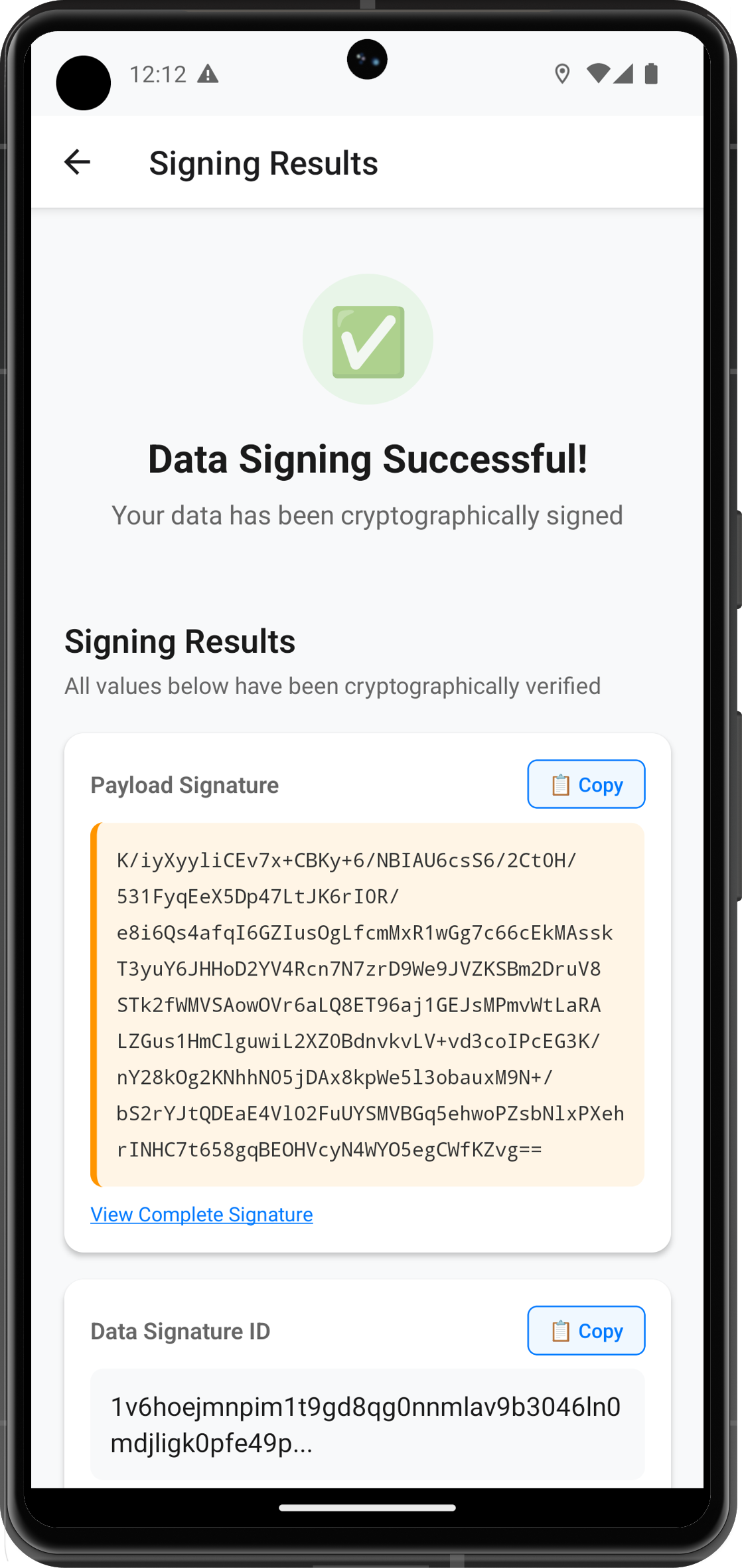
DataSigningResultScreen - Results Display
The following image showcases the successful data signing results screen from the sample application:
// src/tutorial/screens/dataSigning/DataSigningResultScreen.tsx

import React, { useState } from 'react';
import {
  View,
  Text,
  ScrollView,
  TouchableOpacity,
  StyleSheet,
  Alert,
  Clipboard,
} from 'react-native';
import { useNavigation } from '@react-navigation/native';
import { useDataSigning } from '../../../uniken/providers/SDKEventProvider';
import { DataSigningService } from '../../services/DataSigningService';

const DataSigningResultScreen: React.FC = () => {
  const navigation = useNavigation();
  const { resultDisplay, resetState } = useDataSigning();
  const [copiedField, setCopiedField] = useState<string | null>(null);

  // Convert to result info items for display
  const resultItems = resultDisplay
    ? DataSigningService.convertToResultInfoItems(resultDisplay)
    : [];

  const handleCopyToClipboard = async (value: string, fieldName: string) => {
    try {
      await Clipboard.setString(value);
      setCopiedField(fieldName);

      // Reset the copied state after 2 seconds
      setTimeout(() => {
        setCopiedField(null);
      }, 2000);

      console.log(`DataSigningResultScreen - Copied ${fieldName} to clipboard`);
    } catch (error) {
      console.error('DataSigningResultScreen - Failed to copy to clipboard:', error);
      Alert.alert('Error', 'Failed to copy to clipboard');
    }
  };

  const handleSignAnother = async () => {
    console.log('DataSigningResultScreen - Sign another button pressed');

    try {
      await resetState();
      navigation.goBack();
    } catch (error) {
      console.error('DataSigningResultScreen - Failed to reset state:', error);
      navigation.goBack();
    }
  };

  const renderResultItem = (item: { name: string; value: string }, index: number) => {
    const isSignature = item.name === 'Payload Signature';
    const isLongValue = item.value.length > 50;
    const displayValue = isLongValue && !isSignature
      ? `${item.value.substring(0, 50)}...`
      : item.value;

    return (
      <View key={index} style={styles.resultItem}>
        <View style={styles.resultItemHeader}>
          <Text style={styles.resultLabel}>{item.name}</Text>
          {item.value !== 'N/A' && (
            <TouchableOpacity
              style={styles.copyButton}
              onPress={() => handleCopyToClipboard(item.value, item.name)}
            >
              <Text style={styles.copyButtonText}>
                {copiedField === item.name ? '✓ Copied' : '📋 Copy'}
              </Text>
            </TouchableOpacity>
          )}
        </View>

        <View style={[styles.resultValueContainer, isSignature && styles.signatureContainer]}>
          <Text style={[styles.resultValue, isSignature && styles.signatureText]}>
            {displayValue}
          </Text>
        </View>

        {isLongValue && !isSignature && (
          <TouchableOpacity
            style={styles.expandButton}
            onPress={() => Alert.alert(item.name, item.value)}
          >
            <Text style={styles.expandButtonText}>View Full Value</Text>
          </TouchableOpacity>
        )}

        {isSignature && (
          <TouchableOpacity
            style={styles.expandButton}
            onPress={() => Alert.alert('Complete Signature', item.value)}
          >
            <Text style={styles.expandButtonText}>View Complete Signature</Text>
          </TouchableOpacity>
        )}
      </View>
    );
  };

  if (!resultDisplay) {
    return (
      <View style={styles.container}>
        <View style={styles.errorContainer}>
          <Text style={styles.errorText}>No signing results available</Text>
        </View>
      </View>
    );
  }

  return (
    <View style={styles.container}>
      <ScrollView
        contentContainerStyle={styles.scrollContent}
        showsVerticalScrollIndicator={false}
      >

        {/* Success Header */}
        <View style={styles.successHeader}>
          <View style={styles.successIcon}>
            <Text style={styles.successIconText}>✅</Text>
          </View>
          <Text style={styles.successTitle}>Data Signing Successful!</Text>
          <Text style={styles.successSubtitle}>
            Your data has been cryptographically signed
          </Text>
        </View>

        {/* Results Section */}
        <View style={styles.resultsSection}>
          <Text style={styles.sectionTitle}>Signing Results</Text>
          <Text style={styles.sectionSubtitle}>
            All values below have been cryptographically verified
          </Text>

          <View style={styles.resultsContainer}>
            {resultItems.map(renderResultItem)}
          </View>
        </View>

        {/* Actions Section */}
        <View style={styles.actionsSection}>
          <TouchableOpacity
            style={[styles.button, styles.primaryButton]}
            onPress={handleSignAnother}
          >
            <Text style={styles.buttonText}>🔐 Sign Another Document</Text>
          </TouchableOpacity>
        </View>

      </ScrollView>
    </View>
  );
};

const styles = StyleSheet.create({
  container: {
    flex: 1,
    backgroundColor: '#f8f9fa',
  },
  scrollContent: {
    flexGrow: 1,
    padding: 20,
  },
  errorContainer: {
    flex: 1,
    justifyContent: 'center',
    alignItems: 'center',
    padding: 20,
  },
  errorText: {
    fontSize: 18,
    color: '#666',
    textAlign: 'center',
    marginBottom: 20,
  },
  successHeader: {
    alignItems: 'center',
    marginBottom: 30,
    paddingVertical: 20,
  },
  successIcon: {
    marginBottom: 16,
  },
  successIconText: {
    fontSize: 48,
  },
  successTitle: {
    fontSize: 24,
    fontWeight: 'bold',
    color: '#1a1a1a',
    marginBottom: 8,
    textAlign: 'center',
  },
  successSubtitle: {
    fontSize: 16,
    color: '#666',
    textAlign: 'center',
    lineHeight: 22,
  },
  resultsSection: {
    marginBottom: 30,
  },
  sectionTitle: {
    fontSize: 20,
    fontWeight: 'bold',
    color: '#1a1a1a',
    marginBottom: 8,
  },
  sectionSubtitle: {
    fontSize: 14,
    color: '#666',
    marginBottom: 20,
    lineHeight: 20,
  },
  resultsContainer: {
    gap: 16,
  },
  resultItem: {
    backgroundColor: '#fff',
    borderRadius: 12,
    padding: 16,
    elevation: 2,
    shadowColor: '#000',
    shadowOffset: { width: 0, height: 1 },
    shadowOpacity: 0.1,
    shadowRadius: 2,
  },
  resultItemHeader: {
    flexDirection: 'row',
    justifyContent: 'space-between',
    alignItems: 'center',
    marginBottom: 12,
  },
  resultLabel: {
    fontSize: 16,
    fontWeight: '600',
    color: '#1a1a1a',
    flex: 1,
  },
  copyButton: {
    paddingHorizontal: 12,
    paddingVertical: 6,
    backgroundColor: '#f0f0f0',
    borderRadius: 6,
  },
  copyButtonText: {
    fontSize: 12,
    color: '#007AFF',
    fontWeight: '500',
  },
  resultValueContainer: {
    backgroundColor: '#f8f9fa',
    borderRadius: 8,
    padding: 12,
    borderWidth: 1,
    borderColor: '#e9ecef',
  },
  signatureContainer: {
    backgroundColor: '#fff3cd',
    borderColor: '#ffeeba',
  },
  resultValue: {
    fontSize: 14,
    color: '#1a1a1a',
    lineHeight: 20,
  },
  signatureText: {
    fontFamily: 'monospace',
    fontSize: 12,
    color: '#856404',
  },
  expandButton: {
    marginTop: 8,
    alignSelf: 'flex-start',
    paddingHorizontal: 12,
    paddingVertical: 6,
    backgroundColor: '#e8f4fd',
    borderRadius: 6,
  },
  expandButtonText: {
    fontSize: 12,
    color: '#007AFF',
    fontWeight: '500',
  },
  actionsSection: {
    gap: 12,
  },
  button: {
    borderRadius: 12,
    paddingVertical: 16,
    paddingHorizontal: 24,
    alignItems: 'center',
    justifyContent: 'center',
  },
  primaryButton: {
    backgroundColor: '#007AFF',
    elevation: 3,
    shadowColor: '#007AFF',
    shadowOffset: { width: 0, height: 2 },
    shadowOpacity: 0.2,
    shadowRadius: 4,
  },
  buttonText: {
    color: '#FFFFFF',
    fontSize: 16,
    fontWeight: '600',
  },
});

export default DataSigningResultScreen;
Key UI Features Implemented
- 📝 Form Validation: Real-time validation with character counters
- 🎛️ Dropdown Components: Reusable dropdown with modal selection
- ⏳ Loading States: Proper loading indicators during operations
- 📋 Copy Functionality: One-click copying of signature data
- 📱 Responsive Design: Clean, modern UI that works on all screen sizes
- 🔄 Navigation Flow: Smooth transitions between screens
- 🛡️ Error Handling: User-friendly error messages and recovery
Let's implement the React Context-based state management that coordinates between UI components and the REL-ID SDK event system.
SDKEventProvider - Centralized State Management
The SDKEventProvider manages all data signing state and coordinates between UI and SDK:
// src/uniken/providers/SDKEventProvider.tsx (Data Signing Section)

import React, { createContext, useContext, useEffect, useCallback, ReactNode, useState } from 'react';
import rdnaService from '../services/rdnaService';
import NavigationService from '../../tutorial/navigation/NavigationService';
import type {
  RDNADataSigningResponse,
  RDNADataSigningPasswordChallengeData
} from '../types/rdnaEvents';

// Import data signing services and types
import { DataSigningService } from '../../tutorial/services/DataSigningService';
import type {
  DataSigningFormState,
  PasswordModalState,
  DataSigningResponse,
  DataSigningResultDisplay,
} from '../../tutorial/types/DataSigningTypes';

/**
 * SDK Event Context Interface - Data Signing Section
 */
interface SDKEventContextType {
  // Data Signing State
  formState: DataSigningFormState;
  updateFormState: (updates: Partial<DataSigningFormState>) => void;
  passwordModalState: PasswordModalState;
  updatePasswordModalState: (updates: Partial<PasswordModalState>) => void;

  // Data Signing Actions
  submitDataSigning: () => Promise<void>;
  submitPassword: () => Promise<void>;
  cancelPasswordModal: () => Promise<void>;
  resetDataSigningState: () => Promise<void>;

  // Data Signing Results
  signingResult: DataSigningResponse | null;
  resultDisplay: DataSigningResultDisplay | null;
}

/**
 * SDK Event Provider Component - Data Signing Implementation
 */
export const SDKEventProvider: React.FC<SDKEventProviderProps> = ({ children }) => {
  const [currentScreen, setCurrentScreen] = useState<string | null>(null);

  // =============================================================================
  // DATA SIGNING STATE
  // =============================================================================

  // Form state for data signing input
  const [formState, setFormState] = useState<DataSigningFormState>({
    payload: '',
    selectedAuthLevel: '',
    selectedAuthenticatorType: '',
    reason: '',
    isLoading: false,
  });

  // Password modal state for step-up authentication
  const [passwordModalState, setPasswordModalState] = useState<PasswordModalState>({
    isVisible: false,
    password: '',
    challengeMode: 0,
    attemptsLeft: 3,
    authenticationOptions: [],
    isLargeModal: false,
    keyboardHeight: 0,
    responseData: null,
  });

  // Results from data signing operation
  const [signingResult, setSigningResult] = useState<DataSigningResponse | null>(null);
  const [resultDisplay, setResultDisplay] = useState<DataSigningResultDisplay | null>(null);

  // =============================================================================
  // DATA SIGNING EVENT HANDLERS
  // =============================================================================

  /**
   * Handles the final data signing response event
   */
  const handleDataSigningResponse = useCallback((response: RDNADataSigningResponse) => {
    console.log('SDKEventProvider - Data signing response received:', response);

    // Convert SDK response to our internal format
    const internalResponse: DataSigningResponse = {
      dataPayload: response.dataPayload,
      dataPayloadLength: response.dataPayloadLength,
      reason: response.reason,
      payloadSignature: response.payloadSignature,
      dataSignatureID: response.dataSignatureID,
      authLevel: response.authLevel,
      authenticationType: response.authenticationType,
      status: response.status,
      error: response.error,
    };

    // Update state
    setSigningResult(internalResponse);
    setFormState(prev => ({ ...prev, isLoading: false }));

    // Check if signing was successful
    if (response.error.shortErrorCode === 0 && response.status.statusCode === 100) {
      // Format result for display (excluding status and error)
      const displayData = DataSigningService.formatSigningResultForDisplay(internalResponse);
      setResultDisplay(displayData);

      console.log('SDKEventProvider - Data signing successful');
    } else {
      console.error('SDKEventProvider - Data signing failed:', response.error);

      // Show error dialog
      Alert.alert(
        'Signing Failed',
        DataSigningService.getErrorMessage(response.error.shortErrorCode),
        [
          {
            text: 'Try Again',
            onPress: () => {
              setFormState(prev => ({ ...prev, isLoading: false }));
            },
          },
        ]
      );

      // Reset state on error
      try {
        DataSigningService.resetState();
      } catch (resetError) {
        console.error('SDKEventProvider - Failed to reset state after error:', resetError);
      }
    }
  }, []);

  /**
   * Handles password challenge during data signing
   */
  const handleDataSigningPasswordChallenge = useCallback((challengeData: RDNADataSigningPasswordChallengeData) => {
    console.log('SDKEventProvider - Data signing password challenge received:', challengeData);

    // Extract authentication options from challenge response
    const authOptions = challengeData.challengeResponse?.challengeInfo?.map(
      (challenge) => `${challenge.key}: ${challenge.value}`
    ) || [];

    // Update password modal state
    setPasswordModalState(prev => ({
      ...prev,
      isVisible: true,
      challengeMode: challengeData.challengeMode,
      attemptsLeft: challengeData.attemptsLeft,
      authenticationOptions: authOptions,
      isLargeModal: authOptions.length > 3,
      responseData: challengeData,
    }));

    console.log('SDKEventProvider - Password challenge modal displayed');
  }, []);

  // =============================================================================
  // DATA SIGNING ACTIONS
  // =============================================================================

  /**
   * Updates form state
   */
  const updateFormState = useCallback((updates: Partial<DataSigningFormState>) => {
    setFormState(prev => ({ ...prev, ...updates }));
  }, []);

  /**
   * Updates password modal state
   */
  const updatePasswordModalState = useCallback((updates: Partial<PasswordModalState>) => {
    setPasswordModalState(prev => ({ ...prev, ...updates }));
  }, []);

  /**
   * Submits data signing request
   */
  const submitDataSigning = useCallback(async () => {
    console.log('SDKEventProvider - Submitting data signing request');

    // Validate input
    const validation = DataSigningService.validateSigningInput(
      formState.payload,
      formState.selectedAuthLevel,
      formState.selectedAuthenticatorType,
      formState.reason
    );

    if (!validation.isValid) {
      const errorMessage = validation.errors.join('\n');
      Alert.alert('Validation Error', errorMessage);
      return;
    }

    // Convert dropdown values to enums
    const { authLevel, authenticatorType } = DataSigningService.convertDropdownToEnums(
      formState.selectedAuthLevel,
      formState.selectedAuthenticatorType
    );

    // Create request object
    const request: DataSigningRequest = {
      payload: formState.payload,
      authLevel,
      authenticatorType,
      reason: formState.reason,
    };

    // Set loading state
    setFormState(prev => ({ ...prev, isLoading: true }));

    try {
      await DataSigningService.signData(request);
      console.log('SDKEventProvider - Data signing request submitted successfully');
    } catch (error) {
      console.error('SDKEventProvider - Data signing request failed:', error);
      setFormState(prev => ({ ...prev, isLoading: false }));

      const errorMessage = error instanceof Error ? error.message : 'Failed to initiate data signing';
      Alert.alert('Error', errorMessage);
    }
  }, [formState]);

  /**
   * Submits password for step-up authentication
   */
  const submitPassword = useCallback(async () => {
    console.log('SDKEventProvider - Submitting password for data signing');

    if (!passwordModalState.password.trim()) {
      Alert.alert('Validation Error', 'Please enter your password');
      return;
    }

    try {
      await DataSigningService.submitPassword(
        passwordModalState.password,
        passwordModalState.challengeMode
      );

      console.log('SDKEventProvider - Password submitted successfully');

      // Clear password and keep modal visible for biometric prompt
      setPasswordModalState(prev => ({ ...prev, password: '' }));

    } catch (error) {
      console.error('SDKEventProvider - Password submission failed:', error);

      const errorMessage = error instanceof Error ? error.message : 'Password authentication failed';
      Alert.alert('Authentication Failed', errorMessage);

      // Clear password for retry
      setPasswordModalState(prev => ({ ...prev, password: '' }));
    }
  }, [passwordModalState.password, passwordModalState.challengeMode]);

  /**
   * Cancels password modal and resets data signing state
   */
  const cancelPasswordModal = useCallback(async () => {
    console.log('SDKEventProvider - Cancelling password modal');

    try {
      // Reset data signing state in SDK
      await DataSigningService.resetState();

      // Hide modal and reset states
      setPasswordModalState(prev => ({
        ...prev,
        isVisible: false,
        password: '',
      }));

      setFormState(prev => ({ ...prev, isLoading: false }));

      console.log('SDKEventProvider - Password modal cancelled successfully');
    } catch (error) {
      console.error('SDKEventProvider - Failed to cancel password modal:', error);

      // Hide modal anyway
      setPasswordModalState(prev => ({
        ...prev,
        isVisible: false,
        password: '',
      }));
      setFormState(prev => ({ ...prev, isLoading: false }));
      throw error;
    }
  }, []);

  /**
   * Resets all data signing state
   */
  const resetDataSigningState = useCallback(async () => {
    console.log('SDKEventProvider - Resetting data signing state');

    try {
      // Reset SDK state
      await DataSigningService.resetState();
    } catch (error) {
      console.error('SDKEventProvider - Failed to reset SDK state:', error);
    }

    // Reset all local state
    setFormState({
      payload: '',
      selectedAuthLevel: '',
      selectedAuthenticatorType: '',
      reason: '',
      isLoading: false,
    });

    setPasswordModalState({
      isVisible: false,
      password: '',
      challengeMode: 0,
      attemptsLeft: 3,
      authenticationOptions: [],
      isLargeModal: false,
      keyboardHeight: 0,
      responseData: null,
    });

    setSigningResult(null);
    setResultDisplay(null);

    console.log('SDKEventProvider - Data signing state reset complete');
  }, []);

  // =============================================================================
  // EVENT LISTENER SETUP
  // =============================================================================

  useEffect(() => {
    const eventManager = rdnaService.getEventManager();

    // Register data signing event listeners
    eventManager.on('onAuthenticateUserAndSignData', handleDataSigningResponse);
    eventManager.on('getPasswordStepUpAuthentication', handleDataSigningPasswordChallenge);

    console.log('SDKEventProvider - Data signing event listeners registered');

    return () => {
      eventManager.off('onAuthenticateUserAndSignData', handleDataSigningResponse);
      eventManager.off('getPasswordStepUpAuthentication', handleDataSigningPasswordChallenge);
      console.log('SDKEventProvider - Data signing event listeners cleaned up');
    };
  }, [handleDataSigningResponse, handleDataSigningPasswordChallenge]);

  // =============================================================================
  // CONTEXT VALUE
  // =============================================================================

  const contextValue: SDKEventContextType = {
    // Data Signing State
    formState,
    updateFormState,
    passwordModalState,
    updatePasswordModalState,

    // Data Signing Actions
    submitDataSigning,
    submitPassword,
    cancelPasswordModal,
    resetState: resetDataSigningState,

    // Data Signing Results
    signingResult,
    resultDisplay,
  };

  return (
    <SDKEventContext.Provider value={contextValue}>
      {children}
    </SDKEventContext.Provider>
  );
};

/**
 * Custom hook to use data signing functionality
 */
export const useDataSigning = () => {
  const context = useContext(SDKEventContext);
  if (context === undefined) {
    throw new Error('useDataSigning must be used within an SDKEventProvider');
  }
  return context;
};
Key State Management Features
- 🔄 Centralized State: All data signing state managed in one place
- 🎯 Event Coordination: Seamless integration between UI and SDK events
- 🛡️ Error Resilience: Comprehensive error handling with automatic recovery
- 🧹 State Cleanup: Proper state reset on cancellation or completion
- 🔒 Type Safety: Full TypeScript integration with interface definitions
- ⚡ Performance: Optimized re-renders with useCallback hooks
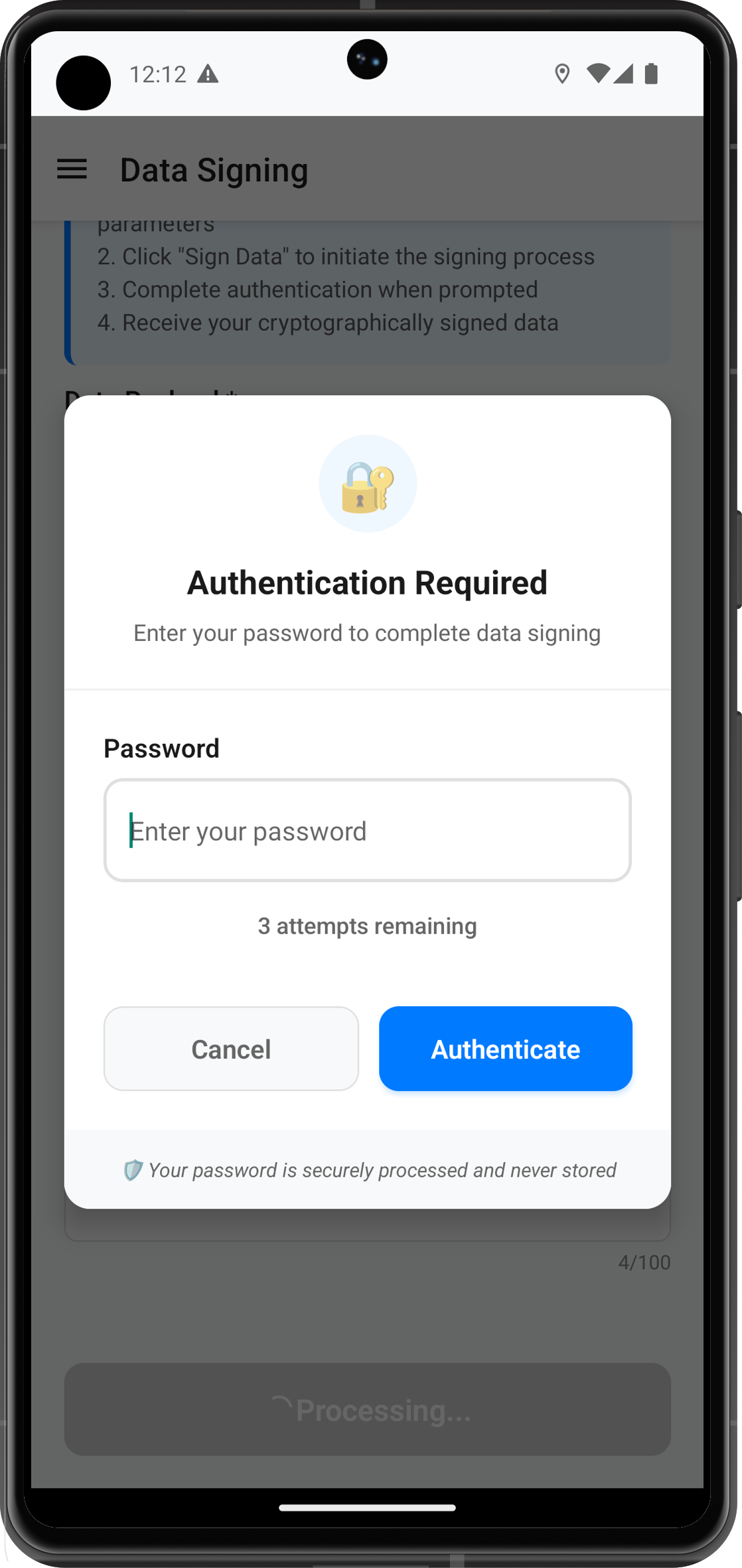
Password Challenge Modal Integration
The following image showcases the authentication required modal during step-up authentication:
// src/tutorial/screens/dataSigning/components/PasswordChallengeModal.tsx

import React, { useState, useEffect } from 'react';
import {
  Modal,
  View,
  Text,
  TextInput,
  TouchableOpacity,
  StyleSheet,
  Alert,
  ScrollView,
  KeyboardAvoidingView,
  Platform,
} from 'react-native';
import { useDataSigning } from '../../../../uniken/providers/SDKEventProvider';

const PasswordChallengeModal: React.FC = () => {
  const {
    passwordModalState,
    updatePasswordModalState,
    submitPassword,
    cancelPasswordModal,
  } = useDataSigning();

  const [isProcessing, setIsProcessing] = useState(false);

  const handleSubmit = async () => {
    setIsProcessing(true);

    try {
      await submitPassword();
    } catch (error) {
      console.error('PasswordChallengeModal - Submit error:', error);
    } finally {
      setIsProcessing(false);
    }
  };

  const handleCancel = async () => {
    setIsProcessing(true);

    try {
      await cancelPasswordModal();
    } catch (error) {
      console.error('PasswordChallengeModal - Cancel error:', error);
      updatePasswordModalState({ isVisible: false });
    } finally {
      setIsProcessing(false);
    }
  };

  return (
    <Modal
      visible={passwordModalState.isVisible}
      transparent={true}
      animationType="slide"
      onRequestClose={handleCancel}
    >
      <KeyboardAvoidingView
        style={styles.overlay}
        behavior={Platform.OS === 'ios' ? 'padding' : 'height'}
      >
        <View style={styles.modalContainer}>
          <ScrollView
            contentContainerStyle={styles.scrollContent}
            keyboardShouldPersistTaps="handled"
          >
            {/* Header */}
            <View style={styles.header}>
              <Text style={styles.title}>Authentication Required</Text>
              <Text style={styles.subtitle}>
                Please enter your password to complete data signing
              </Text>
            </View>

            {/* Authentication Options */}
            {passwordModalState.authenticationOptions.length > 0 && (
              <View style={styles.optionsSection}>
                <Text style={styles.optionsTitle}>Available Authentication Methods:</Text>
                {passwordModalState.authenticationOptions.map((option, index) => (
                  <Text key={index} style={styles.optionItem}>• {option}</Text>
                ))}
              </View>
            )}

            {/* Password Input */}
            <View style={styles.inputSection}>
              <Text style={styles.label}>Password *</Text>
              <TextInput
                style={styles.textInput}
                placeholder="Enter your password"
                value={passwordModalState.password}
                onChangeText={(value) => updatePasswordModalState({ password: value })}
                secureTextEntry
                autoFocus
                editable={!isProcessing}
              />

              {passwordModalState.attemptsLeft < 3 && (
                <Text style={styles.attemptsText}>
                  {passwordModalState.attemptsLeft} attempts remaining
                </Text>
              )}
            </View>

            {/* Action Buttons */}
            <View style={styles.buttonSection}>
              <TouchableOpacity
                style={[styles.button, styles.submitButton]}
                onPress={handleSubmit}
                disabled={isProcessing || !passwordModalState.password.trim()}
              >
                <Text style={styles.submitButtonText}>
                  {isProcessing ? 'Authenticating...' : 'Authenticate'}
                </Text>
              </TouchableOpacity>

              <TouchableOpacity
                style={[styles.button, styles.cancelButton]}
                onPress={handleCancel}
                disabled={isProcessing}
              >
                <Text style={styles.cancelButtonText}>Cancel</Text>
              </TouchableOpacity>
            </View>
          </ScrollView>
        </View>
      </KeyboardAvoidingView>
    </Modal>
  );
};

// Styles omitted for brevity - include comprehensive styling

export default PasswordChallengeModal;
Integration Benefits
- 🎛️ Seamless UI Coordination: UI components automatically sync with SDK events
- 🔄 Automatic State Updates: Real-time updates across all components
- 🛡️ Error Boundary Protection: Comprehensive error handling at context level
- ⚡ Performance Optimization: Minimal re-renders with targeted state updates
- 🧪 Testing Friendly: Mockable context for unit testing
Let's implement comprehensive testing scenarios to validate your data signing implementation and ensure robust error handling.
Testing Scenarios Overview
Your data signing implementation should handle these key scenarios:
- ✅ Happy Path Flow: Complete successful signing
- ⚠️ Error Scenarios: Network failures, authentication errors
- 🔄 State Cleanup: Proper reset on cancellation
- 🔒 Security Validation: Authentication level enforcement
- 📱 UI Responsiveness: Loading states and user feedback
Happy Path Testing
Test Case 1: Successful Data Signing Flow
// Manual Testing Steps:

1. **Input Validation**
   - Enter payload: "Test document for signing"
   - Select Auth Level: "RDNA_AUTH_LEVEL_4 (4)"
   - Select Authenticator Type: "RDNA_IDV_SERVER_BIOMETRIC (1)"
   - Enter reason: "Document authorization test"

2. **Form Submission**
   - Click "Sign Data" button
   - Verify loading state appears
   - Check console logs for:
     ✅ "DataSigningService - Starting data signing process"
     ✅ "RdnaService - AuthenticateUserAndSignData sync response success"

3. **Password Challenge** (if triggered)
   - Verify password modal appears
   - Enter correct password
   - Click "Authenticate" button
   - Check console logs for password submission success

4. **Final Result**
   - Verify navigation to results screen
   - Check all result fields are populated:
     ✅ Payload Signature (cryptographic signature)
     ✅ Data Signature ID (unique identifier)
     ✅ Original payload and parameters

5. **State Cleanup**
   - Click "Sign Another Document"
   - Verify return to input screen with clean state
   - Check console logs for successful state reset
Expected Console Output Pattern:
SDKEventProvider - Submitting data signing request
DataSigningService - Starting data signing process
RdnaService - Initiating data signing: {payloadLength: 29, authLevel: 4, ...}
RdnaService - AuthenticateUserAndSignData sync response success
[Password challenge if required]
SDKEventProvider - Data signing response received
SDKEventProvider - Data signing successful
Error Scenario Testing
Test Case 2: Authentication Failure Handling
// Simulate authentication failure:

1. **Trigger Error Scenario**
   - Use invalid credentials during password challenge
   - Or disconnect network during signing process
   - Or use unsupported authentication type

2. **Verify Error Handling**
   ✅ Error dialog displayed with user-friendly message
   ✅ Loading state properly cleared
   ✅ Form remains editable for retry
   ✅ Console logs show comprehensive error details

3. **Expected Error Messages**
   - "Authentication failed. Please check your credentials and try again." (Code 102)
   - "Authentication method not supported. Please try a different type." (Code 214)
   - "Operation cancelled by user." (Code 153)
Test Case 3: Network/Connection Errors
// Simulate network issues:

1. **Preparation**
   - Start data signing process
   - Disable network connection mid-process
   - Or simulate server timeout

2. **Verify Recovery**
   ✅ Appropriate error message shown
   ✅ State automatically reset
   ✅ User can retry operation
   ✅ No stuck loading states
State Cleanup Validation
Test Case 4: Cancel Flow Validation
// Test proper state cleanup:

1. **Password Modal Cancellation**
   - Start data signing process
   - When password modal appears, click "Cancel"
   - Verify:
     ✅ Modal closes immediately
     ✅ Form returns to editable state
     ✅ Console shows: "SDKEventProvider - Password modal cancelled successfully"
     ✅ Console shows: "RdnaService - ResetAuthenticateUserAndSignDataState sync response success"

2. **Navigation Cancellation**
   - Start signing process
   - Use device back button or navigation gesture
   - Verify proper state cleanup occurs

3. **Multiple Reset Calls**
   - Verify reset API can be called multiple times safely
   - No errors or crashes should occur
Security & Validation Testing
Test Case 5: Input Validation
// Test form validation:

1. **Required Field Validation**
   - Submit form with empty fields
   - Verify appropriate error messages

2. **Character Limit Validation**
   - Enter 501 characters in payload field
   - Enter 101 characters in reason field
   - Verify validation prevents submission

3. **Dropdown Validation**
   - Submit without selecting auth level/type
   - Verify validation error displayed
Test Case 6: Authentication Level Enforcement
// Test security levels:

1. **Level 4 Authentication (Recommended)**
   - Select "RDNA_AUTH_LEVEL_4 (4)"
   - Verify biometric challenge is triggered
   - Confirm highest security enforcement

2. **Different Auth Types**
   - Test each authenticator type option
   - Verify appropriate challenge type appears
   - Confirm expected authentication flow
UI Responsiveness Testing
Test Case 7: Loading States & User Feedback
// Test UI behavior:

1. **Loading Indicators**
   ✅ Submit button shows "Processing..." with spinner
   ✅ Form fields become disabled during processing
   ✅ Password modal shows processing state

2. **Copy Functionality** (Results Screen)
   ✅ Copy buttons work for all result fields
   ✅ "Copied" confirmation appears briefly
   ✅ Long signatures can be viewed in full

3. **Responsive Design**
   ✅ UI works on different screen sizes
   ✅ Keyboard handling works properly
   ✅ Modal layouts adapt to content size
Validation Checklist
Use this checklist to ensure comprehensive testing:
Core Functionality
- [ ] Successful data signing with Level 4 auth
- [ ] Password step-up authentication works
- [ ] Results screen displays all signed data
- [ ] Copy functionality works for all fields
- [ ] "Sign Another Document" resets state properly
Error Handling
- [ ] Network errors handled gracefully
- [ ] Authentication failures show appropriate messages
- [ ] Invalid input validation prevents submission
- [ ] State cleanup works after all error types
Security Validation
- [ ] Authentication levels enforce proper security
- [ ] Biometric challenges work with Level 4
- [ ] Sensitive data is not logged or exposed
- [ ] State reset prevents authentication bypass
UI/UX Quality
- [ ] Loading states provide clear feedback
- [ ] Form validation shows helpful messages
- [ ] Modal interactions work smoothly
- [ ] Navigation flows are intuitive
Debugging Console Commands
Use these console checks during testing:
// Check current state (in debugger)
console.log('Form State:', formState);
console.log('Password Modal:', passwordModalState);
console.log('Signing Result:', signingResult);

// Verify service availability
console.log('DataSigningService:', DataSigningService);
console.log('RdnaService methods:', Object.getOwnPropertyNames(rdnaService));

// Check event listener registration
console.log('Event Manager:', rdnaService.getEventManager());
Performance Monitoring
Monitor these performance indicators:
- Response Times: API calls should complete within 5-10 seconds
- Memory Usage: No memory leaks during repeated operations
- State Updates: UI should update within 100ms of state changes
- Network Efficiency: Minimal API calls with proper error recovery
REL-ID Data Signing can integrate with Identity Verification (IDV) workflows that require selfie capture for enhanced security. This section covers implementing the IDV selfie process start confirmation functionality.
Understanding IDV Selfie Process
The IDV selfie process provides an additional layer of identity verification by capturing and validating the user's selfie against their identity documents. This process can be triggered during data signing workflows for high-security scenarios.
IDV Workflow Types
Different IDV workflows require different selfie capture approaches:
Workflow ID | Description | Use Case |
0 | IDV activation process | Initial biometric enrollment |
1 | IDV activation with template verification | Document photo matching |
2 | Additional device activation | Multi-device verification |
6 | Post-login KYC process | Know Your Customer verification |
9 | Step-up authentication | Enhanced security verification |
10 | Biometric opt-in process | User consent for biometric enrollment |
Type Definitions
Add IDV-specific types to your events file:
// src/uniken/types/rdnaEvents.ts

/**
 * IDV Selfie Process Start Confirmation Data
 * Event triggered when IDV selfie capture process needs to be confirmed
 */
export interface RDNAGetIDVSelfieProcessStartConfirmationData {
  idvWorkflow: number;
  useDeviceBackCamera?: boolean;
  error: RDNAError;
}

// IDV Callbacks
export type RDNAGetIDVSelfieProcessStartConfirmationCallback = (data: RDNAGetIDVSelfieProcessStartConfirmationData) => void;
Event Manager Integration
Update your event manager to handle IDV events:
// src/uniken/services/rdnaEventManager.ts

import type {
  // ... existing imports
  RDNAGetIDVSelfieProcessStartConfirmationData,
  RDNAGetIDVSelfieProcessStartConfirmationCallback
} from '../types/rdnaEvents';

class RdnaEventManager {
  // ... existing properties

  // IDV handlers
  private getIDVSelfieProcessStartConfirmationHandler?: RDNAGetIDVSelfieProcessStartConfirmationCallback;

  private registerEventListeners() {
    // ... existing listeners

    // IDV event listeners
    this.rdnaEmitter.addListener('getIDVSelfieProcessStartConfirmation', this.onGetIDVSelfieProcessStartConfirmation.bind(this))
  }

  /**
   * Handles IDV selfie process start confirmation events
   */
  private onGetIDVSelfieProcessStartConfirmation(response: RDNAJsonResponse) {
    console.log("RdnaEventManager - IDV selfie process start confirmation event received");

    try {
      const selfieConfirmationData: RDNAGetIDVSelfieProcessStartConfirmationData = JSON.parse(response.response);
      console.log("RdnaEventManager - IDV selfie confirmation data:", {
        idvWorkflow: selfieConfirmationData.idvWorkflow,
        useDeviceBackCamera: selfieConfirmationData.useDeviceBackCamera,
        errorCode: selfieConfirmationData.error?.longErrorCode
      });

      if (this.getIDVSelfieProcessStartConfirmationHandler) {
        this.getIDVSelfieProcessStartConfirmationHandler(selfieConfirmationData);
      }
    } catch (error) {
      console.error("RdnaEventManager - Failed to parse IDV selfie process start confirmation response:", error);
    }
  }

  // IDV Handler Setters
  public setGetIDVSelfieProcessStartConfirmationHandler(callback?: RDNAGetIDVSelfieProcessStartConfirmationCallback): void {
    this.getIDVSelfieProcessStartConfirmationHandler = callback;
  }

  public cleanup() {
    // ... existing cleanup

    // Clear IDV handlers
    this.getIDVSelfieProcessStartConfirmationHandler = undefined;
  }
}
Service Layer Implementation
Add the IDV API method to your RDNA service:
// src/uniken/services/rdnaService.ts

export class RdnaService {
  // ... existing methods

  // =============================================================================
  // IDV METHODS
  // =============================================================================

  /**
   * Sets IDV selfie process start confirmation for IDV flow
   *
   * This method submits the user's confirmation to start the IDV selfie capture process.
   * It processes the user's decision and the IDV workflow parameter for selfie capturing.
   * After successful API call, the SDK will trigger a getIDVSelfieProcessStartConfirmation event.
   * Uses sync response pattern similar to other API methods.
   *
   * @see https://developer.uniken.com/docs/setidvselfieprocessstartconfirmation
   *
   * Response Validation Logic (following reference app pattern):
   * 1. Check error.longErrorCode: 0 = success, > 0 = error
   * 2. A getIDVSelfieProcessStartConfirmation event will be triggered with selfie capture details
   * 3. Async events will be handled by event listeners
   *
   * @param isConfirm User confirmation decision (true = start selfie capture, false = cancel)
   * @param useDeviceBackCamera Whether to use back camera for selfie (default: false)
   * @param idvWorkflow IDV workflow type for the selfie capture process
   * @returns Promise<RDNASyncResponse> that resolves with sync response structure
   */
  async setIDVSelfieProcessStartConfirmation(isConfirm: boolean, useDeviceBackCamera: boolean = false, idvWorkflow: number): Promise<RDNASyncResponse> {
    return new Promise((resolve, reject) => {
      console.log('RdnaService - Setting IDV selfie process start confirmation:', {
        isConfirm,
        useDeviceBackCamera,
        idvWorkflow
      });

      RdnaClient.setIDVSelfieProcessStartConfirmation(isConfirm, useDeviceBackCamera, idvWorkflow, response => {
        console.log('RdnaService - SetIDVSelfieProcessStartConfirmation sync callback received');

        const result: RDNASyncResponse = response as any;

        if (result.error && result.error.longErrorCode === 0) {
          console.log('RdnaService - SetIDVSelfieProcessStartConfirmation sync response success, waiting for getIDVSelfieProcessStartConfirmation event');
          resolve(result);
        } else {
          console.error('RdnaService - SetIDVSelfieProcessStartConfirmation sync response error:', result);
          reject(result);
        }
      });
    });
  }
}
IDV Screen Implementation
Create the IDV selfie confirmation screen:
// src/tutorial/screens/idv/IDVSelfieProcessStartConfirmationScreen.tsx

import React, { useState, useEffect } from 'react';
import {
  View,
  Text,
  StyleSheet,
  SafeAreaView,
  Alert,
  StatusBar,
  ActivityIndicator,
  Platform,
  Dimensions,
  TouchableOpacity,
  Switch
} from 'react-native';
import { useRoute } from '@react-navigation/native';
import type { RouteProp } from '@react-navigation/native';
import RdnaService from '../../../uniken/services/rdnaService';
import type { RDNAGetIDVSelfieProcessStartConfirmationData } from '../../../uniken/types/rdnaEvents';
import type { RootStackParamList } from '../../navigation/AppNavigator';

const { width: SCREEN_WIDTH, height: SCREEN_HEIGHT } = Dimensions.get('window');

type IDVSelfieProcessStartConfirmationScreenRouteProp = RouteProp<RootStackParamList, 'IDVSelfieProcessStartConfirmationScreen'>;

const IDVSelfieProcessStartConfirmationScreen: React.FC = () => {
  const route = useRoute<IDVSelfieProcessStartConfirmationScreenRouteProp>();

  // Extract parameters passed from SDKEventProvider
  const {
    eventName,
    eventData,
    title = 'Selfie Capture Information',
    subtitle = 'Prepare to capture your selfie',
    responseData,
  } = route.params || {};

  const [isProcessing, setIsProcessing] = useState<boolean>(false);
  const [error, setError] = useState<string>('');
  const [selfieData, setSelfieData] = useState<RDNAGetIDVSelfieProcessStartConfirmationData | null>(responseData || null);
  const [useBackCamera, setUseBackCamera] = useState<boolean>(false);

  useEffect(() => {
    if (responseData) {
      console.log('IDVSelfieProcessStartConfirmationScreen - Received event data from navigation:', responseData);
      setSelfieData(responseData);
      setUseBackCamera(responseData.useDeviceBackCamera || false);
    }
  }, [responseData]);

  // Get guideline text based on IDV workflow
  const getGuidelineTexts = (): { text1: string; text2: string; text3: string } => {
    const idvWorkflow = selfieData?.idvWorkflow || 0;

    switch (idvWorkflow) {
      case 0:
        return {
          text1: 'Ensure good lighting and position your face clearly in the frame for IDV activation process.',
          text2: 'Remove any sunglasses, hats, or face coverings for clear facial recognition.',
          text3: 'Look directly at the camera and follow any on-screen prompts during capture.'
        };
      case 6:
        return {
          text1: 'Post-login KYC process - capture selfie for identity verification.',
          text2: 'Ensure your face is clearly visible and well-lit for verification.',
          text3: 'Face will be compared with document photo for identity confirmation.'
        };
      case 9:
        return {
          text1: 'Step-up authentication - additional verification through selfie capture.',
          text2: 'Position your face clearly for enhanced security verification.',
          text3: 'Face will be verified against your existing biometric profile.'
        };
      default:
        return {
          text1: 'Ensure good lighting and position your face clearly in the frame.',
          text2: 'Remove any sunglasses, hats, or face coverings for clear recognition.',
          text3: 'Look directly at the camera and follow any on-screen prompts.'
        };
    }
  };

  // Handle selfie confirmation action
  const handleCaptureSelfieAction = async () => {
    try {
      setIsProcessing(true);
      setError('');
      console.log('IDVSelfieProcessStartConfirmationScreen - Starting IDV selfie capture process...');

      const idvWorkflow = selfieData?.idvWorkflow || 0;

      const response = await RdnaService.setIDVSelfieProcessStartConfirmation(true, useBackCamera, idvWorkflow);

      console.log('IDVSelfieProcessStartConfirmationScreen - API response:', response);

    } catch (error) {
      console.error('IDVSelfieProcessStartConfirmationScreen - Failed to start selfie capture:', error);
      setError('Failed to start selfie capture process');
      Alert.alert('Error', 'Failed to start selfie capture process');
    } finally {
      setIsProcessing(false);
    }
  };

  // Handle cancel action
  const handleCancelAction = async () => {
    try {
      setIsProcessing(true);
      setError('');
      console.log('IDVSelfieProcessStartConfirmationScreen - Cancelling IDV selfie capture process...');

      const idvWorkflow = selfieData?.idvWorkflow || 0;

      const response = await RdnaService.setIDVSelfieProcessStartConfirmation(false, false, idvWorkflow);

      console.log('IDVSelfieProcessStartConfirmationScreen - Cancel response:', response);

    } catch (error) {
      console.error('IDVSelfieProcessStartConfirmationScreen - Failed to cancel selfie capture:', error);
      setError('Failed to cancel selfie capture process');
      Alert.alert('Error', 'Failed to cancel selfie capture process');
    } finally {
      setIsProcessing(false);
    }
  };

  const guidelineTexts = getGuidelineTexts();

  return (
    <SafeAreaView style={styles.container}>
      <StatusBar backgroundColor="#2196F3" barStyle="light-content" />

      <View style={styles.wrap}>
        <View style={styles.contentContainer}>

          {/* Close Button */}
          <View style={styles.titleWrap}>
            <TouchableOpacity style={styles.closeButton} onPress={handleCancelAction}>
              <Text style={styles.closeButtonText}>✕</Text>
            </TouchableOpacity>
          </View>

          {/* Main Content Area */}
          <View style={styles.mainContent}>

            {/* Loading Animation and Face Icon */}
            <View style={styles.iconContainer}>
              <ActivityIndicator
                color="#2196F3"
                style={styles.loadingSpinner}
                size="large"
              />
              <View style={styles.selfieIcon}>
                <Text style={styles.selfieIconText}>🤳</Text>
                <Text style={styles.captureText}>SELFIE</Text>
              </View>
            </View>

            {/* Separator */}
            <View style={styles.separatorView} />

            {/* Error Display */}
            {error && (
              <View style={styles.errorContainer}>
                <Text style={styles.errorText}>{error}</Text>
              </View>
            )}

            {/* Guidelines */}
            <View style={styles.row}>
              <Text style={styles.dot}>•</Text>
              <Text style={styles.textBody}>
                {guidelineTexts.text1}
              </Text>
            </View>

            <View style={styles.row}>
              <Text style={styles.dot}>•</Text>
              <Text style={styles.textBody}>
                {guidelineTexts.text2}
              </Text>
            </View>

            <View style={styles.row}>
              <Text style={styles.dot}>•</Text>
              <Text style={styles.textBody}>
                {guidelineTexts.text3}
              </Text>
            </View>

            {/* Camera Switch */}
            <View style={styles.switchMainContainer}>
              <View style={styles.switchTextContainer}>
                <Text style={styles.switchTextStyle}>
                  Use Back Camera
                </Text>
              </View>

              <View style={styles.switchContainer}>
                <Switch
                  trackColor={{ true: '#2196F3', false: 'grey' }}
                  value={useBackCamera}
                  onValueChange={(switchValue) => setUseBackCamera(switchValue)}
                />
              </View>
            </View>

            {/* Capture Button */}
            <TouchableOpacity
              style={[styles.captureButton, isProcessing && styles.buttonDisabled]}
              onPress={handleCaptureSelfieAction}
              disabled={isProcessing}
            >
              <Text style={styles.captureButtonText}>
                {'Capture Selfie'}
              </Text>
            </TouchableOpacity>

          </View>
        </View>
      </View>
    </SafeAreaView>
  );
};

const styles = StyleSheet.create({
  container: {
    backgroundColor: '#ffffff',
    height: '100%',
  },
  wrap: {
    flex: 1,
    backgroundColor: 'transparent',
  },
  contentContainer: {
    flex: 1,
    justifyContent: 'center',
    backgroundColor: 'transparent',
  },
  titleWrap: {
    position: 'absolute',
    top: Platform.OS === 'ios' ? 60 : 40,
    left: 20,
    backgroundColor: 'transparent',
    zIndex: 1,
  },
  closeButton: {
    width: 40,
    height: 40,
    borderRadius: 20,
    backgroundColor: 'rgba(0, 0, 0, 0.1)',
    justifyContent: 'center',
    alignItems: 'center',
    borderWidth: 1,
    borderColor: 'rgba(0, 0, 0, 0.2)',
  },
  closeButtonText: {
    fontSize: 18,
    color: '#666',
    fontWeight: 'bold',
  },
  mainContent: {
    flex: 1,
    height: SCREEN_HEIGHT,
    alignSelf: 'center',
    flexDirection: 'column',
    justifyContent: 'center',
    alignItems: 'center',
    marginBottom: 0,
    paddingTop: Platform.OS === 'ios' ? 20 : 0,
  },
  iconContainer: {
    position: 'relative',
    justifyContent: 'center',
    alignItems: 'center',
    marginBottom: 20,
  },
  loadingSpinner: {
    position: 'absolute',
    width: 180,
    height: 120,
  },
  selfieIcon: {
    width: 170,
    height: 170,
    backgroundColor: '#f5f5f5',
    borderRadius: 85,
    borderWidth: 3,
    borderColor: '#2196F3',
    justifyContent: 'center',
    alignItems: 'center',
  },
  selfieIconText: {
    fontSize: 50,
  },
  captureText: {
    fontSize: 14,
    fontWeight: 'bold',
    color: '#2196F3',
    marginTop: 5,
    textAlign: 'center',
  },
  separatorView: {
    backgroundColor: '#cccccc',
    height: 0.7,
    width: 200,
    marginBottom: 24,
  },
  row: {
    marginTop: 15,
    flexDirection: 'row',
    width: SCREEN_WIDTH - 62,
    paddingHorizontal: 16,
  },
  dot: {
    fontSize: 20,
    width: 15,
    color: '#000000',
    marginLeft: 8,
    opacity: 0.8,
  },
  textBody: {
    paddingTop: 4,
    fontSize: 16,
    marginRight: 20,
    color: '#333333',
    lineHeight: 22,
  },
  switchMainContainer: {
    paddingTop: 20,
    flexDirection: 'row',
    alignItems: 'center',
    justifyContent: 'center',
    width: SCREEN_WIDTH - 62,
  },
  switchTextContainer: {
    justifyContent: 'center',
    marginRight: 20,
  },
  switchContainer: {
    justifyContent: 'center',
  },
  switchTextStyle: {
    fontSize: 16,
    color: '#333333',
    fontWeight: '500',
  },
  captureButton: {
    backgroundColor: '#2196F3',
    paddingVertical: 16,
    paddingHorizontal: 32,
    borderRadius: 8,
    marginTop: 24,
    minWidth: 200,
    alignItems: 'center',
  },
  captureButtonText: {
    color: '#ffffff',
    fontSize: 18,
    fontWeight: 'bold',
  },
  buttonDisabled: {
    backgroundColor: '#cccccc',
  },
  errorContainer: {
    backgroundColor: '#ffebee',
    padding: 12,
    borderRadius: 8,
    marginTop: 16,
    width: SCREEN_WIDTH - 60,
  },
  errorText: {
    color: '#c62828',
    fontSize: 14,
    textAlign: 'center',
  },
});

export default IDVSelfieProcessStartConfirmationScreen;
Navigation Integration
Update your navigation and event provider to handle IDV events:
// src/uniken/providers/SDKEventProvider.tsx

import type {
  // ... existing imports
  RDNAGetIDVSelfieProcessStartConfirmationData
} from '../types/rdnaEvents';

export const SDKEventProvider: React.FC<SDKEventProviderProps> = ({ children }) => {
  // ... existing state and handlers

  /**
   * Event handler for IDV selfie process start confirmation event
   */
  const handleGetIDVSelfieProcessStartConfirmation = useCallback((data: RDNAGetIDVSelfieProcessStartConfirmationData) => {
    console.log('SDKEventProvider - IDV selfie process start confirmation event received');
    console.log('SDKEventProvider - IDV workflow:', data.idvWorkflow);
    console.log('SDKEventProvider - Use device back camera:', data.useDeviceBackCamera);

    // Navigate to IDV selfie confirmation screen with event data
    NavigationService.navigateOrUpdate('IDVSelfieProcessStartConfirmationScreen', {
      eventName: 'getIDVSelfieProcessStartConfirmation',
      eventData: data,
      title: 'Selfie Capture Information',
      subtitle: 'Prepare to capture your selfie',
      // Pass response data directly
      responseData: data,
    });
  }, []);

  useEffect(() => {
    const eventManager = rdnaService.getEventManager();

    // ... existing event handlers

    // IDV event handlers
    eventManager.setGetIDVSelfieProcessStartConfirmationHandler(handleGetIDVSelfieProcessStartConfirmation);

    return () => {
      console.log('SDKEventProvider - Component unmounting, cleaning up event handlers');
      eventManager.cleanup();
    };
  }, []);

  // ... rest of component
};
// src/tutorial/navigation/AppNavigator.tsx

// Import IDV screens
import { IDVSelfieProcessStartConfirmationScreen } from '../screens/idv';

// Import RDNA types
import type {
  // ... existing imports
  RDNAGetIDVSelfieProcessStartConfirmationData
} from '../../uniken/types/rdnaEvents';

// IDV Selfie Process Start Confirmation Screen Parameters
interface IDVSelfieProcessStartConfirmationScreenParams {
  eventName: string;
  eventData: RDNAGetIDVSelfieProcessStartConfirmationData;
  title: string;
  subtitle: string;
  responseData?: RDNAGetIDVSelfieProcessStartConfirmationData;
}

export type RootStackParamList = {
  // ... existing routes

  // IDV Screens
  IDVSelfieProcessStartConfirmationScreen: IDVSelfieProcessStartConfirmationScreenParams;

  // ... rest of routes
};

const AppNavigator = () => {
  return (
    <NavigationContainer ref={navigationRef}>
      <Stack.Navigator screenOptions={{headerShown: false}} initialRouteName="TutorialHome">
        {/* ... existing screens */}

        {/* IDV Screens */}
        <Stack.Screen
          name="IDVSelfieProcessStartConfirmationScreen"
          component={IDVSelfieProcessStartConfirmationScreen}
          options={{
            title: 'IDV Selfie Capture',
            headerShown: false,
          }}
        />

        {/* ... rest of screens */}
      </Stack.Navigator>
    </NavigationContainer>
  );
};
Screen Export
Create or update the IDV screens index file:
// src/tutorial/screens/idv/index.ts
export { default as IDVSelfieProcessStartConfirmationScreen } from './IDVSelfieProcessStartConfirmationScreen';
Integration Testing
Test the IDV selfie process integration:
Testing Scenarios
- Successful IDV Flow
- Trigger IDV selfie process from data signing
- Verify screen appears with correct workflow guidance
- Test camera switching functionality
- Confirm selfie capture initiation
- Verify SDK continuation of IDV process
- Error Handling
- Test cancellation flow
- Verify proper error messages
- Check state cleanup after errors
- UI Validation
- Test on different screen sizes
- Verify loading states and animations
- Check accessibility features
- Validate guideline text accuracy
Console Commands for Testing
// Test IDV event simulation (development only)
const testIDVEvent = {
  idvWorkflow: 6, // Post-login KYC
  useDeviceBackCamera: false,
  error: { longErrorCode: 0, shortErrorCode: 0, errorString: 'Success' }
};

// Simulate event
eventManager.setGetIDVSelfieProcessStartConfirmationHandler((data) => {
  console.log('IDV Event received:', data);
});
Security Considerations
IDV Security Best Practices
- Workflow Validation: Always validate the IDV workflow type before proceeding
- Camera Privacy: Inform users about camera usage and data handling
- Error Handling: Don't expose sensitive IDV configuration in error messages
- State Cleanup: Clear IDV-related sensitive data after completion
- User Consent: Ensure proper consent for biometric data collection
Production Checklist
- [ ] IDV workflow types properly handled
- [ ] Camera permissions requested appropriately
- [ ] Error messages don't expose sensitive information
- [ ] State cleanup implemented for all exit scenarios
- [ ] User consent flows implemented where required
- [ ] Biometric data handling complies with regulations
- [ ] IDV integration tested with real SDK events
Let's explore the essential security practices and production considerations for implementing REL-ID data signing in enterprise applications.
Authentication Level Guidelines
Security Level Selection Matrix (Data Signing Only)
Data Sensitivity | Recommended Level | Use Cases | Security Features |
Testing/Development | Level 0 | Testing environments only | ⚠️ No authentication - NOT for production |
Public/Standard | Level 1 | Standard documents, general approvals | Device biometric/passcode/password |
Confidential/High | Level 4 | Financial, legal, medical, high-value transactions | Biometric + Step-up Auth |
Implementation Guidelines
// ✅ GOOD: Production-ready authentication level selection for data signing
const getRecommendedAuthLevel = (dataType: string): RDNAAuthLevel => {
  switch (dataType) {
    case 'financial_transaction':
    case 'legal_document':
    case 'medical_record':
    case 'high_value_approval':
      return RDNAAuthLevel.RDNA_AUTH_LEVEL_4; // Maximum security

    case 'general_document':
    case 'standard_approval':
      return RDNAAuthLevel.RDNA_AUTH_LEVEL_1; // Standard authentication

    case 'testing_only':
      return RDNAAuthLevel.NONE; // Testing only - never use in production

    default:
      return RDNAAuthLevel.RDNA_AUTH_LEVEL_4; // Default to maximum security
  }
};

// ✅ GOOD: Correct authenticator type pairing for data signing
const getCorrectAuthenticatorType = (authLevel: RDNAAuthLevel): RDNAAuthenticatorType => {
  switch (authLevel) {
    case RDNAAuthLevel.NONE:
    case RDNAAuthLevel.RDNA_AUTH_LEVEL_1:
      return RDNAAuthenticatorType.NONE; // Let REL-ID choose best available
    case RDNAAuthLevel.RDNA_AUTH_LEVEL_4:
      return RDNAAuthenticatorType.RDNA_IDV_SERVER_BIOMETRIC; // Required for Level 4
    default:
      throw new Error('Unsupported authentication level for data signing');
  }
};

// ❌ BAD: Using unsupported combinations
const badCombinations = [
  { authLevel: RDNAAuthLevel.RDNA_AUTH_LEVEL_2 }, // Will cause SDK error!
  { authLevel: RDNAAuthLevel.RDNA_AUTH_LEVEL_3 }, // Will cause SDK error!
  { authLevel: RDNAAuthLevel.RDNA_AUTH_LEVEL_4, authenticatorType: RDNAAuthenticatorType.RDNA_AUTH_PASS }, // Will cause SDK error!
];
State Management Security Patterns
Proper State Cleanup
// ✅ GOOD: Comprehensive state cleanup pattern
const secureStateCleanup = async () => {
  try {
    // 1. Reset SDK authentication state
    await rdnaService.resetAuthenticateUserAndSignDataState();

    // 2. Clear sensitive form data
    setFormState({
      payload: '', // Clear signed data
      selectedAuthLevel: '',
      selectedAuthenticatorType: '',
      reason: '',
      isLoading: false,
    });

    // 3. Reset authentication modal state
    setPasswordModalState({
      isVisible: false,
      password: '', // Clear password immediately
      challengeMode: 0,
      attemptsLeft: 3,
      authenticationOptions: [],
      isLargeModal: false,
      keyboardHeight: 0,
      responseData: null, // Clear challenge data
    });

    // 4. Clear results (optional - depends on requirements)
    setSigningResult(null);
    setResultDisplay(null);

    console.log('Secure state cleanup completed');
  } catch (error) {
    console.error('State cleanup failed - potential security risk:', error);
    // Force cleanup of local state even if SDK cleanup fails
    setFormState(getInitialFormState());
    setPasswordModalState(getInitialPasswordState());
  }
};

// ❌ BAD: Incomplete cleanup leaving sensitive data
const badCleanup = () => {
  setFormState({ ...formState, isLoading: false }); // Password still in memory!
};
Memory Management for Sensitive Data
// ✅ GOOD: Secure password handling
const handlePasswordSubmission = async (password: string) => {
  try {
    // Use password immediately
    await DataSigningService.submitPassword(password, challengeMode);

    // Clear password from all variables immediately
    password = ''; // Clear parameter
    setPasswordModalState(prev => ({ ...prev, password: '' })); // Clear state

  } catch (error) {
    // Clear password even on error
    password = '';
    setPasswordModalState(prev => ({ ...prev, password: '' }));
    throw error;
  }
};

// ❌ BAD: Password persists in memory
const badPasswordHandling = async (password: string) => {
  await submitPassword(password);
  // Password remains in memory and state!
};
Error Handling Security Patterns
Secure Error Message Display
// ✅ GOOD: Security-aware error handling
const getSecureErrorMessage = (error: any): string => {
  const errorCode = error?.error?.shortErrorCode || error?.code;

  switch (errorCode) {
    case 0:
      return 'Operation completed successfully';
    case 102:
      return 'Authentication failed. Please verify your credentials.';
    case 153:
      return 'Operation was cancelled by user.';
    case 214:
      return 'Authentication method not supported. Please try another method.';
    default:
      // ✅ GOOD: Don't expose internal error details
      console.error('Internal error details (not shown to user):', error);
      return 'Operation failed. Please try again or contact support.';
  }
};

// ❌ BAD: Exposing sensitive error information
const badErrorHandling = (error: any) => {
  Alert.alert('Error', JSON.stringify(error)); // Exposes internal details!
};
Comprehensive Error Recovery
// ✅ GOOD: Robust error recovery with security cleanup
const handleSigningError = async (error: any) => {
  console.error('Data signing error:', error);

  try {
    // 1. Attempt SDK state cleanup
    await DataSigningService.resetState();

    // 2. Clear sensitive local state
    await secureStateCleanup();

    // 3. Show user-friendly error
    const userMessage = getSecureErrorMessage(error);
    Alert.alert('Signing Error', userMessage, [
      { text: 'Try Again', onPress: () => resetToInitialState() },
      { text: 'Cancel', style: 'cancel' }
    ]);

  } catch (cleanupError) {
    console.error('Error cleanup failed:', cleanupError);
    // Force application to safe state
    await forceSecurityReset();
  }
};
Production Security Considerations
Audit Logging Requirements
// ✅ GOOD: Comprehensive audit logging
const auditSigningOperation = {
  logSigningAttempt: (payload: string, authLevel: number, userId: string) => {
    console.log('AUDIT: Data signing initiated', {
      timestamp: new Date().toISOString(),
      userId,
      payloadLength: payload.length,
      payloadHash: generateHash(payload), // Hash, not actual payload
      authLevel,
      sessionId: getCurrentSessionId(),
    });
  },

  logSigningSuccess: (signatureId: string, userId: string) => {
    console.log('AUDIT: Data signing successful', {
      timestamp: new Date().toISOString(),
      userId,
      signatureId,
      sessionId: getCurrentSessionId(),
    });
  },

  logSigningFailure: (error: any, userId: string) => {
    console.log('AUDIT: Data signing failed', {
      timestamp: new Date().toISOString(),
      userId,
      errorCode: error?.error?.shortErrorCode,
      sessionId: getCurrentSessionId(),
    });
  }
};

// ❌ BAD: No audit logging or logging sensitive data
console.log('Signing payload:', payload); // Exposes sensitive data!
Network Security Patterns
// ✅ GOOD: Network security considerations
const networkSecurityConfig = {
  // Use HTTPS only
  enforceHTTPS: true,

  // Implement request timeout
  requestTimeout: 30000, // 30 seconds

  // Retry with exponential backoff
  maxRetries: 3,
  baseDelay: 1000,

  // Certificate pinning (production)
  certificatePinning: true,
};

// Network request with security
const secureNetworkCall = async (requestData: any) => {
  try {
    // Add request timeout
    const controller = new AbortController();
    const timeoutId = setTimeout(() => controller.abort(), networkSecurityConfig.requestTimeout);

    const response = await fetch(endpoint, {
      method: 'POST',
      headers: {
        'Content-Type': 'application/json',
        // Add security headers
        'X-Requested-With': 'XMLHttpRequest',
      },
      body: JSON.stringify(requestData),
      signal: controller.signal,
    });

    clearTimeout(timeoutId);
    return response;

  } catch (error) {
    if (error.name === 'AbortError') {
      throw new Error('Request timeout - please check your connection');
    }
    throw error;
  }
};
Data Protection Guidelines
Sensitive Data Handling
// ✅ GOOD: Secure data handling patterns
const secureDataHandling = {
  // Don't store sensitive data unnecessarily
  minimizeDataStorage: (payload: string) => {
    // Store hash instead of original payload for verification
    return {
      payloadHash: generateHash(payload),
      payloadLength: payload.length,
      timestamp: Date.now(),
    };
  },

  // Clear data from memory after use
  secureClearData: (dataObject: any) => {
    Object.keys(dataObject).forEach(key => {
      if (typeof dataObject[key] === 'string') {
        dataObject[key] = ''; // Clear string data
      } else {
        dataObject[key] = null; // Clear object references
      }
    });
  },

  // Validate data before processing
  validateDataIntegrity: (data: any) => {
    // Implement checksum validation
    // Verify data hasn't been tampered with
    return isValidDataStructure(data) && hasValidChecksum(data);
  }
};

// ❌ BAD: Storing sensitive data unnecessarily
const badDataStorage = {
  lastPayload: 'sensitive document content', // Don't do this!
  userPasswords: ['password1', 'password2'], // Never do this!
};
Compliance & Regulatory Considerations
Industry-Specific Requirements
Industry | Key Requirements | Implementation Notes |
Financial Services | SOX, PCI DSS, Basel III | Audit logs, data encryption, multi-factor auth |
Healthcare | HIPAA, HITECH | Patient data protection, access controls |
Government | FISMA, FedRAMP | High-security authentication, audit trails |
Legal | eIDAS, ESIGN Act | Legal validity, non-repudiation |
Regulatory Compliance Checklist
- [ ] Audit Trail: Complete logging of all signing operations
- [ ] Data Encryption: End-to-end encryption of sensitive data
- [ ] Access Controls: Role-based access to signing functionality
- [ ] Non-Repudiation: Cryptographic proof of signing identity
- [ ] Data Retention: Compliant storage and deletion policies
- [ ] Incident Response: Security breach notification procedures
Performance & Scalability Patterns
// ✅ GOOD: Performance optimization patterns
const performanceOptimizations = {
  // Batch signing operations when possible
  batchSigning: async (payloads: string[]) => {
    // Process multiple documents in single authentication session
    return Promise.all(payloads.map(payload => signSinglePayload(payload)));
  },

  // Implement request deduplication
  deduplicateRequests: (requestId: string) => {
    // Prevent duplicate signing requests
    if (pendingRequests.has(requestId)) {
      return pendingRequests.get(requestId);
    }
    const promise = performSigning(requestId);
    pendingRequests.set(requestId, promise);
    return promise;
  },

  // Cache authentication state appropriately
  cacheAuthState: (duration: number = 300000) => { // 5 minutes
    // Cache authentication for short periods within same session
    // Balance security with user experience
  }
};
Congratulations! You've successfully implemented a complete, production-ready data signing solution using REL-ID SDK with React Native.
What You've Accomplished
Throughout this codelab, you've built:
🔐 Secure Cryptographic Signing System
- Multi-level authentication with configurable security levels (0-4)
- Biometric step-up authentication for maximum security
- Cryptographic payload signing with non-repudiation guarantees
- Complete audit trail of all signing operations
🏗️ Production-Grade Architecture
- Service layer abstraction separating UI from SDK integration
- REL-ID SDK integration with proper event handling
- State management for complex authentication flows
- Error-resilient design with comprehensive cleanup mechanisms
📱 Modern User Experience
- Intuitive form interfaces with real-time validation
- Responsive dropdown components for parameter selection
- Professional results display with copy functionality
- Smooth modal interactions for authentication challenges
🛡️ Enterprise Security Practices
- Secure state management with proper cleanup
- Comprehensive error handling without information disclosure
- Memory management for sensitive data protection
- Audit logging patterns for compliance requirements
Key Learning Outcomes
You've mastered these essential concepts:
- REL-ID Data Signing APIs: Deep understanding of
authenticateUserAndSignData(),resetAuthenticateUserAndSignDataState(), andonAuthenticateUserAndSignDatacallback patterns - Authentication Architecture: Implementation of authentication levels, authenticator types, and step-up authentication flows
- Event-Driven Integration: Seamless coordination between React UI components and REL-ID SDK event system
- Security Best Practices: Production-ready patterns for handling sensitive data, error recovery, and state cleanup
- REL-ID Integration Patterns: Proper SDK integration with comprehensive error handling and state management
Production Deployment Checklist
Before deploying to production, ensure:
Security Validation
- [ ] Authentication Level 4 used for all sensitive operations
- [ ] State cleanup implemented for all exit scenarios
- [ ] Error messages don't expose sensitive information
- [ ] Audit logging captures all signing attempts and results
- [ ] Memory management clears sensitive data promptly
Performance & Scalability
- [ ] Network timeouts configured appropriately
- [ ] Error retry logic implemented with exponential backoff
- [ ] Loading states provide clear user feedback
- [ ] Memory leaks tested and resolved
- [ ] Background/foreground state transitions handled
Compliance & Legal
- [ ] Legal validity confirmed for your jurisdiction
- [ ] Data retention policies implemented
- [ ] Regulatory requirements (HIPAA, SOX, etc.) addressed
- [ ] Incident response procedures documented
- [ ] User consent flows implemented where required
Next Steps & Advanced Features
Immediate Enhancements
- Batch Signing: Implement multiple document signing in single authentication session
- Signature Verification: Add signature validation and verification screens
- Document Templates: Pre-configured signing templates for common document types
- Offline Support: Cache signed documents for offline viewing and verification
Integration Opportunities
- Document Management: Integration with document storage systems
- Workflow Systems: Connect to approval and business process workflows
- Analytics Dashboard: User signing activity and security analytics
- Mobile Device Management: Enterprise MDM integration for additional security
Advanced Security Features
- Multi-Signature Support: Require multiple users to sign single document
- Time-Stamping: RFC 3161 timestamp authority integration
- Certificate Chaining: PKI certificate validation and trust chains
- Hardware Security Modules: HSM integration for enterprise deployments
Resources & Further Learning
REL-ID Documentation
Related Codelabs
Community & Support
Feedback & Contributions
We value your feedback! Please share your experience:
- 🐛 Report Issues: GitHub Issues
- 💡 Suggest Features: Feature Requests
- 📝 Improve Documentation: Submit pull requests with improvements
- ⭐ Rate This Codelab: Help others find valuable content
Final Thoughts
You've built a sophisticated, enterprise-grade data signing solution that combines strong security with excellent user experience. The patterns and practices you've learned here apply broadly to secure mobile application development.
The skills you've developed - from REL-ID cryptographic authentication to proper state management - form the foundation for building trust and security into mobile applications across industries.
Happy coding, and welcome to the world of secure mobile cryptography! 🔐📱✨
This codelab was created by the REL-ID Development Team. For questions, feedback, or support, visit our developer portal or join our community forum.